Campaign Management
Campaign Management is one of the most powerful tools in the Punchh dashboard; it allows you to engage directly with customers by way of marketing messages, promotions, and reward/gift-giving. Campaigns make use of many other components such as segments, redeemables, coupons, and more. They drive business, incentivize higher spend, and increase customer frequency.
Campaign Types
Campaigns are broken down into the following categories.
Mass
Mass campaigns send a message with or without an offer to a segment of guests.
Mass Notification
Mass Notification campaigns are configured to send messages by way of push notifications, SMS messages, or emails. You can use segments and locations to target specific groups of guests to send coupons, surveys, and/or marketing announcements.
Mass Offer
Mass Offer campaigns are a great way to connect to your guests by sending them gifts in the form of redeemables or points. You can choose which guests to target by using segments or locations, and you can track your campaign's effectiveness by setting up a control group. With Mass Offer campaigns, you also have the option to incorporate Split Testing (A/B testing) to test out the performance of different messages or offers on a segment of guests.
Automations
Automations are campaigns that send an automated response, with or without an offer, to guests after a triggering event occurs.
One Time
Post Checkin Message
Post Checkin Message campaigns are a great way to maintain a connection with your guests after they've made a purchase at one of your stores. You choose to send a thank you to your guests, or additional marketing advertising to and incentivizing them to return.
Post Checkin Offer
Post Checkin offer campaigns are intended to gift a guest extra points/punches or a redeemable upon making a purchase and performing a loyalty checkin. Post Checkin campaigns are triggered by a guest scanning their receipt barcode after a purchase. For example, a guest may receive a redeemable such as a free side with the purchase of a sandwich, or a guest may receive double points/punches if they make a purchase during happy hour every Tuesday. The offer entices them to return to your store because they have a gift awaiting them next visit. If you set your campaign to award extra points/punches on certain days, you can entice guests to visit your store again on those days/times.
Post Redemption Offer / Post Redemption Message
Post campaigns are meant to trigger automatically after a guest has redeemed a specific redeemable. The Post Redemption campaign can then message or offer them a new redeemable, points, or a derived reward to the guest. This is useful when you want to offer your guests a reward available to use once a day. You can gift the redeemable once to all guests, and then a Post Redemption campaign will re-gift it to guests who use the reward. (An execution delay of 24 hours can be entered to help ensure a bounce back vs. immediate usage.)
Post Purchase
Post Purchase campaigns are designed to engage with and reward guests who purchase, reload the balance of, or transfer/gift a virtual (in-app only) gift card. Note: Post Purchase Campaigns do not capture physical gift card purchases. Physical gift cards purchased in-store at the POS can be rewarded using Post Checkin Campaigns.
Ongoing
Anniversary
Anniversary campaigns are a great way to make your customers feel special and valued on their birthday or on the anniversary of their initial signup for your loyalty program. An anniversary campaign can automatically send your guests a gift of a message on these milestone days.
Signup
A Signup campaign is a great way to reward a newly signed-up customer with a redeemable/points/punches (or just send them a friendly "Welcome" message).
Referral
Use a Referral campaign to reward guests with gifts/punches/points for promoting your loyalty program by referring friends using their referrer code or by inviting their friends on Facebook.
Profile Update
A Profile Update campaign is a great way to incentivize guests to update their user profiles with valuable information not provided upon signup. For example, you could offer a reward for a guest providing their ZIP code, which is useful data for creating region-specific segments for your campaigns.
Recall
Recall campaigns are useful for offering incentives to return for customers who haven't visited your stores in a while. You can offer a guest gifts/points/punches, incentive their next checkin, or even just send them a friendly "We miss you" type of message. Use recall campaigns to remind them why they love you!
Compression
Compression campaigns are intended to target loyalty customers who are on the cusp of earning a loyalty reward. If 100 points earned becomes a $10 reward and a customer has 90-99 points, then they would be an ideal segment to target with a Compression campaign.
Other
Campaigns in the Other category use other tools and add-ons within the platform.
Promo
Similar to creating a pre-generated Coupon campaign, a Promo campaign takes it one step further, allowing you to choose the text of the code itself. This is valuable for driving a memorable marketing campaign surrounding an event or holiday. You can share your promo code with loyalty guests in the mobile app, all guests via email, or with the entire planet via mass advertising campaigns.
Coupon
Coupon campaigns allow you to send out discount/coupon codes to large sets of guests using either dynamic (a unique code is generated for every guest) or generic (the same code works for everyone) generation. Coupon campaigns help drive traffic to your business.
Challenge
Challenge campaigns offer guests the opportunity to complete challenge steps into order to receive a reward once all steps are completed. These campaigns are excellent at driving repeat business to your locations and add a level of gamification to your loyalty program for your guests to enjoy.
Social Cause
With Social Cause campaigns, your guests can donate their loyalty rewards to social causes supported by your business. You choose a charity, advertise it in your app, and then allow your guests to use their accumulated rewards to donate to it instead of taking the reward for themselves. On each of the guest's rewards in the app, a "Donate" button will be shown, allowing the user to gift their reward toward a good cause of your choosing.
Checkin Survey
Many types of campaigns can be augmented with a survey in addition to their respective campaign messaging. These types of gift-giving campaigns require completion of the survey before the campaign's reward may be given. Unlike these campaign types that use a survey only as a side dish, a Checkin Survey campaign makes it the main course.
As a guest checks in at one of your stores, they'll be presented with a push notification to complete a survey in the mobile app. Once complete, they'll receive any reward attached to that survey, and they'll be eligible for any additional campaigns that require the completed survey.
Campaigns Management Page
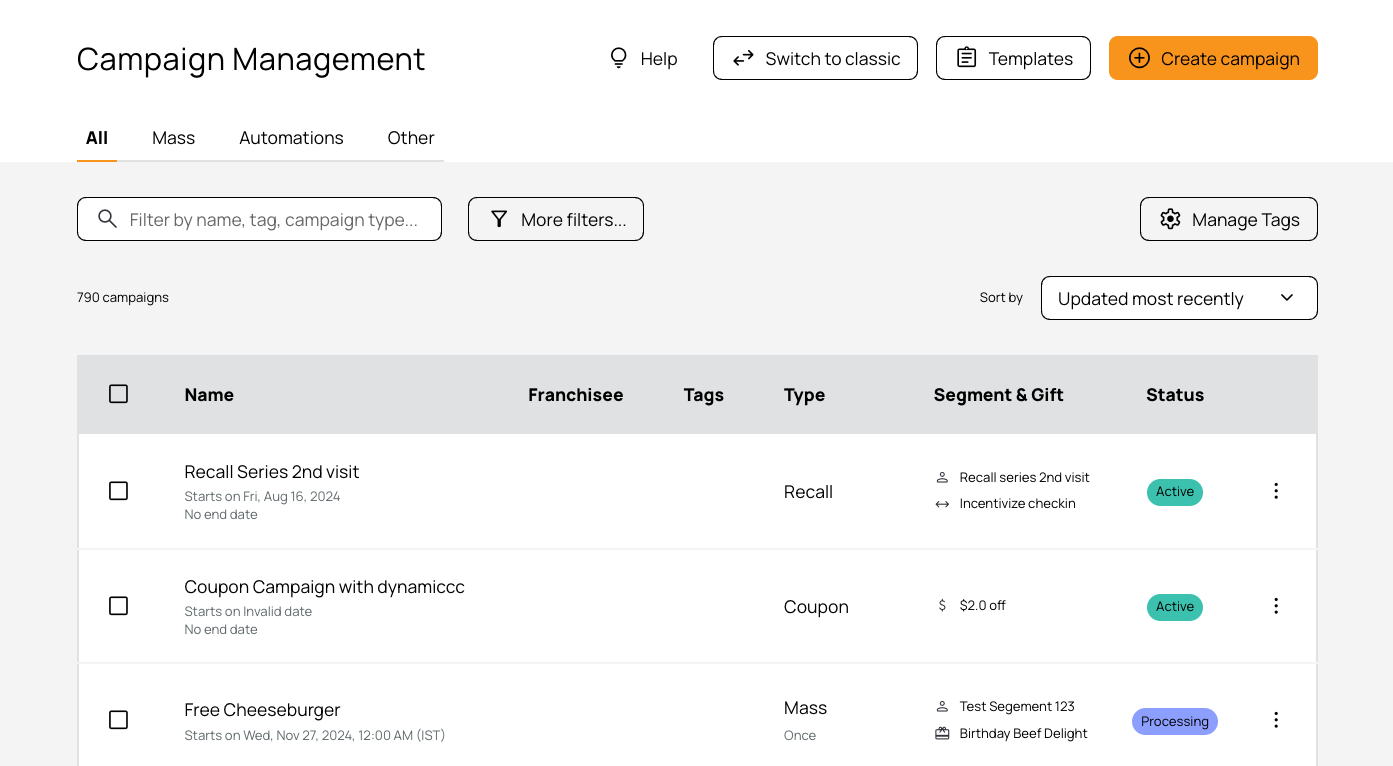
Campaigns can be created and managed from the campaign management page under Marketing Automation > Campaign Management.
Click
 in the top right corner to start building a new campaign. Click on the specific campaign type from the links above for more details.
Filter and Sort Your Campaign List
Note: The default campaign list will show all campaigns created or modified within the last 13 months, as well as ALL ongoing/active campaigns. If you need to find a campaign outside of this window, use the Campaign Date filter described below.
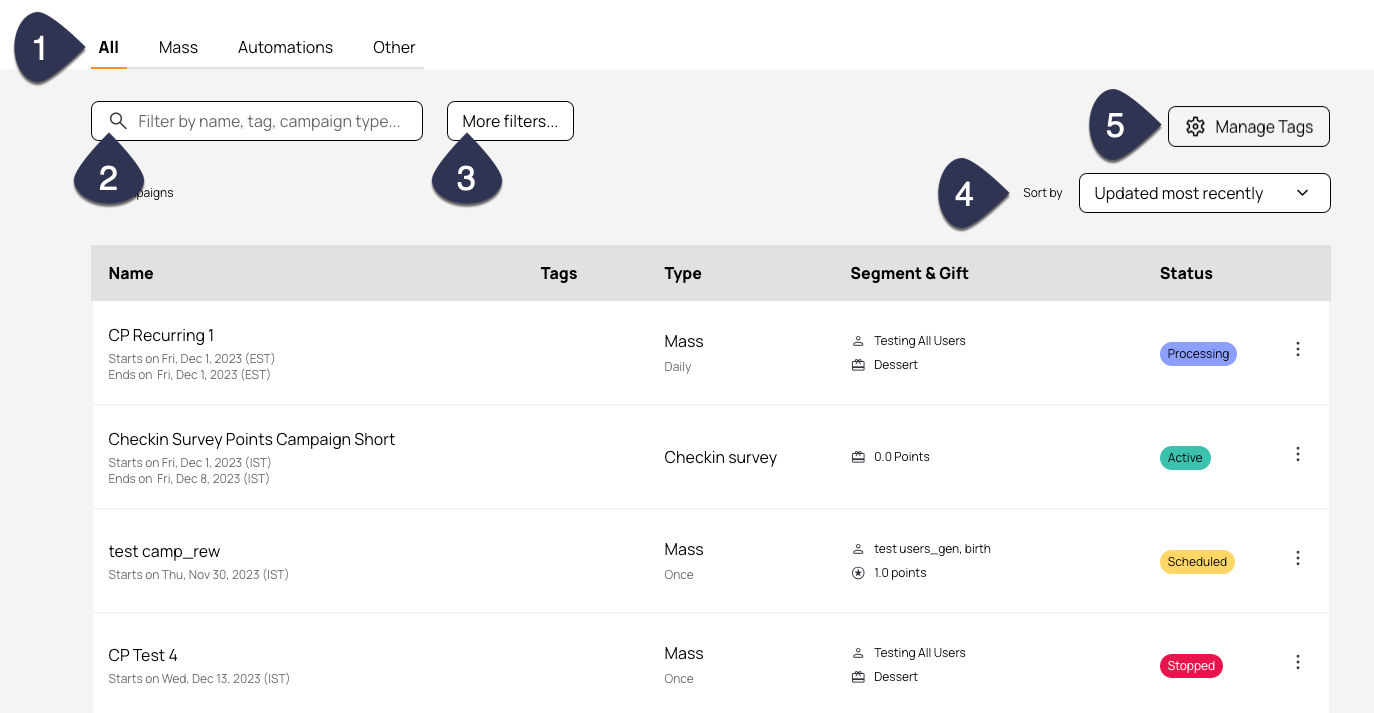
- Your campaigns are sorted into the main tabs at the top of the page: All, Mass, Automation, or Other. Click each tab to show only the campaigns in each category.
- Campaigns can also be filtered by using the search bar. Enter a name, tag, campaign type, segment, or status to narrow the list to campaigns containing the search term in any part of the campaign (not just the campaign title).
- Click More filters to filter the campaign list further by:
- Campaign type
- Campaign status
- Tag
- Any: Filter for campaigns with one or more of the selected tags.
- All: Filter for campaigns that contain all of the selected tags.
- Creator
- Campaign Date
- Enter a date range of no more than 13 months. Dates cover when campaigns were created, updated, scheduled, processed, or active.
- Segment
- Message type
- Filter by the notifications attached to the campaign: push, email, SMS, and rich.
- Any: Filter for campaigns with one or more of the selected message types.
- All: Filter for campaigns that contain all of the selected message types.
- Gift Type
- Redeemable, points, derived reward, etc.
- Location
- Search for a specific location or location groups
Note: Your search filters will save if you navigate away from your filtered list and then click the back button on your browser to return. Additionally, your filtered list will create a unique link that can be copied/pasted to show the same filters in a new window.
- Use the Sort by option on the right to sort your campaign list further.
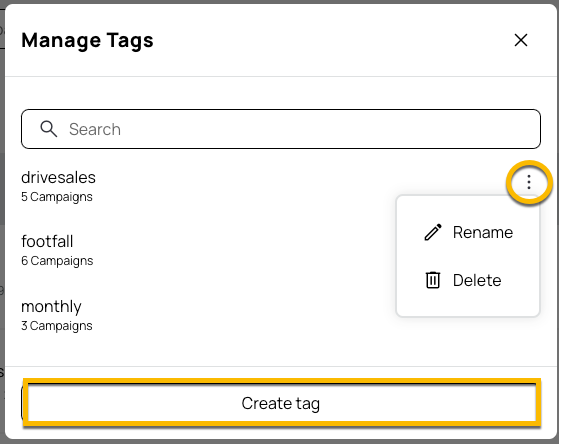
- Click Manage Tags to view, edit, and create campaign tags.
- Click the three dots on the right of each tag to Rename or Delete.
- Click Create Tag to create a new tag. You can have up to 500 tags for your business.
Campaign List Details
The campaign list shows the campaign's name, tags, type, any connected segments or gifts, and its status.
Click on a campaign in the list to view further details, depending on its current status.
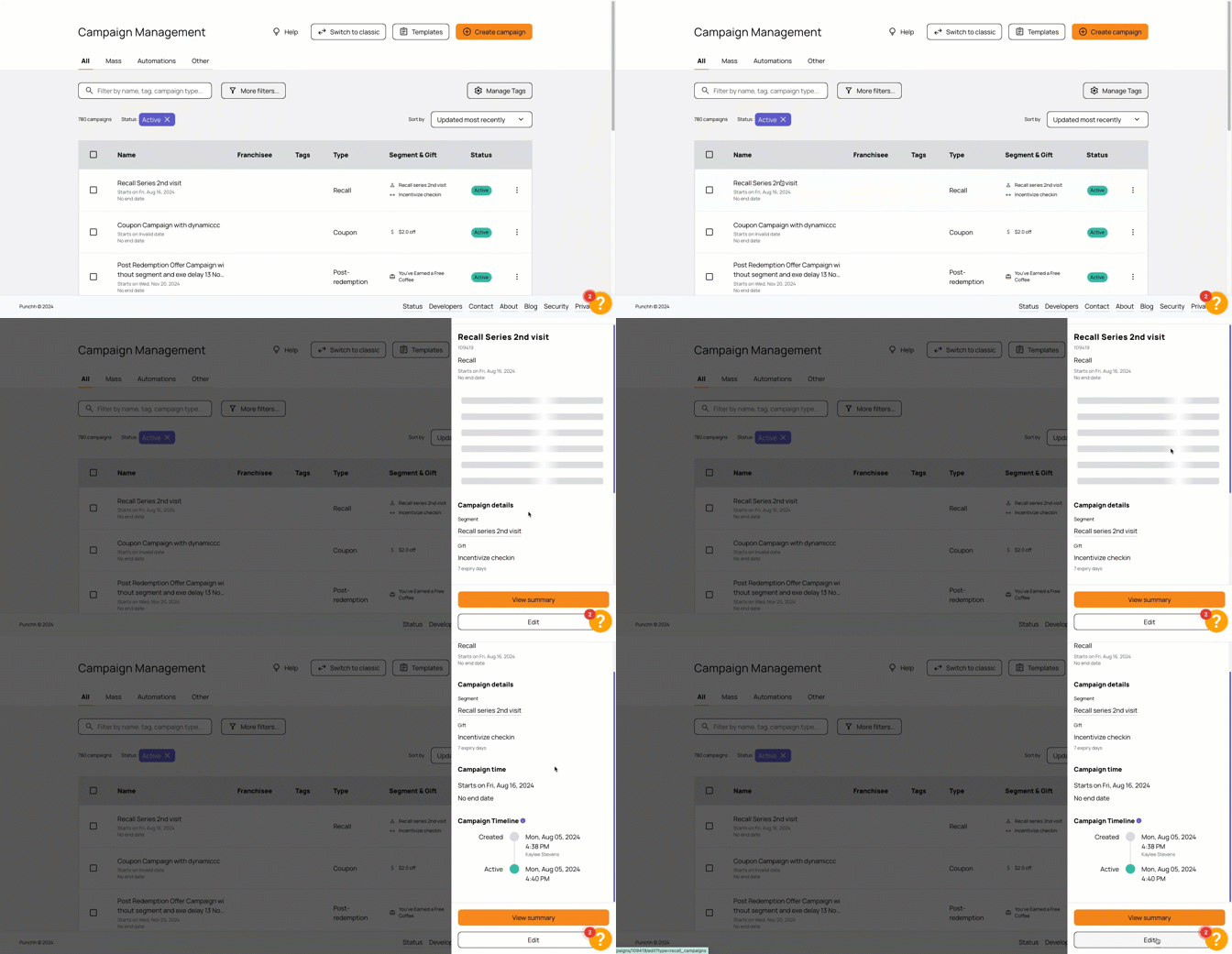
A side panel appears with the campaign's details such as performance, history, channel marketing etc.
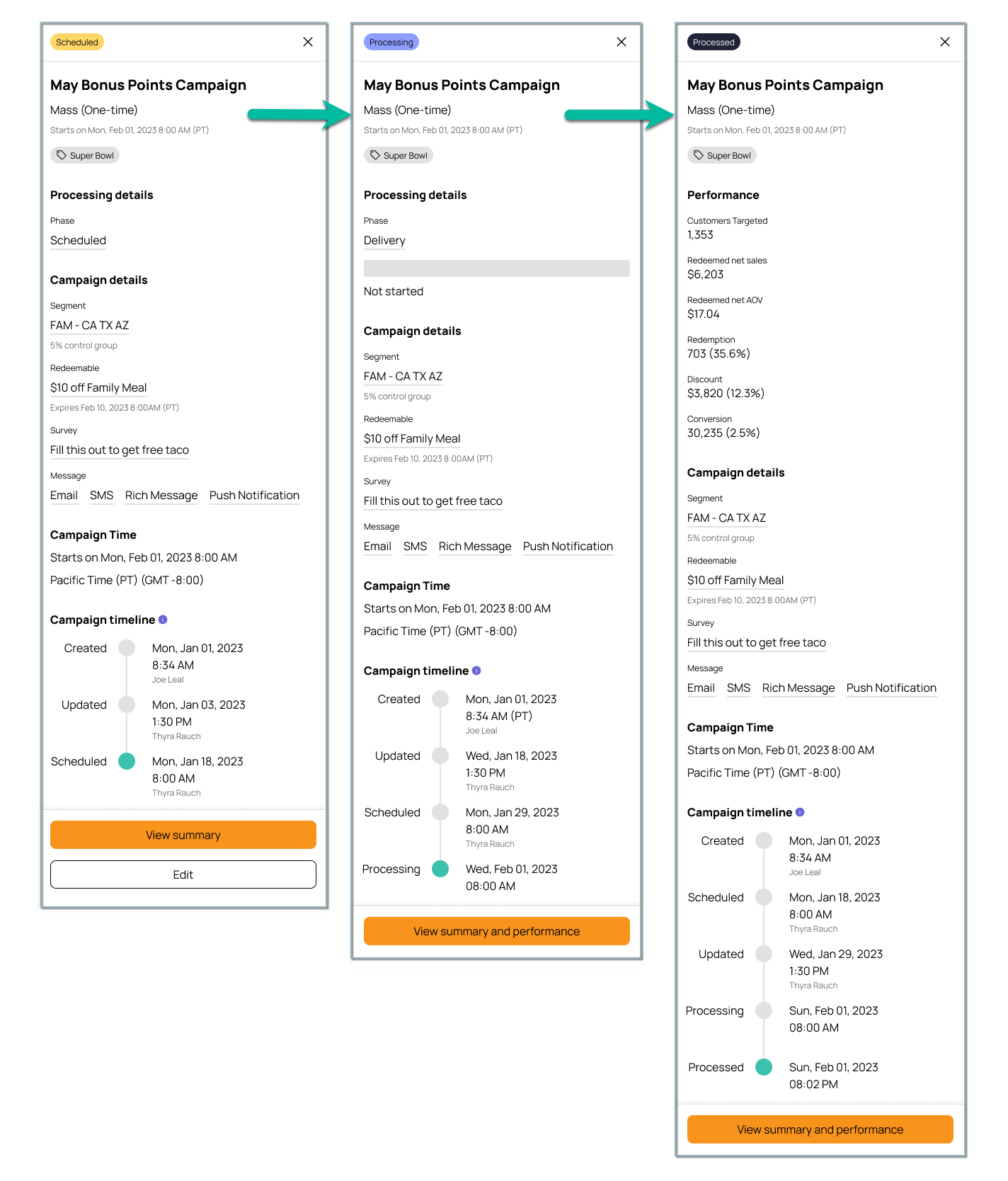
The side panel shows the following details, depending on the campaign's status:
- Campaign Name, Type, Date, and Timestamp
- Processing Details
- For Scheduled and Processing campaigns, this section shows delivery process details.
- Performance
- For Processed campaigns, this section shows the performance metrics (depending on campaign type) such as Customers Targeted, Redeemed Net Sales, Redeemed Net AOV, Redemption amount, Discount amount, etc.
- Campaign Details
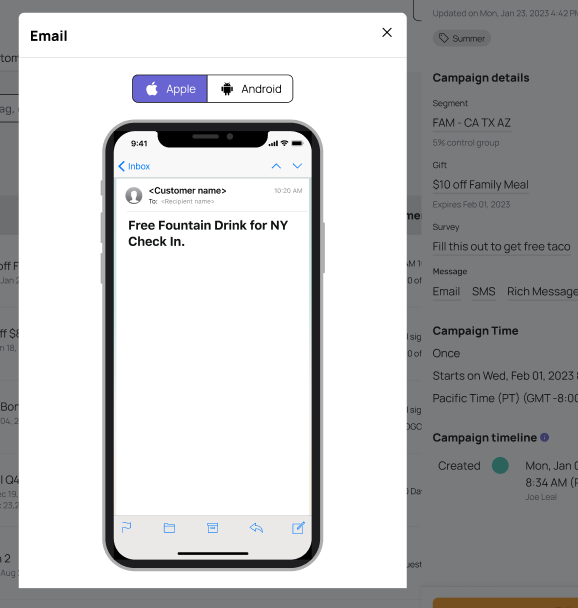
- This section shows the basic details of the campaign like the segment, redeemable, or survey used. Click the links to navigate to the respective platform pages. Additionally, you can preview all the messaging (Email, Push, SMS) included in the campaign.
- Campaign Time
- This section shows the start date, end date, and timezone set for the campaign.
- Repeating Details
- For Mass recurring campaigns, this section shows the recurrence details and the date and time it will run next.
- Campaign Timeline
- This section shows the date and times the campaign status was last updated. See Campaign Statuses below for details.
- View summary / View summary and performance
- Click to view the full campaign summary page. Right-click to open the page in a new tab.
- Edit
- Click to edit a draft or scheduled campaign.
More Actions
Click the three dots on the right of the campaign for further actions, depending on its current status and campaign type:
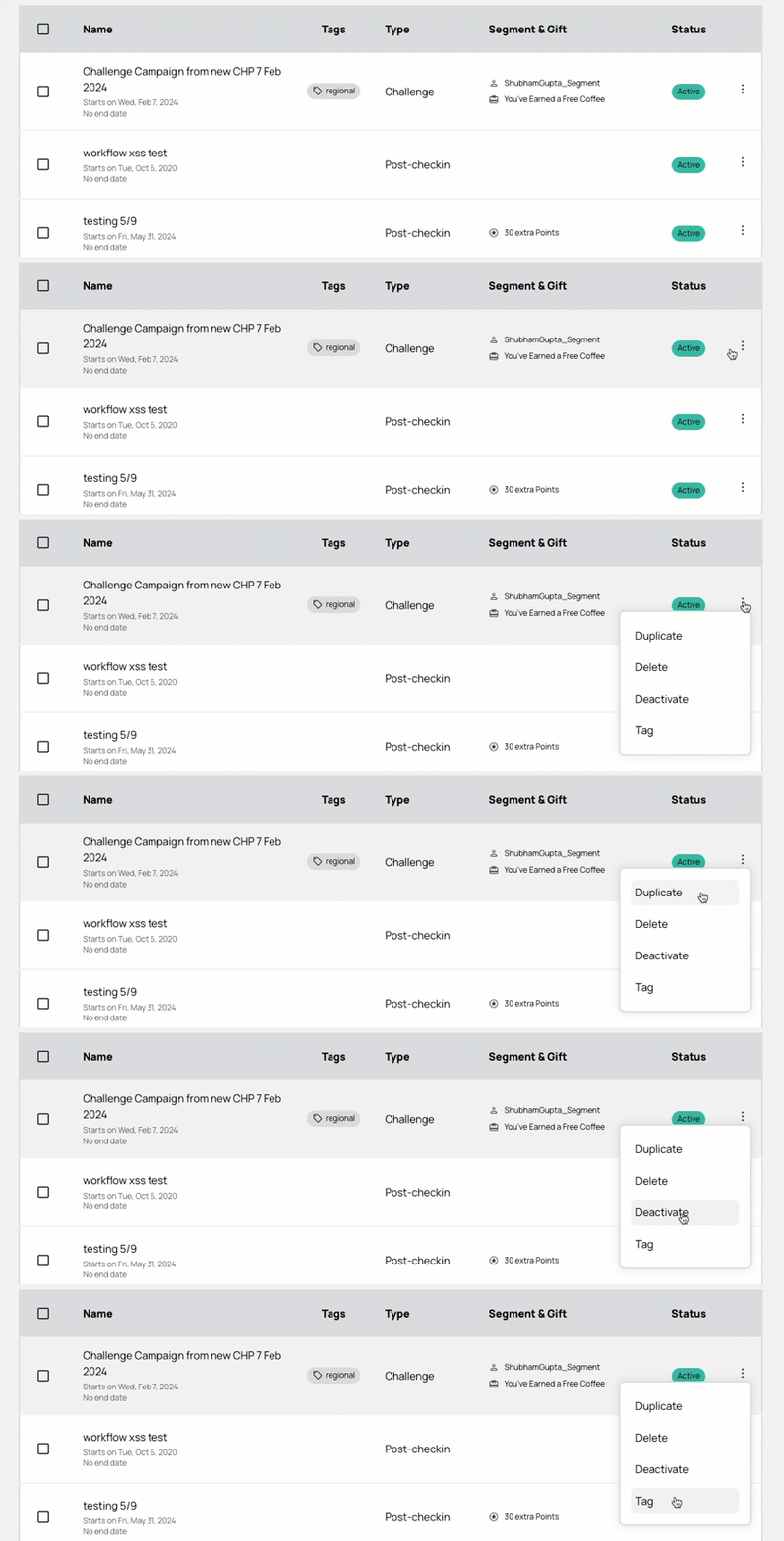
- Stop Processing: Available for campaigns with a status of "Processing." Click to stop a campaign from processing. The campaign will then show as "Stopped."
- Duplicate: Click to duplicate the campaign. The create campaign workflow will open with the name field populated as "Campaign Name - copy" and other fields* filled in from the original campaign. You can then edit the campaign as normal.
*Note: Duplicating a campaign will NOT duplicate the attached email template for most campaigns types. Only Mass and Post-checkin campaigns will duplicate the email template as well. - Delete: Permanently delete a campaign. Note: Punchh recommends using Archive where possible as this keeps the historical data instead of the Delete option, see the tip below for more details.
- Deactivate: Click to deactivate a currently active campaign. The campaign will then show as "Inactive."
- Activate: Click to activate a currently inactive campaign. The campaign will then show as "Active."
- Tag: Click to add tags to a campaign.
- Archive: Click to Archive a campaign. The stat will change to Archived. See the tip below for more details.
- View summary: Click to view the campaign summary page.
- Audit log: Click to view the audit log showing the record of campaign events within the platform.
- Export report: Available for Mass, Post-checkin, Challenge, and Social Cause campaigns. Click to export the campaign report of targeted guests and redemption statuses.
- Export codes: Available for Coupon and Promo campaigns. Click to export a report of any unused promo or coupon codes.
- Coupon/Promo codes list: Available for Coupon and Promo campaigns. Click to view and download all unused, used, and expired promo or coupon codes.
Deleting and Archiving Campaigns
Campaigns CAN BE DELETED if they have the following status:
- Draft
- Scheduled
- Processed (repeating campaigns that have NOT ended)
- Pending Approval
- Disapproved
- Active
- Inactive (automation and other campaigns)
- On Hold
Campaigns CANNOT BE DELETED if they have the following status. (This is because the data is needed to have accurate & historical program information.)
- Processed (one-time mass campaign, repeating campaigns that have ended)
- Processing
- Stopped
- Inactive (mass campaigns)
- Failed
Campaigns CAN BE ARCHIVED if they have the following status:
- Draft
- Processed (one-time mass campaign, repeating campaigns that have ended)
- Pending Approval (if the start date has passed)
- Disapproved (if the start date has passed)
- Inactive
- On hold
- Stopped
- Failed
Campaigns CANNOT BE ARCHIVED if they have the following status:
- Processed (for repeating campaigns that have not ended)
- Processing
- Scheduled
- Active
- Pending Approval (with a future start date)
- Disapproved (with a future start date)
Campaign Statuses
| Status | Definition |
|---|---|
| Draft | The campaign is still in a preliminary stage. |
| Scheduled | The campaign is set to activate at a time in the future. |
| Processing | The campaign's start time is here and the platform has begun sending out the campaign to guests. Note: Refer to How to Send Campaigns in a Guest's Local Timezone for details on how the staggered start times affect this status. |
| Processed | The platform has finished sending out the campaign to guests. |
| Pending Approval | In the event your brand has set up an approval system for campaigns, the campaign will show "Pending Approval" after it has been created. |
| Disapproved | In the event your brand has set up an approval system for campaigns, the campaign will show as "Disapproved" if the approver does not sign off. |
| Active | The campaign has been sent out to guests and is active on the platform. |
| Inactive | The campaign end date has been reached. |
| Stopped | Someone from your brand has stopped the campaign from being processed. |
| Failed | An error occurred when processing the campaign. (Contact Support in this instance.) |
| Archived | The campaign is no longer active or editable and the data has been stored. |
Note: There may be differences between the campaign status shown on the Campaign Management page and the data in the campaign data export or audit log. The Campaign Management page provides a more detailed status, considering multiple factors. Refer to the Campaign Management page for the most up-to-date campaign status.
