Coupon Campaign
Added Module The Coupons feature is bundled as part of the Coupons and Promos Module available for an additional cost. To enable this module, speak to your Punchh Customer Success Manager about adding it to your service contract.
Coupon campaigns allow you to send out discount/coupon codes to large sets of guests using either dynamic (a unique code is generated for every guest) or pre-generated (a set number of codes are generated and can be shared manually) generation. Coupon campaigns help drive traffic to your business.
Note: Contact your Punchh representative to ensure any generated coupon codes avoid accidentally using a profane word within the code. A profane word list can be created and maintained for your business to avoid this. When generating coupon codes, any code with profanity will be removed. The system will try to create a replacement code but may fail, this could result in 1–3 fewer coupons than expected.
Understanding Coupon Campaign Options
Before creating a coupon campaign, it’s critical to understand the type of campaign you want to run. Coupon campaigns are defined by two foundational decisions:
- Where the coupon is unlocked or redeemed
- How the coupon codes are generated
These selections directly affect audience eligibility, redemption tracking, delivery method, and the overall customer experience. The workflows and outcomes can vary greatly depending on the combination you choose.
Expand for more details
Coupon Usage Location Options
Unlock in App
Definition
Coupons unlocked in the mobile app require customers to download the brand’s app and sign up for loyalty. The coupon becomes available only after the guest logs in and unlocks it.
Key Characteristics
- Limited to loyalty members
- Requires app download and account creation
- Enables strong attribution and customer‑level tracking
Primary Use Cases
- Loyalty acquisition and conversion
- Driving mobile app downloads
- Increasing mobile and digital ordering engagement
Directly at POS (Including Online Checkout)
Definition
Coupons redeemed directly at the POS can be used without unlocking them in the mobile app. Guests may present a text code or QR code in‑store, or enter the code directly during online checkout.
Key Characteristics
- Available to both loyalty and non‑loyalty guests (depending on distribution)
- No requirement to download the app
- Limited visibility into exactly who redeemed the offer
Primary Use Cases
- Broad promotions and product awareness
- Seasonal or new product launches
- Upsell offers (e.g., “Free Dessert with Entree Purchase”)
- Removing friction during redemption
Coupon Code Generation Options
Pre‑Generated Coupons
Definition
Pre‑generated coupons are created in bulk ahead of time (e.g., 5,000 unique codes). Once distributed, each code can only be redeemed as configured.
Key Characteristics
- Strong budget control (brands know the maximum possible cost upfront)
- Can be printed or distributed digitally
- Risk of loss or misuse (lost flyers, discarded receipts, or code hoarding)
Primary Use Cases
- Physical distribution (events, mailers, table tents)
- Campaigns with strict cost limitations
- Offline or high‑traffic environments
Dynamically Generated Coupons
Definition
Dynamically generated coupons are created in real time when a guest opens an email, receives a notification, or views a digital message. Each guest receives a unique code tied to their account or email.
Key Characteristics
- Limited to loyalty and/or eClub members
- No printing or physical distribution costs
- Lower risk of multiple redemptions by the same guest
- Supports personalization and targeting
Primary Use Cases
- Email, push, and SMS campaigns
- Loyalty and eClub offers
- Targeted and segmented promotions
Coupon Campaign Combinations
| Combination | Output | Guest Experience | Use Case |
|---|---|---|---|
| Unlock in App + Pre‑Generated | A static coupon code that becomes available only after the guest downloads the app and signs up for loyalty. |
|
|
| Unlock in App + Dynamic Generation | A uniquely generated coupon code created when a loyalty guest receives a push notification, email, or in‑app message*. *Sent to guest via a Mass Notification Campaign. |
|
|
| Directly at POS + Pre‑Generated | A static coupon code (printed or digital) that must be presented at checkout or entered online. |
|
|
| Directly at POS + Dynamic Generation | A unique coupon code and/or QR code dynamically displayed in an email or digital message*. *Sent to guest via a Mass Notification Campaign. |
|
|
Distribution
Best distributed with mass notification campaigns:
- Unlock in App + Dynamic Generation
- Directly at POS + Dynamic Generation
Best distributed with messaging partners OR printing each out physicallly out:
- Unlock in App + Pre‑Generated Coupons
- Directly at POS + Pre‑Generated Coupons
Create a New Coupon Campaign
To create a new Coupon campaign:
- Navigate to Marketing Automation > Campaign Management in your left-hand navigation toolbar.
- Click Create Campaign in the upper right corner.
- Click Other.
- Select the Coupon campaign type.
- Click Create.
If your brand has enabled Smart Passes, review How to Distribute Offer Passes Using Campaigns for additional fields and notes to distribute an Offer Pass via Coupon Campaign.
Step 1 - What
- Enter a name for your campaign in the Name field.

- Click the Browse button under the Punchh thumbnail to upload a preview image for your coupon.
- In the Description field, add a short message describing the type/purpose of this coupon campaign.
(This message is internal only. The guest will not see it.) - Click Next to move on to Step 2.
Step 2 - Whom
In this step, you define where the coupon is redeemed and how coupon codes are generated. These two selections determine which of the four coupon campaign combinations you are creating.
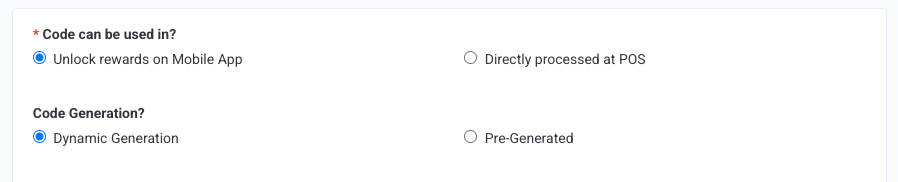
- Unlock rewards on Mobile App: The coupon is unlocked or revealed within the mobile app experience.
- Directly processed at POS: The coupon is redeemed directly at the point-of-sale or during online checkout.
Code Generation: Choose how coupon codes are created
- Dynamic Generation: Codes are created at send-time using dynamic tags so each guest receives a unique code.
- Pre‑Generated Coupons: Codes are generated in advance and can be exported for use in third‑party systems or printed for distribution.
Unlock rewards on Mobile App + Dynamic Generation
Configuration fields
-
Number of guests: This field must be set to 0 (unlimited). This is due to how the Mass Notification campaigns are configured, which are used to distribute these types of coupon codes.
-
Use(s) per guest: Choose the number of times the same customer can redeem a coupon code.
-
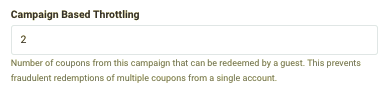
Campaign Based Throttling sets a limit on how many coupons from this specific campaign may be redeemed by a single guest. This prevents one guest from stacking up many coupons on a single account (regardless of how many they're allowed to use).
-
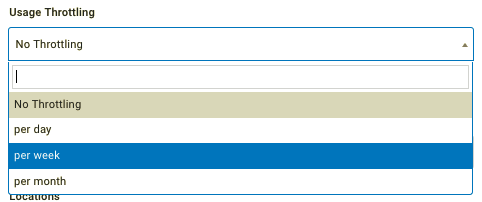
If you set Use(s) Per Guest (above) at more than 1, you can then set how often a guest may redeem another coupon code. Click the Usage Throttling drop-down to choose the amount of time that must pass before a guest can redeem another code.
-
Download coupon URL shows the coupon URL created for this campaign.
-
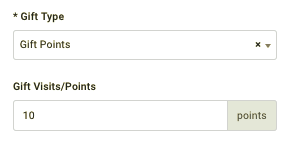
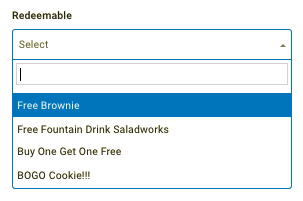
Choose your Gift Type between Gift Points or Gift Redeemable.
- Gift Point: Enter the amount of points/punches to gift the guest.
- Gift Redeemable: Select the redeemable you want to associate with this offer.
-
In the Gift Reason field, add a short message describing the type/purpose of this gift-giving campaign.
This description will be visible to guests in the Account History section of their app. -
Click Once per Device? to make sure that only one gift/reward is given per device, to avoid fraud.
-
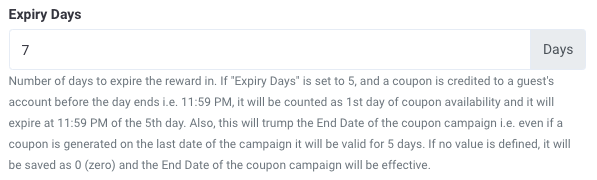
Enter a value in the Expiry Days field to set the number of days a coupon remains valid after it has been generated. This expiration date ignores any End Date you may have set for the campaign.
This expiration countdown begins as soon as the coupon has been generated by the guest.
-
POS Coupon Message: Enter the message that will display on the POS when the coupon is scanned.
Messaging Configuration
The message fields within the coupon campaign configure the message that will be sent to guests AFTER they have redeemed the coupon. Typically used as a confirmation or thank‑you message.
Note: You will need to create a Mass Notification campaign to initially send out the dynamically generated coupons to loyalty guest via email. Dynamic codes can only be used via email campaigns. By generating a unique code for each guest, we can then track the exact guests who redeem those codes.
Add messaging for each of the notification types you want to send. Refer to Campaign Message Options for full details.
Unlock rewards on Mobile App + Pre‑Generated
Configuration fields
-
Number of guests: Choose the total number of coupon codes that will be generated you must specify a value of 1 or more. Do not use commas in the number value, else it will be regarded as a decimal point. For example, 10,000 will be received as 10 coupons. Instead, use "10000" without commas.
-
Use(s) per guest: Choose the number of times the same customer can redeem a coupon code.
-
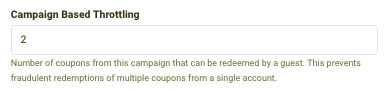
Campaign Based Throttling sets a limit on how many coupons from this specific campaign may be redeemed by a single guest. This prevents one guest from stacking up many coupons on a single account (regardless of how many they're allowed to use).
-
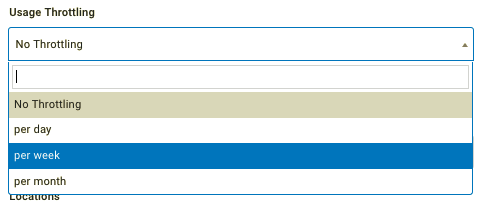
If you set Use(s) Per Guest (above) at more than 1, you can then set how often a guest may redeem another coupon code. Click the Usage Throttling drop-down to choose the amount of time that must pass before a guest can redeem another code.
-
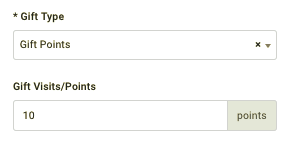
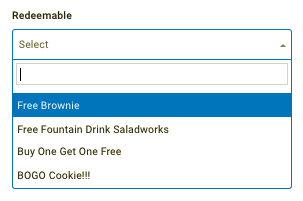
Choose your Gift Type between Gift Points or Gift Redeemable.
- Gift Point: Enter the amount of points/punches to gift the guest.
- Gift Redeemable: Select the redeemable you want to associate with this offer.
-
In the Gift Reason field, add a short message describing the type/purpose of this gift-giving campaign.
This description will be visible to guests in the Account History section of their app. -
Click Once per Device? to make sure that only one gift/reward is given per device, to avoid fraud.
-
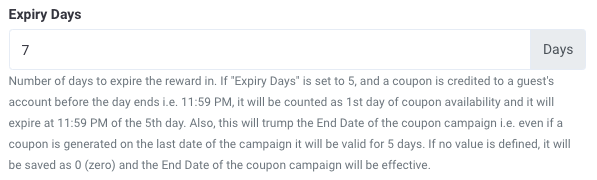
Enter a value in the Expiry Days field to set the number of days a coupon remains valid after it has been generated. This expiration date ignores any End Date you may have set for the campaign.
This expiration countdown begins as soon as the coupon has been generated by the guest.
-
POS Coupon Message: Enter the message that will display on the POS when the coupon is scanned.
Messaging Configuration
The message fields within the coupon campaign configure the message that will be sent to guests AFTER they have redeemed the coupon. Typically used as a confirmation or thank‑you message.
Note: Pre-generated coupon codes can initially be sent out via third-party messaging tools or printed out manually. You will be able to export the list of coupon codes generated after the coupon campaign is fully configured.
Add messaging for each of the notification types you want to send. Refer to Campaign Message Options for full details.
Directly processed at POS + Dynamic Generation
Configuration fields
-
Number of guests: This field must be set to 0 (unlimited). This is due to how the Mass Notification campaigns are configured, which are used to distribute these types of coupon codes.
-
Use(s) per guest: Choose the number of times the same customer can redeem a coupon code.
-
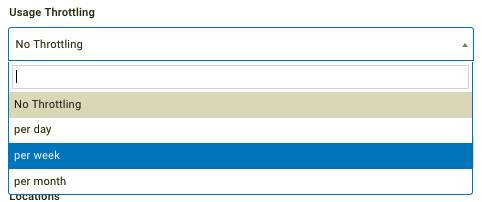
If you set Use(s) Per Guest (above) at more than 1, you can then set how often a guest may redeem another coupon code. Click the Usage Throttling drop-down to choose the amount of time that must pass before a guest can redeem another code.
-
Download coupon URL shows the coupon URL created for this campaign.
-
Choose your Gift Type between $ OFF or % OFF.
- If $ OFF, enter the Amount Discount.
- If % OFF, enter the Percent Discount.
-
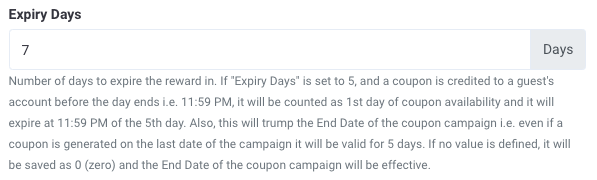
Enter a value in the Expiry Days field to set the number of days a coupon remains valid after it has been generated. This expiration date ignores any End Date you may have set for the campaign.
This expiration countdown begins as soon as the coupon has been generated by the guest.
-
POS Coupon Message: Enter the message that will display on the POS when the coupon is scanned.
-
Short/Standard Prompt: Enter the text to appear either at the gas pump (short) and/or cashier terminal (standard) to prompt the customer to redeem their reward, as applicable.
-
Locations: Because your codes require interaction with a POS, you can specify the store(s) where your codes will be redeemable. Use the Location drop-down to choose a location/location group.
- Leaving this unspecified means your codes will be redeemable at all locations.
-
Qualification: Select from your Qualification Criteria to set the conditions a guest must meet before they can redeem the receipt.
- For example: If the coupon is for $5 off any appetizer, your qualification criteria needs to require that an appetizer be present on the guest's receipt to be triggered.
Note: You will need to create a Mass Notification campaign to initially send out the dynamically generated coupons to loyalty guest via email. Dynamic codes can only be used via email campaigns. By generating a unique code for each guest, we can then track the exact guests who redeem those codes.
Directly processed at POS + Pre‑Generated
Configuration Fields
- Number of guests: Choose the total number of coupon codes that will be generated you must specify a value of 1 or more. Do not use commas in the number value, else it will be regarded as a decimal point. For example, 10,000 will be received as 10 coupons. Instead, use "10000" without commas.
- Use(s) per guest: Choose the number of times the same customer can redeem a coupon code.
- Number of guests: Choose the limit for the Number of guests who can redeem the coupon code. You can set this value to 0, which means that an unlimited number of codes will be generated as guests open their emails. Do not use commas in the number value.
- Use(s) per guest: Choose the number of times the same customer can redeem a coupon code.
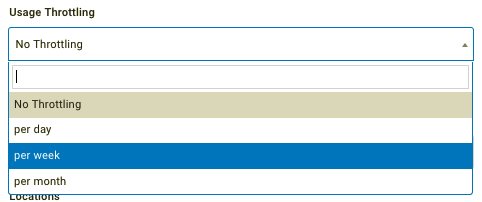
- If you set Use(s) Per Guest (above) at more than 1, you can then set how often a guest may redeem another coupon code. Click the Usage Throttling drop-down to choose the amount of time that must pass before a guest can redeem another code.
- Choose your Gift Type between $ OFF or % OFF.
- If $ OFF, enter the Amount Discount.
- If % OFF, enter the Percent Discount.
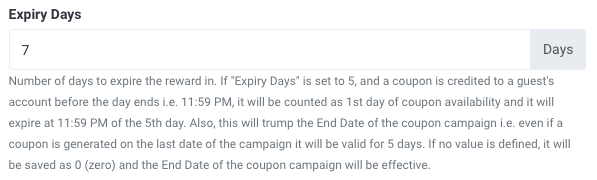
- Enter a value in the Expiry Days field to set the number of days a coupon remains valid after it has been generated. This expiration date ignores any End Date you may have set for the campaign.
This expiration countdown begins as soon as the coupon has been generated by the guest.
- POS Coupon Message: Enter the message that will display on the POS when the coupon is scanned.
- Short/Standard Prompt: Enter the text to appear either at the gas pump (short) and/or cashier terminal (standard) to prompt the customer to redeem their reward, as applicable.
- Locations: Because your codes require interaction with a POS, you can specify the store(s) where your codes will be redeemable. Use the Location drop-down to choose a location/location group.
- Leaving this unspecified means your codes will be redeemable at all locations.
- Qualification: Select from your Qualification Criteria to set the conditions a guest must meet before they can redeem the receipt.
- For example: If the coupon is for $5 off any appetizer, your qualification criteria needs to require that an appetizer be present on the guest's receipt to be triggered.
Note: Pre-generated coupon codes can initially be sent out via third-party messaging tools or printed out manually. You will be able to export the list of coupon codes generated after the coupon campaign is fully configured.
Additional Notes on Messaging & Distribution
- Dynamic coupon campaigns must be paired with Mass Notification campaigns so dynamic tags can populate a unique coupon code per guest, preventing overlap.
- Mass Notification messaging is used to market or notify the guest that they have received a coupon.
- Coupon Campaign messaging (for Unlock rewards on Mobile App) is triggered only when the coupon is redeemed.
- Pre‑generated coupons are ideal when using third‑party messaging platforms or physical distribution, as codes can be exported and controlled.
Once configuration is complete, click Next to continue to Step 3 – When, where scheduling and expiration settings are finalized.
Step 3 - When
- Enter the number of days under Remind before to remind guest before their coupon expires. For example, the coupon expiry is set for March 31, 2024, and the Reminder before field has a value of 5. If the guest has not used the coupon, then on March 27 (5 days before expiry) a reminder notification will be sent to the guest.
The Remind before field can be set anytime, even after a campaign is active. Coupon expiry reminders are sent via the Coupon Expiry Reminder Schedule. This schedule runs daily and picks all the coupon campaigns where 'Reminder before' has been configured. The notification sent to guests can be customized via Loyalty Program > System Messages > Notification Templates > Expiring Coupon.
- Select a Start Date and Time and End Date and Time for your campaign.
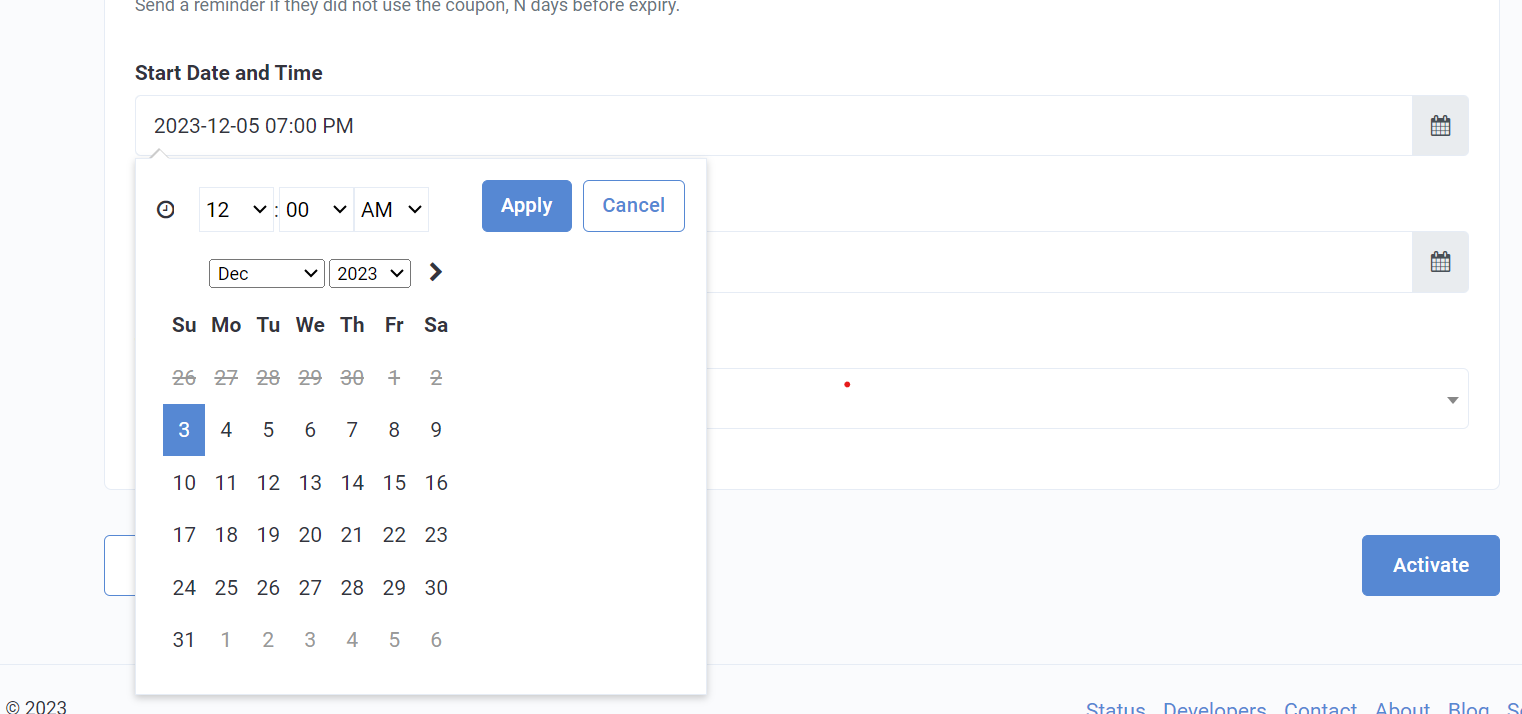
- Use the Timezone drop-down to select the most appropriate timezone for scheduling.
- Once you've finished with scheduling, click Finish to begin your coupon campaign and/or begin generating coupons.
Coupon Code Distribution
Dynamic Generation: Mass Nofitication Campaign
If you generated a Coupon Campaign with dynamically generated coupon codes, you will need to sent the codes out to guests using a Mass Notification campaign.
- On Step 1 - What of the Mass Notification campaign, click the Coupon campaign drop-down and selecting your coupon campaign.
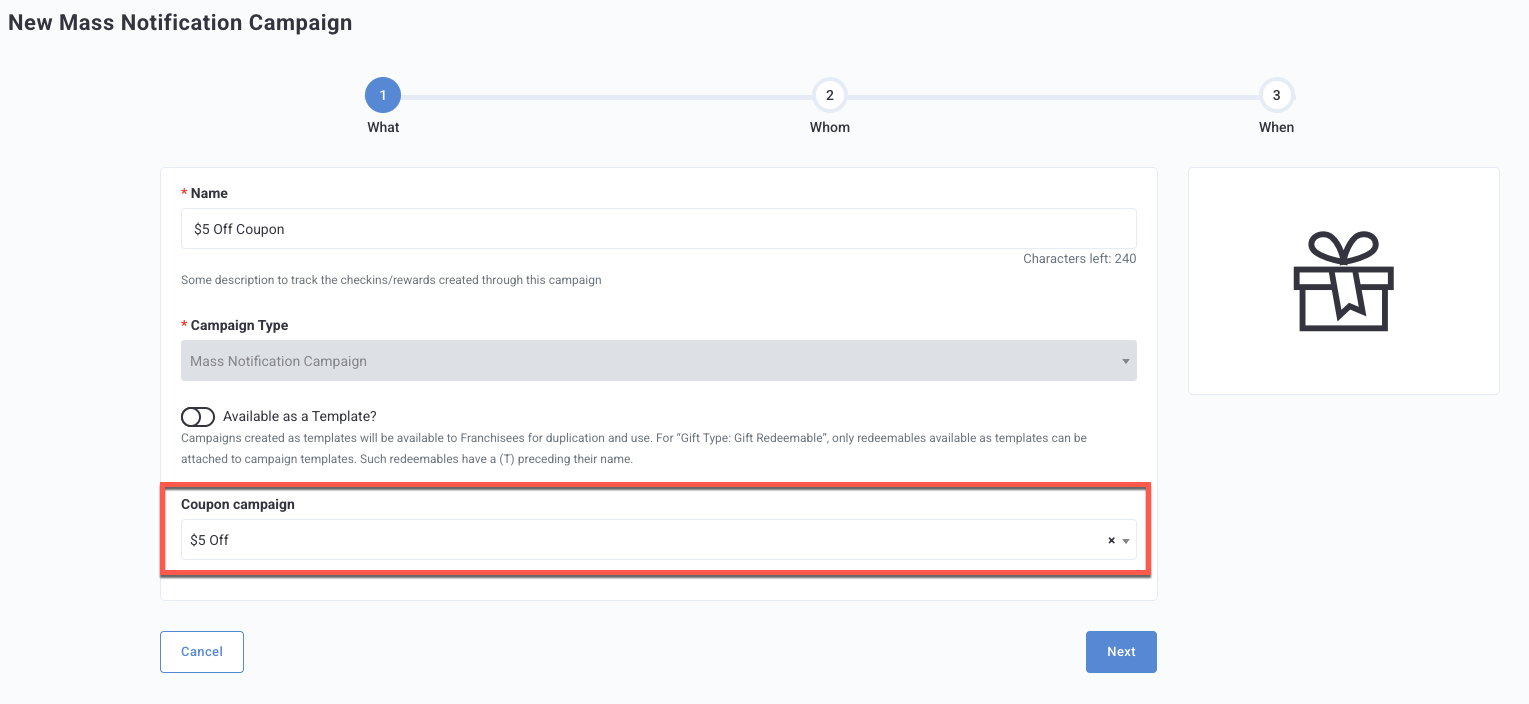
- Within the campaign's messaging, use dynamic tags {{{coupon_code}}} to generate the code for each guest within the email. (Dynamically generated coupon codes can only be send via email.)
Third-Party Messaging
Once you save and finish creating your dynamic coupon campaign, a Dynamic Generation Token and Dynamic Generation URL will be created for you to embed in your email messages if you are using a third-party service.
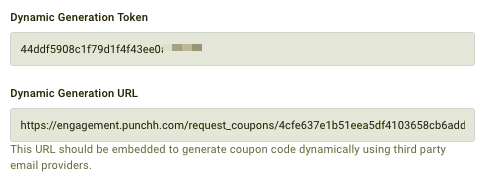
Note: When using a Dynamic Generation URL with a third-party email provider, keep the following items in mind:
- The recipient must be a user that has already signed up with the brand
- The URL itself is simply a deep link that will tie back to a coupon to be created after the campaign is sent.
- Dynamic Generation URLs require a signed request and will not work if opened directly in a browser, they are intended for use in email templates or app flows.
- The brand must utilize a Punchh Whitelabel App. Without utilizing a Punchh Whitelabel App, the dynamic -coupon URL has nothing to call. For more on this, please see your Customer Success Manager.
Using the Punchh Backend and Developer Portal
Whether you wish to generate coupon codes outside the Punchh platform or use the Punchh backend to embed within emails, we can help! If you would like to email coupons without the help of a third party, use this method.
End results possible with this method:
- When a user clicks the coupon code link in the email, a dynamic coupon code generates and displays.
- When the user opens the email, a dynamic coupon generates and displays as a picture.
A full tutorial on this process is available within our developer portal here: Dynamic Coupon Generation
Pre-Generated: Exporting Codes
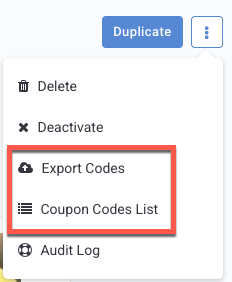
- After configuring your coupon campaign, navigate to the Edit flow of the campaign and select the three-dot menu.
- Export the list or view the coupon code list and distribute the codes and links manually or through a third-party provider.