Compression Campaign
Compression campaigns are intended to target loyalty members who are on the cusp of earning a loyalty reward. If 100 points earned becomes a $10 reward and a customer has 90-99 points, then they would be an ideal segment to target with a Compression campaign. A Compression campaign can be tied to a Post Checkin Offer campaign to further incentivize a guest to return by offering them a reward if they come back within a certain amount of time.
Note: Compression campaigns will only trigger from a guest checkin.
- If a guest reaches the required point range through other methods, such as an admin manually adding points, the campaign will NOT trigger right away. If the guest is already in the point range when the campaign starts, they must still complete a checkin for it to trigger.
- Also, if an admin manually adjusts a guest’s points into the qualifying range, the guest’s first checkin after that won’t trigger the campaign. Instead, it will trigger on their second valid checkin. This prevents duplicate notifications. This situation only applies when an admin manually changes a guest’s points.
Create a New Compression Campaign
To create a new Compression campaign:
- Navigate to Marketing Automation > Campaign Management in your left-hand navigation toolbar.
- Click Create Campaign in the upper right corner.
- Click Automations.
- Select the Compression campaign type.
- Click Create.
Step 1 - What
- Enter a name for your campaign in the Name field.
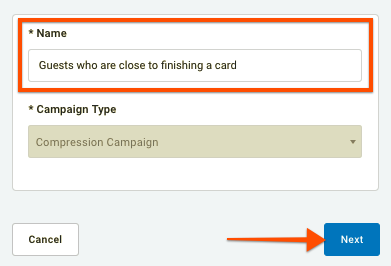
- Click Next to move on to Step 2.
Step 2 - Whom
Configure campaign settings such as days to incentivize checkin, point/punch range, control group, surveys, etc.
Campaign Settings
-
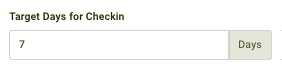
Target Days for Checkin - If you choose to incentivize a guest to checkin within a certain window of time, use this field to essentially turn your Compression campaign into Step 1 of a two-step campaign:
- Step 1 - Your Compression campaign will send an initial message to guests (the next day) after they move into your selected point range, close to crossing a reward threshold. This message will tell the guests about an extra reward offer that's only available if they checkin within N number of days.
- Step 2 - Once you create this campaign, you'll be asked to set up a new Post Checkin campaign that will be connected to your Compression campaign by an auto-generated "Incentivize Checkin for N Days" segment. In this way, the Post Checkin campaign will identify and reward guests who have both received the Compression offer message and then completed its requirement within N number of days.
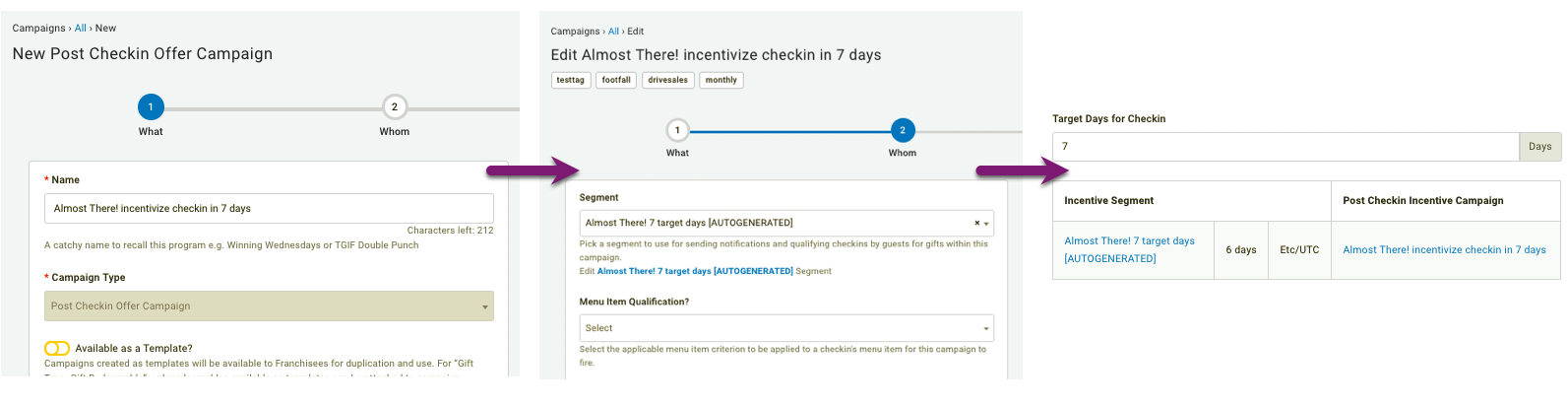
- Step 1 - Your Compression campaign will send an initial message to guests (the next day) after they move into your selected point range, close to crossing a reward threshold. This message will tell the guests about an extra reward offer that's only available if they checkin within N number of days.
-
Range - Guests whose current point/punch total falls into the range will trigger this campaign. The max points number must be smaller than reward earning threshold. In other words, if a guest needs 100 points to finish a card, don't put 200 as your max.

-
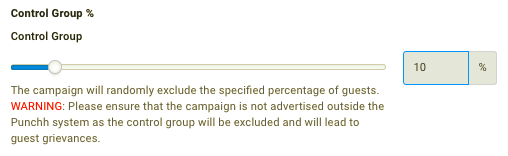
Control Group - Specify a percentage of guests who will be randomly excluded from receiving this offer. By creating a control group, you can gauge the effectiveness of your campaign. Did guests who received the offer spend more money, return more frequently?
Warning: When using a control group, ensure that your campaign is not advertised to the general public or some guests may be upset when they are excluded.
-
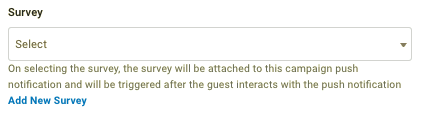
Survey - Use the drop-down to select one of your saved Surveys. This survey will trigger for a guest once they open the push notification message sent out with this campaign.
-
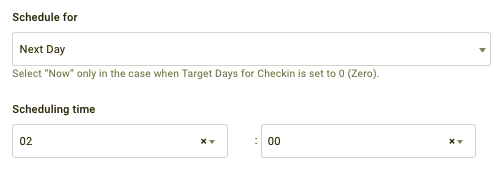
Schedule For - If you choose a Target Days for Checkin time to incentivize a guest to return within a set number of days, it would defeat the purpose if we sent them this message while they're still in the store. So we must choose to schedule the Compression message to deploy the next day (or next working day if your business isn't open every Mon-Sun).
Messaging
Add messaging for each of the notification types you want to send. Refer to Campaign Message Options for full details.
Click Next to move on to Step 3.
Step 3 - When
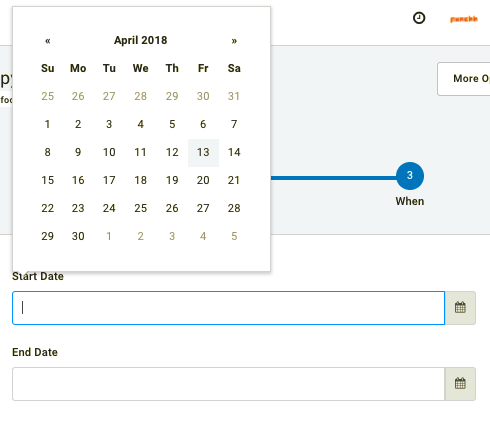
- Chose a Start Date and End Date for your campaign. Leaving these fields blank will activate the campaign immediately, and it will run indefinitely until you deactivate it.
- Once satisfied with your campaign settings, click Finish to save and activate your new Compression campaign.
- (If you set a Target Days for Checkin, you'll next need to complete the connected Post Checkin Offer campaign.)
One compression campaign runs once for a guest. Let's understand it from an example. For a point-based business, If the compression range is 230-249 points and the guest makes a check-in which takes the guest balance to 235 points. The campaign will fire for the guest.
For the next check-in, if the same guest earns another 10 points which takes the total guest balance to 245 (Still in compression range), the campaign will not be fired again as it already ran for this guest once.
For a Visit-based business as well, the same behavior would apply.
