Campaign Message Options
The Punchh Platform gives you several ways to notify your guests when a campaign is available to them. Most campaigns support Push Notifications, SMS, or Email, though some offer more limited options. You can find the message fields in Step 2: Whom of the campaign workflow.
Push Notifications
Note: Push Notifications will only be sent to guests who have your mobile app installed and have chosen to allow notifications. Because this will not include all applicable guests, we recommend sending your message via email and/or SMS as well.
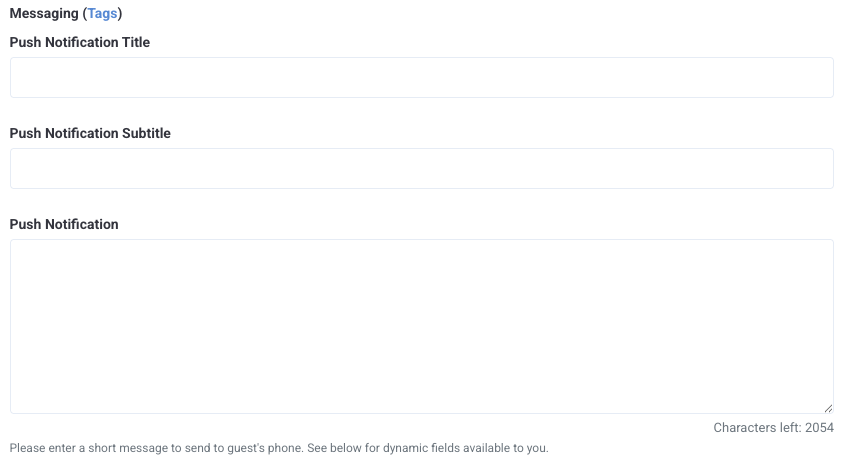
- Enter a Push Notification Title.
- Enter a Push Notification Subtitle.
- Enter the messaging text in the Push Notification field. This text will comprise the body of the push notification and will appear as the first few lines of preview text in the notification. You can see how your push notification will appear by checking out the Live Preview and switching between iOS and Android mobile views. Push Notification messaging is limited to 255 characters.
Push Notification Media (Optional)
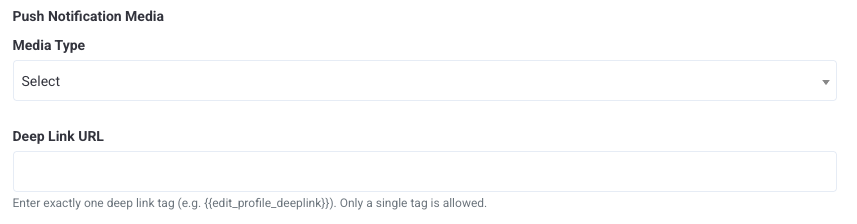
You can attach an image, GIF, or video to your push notification to display visually when the notification is delivered. You can also configure a deep link to route guests directly to a specific screen in your mobile app when they tap the notification, instead of the default home or inbox screen.
Note: Media attachments and deep linking are available for native iOS and Android apps only. In addition, media and deep links are available for Mobile Framework (MFW) apps on version 5.0.0 and later. These features are not currently supported in third-party apps.
To add media to your push notification:
- Click the Media Type drop-down and select Image, GIF, or Video.
- Enter the URL of your hosted media file in the Media URL field.
- If you selected Video as your media type, enter a thumbnail image URL in the Video Thumbnail URL field.
- This field is required for Android.
- This field is optional for iOS.
- Enter a Punchh deep link tag in the Deep Link field using dynamic Mustache tags.
- For example:
{offers_deeplink}or{reward_id_deeplink}. Available destination screens include: Rewards/Offers, Locations, Online Ordering, News/Inbox, Coupons, Gift Cards, Challenges, and more. - If no deep link is set, or if the guest's app version does not support deep linking, the notification will open your app's default screen (home or inbox).
- For example:
Use the following guidelines when preparing your media file:
| Specification | Details |
|---|---|
| Supported formats | JPEG/PNG (iOS and Android), GIF (iOS and Android), MP4 video (iOS only) |
| Recommended max file size | 5 MB |
| Recommended aspect ratio | 2:1 landscape |
| Recommended width | Minimum 800px / Maximum 1440px |
Caution: Platform support varies by media type:
- GIF: Fully animated on iOS. Android displays the first frame only.
- Video (MP4): Supported on iOS only. If a Video Thumbnail URL is provided, Android will display the thumbnail image instead.
- Audio: Supported on iOS only. Not supported on Android.
If you do not configure media or a deep link, push notification behavior is unchanged.
Push/Rich Notification Retention Days

- The Push Notification Retention Days field applies to Rich Messages only. Enter a length of time (in days) for this notification to remain in the News & Offers (Inbox) section of a guest's mobile app. If the field is left blank, the platform will default to your brand's business settings.
Note: You cannot enter a value that exceeds your brand's business settings. For example, if your brand's retention period is set to 90 days, you must enter a value of 90 days or less in this field.
Refer to Rich Messaging for more details. Contact your Punchh representative to set up or edit your business's overall Push/Rich Notification Retention Days setting.
SMS Message
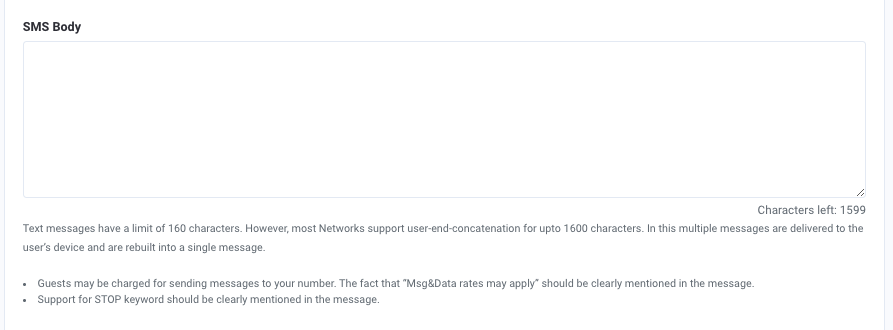
- Enter the campaign messaging text that will be sent to your guests via SMS (text) messaging in the SMS Body field. SMS is limited to 1600 characters, divided into 160-character parts that are delivered sequentially (Message 1 of 2, Message 3 of 5, etc).
- You may want to add a short message at the end informing the guest to unsubscribe from receiving your SMS texts in the future they can respond with "STOP", text & data rates may apply.
Email Message
Toggle Enable Email Editor to use preset Email Templates created by your brand. When the toggle is off, you can enter your email content manually using the fields described below.
Turning off the Enable Email Editor toggle does not remove a previously selected email template or affect email sending. The WYSIWYG editor is hidden, but your configured email content is retained and the campaign will continue to send emails as set up. If you navigate to the next step and return to this page, the toggle will automatically re-enable and your email content will be restored.
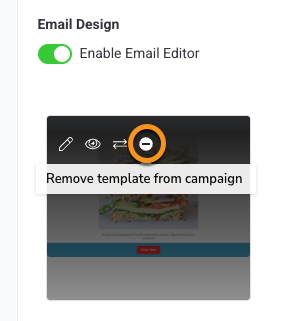
To fully remove an email template from the campaign, click the remove button directly on the template thumbnail.
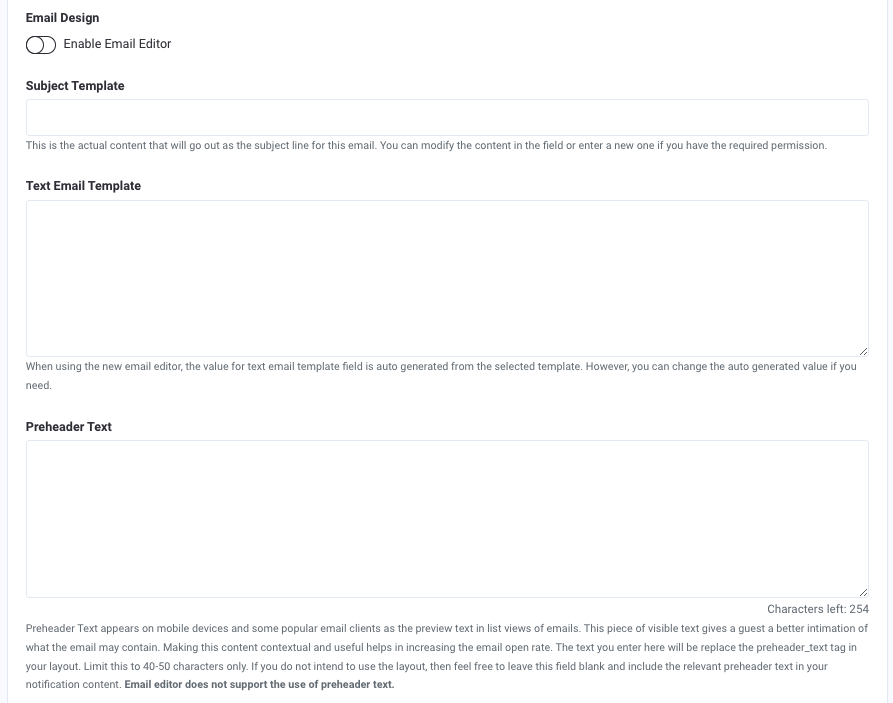
- Enter a Subject for your email in the Subject Template field.
- Enter the body text of your email in the Email Template and Html Email Template fields. You can see how your email message will appear on a guest's mobile device by checking out the Live Preview.
Note: When utilizing Dynamic Tags, it's important to know the following when using the {{{reward_reason}}} tag: When gifting points, the Reward Reason will not be passed through. When gifting a redeemable, the Reward Reason will be provided as expected from the configuration set. The above is the current configuration by design, and is expected behavior.
- Enter a short summary of your message in the Preheader Text field. This will be shown to guests on many mobile devices and mail apps as preview text. Completing this field with a catchy and concise message can help improve open rates.
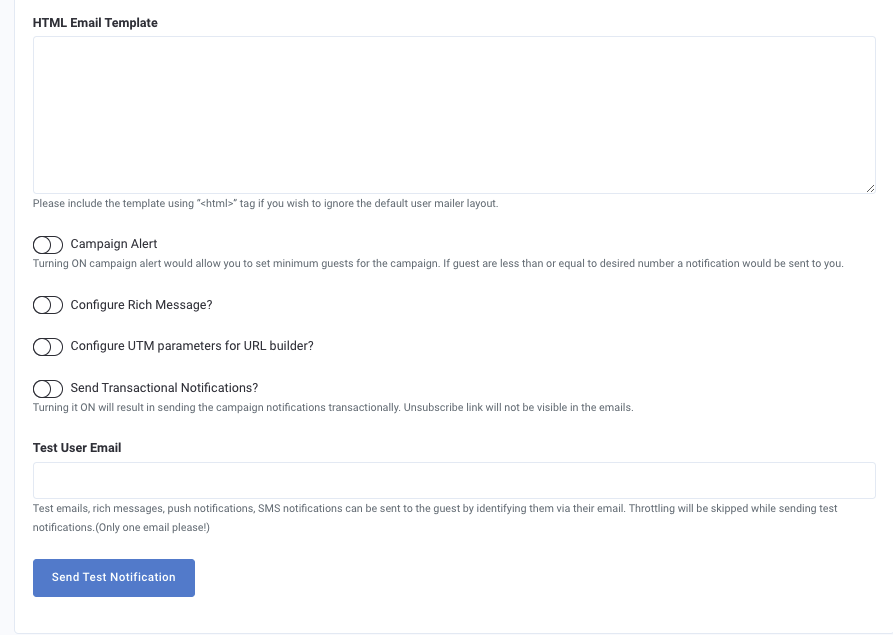
- If using an HTML Email Template, include the appropriate HTML tag.
- Toggle on Campaign Alert to set a minimum number of guests for the campaign. You will be notified if the desired number is not reached.
- Toggle on the options for Rich Messaging or UTM Parameters for further campaign options. (Follow the links for full details on how to set up these sections.)
- Toggle on Send Transaction to send the notifications transactionally.
- Enter your email address in the Test User Email field and click Send Test Notification to send yourself a preview of how your email message will appear to your guest once activated.
Warning: When sending a test notification with a redeemable, view the test user's guest profile to view the redeemable sent. Ensure no redeemable is being sent to an active guest account as a test.
Related Documentation:
