UTM and Link Tracking
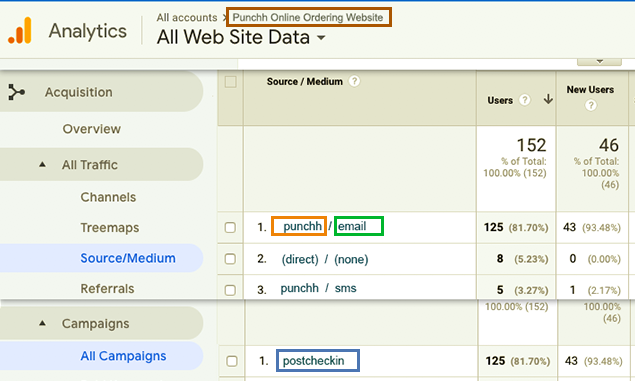
Link tracking using Google Analytics can show you the online path(s) users are following to arrive at one of your webpages. For URLs in messages you send through a Campaign in Punchh, you can affix Google Analytics link tracking parameters (UTM) in order to capture how traffic is being routed to a webpage from that traffic source (and how much volume by date). For example, did a user get to your online ordering page by clicking a text URL in a Post Checkin Offer SMS message or via an "Order Online" image button link in a Mass Notification email? Link tracking can record this.
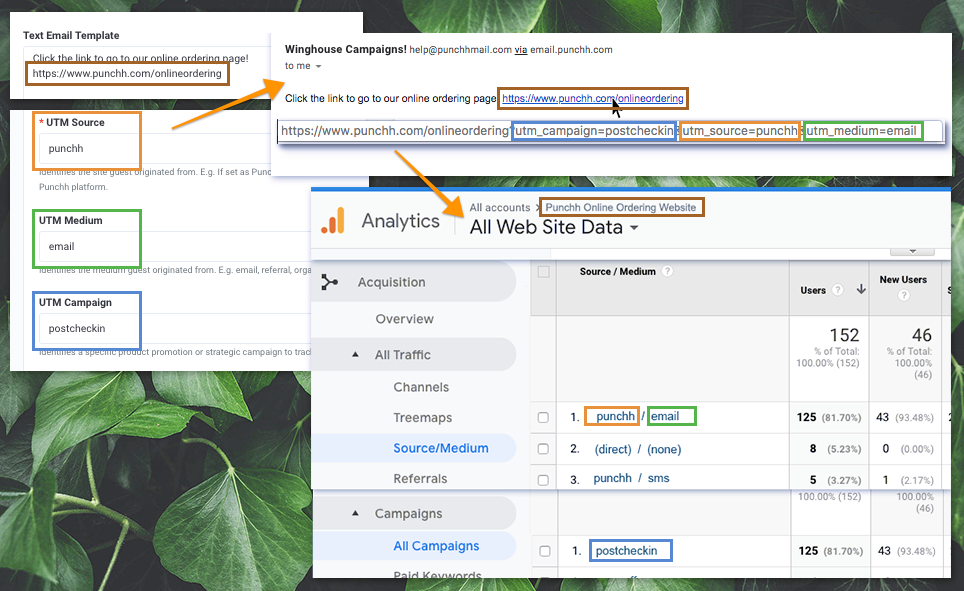
Using these UTM parameters, you can track URLs originating from a specific source (such as "Punchh" for your Punchh campaigns), medium (email, push_notification, survey), campaign (signup, postcheckin, superbowl2019_campaign, etc.), and/or type of content the URL is associated with (image, text_link, etc.).
How Does Link Tracking Work?
When a user clicks a URL that includes appended UTM parameters and then lands on a webpage set up with a Google Analytics Tracking ID code, that information is forwarded to and recorded by the associated Google Analytics account. The process from setup to finish is detailed in the following steps:
- If you don't already have one, you'll need to open a Google Analytics (GA) account.
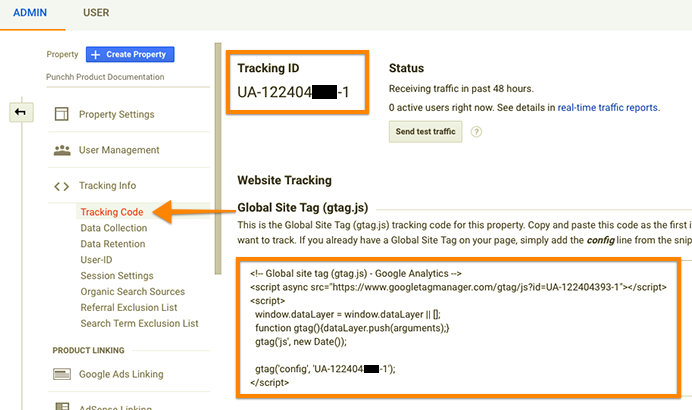
- Insert the GA Tracking ID tag code for your account into the header(s) of your website (any page for which you want to track the incoming traffic.)
This code is found in the Admin >Tracking Code section of your GA account and tells webpages which GA account (yours) to forward the captured info.
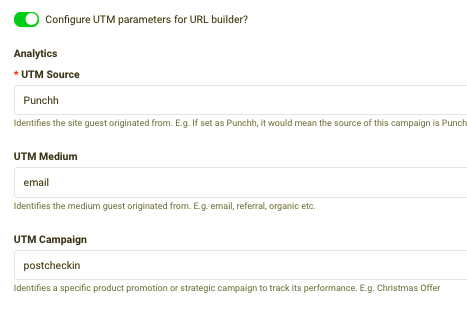
- Add UTM parameters to the end of any links to your web pages that you send out via Punchh campaigns. This step occurs in the Messaging section in Step 2 - Whom when setting up a Campaign.
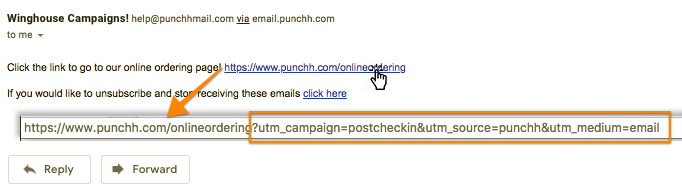
- When the user clicks a tracked link leading to one of your web pages, the GA tracking code forwards info about where the user has come from to your GA account.
This info includes the referring page as well as any UTM parameters included with the link. For example, if you add the "utm_source=punchh" parameter, it will record the source as originating from Punchh. For emails and push notifications, URL Builder automatically shortens the URL, hiding the UTM parameter string so the link looks tidier.
- View this captured info in your GA account.
UTM Parameters explained
UTM (Urchin Tracking Module) parameters are five variants of URL parameters used by marketers to track the effectiveness of online marketing campaigns across traffic sources and publishing media. The following table explains each one's intended purpose and provides some examples.
| Parameter | Purpose | Examples |
|---|---|---|
| utm_source (required) | Identifies which site sent the traffic (required parameter). | utm_source=punchh |
| utm_medium | Identifies what type of link was used, such as cost per click or email. | utm_medium=email utm_medium=sms utm_medium=pushnotification |
| utm_campaign | Identifies a specific product promotion or strategic campaign. | utm_campaign=postcheckin utm_campaign=signup utm_campaign=superbowl2019 |
| utm_term | Identifies search terms. | utm_term=pizza utm_term=punchhburger |
| utm_content | Identifies what specifically was clicked to bring the user to the site, such as a banner ad or a text link. It is often used for A/B testing and content-targeted ads. | utm_content=logolink utm_content=textlink |
Tracking Campaign Messaging URLs
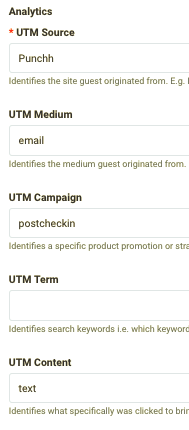
You can easily define and add UTM parameters to URLs you include in push notifications, SMS, and email messages sent from your campaigns. This step occurs in the Messaging section in Step 2 - Whom when setting up a Campaign and is shown in more detail below:
- After you've added Campaign messaging that includes an external link, toggle the Configure UTM parameters for URL builder? option at the bottom of the page to the "On" position.

- In the Analytics fields, define the UTM parameter values you want to track.
"UTM Source" is required and is recommended to be set to "Punchh". For "UTM Medium", you may want to define this parameter only if you're including a link in just one form of messaging (i.e., only in email messages).
- Continue setting up and scheduling your Campaign as usual. Tracking info will be sent to your GA account whenever a guest follows that link.
