Coupon Lookup
Added Module The Coupon Lookup function is bundled as part of the Premium Package - Coupons and Promos Module, available for an additional cost. To enable the Coupons Module, speak to your Punchh representative about adding it to your service contract.
Use the Coupon Lookup function in the Diagnostic section of your Platform to quickly check and see if you've already used a certain code. Maybe you want to use the code "BOGOMONDAYS" for a new promo campaign, navigate to Diagnostic > Coupon Lookup to check if this code is available.
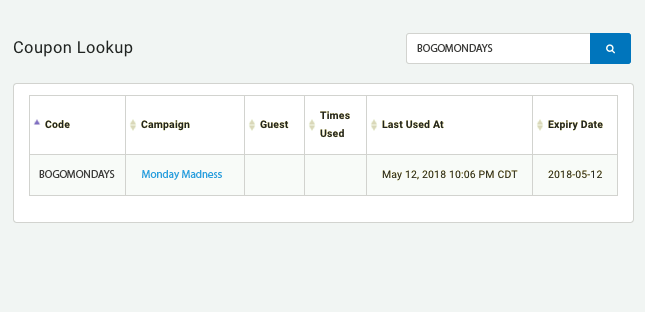
Check Promo Code Availability
Currently, you are limited to only using one distinct promo code for one campaign. This means you can't use the same promo code twice (and you also cannot edit a finished promo campaign to reactivate or reschedule). Because of these limitations, it is useful to have a resource to quickly check for the availability of a promo code.
It's a pretty simple process.
- Navigate to Diagnostic > Coupon Lookup.
- Enter the promo code into the search field and hit search.
If your lookup returns a result, you're out of luck and will have to think of a new promo code. If your lookup doesn't return any results, it means that promo code has not yet been used and it available for you to add to a new promo campaign.
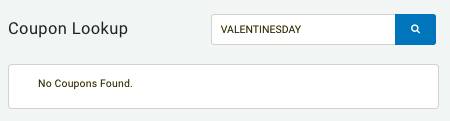
Search Using a Pre-generated Coupon Code
If you're trying to perform a lookup using a pre-generated coupon code, there's a good chance you're doing it for troubleshooting, and you'll first need to find a code to lookup. There are a few ways you can do this. The easiest way is to grab it from a guest's timeline, assuming you know the guest who used it. You can also pull a code from an exported list, or you can find it from the list of coupon codes shown in the campaign from which it originated. To find a pre-generated code, do this:
-
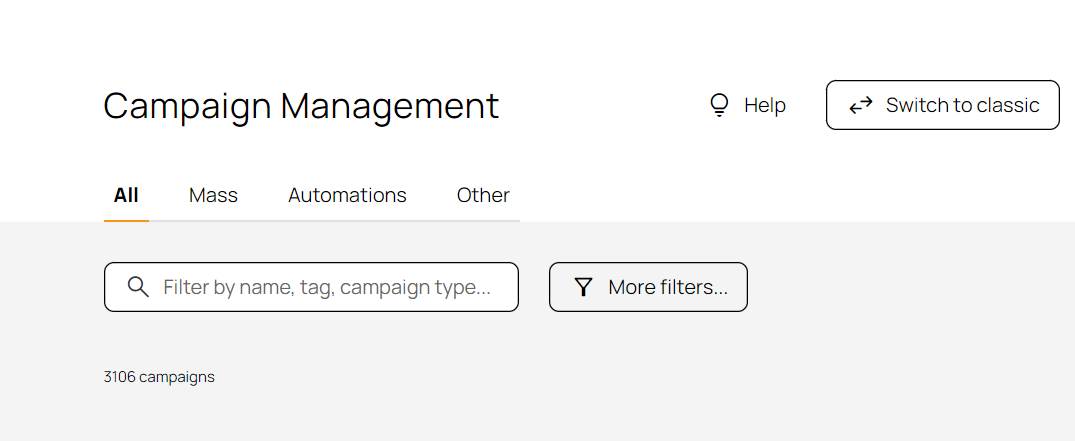
Navigate to Marketing Automation > Campaign Management.
-
Search for Coupon Campaign by using the search bar or the More filters option.
-
Click the name of the campaign you want to troubleshoot.
-
Click the three dots on the right side of the Campaign Status and select Coupon Codes List.
The coupon codes list contains all the codes that have been generated thus far in the campaign. For dynamic generation campaigns, this list will continue to grow as more guests trigger a new code.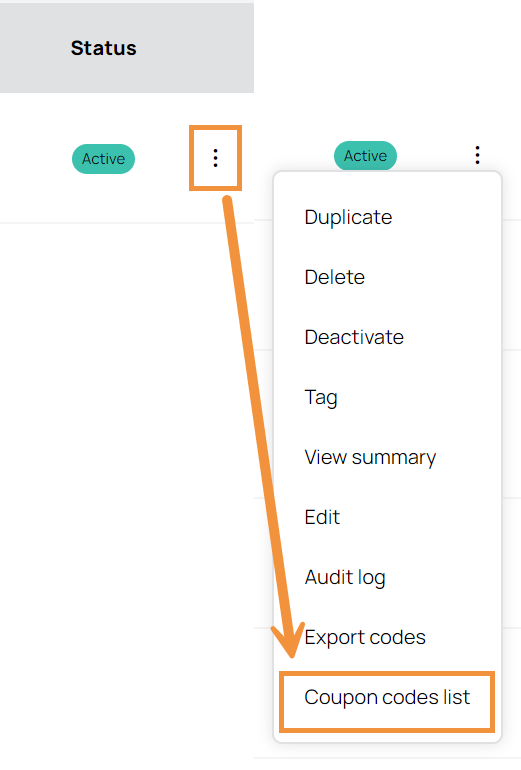
-
Find the code from the list and copy it. Use the tabs at the top to view coupons by status; awaiting, awarded, or expired.
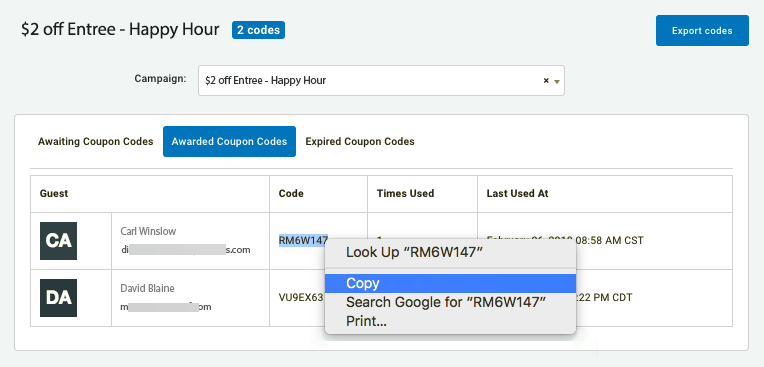
-
Navigate to Diagnostic > Coupon Lookup and paste your code into the search field.
Note: Contact your Punchh representative to ensure any generated coupon codes avoid accidentally using a profane word within the code. A profane word list can be created and maintained for your business to avoid this.
