Coupon Report
The Coupon Report allows you to view different metrics related to any Coupon Campaign. It is a great tool to check the success of any Coupon Campaign by throwing light on KPIs (Key Performance Indicators) like Coupon Gifted, Coupon Redeemed, Total Discount, Average Discount, and Total Net Revenue.
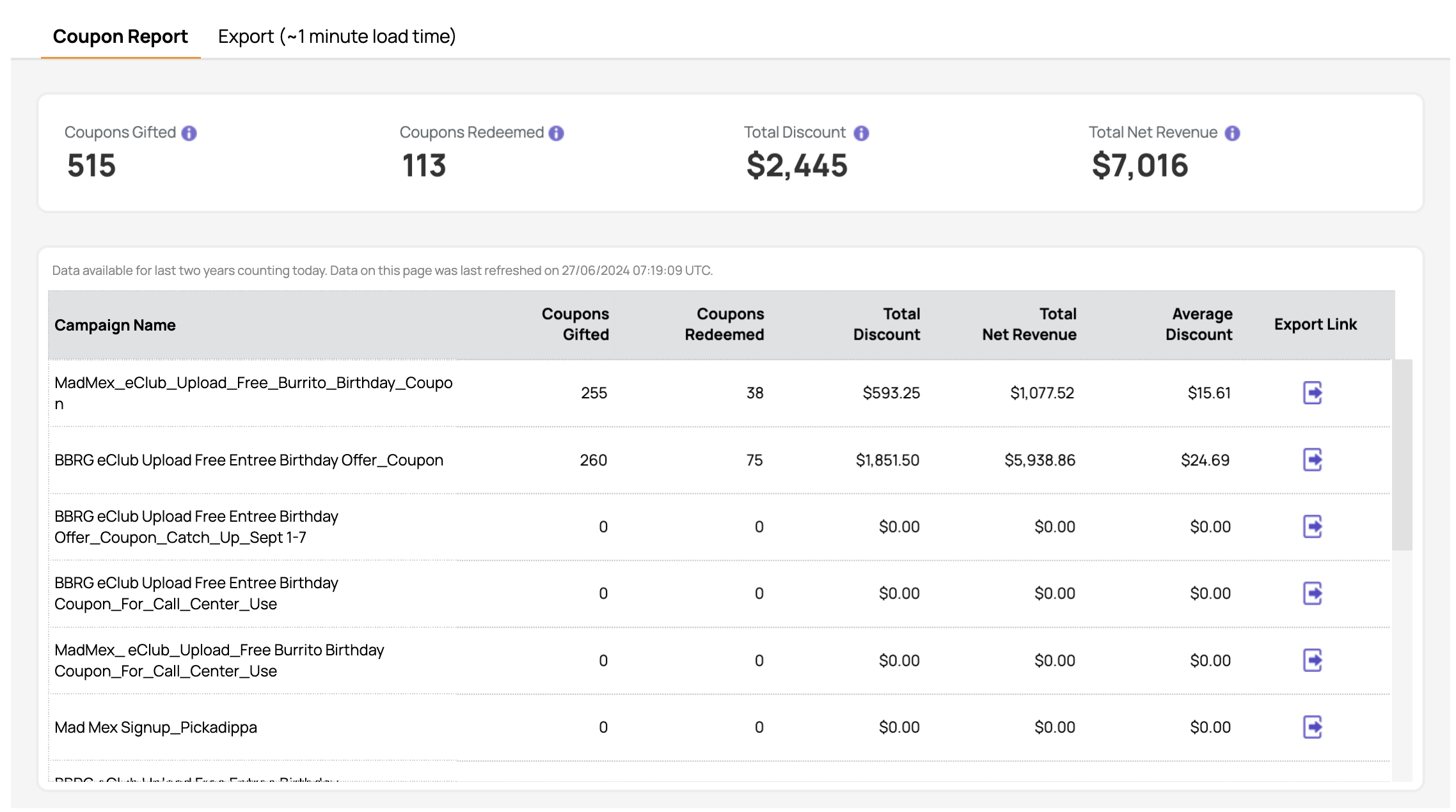
Viewing the Coupon Report
You can check out the coupon report in Marketing Automation > Coupon Report. Coupon Report has two tabs: Coupon Report and Export.
Date Range Available
Data is made available for the last two years counting today. For example, if today is 2024-Jul-05, the data from 2024-Jul-05 to 2022-Jul-05 is made available in the report.
Data Refresh Frequency
Data is being refreshed daily once at 7 AM EST. This can be checked using the latest refresh data time stamp shown on the dashboard.
Coupon Report Tab
The Coupon Report tab has two sections: overall KPIs and the coupon report table.
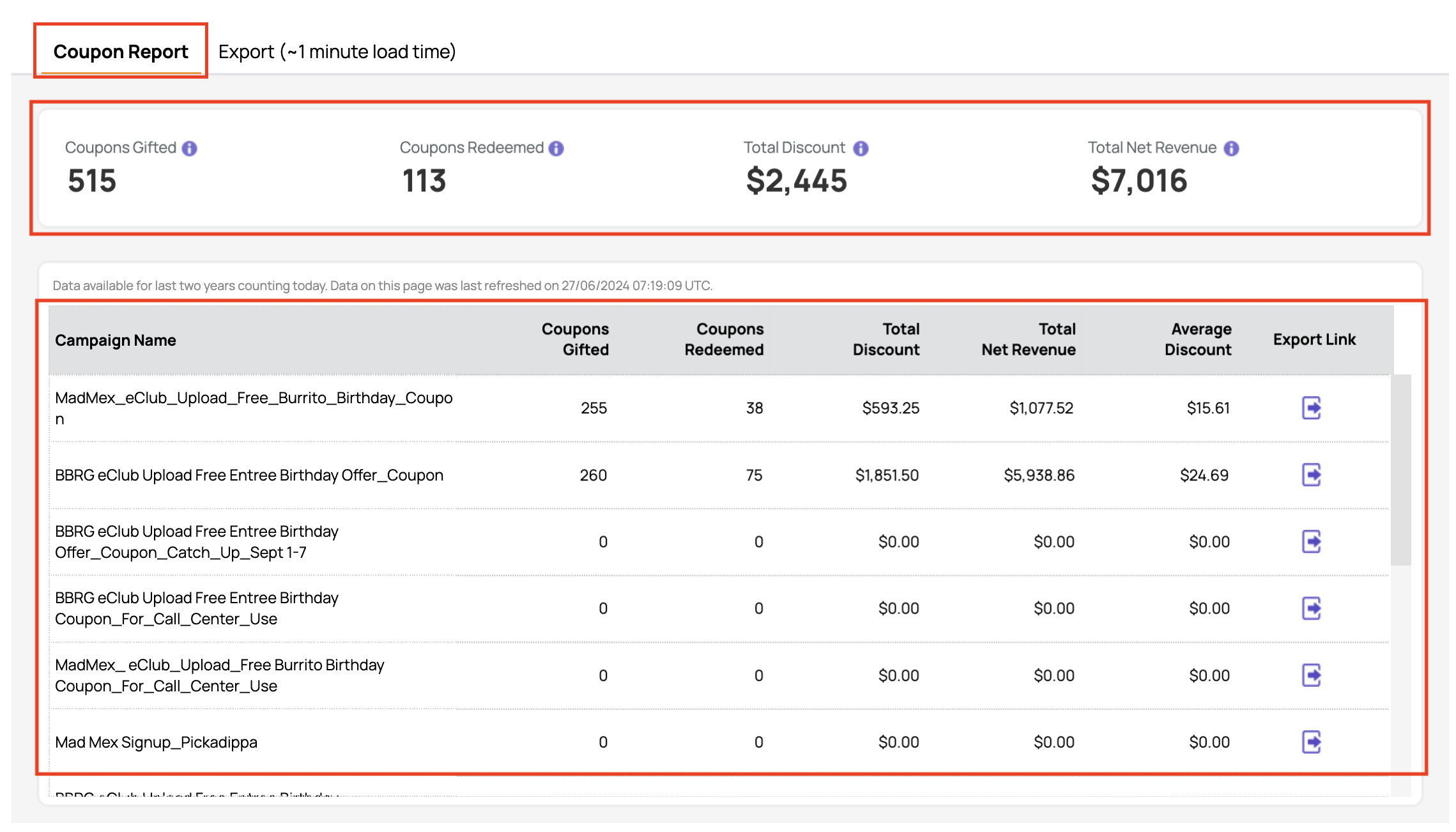
The coupon report table shows a list of all Coupon Campaigns for the selected time period where either of the below-mentioned conditions is true.
- The user logged in has access to the locations or location groups at which the Campaigns are run.
- The location selected by the user has a Campaign tagged to it.
- In case a Campaign is not attached to any location, such locations are shown by default irrespective of whether the user has access to the locations or not.
Coupon Report Table Metrics, Defined
| Report Metric | Definition |
|---|---|
| Campaign Name | Refers to the name of the campaign that started on the selected time duration and coupon allocated for selected locations. |
| Coupons Gifted | Total count of coupons gifted under the campaign. |
| Coupons Redeemed | Total count of coupons that have been redeemed under the campaign. |
| Total discount | Total discount amount value in $, given to guests in the form of $ off, % off, or value of redeemables. |
| Avg. discount | Average discounted amount per campaign. |
| Total Net Revenue | Receipt total of all coupons containing purchases. (Net value after deducting Discount from the Gross Spend.) |
Export Tab
Click on the Export Link icon of any campaign to open the Export tab which shows the list of codes that have not been used and whose expiry date is either null or greater than or equal to today.
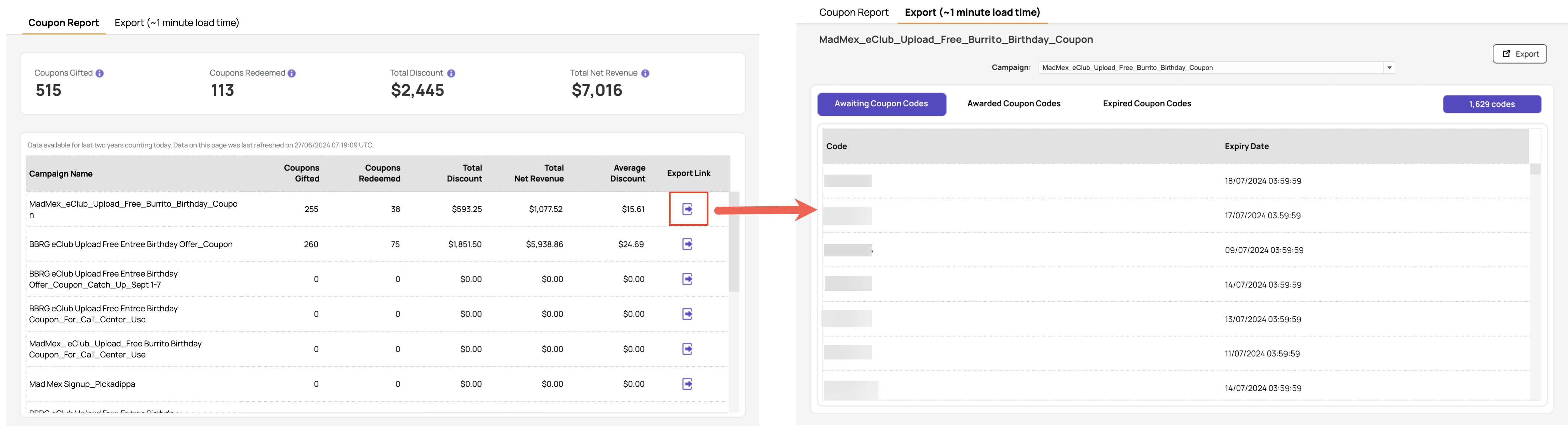
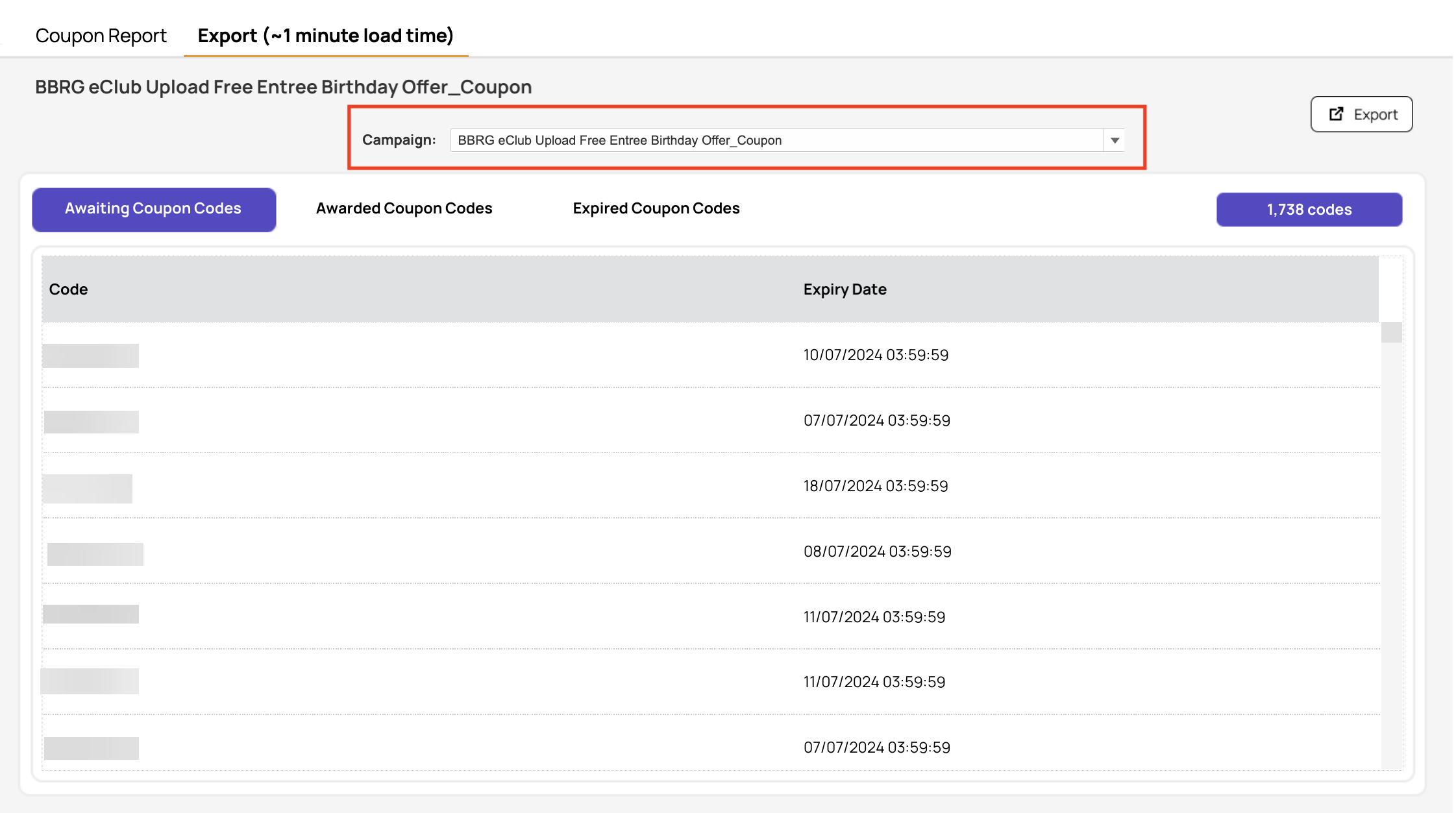
The Export tab shows the selected campaign name as the title on the top left. For that campaign, it shows the list of codes for Awaiting Coupon Codes, Awarded Coupon Codes, and Expired Coupon Codes. User has the option to switch between these types of codes by clicking the tabs provided.
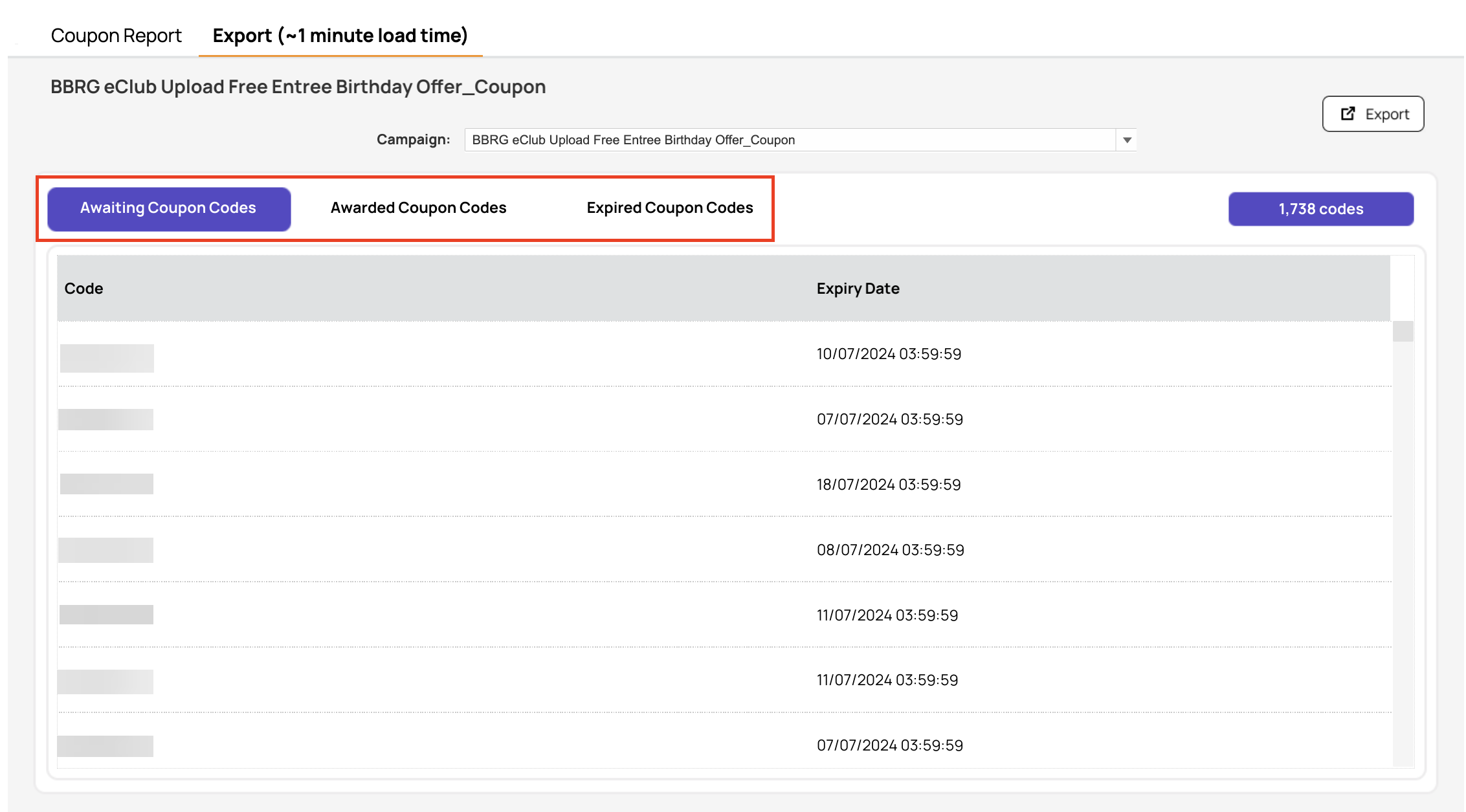
It also provides you an option to change the campaign selected on the Coupon Report tab using the filter just below the title of this tab.
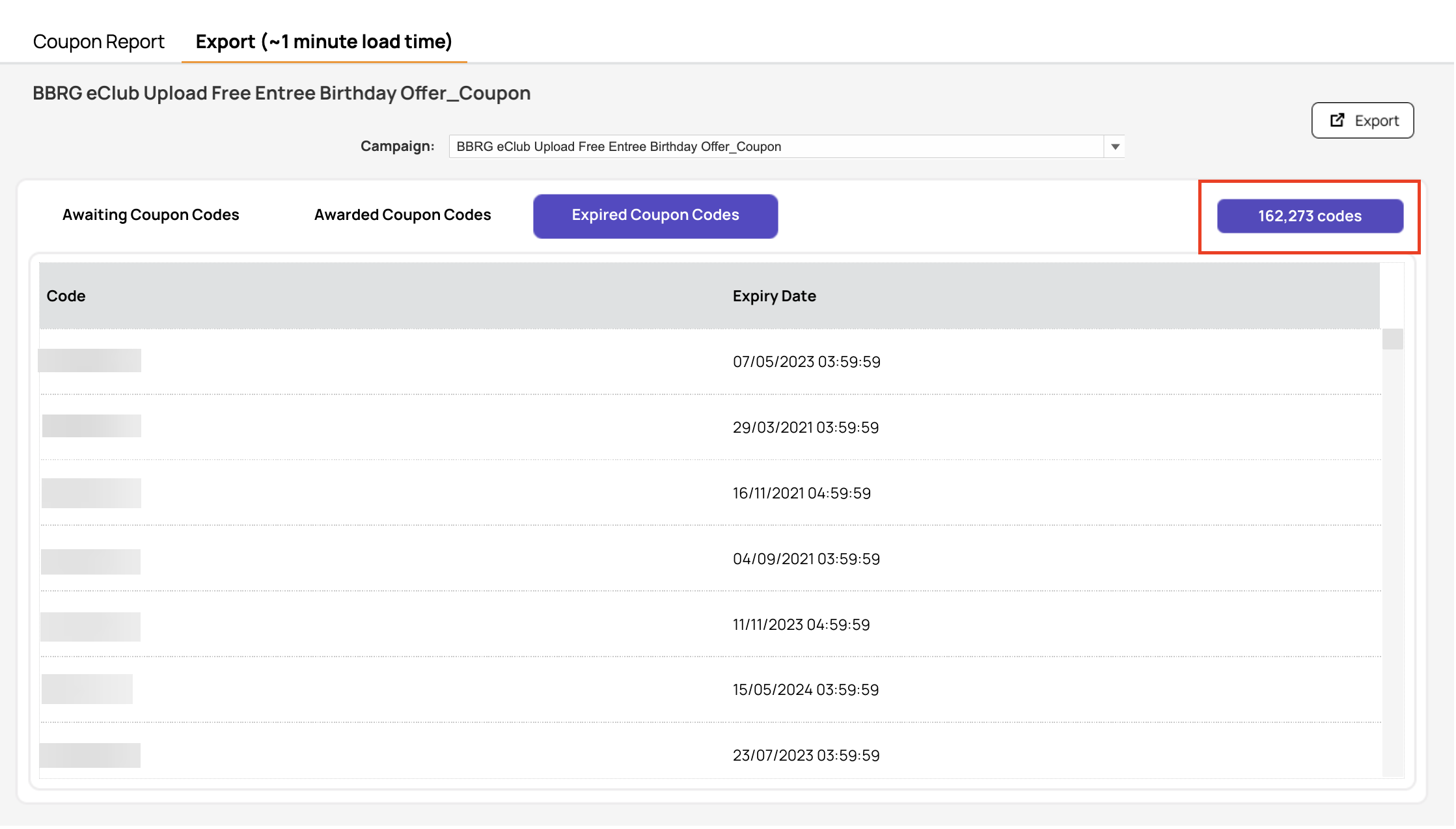
On the top right of each list, there is a tab that shows the number of codes listed below for the selected type of codes.
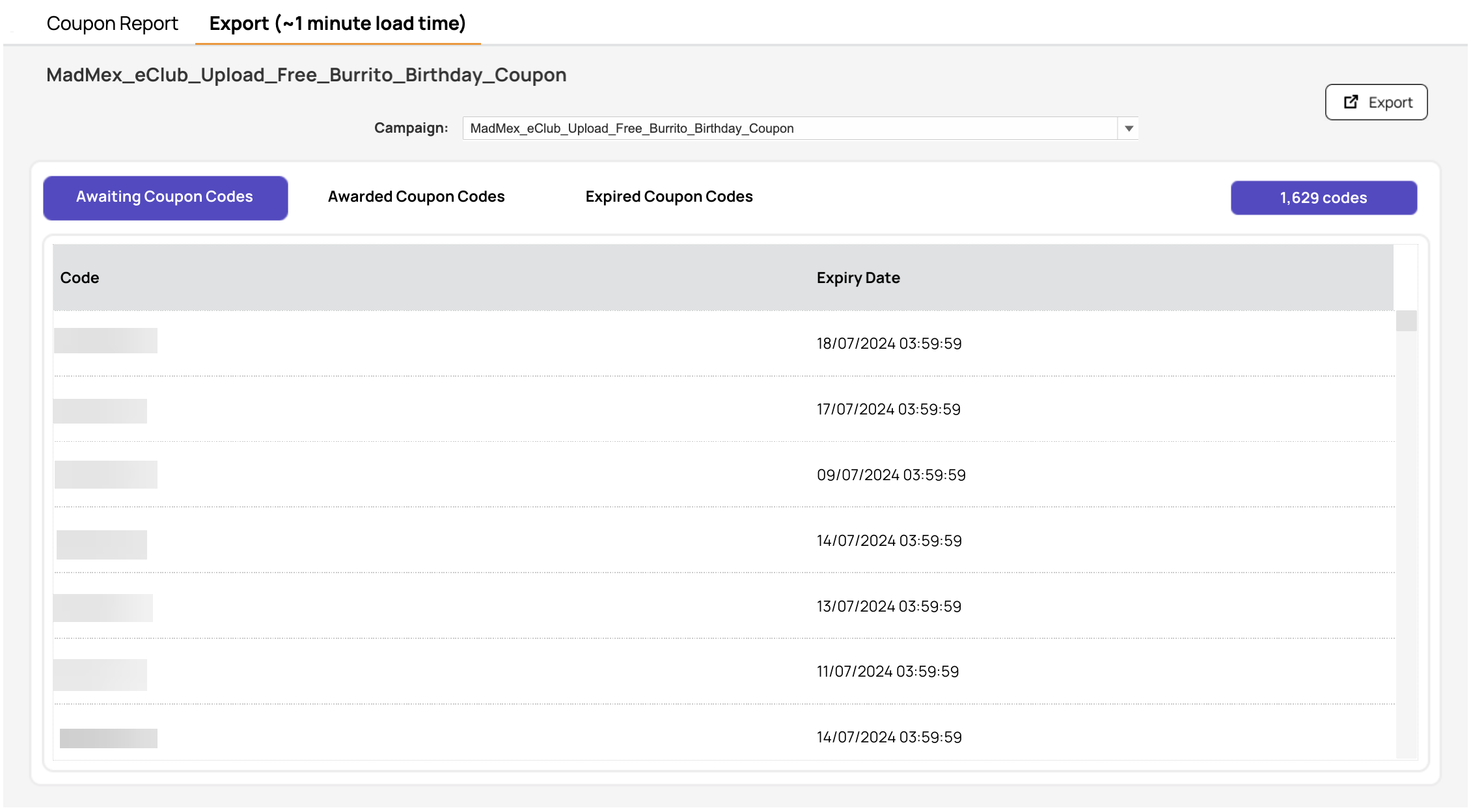
Awaiting Coupon Codes
This section shows codes with an expiry date that is either null or greater than equal to the current time.
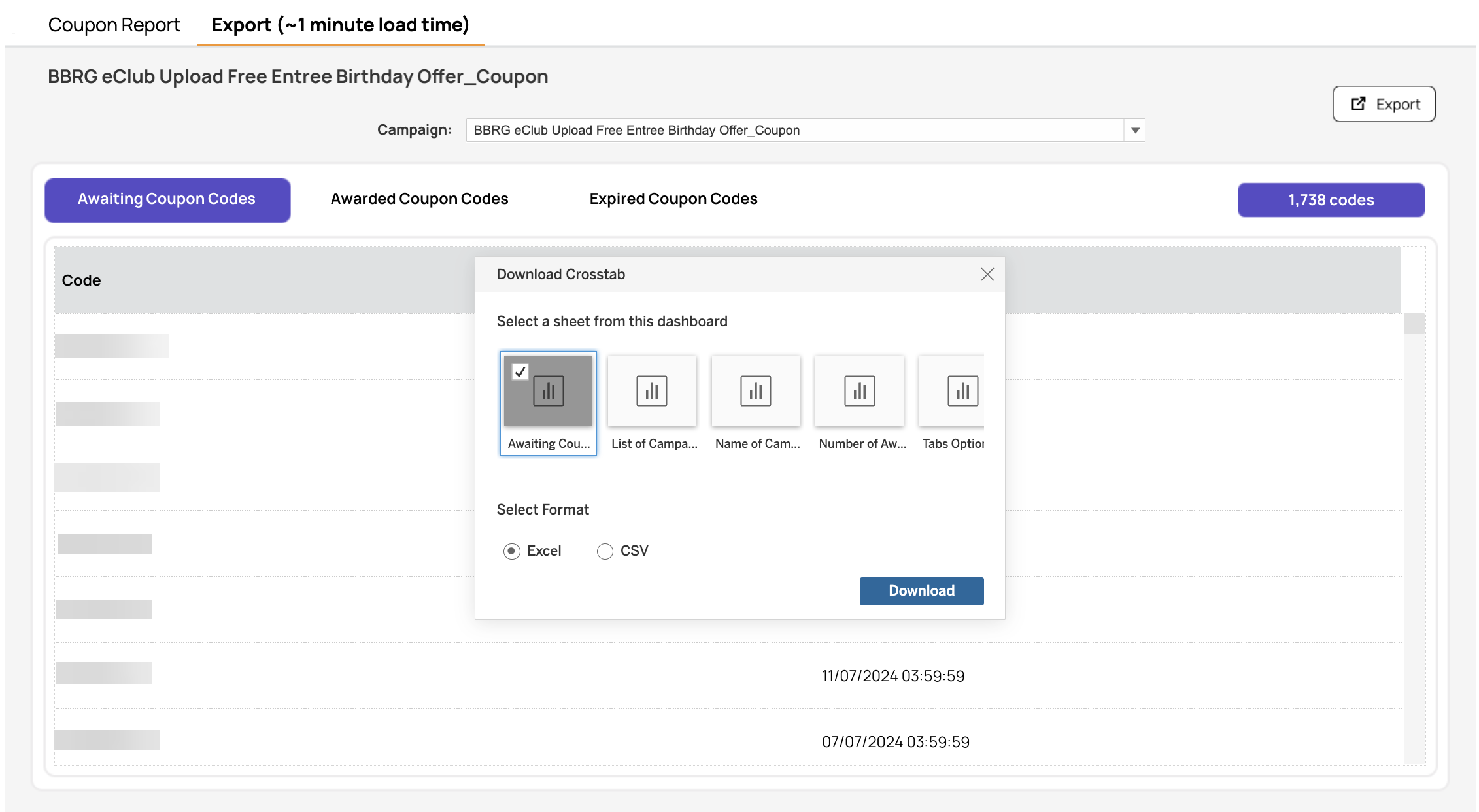
To export this list of codes, click on the Export button, select the sheet with the name “Awaiting Coupon Codes” along with the format of data you need to download, and then click Download.
Awarded Coupon Codes
This section shows codes that have already been used by guests.
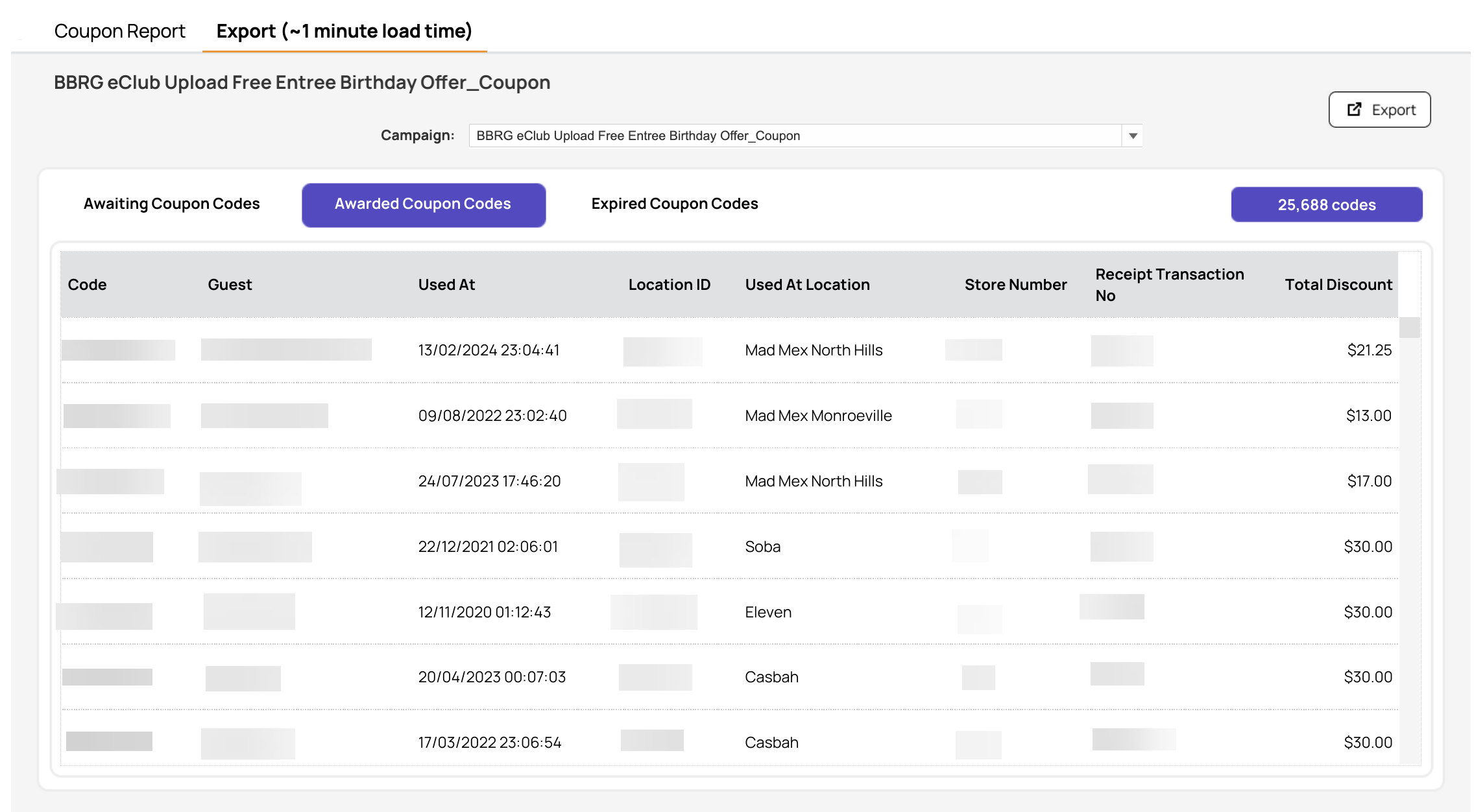
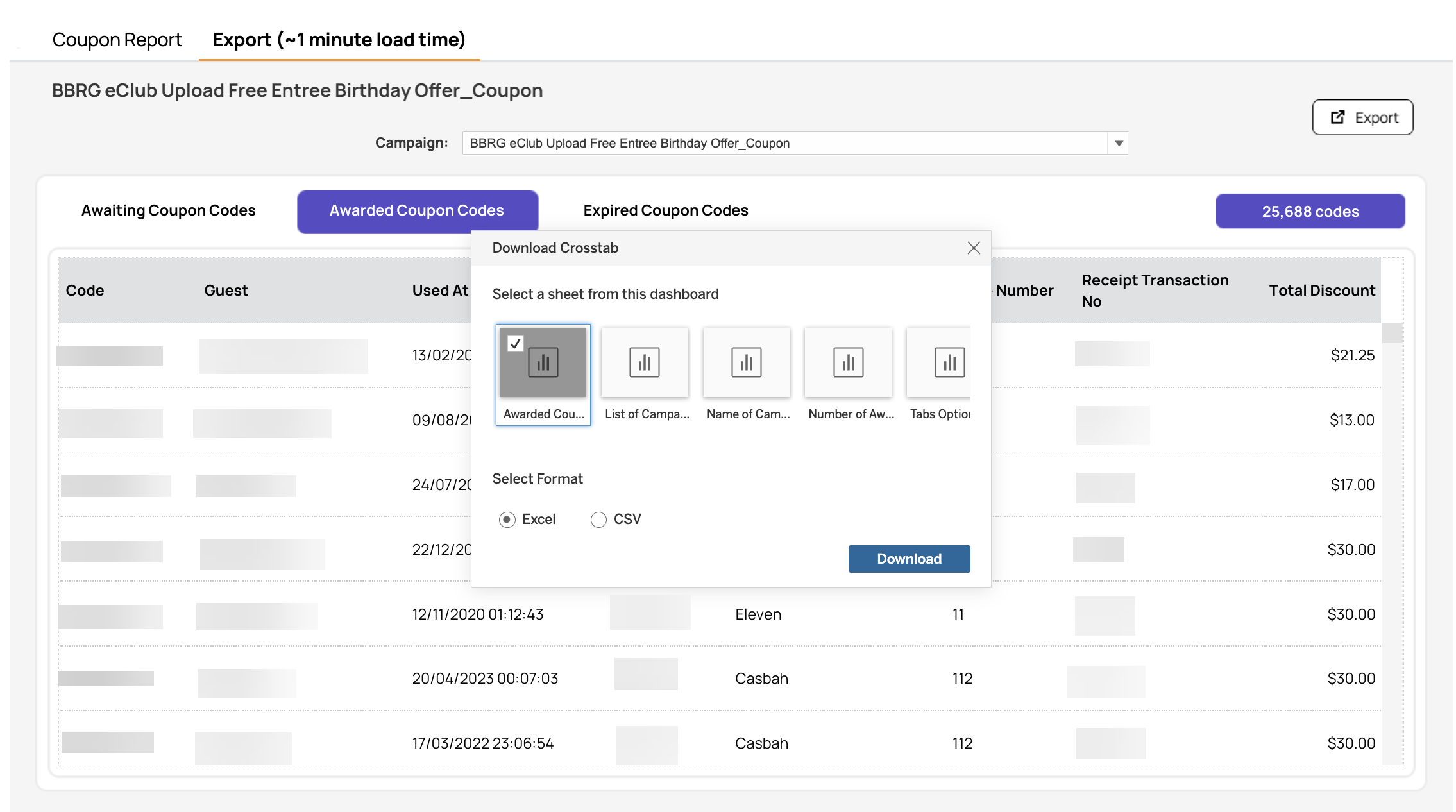
To export this list of codes, click on the Export button, select the sheet with the name “Awarded Coupon Codes” along with the format of data you need to download, and then click Download.
Expired Coupon Codes
This section shows codes with an expiry date of less than the current time.
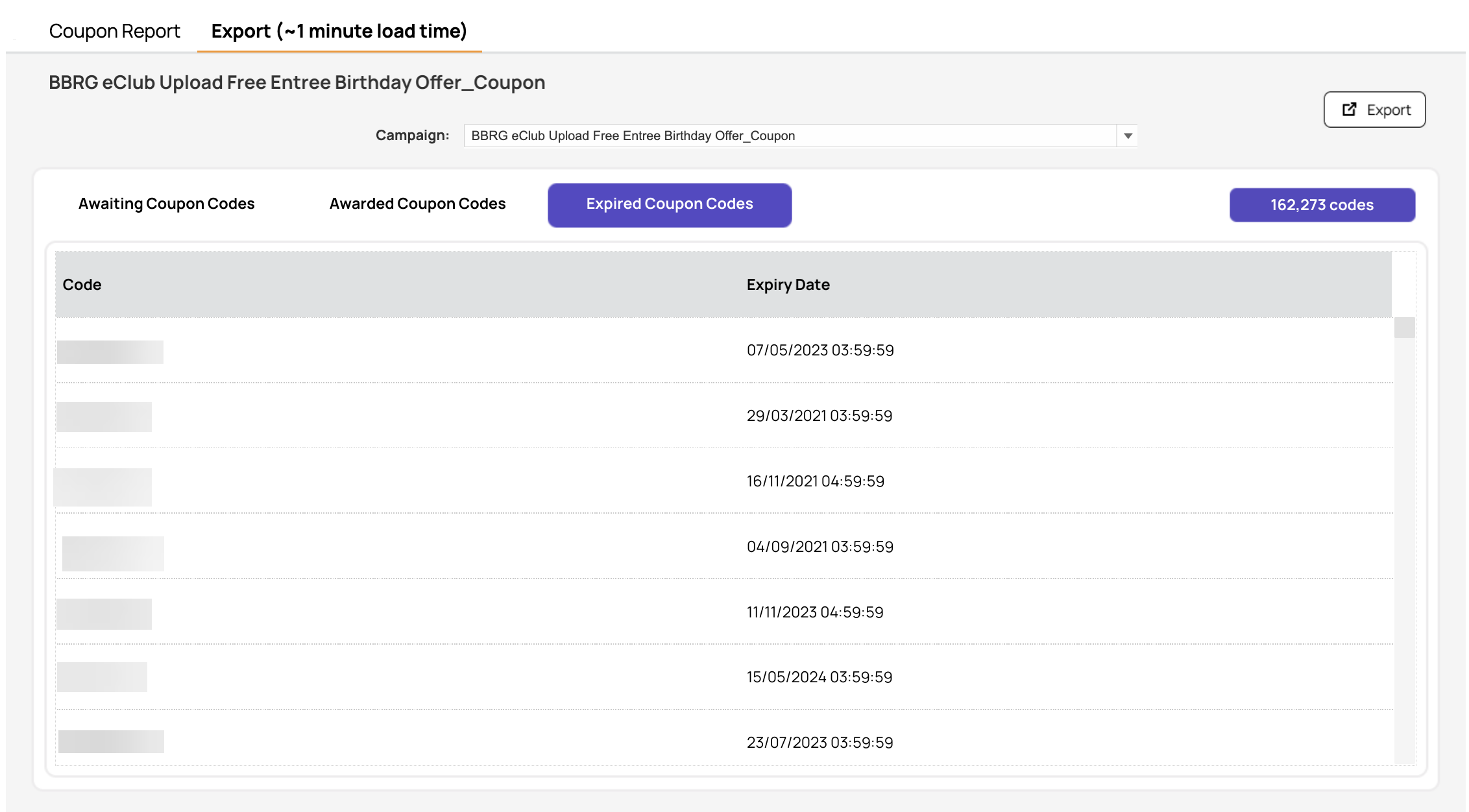
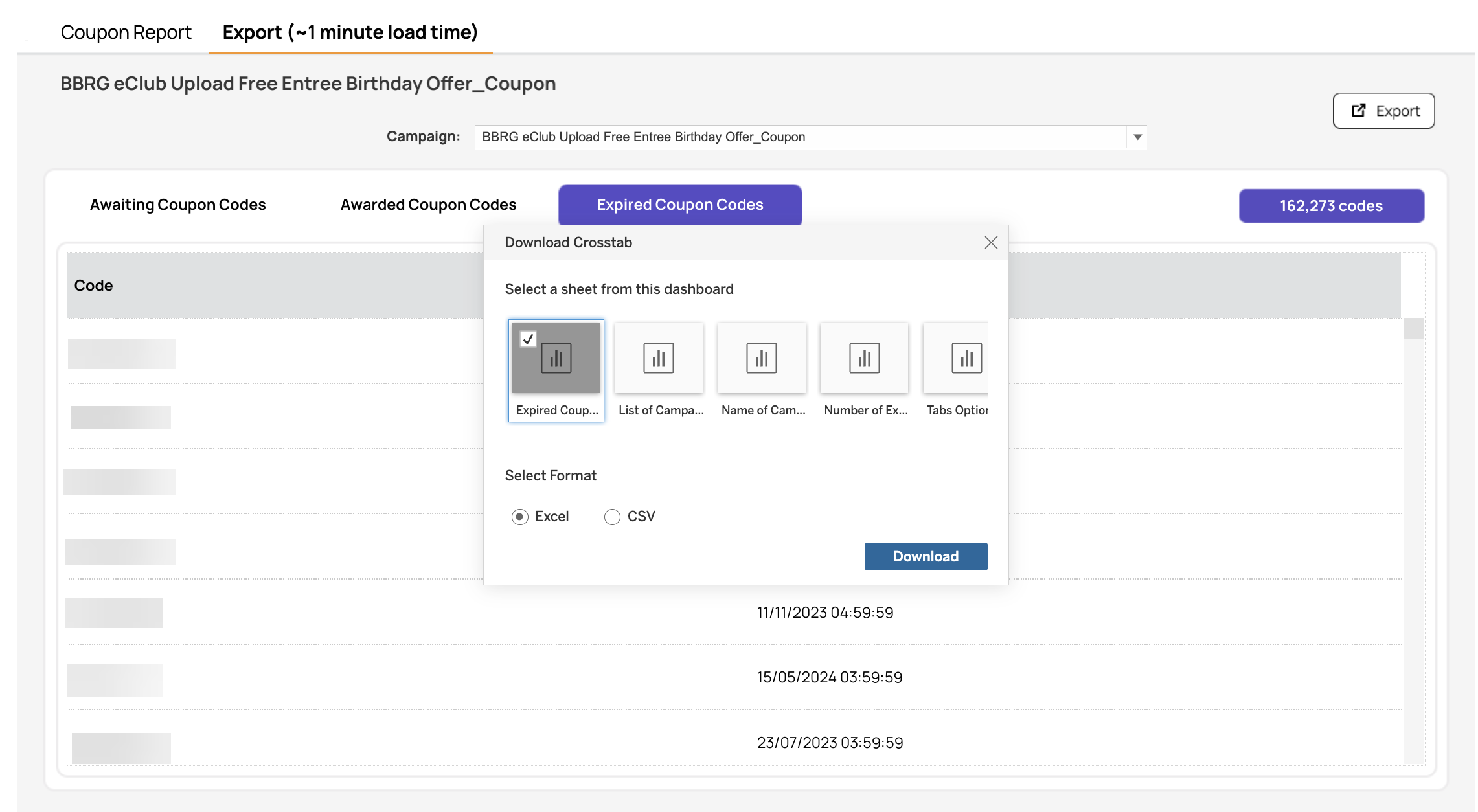
To export this list of codes, click on the Export button, select the sheet with the name “Expired Coupon Codes” along with the format of data you need to download, and then click Download.
Note: Contact your Punchh representative to ensure any generated coupon codes avoid accidentally using a profane word within the code. A profane word list can be created and maintained for your business to avoid this.
