How to Distribute Offer Passes Using Campaigns
Offer Passes allow you to deliver digital coupons, rewards, or promo codes to your guests, which they can save to their Apple Wallet or Google Wallet. This article explains the different ways you can distribute Offer Passes using campaigns in the Punchh Platform, along with best practices and important considerations.
Note: For all the options provided below, the Offer Pass image is pulled from the redeemable, coupon, or promo image added to the campaign. If no image is configured, the pass may display a default appearance configured on the Pass page in the platform.
Review these campaign flows and features articles before reading the Offer Pass distribution examples.
- Smart Passes: Overview
- Mass Offer Campaign
- Coupon Campaign
- Promo Campaign
- Email Templates (Email Editor)
Choosing the Right Distribution Method
| Business Goal | Recommended Method |
|---|---|
| Reward loyalty members | Mass Offer Campaign with Redeemable |
| Unique coupon codes at scale | Coupon Campaign - Dynamic |
| Printed or manual distribution | Coupon Campaign - Pre‑Generated |
| Single shared discount code | Promo Code Campaign |
Mass Offer Campaign with a Redeemable (Loyalty Members Only)
Use this method if: You want to deliver a reward or coupon to existing loyalty members.
Configuration
-
Create a Mass Offer Campaign.
-
Attach a redeemable (for example, a $5 off reward).
-
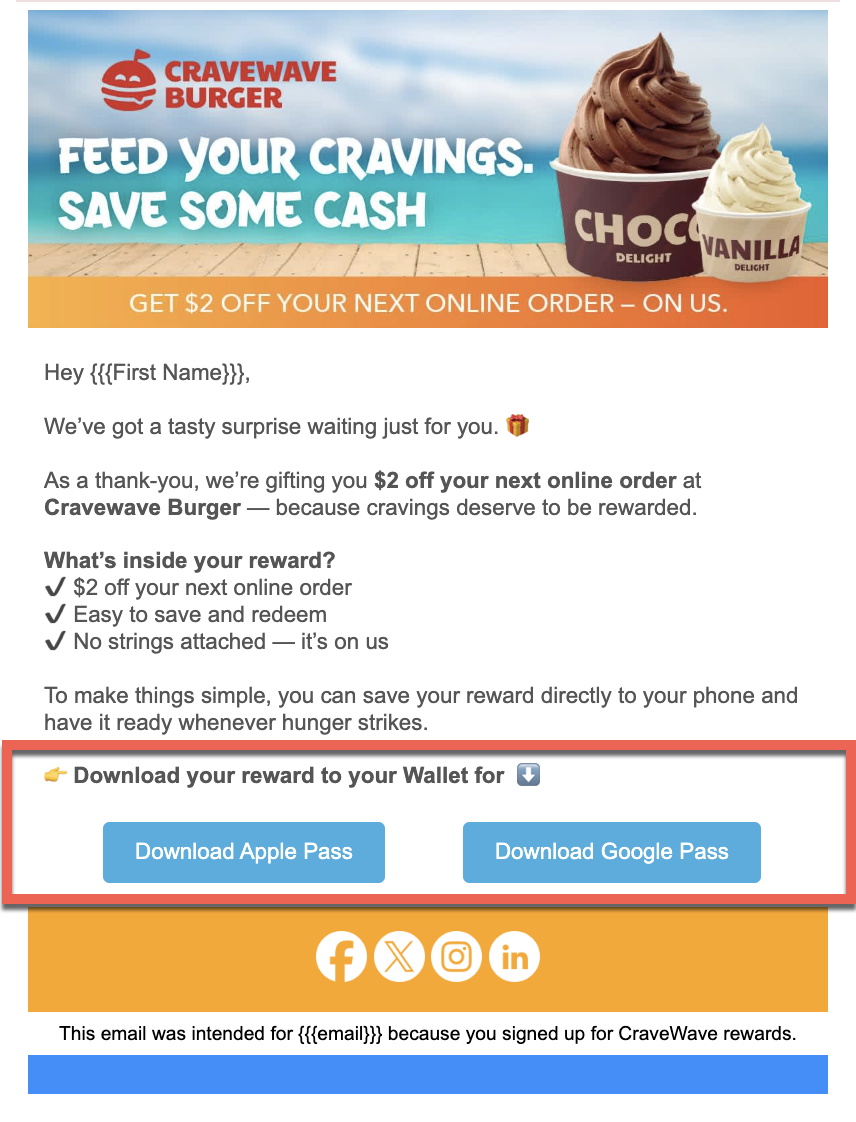
Within the campaign's messaging, add the following dynamic tags as a button or link for guests to download the Offer Pass to their digital wallet.
- Apple: {{{apple_offer_pass_url}}}
- Google: {{{android_offer_pass_url}}}
-
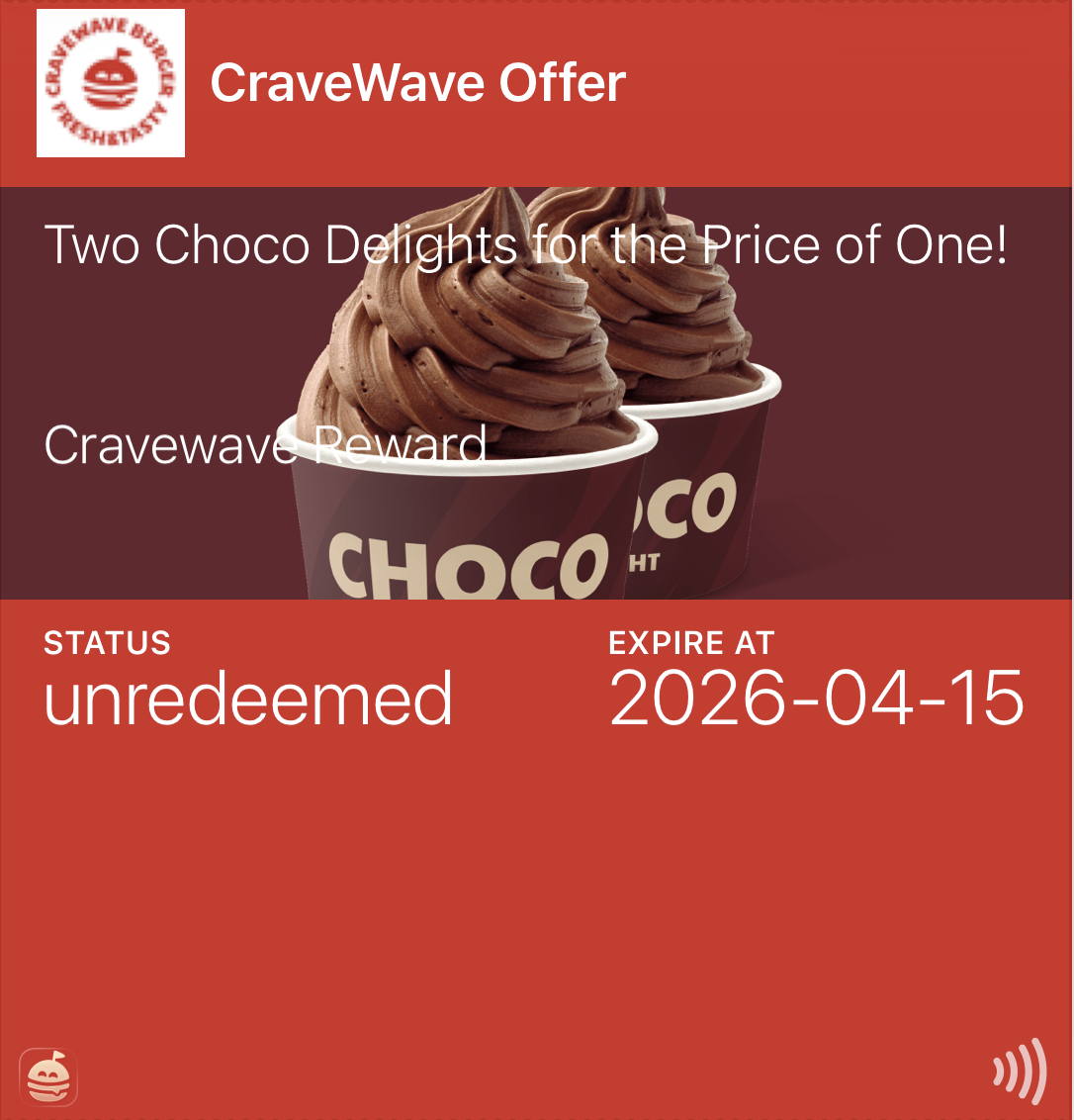
Guests receive the campaign's messaging with links to download the Offer Pass, with the redeemable.
Important Notes
- Available to loyalty members only
- The redeemable image becomes the Offer Pass image
- Apple and Google Offer Pass links are delivered using dynamic URLs
Best Practices
- Do not display raw URLs in messages. Instead, link them behind buttons or text (for example, "Download your Apple Offer Pass").
- Use a clear, branded image for the redeemable, since it controls the appearance of the pass.
Coupon Campaigns
Coupon campaigns support Offer Pass distribution to both loyalty and non‑loyalty (app‑less) guests. There are two coupon workflows: Dynamic Coupon Codes and Pre‑Generated Coupon Codes.
Option A: Dynamic Coupon Codes (Recommended)
Use this method if: You want to distribute unique, single‑use coupon codes at scale.
- Coupon codes are generatedat send time
- Each guest receives their own unique code
- Ideal for mass email or SMS campaigns
Configuration
- Create a Coupon Campaign using dynamic coupon codes.
- (Optional) In the What step of the campaign, enter a Display Name for the Offer Pass. If you leave this field blank, the coupon code continues to appear in the primary field on the front of the pass.

- Select Directly Process at POS. (Unlock via Mobile App is not recommended for Offer Passes.)
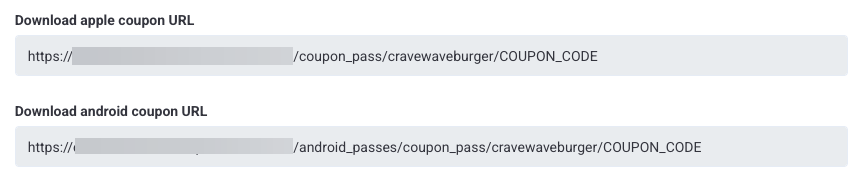
- Copy the Apple and Android coupon URLs.
- Complete all other necessary fields for the Coupon Campaign.
- Create a Mass Notification Campaign.
- Attach the coupon campaign.
- Add the Apple and Google Offer Pass URLs to your message content as a button or link for guests to download the Offer Pass to their digital wallet.

-
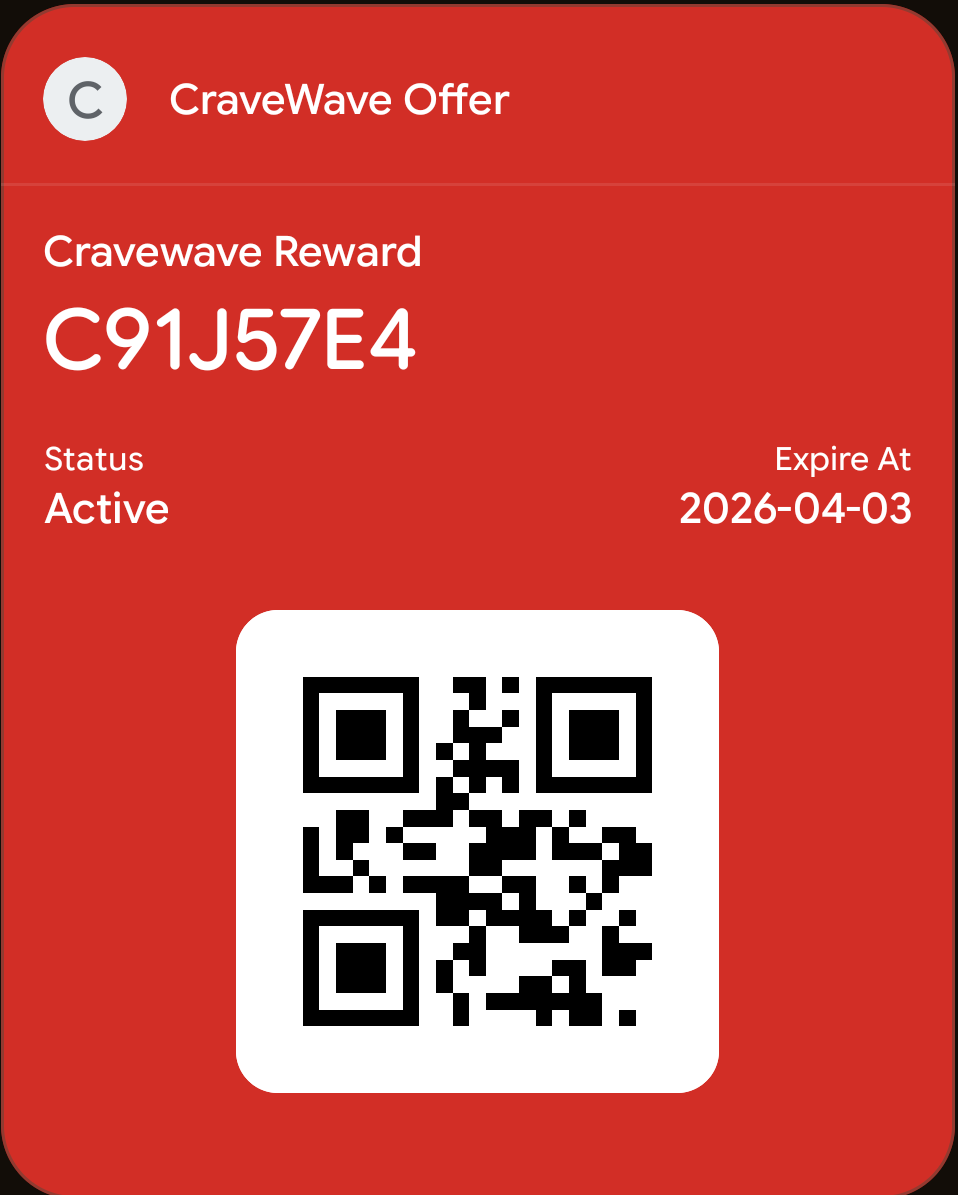
Each guest receives a downloadable Offer Pass containing a unique coupon code.
Important Notes
- For non‑loyalty or app‑less guests, coupons should be configured as Directly Processed at POS.
- Avoid requiring mobile unlocks when targeting guests who are not using the Punchh app.
- Always include both Apple and Google download options so guests can choose the correct wallet.
Option B: Pre‑Generated Coupon Codes
Use this method if: You need to distribute coupons outside of Punchh messaging, such as printed handouts or third‑party platforms. Such as:
- Printed or in‑store coupon distribution with QR codes to download the Offer Pass
- Uploading codes to third‑party messaging tools
- Controlled or one‑off campaigns
Configuration
- Create a Coupon Campaign with pre‑generated codes.
- (Optional) In the What step of the campaign, enter a Display Name for the Offer Pass. If you leave this field blank, the coupon code continues to appear in the primary field on the front of the pass.

- Select Directly Process at POS. (Unlock via Mobile App is not recommended for Offer Passes.)
- Punchh generates a list of coupon codes and Offer Pass URLs for both Apple and Google.
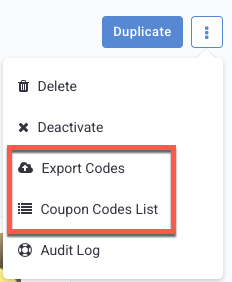
- Navigate to the Edit flow of the campaign and select the three-dot menu.
- Export the list or view the coupon code list and distribute the codes and links manually.
Important Notes
- Not designed for automated mass sends
- For non‑loyalty or app‑less guests, coupons should be configured as Directly Processed at POS.
- Avoid requiring mobile unlocks when targeting guests who are not using the Punchh app.
- Always include both Apple and Google download options so guests can choose the correct wallet.
Promo Code Campaigns
Use this method if: You want to distribute a single shared promo code via an Offer Pass.
Configuration
- Create a Promo Code Campaign.

- (Optional) In the What step of the campaign, enter a Display Name for the Offer Pass. If you leave this field blank, the coupon code continues to appear in the primary field on the front of the pass.

- Choose Directly Processed at POS. (Unlock via Mobile App is not recommended for Offer Passes.)
- Copy the Apple and Google Offer Pass URLs.
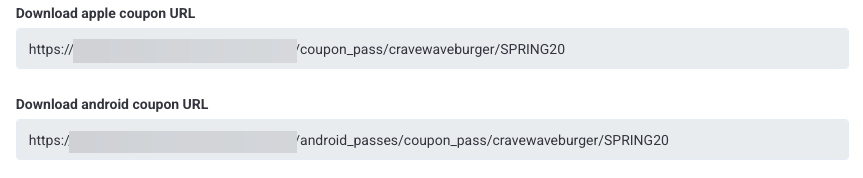
- Complete all other necessary fields for the Promo Campaign.
- Create a Mass Notification Campaign.
- Add the Apple and Google Offer Pass URLs to your message content as a button or link for guests to download the Offer Pass to their digital wallet.

-
Each guest receives a downloadable Offer Pass containing the promo code.
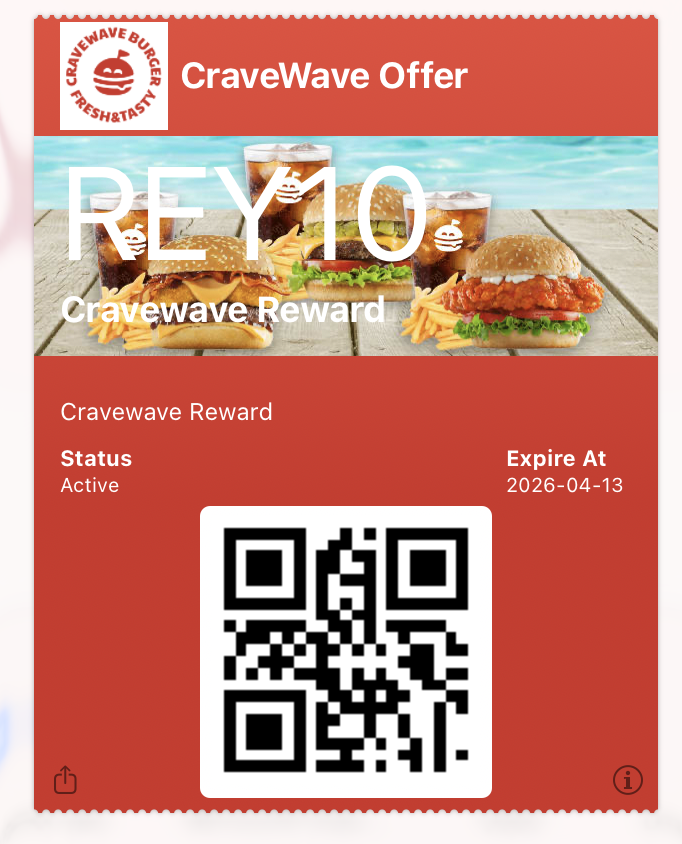
Important Notes
- Promo codes should be configured as Directly Processed at POS, especially for non‑loyalty guests
- Use clear call‑to‑action buttons for Offer Pass downloads
Common Issues and Troubleshooting
Use this section to troubleshoot common questions or issues when distributing Offer Passes.
Offer Pass links do not work
- Confirm that Offer Passes are enabled for your brand.
- For Apple Passes, verify that Apple Wallet certification is approved.
Guests see a long or confusing URL
- This is expected behavior. Offer Pass URLs are system‑generated.
- Best practice is to hide URLs behind buttons or linked text (for example, "Download your Offer Pass").
Guests cannot redeem the offer at POS
- For non‑loyalty or app‑less guests, ensure coupons or promo codes are configured as Directly Processed at POS.
- Avoid requiring mobile unlocks for Offer Passes intended for guests who are not using the Punchh app.
Offer Pass image does not appear as expected
- The Offer Pass image is pulled from the redeemable, coupon, or promo image.
- If no image is configured, the pass may display a default appearance configured on the Pass page in the platform.
- Use a clear, branded image sized according to Punchh image guidelines.
Apple link opens a Google Offer Pass (or vice versa)
- On some devices, the system may automatically route guests to the supported wallet on their device.
- Always include both Apple and Google download links so guests can select the appropriate option if needed.
Coupon codes are not unique per guest
- Confirm you are using a dynamic coupon campaign.
- Pre‑generated coupon campaigns distribute fixed codes and are not designed for unique, per‑guest assignment.
Display Name does not appear on the Offer Pass front
- Confirm that the Display Name field was completed in the What step of the campaign before the pass was generated.
- If Offer Passes are enabled and the field is not visible in the campaign, contact your Punchh representative.
