Promo Campaign
Added Module The Promo codes feature is bundled as part of the Coupons and Promos Added Module available for an additional cost. To enable the Promo module, speak to your Punchh representative about adding it to your service contract.
Similar to creating a pre-generated Coupon Campaign, a Promo Campaign takes it one step further, allowing you to choose the text of the code itself. This is valuable for driving a memorable marketing campaign surrounding an event or holiday. You can share your promo code with loyalty guests in the mobile app, all guests via email, or with the entire planet via mass advertising campaigns.
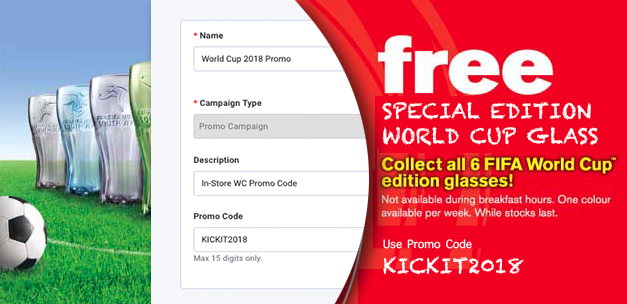
Create a New Promo Campaign
To create a new Promo campaign:
- Navigate to Marketing Automation > Campaign Management in your left-hand navigation toolbar.
- Click Create Campaign in the upper right corner.
- Click Other.
- Select the Promo campaign type.
- Click Create.
If your brand has enabled Smart Passes, review How to Distribute Offer Passes Using Campaigns for additional fields and notes to distribute an Offer Pass via Promo Campaign.
Step 1 - What
- Give your campaign a Name.
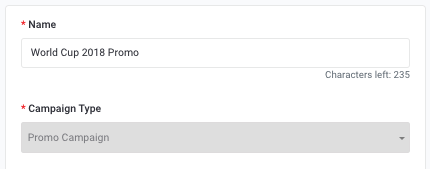
- Enter a Description for the coupon code.
This description will appear in the guest's account history once used.

- Enter a previously unused, alphanumeric Promo Code, using only a maximum of 15 letters and/or numbers (no special characters).
Note: One letter is required. You may only use a unique promo code one time. To check to see if a promo code is still free for use in your company, you can search using Diagnostic > Coupon Lookup.

- Click the Next button to move on to Step 2.
Step 2 - Whom
Campaign Settings
Code can be used in? – Select whether you want your coupon reward to be unlockable from within the mobile app (guests will enter the code into their app in order to receive the offer) or if the guest must bring the code to a location where it must be entered manually by a cashier into the POS at the time of purchase.
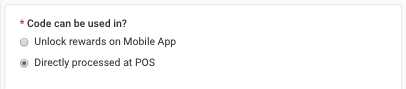
Choosing Unlock Rewards on Mobile Appprohibits you from limiting usage by location but allows for messaging, usage restriction, and some additional options:
- Use(s) per Guest– Select how many times a guest may unlock/use the promo code. If set to "0", the guest may use the code every time they perform a checkin.

- Gift Type – For Gift Type, you will choose from Gift Points or Gift Redeemable (see below)
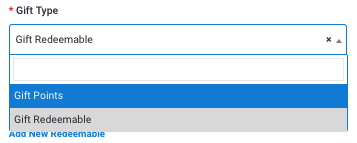
- Push Notifications and Email Messaging (see below)
Choosing Directly processed at POS prohibits you from sending the code by push notification or email but opens up some additional options:
- Meta Data - Allows you to enter metadata so it returns in a redemption API response.
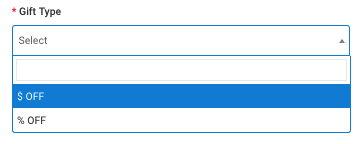
- Gift Type - For Gift Type, you will choose from $ Off or % Off (see below)
- Short/Standard Prompt - Enter the text to appear either at the gas pump (short) and/or cashier terminal (standard) to prompt the customer to redeem their reward, as applicable.
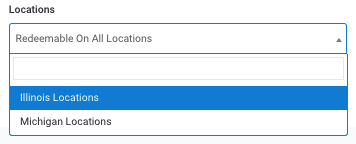
- Locations - Because your codes require interaction with a POS, you can specify the store(s) where your codes will be redeemable. Use the Locations drop-down to choose a location/location group.
Leaving this unspecified means your codes will be redeemable at all locations.
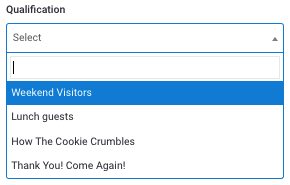
- Qualification - Select from your Qualification Criteria to set the conditions a guest must meet before they can redeem the promo code.
For example: If the coupon is for $5 off any appetizer, your qualification criteria needs to require that an appetizer be present on the guest's receipt in order to be triggered.
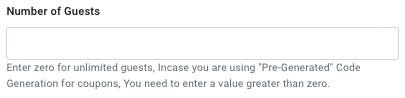
Choose the limit for the Number of guests who may redeem the promo code. Enter "0" for unlimited guests.
In the Use(s) Per Guest field, choose the amount of times the same customer can redeem a coupon code.

Your Gift Type options are dependent on whether your coupon codes can be activated in the mobile app or must be processed at the POS.
-
For Unlock rewards on Mobile App:
- Gift Points
- Enter the amount of (additional) points to gift the guest in the Gift Points field.
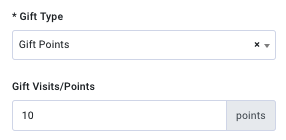
- Enter the amount of (additional) points to gift the guest in the Gift Points field.
- Gift Redeemable
- Click the Redeemable drop-down and select the redeemable you want to associate with this offer.
A preview thumbnail for your redeemable will appear along with it title and description.
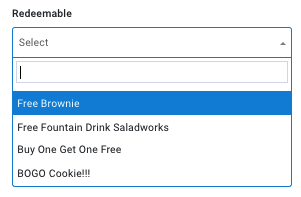
- Click the Redeemable drop-down and select the redeemable you want to associate with this offer.
- In the Gift Reason field, add a short message describing the type/purpose of this gift-giving campaign.
This message is internal-only. This description will be visible to guests in the Account History section of their app
- Gift Points
-
For Directly processed at the POS:
- $ Off
- Enter a dollar value in the Amount Discount field. This will be taken off the subtotal amount of the guest's check.
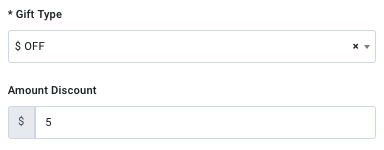
- Enter a dollar value in the Amount Discount field. This will be taken off the subtotal amount of the guest's check.
- % Off
- Enter a percentage value in the Percentage Discount field. This will be taken off the subtotal amount of the guest's check.
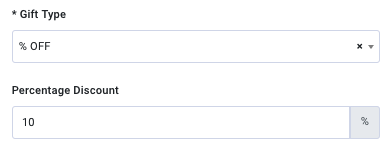
- Enter a percentage value in the Percentage Discount field. This will be taken off the subtotal amount of the guest's check.
- $ Off
-
Download coupon URL shows the coupon URL created for this campaign.
Messaging
Add messaging for each of the notification types you want to send. Refer to Campaign Message Options for full details.
(Required) Check Add unsubscribe link to email? to ensure your guests have the option to unsubscribe.
This must be enabled for all Promo Campaigns.
Once finished, click Next to move on to Step 3.
Step 3 - When
- Select a Start Date and Time and End Date and Time for your campaign.
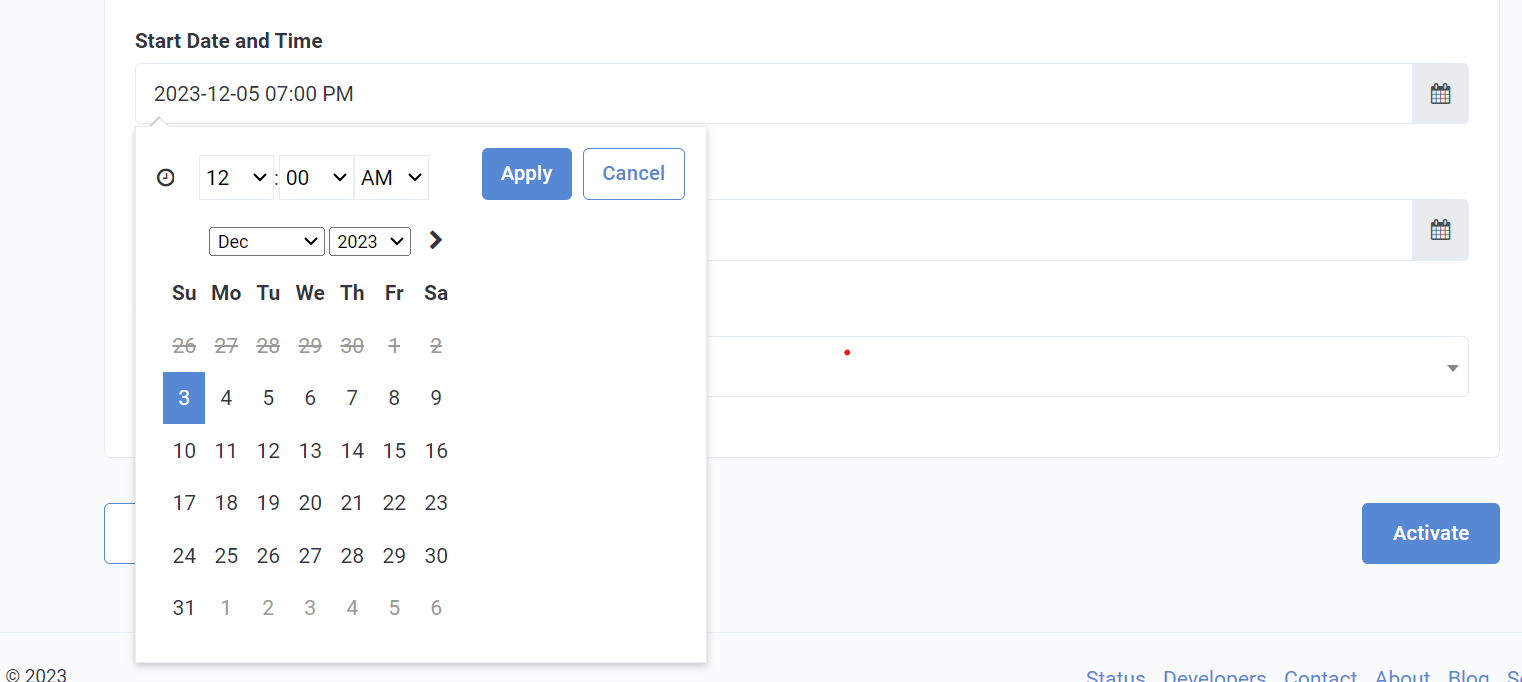
- Use the Timezone drop-down to select the most appropriate timezone for scheduling.
- Once you've finished with scheduling, click Finish to begin your promo campaign.
