Smart Passes: Overview
Added Module: Smart Passes is available for an additional cost. Contact your Punchh representative to learn more.
Overview
Smart Passes is a mobile wallet-native loyalty solution designed to make loyalty enrollment and engagement seamless with no app required. Living directly in Apple Wallet and Google Wallet, Smart Passes allows guests to earn, redeem, and join your loyalty program all at the POS.
With Smart Passes, you can acquire new loyalty members effortlessly. When customers transact using their mobile wallet, they’re automatically prompted to sign up, removing the friction that causes nearly 70% of guests to abandon traditional app-based sign-up flows.
- Instant Enrollment: Guests join instantly, without downloading your app or creating an account.
- Loyalty: Provide live loyalty cards with points.
- Real-Time Updates: Points, perks, and offers refresh automatically, no manual action needed.
- Full Punchh Integration: Works seamlessly with your existing engagement stack, eliminating vendor sprawl and sync headaches.
- Trackable & Measurable: Every interaction is captured for real-time performance insights.
- Fast to Launch, Low Lift: Deploy quickly with minimal training and zero IT overhaul.
Smart Passes System Requirements
Expand for details
| Requirement | Apple Passes | Google Passes |
|---|---|---|
| Developer Account | Apple Developer Account | Google Cloud Project & Service Account |
| Certificate/API Key | Apple Pass Certificate, Pass Type ID | JSON file for Google Cloud service account authentication, Android Pay issuer ID |
| POS Hardware | QR scanner or NFC-enabled terminal/card reader | QR scanner or NFC-enabled terminal/card reader |
| POS Integration | Punchh integration, API support | Punchh integration, API support |
| Testing Device(s) | iPhone/Apple Watch with Wallet | Android device with Google Wallet |
Loyalty Passes
A Loyalty Pass is a digital membership card stored in Apple Wallet or Google Wallet that provides real-time updates on customer profiles, points, and rewards. It eliminates the need for a physical card or app download, offering easy enrollment and addition to digital wallets. Loyalty Passes can include links for ordering, supported QR codes or NFC, and can be distributed via SMS, email, QR codes, or websites. They enable seamless in-store redemption by surfacing rewards at the POS and serve as a convenient, engaging tool for driving customer loyalty and repeat purchases.
Review the Apple Passes and Google Passes articles to set up and design your Loyalty Passes.
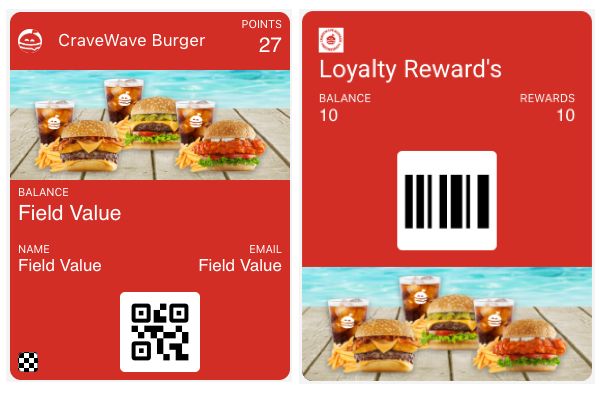
By adding Loyalty Pay to your brand program, you can unlock the ability for guests to also PAY with a single tap of their Loyalty Pass. Loyalty Pass to Pay can identify the guest, apply rewards, and process payment in a single NFC tap. Loyalty Pass to Pay is available on the All Access Loyalty Pay package only. Payment via NFC is exclusive to Apple Wallet. Loyalty Passes in Google Wallet support loyalty identification, earning, and redemption, but do not process payment at this time. Learn more at Loyalty Pay: Overview.
New Loyalty Member Enrollment
Smart Passes allow guests to signup for your loyalty program without the need for to download an app. Loyalty Passes can be distributed to guests via QR code in-store, at the drive through, during live events, or on receipts. You can also include links to the pass via email, social media, or on your website. When a guest access the QR code or URL, their flow to sign up for loyalty and download the Loyalty Pass to their wallet differs slightly between Apple and Google. (If you use a third-party messaging platform with Punchh, enrollment flow behavior varies between Apple and Google. For information on how Smart Pass URLs are delivered to third-party platforms via event payloads, see Smart Pass URLs in Third-Party Messaging Integrations.)
Apple
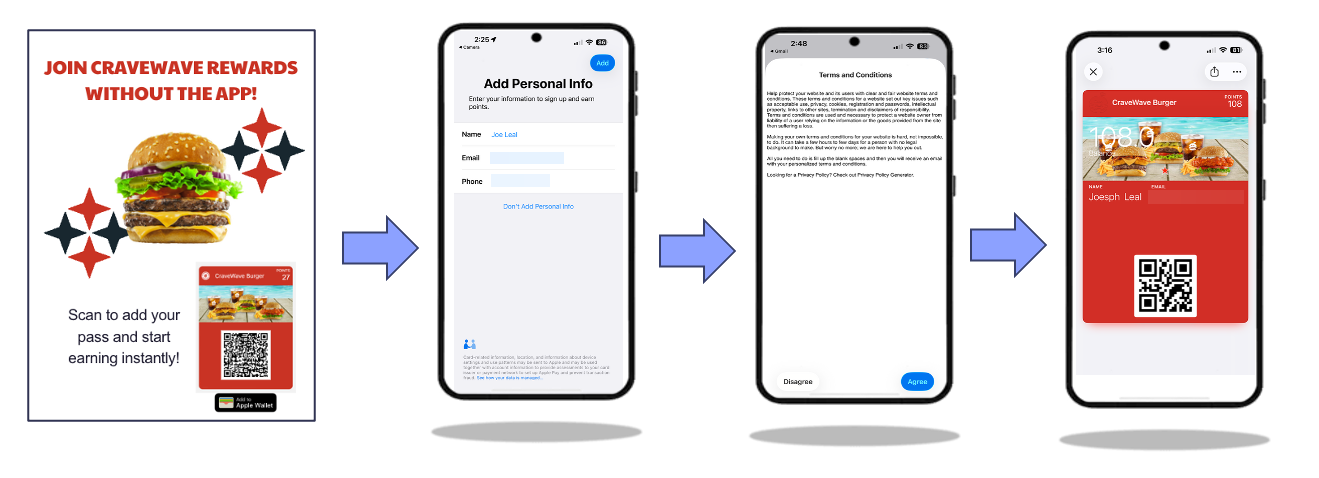
Apple allows for a universal enrollment link to sign the guest up for loyalty and add the pass to the guest's Apple Wallet. When the guest scans the QR code or clicks the URL they are taken directly to a short form and a terms and conditions page. The Loyalty Pass is then added directly to the guest's wallet.
Note: Guests may encounter issues with the Apple enrollment flow if they use an existing email address in the Punchh system but have no registered phone number. They will receive an email detailing the error. This message can be customized for your brand under System Messages > Apple Pass Personalization Failure. See System Messages: General for more details.
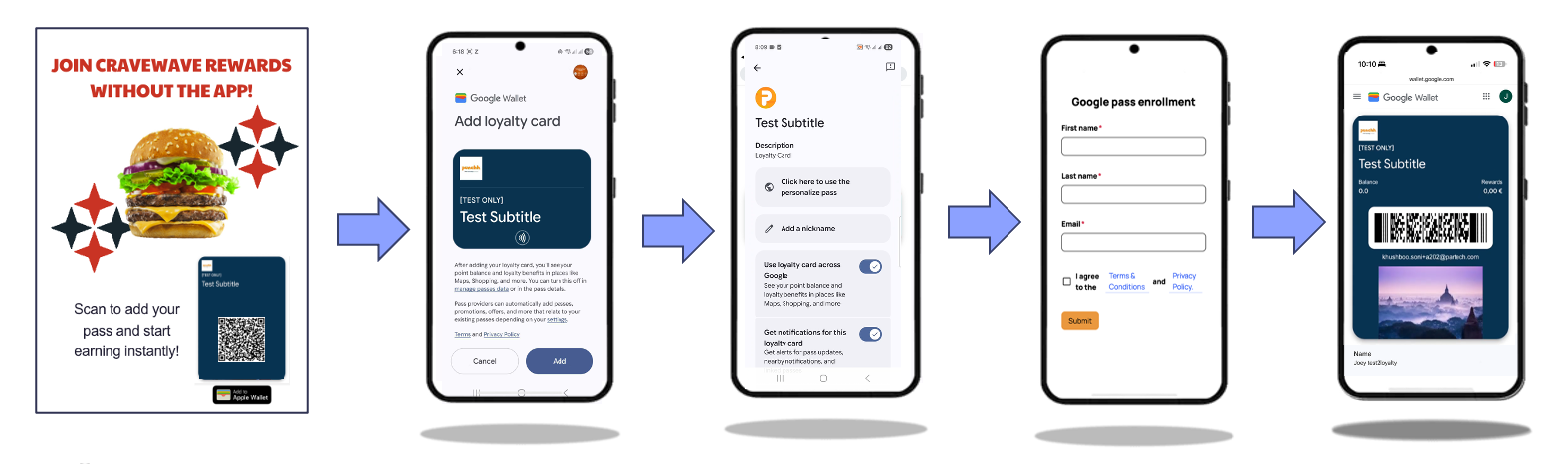
Google allows for a universal enrollment link to sign the guest up for loyalty and add the pass to the guest's Google Wallet. When the guest scans the QR code or clicks the URL, they are taken directly to the Add Loyalty Card page within the Google Wallet flow. The guest will click Add, select the option to use a personalized pass, and then complete a short form with terms and conditions. The Loyalty Pass is then added directly to the guest's wallet.
Add to Wallet for Existing Loyalty Members
Note: This section only includes information for distributing Loyalty Passes to existing members. For information on distributing Offer Passes, please refer to the Offer Pass Distribution via Campaigns section.
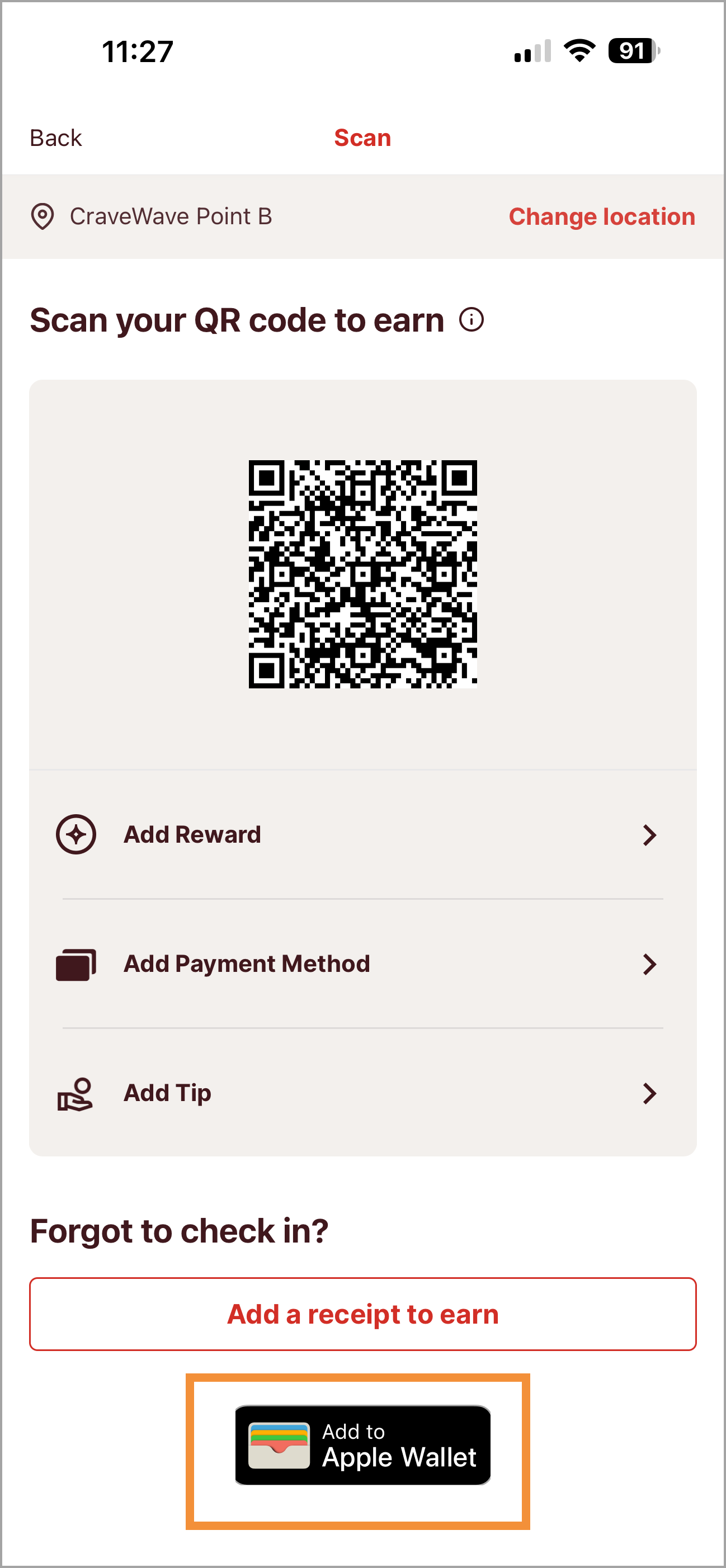
Within the Punchh mobile app, a button can be added to the Earn/Scan screen that allows existing loyalty members to add their Loyalty Pass to their phone's wallet. The button will appear towards the bottom of the screen and will only distribute the Loyalty Pass. This can be done without any URL configuration or dynamic tags and is enabled by default. Reach out to your Punchh representative with any questions or to disable this button.
Apple Wallet (left) and Google Wallet (right)
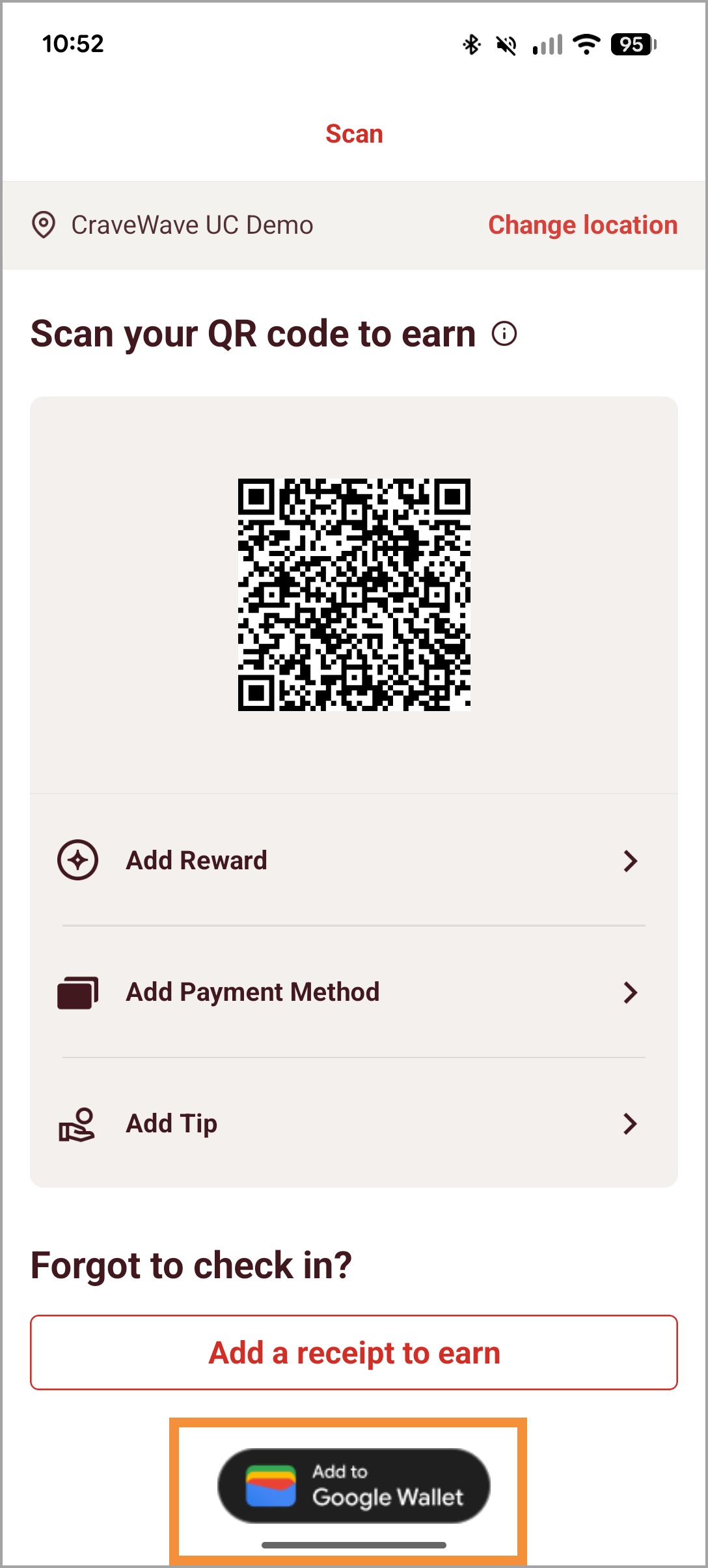
Your brand can also distribute your Loyalty Pass to existing members (or new members that signed up via the mobile app) through campaigns (such as Mass, Signup, or Checkin) or through System Messages (such as the User Signup template). Guests can add the loyalty pass directly to their wallet via a URL generated by the following dynamic tags: {{{save_to_apple_pass_url}}} {{{save_to_android_pay_url}}}. See messaging examples below.
These tags are compatible with the following campaign types:
- Mass Campaigns (Offer, Notification, and Split Testing)
- Post-checkin Campaigns (Offer and Message)
- Challenge Campaigns
- Anniversary Campaigns
- Compression Campaigns
- Profile Update Campaigns
- Referral Campaigns
- Recall Campaigns
- Signup Campaigns
- Post-purchase Campaigns
Other Useful Dynamic Tags
- If your program is Points Unlock Rewards and you want to show the Current Available Points, use {{{current_account_balance}}}
- If your program is Points Convert to Reward and you want to show Lifetime Point Balance, use {{{current_points_balance}}}
- If your program is Points Convert to Currency and you want to show Current Available Currency, use {{{banked_rewards}}}
Review Dynamic Fields & Message Tags for more details.
Signup Campaign - Email Example
Signup Campaigns are a great option to notify guests about your brand's Loyalty Passes. You can create a new Signup Campaign with email messaging to prompt guests to download the pass to their digital wallet after joining your loyalty program via mobile app or other channel. See below for an example of how to configure this messaging.
Subject: Welcome! Your Loyalty Bonus Awaits
Hi [First Name], Welcome to our Loyalty Program! As a thank-you for joining, you’ve scored [X] bonus points—just for signing up! Here’s what you get:
- Exclusive Rewards – Earn points on every purchase and redeem for amazing perks.
- Special Offers – Members-only discounts and promos.
- Early Access – Be first in line for new products, sales, and events.
- Personalized Experience – Tailored deals just for you.
Ready to start earning? Add your Loyalty Pass now: (Tip: Configure these as the buttons within email template.)
- Apple Wallet: {{{save_to_apple_pass_url}}}
- Google Wallet: {{{save_to_android_pay_url}}}
Just enter your info (name, email, phone), and you’re good to go! Use your pass every time you shop to rack up points and unlock rewards. Need help? Our support team is here for you. Thanks for joining the loyalty family—let’s make shopping even more rewarding!
Cheers, The [Your Company] Team
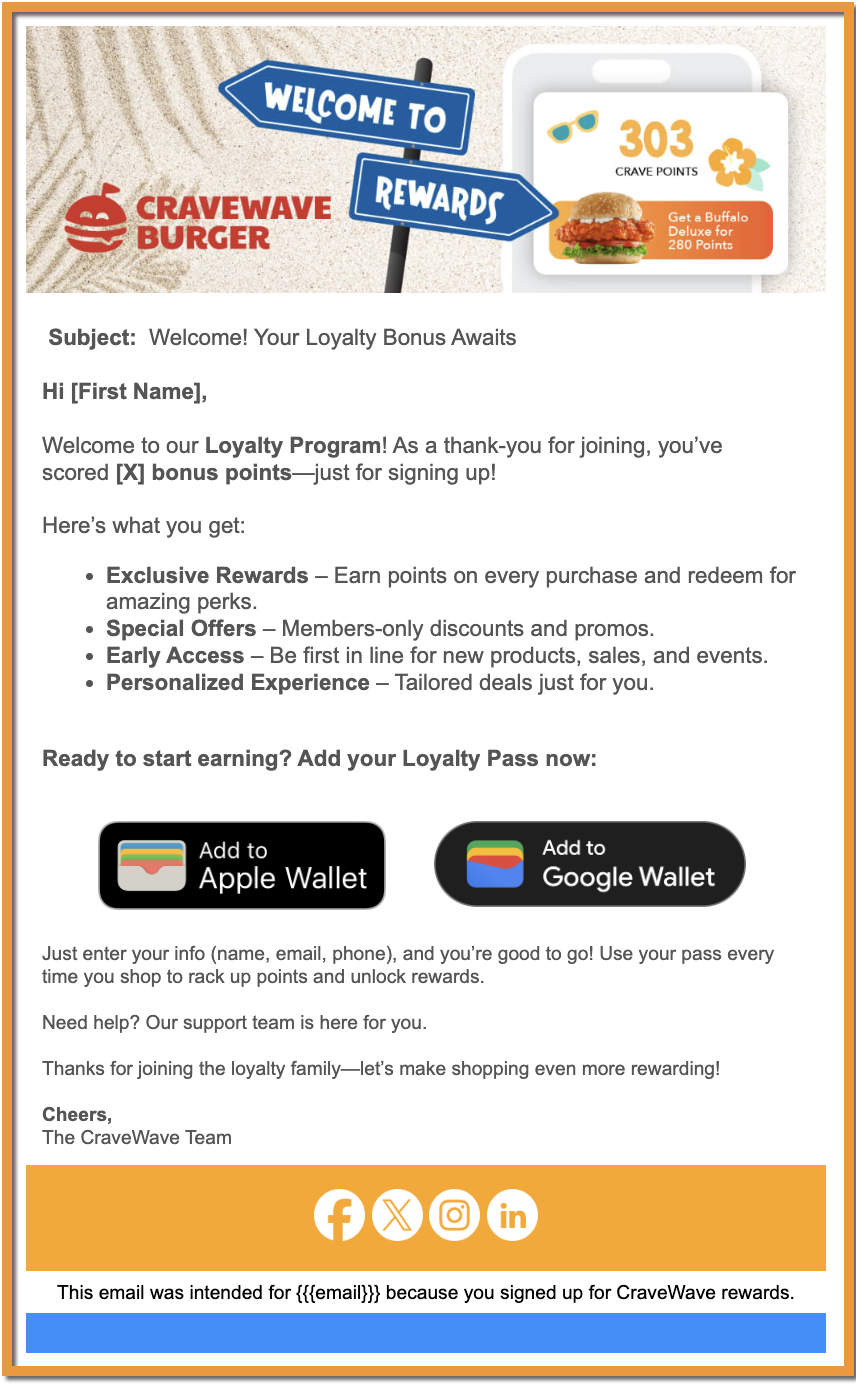
Review the Signup Campaign article to review how to set up a campaign along with messaging.
System Messages - User Signup Example
After your Loyalty Pass has been configured, you can set up a notification template to distribute the Loyalty Pass via email, SMS, or Push, such as a new user sign-up or a user selected to download a Loyalty Pass in Mobile Apps or through the brand website.
This notification can be configured under Loyalty Program > System Messages > User Signup. Use the dynamic tags{{{save_to_apple_pass_url}}} and {{{save_to_android_pay_url}}}, see the email example below:
Hi {{{full_name}}},
Welcome to {{{program_name}}}! We're thrilled to have you on board.
As a valued member, you can now add your {{{program_name}}} pass to your Apple or Google Wallet and start enjoying exclusive benefits right away. It's quick and easy!
To add Your Loyalty Pass:
Click the link below: {{{save_to_apple_pass_url}}} {{{save_to_android_pay_url}}}
Follow the prompts to add the pass to your Wallet and it's done. You're ready to get an exclusive benefit by just tapping your phone on the terminal in the store.Why Add Your Loyalty Pass?
Instant Rewards: Redeem points and get exclusive offers directly from your Apple Wallet.
Easy Access: No need to carry a physical card – your loyalty pass is always with you on your iPhone.
Stay Updated: Receive notifications about your merit increase or redemptions.If you have any questions or need assistance, please reach out to our support team.
Thank you for joining! We look forward to rewarding you.
Best regards,
The {{{business_name}}} Team
Review the System Messages: General article to learn how to create and edit a system message.
SMS Example
You can add the Smart Passes dynamic tags to SMS messaging within campaigns or system messages.
Note: While SMS can support two dynamic tags, each dynamic tag generates a unique link, and the combination creates a longer message that may go over the character limit for a single message. If you wish to use SMS, we recommend segmenting customers based on device (Apple and Android) and sending one SMS with it's corresponding tag.
For Apple users, use the dynamic tag {{{save_to_apple_pass_url}}}, see the example below:
Download your loyalty pass to your Apple Wallet to start earning today! {{{save_to_apple_pass_url}}}
For Android users , use the dynamic tag {{{save_to_android_pay_url}}} , see the example below:
Download your loyalty pass to your Google Wallet to start earning today! {{{save_to_android_pay_url}}}
Offer Passes
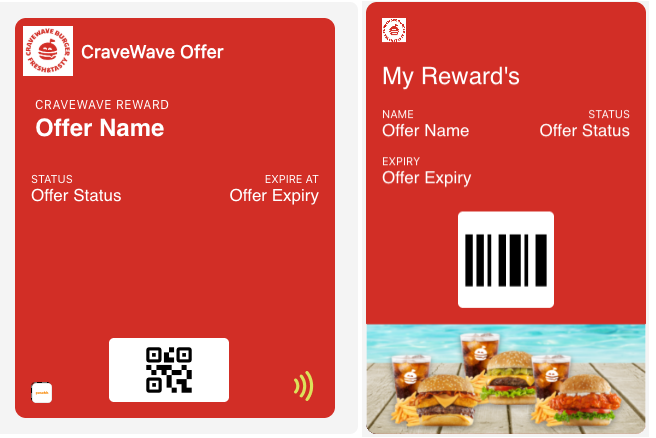
An Offer Pass is a digital version of a reward, redemption code, or promotional offer that guests can conveniently store in their Google Wallet. Once added, the Offer Pass can be applied directly during a point‑of‑sale (POS) transaction, making redemption seamless. Each Offer Pass includes an expiration date that matches the underlying offer’s validity period, ensuring it can only be used while the promotion is active.
Offer Pass Distribution via Campaigns
Offer Passes can be shared with guests through Mass Offer Campaigns, Coupon Campaigns, and Promo Code Campaigns in Punchh. Guests receive an email or SMS message with a link that lets them quickly add the pass to their digital wallet. This approach works for both loyalty members and non‑loyalty guests, making it easy to deliver offers in a convenient, wallet‑ready format.
For full details and setup instructions, see How to Distribute Offer Passes Using Campaigns.
Smart Pass URLs in Third-Party Messaging Integrations
If you use a third-party messaging platform such as Attentive, Braze, mParticle, or Salesforce Marketing Cloud (SFMC), Smart Pass download URLs are now included in Punchh event payloads. You can use these URLs directly from your third-party platform to include personalized “Add to Wallet” links in SMS, email, and push notification campaigns.
When Punchh sends event data to your connected third-party platform, the event payload includes Smart Pass download URLs that the messaging platform can use to personalize messages with each guest’s unique pass link.
Note: Before Smart Pass URLs appear in your event payloads, Punchh integration must be configured to send outbound events to your third-party platform via the Webhooks/ Events Framework or a supported adapter (Braze, mParticle, SFMC, Attentive, or custom webhook).
Which Pass URLs Are Included?
Two types of Smart Pass URLs are available in event payloads:
| Pass Type | Where They Appear |
|---|---|
| Loyalty Pass (Apple & Android) | All events that include guest or user data — e.g., signup, check-in, post-redemption, profile update, referral, challenge, mass campaigns |
| Offer Pass (Apple & Android) | Reward events only — when a reward is issued to a guest (e.g., mass gifting, individual gifting) |
Coupon and promo pass URLs are not included in event payloads.
Events That Include Loyalty Pass URLs
Loyalty Pass URLs are available across all events that include guest data, including:
- Guest create/update event
- Loyalty check-in event
- Redemption event
- Notification (transactional events)
- Notification (marketing events)
- Reward
- Gift checkins event
Note: Loyalty Pass URLs are not included in wallet sub-events (wallet activated, wallet deactivated, wallet generated) or redeemables events, as these contain minimal user data.
Events That Include Offer Pass URLs
These are included in rewards event only (individual or mass gifting).
How Your Messaging Platform Uses These URLs
Your third-party messaging platform receives the Smart Pass URLs as fields in the event payload. Your messaging team can map these fields to dynamic content in message templates — for example, including a personalized “Save to Apple Wallet” button in a welcome SMS or a post-check-in push notification. Punchh sends all relevant pass links (both Apple and Android). You can configure your messaging platform to display the appropriate URL based on device type or campaign strategy.
Platform Features
Apple and Google Pass Designs
You will configure and set up the design of your passes under Wallet and Passes > Passes. You can change the design of your pass at any time.
Review the Apple Passes and Google Passes articles to set up and design your Loyalty Passes.
Segments
Apple
There are currently two segments available to target guests with Apple Pass. You can segment guests who joined your loyalty program after using Apple Wallet in a transaction (Onboarding Channel = ApplePass) or those who have added a Loyalty or Offer Pass to their wallet (Added Apple Pass to Wallet).
- Review the Segments article to learn how to create a segment.
- See the "Profile Details" segment (attribute = Onboarding Channel or Added Apple Pass to Wallet) in Segment Types, Attributes, and Timeframe Definitions to review the specifics of this segment.
There are currently two segments available to target guests with Google Pass. You can segment guests who joined your loyalty program after using Google Wallet in a transaction (Onboarding Channel = GooglePass) or those who have added your Loyalty or Offer Pass to their wallet (Added Google Pass to Wallet).
- Review the Segments article to learn how to create a segment.
- See the "Profile Details" segment (attribute = Onboarding Channel or Added Google Pass to Wallet) in Segment Types, Attributes, and Timeframe Definitions to review the specifics of this segment.
