Smart Pass Analytics
Smart Pass Analytics gives you a unified view of how guests are engaging with your Apple and Google Loyalty Passes. The dashboard displays Apple, Google, and combined (Total) wallet metrics side by side, so you can track pass downloads, measure new and existing member enrollment activity, and monitor conversion performance. Use Smart Pass Analytics to understand how effectively your Loyalty Passes are driving guest sign-ups and re-engagement. With a live data connection and built-in date range filtering, you can quickly identify trends over any timeframe and export the data you need to share insights with your team.
Overview
In the left-hand navigation, go to Wallet & Passes > Smart Pass Analytics under Analytics & Reporting.
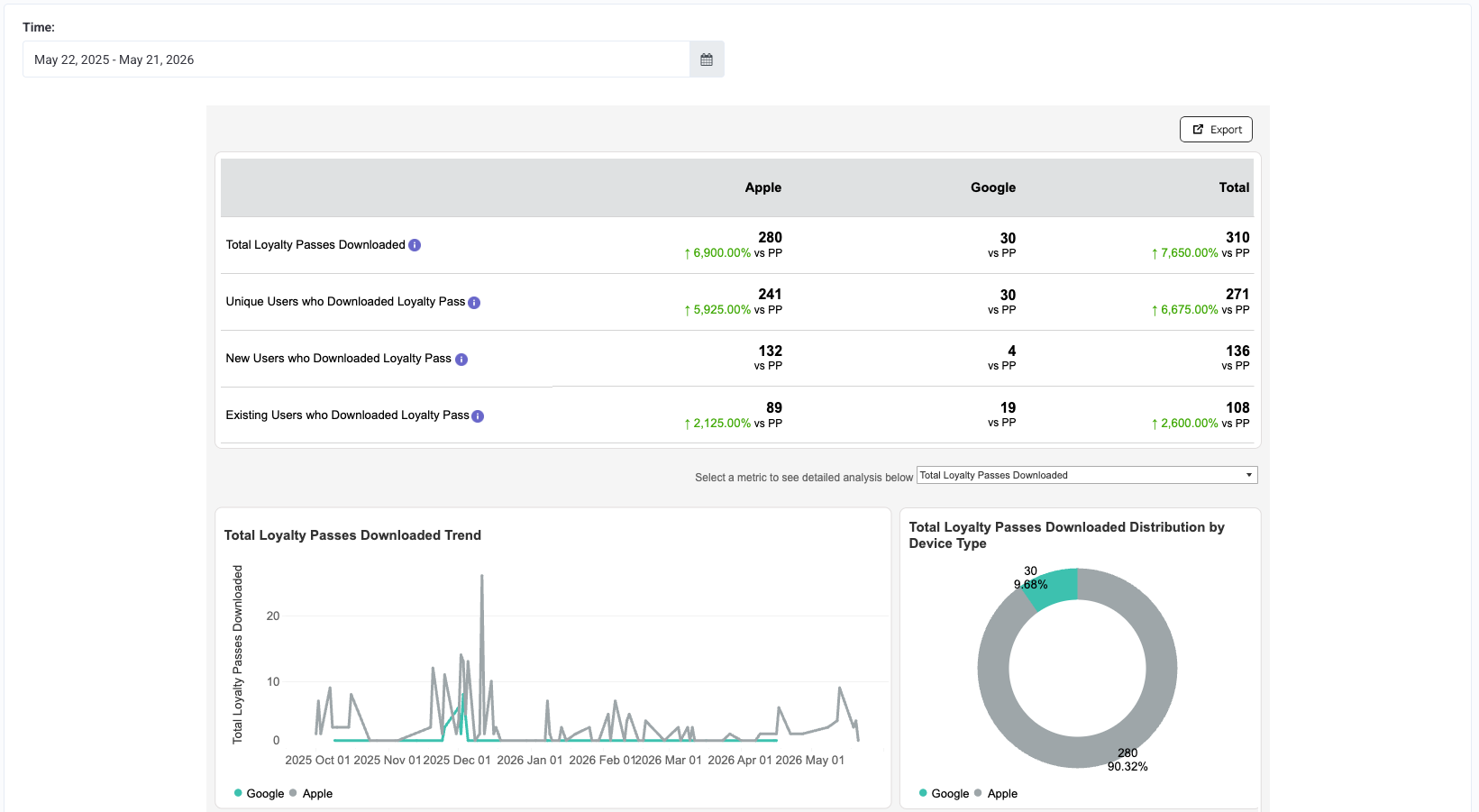
The Smart Pass Analytics dashboard presents data in three views:
- Apple: metrics for Apple Wallet passes only
- Google: metrics for Google Wallet passes only
- Total: combined Apple and Google metrics
Use the tabs at the top of the dashboard to switch between views.
You can filter all dashboard metrics by date range:
- Locate the date range filter at the top of the dashboard.
- Select a Start Date and End Date.
- The dashboard automatically refreshes to reflect the selected timeframe.
Metrics and Definitions
The following metrics are available in Smart Pass Analytics:
| Metric | Definition |
|---|---|
| Total Loyalty Passes Downloaded | Total number of loyalty passes downloaded or added to Apple Wallet and/or Google Wallet during the selected timeframe. |
| Unique Users who Downloaded a Loyalty Pass | Number of distinct users who downloaded or added a loyalty pass to their wallet during the selected timeframe. |
| New Users who Downloaded a Loyalty Pass | Number of non-loyalty users who downloaded a loyalty pass for the first time and then signed up for the loyalty program during the selected timeframe. |
| Existing Users who Downloaded a Loyalty Pass | Number of loyalty members who downloaded a loyalty pass and had previously signed up before the selected timeframe. |
| Enrollment Conversion Rate (%) | Percentage of customers who successfully enrolled in the loyalty program after clicking an enrollment link during the selected timeframe. |
Exporting Data
To export the data displayed in the dashboard:
- Click the Export button in the top-right corner of the dashboard.
- Select the sheet you want to export.
- Choose your preferred export format:
- Image
- Crosstab
- PowerPoint
- Click Download.
