System Messages: General
This article was previously titled "Notification Templates".
You may choose to send your guests automatic messages based on a variety of guest actions, system messages, or checkin failures/errors originating from your mobile app. The language of these messages can be customized under Loyalty Program > System Messages, and you can choose whether to utilize push notifications, SMS, or email (when available based on the nature of the message).
System Messages are very important in the final stage of the platform setup and go-live process, as they are a necessary part of transactional emails and notifications to customers during the earning, signup, redemption, warning, and expiration processes. Unless System Messages are filled out and saved, they will not be sent out to guests. If you choose not to customize a default message, you still must save it. You may delete or deactivate any of the default system messages.
System Messages and Triggers
The following table lists the available messages found under Loyalty Program > System Messages > General and the actions for which they are triggered.
| System Message | Trigger | Notification Method(s) | Example |
|---|---|---|---|
| Account Deactivation Confirmation | Guest will receive this message after they request to deactivate their loyalty account. Punchh recommends setting up this message template alongside the Guest Account Delete template. | We are sorry to see you go, {{{first_name}}}! This email confirms the deactivation of your account. If you would like to reactivate your account at a later date, please contact us. Thanks, {{{business_name}}} | |
| Apple Pass Personalization Failure | Guests will receive this message if Apple Wallet personalization fails during loyalty pass enrollment because an existing loyalty account has a matching email address but no phone number on file. | Dear {{{guest_name}}}, The following error occurred when creating your personalized Apple Pass: {{{error_message}}}. Best Regards, {{{business_name}}} | |
| Business Migration Notification | When a guest in your Awaiting Migration list signs up for your loyalty program and is successfully identified, any points/punches/checkins that the guest had previously accrued will be transferred from their old account to their new Punchh account. When this occurs, the guest will receive this message. | Email; Push Notification | Welcome to the Punchh App! Your Punchh Fanclub coins have been converted to {{gifted_points}} and added to your Punchhbowl. |
| Card Completion | This message is sent to guest after they complete their card or to remind them to redeem their unredeemed loyalty reward. | Email; Push Notification | Hi {{{first_name}}}, Congratulations you have earned $10 in rewards to redeem at {{{business_name}}}! {{/immediate?}} {{#first_reminder?}} Come in and redeem your reward before it expires! {{/first_reminder?}} {{#second_reminder?}} |
| Chatbot Otp Verify | Verification code sent to a user who signed up via chatbot. | Email; Push Notification; SMS | Hello {{{first_name}}}! Your verification code login to {{{business_name}}} is {{{otp}}}. This verification code will expire after 15 minutes. Thanks, {{{business_name}}} |
| Checkin Retry Fail | When a guest performs a loyalty checkin that fails (most commonly due to network connectivity issues), Punchh will continue to retry the checkin in the background. In the event that checkin fails again, the guest will receive this message after every failed attempt. | Push Notification | Ahh! Technical difficulties. Unfortunately, your points were not added from your last check-in. Please contact support so we can get this taken care of for you! |
| Checkin Retry Success | When a guest performs a loyalty checkin that fails (most commonly due to network connectivity issues), Punchh will continue to retry the checkin in the background. In the event that a subsequent checkin attempt succeeds, the guest will receive this message. | Push Notification | Thank you for your visit! You've now got {{current_points}} points! |
| Checkin Void | If the guest makes a purchase but the store subsequently voids/deletes that transaction, when the guest attempts to scan that receipt, they'll receive this message, alerting them that their checkin was unsuccessful as a result of the voided check. If a guest earns points/punches at the POS and the points/punches enter their account before the transaction is voided, their points will remain and not be taken back. | Push Notification | Unfortunately, the POS has rejected your receipt checkin. Please contact the store manager for more information. |
| Confirmation Email | When a new user creates an account through your mobile app using their email, they will receive this message prompting verification. | Hello {{{full_name}}}! You can confirm your account through the link below:{{{email_confirmation_url}}} | |
| eClub Registration | When a new user signs up to your loyalty program through eClub (such as the eClub iFrame widget), they will receive this message welcoming them to the program. | Hi {{{first_name}}}, Welcome to {{{business_name}}}. We will notify you about special offers from time to time. You can also sign up for our loyalty program and use our app to earn loyalty points/visits every time you spend. Thanks! {{{business_name}}} | |
| Expiring Coupon | Guests will receive this message when a coupon campaign has the "Remind before" field configured to notify guests X days before the coupon expiration. (This message is triggered from the Coupon Expiry Reminder Schedule that runs daily and picks all the coupon campaigns where 'Remind before' has been configured and it is now X number of days before the coupon expires.) | Email; Push Notification; SMS | Hi {{{first_name}}}, {{{coupon_code}}} is about to expire! Be sure to use this offer within the next {{{remaining_days}}} days. Thanks! {{business_name}} |
| Expiring Currency | For Points Convert to Currency-based businesses, this message is sent to guests when their reward is about to expire. This is triggered through the Rolling Expiry Schedule. | Email; Push Notification; SMS | Your {{{expiring_currency}}} will be expired by {{{expiring_date}}} or {{{expiring_until_date}}} |
| Expiring Membership Level Point | Message sent to a guest when their membership level points are about to expire. This is triggered through the Rolling Expiry Schedule. | Email; Push Notification; SMS | Hello {{{first_name}}}, Just a quick note to let you know that {{{expiring_soon_points}}} at {{{business_name}}} are expiring on {{{expiring_date}}}. We hope you are able to make use of these points before that day. Thanks and see you at {{{business_name}}} again soon. Cheers, {{business_name}} |
| Expiring Punchh | If your business resets your guests' points/checkins balance back to 0 after a set period of time (most commonly a year), the guest will receive this message alerting them to use their points before they expire (reset). | Email; Push Notification; SMS | Hello {{{first_name}}}, Just a quick note to let you know that {{{expiring_soon_punchhs}}} at {{{business_name}}} are expiring on {{{expiring_date}}}. We hope you are able to make use of these checkins before that day. You have a total of {{{redeemable_checkins}}}. {{#has_redeemable_cards}} You have {{{redeemable_cards}}}. {{/has_redeemable_cards}} {{#has_incomplete_card}} You need {{{checkins_needed_to_redeem}}} to make your current card redeemable. {{/has_incomplete_card}} Thanks and see you at {{{business_name}}} again soon. Cheers, {{business_name}} |
| Expiring Reward | When creating/editing a redeemable, you can choose an expiration date as well as set the option to send the guest a reminder that their redeemable is set to expire in N days. This is the message template the guest will receive if those parameters are set.
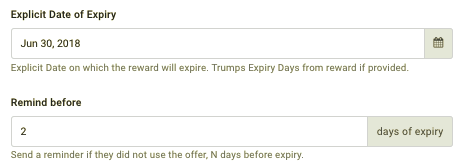 |
Email; Push Notification | Hi {{{user_name}}}, We just want to remind you that your {{{redeemable_name}}} offer expires {{{reward_end_date_mdy_format}}}. Tap your Redeem Rewards button to make sure you don't miss out. We hope you visit us to cash in! Thanks, {{{business_name}}} |
| Export User Detail | If a guest requests to see whatever information your business has gathered about them, this can be done via the Export User Details button on a guest's profile page. Once clicked, an email will be sent to the user, along with a download link. This message template controls the language of that email. | Hi {{{user_name}}}, Your request to export user data has been processed. Please download the file from here {{{user_details_url}}} You have {{{time_duration}}} to download the file. Cheers, {{{business_name}}} | |
| Feedback Reply | When a guest provides feedback through the mobile app, an approved admin in your company can send a reply message through the Message/Gift section of that guest's profile. This "Feedback Reply" message text is appended to that message. | {{{reply_text}}} Great people deserve great food! If you have any questions or comments, please contact us [here] so we can help! {{{business_name}}} | |
| Final Expiring Punchh | If your business resets your guests' points/checkins balance back to 0 after a set period of time (most commonly a year), you'll want to set up the Expiring Punchh message as seen above. The guest will receive this message alerting them to use their points before they expire (reset), first from the Expiring Punchh message and then one more from the Final Expiring Punchh message. | Email; Push Notification; SMS | Hello {{{first_name}}}, Just a quick note to let you know that {{{expiring_soon_punchhs}}} at {{{business_name}}} are expiring on {{{expiring_date}}}. We hope you are able to make use of these checkins before that day. You have a total of {{{redeemable_checkins}}}. {{#has_redeemable_cards}} You have {{{redeemable_cards}}}. {{/has_redeemable_cards}} {{#has_incomplete_card}} You need {{{checkins_needed_to_redeem}}} to make your current card redeemable. {{/has_incomplete_card}} Thanks and see you at {{{business_name}}} again soon. Cheers, {{business_name}} |
| Final Expiring Currency | Final warning before the rewards expire. This is triggered through the Rolling Expiry Schedule. | Email; Push Notification; SMS | Hello {{{first_name}}}, Just a quick note to let you know that {{{expiring_currency}}} are expiring on {{{expiring_until_date}}}. We hope you are able to make use of these Rewards before that day. Thanks and see you at {{{business_name}}} again soon. Cheers, {{business_name}} |
| Final Expiring Membership Level Point | Final warning before the membership level points expire. This is triggered through the Rolling Expiry Schedule. | Email; Push Notification; SMS | Hello {{{first_name}}}, Just a quick note to let you know that {{{expiring_soon_points}}} at {{{business_name}}} are expiring on {{{expiring_date}}}. We hope you are able to make use of these points before that day. Thanks and see you at {{{business_name}}} again soon. Cheers, {{business_name}} |
| Game Reward Notification | When a guest earns a redeemable award by playing one of your in-app games, they will receive this message. Note that this requires the Games added module. | Email; Push Notification | Hey {{{first_name}}} Well Played! You have just got a {{{redeemable_name}}} at {{{business_name}}} by playing the {{{game_name}}}. Thanks, {{business_name}} |
| Guest Account Delete | Guest will receive this message after they request to delete their loyalty account. Punchh recommends setting up this message template alongside the Account Deactivation Confirmation template. | We are sorry to see you go, {{{first_name}}}! This email confirms the deletion of your account. Thanks, {{{business_name}}} | |
| Invalid Receipt | For non-POS-integrated locations that require the guest to upload a receipt image, if, upon review, the receipt is determined to be invalid, the guest will receive this message. | Email; Push Notification | Hi {{{first_name}}}, Unfortunately, the system did not recognize your check-in and you did not receive your points for your last visit. Your receipt at {{{location_name}}} did not meet our verifications requirements because: {{{verification_comment}}} We definitely do not want you to miss out on any rewards so please re-upload your receipt. {{{edit_receipt_url_link}}} When we have your updated receipt, we will revalidate it and award you credit for your checkin. Thanks, {{{business_name}}} |
| Invitation Accepted | This message relates to the use case when a user attempts to transfer/share a gift card with another user who is NOT a member of the loyalty program. As soon as the receiver joins the program, the sender receives this notification informing them that they can now proceed with the action and resend the gift card to the new user. | Email; Push Notification | Hi {{{user_name}}} Your friend {{{invited_friend_name}}} has accepted your invitation to become a member of our rewards program. You can now transfer or share your gift card with them. Thanks for spreading the love! {{business_name}} |
| Invitation Revoked | This message is triggered when a user invites another user to access a gift card, but then revokes the invitation. | Email; Push Notification | Hi {{{user_name}}}, {{{sender_name}}} had shared a gift card with you but has since revoked the invitation. {{{business_name}}} |
| Login From New Device | This message is sent to guests when the system detects a new device has logged into their loyalty account. | Email; Push Notification; SMS | User ID: {{{user_id}}} *Security Notification* Hi {{user_name}}, A new device just signed in to your {{{program_name}}} account. To help keep your account secure, let us know if this is you. When: {{{device_detected_time}}} Device: {{{new_device_user_agent}}} IP Address: {{{ip_address}}} If not you, click on the link below to reset your password. You will be logged out of all devices and will be required to login with the new password. Reset Password Link (URL HERE) Thanks, {{{business_name}} |
| Loyalty Transferred | This message is sent to guests who receive a reward sent from another loyalty user. | Email; Push Notification; SMS | Congratulations, {{{first_name}}}! Hi {{{user_name}}}, Congratulations! {{{sender_name}}} just sent your way a reward: {{{transferred_item}}} Thanks, {{{business_name}}} |
| Migration Verification | This message is triggered when we send a one-time password (OTP) to migrated users so they can securely join our loyalty program. | Email; SMS | Hello {{{first_name}}}! Your password to login to {{{business_name}}} is {{{otp}}}. This password will expire after 15 minutes. Thanks, {{{business_name}}} |
| Notify After Expiry | This message is sent to guests on the date of their anniversary in your program alerting them that their point/punch total has been reset. | Email; Push Notification | Hello {{{first_name}}} Thank you for being part of {{{membership_level}}} Rewards! Congratulations on being a loyal member of our rewards program for a whole year! We wanted to remind you that your loyalty level achieved this year is valid for one year. While your point balance will reset to zero on your anniversary you will maintain your loyalty level and associated benefits achieved for one year. We look forward to continuing to help you satisfy your sandwich cravings! Sincerely {{business_name}} |
| Pending Checkin | If your business is configured for a pending points strategy a guest will receive this message letting them know that their checkin has registered and will be credited shortly. When the guest's account eventually gets updated with the pending points they may receive another message called "Updated Checkin" seen below. | Push Notification | Hi {{first_name}} Your checkin has been registered with {{receipt_amount}}. |
| Points to Reward | When a guest has collected enough points to pass a gifting threshold (i.e. they've collected 100 points and are awarded a $10 banked reward) they will receive this message. This is only applicable if your business is using points converting to currency program type. | Push Notification | Congratulations {{{first_name}} you've done it! You've collected enough points for a {{{bank_value}}} reward. Thank you and enjoy! |
| POS Scanner Checkin | For loyalty transactions successfully processed at the POS at the time of purchase or online ordering the guest will receive this message. | Push Notification | You've earned {{{current_points}}} points! |
| Reactivation Instructions | When a guest's account has been deactivated they can request to have their account reactivated via the mobile app. When they select this option they will receive an email with a link that must be accessed to complete the reactivation request. | Hello {{{full_name}}}! Someone has requested to reactivate your account, and you can do this through the link below. {{{reactivation_url}}} If you didn't request this, please ignore this email. Your account won't activate until you access this link. | |
| Redeemable Unlocked | When a guest has successfully reached the points threshold to unlock a redeemable reward they will receive this message. Make sure you use dynamic tags to properly configure this message in order to make it specific for each possible redeemable. | Push Notification | Congratulations! {{#multiple_rewards?}}You have unlocked {{redeemable_count}} worth {{points_value}} each{{/multiple_rewards?}}{{^multiple_rewards?}}You have unlocked {{{redeemable_name}}} worth {{points_value}}!{{/multiple_rewards?}} |
| Redemption Applied | When a guest successfully uses a redemption discount or a reward at the POS they will receive this message soon after letting them know that the redemption/discount/reward was successfully been honored. | Email; Push Notification; SMS | Hi {{{first_name}}} You had a discount applied to your receipt! Yay! Cheers {{business_name}} |
| Referral Reward Limit Reached | Guests receive this message when they reach the maximum number of referral rewards they can earn within the current timeframe for a Referral Campaign. This message only triggers for campaigns configured with a referral reward cap. | You've reached the maximum number of referral rewards you can earn for this campaign right now. You'll be able to earn more once the current timeframe resets. | |
| Reset Passcode Instruction | When a guest has clicked the "Forgot Passcode" link and chosen to reset it they will receive this email message with instructions and the URL to complete the reset and choose a new passcode. This may be associated with gift cards. | Hello {{{full_name}}}! Someone has requested a link to change your passcode. You can do this through the link below. {{{reset_passcode_url}}} If you didn't request this please ignore this email. Your passcode will not change until you access the link above and create a new one. | |
| Reset Password Instruction | When a guest has clicked the "Forgot Password" link and chosen to reset it they will receive this email notification with instructions and the URL to complete the reset and choose a new password. (For businesses that use a password for account login) | Hello {{{full_name}}}! Someone has requested a link to change your password. You can do this through the link below. {{{reset_password_url}}} If you didn't request this please ignore this email. Your password will not change until you access the link above and create a new one. | |
| Reward Notification | This message triggers whenever a guest receives a redeemable through the mobile app, whether through a recurring reward credited to a guest's account, or (in the case of a Points to Reward program type), they reach a membership level that results in receiving a redeemable. | Email; Push Notification | Hi {{{first_name}}} Congratulations! You have just been rewarded with a {{{redeemable_name}}}! You can find this reward under the News and Offers section of the app. Thanks! |
| Updated Checkin | In a pending points business model, a guest will receive this message when their account finally has been credited with their pending checkin. | Email; Push Notification | Hey {{{first_name}}} Your points have been {{{points_updated}}} to reflect changes made to your latest checkin. Your total point balance is now {{{current_points_balance}}}. Thanks {{business_name}} |
| User Mailer | When messaging a guest through the guest timeline or any campaigns or message templates where custom HTML is overridden the HTML you enter for this template will serve as the default header/footer stylization. User mailer-written HTML is applied to campaigns where custom HTML is not written. | Email; Push Notification | [ HTML template ]
|
| User Redemption | When a guest activates a reward that may only be redeemed with a code at the POS a guest will receive this notification containing the unique redemption code and any additional qualifications such as expiration date. See more about tags for this message below. | Email; Push Notification | Hi {{{first_name}}} Here is your redemption code for your {{{reward_name}}}: {{{internal_tracking_code}}} Please provide this code to the cashier upon checkout. For your protection this redemption code expires at {{{remaining_expiring_time}}} until {{{expiry_time}}} to redeem this code. Thanks {{{business_name}}} |
| User Signup | When a new user downloads your mobile app and signs up for a new account they will receive this welcome message. Note: If your brand has an SMS Opt-In toggle in the signup flow of your app/iframe, you MUST have a message in the SMS Body field. This will allow the guest to receive an SMS opt-in message where they can complete their SMS signup. If this field is left blank, the guest will NOT receive an opt-in message, and thus will not be a part of your SMS program. Example Message: Welcome to Winghouse Rewards! Reply START to receive offers and discounts! Msg&data rates may apply. Reply STOP to opt-out. |
Email; Push Notification; SMS | Thank you for downloading the {{{business_name}}} app! Keep the rewards coming by referring a friend! Questions or comments? Visit our [FAQ] page or visit us [here]. Thanks {{{business_name}}} |
| Wifi Registration | This message is sent to guests when they register for eClub/Loyalty through a partner WiFi provider. | Email; SMS | Hi {{{email}}}, Welcome to {{{business_name}}}. We will let you know about special offers from time to time. |
Edit System Messages
-
Navigate to Loyalty Platform > System Messages.
-
Click on a message's name to edit. The name of each message reflects the specific action that will trigger it.
-
Add content for each of the notification types you want to send.
Not all messages will include these notification options. For example, an Email Confirmation message will not give you the option of sending a push notification as well.For Push Notifications
- Enter a Push Notification Title and Subtitle.
Depending on whether your mobile app supports push notification titles and subtitles, this option may not be enabled. If this option is disabled for you and you want to enable it contact your Punchh Customer Success Manager to turn it on.
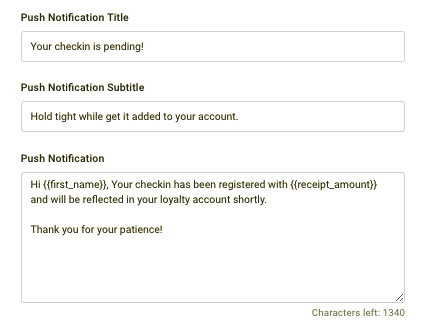
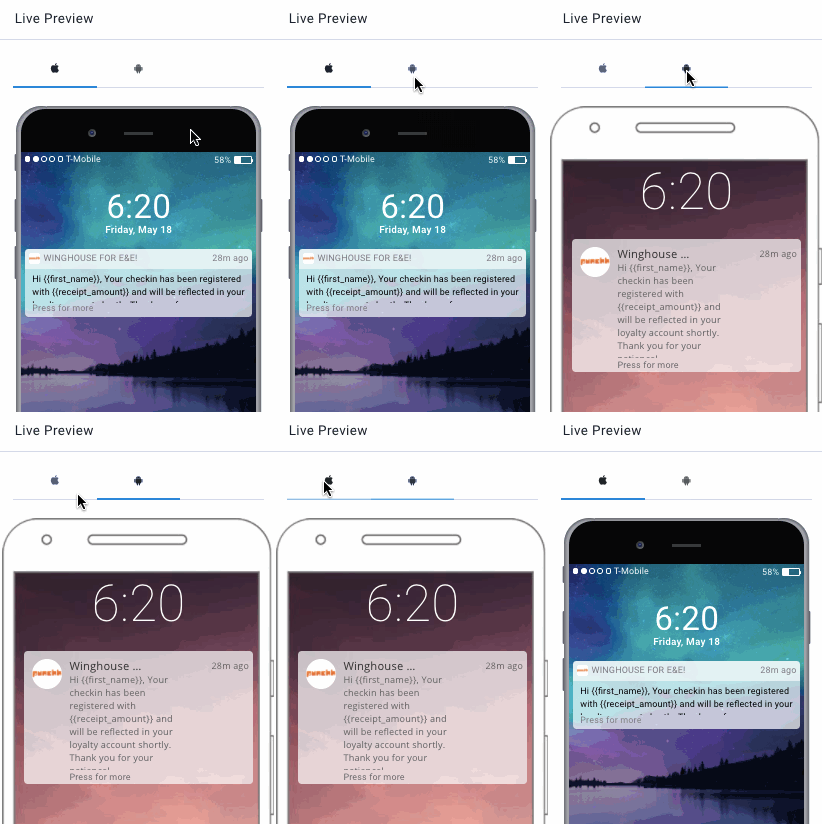
- Enter the messaging text in the Push Notification field. This text will comprise the body of the push notification and will appear as the first few lines of preview text in the notification. You can see how your push notification will appear by checking out the Live Preview and switching between iOS and Android mobile views as seen above. You can use messaging tags in push notification messages.
Push Notification messaging is limited to 1500 characters. Push Notifications will only be sent to guests who have your mobile app installed and have chosen to allow notifications. Because this will not include all applicable guests we recommend sending your message via email and/or SMS as well.
For SMS Message
- Enter the notification messaging text that will be sent to your guests via SMS (text) messaging in the SMS Body field. You can use both dynamic text and deep linking tags in SMS messages.
SMS is limited to 1600 characters divided into 160-character parts that are delivered sequentially (Message 1 of 2 Message 3 of 5 etc).
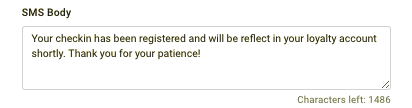
- You may want to add a short message at the end informing the guest that to unsubscribe from receiving your SMS texts in the future they can respond with "STOP" text & data rates may apply.
For Email Message
When drafting your email message you can use dynamic text and deep linking tags. For example, entering {{{full_name}}} in your email body will display as "Joe Punchh" (the guest's full name) in the guest's email.
- Toggle the Email Design option to use existing Email Templates for your brand.
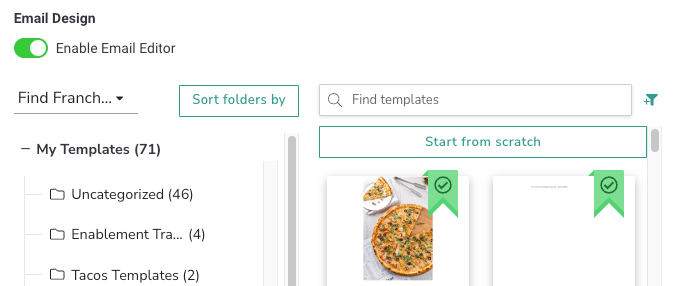
- Enter a Push Notification Title and Subtitle.
Note: When toggled ON, the system defaults to the tags used in the selected Email Template and will ignore any tags in the Text Email Template box. Make sure the same tags used in the Email Template are used in the Text Email Template Box to avoid confusion.
- Enter a Subject for your email in the Subject Template field.
- Enter the body text of your email in the Email Template and HTML Email Template fields. You can see how your email message will appear on a guest's mobile device by checking out the Live Preview. The Text Email Template field is intended for guests whose mail/device do not support html emails. Whereas the HTML Email Template field is for (the majority of) guests who do. You can add HTML tags and/or copy and paste your company's default HTML code here.
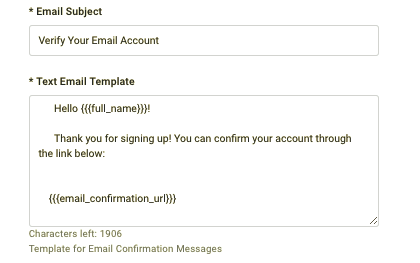
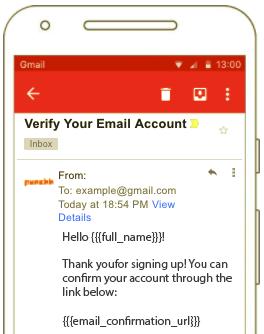
- (Recommended) Enter a short summary of your message in the Preheader Text field. This will be shown to guests on many mobile devices and mail apps as preview text. Completing this field with a catchy and concise message can help improve open rates.
- Enter your email address in the Test User Email field and click Send Test Notification to send yourself a preview of how your email message will appear to your guest once activated.
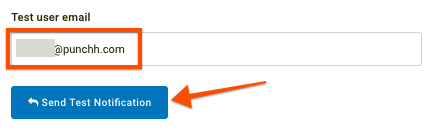
- Once satisfied with your changes click the Save button. Your notification template changes will go live immediately.
How can I choose which actions will trigger a message? System Messages will only appear in your list if they have been enabled on the backend. Many actions can be set to trigger a message and these will be set up for you with your input during the initial implementation process with Punchh. If you want to enable additional notifications contact your Punchh representative at cs@punchh.com.
Message Tag Examples
The following are some real examples of where you will need to use message tags in your system message. Refer to our doc on Dynamic Fields & Message Tags for a more comprehensive explanation.
| System Message | Relevant Message Tag | Description and Example |
|---|---|---|
| Points to Rewards | {{{current_banked_reward}}} | The tag {{{current_banked_reward}}} displays the banked value. For example, if a guest receives 100 points then it would show "Congratulations you earned $5". |
| User Redemption | {{#has_reward?}} {{{reward_name}}} {{#is_card_based_redemption?}} {{{redeemed_points}}} | These tags will first look to see if the redemption was for a reward {{#has_reward?}}. if so it displays its name {{{reward_name}}}. If not a redeemable reward it will look for the value of the banked currency. This tag {{#is_card_based_redemption?}} will determine if the reward is a points-based redemption. If it is {{{redeemed_points}}} will display the points that have been redeemed. |
| Reward Notification | {{{reward_end_date}}} | The expiration date for a particular reward. "This reward is valid through {{{reward_end_date}}}." |
Related Articles:
