System Messages: SMS
This article was previously titled "SMS Notification Templates".
Note: This option is available if your brand has SMS turned on. However, if your brand also has Text to Join enabled, the below functionality will be found under Custom > SMS Marketing (Aquire). Refer to Text To Join (SMS Marketing) for full details.
SMS Notification Templates are messages that serve as a response when a guest makes a text reply to one of your SMS messages. For example, a guest receiving an SMS from you may reply "STOP" to stop any future messaging. In this event, a message may be returned, confirming "You have been removed from receiving any future SMS messaging."
In addition to standard "HELP", "START", and "STOP" replies, you can create custom SMS shortcode responses that may be triggered by specific keywords originating from a guest's response
Standard response SMS notifications
Three standard SMS response notifications are provided by default. These cover common user replies such as "Help" and "Start" as well as legally-mandated options such as "Stop" to opt out of future messaging.
To view or edit the notification messages sent out when these responses are triggered by a user, navigate to Settings > Notification Templates > SMS Notification Templates and click on the name of one of the responses.
"Help" response
Guests who reply "Help" or "Info" to one of your SMS messages are generally looking for more information about the message details and/or your business. This is a great place to add a URL to additional resources or a phone number for customer care. Additionally, users may be trying to figure out how to make the messages stop. So it's important to include that information in your Help response.
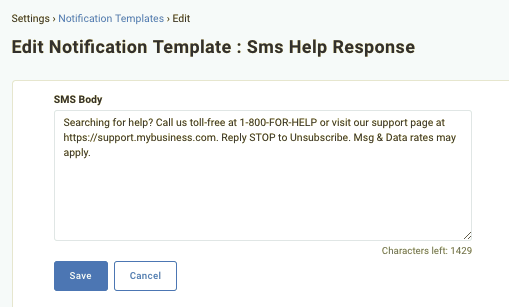
- Triggered when a guest replies "Help" or "Info"
- May provide a URL to a support page, terms of service, etc. and/or a toll-free help number.
- Should include language notifying that the guest may be subject to messaging fees from their mobile provider if they reply via SMS.
- You may want to mention that replying "Stop" will stop future messaging.
"Start" response
CTIA (the Cellular Telecommunications Industry Association) best practices stipulate that the foundation of any SMS marketing messaging is affirmative consent from the user. This consent may be obtained a number of ways; through an opt-in checkbox during the guest's sign-up process (via the mobile app or eClub), by a guest initiating the SMS communication is some way, or by the guest replying an affirmative "Start" response.
For example, when a guest signs up for your loyalty program, you may send them a welcome email informing them that they may reply "Start" or "Yes" to opt in to receiving future messages about deals or offers.
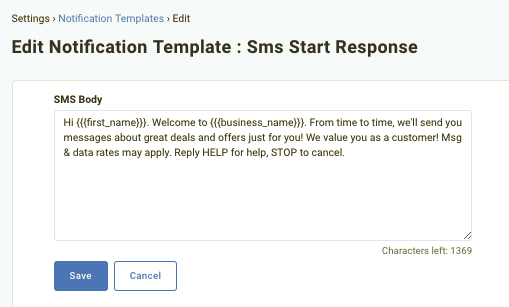
- Triggered when a guest replies "Start", "Yes", "Y", or "Opt in".
- May want to personalize greeting the guest and welcoming them to your program by using dynamic text.
- Should include language notifying that the guest may be subject to messaging fees from their mobile provider if they reply via SMS.
- You may want to mention that they may type "Help" to receive more info or "Stop" to stop future messaging.
"Stop" response
FCC regulations require that recipients must be able to opt out of any marketing-type SMS messaging. In the U.S., providing this STOP option is required by law. Giving it prominent placement in your messaging is a respectful best practice to follow.
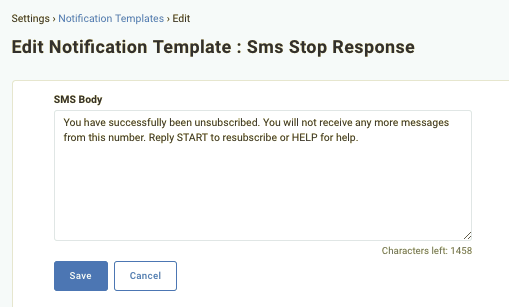
- Triggered when a guest replies "Stop", "StopAll", "Unsubscribe", "Cancel", "End", "N", or "Quit".
- You should assure the guest that they have been properly unsubscribed.
- You may want to mention that they may type "Help" to receive more info or "Start" to resume messaging.
Add a custom keyword response
In addition to the default SMS responses, you can add your own shortcodes to return messaging to users who reply using that code. For example, if you add the shortcode "PUNCHHCARES", you could set the message to return a URL that, when clicked, takes the guest to a donation page with a coupon code.
To add a custom keyword SMS response:
- Navigate to Loyalty Program > System Messages >SMS and click Add Custom Keyword Response at the top right.
- In the SMS Keyword field, enter the shortcode you want to trigger the response message.
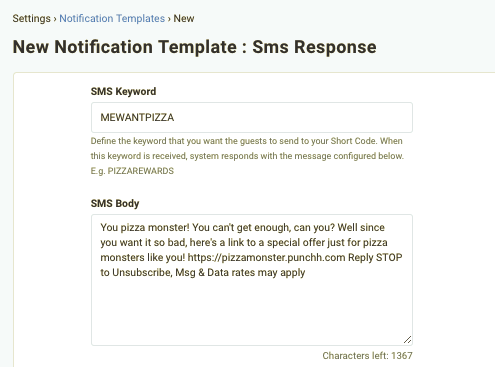
- Enter the reply message text in the SMS Body field.
Here you can include a URL to lead the user to a webpage and/or dynamic text to personalize it. - Click Save when finished. The new keyword will be activated automatically by default.