Schedules
Many elements in the Punchh dashboard, including reports and campaigns, have a scheduling component associated with them. You can manage all of these in one place from the Diagnostic > Schedules section of the left navigation toolbar.
Access to Schedules is limited to admins with Extended Support permissions
The ability to deactivate a schedule is controlled by a separate Deactivate a Schedule permission, which is not assigned to any user by default. Check out Admin Users and Roles to learn how to modify existing or create new user roles with custom permissions, including the ability to access the Schedules settings page.

Need a report sooner?
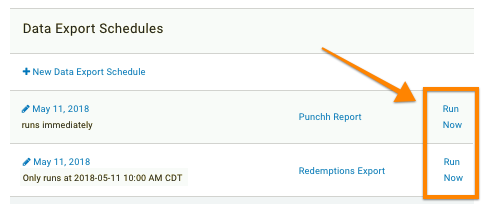
For many schedule types, you can click the Run Now link on the right to immediately generate the report.
Deactivating a Schedule
Schedules cannot be deleted from the dashboard. To stop a schedule from running, you can only deactivate it.
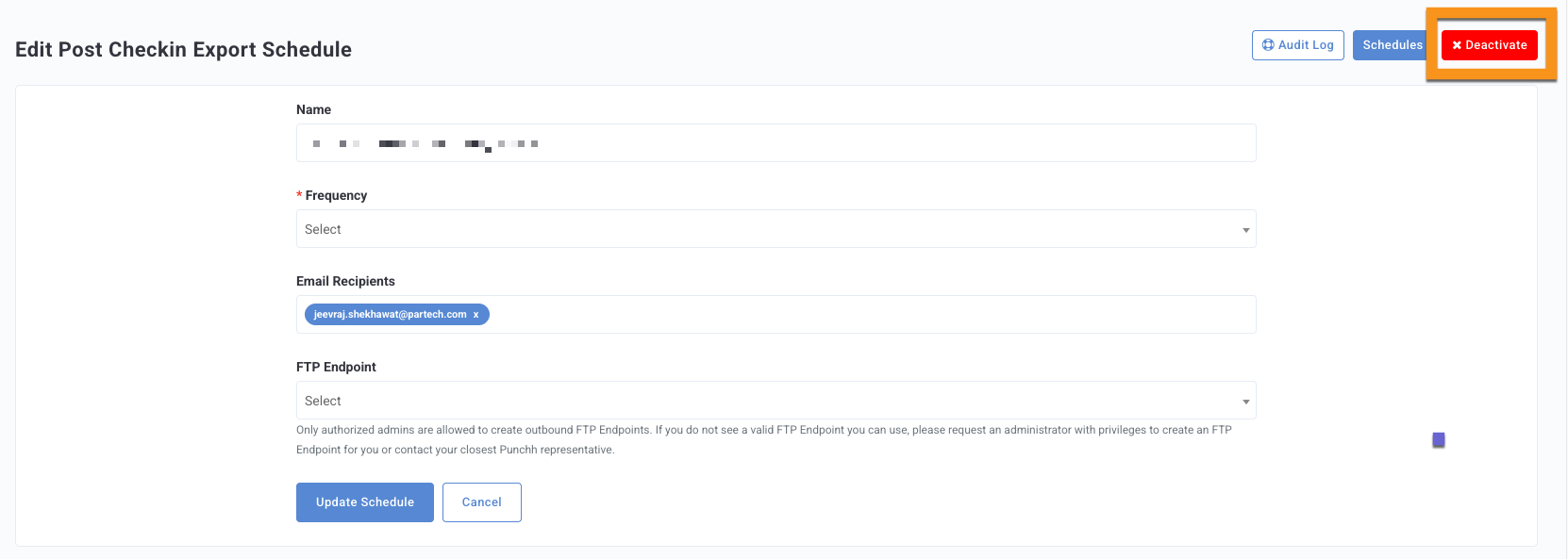
- The Deactivate a Schedule permission controls who can deactivate schedules. This permission is not assigned to any user by default; a brand admin must explicitly grant it to trusted users. Only users with this permission will see the Deactivate button on a schedule. Users without this permission will not see any deactivate or delete actions on any schedule. To assign or revoke the Deactivate a Schedule permission, see Admin Users and Roles and Permissions.
- The Activate button is visible to all admins and does not require the Deactivate a Schedule permission.
Caution: Deactivating a schedule can have significant downstream impact on your loyalty program. Assign the Deactivate a Schedule permission carefully.
Schedule Settings by Type
The method of scheduling and settings available to you will vary based on the type of element you're scheduling. Some elements allow you to set start/end dates and frequency (i.e., how often a report will be generated/exported), while others may only require you to set the time of day to run a data check (such as for recall or anniversary campaigns). The following list describes each potential element type shown in the Schedules page and the settings available to you.
AB Campaign Set Schedule
Active Subscriber Count Schedule
Our Membership feature has the option for Active Subscriber Capping or the maximum number of active subscribers to a Membership Plan at any given time. When the maximum number is reached, new purchases of the plan will be blocked (this does not affect renewals).
The Active Subscriber Count Schedule is used to capture real-time data for Active Subscriber Capping. This schedule is automatically created when the Membership Feature is enabled and is automatically removed if the Membership feature is disabled.

Learn More! Refer to Memberships Overview and Membership Plans to learn more about our Membership feature within the Punchh platform.
Anniversary Campaign Schedules
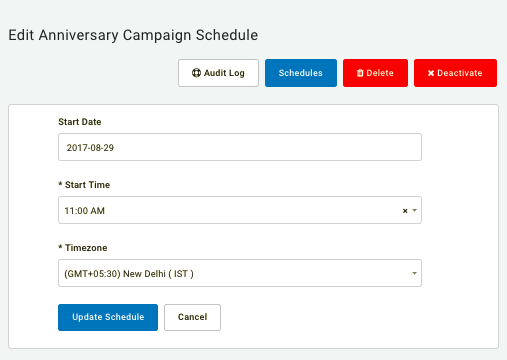
This schedule pertains to the time each day that your Anniversary campaigns will check to see if conditions have been met. If at that time, a guest is celebrating an anniversary or birthday, the associated anniversary campaign will be triggered to reward.
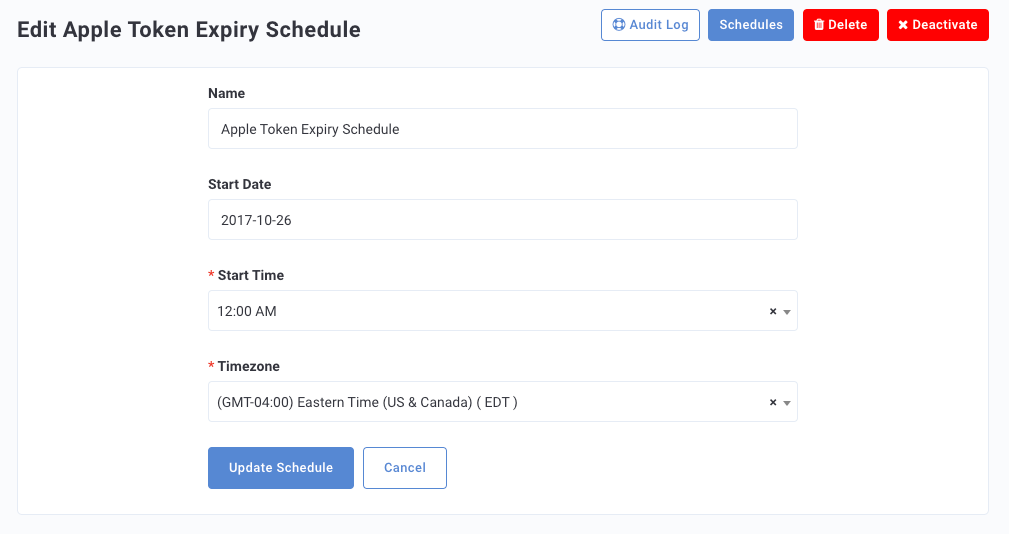
Apple Token Expiry
App Download Stats
Category
Challenge Availability
Challenge Export
Coupon Expiry Reminder
The Coupon Expiry Reminder schedule runs daily and picks all the coupon campaigns where the Reminder before field has been configured. For example, the coupon campaign Free Fries has an expiry set as March 30 and the "Remind before" as 8 days. So when the coupon reminder schedule runs on 20th March then it will not pick the coupon campaign Free Fries since there are 10 days left for the coupon to expire, but when the coupon reminder schedule runs on 22nd March then it will pick the campaign and will send the reminder to guest. See "Expired Coupon" in System Messages: General to customize the message guests receive.
Data Export
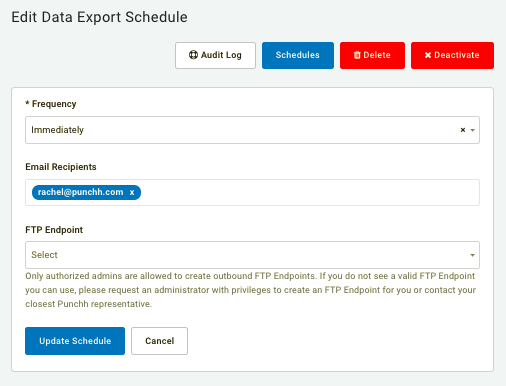
Each of your data export templates must have an active schedule in order to be generated and send out. Because data reports can be set to export Immediately, Daily, Weekly, or Monthly, your scheduling options will vary depending on your choice of frequency. For these reports, you can choose multiple recipients by adding email addresses. Additionally, you can choose to have your report uploaded to a connected FTP endpoint.
Employee Review Schedule
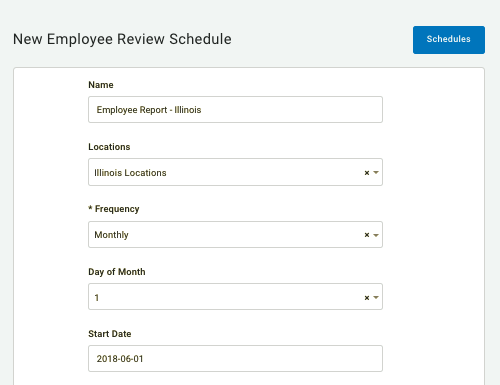
Employee reviews are an invaluable tool for maintaining a high level of service and performance among your employees, company-wide. View details such as total loyalty transactions and sign-ups, positive/negative reviews, and even read comments left by guests about their experience. For the Employee Review report, you can choose the frequency to generate/export the report (daily, weekly, monthly, or once) and from which location(s) to pull report data.
Gift Card Auto Reload Reminder
Note: This schedule is a part of Digital Stored Value with Gift Cards and Loyalty Pay available for an additional cost. To learn more, speak to your Punchh Customer Success Manager.
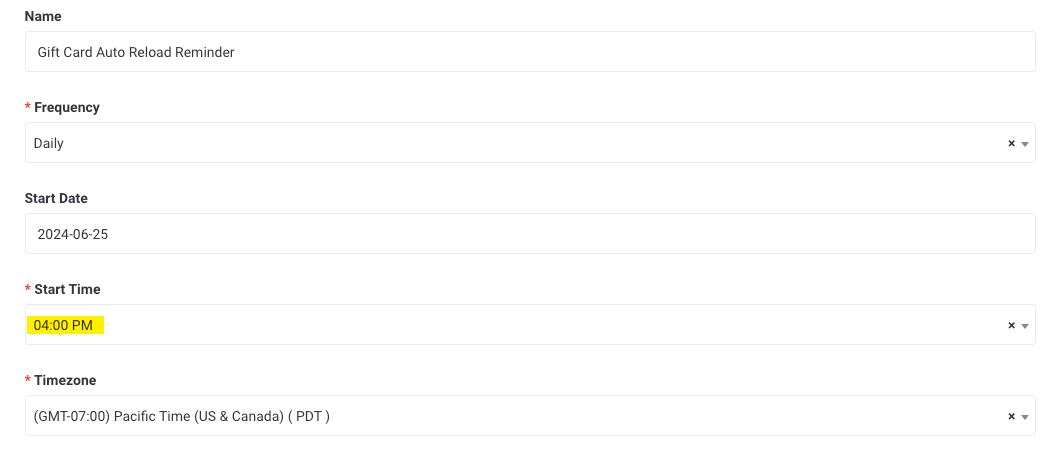
The Gift Cards Auto Reload Reminder Schedule runs daily and looks for guests whose gift card amount is below their minimum threshold. Email, Push, or SMS notifications are sent to the guest letting them know their gift card is about to be loaded with their preset dollar amount. The notifications for this schedule can be configured under Loyalty Program > System Messages > Gift Card Tab > Eligible Gift Card Pre Auto Reload Messaging.
The Start Time for this schedule should be set to run BEFORE the Gift Card Auto Reload Schedule (below) so that guests will receive their reminder prior to the actual reload event.
Gift Card Auto Reload Schedule
Note: This schedule is a part of Digital Stored Value with Gift Cards and Loyalty Pay available for an additional cost. To learn more, speak to your Punchh Customer Success Manager.
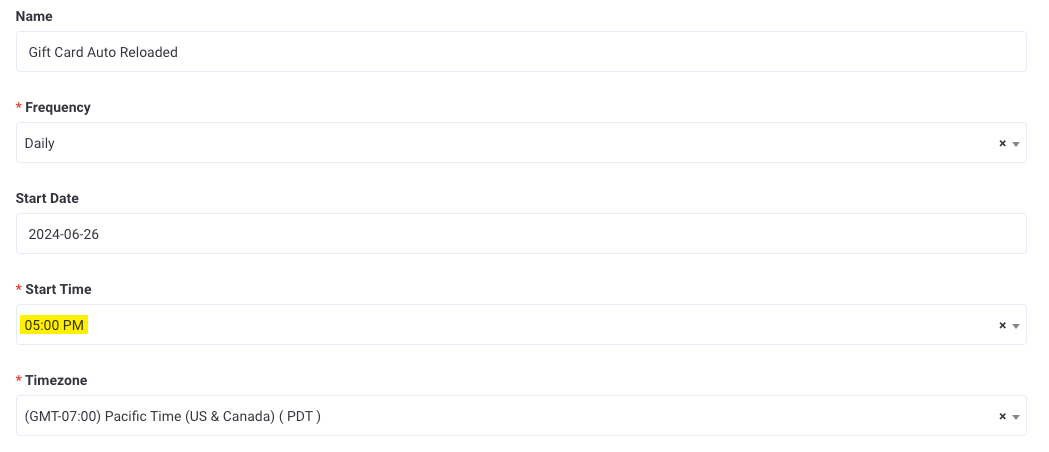
The Gift Cards Auto Reload Schedule runs daily and looks for guests whose gift card amount is below their minimum threshold and whose wallet has been reloaded with the preset amount. Email, Push, or SMS notifications are sent to the guest letting them know their gift card has been loaded with X amount of dollars. For example, a guest can set their auto reload settings so that if their gift card balance dips below $5, another $5 from their saved credit or debit card will be automatically added to the gift card balance. The notifications for this schedule can be configured under Loyalty Program > System Messages > Gift Card Tab > Gift Card Reloaded.
The Start Time for this schedule should be set to run AFTER the Gift Card Auto Reload Reminder Schedule (above) so that guests will receive their reminder prior to the actual reload event.
Location Scoreboard
Location Summary Export
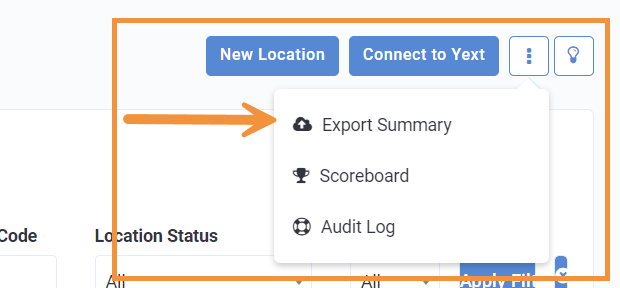
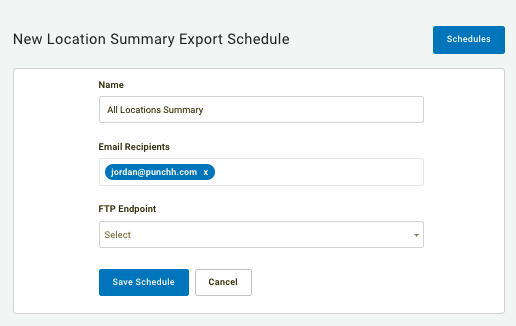
In the Store Locations >All Store Locations section of your dashboard, you can view high-level information about every Punchh-connected location in your company, such as store number, name as it appears within Punchh, address, and current status (approved or not approved). Click the Three Dots and select Export Summary to be taken to the scheduling page. The summary report includes this high-level data for all of your locations, and by default will export to your email recipients immediately.
Mass Campaign Schedules
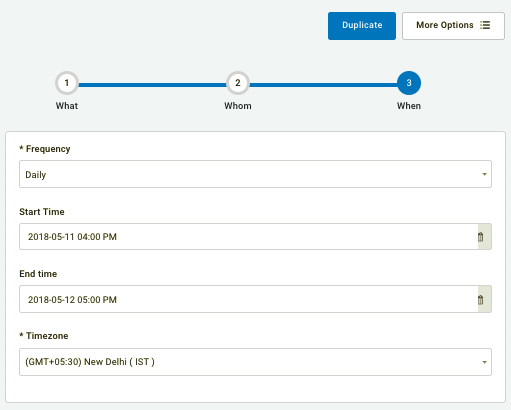
Because scheduling has been integrated into the campaign creation workflow, attempting to edit a yet-to-be-activated campaign in the Diagnostic >Schedules page will simply take you to the 3rd step of its edit campaign settings flow. From there you can schedule the Start Time and End Time that the campaign will be active.
Month on Month Report
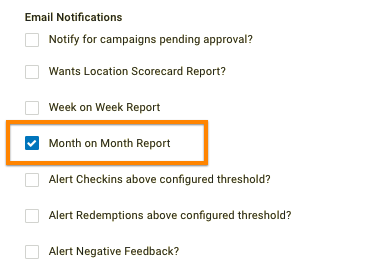
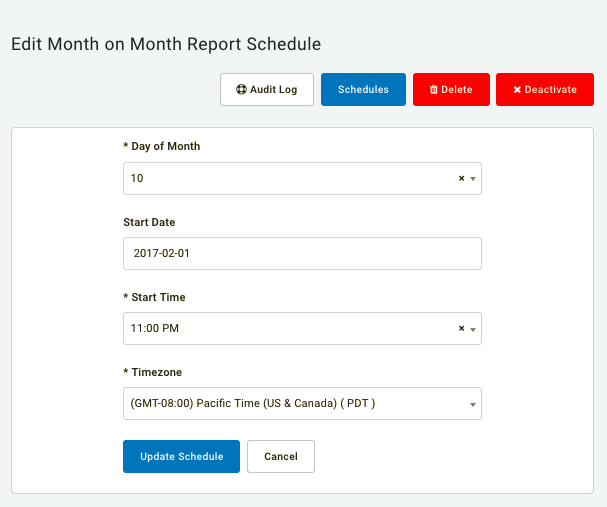
The Month on Month report is sent to selected company admins based on your Administration > All Users, Roles and Permissions > Admins > Admin User’s Name >Email Notifications setup. The report contains KPI stats about how loyalty guests spending for the past month compares to the month before that. By default, the Month on Month report is scheduled to export at 11:00pm on the 10th of each month. This ensures that any sort of checkin lags have been completed by the time of processing the report. However, if you need to change the default export time, you can choose a different day of the month and time of day in its scheduling settings.
Payment Report (Added Module)
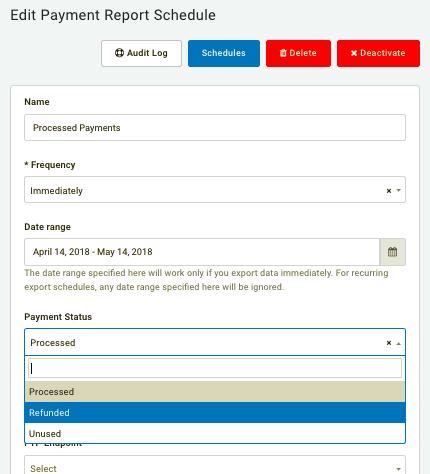
You can schedule when/how often to export a payment report. Use the Frequency drop-down to set either an immediate or a recurring (daily, weekly, monthly) schedule. Additionally, use the Payment Status drop-down to further refine your report export to include Processed, Refunded, or Unused payments.
Payment Report is only visible for businesses who have purchased the Gift Cards added module.
Post Checkin Export Schedules
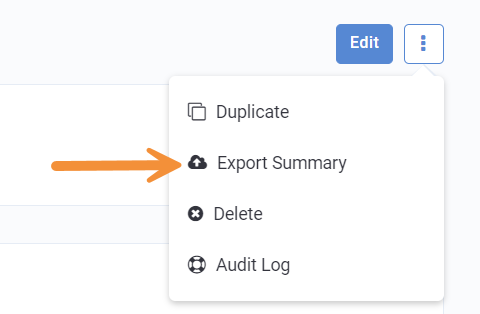
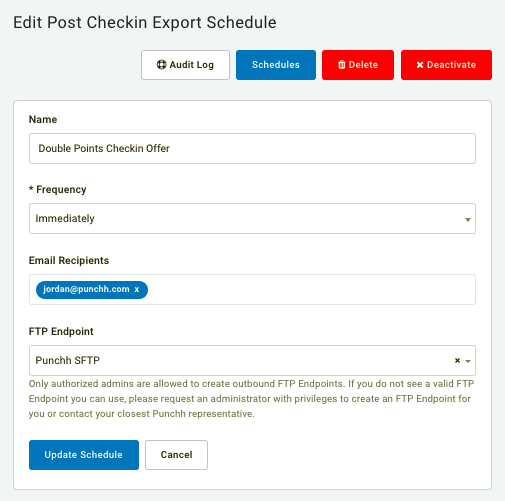
When in a Post Checkin campaign, click the Three Dots and select Export Summary. You'll be taken to the Post Checkin Export Schedule page in Schedules. From there, your only option is to export the report immediately, so this scheduling page is just for choosing email recipients and/or the FTP endpoint where the report will be uploaded.
Recall Campaign Schedule
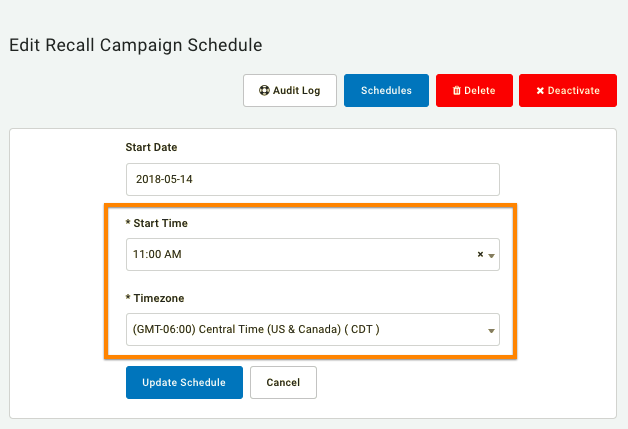
Your Recall campaigns check once per day to see whether or not a guest has fallen into the group covered by that campaign. If the guest has met the qualification (such as it's been 30 days since their last checkin) the Recall campaign will trigger for them at that time. To change the daily time that your recall campaigns fire and send a message to qualifying guests, edit the Start Time and Timezone in schedule settings.
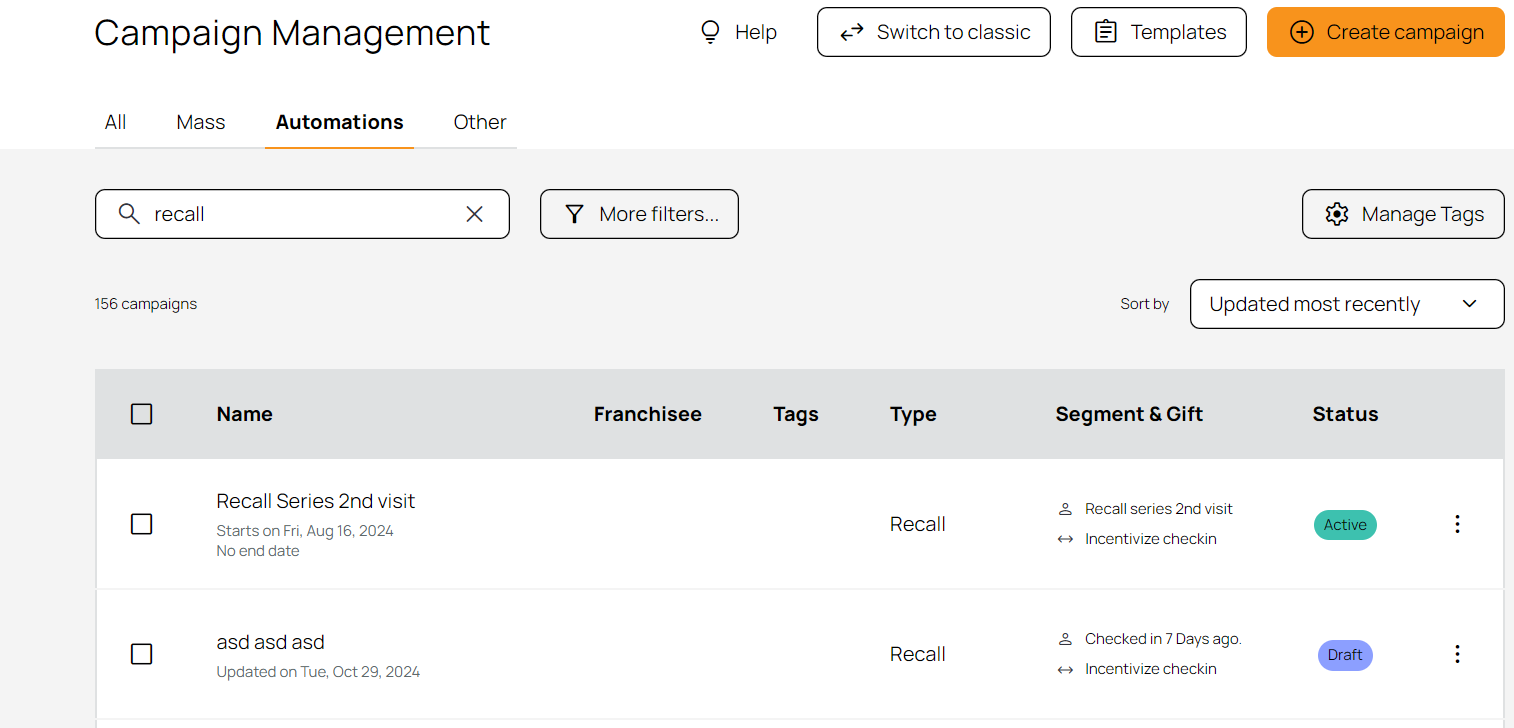
You can also change the schedule for your Recall campaigns from Marketing Automation >Campaign Management > Automations and search Recall.
Redemption Stats Export
Reward Expiry Reminder
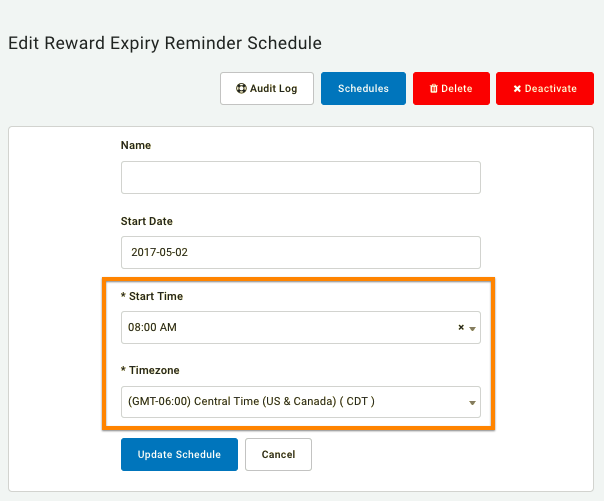
For redeemables/rewards with an automatic expiration date or length of time (such as the offer is only good for 7 days) you can select to notify the guest of their offer's impending expiration in the settings for each of your redeemables. Set the global time of day that Reward Expiry Notifications are sent out by changing the Start Time and Timezone in schedule settings.
RFM Slabs Cache Generator
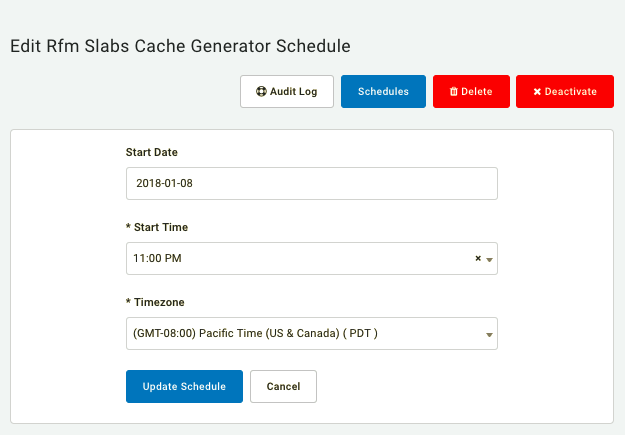
By default, RFM Slabs generate in real time each time you open the RFM Slabs page in your dashboard. While this is okay for smaller business, if your company has lots of locations, this data pull may take up to a minute. There isn't much utility in this, so we recommend scheduling a set time each day for your RFM Slabs to create a data cache. That way, whenever you open the RFM section, your information is already there, cached, instead of having to generate each time.
Rolling Expiry Schedule
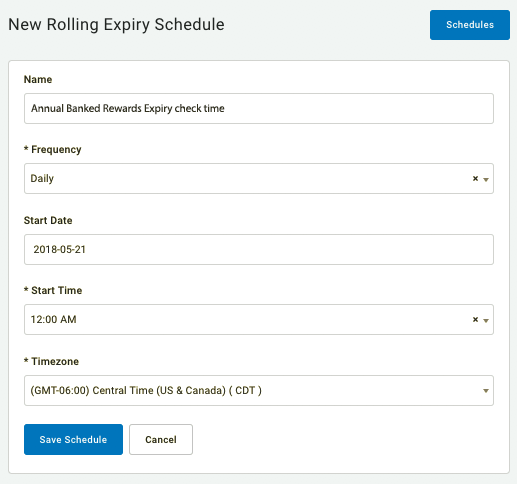
If your business is set up for rewards/currency expiration (such as your accumulated points/banked reward total will annually reset to 0), Punchh will check once per day to update each guest's progress towards their reset date. The rolling expiry schedule allows you to choose the time of day that Punchh will check for expiry. (We recommend 12:00 AM).
Segment Export
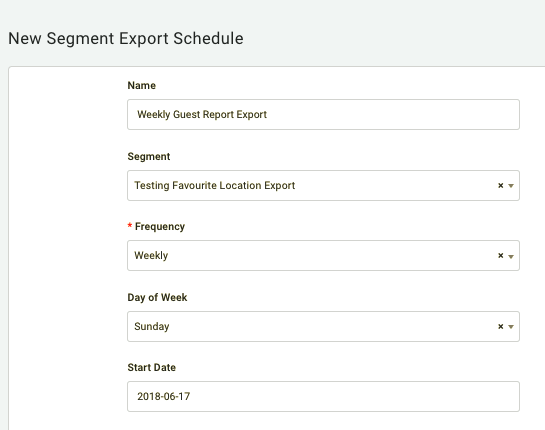
When you create a guest segment, you can export the list of guests in that segment by clicking the Three Dots and selecting Schedule Export from the segment summary page.
The details of the export report will depend on the type of segment to be exported.
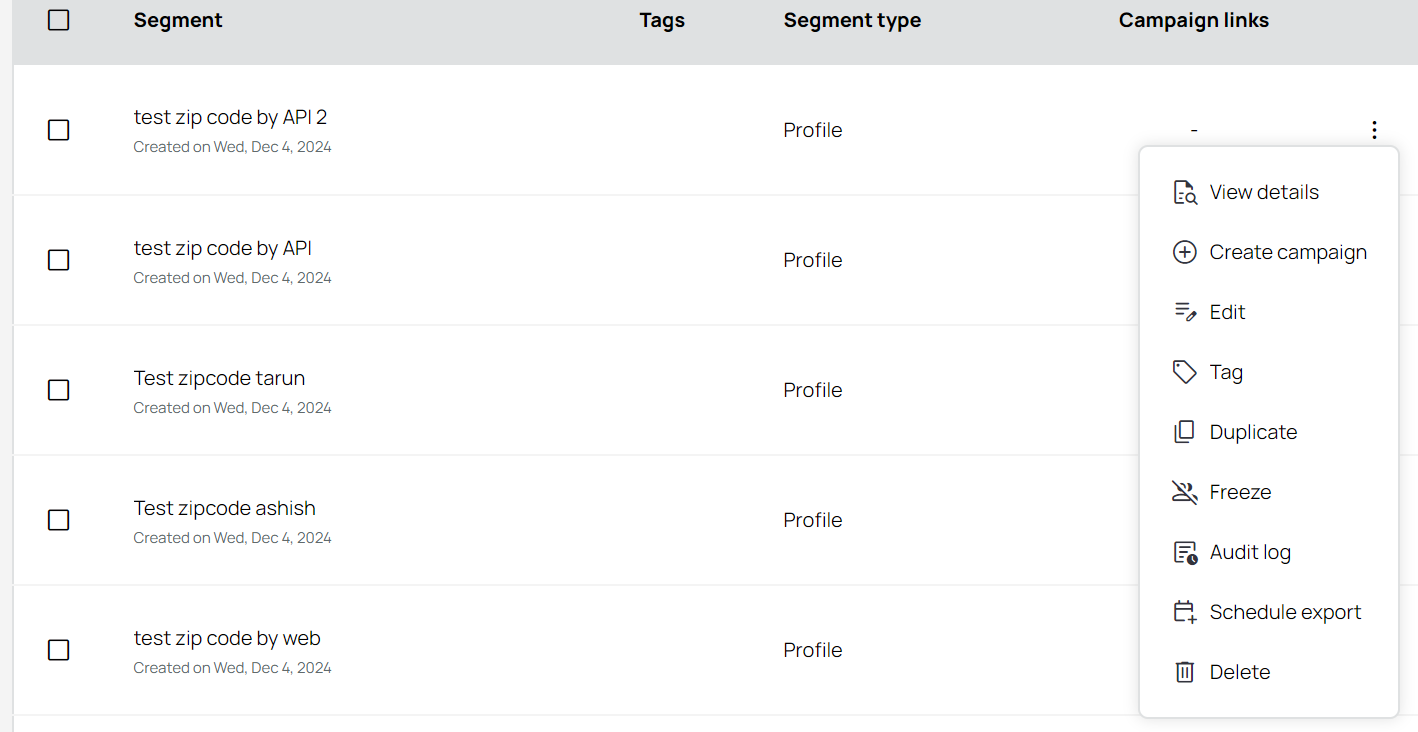
This takes you to the scheduling page for that specific segment, where you can specify the frequency, start date/time, recipients, etc.
Segment User Cache Schedule
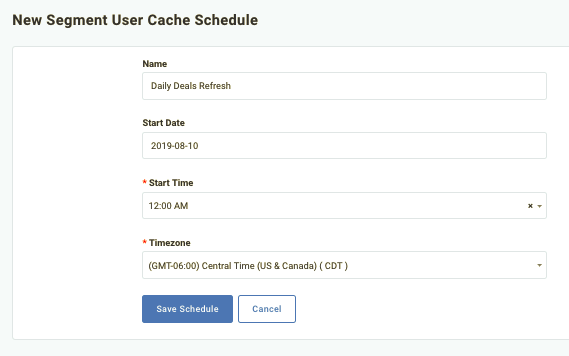
This sets the daily time that cacheing/refreshing the list of users currently in/out of your active segments occurs. If a user enters into or falls out of the requirements of a segment, they will not be added/removed from the segment until the next cache, as determined by this schedule. By default, this cacheing occurs only once per day. This schedule is intended to be used by businesses using Deals.
Social Cause Export (Added Module)
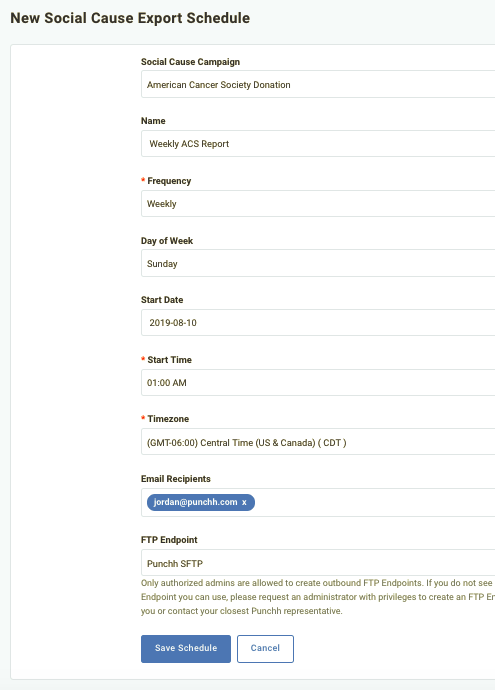
For businesses who have enabled the Social Cause added module, you may choose when and how often to generate a report covering one of your Social Cause campaigns. This report includes user information as well as pledged donations.
Survey Export (Added Module)
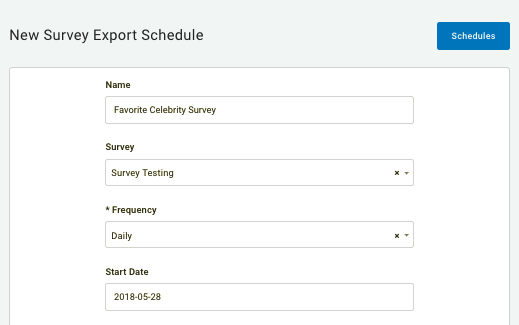
If you have the surveys added module, you can set a schedule to export the latest survey results (or a time range) based on a recurring schedule (or immediately export). Click the Frequency drop-down to choose how often to generate the report.
You can also export Survey data from the Detailed Results tab in one of your Surveys. Navigate to Marketing Automation >Surveys >(name of survey) >Detailed Results.
SVS Payment Reconciliation
User Incinerator Batch
Week on Week Report
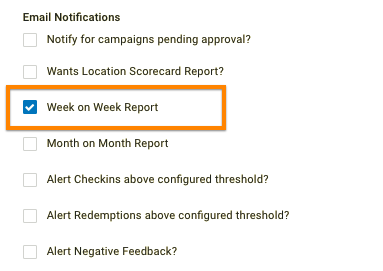
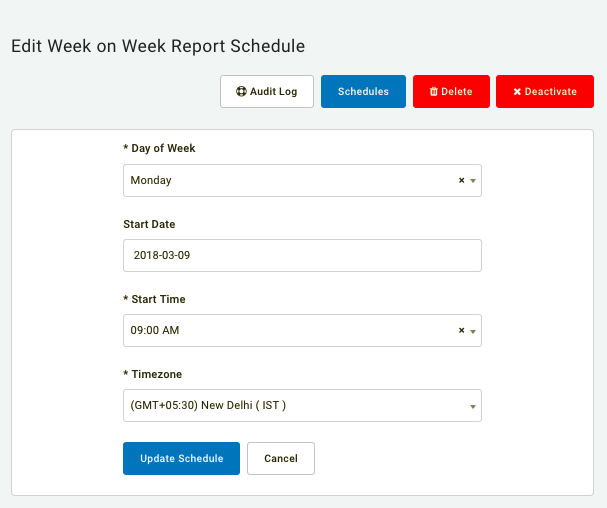
The Week on Week report is sent to all of the company admins you've selected to receive them in your Administration > All Users, Roles and Permissions > Admins > Admin User’s Name > Email Notifications setup. The report contains KPI stats about how loyalty guests spending for the past week compares to the week before that. By default the Week on Week report is scheduled to export at 9:00am on Monday to capture the previous (two) Monday through Sunday business weeks. However if you want your report sent out on Wednesday for example you could set your Day of Week setting in the schedules page to Wednesday.