Membership Plans
Memberships were previously called "Subscriptions"
Added Module Incorporating Memberships into your loyalty program requires an app update. Please contact your account representative for guidance on the features of the Memberships module and how to get started with adding this to your loyalty program.
Memberships help brands activate a recurring payment model to provide loyal customers exclusive access to a product or service over a period of time. Adding a Membership module can encourage upsell and incentivize customers to frequent your locations more regularly and reward your most loyal guests. Campaigns and segments can be created and triggered to incentivize guests to use their Memberships more frequently.
Membership List Page
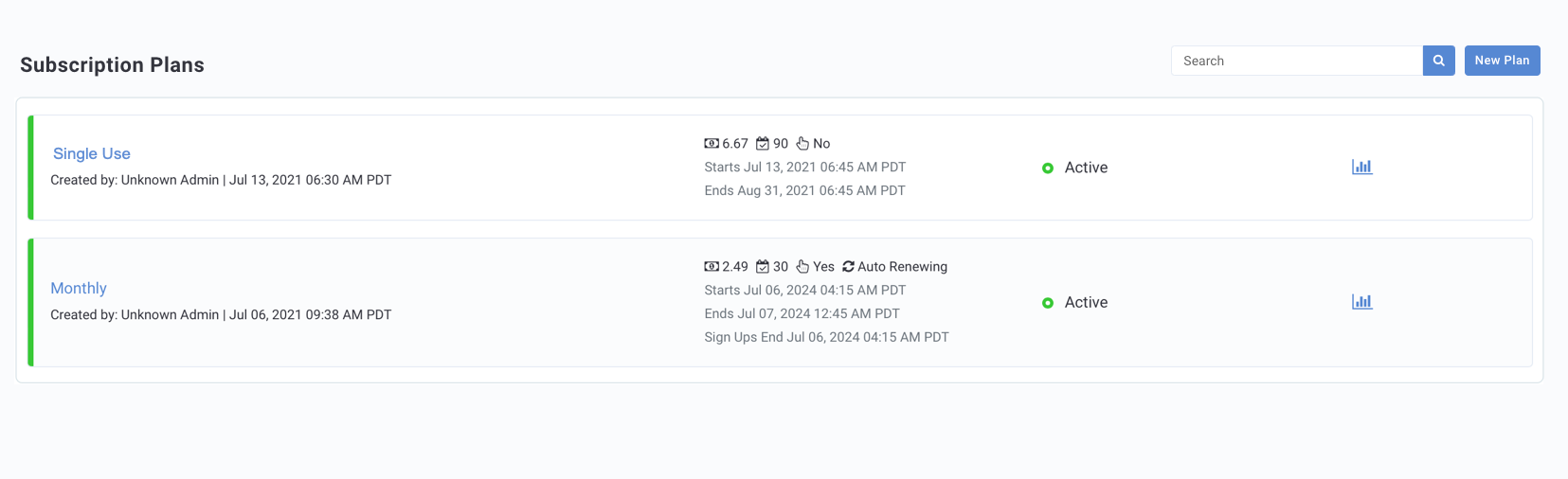
Memberships are under Wallet and Passes > Membership Plans in the Punchh platform. The Memberships List Page shows all Membership plans created by your brand. The following details are shown with each plan:
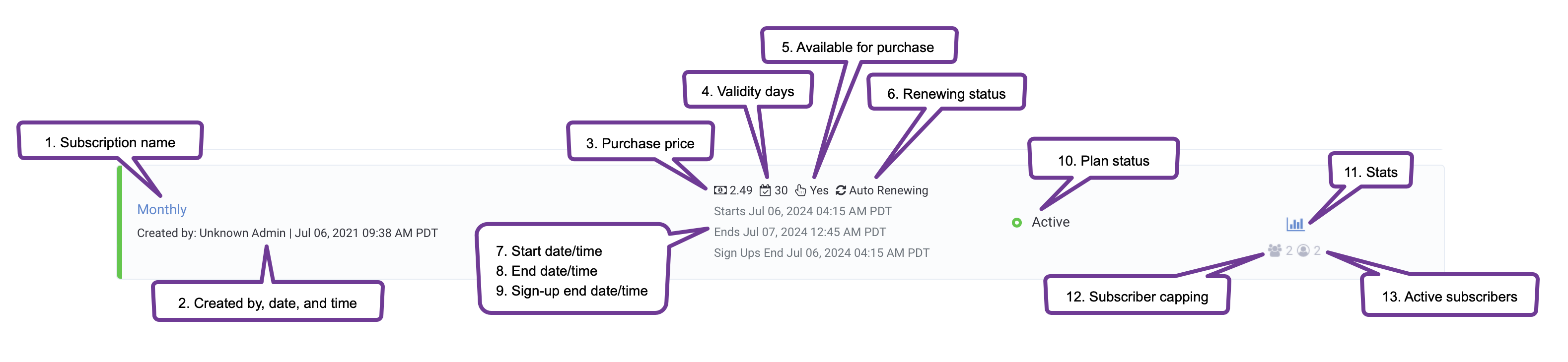
- Membership name: Click the Membership name to make edits to the plan.
- Created by, date, and time: The user who created the plan and when it was created.
- Purchase price: The price of the plan for one 'cycle' or the number of valid days.
- Validity days: The number of days after which the Membership expires
- Available for purchase: The plan currently can be purchased via the mobile app.
- Renewing status: Shows as Auto Renewing if the plan renews automatically after each cycle of valid days. If the plan is a single-use Membership no information will be shown here.
- Start date and time: Date and time the Membership becomes active and available for purchase.
- End date and time: Date and time the Membership becomes inactive and no longer available for purchase.
- Sign-up end date and time: Date and the time when no further guest sign-ups are accepted.
- Plan status: Shows as Draft, Active, or Inactive.
- Stats: Click the Stats icon to show the Subscriber Capping and Active Subscribers at that time.
- Subscriber capping: The maximum number of active subscribers to a Membership Plan at any given time.
- Active subscribers: The number of current subscribers.
Create a Membership Plan
- Navigate to Wallet and Passes > Membership Plans in the left side panel
- Click New Plan in the top right corner.

Plan Details
The first step in creating a Membership Plan is the Plan Details section. This section allows you to designate the core settings of your plan.
Note: The Membership Plan Name, Description, and Miscellaneous fields can be configured to multiple languages. Click the language options at the top right of the field to preview the text in the selected language. Admins can set up your preferred and alternate languages under the Business Profile.
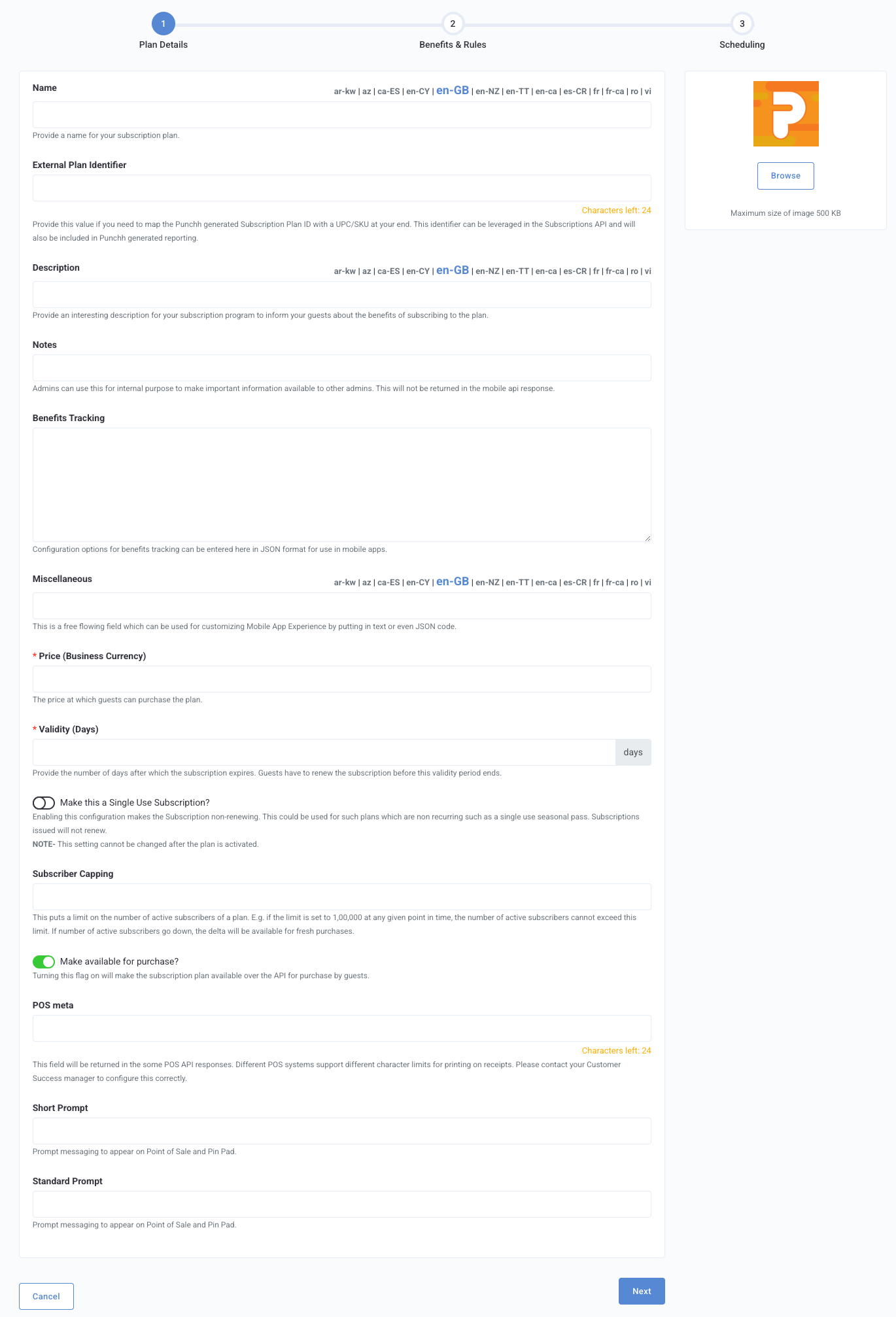
- Name: Enter the name of your Membership Plan to appear in the mobile application for your guests.
- Plan Image: Include an image or icon to be visible to guests in the mobile application. Click Browse to upload the image file. There is a 500 KB size limit on images.
- External Plan Identifier: This is a 3rd party identifier. Enterprise businesses can use this identifier to map Punchh-generated Membership Plan ID to a UPC at their end. This identifier can be leveraged in the Memberships API and will also be included in Punchh-generated reporting.
- Description: Enter a description of your Membership plan that will inform guests of the benefits of a particular plan.
- Notes: Enter any information that is internal to the business. At the time of creating/editing a plan, business admins can leave notes here for other business admins.
- Benefits Tracking: Use this field to define how you want the Membership benefit meter shown in the mobile app. Input must be in a JSON format.
Further details
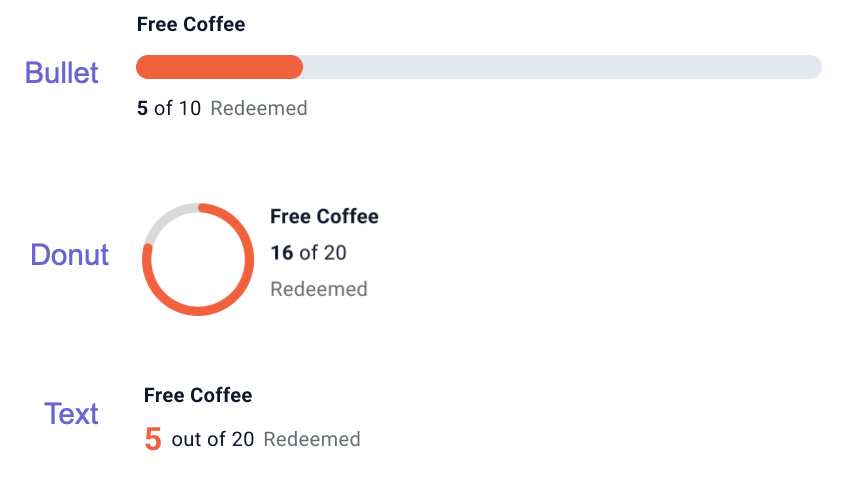
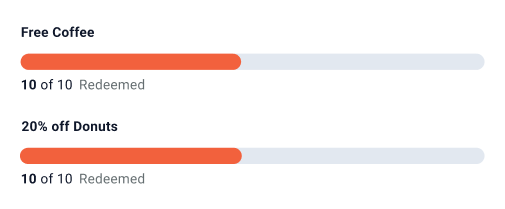
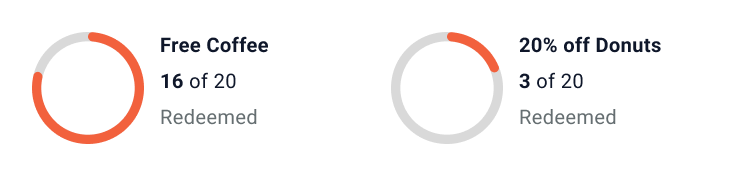
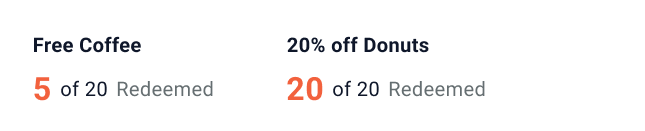
Meter Examples:
JSON Structure:
{
"showBenefitTracking": true,
"meterType": "bullet", //bullet, donut or text
"trackerName": [
{
"trackerName": "Title 1",
"trackerLabel": "Coffee",
"trackerInformation": "RedeemedAndCap" //Redeemed or RedeemedAndCap
},
{
"trackerName": "Title 2",
"trackerLabel": "Reedemed",
"trackerInformation": "Redeemed"
}
],
"trackerDisplay": "concurrent" // concurrent, sequential or onlyFirstMeter
}
showBenefitTracking- Boolean that determines whether or not meters will exist in the appmeterType- Values can be “bullet”, “donut”, or “text”. If nothing is configured, the app will default to the “text” meter type
Memberships can have two different benefits configured on the same plan, which is why there is the option for two different sets of trackerName, trackerLabel, and trackerInformation. If a Membership plan only has one benefit type, then the second one doesn’t need to be defined. If any of these details aren’t configured, they won’t show up in the app.
trackerName- text string that goes above the meter ("Free Coffee" in the above examples); Punchh apps support up to 37 characterstrackerLabel- text string that pairs with the usage info ( "Redeemed" in the above examples); Punchh apps support up to 37 characterstrackerInformation- This determines which information is shown alongside the tracker. Values can be “Redeem” or “RedeemedAndCap”. “Redeem” only shows the number of benefits that the user has redeemed, e.g. “3 [label]”, while “RedeemAndCap” shows both the number redeemed and how many they are limited to, e.g. “3 of 20 [label]”trackerDisplay- this is used for Memberships where two benefits are configured, and determines how/when to show the two different tracking meters (examples shown below). Values can be “concurrent” (both will show at the same time), “sequential” (second will only show once first meter has been fully used), or “onlyFirstMeter” (even when the first meter is filled, a second meter is never shown).
- Miscellaneous: This is a free-flowing field that can be used by a business for any custom purposes. E.g., to provide custom JSON which is then sent over to the mobile application to customize the behavior of the Memberships Component.
- Price (Business Currency): Enter a price of one unit of the Membership Plan. E.g. for a $4.99 price with 30 days of validity, a guest will have to pay $4.99 to purchase one cycle of this Membership Plan which will be valid for 30 days.
- Validity (Days): Enter the number of days after which the Membership expires. Memberships will expire at 11:59 pm on the End Date. Guest must renew before this period ends.
- Make this a Single Use Membership? Toggle on to make the Membership plan single-use. A single-use Membership plan will NOT renew automatically. This option is great for "seasonal pass" plans during holidays that provide guests holiday discounts when they pay upfront.
Caution: This setting cannot be changed after the plan is activated.
- Subscriber Capping: Enter the maximum number of active subscribers to a Membership Plan at any given time. While this value is cached for 24 hours, any purchases after this limit is reached will be stopped.
Note: This setting blocks only fresh purchases of the Membership plan if the limit is reached. However, renewals continue to work i.e. if someone subscribed to the plan before the cap was reached, they will be able to continue renewing their Membership even if the limit is reached. In order to obtain real-time data for Subscriber Capping, an Active Subscriber Count Schedule is created automatically when the Membership feature is enabled. Refer to Schedules to learn more.
- Make Available For Purchase? This setting allows Membership Plans to be sent over the mobile API. This means that you can choose on the go, if you want to show or hide plans from the mobile interface, thereby controlling which plans should be available for purchase. Another use case for this flag can be to restrict specific plans from the mobile application while allowing admins to use those plans for complimentary gifting.
- POS Meta: As the name suggests, this is a Meta field. This information is relayed over in the POS API for use by the POS system of your business.
- Short / Standard Prompt: Enter the text to appear either at the gas pump (short) and/or cashier terminal (standard) to prompt the customer to redeem their reward, as applicable.
Click Next.
Benefits and Rules
Note: Benefit order here determines the display order in the native app. This indicator is visible before more than one benefit has been created.
The second step of creating a Membership Plan is the Benefits and Rules section. This section allows you to set which discounts will be provided to guests through their Membership purchase. By default, each plan has one Benefit and each benefit supports two Discounting Rules. Plans with the Enable Multiple Benefit plan flag turned on can support additional benefits.
Below are the available benefits you can apply to your Membership plan and their associated Qualification Criteria.
| Benefit | Qualification Criteria | Usage | Example |
|---|---|---|---|
| Amount or Percent off Menu Item | Sum of Amounts Incremental | Repeatable through the Membership period with usage limit settings | 100% off a small coffee or tea once per day (and receipt) for 30 days, option to add a minimum receipt amount |
| Amount or Percent off Receipt | Sum of Amounts | Repeatable through the Membership period with usage limit settings | $5.00 off delivery orders over $25 in a 6-month period, eligible once per receipt, once per day |
| Rate Rollback | Rate Rollback | Rate Rollback which allows unit prices to be rolled back by a certain amount. | Pay X amount for Membership and gas price will be rolled back by 5 cents per gallon. |
| Target Price for a Bundle (Advanced) | Target Price for a Bundle (Advanced) | Drops the price of a single Menu Item or a Bundle of Menu Items to a specific price. | $20 Membership gives guests access to all meal combos for $15. |
- Name (of benefit): To support multi-benefit configuration (in the future) and to allow easy differentiation between different benefits, business admins need to provide a name for each benefit. This is also sent over the API for use in the mobile application.
- Description (of benefit): Enter a description of the benefit. It is sent over the API for use in the mobile application.
- Discount Type (First Discounting Rule): (Required) Select the type of discount that your business wants to offer as a part of this discounting rule. The following discount types are supported:
- Rate rollback: Allow unit prices to be rolled back by a fixed amount. Example: Gas price rolls back by 5¢ per gallon.
- Menu Item discount (% or $ off): Apply a percentage or dollar discount to individual menu items. Example: A burger can receive 10% off.
- Receipt-level discount (% or $ off): Apply a discount to the entire receipt. Each transaction counts as one redemption. Example: $5 off delivery orders over $25.
- Bundle target price: Set a fixed price for a bundle of menu items. Example: A combo of burger, drink, and fries can be set to $15.
- Select Discounting Rule (First Discounting Rule): (Required) Select the QC which evaluates an incoming receipt to decide if it qualifies for the Membership-based benefit redemption.
- Discount Limit (First Discounting Rule): Enter the number of units of the discount that are committed to guests at the time of purchase. E.g. 30 means, 30 units of coffee SKU in a monthly coffee Membership.
- Discount Amount (First Discounting Rule): This setting is the unit discount, flat $ off, or % (Menu Item level or Receipt Level) depending on the discount type used in the rule. This value will be picked from the attached QC and will appear when the first step is completed.
- Benefit Redemption Evaluation Strategy: Select how the system should handle qualifying items when the first discount limit is exceeded. The following options are supported:
- Exact discounting: Only items within the first discount limit are discounted. Additional qualifying items in the same transaction will not receive a discount. Future transactions use the second discount rule.
- Extended discounting: If the first discount limit is exceeded, the system extends the same discount to all additional qualifying items in the transaction. Future transactions use the second discount rule.
Note: The Extended discounting option is only available when the multi-benefit flag is enabled for your account. If you do not see a dropdown, only Exact discounting applies to your plan. Contact your PAR representative to learn more about enabling multi-benefit plans.
- Discount Type (Second Discounting Rule): Select the second type of discount that your business wants to offer as a part of this discounting rule. The following discount types are supported:
- Rate rollback: Allow unit prices to be rolled back by a fixed amount. Example: Gas price rolls back by 5¢ per gallon.
- Menu Item discount (% or $ off): Apply a percentage or dollar discount to individual menu items. Example: A burger can receive 10% off.
- Receipt-level discount (% or $ off): Apply a discount to the entire receipt. Each transaction counts as one redemption. Example: $5 off delivery orders over $25.
- Bundle target price: Set a fixed price for a bundle of menu items. Example: A combo of burger, drink, and fries can be set to $15.
- Select Discounting Rule (Second Discounting Rule): Select the second QC which evaluates an incoming receipt to decide if it qualifies for the Membership-based benefit redemption.
- Discount Limit (Second Discounting Rule): Enter the number of units of the discount that are committed to guests at the time of purchase. E.g. 30 means, 30 units of coffee SKU in a monthly coffee Membership.
- Discount Amount (Second Discounting Rule): This setting is the unit discount, flat $ off, or % (Menu Item level or Receipt Level) depending on the discount type used in the rule.
- Global Redemption Throttling: This setting controls the number of redemptions of the Membership benefits in a specific window of time. E.g., in a monthly coffee Membership that discounts 30 cups of coffee by 100%, admins can configure this setting to limit the redemption of coffee to 1 unit/day.
Click Next.
Benefit and Discounting Rule Examples
Amount / Percent Off Menu Item
| Example 1: One Coffee per Day for 30 days | |
|---|---|
| First Discounting Rule |
|
| Qualification Criteria Set Up |
|
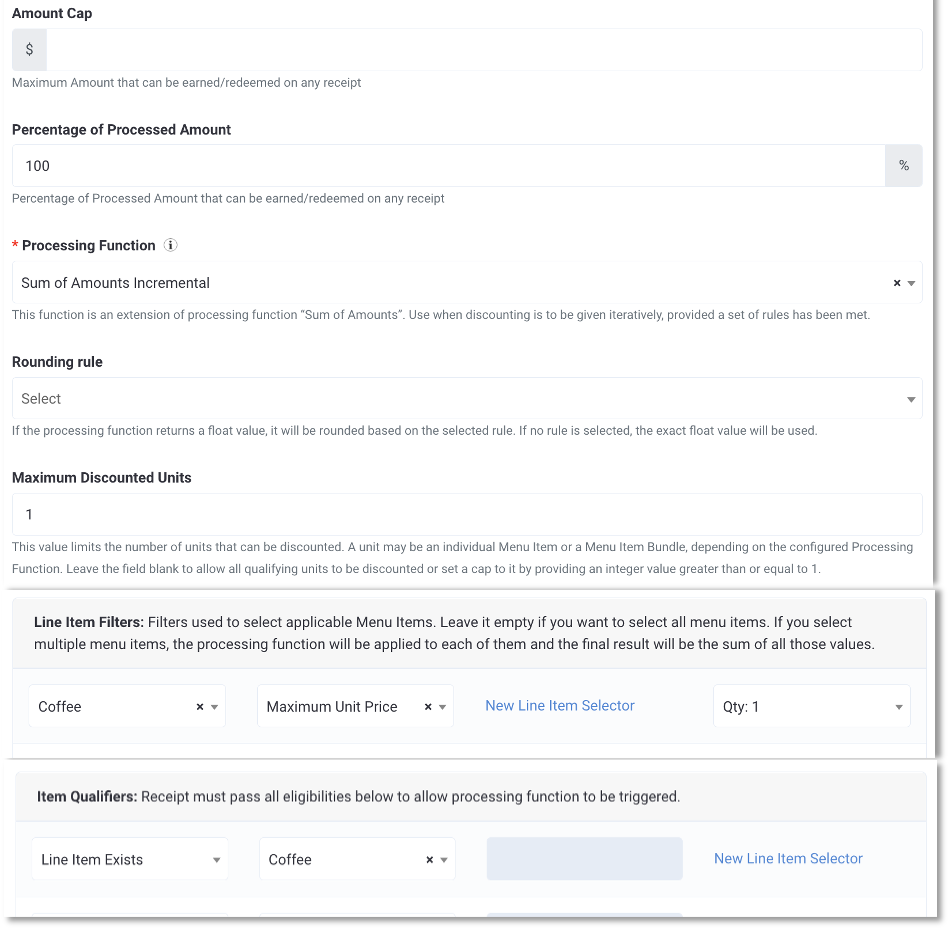
Example 1, Qualification Criteria Set Up
| Example 2: $2 Off Sandwich, Chips, & Drink for 90 Days, 1x per day | |
|---|---|
| First Discounting Rule |
|
| Qualification Criteria Set Up |
|
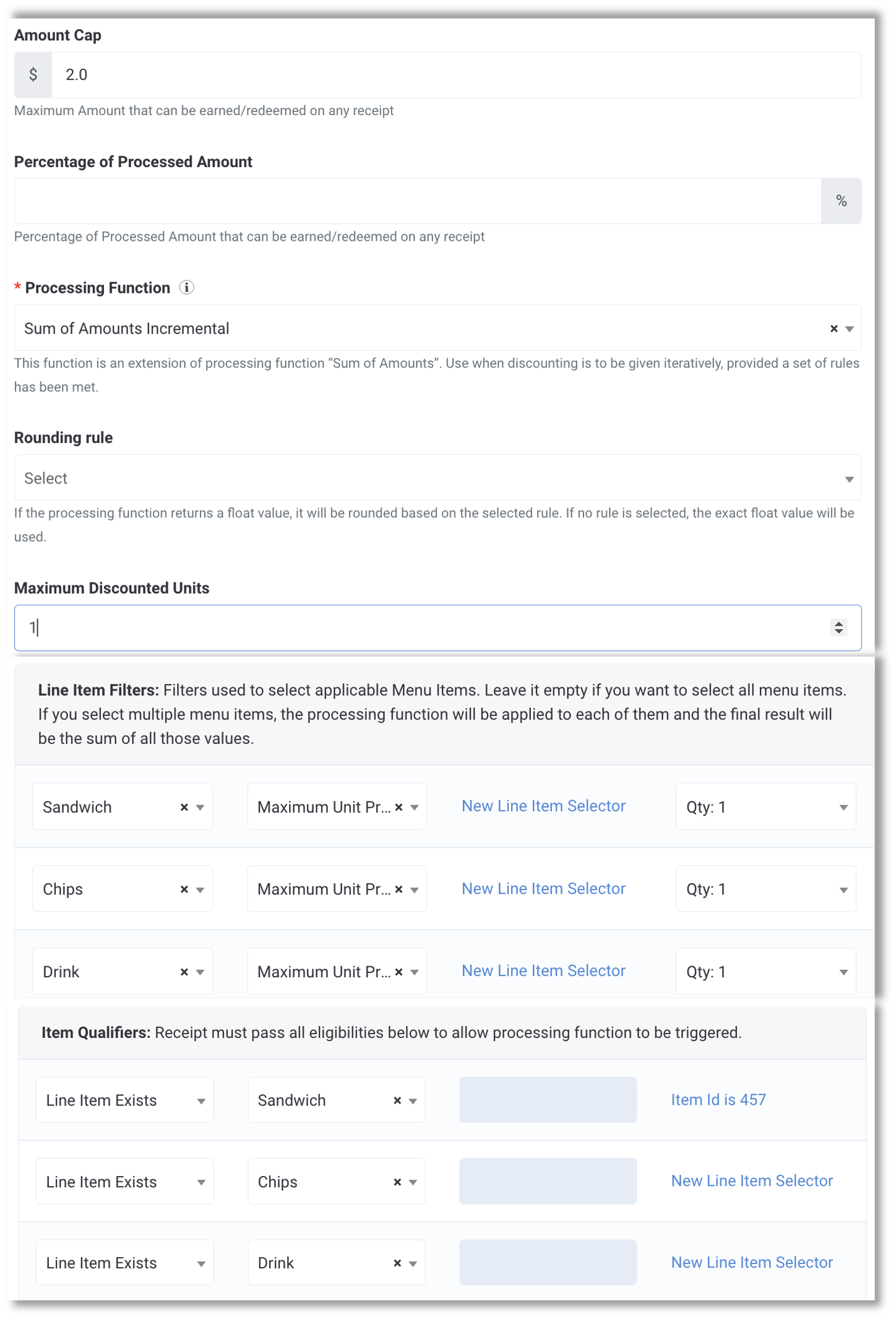
Example 2, Qualification Criteria Set Up
Amount / Percent Off Receipt
| Example: 20% Off Online Orders over $10 for 6 Months (Up to 2x per day) | |
|---|---|
| First Discounting Rule |
|
| Qualification Criteria Set Up |
|
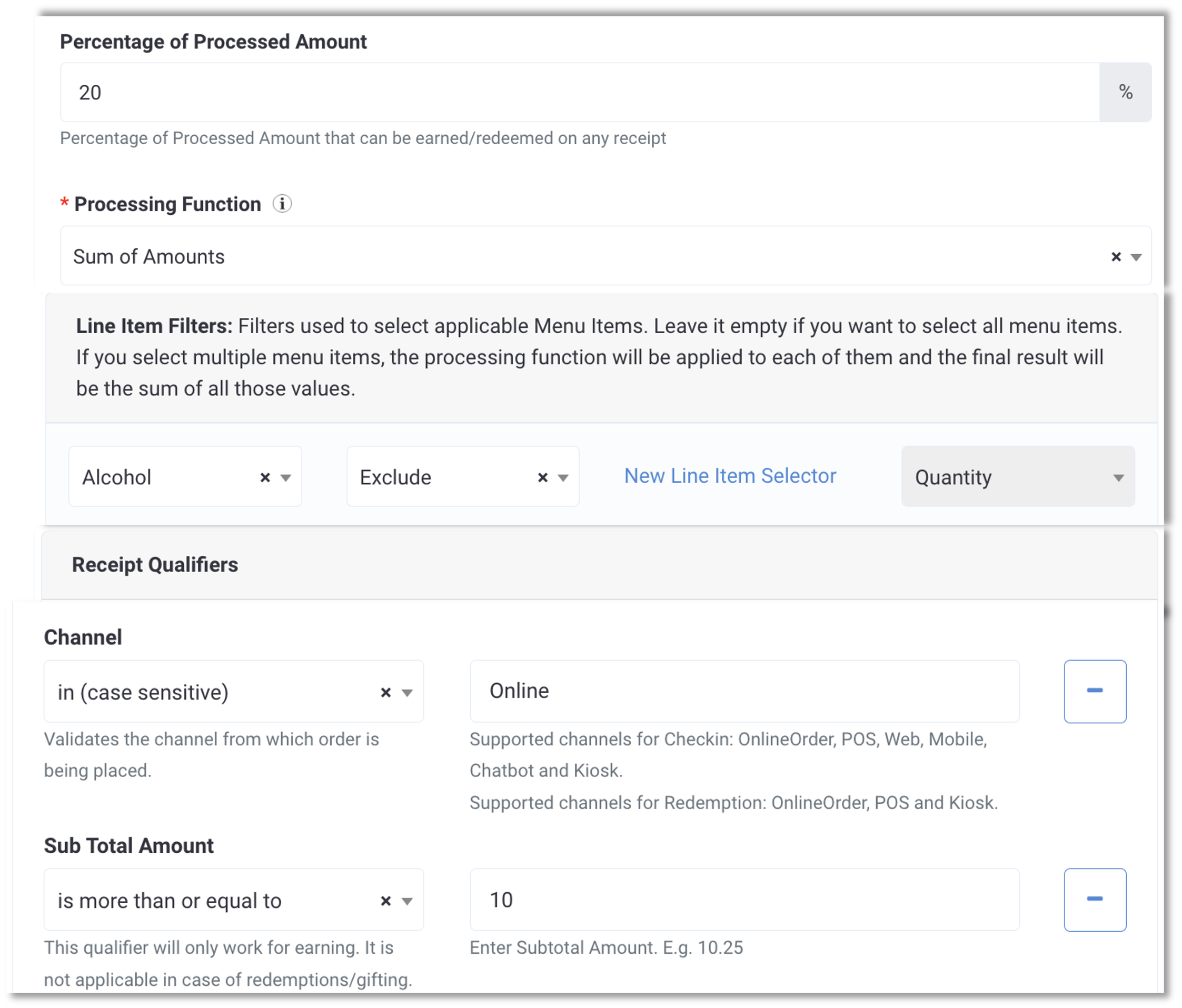
Example Qualification Criteria Set Up
Rate Rollback
| Example: Save 10¢ per gallon on 1st 40 gallons, 3¢ per gallon on each additional every month | |
|---|---|
| First Discounting Rule |
|
| Second Discounting Rule |
|
| Qualification Criteria Set Up |
|
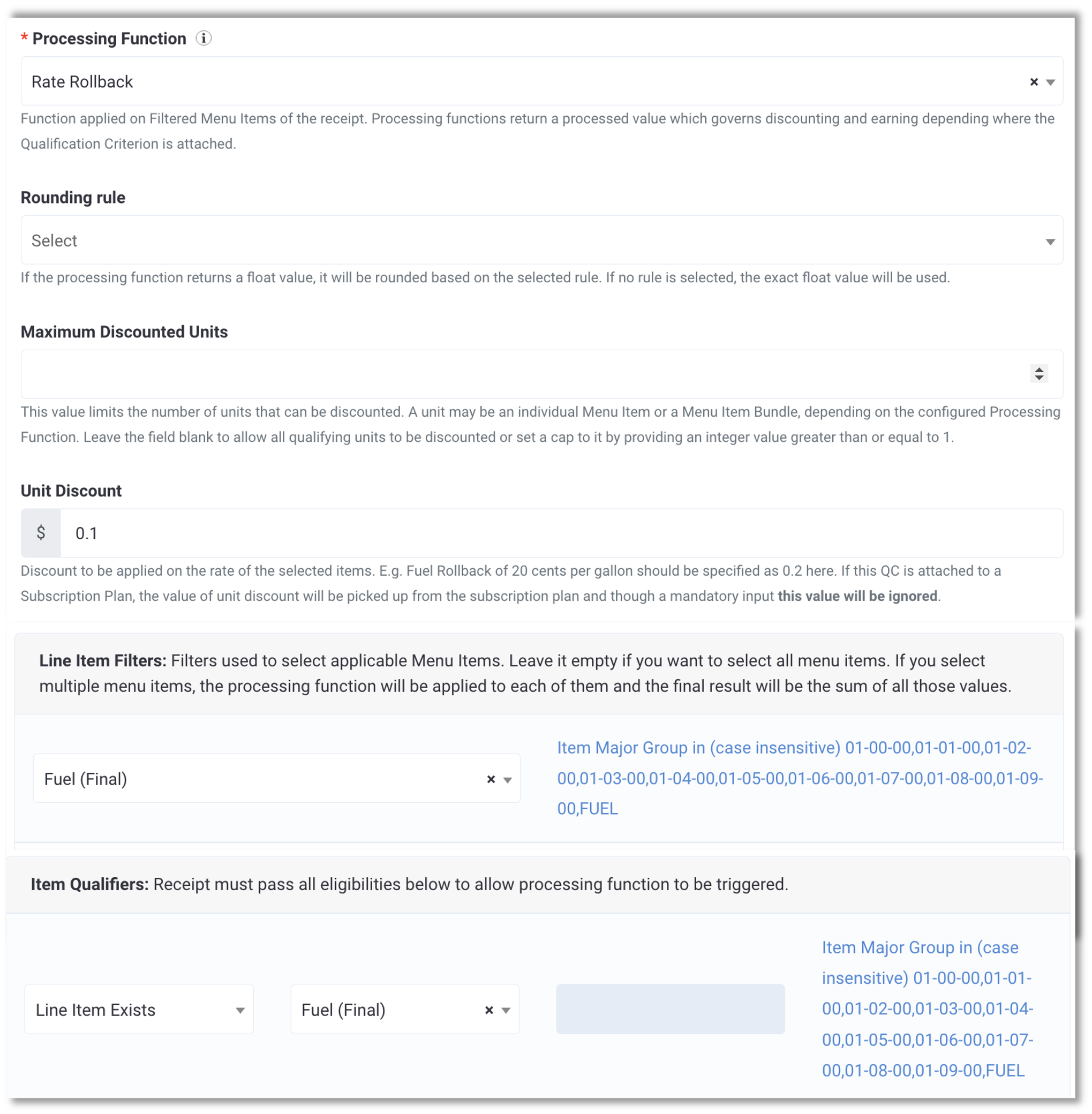
Example Qualification Criteria Set Up
Target Price for a Bundle (Advanced).
| Example: $9 Entrees for $9.99 a month | |
|---|---|
| First Discounting Rule |
|
| Qualification Criteria Set Up |
|
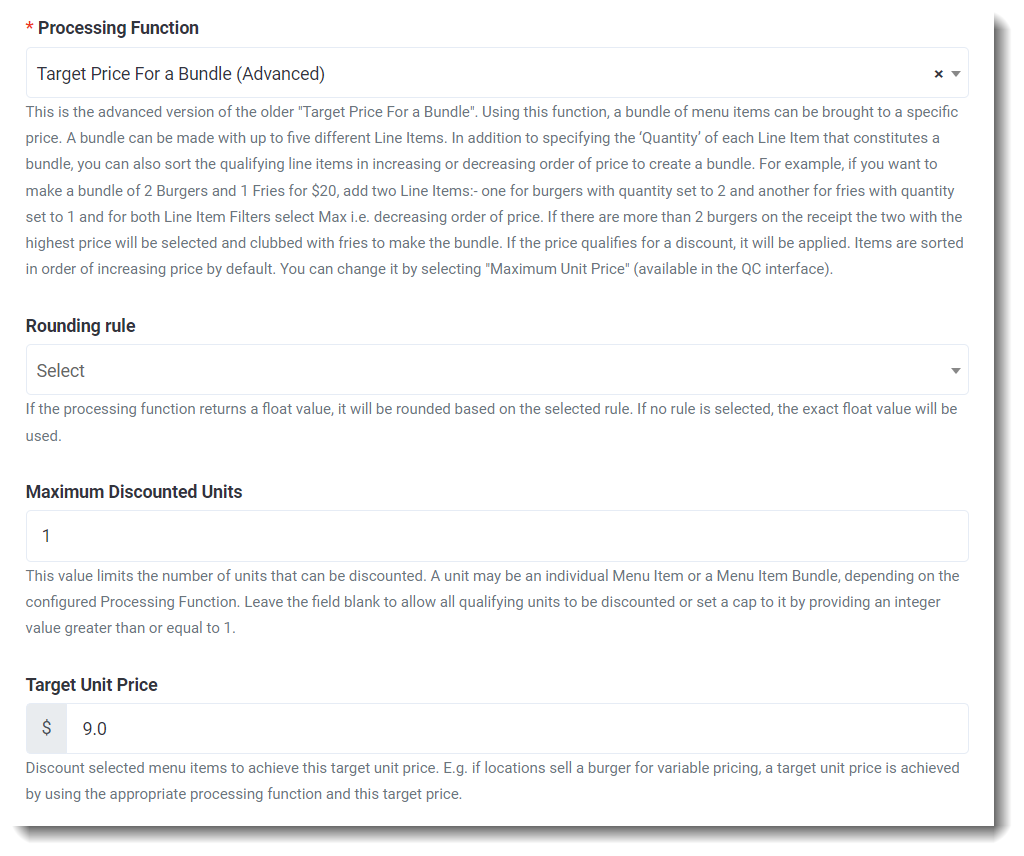
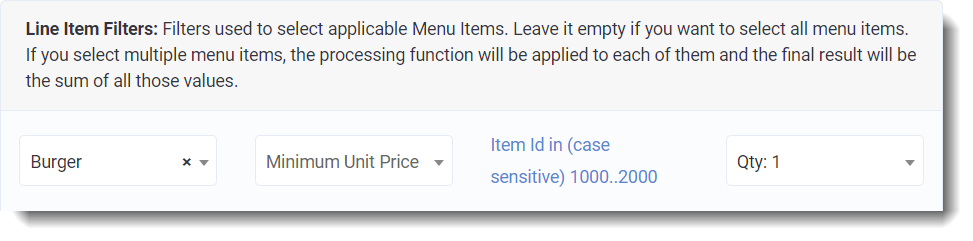

Example Qualification Criteria Set Up
Scheduling
The third step in creating your Membership Plan is the Scheduling section. This section allows you to determine the start and end dates, when renewals should happen daily, and when should reminder notifications be triggered.
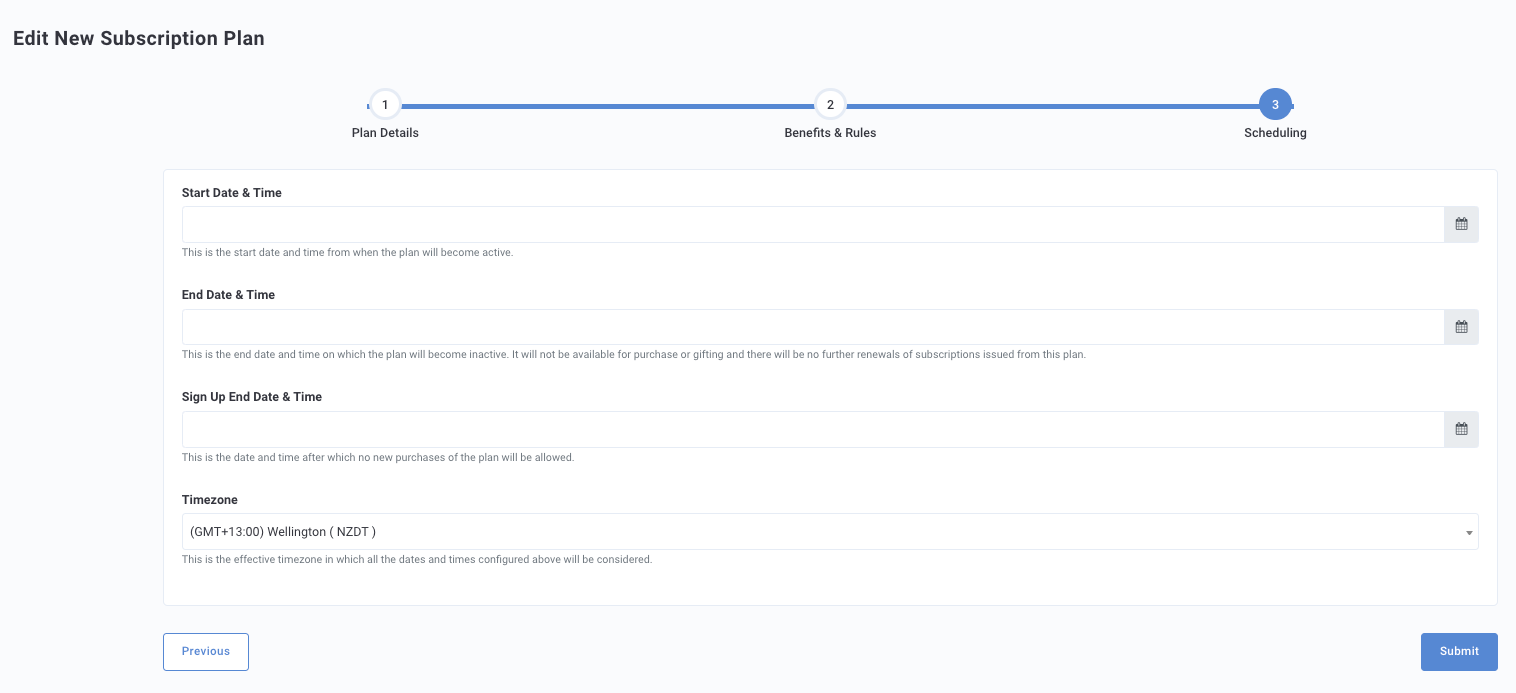
- Start Date & Time: Enter the date and time the plan becomes activated i.e. admins can create plans with a future date which will become Active as soon as they are published. The benefits of the plan will become redeemable only from the Start Date & Time of the plan.
- End Date & Time: Enter the end date and time for the plan.
Note: The Memberships which are purchased before the end date of the plan will be honored. E.g. If the End Date of a monthly plan is 31st December and John Doe buys a plan on the 25th December, his Membership will be honored for the full 30 days (i.e. the expiry date of the Membership). This is done to ensure that guests get the committed benefits for the money they have paid to buy a Membership.
- Sign Up End Date & Time: Enter the purchase cut-off for a Membership Plan.
In the example above, if John Doe buys a plan close to its end date, we honor the Membership till its validity. however, businesses can configure this setting to avoid such situations. So, in the above example, if the Membership Plan End Date of a monthly plan is 31st December, businesses can configure this date as 30th November, thereby blocking any purchases beyond this date and avoiding the situation where Memberships have to be honored beyond the End Date of the parent Membership Plan.
- Timezone: Enter the Timezone of your choosing in which to configure the Membership Plan.
- Advance Renewal Days: The number of days when a Membership is renewed in advance based on its upcoming expiry. E.g., if a Membership is due to expire on the 30th of September and the advance renewal days configured here is 2, the Membership will be renewed on the 28th of September. The default value of this setting is 2 and the lowest value that can be set is 1 day.
Note: Memberships in the Punchh platform are renewed in advance of their expiration date. This is done to avoid situations that could lead to renewal failure. E.g., downtime at payment processor/Punchh end, low balance on a guest’s card, expired card on file, etc.
- Start Time: Enter the time of the day when the renewal payment schedule should run. This can be configured by admins. Punchh recommends using an early AM slot for this setting.
- First Renewal Reminder Days*: Enter the number of days before the renewal when the first reminder should be sent to guests, informing them about the upcoming renewal.
- Second Renewal Reminder*: Enter the number of days before the renewal when the second reminder should be sent to guests, informing them about the upcoming renewal.
The related notification can be configured in Settings > Notification Templates > Renewal Reminder Notification. The same notification is triggered for the first as well as the second reminder. Also, the notifications for upcoming renewals are sent out based on the Start time configured in the “Renewal Payment Schedule”.
Click Submit to finish your plan.
Editing a Membership Plan
To modify a Membership plan draft, click the Membership plan name to edit any of the fields discussed above. A Membership cannot be edited after it has been activated.

Admin Capabilities
Admins may need to cancel Memberships for guests for various reasons such as fraudulent activity, guest requests, etc.
Cancel Membership:
- Soft Cancel: The Membership will remain valid till the original end date and time. However, the Auto renewal will be turned off.
- Hard Cancel: The Membership will become invalid immediately from the time of cancellation. Any future renewals of the Membership will not be allowed.
Gift Membership:
- Admins will be able to choose from a list of active Membership plans to gift one unit or one valid period of the Membership plan. This means for a plan of 30-day validity, admins will be able to issue a Membership that will be valid for 30 days until the end of the day of the 30th day.*Note gifting of Memberships between guests is not yet available
Related Membership Articles:
