Membership Log
Memberships were previously called "Subscriptions"
Added Module Incorporating Memberships into your loyalty program requires an app update. Please contact your account representative for guidance on the features of the Memberships module and how to get started with adding this to your loyalty program.
When offering Memberships, it is important to be able to track when guests purchase, cancel, and renew Memberships. This can allow you to identify issues your guests may be having with the Memberships as well as any trends that can impact your business. The Membership Log allows you to view Membership purchases, cancellations, and renewals from the last 90 days. You can also search for specific guests by their name or email. Membership Logs can be found by navigating to Diagnostic > Membership Log.
Note: Membership Logs are only available to brands that use Punchh's native integration (Heartland, PAR Pay). Contact your representative with any further questions.
Search Filters
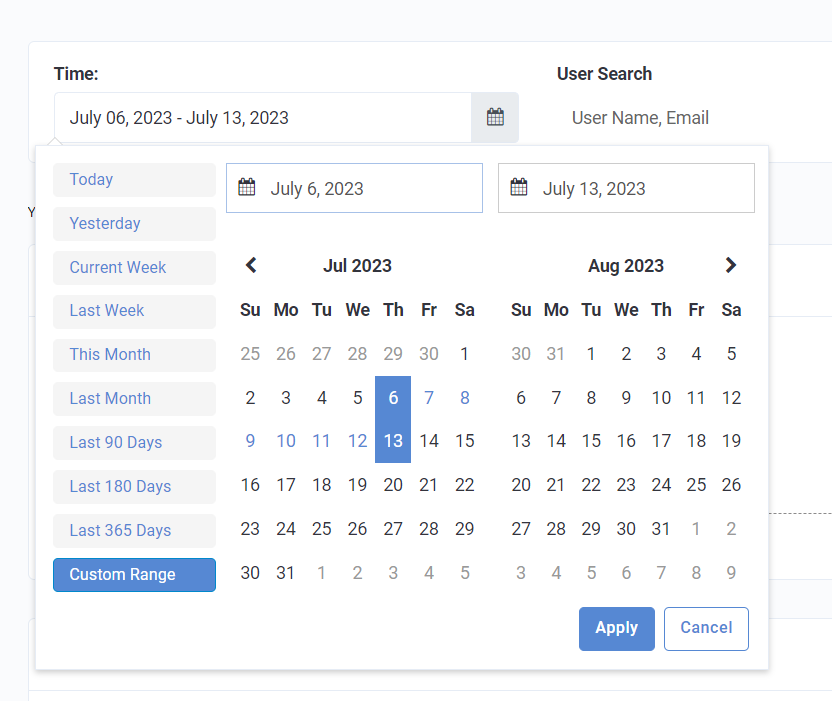
At the top of the page there are two filters: Time and User Search. These allow you to narrow down the logs you want to see.
- Time: This allows you to set the time frame you want to see Membership logs for. You can search for logs from the past 90 days.
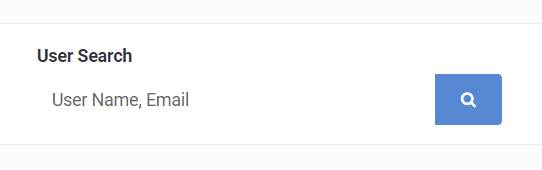
- User Search: This allows you to search for logs for specific guests. You can search for guests based on their name, email, phone number, and user ID.
Logs
The Membership logs can be broken down into four different event types: Membership Purchase Successful, Membership Purchase Failed, Membership Renewal Successful, and Membership Cancellation. Each event type includes different information about the transaction.
The header for all the logs includes the event type, the user ID, and a timestamp. Clicking the User ID will take you to the guest's profile. The Timestamp indicates the date and time the event took place.
Membership Purchase Successful
This event type indicates the guest was successful in initially purchasing their Membership.
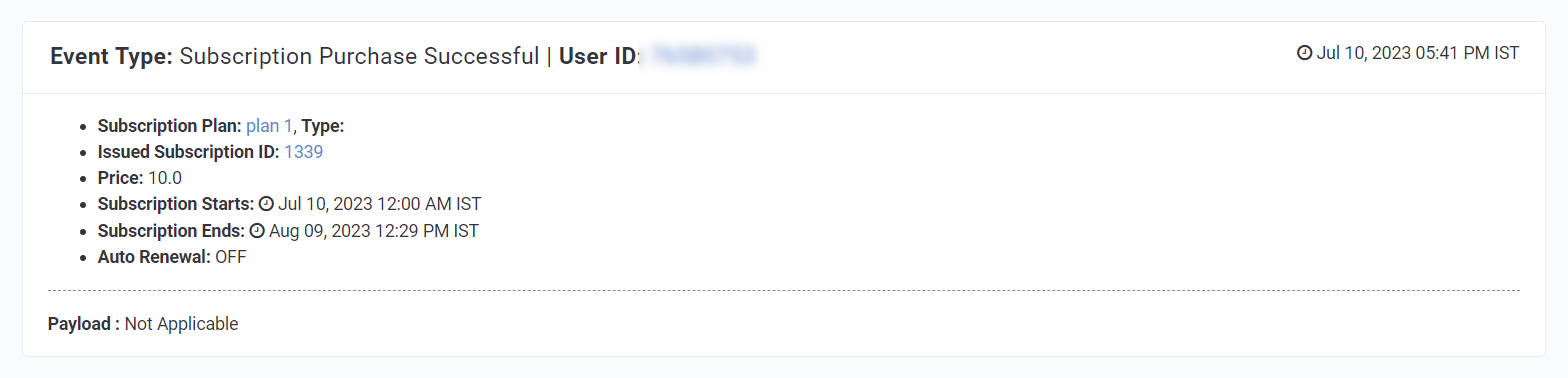
- Membership Plan: This states which Membership plan the guest purchased. Clicking on the plan will open the Membership plan editor.
- Type: This indicates the Membership type. Currently, the only type is Auto Renewing.
- Issued Membership ID: This ID is unique to the customer and plan purchased. Clicking the ID will open the Memberships tab on the guest's profile.
- Price: This is the price the guest paid for the Membership.
- Membership Starts: This is the date and time the guest's Membership will start. This will typically be the beginning of the day the Membership was purchased.
- Membership Ends: This is the date and time the guest's Membership will end. This will depend on the duration of the Membership.
- Auto Renewal: This indicates whether or not the Membership will automatically renew upon the Membership ending.
- Payload: This indicates any API requests/responses in case of errors. If there are no errors, it will say Not Applicable.
Membership Purchase Failed
This event type indicates the guest was unsuccessful in purchasing a Membership.
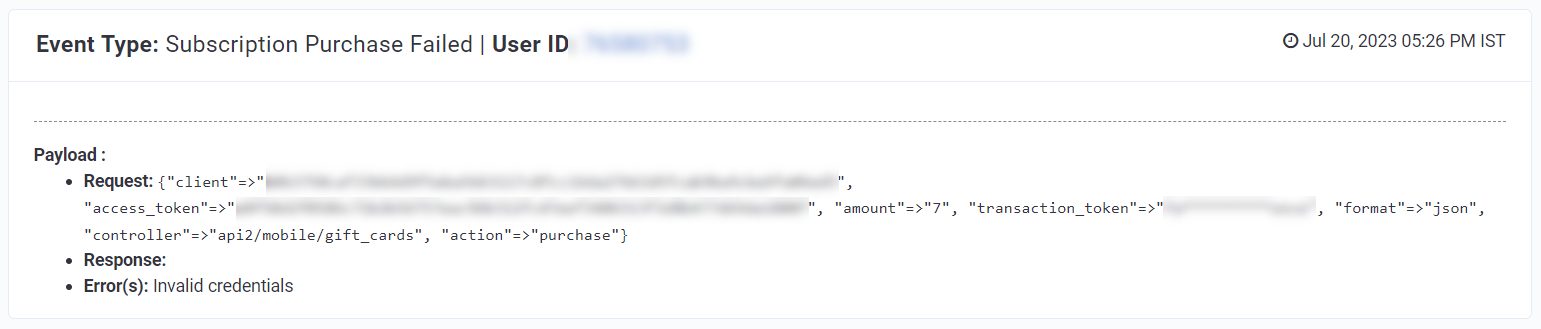
- Payload: This indicates any API requests/responses in case of errors. If there are no errors, it will say Not Applicable.
Membership Renewal Successful
This event type indicates the guest successfully renewed their Membership.
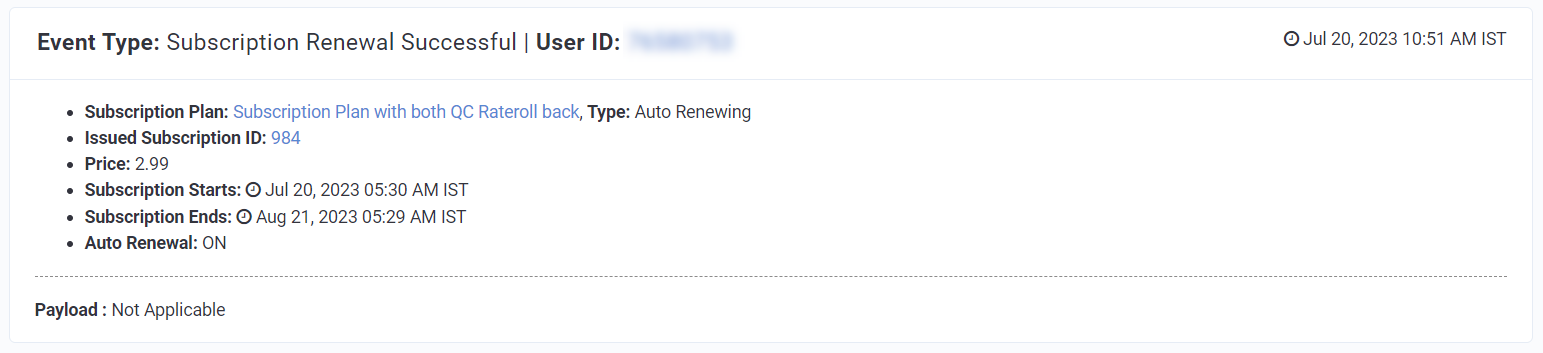
- Membership Plan: This states which Membership plan the guest purchased. Clicking on the plan will open the Membership plan editor.
- Type: This indicates the Membership type. Currently, the only type is Auto Renewing.
- Issued Membership ID: This ID is unique to the customer and plan purchased. Clicking the ID will open the Memberships tab on the guest's profile.
- Price: This is the price the guest paid for the Membership.
- Membership Starts: This is the date and time the guest's Membership will start. This will typically be the beginning of the day the Membership was purchased.
- Auto Renewal: This indicates whether or not the Membership will automatically renew upon the Membership ending.
- Payload: This indicates any API requests/responses in case of errors. If there are no errors, it will say Not Applicable.
Membership Cancellation
This event type indicates the guest cancelled their Membership.
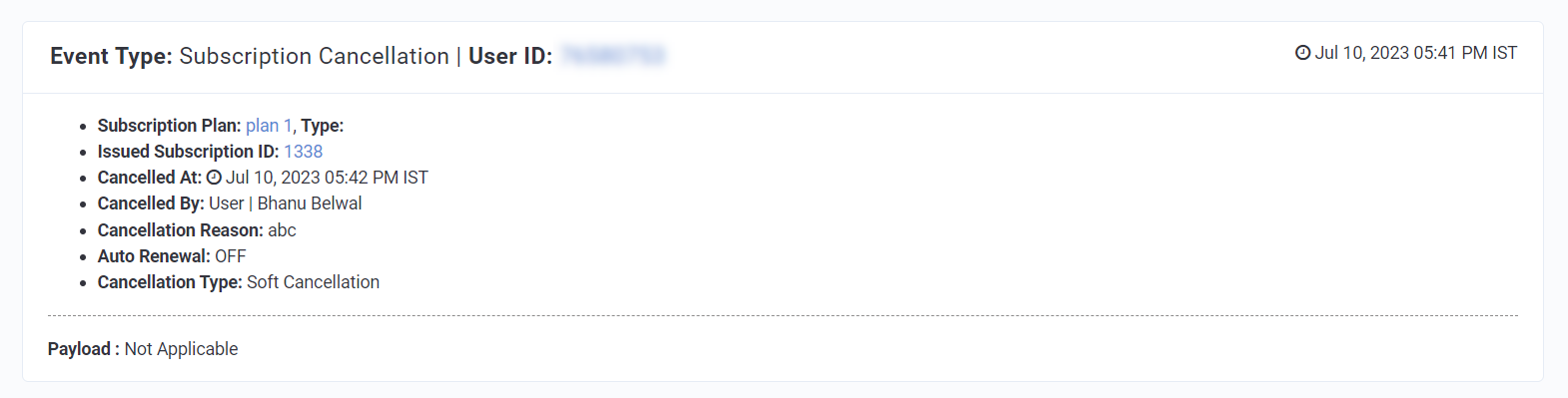
- Membership Plan: This states which Membership plan the guest purchased. Clicking on the plan will open the Membership plan editor.
- Type: This indicates the Membership type. Currently, the only type is Auto Renewing.
- Issued Membership ID: This ID is unique to the customer and plan purchased. Clicking the ID will open the Memberships tab on the guest's profile.
- Cancelled At: This is the date and time the guest cancelled their Membership.
- Cancelled By: This states if the Membership was cancelled by the guest (user) or an admin. It will also provide the name of who cancelled the Membership.
- Cancellation Reason: This is the reason for the cancellation as provided at the time the Membership was cancelled. These reasons can be configured in Settings > Membership Cancellation Reasons. Visit the Membership Cancellation Reasons article for information on this configuration.
- Auto Renewal: This indicates whether or not the Membership will automatically renew upon the Membership ending.
- Cancellation Type: This indicates if the cancellation was a soft cancellation or a hard cancellation. A soft cancellation is when the Membership will stay valid until its end date. A hard cancellation is when the Membership is immediately terminated upon cancellation.
- Payload: This indicates any API requests/responses in case of errors. If there are no errors, it will say Not Applicable.
Related Membership Articles:
