Membership Cancellation Reasons
Memberships were previously called "Subscriptions"
Added Module Incorporating Memberships into your loyalty program requires an app update. Please contact your account representative for guidance on the features of the Memberships module and how to get started with adding this to your loyalty program.
Memberships can be an effective way to keep guests returning to your business. However, sometimes you or the guest may need to cancel the Membership for various reasons. Being able to control what cancellation reasons are provided to the guest can help you keep track of why different guests are canceling their Memberships. It can provide valuable feedback on the opinions of the guests and give you insight as to possible changes that need to be made to keep guests happy.
In the Punchh platform, there are two types of cancellation reasons under Wallet and Passes > Membership Cancellation Reasons: Guest Initiated Cancellationand Admin Initiated Cancellation.
- Guest Initiated Cancellation: This tab allows you to create reasons that a guest may want to cancel a Membership. Guest-initiated cancellation reasons will be available in the Mobile API, which brands can use to capture the exact reason for cancellation. This can also provide useful feedback on your Membership plans and give you some insight as to why guests are canceling their Memberships.
- Admin Initiated Cancellation: This tab allows you to create reasons for Membership cancellations that admins may select when canceling a guest's Membership. It can also be used for admins to provide feedback on the guest, their Membership, and more detailed information as to why it is being canceled.
Creating/Editing Cancellation Reasons
-
For both Guest and Admin Initiated Cancellations, there are two parts to the cancellation reasons: Component Code and the Cancellation Reason.
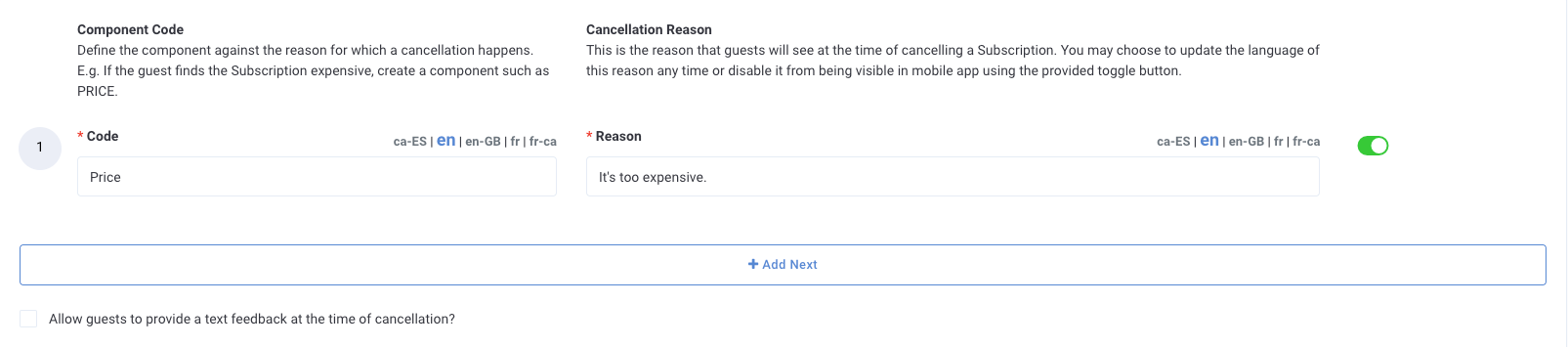
- The Component Code is the internal title given to the reason. Once created, this cannot be updated.
- The Cancellation Reason is the option that guests/admins will see when they attempt to cancel a Membership. Guests/admins select which cancellation reason most aligns with why they are cancelling the Membership.
Note: The Component Code and Cancellation Reason fields can be configured to multiple languages. Click the language options at the top right of the field to preview the text in the selected language. Admins can set up your preferred and alternate languages under the Business Profile.
- To create a new component codeand corresponding cancellation reason, click the "+ Add Next" button below the last code and reason.
- You can click the minus sign button to the right of the cancellation reason to delete the code/reason.

- After you fill in the text boxes, click the Update button at the bottom of the page to save your new code and reason.
- After saving the changes, you will see a deactivation toggle to the right of the cancellation reason. This allows you to control whether the cancellation reason is active. This can be toggled at any time.
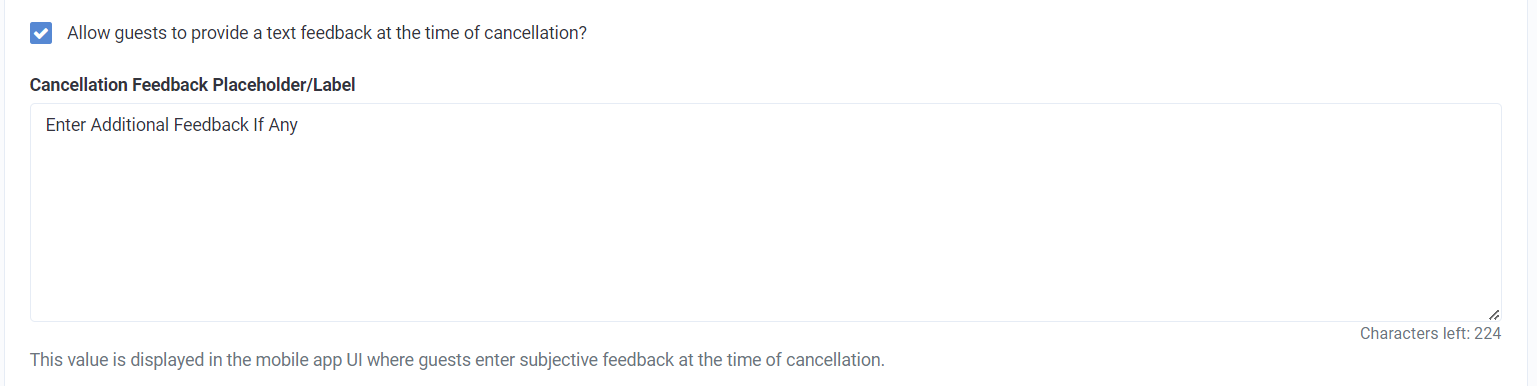
- Below the component code and cancellation reason, you can decide if a guest/admin can include custom feedback with their cancellation. When checked, guests/admins will be given a text box with a prompt to leave feedback while canceling the Membership. The prompt can be customized in the Cancellation Feedback Placeholder/Label text box below the check box.