Membership Taxation
Memberships were previously called "Subscriptions"
You must set up your Membership tax rules and rates prior to creating your Membership plan(s). To enable this feature for your brand, please contact your Punchh representative. (Note: If your brand uses a separate system for tax functions, you will not need to use the Membership Taxation page in the Punchh Platform.)
Overview
The Membership Taxation page allows you to configure and manage sales tax for Membership plan purchases within your loyalty program. By setting location-specific tax rates and enabling fallback options for state taxes, you can ensure accurate tax collection for each guest Membership plan purchase. This functionality helps your Membership feature maintain compliance with location-specific tax laws.
Define Your Tax Rules
Prior to setting up your Membership plan(s), you must set your tax rules. Navigate to Wallet and Passes > Membership Taxation.
Select from the following tax rules:
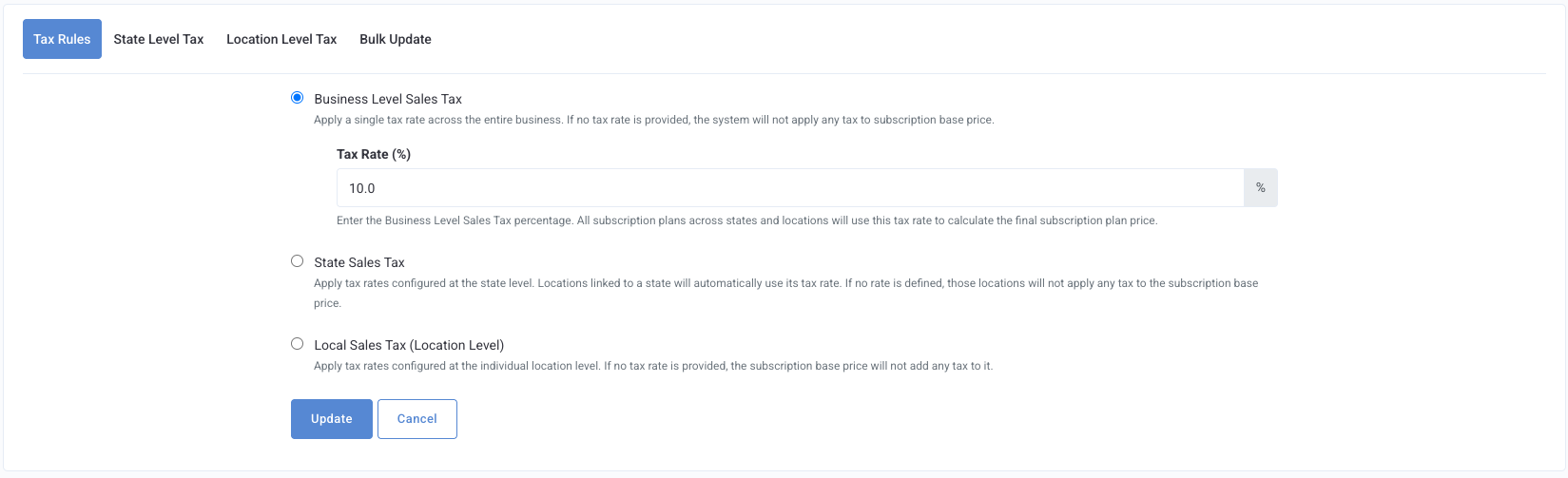
- Business Level Sales Tax: This option applies a single Membership tax rate across your entire business, regardless of state or location. Enter a Tax Rate percentage in the field. (Note: You must enter a percentage in the field, or no tax will be applied.)
- State Sales Tax: This option allows you to set individual tax rates by state. You will configure the state tax rates under the State Level Taxes tab.
- Local Sales Tax (Location Level): This option allows you to set individual tax rates by location. You will configure the location level tax rates on each location's individual page, as described in Location Level Taxes below.
Once you have selected your Membership tax rule, click Update.
Your changes will NOT save unless you click Update.
State Level Taxes
If you selected State Sales Tax on the Tax Rules tab, navigate to the State Level Tax tab.
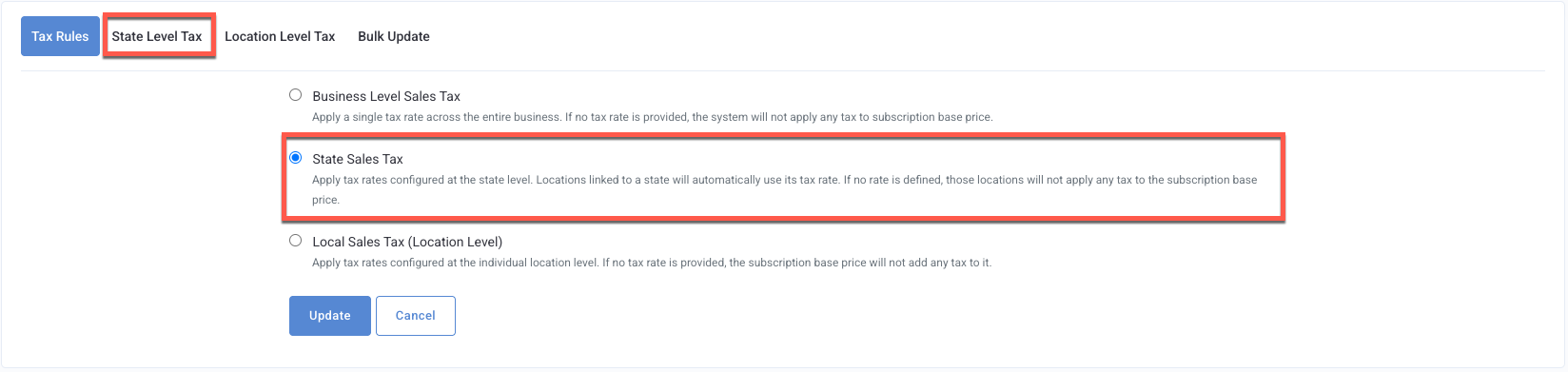
You MUST have State Sales Tax selected under Tax Rules for any configurations made under the State Level Tax tab to save and apply.
- Select Country: Use the drop-down menu to select the required country.
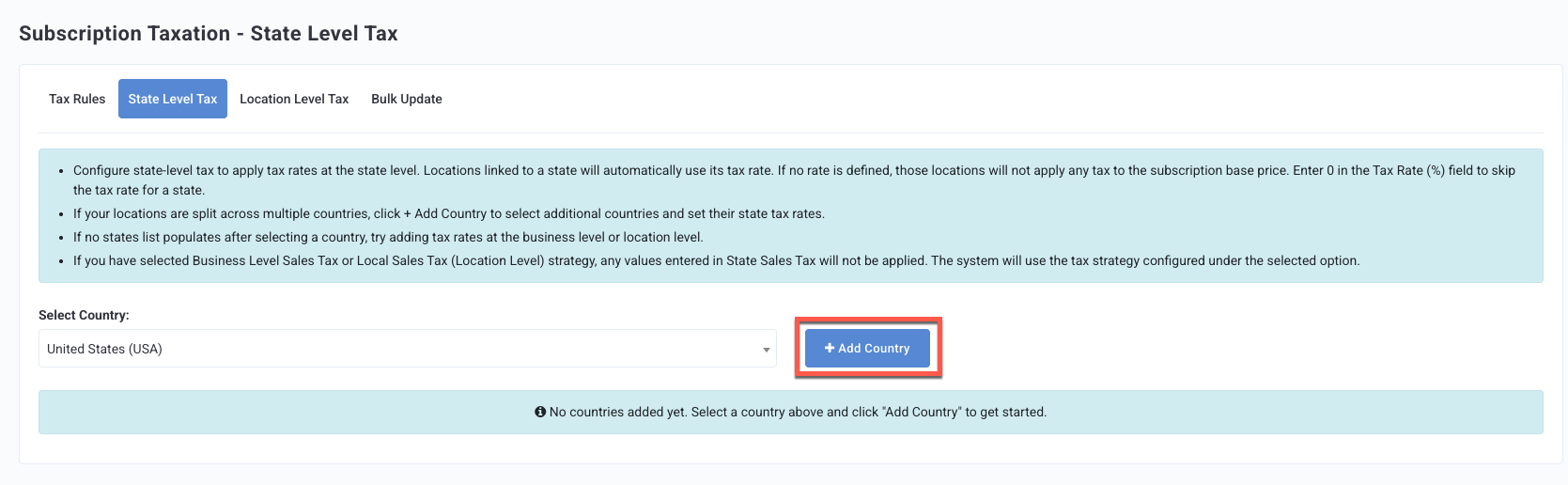
- Click + Add Country.
- The states for that country will be populated below. If no states populate, use the business or location-level tax rule.
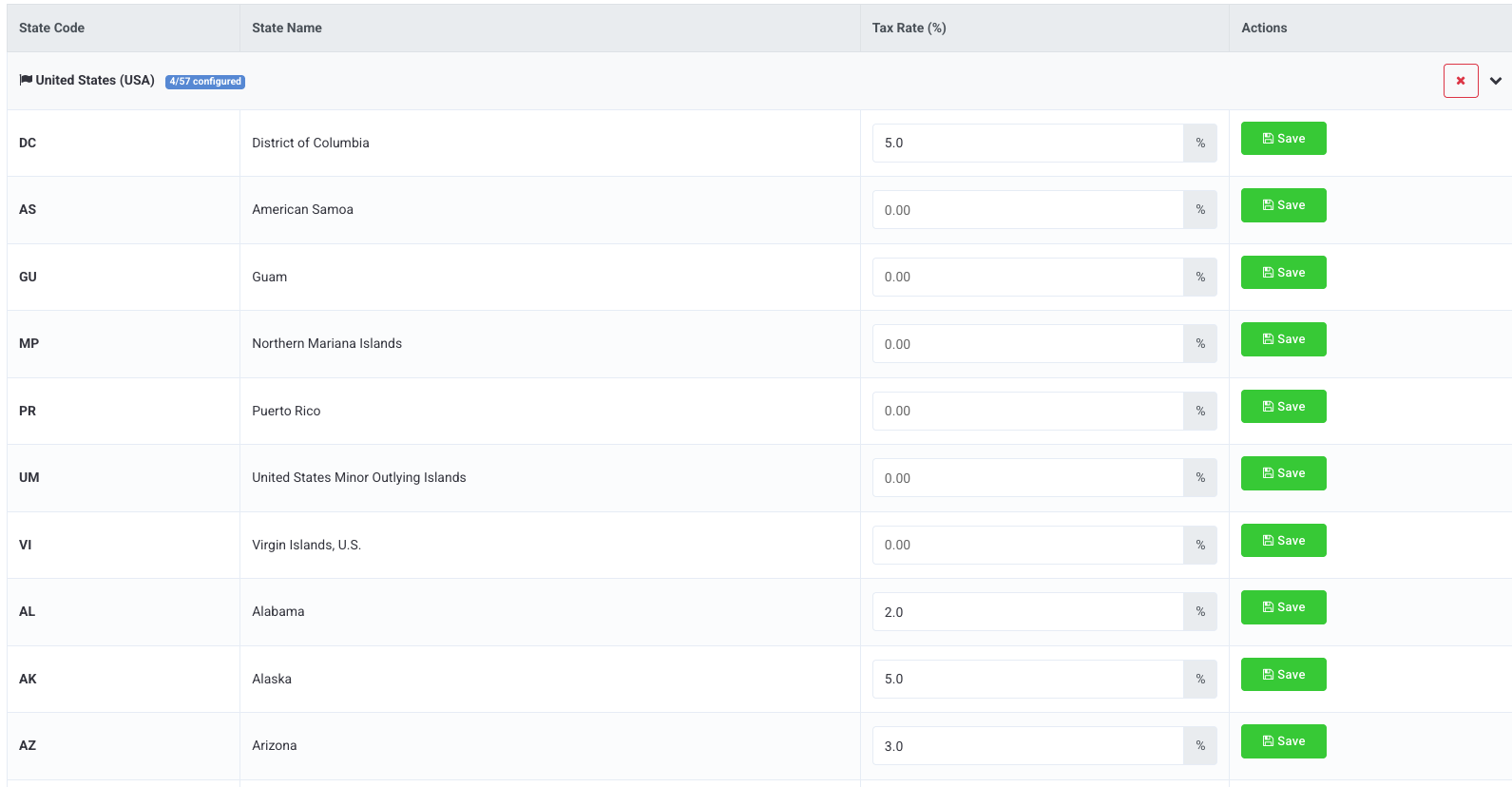
- Enter a Tax Rate percentage in the field for EACH state.
- Locations linked to a state will automatically use its tax rate.
- If no rate is defined, those locations will not apply any tax to the Membership base price.
- Enter 0 in the Tax Rate (%) field to skip the tax rate for a state.
- Click Save in the Actions column for EACH state. (You must click save for the changes to apply.)

- If your locations are split across multiple countries, click + Add Country to select additional countries and set their state tax rates.
Location Level Taxes
If you selected Location Sales Tax on the Tax Rules tab, navigate to the Location Level Tax tab.
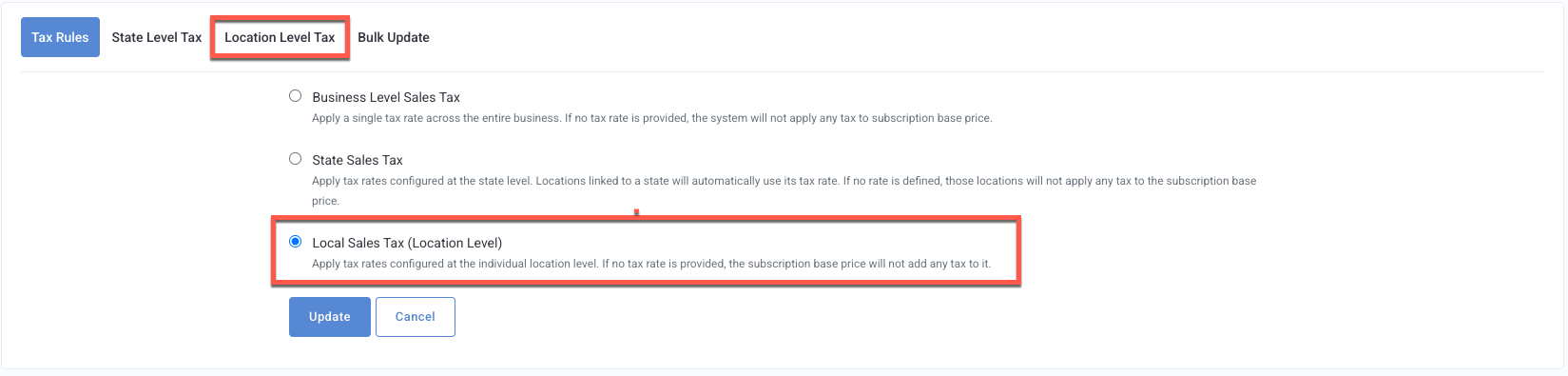
- This takes you directly to you All Store Locations list.
- You will see that a Has Tax Rate option is now available in the filters. Additionally, there is a Tax Rate (%) column now in the list.
You MUST have Location Sales Tax selected under Tax Rules for these options to appear.
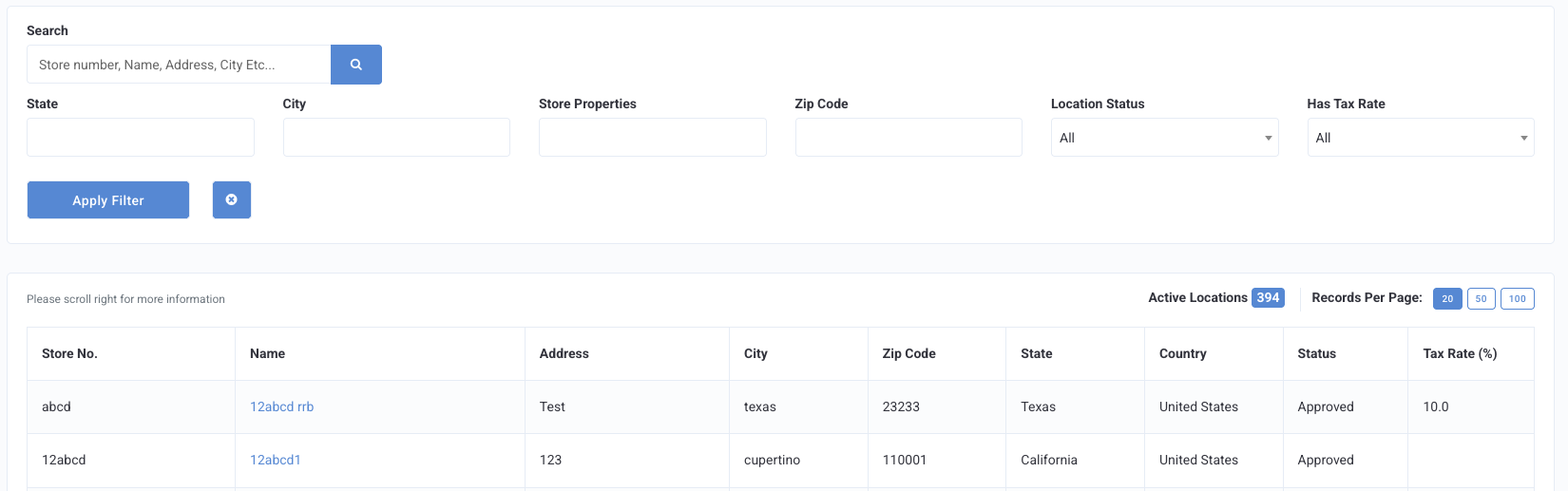
- To set an individual location level Tax Rate percentage, click on the location Name to edit.
- Enter the tax rate percentage in the Location Level Membership Plan Sales Taxfield.

- If no rate is defined, the location will not apply any tax to the Membership base price.
- Enter 0 in the Tax Rate (%) field to skip the tax rate for that location.
- Click Update.
Bulk Update
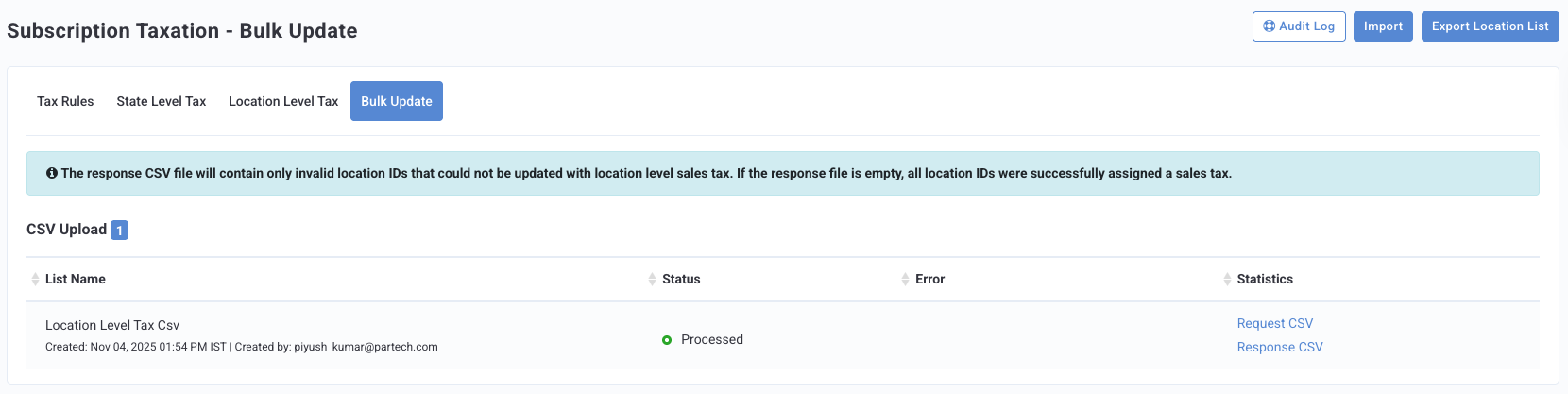
Instead of manually adding the tax rate to all locations one by one, as outlined above, you have the option to upload them in bulk.
- From the Membership Taxation page, click the Bulk Update tab
- Click Import.

- Fill out the following fields:
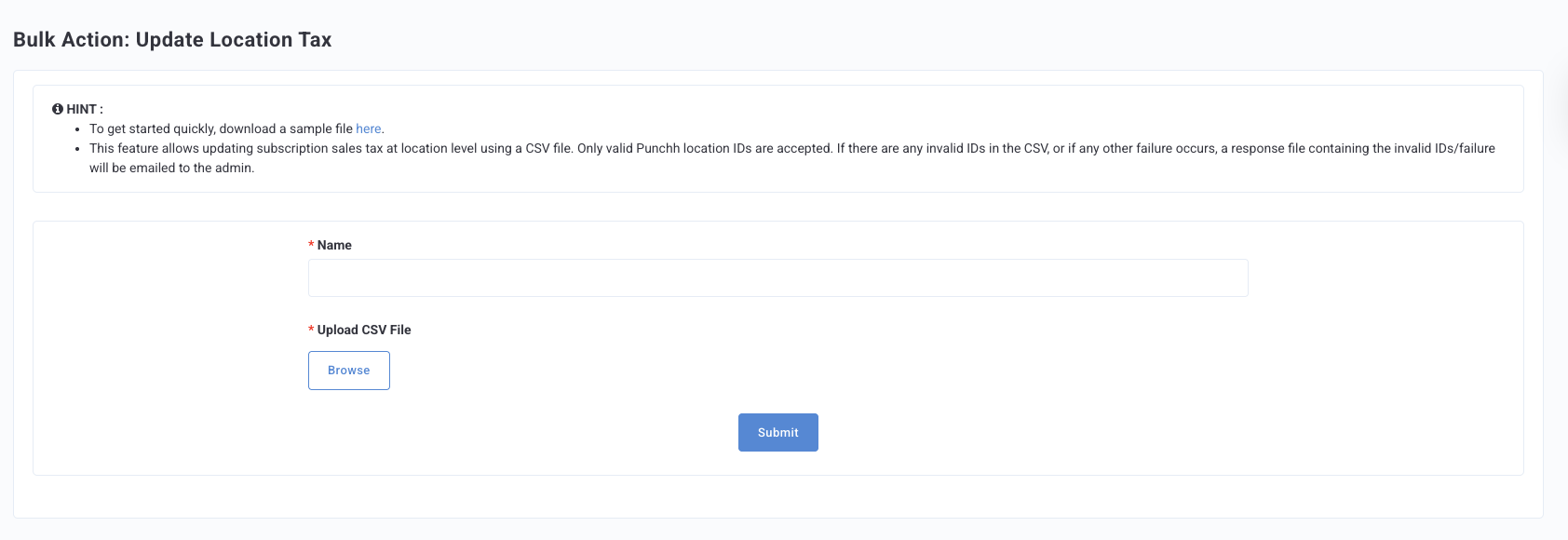
- Enter a Name for the list of locations.
- Upload CSV File: Only valid Punchh location IDs are accepted. (Tip: Remove duplicate IDs before uploading.) CSV file size is restricted to 15 MB. A sample CSV is available for download on the Import page. Do not change the order, delete, or rename columns in the CSV file. Leave cells blank if not applicable.
- Mandatory Columns include (must be in this order):
- punchh_location_id
- store_id
- location_name
- status
- location_sale_tax
- max of two decimals, no negative numbers
- Click Submit.
- The Bulk Update page will update with the CSV file status.