Digital Stored Value with Gift Cards
Overview
With Digital Stored Value, guests can manage, load, and pay with funds on a gift card in your loyalty app. The guests can add funds at any time, or they can set up auto-reload so a specified amount is added to their card on a regular basis. The funds on the guest's account can then be used for all transactions made through the mobile app.
Note: Adding the auto-reload feature to Digital Stored Value requires the All Access Loyalty Pay package. It is not available on an alternate gateway or other packages. Digital Stored Value is in-app only; guests must have the loyalty app to use stored value.
System Requirements
Expand for details
| Requirement | Digital Stored Value (without Loyalty Pay) | Digital Stored Value (with Loyalty Pay) |
|---|---|---|
| POS Support |
|
|
| Payment Gateway |
|
|
| Gift Card Provider |
|
|
| Mobile |
|
|
| Payment Processor |
|
|
Gift Cards List Page
Under Wallet and Passes > Gift Cards, you can filter and search all physical, virtual, or wallet gift cards that have been purchased or given to guests. Use the Time, Card Design Name, or Card Number fields to filter your search.
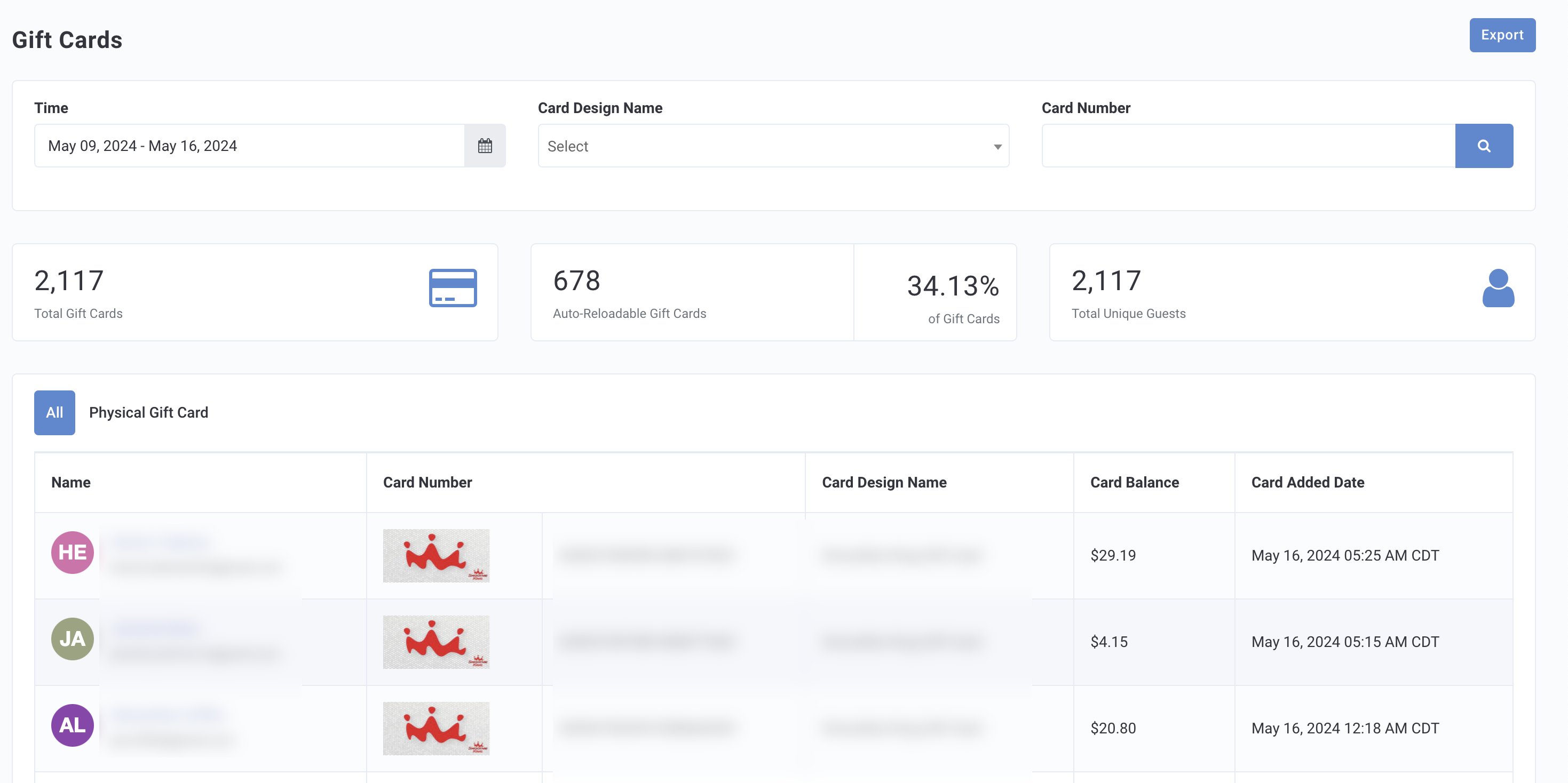
The Gift Cards page shows three metrics:
- Total Gift Cards: The total number of gift cards currently associated with a guest's account.
- Auto-Reloadable Gift Cards*: The number of gift cards currently associated with a guest's account that have auto-reload enabled.
- The percentage of auto-reloadable gift cards out of the total number of gift cards is shown to the right.
- Total Unique Guests: The total number of unique guests that currently have a gift card associated with their account. (This number will be equal to or less than Total Gift Cards.)
*Auto Reload must be enabled.
Click on the guest's name to be directed to the guest's profile.
Guest Profile: Gift Card Tab
The Gift Cards tab in the guest profile displays a list of any virtual gift cards that have been purchased by, shared with, or gifted to that guest. Information such as current card balance, card number, and card purchase history is included. From this tab, an admin with the requisite permissions may view transaction details and revoke user access to any gift cards to which they're connected contract.
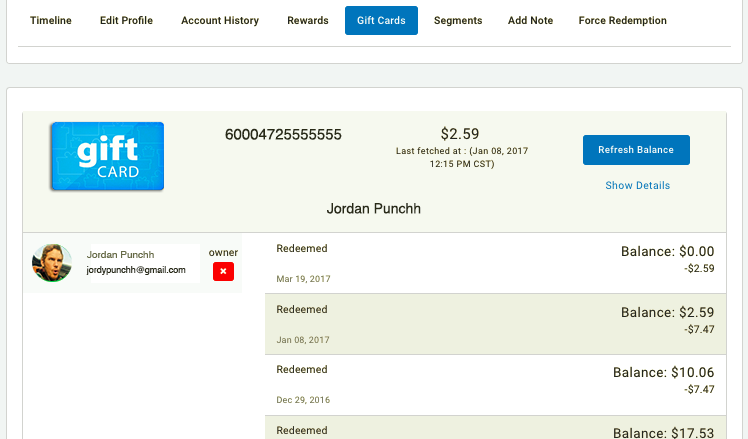
Aloha Gift Card Details
Note: The Punchh platform only shows gift card details for Aloha gift cards. If your brand uses another gift card provider the Show Details function is not available.
Click the Show Details link to view additional information about a gift card, including the identities of the card's owner and any user with shared access to it. Additionally, you can view the transaction history for the card, including initial creation date, redemptions (along with purchase amount and updated balance), and any time the card has been reloaded (had money added to it).
Revoke Card Access
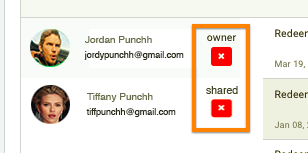
Every virtual gift card has an "owner". This person is the primary cardholder; they either purchased the card for themselves or were gifted the card by another guest. The owner of a gift card may choose to share access to it with another guest in your program. This guest is listed as "shared" in the gift card details. The shared guest may use the gift card or reload its balance, but they may take no other actions.
To revoke a guest's access to a gift card, click the red X button next to their name.
- Revoking access from a shared guest "unlinks" them from the gift card, removing it from the shared user's account only. The owner retains control of the card.
- Revoking access from the gift card's owner completely removes the gift card from both the owner's and shared user's accounts.
- Once a card is disconnected from its owner, it is effectively deleted and may no longer be associated with any other guest.
- Once a card is disconnected from its owner, it is effectively deleted and may no longer be associated with any other guest.
Refresh Balance
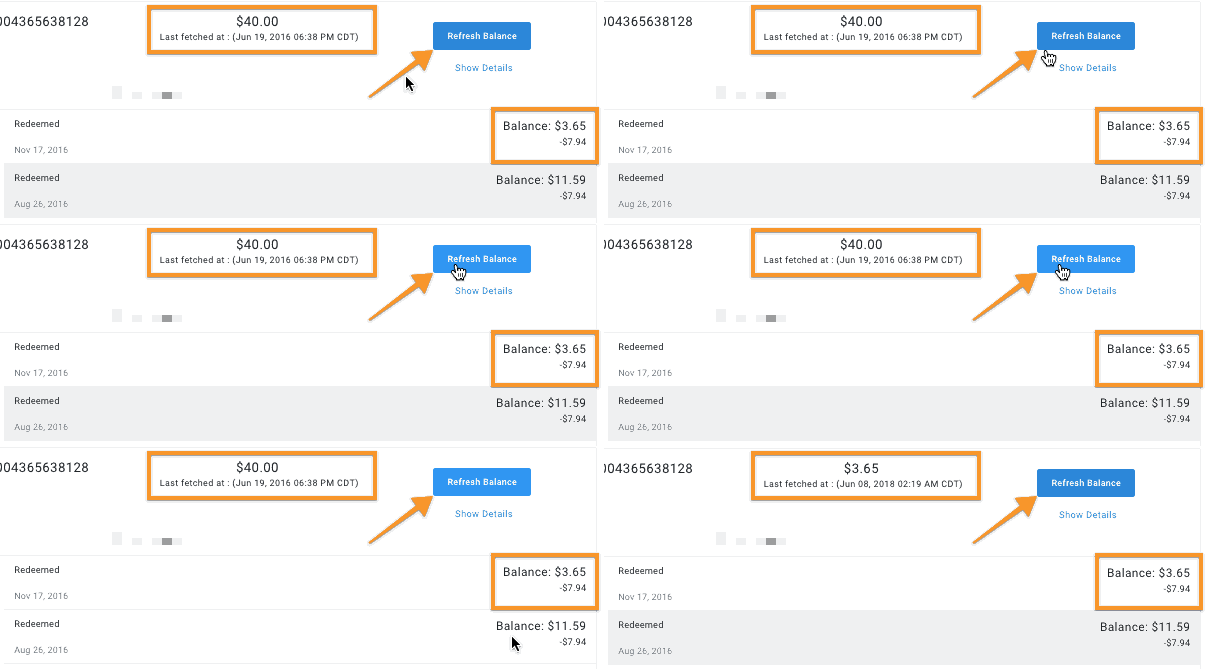
It's a good idea to refresh the balance of any gift card for which you are viewing details. It might have been a while since the card information was last fetched, and the total remaining balance might be outdated. Click the blue Refresh Balance button to query for the most recent card data.
Typically, guests only earn points when making purchases with the gift card, but do not earn points for the purchase of a gift card itself. However, you can set up your brand to have guests earn points both for the purchase of the gift card and the subsequent purchases made with it.
Auto-reload with Loyalty Pay
With Digital Stored Value, you have the option to turn on auto-reload for gift cards through the All Access Loyalty Pay package. Auto-reload allows your guests to automatically reload their gift cards once their balance has gone below a certain threshold. For example, a guest can set their auto-reload settings so that if their gift card balance dips below $5, another $5 from their saved credit or debit card will be automatically added to the gift card balance. The feature allows guests to never have to worry about continually adding funds.
To configure auto-reload, you will work with your Punchh account representative to set up certain threshold settings within the platform. Once these settings have been turned on and finalized, there are some additional schedules and notifications to review.
Auto-reload Schedules and Notifications
There are two schedules to create in the platform: Gift Card Auto Reload Reminder Schedule and Gift Card Auto Reload Schedule.
The Gift Card Auto Reload Reminder Schedule runs daily and looks for guests whose gift card amount is below their minimum threshold. Email, Push, or SMS notifications are sent to the guest letting them know their gift card is about to be loaded with their preset dollar amount. The notifications for this schedule can be configured under Loyalty Program > System Messages > Gift Card > Eligible Gift Card Pre Auto Reload Messaging.
The Gift Card Auto Reload Schedule runs daily and looks for guests whose gift card amount is below their minimum threshold and whose wallet has been reloaded with the preset amount. Email, Push, or SMS notifications are sent to the guests letting them know their gift card has been loaded with X amount of dollars. The notifications for this schedule can be configured under Loyalty Program > System Messages > Gift Card > Gift Card Reloaded.
Two other Notification Templates can also be configured for gift card auto-reload: Gift Card Auto Reload Payment Error andGift Card Auto Reload Reference Update Notification.
- Review the Schedules documentation to learn more about these schedules and how to set them up.
- Review the System Messages: Gift Card to review all the available system messages for gift cards along with examples of each.
Guest Mobile Experience
Adding a Gift Card
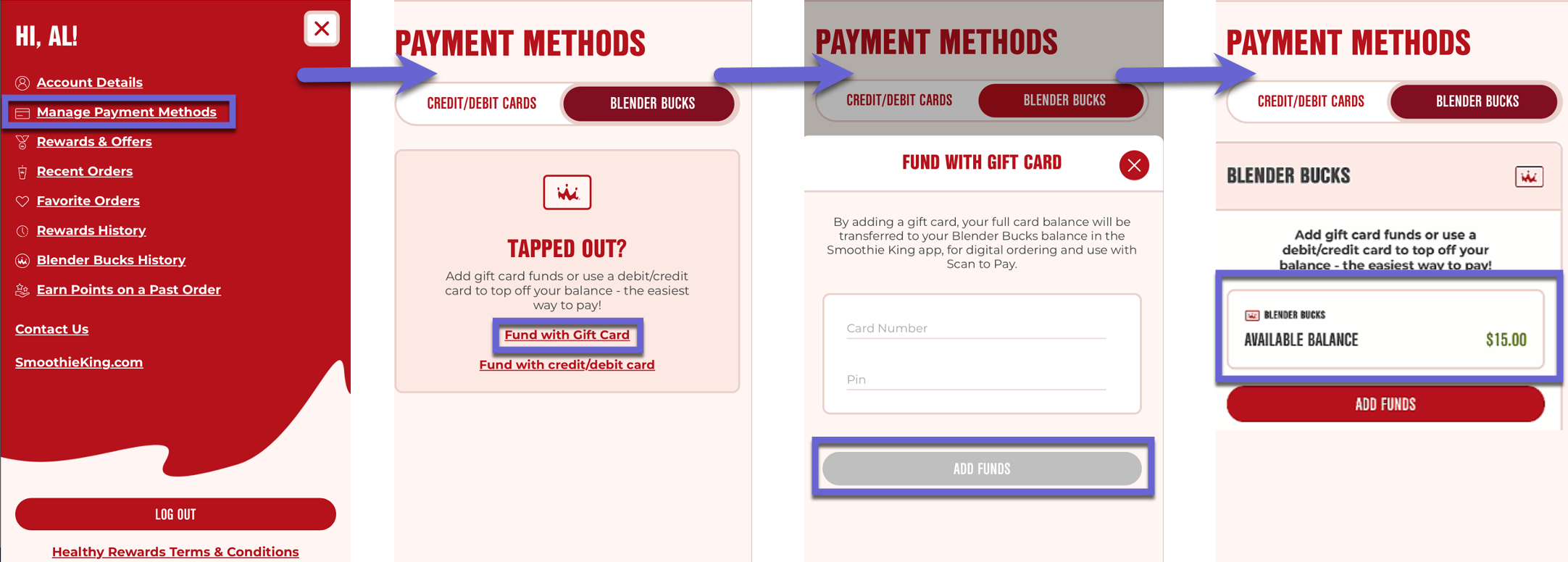
- To add a gift card, guests can click Manage Payment Methodsfrom the main app menu.
- Any saved cards will appear under Payment Methods. To add a new card, the guest clicks Fund with Gift Card (text can vary).
- Once they have entered their card details, the guest clicks Add Funds.
- The gift card can then be used in a transaction, appearing under the Payment Methodsection.
Other Platform Features
Admin Functions
Upload your brand's digital and physical card designs under Wallet and Passes > Gift Card Designs.
Review Gift Card Logs, under Diagnostic > Gift Card Logs, verify transactions, and investigate any issues.
Review a guest's gift card activity under Guests > "guest name" > Timeline. Gift cards that were auto-reloaded are tagged as such.
Gift Card System Messages
You can personalize automatic notifications based on a variety of guest actions, system messages, or payment errors originating from the mobile app under Loyalty Program > System Messages > Gift Card. The following Gift Card notifications are available:
- Eligible Gift Card Pre Auto Reload Messaging
- Gift Card Auto Reload Payment Error
- Gift Card Auto-Reload Preference Updated
- Gift Card Gifted
- Gift Card Post Payment Error
- Gift Card Purchased
- Gift Card Received
- Gift Card Reloaded
- Gift Card Shared
- Gift Card Sharing Revoked
- Gift Card Transferred
- Gift Card Unregistered User
Review the System Messages: Gift Card article to review all the available system messages for gift cards along with examples of each.
Segments
You can create guest segments based on Gift Card Payments (type and amount) to target guests with Digital Stored Value.
- Review the Segments article to learn how to create a segment.
- See the "Gift Card Payment" segment in Segment Types, Attributes, and Timeframe Definitions to review the specifics of this segment.
Gift Card Migration
For new businesses with prior gift card programs, Punchh can handle migration from the old program to the new. Possible migration scenarios include:
- Physical (Integrated Provider) → Physical (Integrated Provider) only
- Physical (Integrated Provider) → Physical (Integrated) + Digital
- Physical (Integrated Provider) → Digital only
- Physical (Integrated Provider) + Digital → Physical (Integrated Provider) + Digital
- Physical (Integrated Provider) + Digital → Digital only
- Physical (Non-Integrated Provider) → Physical (Integrated Provider) only
- Physical (Non-Integrated Provider) → Physical (Integrated Provider) + Digital
- Physical (Non-Integrated Provider) → Digital only
- Physical (Non-Integrated Provider) + Digital → Physical (Integrated Provider) + Digital
- Physical (Non-Integrated Provider) + Digital → Digital only
- Digital only → Digital Only
The method of migration depends on the which of these scenarios we'll be working with. Three of the most common scenarios are explained below:
Digital Gift Cards With Digital Stored Values
For programs using digital gift cards, the first step is importing the previous program's gift card stored values (such as user email, birth date, card number, PIN, and any other available information) into the Punchh system using a CSV file like the one below. Current card balance is unnecessary at this stage as it will be automatically updated from the API.
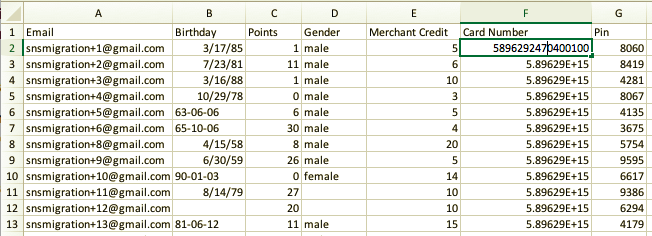
Once the information is in the Punchh system, it becomes a part of the usual guest migration process. When a guest signs up for the new loyalty program, Punchh compares their email against a list of prior members. When a guest's email matches an email entry in the gift card data CSV, their new account will be updated with the old gift card values.
Physical Gift Cards With Digital Stored Values
If your business wants to maintain a physical gift cards-only program with a Punchh-integrated gift card provider, you don't need to do anything in order to keep that program going. If your business currently has a physical gift card program with a non Punchh-integrated provider, we'll need to either integrate with them or migrate your gift card information to a Punchh-integrated provider. Punchh will work with your old provider to move account credentials/stored values (such as email, birth date, PIN) to the new physical card provider. If your business wants to adopt a new digital gift card program (or transition from a previous digital cards program) for either a hybrid physical+digital or digital-only program, Punchh will work with any previous gift card providers (physical, digital, or physical+digital providers) to migrate account credentials/stored values to the Punchh system.
-
Continued Support for Physical Gift Cards
If maintaining a physical gift card program through a partnered gift card provider, Punchh will confirm that the integration provider also allows for the cards to be used digitally. This allows you to run a hybrid physical/digital cards program within our system. In this case, guests may purchase/be awarded digital cards, issued physical cards through your original system, and guests may enter their physical gift card account information into their mobile account to create a digital copy that can be used through the app without the physical card.If transitioning from a non-integrated physical gift card provider to the Punchh system, we will recommend various Punchh-integrated physical gift card providers that also allow for a hybrid gift card program (physical/digital). Punchh will then work with your old provider to transfer serial numbers, pins, and gift card totals to your new physical gift card provider. The new provider will print and maintain your physical cards from that moment forward.
-
Migration to Digital Cards Only
If your business chooses to sundown your prior physical gift card program and transition to digital-only, then old gift cards will be supported until they're used up, but no new physical gift cards will be issued. Guests may enter their old physical gift card account information into their mobile account to create a digital copy that can be used through the app without the physical card. All new gift cards will be issued as digital only within the guest's account.
Comp Cards
For comp cards, we can use Coupons and Promos campaigns to build custom comp values that can be given to unhappy customers either by printing out codes on paper to physically hand to a guest in the store or by sending codes via email or through the message/gift function in the Punchh Dashboard. These codes can be dynamically generated, designed to be used by the guest only once, or they can be pre-selected promo codes such as "HAPPYCUSTOMER" that in-store employees may enter at the POS whenever they issue a comp.
