Guest Profile: Timeline
The first tab on a guest's profile is Timeline. The Timeline contains information detailing the complete history of a guest's activity while part of your loyalty program (and possibly before if they've migrated from a previous eClub list).
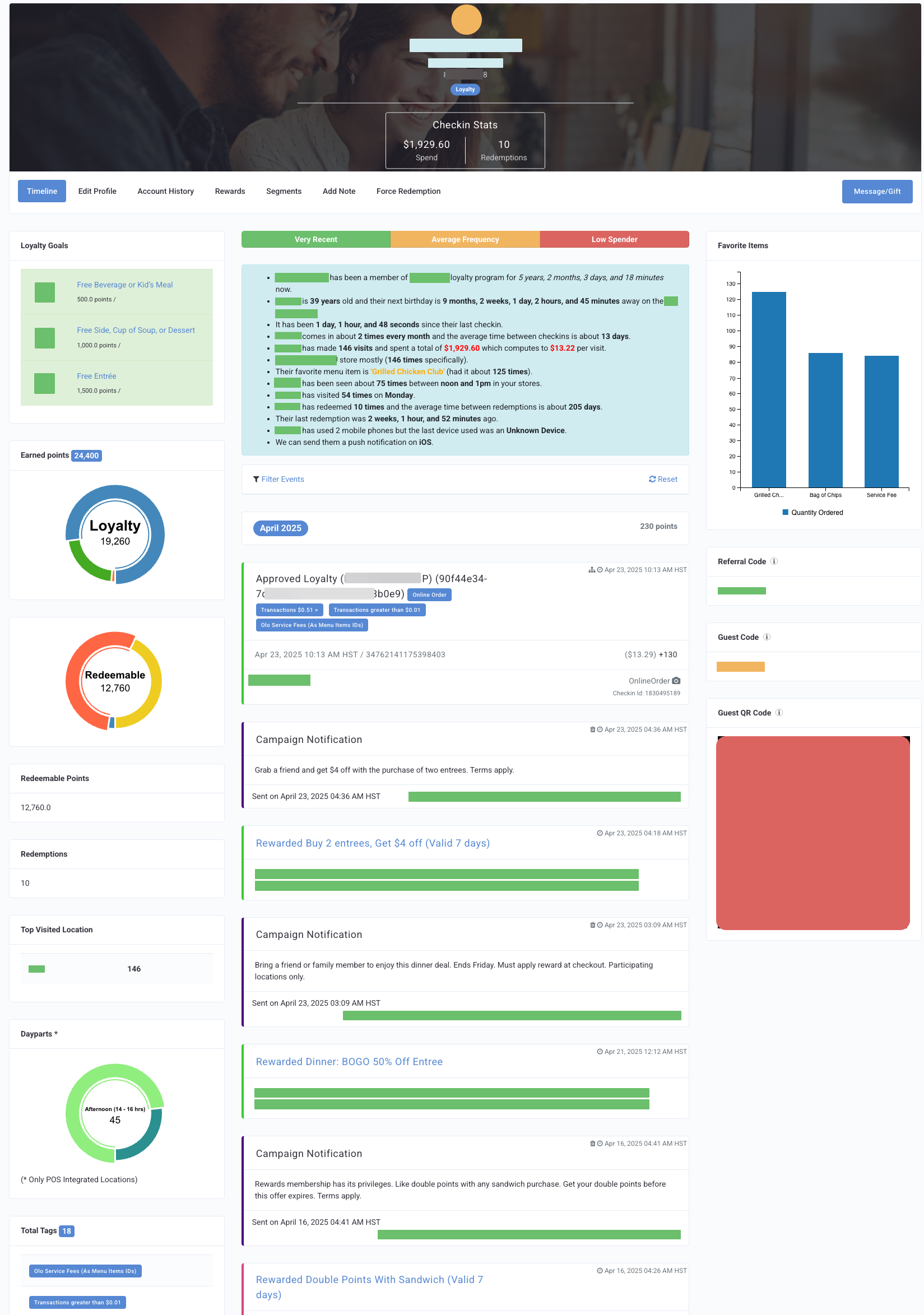
Timeline Components
The Timeline is made up of many data components that display quick, at-a-glance information about a guest's status and history. These data components are described below.
Note: Depending on your Punchh configuration, not all of these components will be visible to you.
Guest Snapshot
The Guest snapshot widget displays a quick summary of a guest's activity throughout their lifetime in your loyalty program. The information here includes details such as length in the program, age, gender, average spend, favorite location, favorite menu item, etc.
A banner at the top included the guest's Recency (based on the guest's last activity), Frequency (the total number of checkins and redemptions), and Monetary (the average receipt amount of their checkins) ratings. These ratings are based the RFM Slabs defined by your business.
This section will also display their registration date, or when the guest's loyalty account was created/migrated.
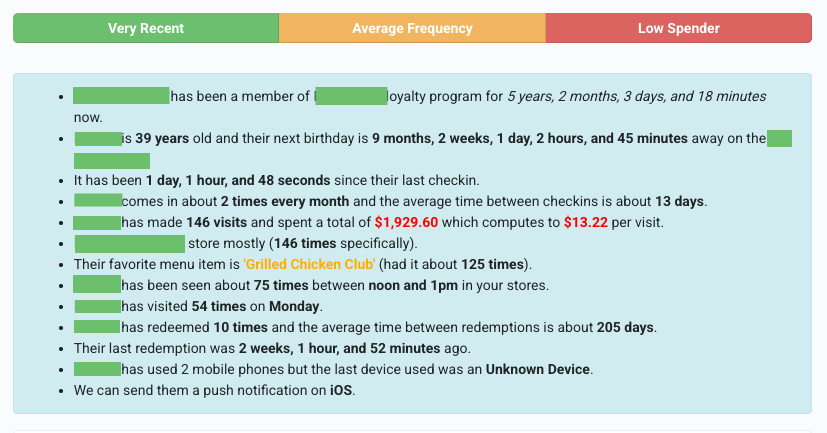
Your business settings can affect how details appear in the Guest Snapshot.
If the setting “Return reward to guest’s account if redemption is not honored or if the redemption code expires” is enabled, any reward added to the guest’s account will appear in the snapshot, even if the guest never redeemed it. For example, the snapshot might show “Guest has redeemed 5 times,” and while the timeline shows 5 rewards, only 3 were actually used. The other 2 may show as expired, etc.
Guest Timeline
The Guest timeline is a comprehensive list of every* action/activity that has occurred throughout the guest's account history. (The events are color-coded based on the action or activity.)
*Note: The Guest Timeline does not display expired rewards. If you need to access expired rewards within the last 30 days, navigate to the Rewards tab in the guest profile. If you need data of expired rewards beyond 30 days navigate to Data Sharing > Data Export and create an export with the record Archive Rewards Data.
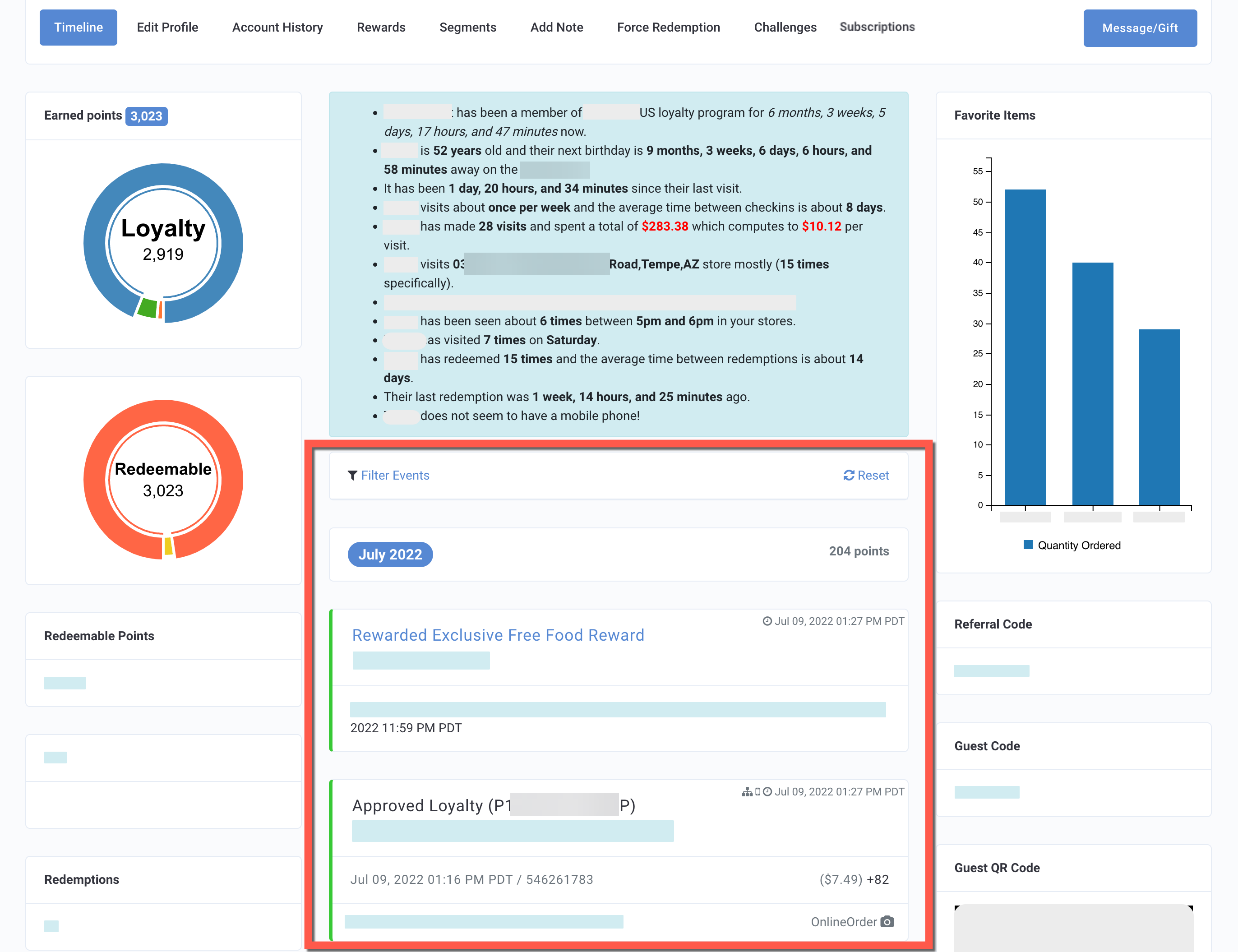
Possible Event Types and Descriptions
- Joined Us - When a guest creates an account via the app.
- Approved Loyalty - When a guest scans a receipt and points/punches are successfully credited to the guest's account.
- Redeemed Redemption - When a redeemable is successfully processed and redeemed.
- Rewarded "..xyz.." - When a reward is given to a guest.
- Pickup Order: When a guest places an order with the business. The record shows the details and status of the order.
- Void Honored Redemption - When an applied redemption code at the store or an applied reward while placing an Online order is removed/deleted from POS by the store executive.
Note: Once voided, the original redemption will no longer be visible in the timeline. More details here: What does Void Honored Redemption mean? - Reward Credit - When points are converted into banked rewards.
- Minimum Amount Error - When the purchase amount on the guest's receipt is less than the minimum amount set by the business.
- Gifted - When an admin sends a gift to a guest.
- Receipt Reuse By Primary Exceeded Error - When points/punches for a receipt are credited to the guest's account and the guest tries to scan the receipt again.
- Checksum Error - When the checksum algorithm defined by Punchh Software cannot identify the barcode printed by POS, this error shows up.
- System Notification - Push Notifications are sent to the guest's phone.
- Campaign Notification - Notification for a running campaign of which a guest is a part.
- Invalid QR Code Error - At the time of POS Checkin, when the QR code is unable to define the user's identity, this error shows up. QR code can be seen in the guest's Timeline.
- Checkin Fails Error - When an incorrect barcode is scanned. The barcode can be incorrect because of improper printing, scanning machine issues, or a typo when manually entering the barcode.
- Expired Redemption Error - When a redemption code is not processed and auto-expires.
- Multiple Redemption Error - When guest tries to generate a redemption code before the time duration set for redemption code expiry.
- Awarded Referral - When the guest's account is credited with points for referral.
- Suspicious Activity Error - When a guest breaches the security rules set up by an admin in the dashboard (Fraud Suspects), this error appears. The rules can be created in Activity Detection Rules in settings.
- Receipt Too Old Error - When a guest tries to scan a receipt after the receipt age time has elapsed.
- Rate Limit Error - When a guest tries to scan more than 'n' receipts in a specified scanning period, where n is the number of receipts.
- Same Visit Error - When a guest tries to redeem a reward immediately after it is credited to the guest's account.
- Feedback - When a guest leaves feedback on app.
- Receipt Reuse Exceeded Error - When a guest tries to scan a receipt that is already scanned by another guest.
- Processed Gift Card Payment - When a guest reloads a gift card on their account. The event will have the tag Auto Reload if the card was loaded automatically as opposed to manually by the guest.
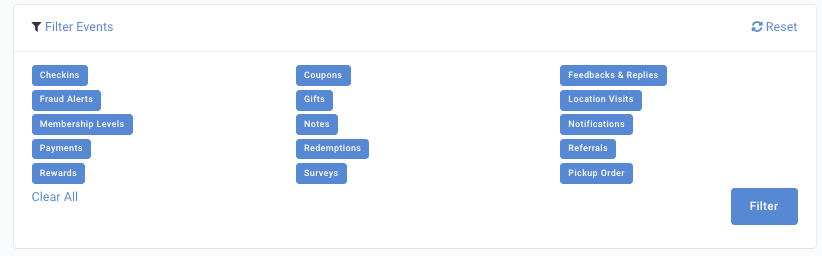
Filter Timeline
Click to expand the Filter Events menu to filter the timeline by activity type.
Loyalty Goals
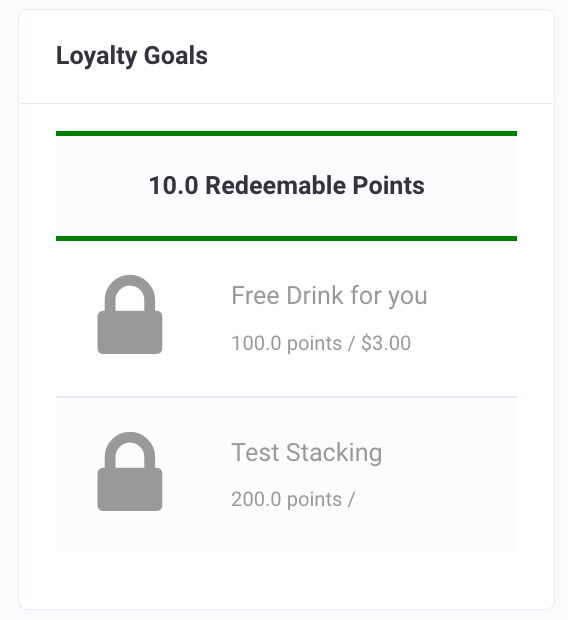
For points-based businesses, the Loyalty goals widget displays the guest's current progress towards point-based redemption rewards. As a guest's banked points accumulate, they are eligible to trade their points for better and better rewards. Their progress here is represented as if a sliding scale.
Earned Points/Punches
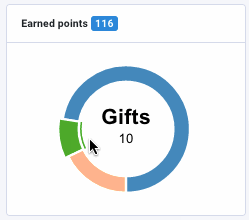
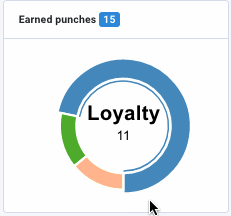
The Earned points widget displays a breakdown of the methods by which the guest has obtained loyalty points/punches over their entire account history. Hover over the circular display to view how many points/punches the guest has earned via loyalty checkins, referrals, or gifts.
Redemption Summary
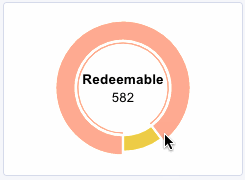
This widget displays the total points/punches the guest has earned (orange), as well as the (based on your configuration) monetary value of all the guest's redemptions, amount of completed cards, etc. (yellow).
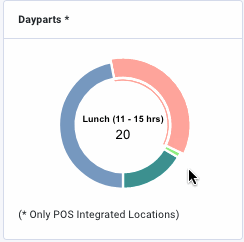
Dayparts
If you've set up day parts, this widget shows you a breakdown of the time of day the guest has visited your stores. Your business must be POS-integrated for this to be enabled.
Redeemable Points
Displays the total number of earned points since joining your loyalty program.
Redemptions
Displays the total number of redemptions made since joining your loyalty program.
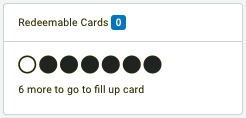
Redeemable Cards
For punch/visit-based business, this widget displays the guest's current progress toward completing a card.
Swag Redemption
This card displays on the guest's timeline showing their current progress toward swag redemption.
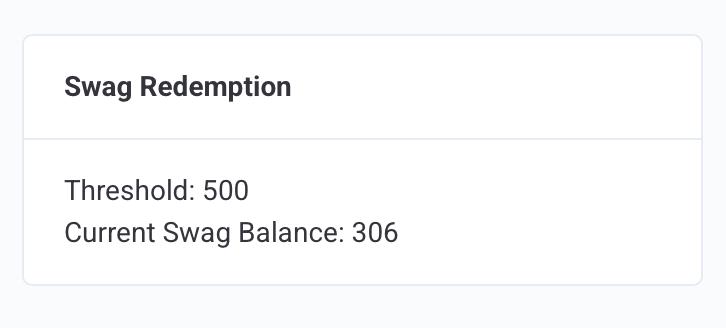
- Threshold: The swag point threshold configured for this guest
- Current Swag Balance: The guest's available point balance that can be applied toward swag redemption
Note: This card is only visible when the swag feature flag is enabled at both the business and guest level. To configure swag items and point thresholds, see Swag Management
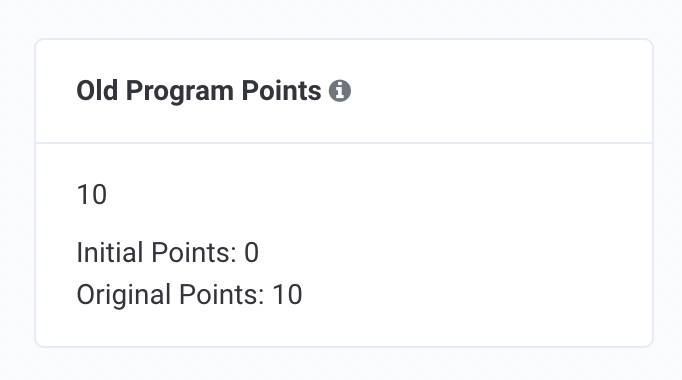
Old Program Points
If your business migrated from another loyalty provider to Punchh, Old Program Points displays the the Initial and Original Points earned by the guest.
- Initial Points: When the guest signs up for your current program, they will be credited with this amount of points/punches/checkins to start. This value will override the "Original Points" value.
- Original Points: This represents the number of points/punches/checkins the guest had on their account in your prior program. When migration occurs, this total will be transferred into their new loyalty account.
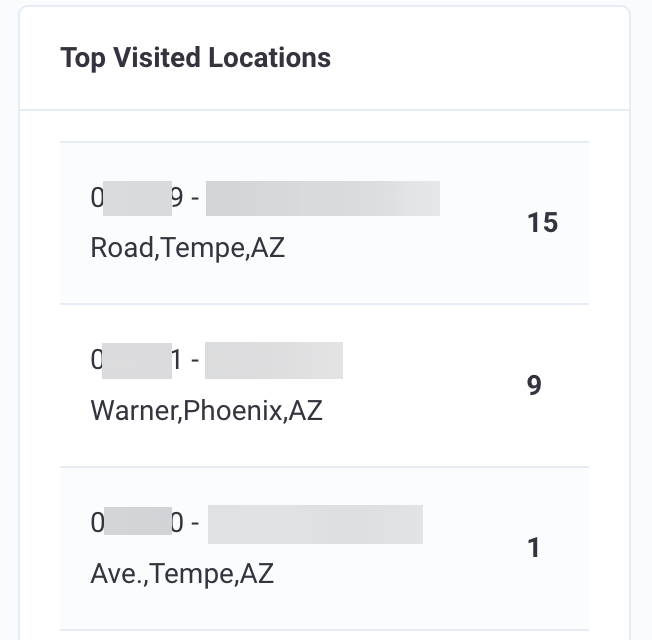
Top Visited Location
Displays a list of locations visited ordered by frequency.
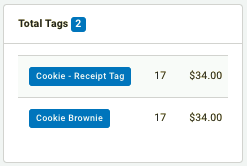
Total Tags
Displays a count of each of the receipt tags associated with the guest's purchase history.
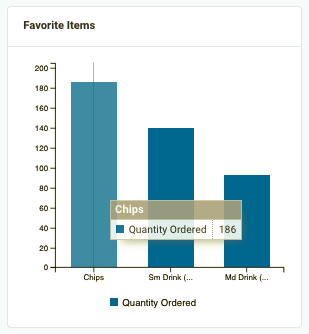
Favorite Items
The guest's top 3 most-purchased items based on the guest's purchase history.
Referrals
The Referrals widget displays the names/thumbnails of the guest's recent referrals.
Referral Code
This field displays the guest's Referral code, which can be used by new users during their initial signup to credit them with a referral (once the new guest makes their first loyalty purchase).
Guest Code
This field displays the guest's Guest code, which (depending on your configuration and POS) is the identifying QR text code for a guest. This code is displayed for lookup, verification, or investigative purposes, if needed.
Guest QR Code
The Guest QR code is a unique code scanned at the POS for loyalty checkins. The code is displayed here mainly for verification/investigative purposes, if needed.
Tip: For details on how to deactivate or delete a guest refer to Deactivated.
