Guests Profiles
The article was previously titled "Guests."
The All Guest Profiles page (Guests > All Guest Profiles), is where you can view detailed information about users who have signed up for your rewards program.
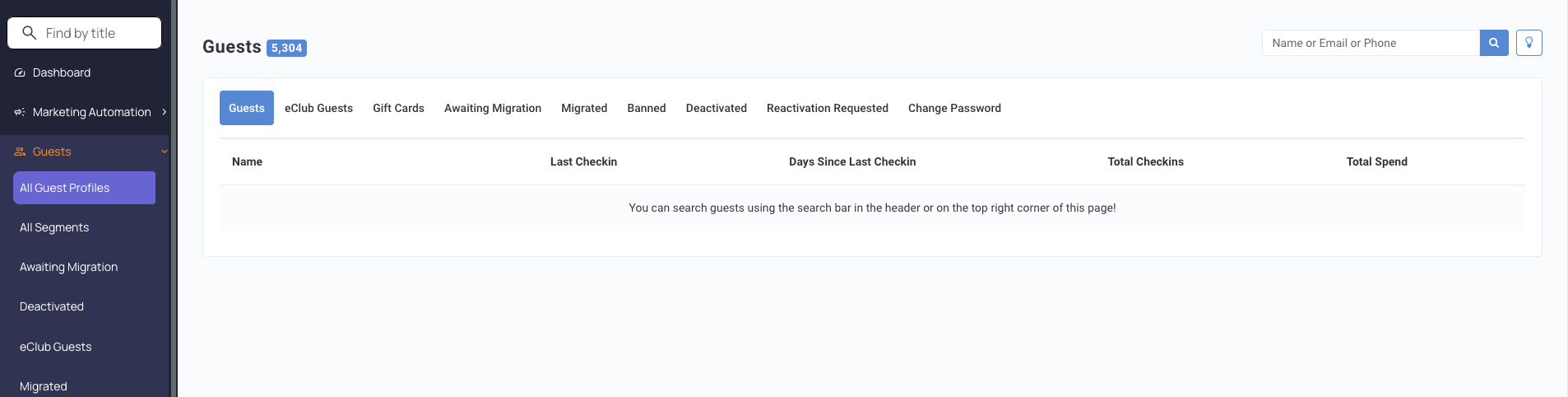
The number in blue on the top left next to Guests corresponds to the total number of all guests to date, including both loyalty and eClub. You can use the search bar to search for specific guests by Name, Email, or Phone Number.
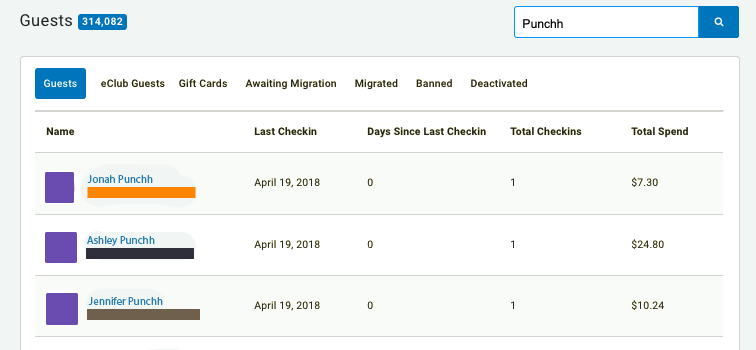
Click the tabs at the top of your dashboard to view more detailed information about guests with unique statuses. More details about these tabs are included below.
- Guests: After searching for a guest with the search bar, this list shows the guest's latest actions such as signing up, checking in, or making a purchase. Click a guest's name to view their guest profile. Review the following links for details about the different sections of a guest's profile
- eClub Guests: Punchh CRM lets you upload all of your marketing data from multiple sources into the system via a simple CSV import, from self-submitted signups by guests through the eClub Widget, or via API hookups.
- Gift Cards: (added module) The Gift Cards tab displays a list of any gift cards that have either been purchased by or awarded to a guest. Information such as current card balance, card number, and card purchase history is included. Gift Cards are an added module and must be purchased in addition to the base Punchh Dashboard.
- Awaiting Migration: View a list of all eClub guests who are not yet full-fledged loyalty members until they sign up using your mobile app. Once that happens, their status will change to "Migrated".
- Migrated: View a list of all eClub guests who, after eClub status, subsequently signed up for the new mobile loyalty program. They are called "Migrated" because the data obtained from their eClub days are automatically migrated over to their new loyalty program account.
- Banned: View a list of all guests you have banned from participating in your program. Banned guests are prohibited from participating in any loyalty activities such as checkins, redemptions, etc. They may still sign into their account via the mobile app, but they won't be able to do very much. Bans are typically temporary, corrective measures.
- Deactivated: View a list of all guests who have had their accounts deactivated by an admin user in your company. Deactivated guests may no longer log in to the mobile app (as their account email has been changed in the Punchh system to "deactivated.name@email.com"). Deactivated guests may create a new account with the same email address, but none of their previous points/rewards will be carried over. Deactivating a guest is preferred to deleting a guest because Punchh retains information from the deactivated account as part of your overall business, whereas deleted account data is gone forever.
- Change Password: To protect against security threats and fraud, business admins have the ability to upload a CSV with guest IDs or email IDs to force password resets, invalidate all sessions, and unlink all devices.
