Guest Profile: Message/Gift
The Message/Gift tab in the guest profile allows you to communicate directly with a guest via email or push notification from their mobile app. You may send free points or gifts (redeemables) along with your message, making this an ideal customer care response support tool.
Your message will appear in your guest's email inbox using one of your brand's predefined System Messages. An example shown below:
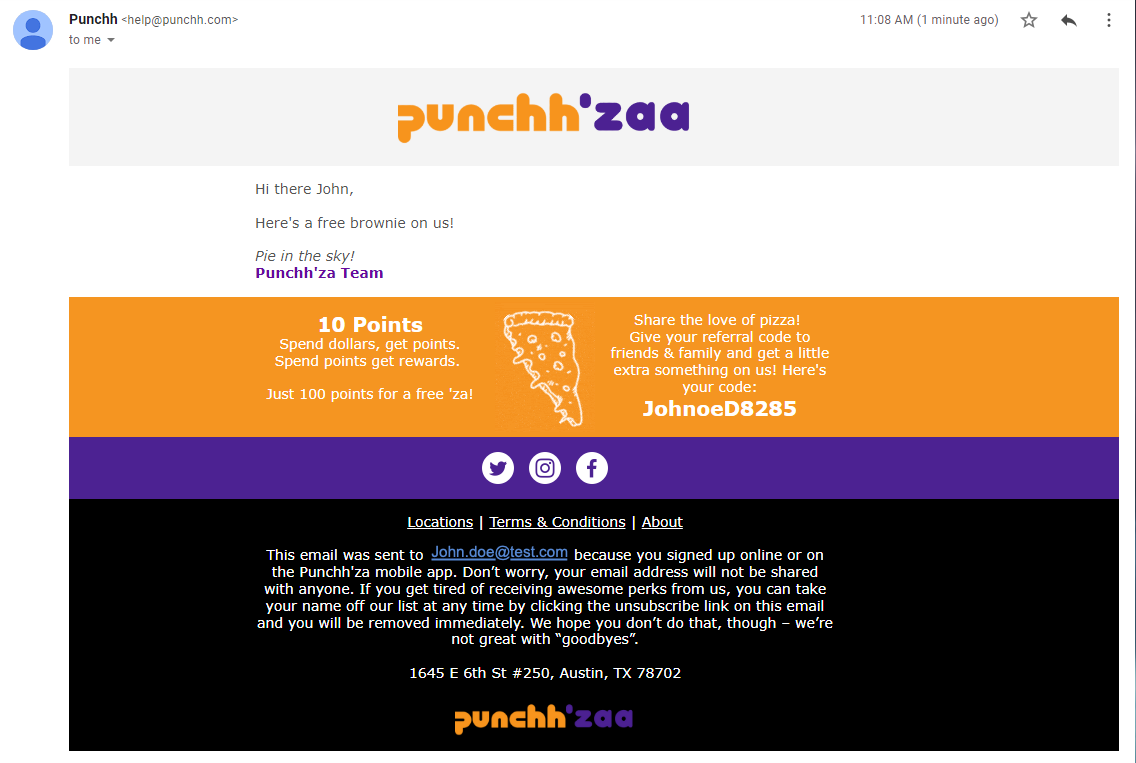
Send a Message and/or Gift to a Guest
-
Navigate to the Message/Gift button on a guest's profile.
- Add your message to your guest:
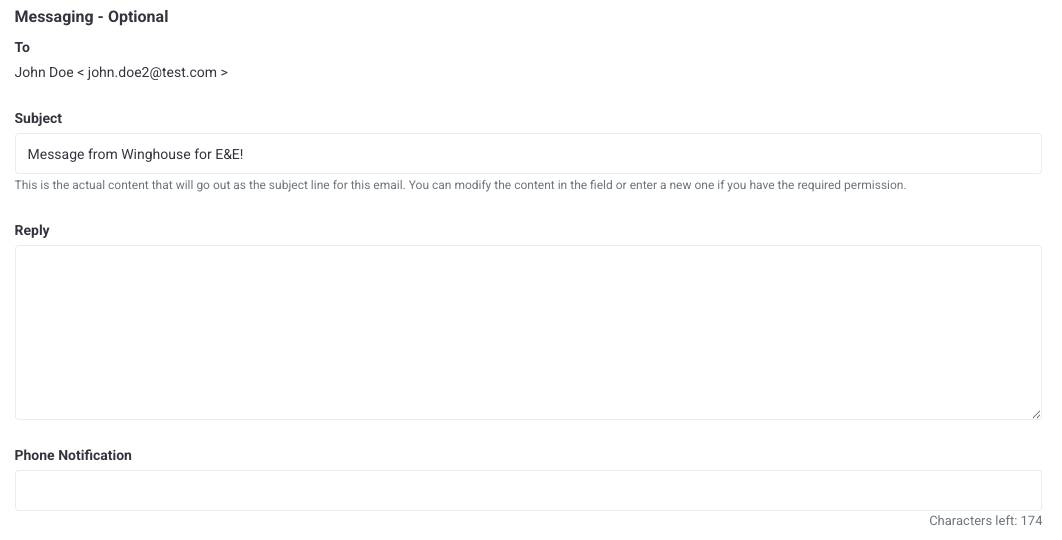
- Enter the title of your email in the Subject field.
- Enter body text for your email message in the Reply field. This text will precede the default email signature you've previously defined in your settings.
- To send a push notification through the guest's mobile app, enter a short message in the Phone Notification field.
Note: Only guests who have allowed push notifications for your mobile app will receive this message. We recommend messaging primarily through email, as push notifications have a high likelihood for non-delivery.
- Add a gift to your message, if desired:
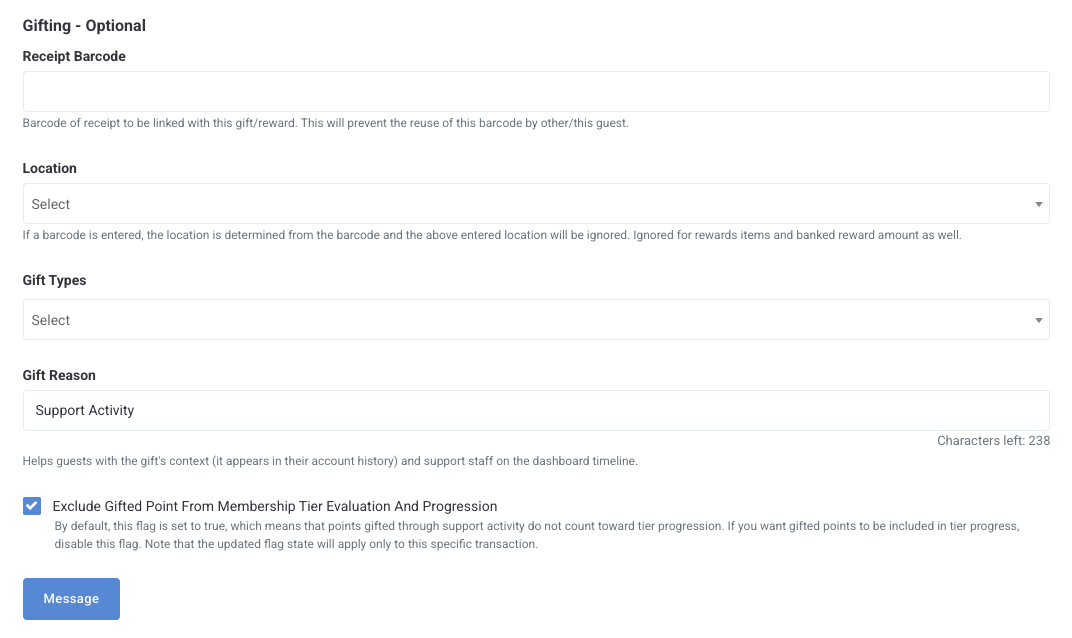
- Type the numerical barcode of the receipt associated with this gifting message in the Receipt Barcode field.
Tip: This both provides a record of your resolution action for you and the guest and prevents the same receipt/barcode from being used again by the same (or another) guest. To find a missing barcode, see our guide explaining Barcode Lookup.
- Use the Location drop-down to choose a store location for the guest.
Note: Any receipt barcode information entered in the previous field will override any location entered here. If a barcode was not provided, you can select a location to be associated when gifting points. Note that a location is not required when gifting redeemables, as they are not location-specific.
- Use the Gift Types drop-down menu to select the type of gift to send the guest.
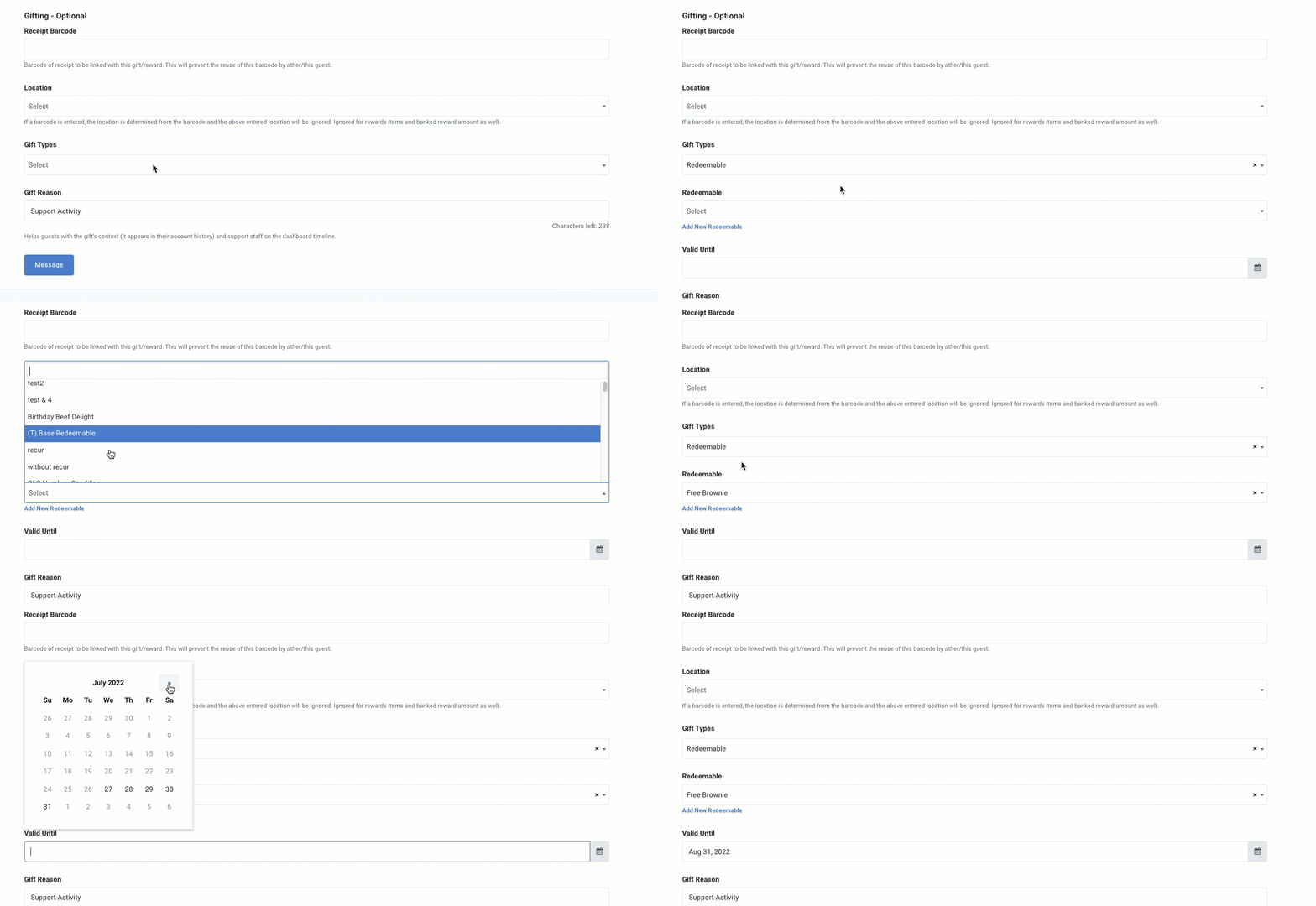
- Based on your gift type selection, the appropriate fields will appear. For example, if gifting a Redeemable, select the appropriate redeemable from the drop-down menu. Select the date the redeemable will be Valid Until.
- Enter a short description for your message/action in the Gift Reason field or leave it as the default "Support Activity". This description shows up internally only as an event in the guest's Timeline.
- Exclude Gifted Point From Membership Tier Evaluation and Progression: By default, gifted points do NOT count towards a guest's membership tier progression. If you want your gifted points to count, clear the checkbox.

- Click Message when finished to send your message.
