Membership Tiers
This article was previously titled "Memberships."
Starting up a Membership Program
Contact your Punchh CSM if you're interested in starting up a new Membership program for your business, as a new program will require an app update.
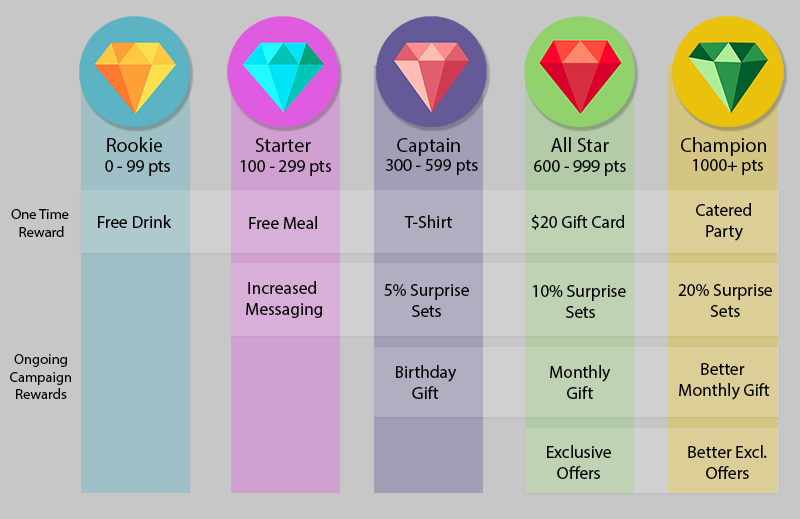
Membership Tiers are a way to create incentives for guests to pursue long-term loyalty goals. Upon reaching a new membership level/tier, generally by meeting a lifetime points milestone, a guest may receive an award in the form of a redeemable and may be eligible to receive new offers and perks exclusive to that tier. Memberships are only applied to loyalty guests and do not apply to eClub guests.
How Points Are Calculated
Previously, all earned points, including gifted points, were counted toward tier movement, which could result in unintended tier upgrades. As of Sept 30th, 2025, only spend-based transactional activity will influence a guest’s tier status. All gifted points across channels (e.g., support gifting, point multiplier campaigns, program restructure adjustments, promotional gifting, etc.) are excluded from tier calculations by default. This ensures tier progression reflects true customer spend and engagement, not system-awarded gifts
Admins do have the option to include gifted points in tier progression only when awarding points for a failed check-in or similar operational needs. Refer to Guest Profile: Message/Gift for details.
Note: If you had membership tiers prior to September 30, 2025, this feature will remain OFF by default. If you would like to take advantage of it, please reach out to your Punchh representative, and they will guide you through the next steps. Gifted points prior to Sept 30th, 2025, will remain included in historical tier evaluations.
Add a New Membership Tier
Depending on whether or not your mobile app Membership integration is hard-coded (often the case if using custom visual elements), adding a new Membership level/tier will require an app update. In the case of soft-coded integrations, a new tier may be added to a current Membership program without an app update, though it may affect users currently within that point range and may require a server-side update. It's recommended to contact your Punchh CSM to guide you through this process.
To add a new Membership tier:
-
Navigate to Loyalty Program > Membership Tiers.
-
Click Add New Membership Level at the top-right.
-
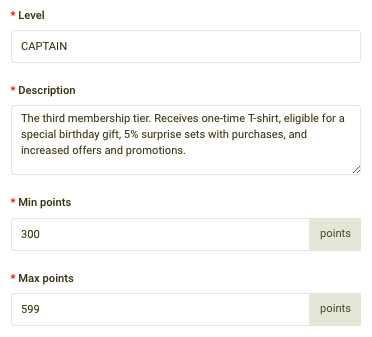
Enter a Name and Description for the tier. The description you enter here is internal-facing only.
-
Enter the Min and Max points for the tier. This is the range of points at which guests belong to the tier. If this is the highest tier without an upper bound, leave the Max points field empty.
-
In the Membership Level Attainment Reward drop-down, select the redeemable guests are rewarded when they reach this membership level.

-
Depending on your loyalty program type, you may see the following fields:
- If your brand has the Points Convert to Currency program type, you will see the Rewards Value field.
If guests receive a reward or redeemable upon reaching this tier, enter the monetary value for that award in the Reward Value field. This value is used for analytics reporting.

-
If your brand has the Points Convert to Rewards program type, you will see the Banked Redeemable field.
Select a Banked redeemable that guests can receive at a certain cadence within the membership level, for example, a free side of fries every 100 points earned.

- If your brand has the Points Convert to Currency or Points Convert to Rewards program type
Select a Redemption Mark for this level that represents how often the guest is rewarded. For example, if you set the Redemption Mark to "50", the guest will receive a reward every 50 points, regardless of how your program as a whole is set up.

- For any points-based programs, you may enter a value in the Points Multiplication Factor field if you want to allow guests at this tier to earn points at an accelerated rate. For example, if you enter "1.1", guests will earn points at a 10% faster rate.

- If your brand has the Points Convert to Currency program type, you will see the Rewards Value field.
-
For Background Image, you may click Browse to upload a badge icon for the membership tier. It's possible to use this icon as part of the design for this tier in your mobile app, but it's entirely optional.
-
The Meta data1 field can be used for tracking purposes. Contact your Punchh CSM for more information.
-
If your program uses the Step Down To Previous Level reset strategy, you can choose to re-evaluate their membership tiers and potentially drop guests to a lower tier if they've failed to reach a specific points threshold. These settings are explained below:
-
Retention Threshold
If using a "Lower Threshold" or "Lower Threshold + Unbanked Rewards" points reset strategy, this is the number of points a guest must have earned by the time of re-evaluation to remain at their current tier.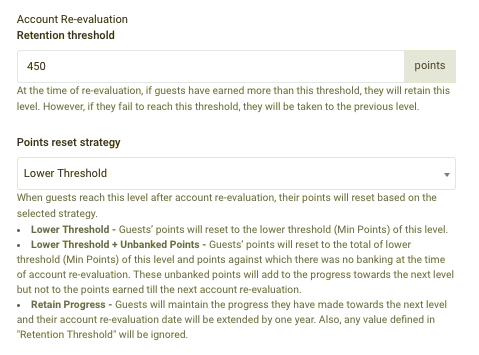
For example, if the Captain tier ranges from 300 - 599 points, we could choose "450" to be a halfway-there threshold. This means that if a guest's points total is above 450 at the time of re-evaluation, they'll retain their current tier, and their points will be reset to 300 (the tier's minimum). However, if they have less than 450 points at the time of re-evaluation, they'll be dropped down to the next lowest tier (in our example the "Starter" tier), and their point total will be reset to that tier's minimum (100).
-
Points Reset Strategy
This determines what happens to a guest's tier/points when an annual re-evaluation occurs.- Lower Threshold: This strategy drops the guest back to a tier/point total based on the "Retention threshold" value for this tier.
- Lower Threshold + Unbanked Points: If you've set a Redemption Mark for your points-convert-to-reward program type, this strategy will drop the guest back to a tier/point total based on the "Retention threshold" value for this tier, but they'll still retain their progress toward their next reward.
For example, if a guest earns a reward every 50 points and is currently 40/50 points toward that reward, their membership tier may still drop, and their total points may reset back to a lower tier, but they'll still earn their next reward once they earn another 10 points.
- Retain Progress: This excludes a guest's Membership progress from any points/tier reset whenever an account re-evaluation/annual points reset occurs.
Further details and options of Membership Tier Resets can be found here: Membership Tier Reset Strategies
-
-
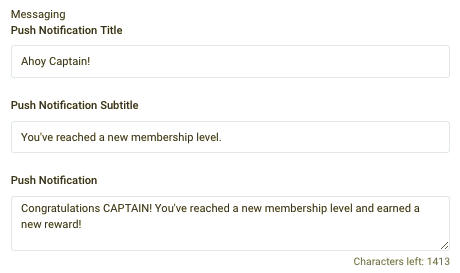
You can choose to send guests a Push Notification or Email message upon them reaching this tier. Enter that messaging in those fields. If they are left blank, no message will be sent.
Use the Messaging Tags, listed on the right of the screen, to help personalize the message. You also have the option to include the tags "points_to_retain_level" and "points_to_next_level" in your message to let guests know how many points to retain their specific membership tier and how many points they need to earn to move to the next tier. For example:
Congrats {{{first_name}}}!
With {{{current_points_balance}}} you’ve made it to CAPTAIN!
For being a loyal member of our rewards program please enjoy {{{membership_tier_attainment_reward}}}, on us! To stay at the Captain tier you’ll need {{{points_to_retain_tier}}} but to make it to All Star it’s only {{{points_to_next_tier}}} to go. You got this!
We look forward to continuing to help you satisfy your sandwich cravings!
Sincerely {{business_name}}
- Click Create Membership tier to finalize. This membership tier can now be used as additional audience segmentation for campaigns.
Campaign Rewards by Membership Tier
Once we've set up our Membership tiers, we'll need to create some Ongoing Campaigns to set up rewards, offers, and incentives for each tier. Using our example, we want guests at the CAPTAIN member tier to begin receiving gifts and rewards at a rate of 5% when they make purchases. To set that up, we'd follow the process below:
- Create a Guest Profile Based Segment to isolate guests who belong to the CAPTAIN membership tier.
- Create a Post Checkin Offer Campaign, choosing an appropriate reward.
- Target the campaign to the segment we made for the CAPTAIN membership tier.
- Schedule the campaign to run indefinitely by leaving the End Date field blank.
Analytics
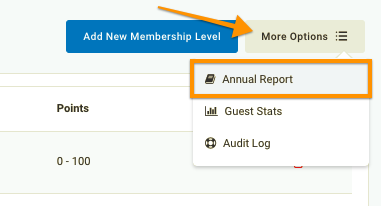
While on the Loyalty Program > Membership Tiers page, click the More Options menu to view an Annual Report or Guest Stats for your membership program.
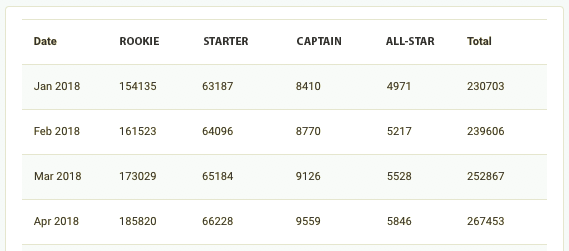
Annual Report
Month-by-month membership totals for each of your membership tiers as well as total membership. You can view totals for the current or past year(s).
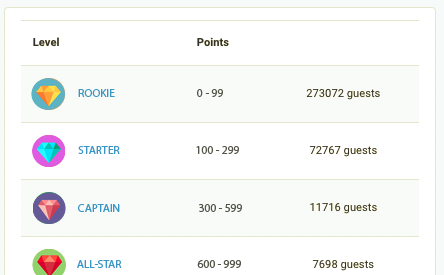
Guest Stats
The current membership totals for each tier.
...
