Meta/Facebook User Data Deletion Requests
Some brands integrated with Meta/Facebook may receive emails from Meta regarding user data deletion requests. These emails are sent when a user deletes their loyalty account but there is data stored in Meta/Facebook that still needs to be deleted. This article will provide information on how to communicate to users how to delete their information from Meta.
This article will discuss the process for deleting Punchh data from Meta/Facebook. For information regarding account deletion at a higher level, please refer to the Account Deletion from Mobile Apps article. For more information about Meta's data deletion, please refer to Data Deletion Callback - App Development with Meta in the Facebook developer portal.
User Data Deletion Request Emails
Meta will send email alerts every 21 days stating which users have requested to have their data deleted. Your brand should make sure this data is deleted to ensure you remain compliant with your privacy policy.
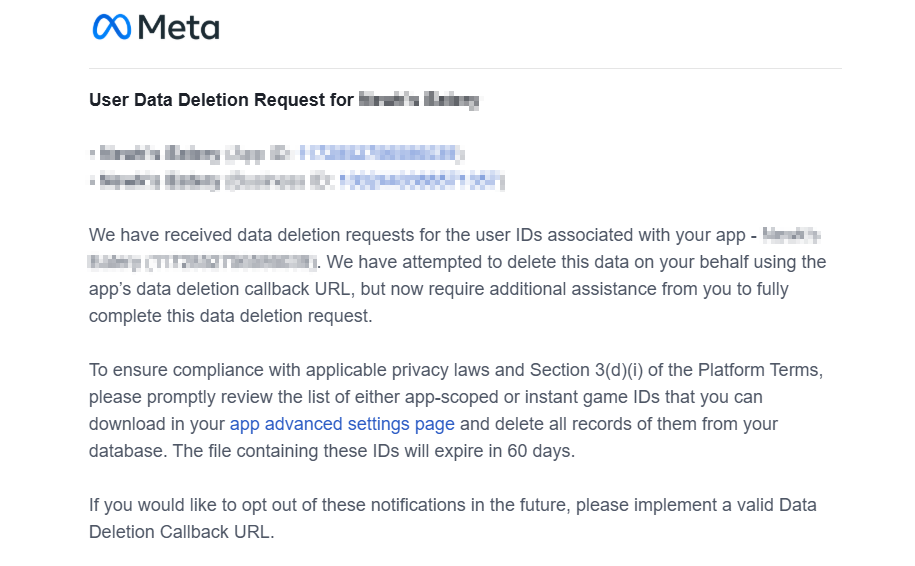
While there is no way to stop these alerts without providing a Data Deletion Callback URL, it is important for your brand to provide a Data Deletion Instructions URL to inform users of how they can delete their own data from Meta. This URL can link back to the privacy policy or to a separate page with instructions for deleting user data from Meta.
Reach out to your legal team before making any changes to the privacy policy or terms and conditions. If updating the privacy policy, make sure the URL is updated in the Facebook developer Portal as needed.
Data Deletion Instructions URL
To add a Data Deletion Instructions URL:
- Log in to the Facebook developer Portal: http://developers.facebook.com/
-
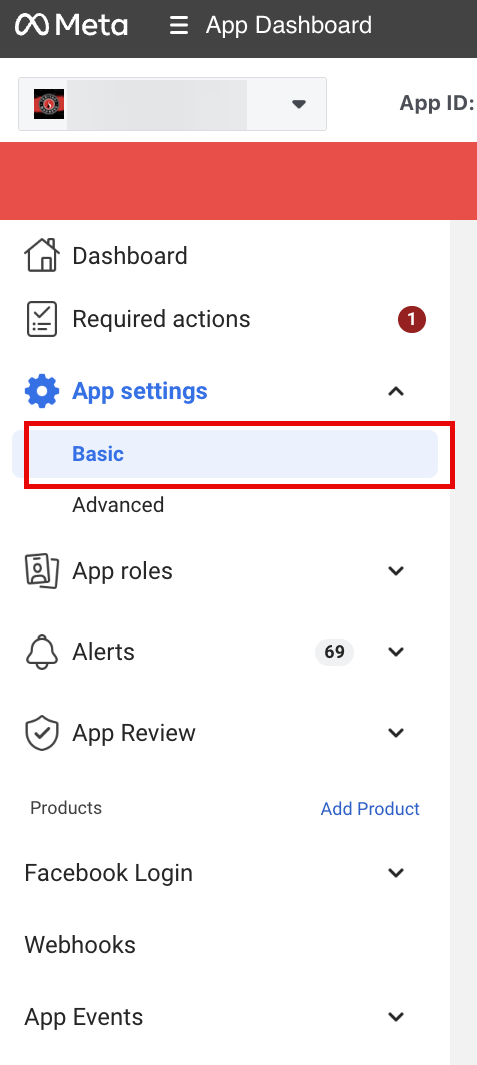
Navigate to App settings > Basic using the left navigation pane.
-
Find the User data deletion field and select Data deletion instructions URL.
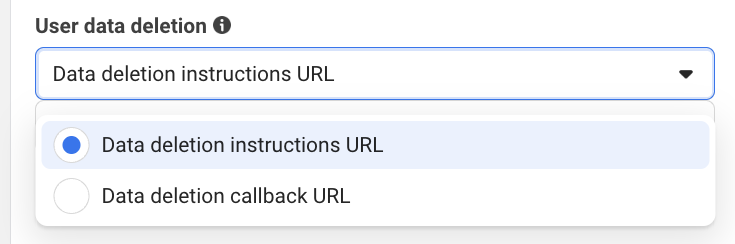
- Add the Data deletion instructions URL to the field.
- Click Save Changes.
User Data Deletion Instructions
Below are instructions on how individual users can delete their data from Meta. These instructions should be added to the privacy policy and the page the Data Deletion Instructions URL leads to.
Method 1: Remove an App via Facebook Web
- Go to Facebook Settings
- Open Facebook and log in to your account.
- Click on your profile picture (top-right corner) > Settings & Privacy > Settings.
- Access App & Website Settings
- In the left menu, select Apps and Websites.
- Under the "Active" tab, you’ll see a list of apps connected to your Facebook account.
- Remove the App
- Find the app you want to remove and click Remove.
- In the pop-up confirmation, you can also select Delete all activities associated with this app.
- Click Remove to confirm.
- Find the app you want to remove and click Remove.
Method 2: Remove an App via Facebook Mobile App
- Open the Facebook app on your mobile device.
- Tap the menu (☰) in the bottom-right (iOS) or top-right (Android).
- Go to Settings & Privacy > Settings.
- Scroll down to Apps and Websites.
- Under Active, select the app you want to remove.
- Tap Remove, confirm deletion, and optionally remove all associated data.
