Barcode Lookup
When providing support to guests, it is often necessary to pull up the receipt for the transaction in question. The Lookup and Search functions in the Diagnostic > Barcode Lookup section of your dashboard allow you to locate and view customer receipts based on barcode number or location, date, and transaction number.
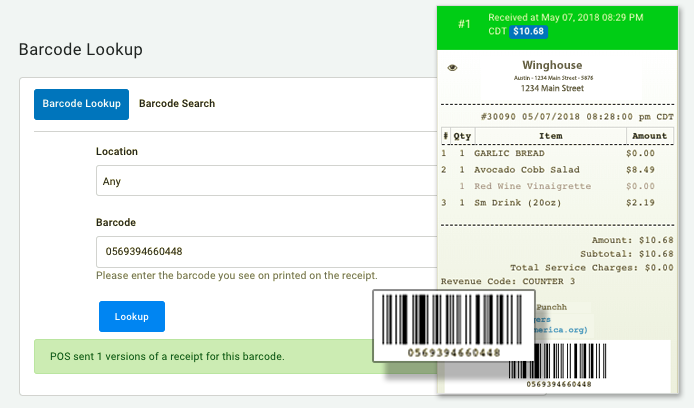
There are a number of ways to track down a receipt:
- Manually locating the transaction on the guest's profile timeline and clicking the camera icon to view it,
- Barcode Lookup using the barcode at the bottom of a receipt (if provided to you by the guest), or
- Barcode Search using the location, date, and transaction number of the transaction (if the barcode is missing).
Barcode Lookup
To locate a receipt using by its barcode number:
- Navigate to Diagnostic > Barcode Lookup.
- (Optional) Select a Location from the drop-down menu.
- Enter the Barcode number found on the receipt provided by the customer.
- Click Lookup.
Used and unused receipts
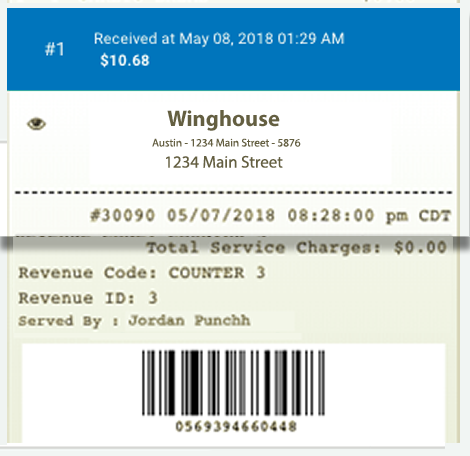
The receipt will appear as either with a blue header (signifying that it has NOT been previously recorded) or green (signifying that it has already been recorded and therefore should not be awarded any additional points or rewards).
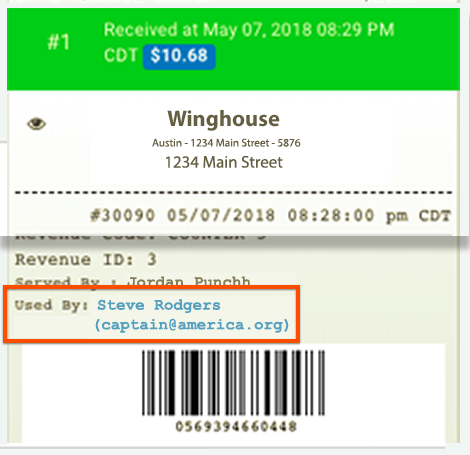
For previously used receipts, you can see the name of the guest who added the receipt under "Used By". Click on the guest's name to take you directly to their guest profile.
Barcode Search
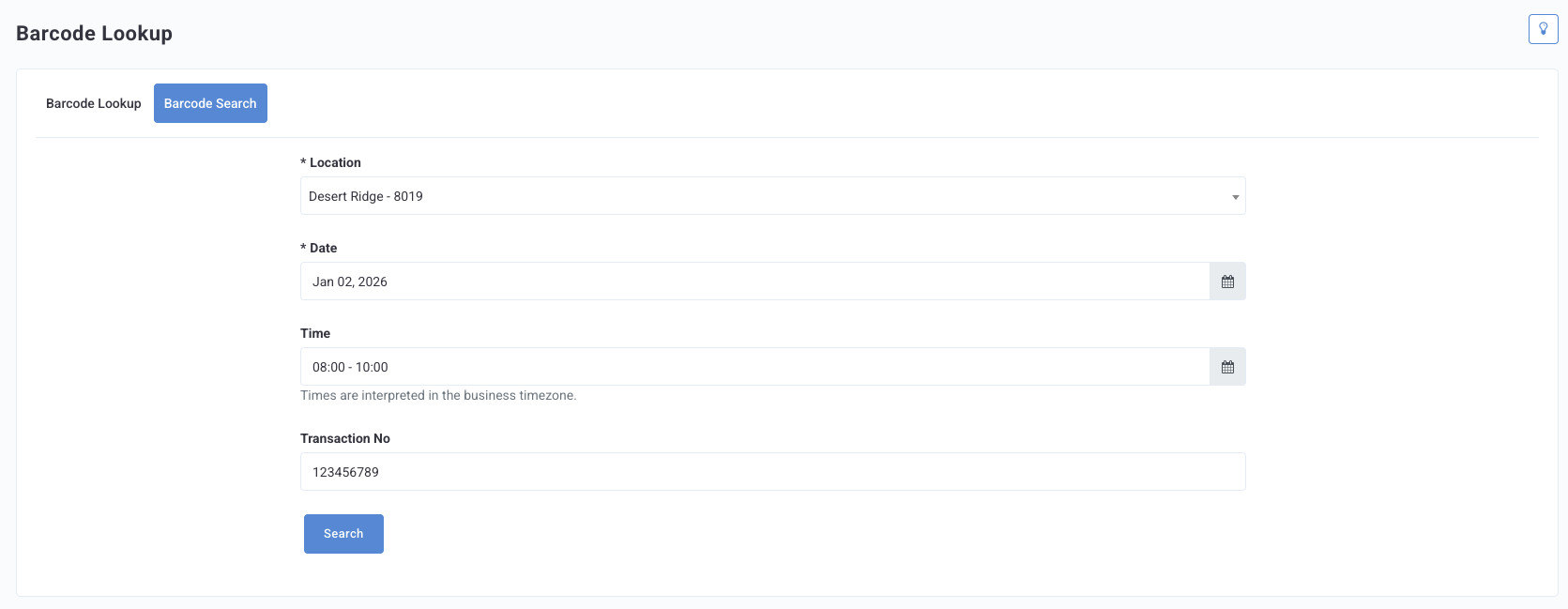
If a guest provides you with an image of a receipt with a missing or unreadable barcode but still has transaction information such as location, date, and transaction number, Barcode Search can be used to locate the corresponding transaction and recover the missing barcode number.
To use Barcode Search:
-
Navigate to Diagnostic > Barcode Lookup.
-
Click the Barcode Search tab at the top.
-
Select a Location from the drop-down menu.
-
Click the Date field to choose the date of the disputed transaction.
-
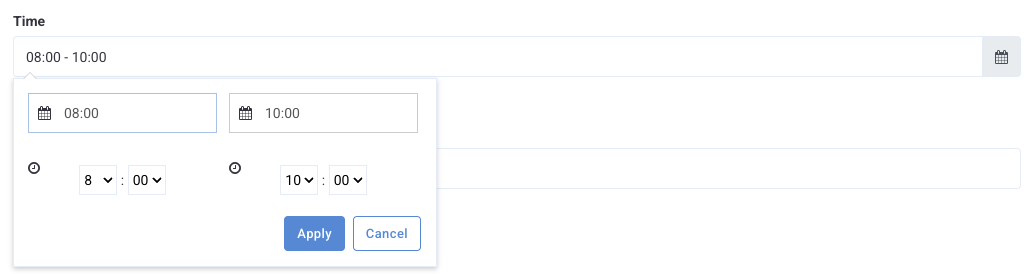
Click the Time field to enter a start time and end time within the selected date.
Start time and end time cannot be the same.
-
Select a timezone from the Timezone drop-down menu. The default timezone is UTC.
-
Enter the Transaction Number.
-
Click Search.
-
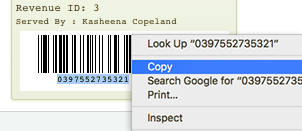
Once it's been found, highlight and copy the barcode number from the located receipt.
Punchh can't see whether or not a receipt has been used unless we look it up using the barcode number, which you now have.
-
Navigate back to the Barcode Lookup tab and enter your recovered barcode number.
-
Click Lookup to locate the receipt in the Punchh system.
