Banned Guests
This article was previously titled "Banned."
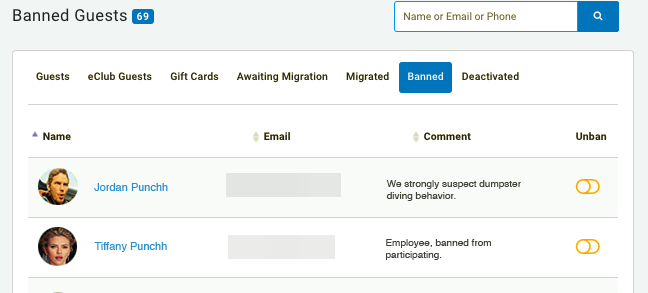
The Banned Guests page in the Fraud section of your platform contains a list of all guests who have had their program access halted by an admin in your company.
Note: If a guest has been banned AND deactivated they will appear on both the Banned and Deactivated tabs.
From the Banned Guests page, you may search for specific guests, view more detailed information and any notes that have been added to their profile, and also unban a guest if you find they've been mistakenly banned.
Ban a Guest
Prohibiting an active guest from using the loyalty program isn't fun, but abuse and fraud is an unfortunate and inevitable reality. It's likely you will take actions only to ban guests who have been flagged as Fraud Suspects, so we'll start from there to learn how:
- Navigate to Fraud > Fraud Suspects.
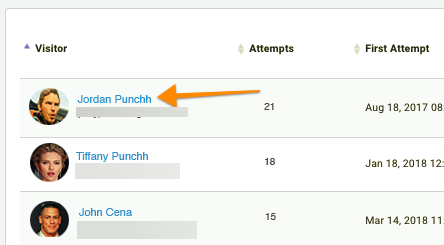
- Once you find a particularly brazen fraudster, click on the guest's name to open their guest profile.
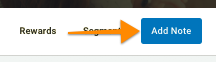
- Click the Add Note tab at the top-right.
- Enter a note explaining the reason for the ban in the Comment text field.
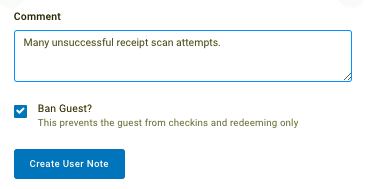
- Click the Ban Guest checkbox.
- When finished, click Create User Note.
The guest's Timeline will turn dark grey to denote their banned account. Additionally, a Banned tag will now accompany their name.
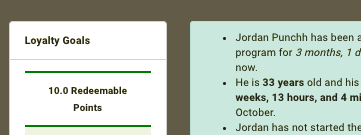

We recommend sending a message to the guest detailing the reason for their ban. Otherwise, the guest may just mistake a ban for technical issues.
Banning a Guest
Banning a guest prevents them from participating in your loyalty program via checkins, points, and redemptions. Online ordering will continue to function as usual. For this reason, this is the recommended action to take against guests abusing the system. To remove all access (meaning a guest may no longer even log into their account) you can choose to Deactivate a Guest.
Unban a Guest
Sometimes you may need to unban a guest. Here's how:
- Navigate to Fraud > Banned Guests.
- Find the guest by searching for their name, email, or phone number.
- Once you've located the guest, click the Unban toggle on the far right.
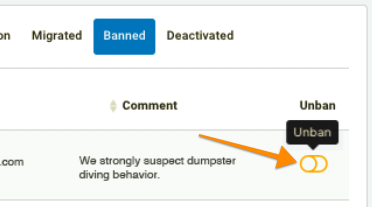
- A confirmation window will appear. Click OK to complete.
Unbanning a guest will allow them to recommence participation in your loyalty program. Any points, checkins, or redeemables they had collected prior to their banning will once again be usable.
