Deactivated
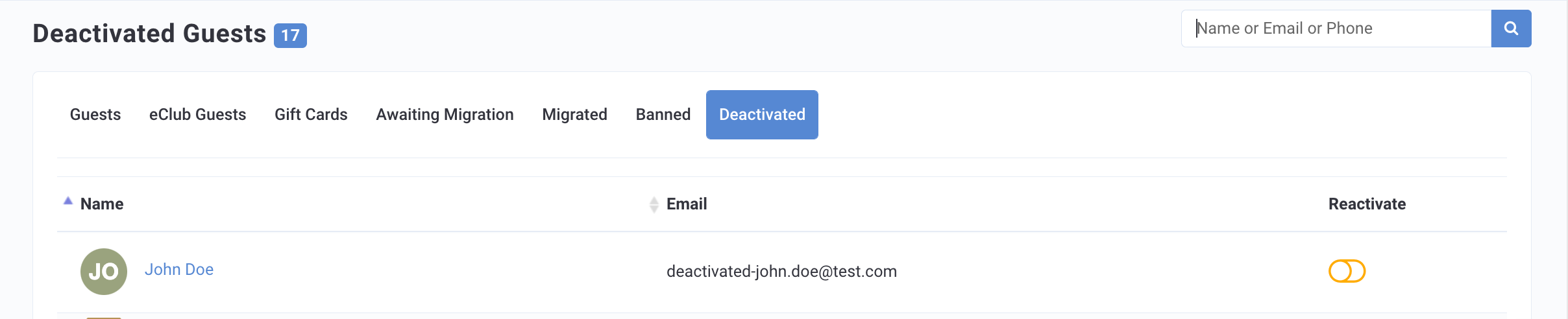
The Deactivated page, located in Guests > Deactivated in the left side panel, shows a list of guests who have had their accounts deactivated by an admin in your company.
Note: If a guest has been deactivated AND banned they will appear on both the Deactivated and Banned Guests tabs.
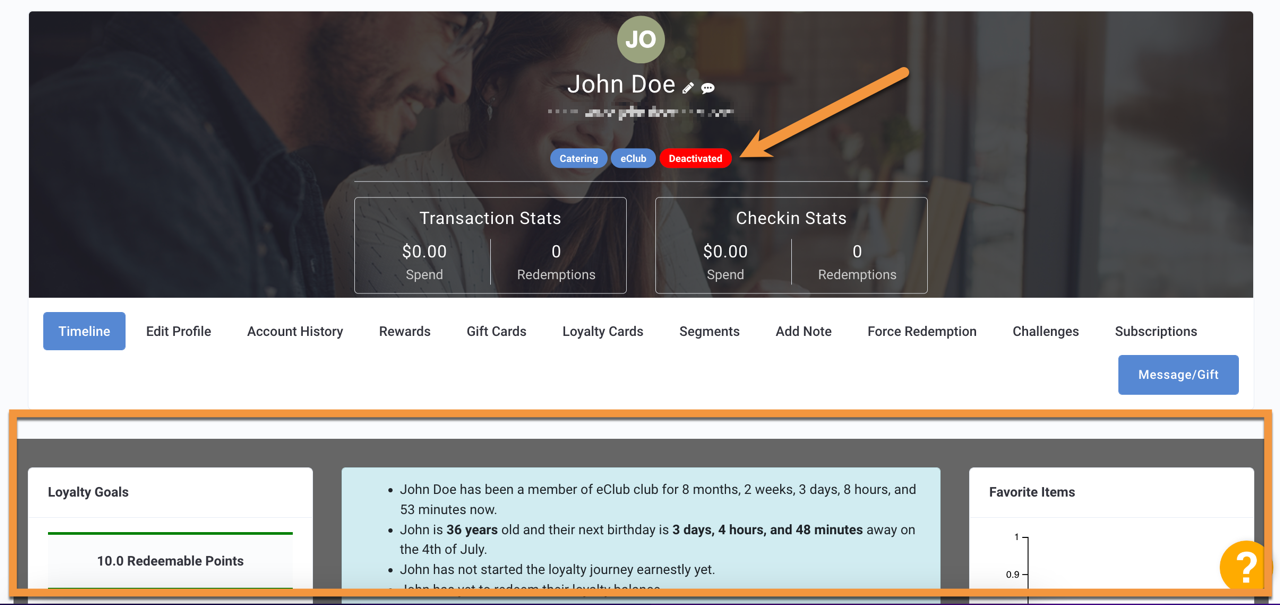
When a guest's account is deactivated, they may no longer log in to the mobile app and iFrame, as their loyalty account status has been changed in the Punchh system to "deactivated". Additionally, they will be unsubscribed from all further communication. However, their account will remain visible in the Punchh Platform. The guest's profile will display a red Deactivated tag that confirms that the profile is deactivated. The guest won’t be able to create a new loyalty account with this email ID. However, the guest can request an account reactivation via support channels or the mobile app depending on your brand's configuration.
Tip: Deactivating a guest is preferable to deleting a guest because Punchh may still retain information from the deactivated account as part of your overall business. If an account is deleted, the account data is gone forever.
Deactivating a Guest
You will likely take action to deactivate guests who have been flagged as Fraud Suspects.
- Navigate to Fraud > Fraud Suspects.
- Click on the guest's name to open their guest profile.
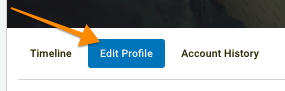
- Navigate to the Edit Profile tab.
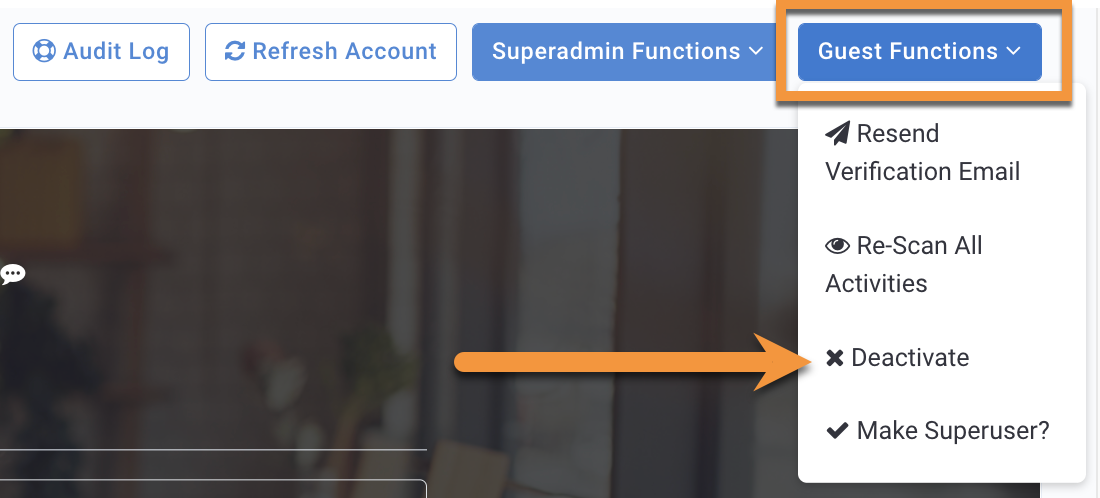
- Click the Guest Functions drop-down on the far right, and select Deactivate.
- You'll be prompted with a confirmation message. Click OK to finalize the deactivation.
- If you have set up the feature to allow guests to reactivate via the mobile app, you will be prompted about the reason for deactivation.
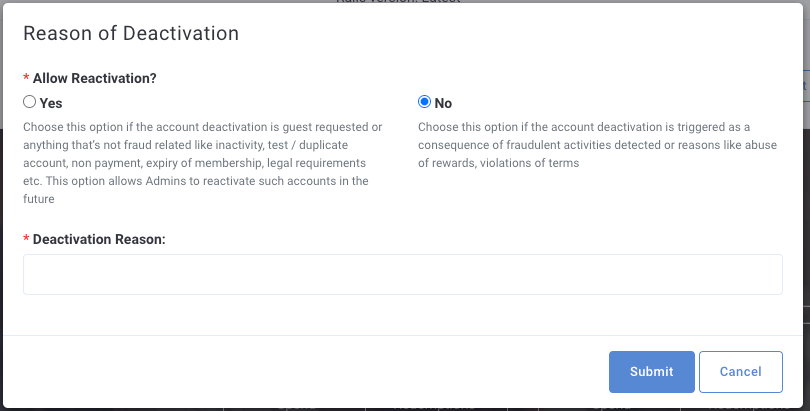
- Select Yes to allow guests the option to request account reactivation via the mobile app.
- Select No to not allow any reactivation.
- Enter the Deactivation Reason. This reason will be displayed on the guest timeline.
- Click Submit.
Note: You can also restrict a guest's ability to request a reactivation after the intitial deactivation.
- Navigate to Guests > Deactivated.
- Click on the guest's name to open their profile.
- Navigate to the Edit Profile tab.
- At the bottom of the page, check Restrict Guest Profile Reactivation to prevent them from requesting an account reactivation. Or clear the box to allow the guest to request reactivation.
- Click Update.
After deactivation, the guest's Timeline will turn dark grey to denote their deactivated account. Additionally, a Deactivated tag will accompany their name.
Reactivation
Guest Requests a Reactivation
A guest can request an account reactivation via support channels or the mobile app. Contact your Punchh CSM to set up the feature to allow guests to request reactivation through the mobile app.
When a guest requests an account reactivation via the mobile app, they will receive email instructions on how to proceed with the reactivation process. See "Reactivation Instructions" in System Messages: General You can manually approve all reactivation requests via the Punchh Platform or opt to have all requests automatically approved. (If you choose to manually approve requests, your Punchh CSM can configure email alerts for each reactivation request to be sent to your brand's admins).
To manually approve a requested reactivation:
- Navigate to Guests > Reactivation Requested.

- Find the guest you want to reactivate.
- Click the Reactivate toggle on the far right.
- You'll be prompted with a confirmation message. Click OK.
- The guest's account will then be active with all previously earned points, rewards, etc.
Tip: Audit logs are available for reactivation events, including when the reactivation request was initiated and who approved it. Click Audit Logs on the top of the Guest Profile page to view.
Manual Reactivation Before a Request
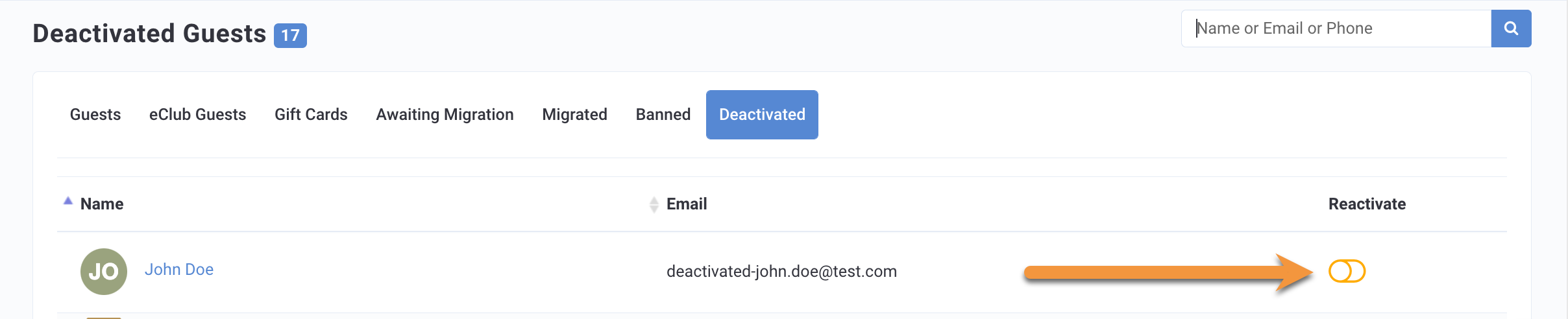
If a guest was deactivated in error, you can reactivate their account before they request a reactivation.
- Navigate to Guests > Deactivated.
- Find the guest you want to reactivate.
- Click the Reactivate toggle on the far right.
- You'll be prompted with a confirmation message. Click OK.
- The guest's account will then be active with all previously earned points, rewards, etc.
Who in my company can deactivate a guest's account? The ability to deactivate a guest is limited only to the roles of Business Owner, Business Manager, and above. Other users, such as Franchisee Owners, do not have permission to deactivate or reactivate a guest, but these custom permissions may be controlled by you in the Admin Users section. Additionally, these permissions may be removed from roles such as Business Manager. (Business Owner always retains this permission).
