Redeemables
A redeemable is an offer that can be awarded to your guests through campaigns. In the All Redeemables section under Offers, you can create and manage redeemables, control their activation, and view detailed audit information.
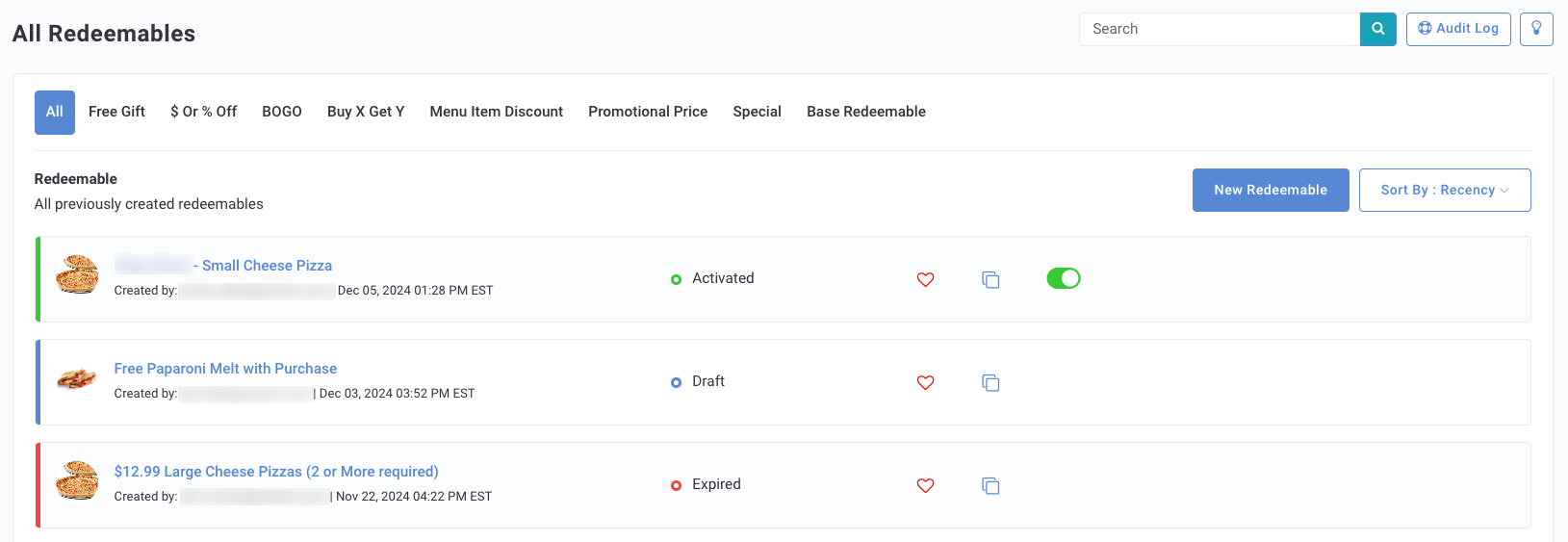
On the Redeemables home page, you can filter your redeemables by the tabs located at the top of the page, or the search bar on the right.
You have the following options next to each redeemables in the list.
 Mark Favorite: Click to mark the redeemable as a 'favorite' or most used redeemable.
 Duplicate: Click to duplicate the redeemable. A New Redeemable workflow will open.
 Deactivate: Click to deactivate a redeemable. This stops any recurring redeemables from continuing to be redeemed.
Create a Redeemable
Note: The following steps describe creating a redeemable via the three-step workflow. If you want to create a Deal, the steps will be similar with a few exceptions, as described in Deals: How to Make a Redeemable into a Deal.
To create a new redeemable, follow the workflow below:
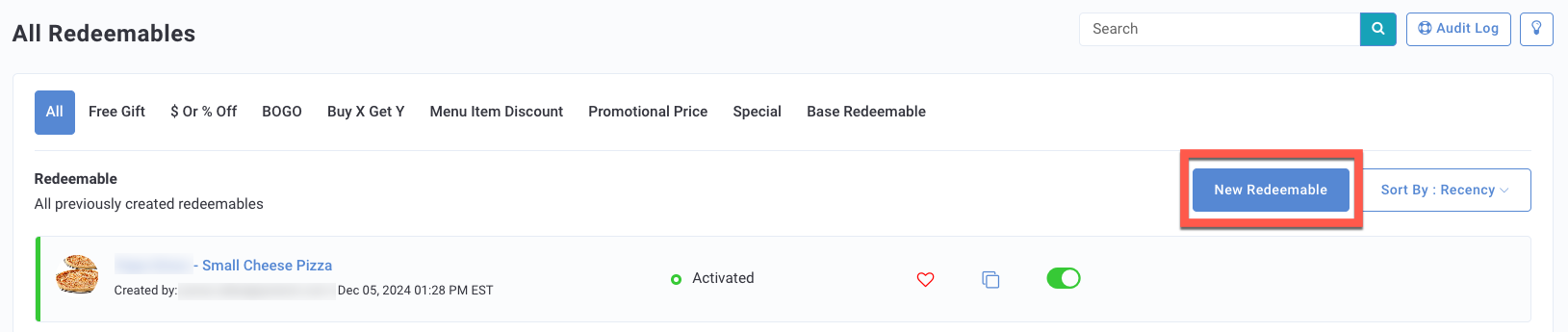
Click New Redeemable
Step 1 - Info
-
Enter a name for your redeemable in the Name field.
The guest will see this as the offer name in their mobile app, so make it as exciting and inviting as possible. -
Add descriptive text for your redeemable in the Description field.
The guest will also see this description text, so use it as an opportunity to be clear about any purchase requirements. -
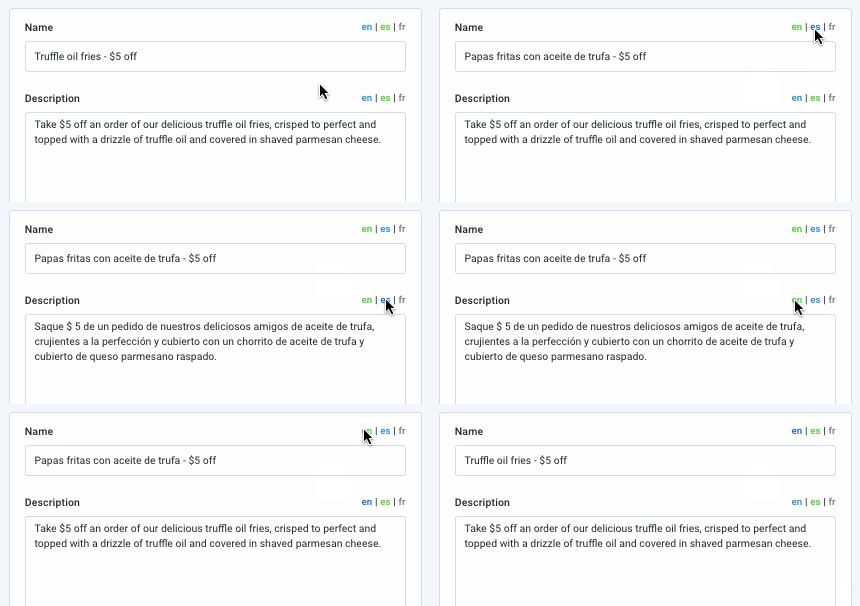
(Optional) If you have additional languages enabled, you can enter alternate text descriptions for each by clicking the corresponding en | es | fr tabs at the top-right of each text field.
-
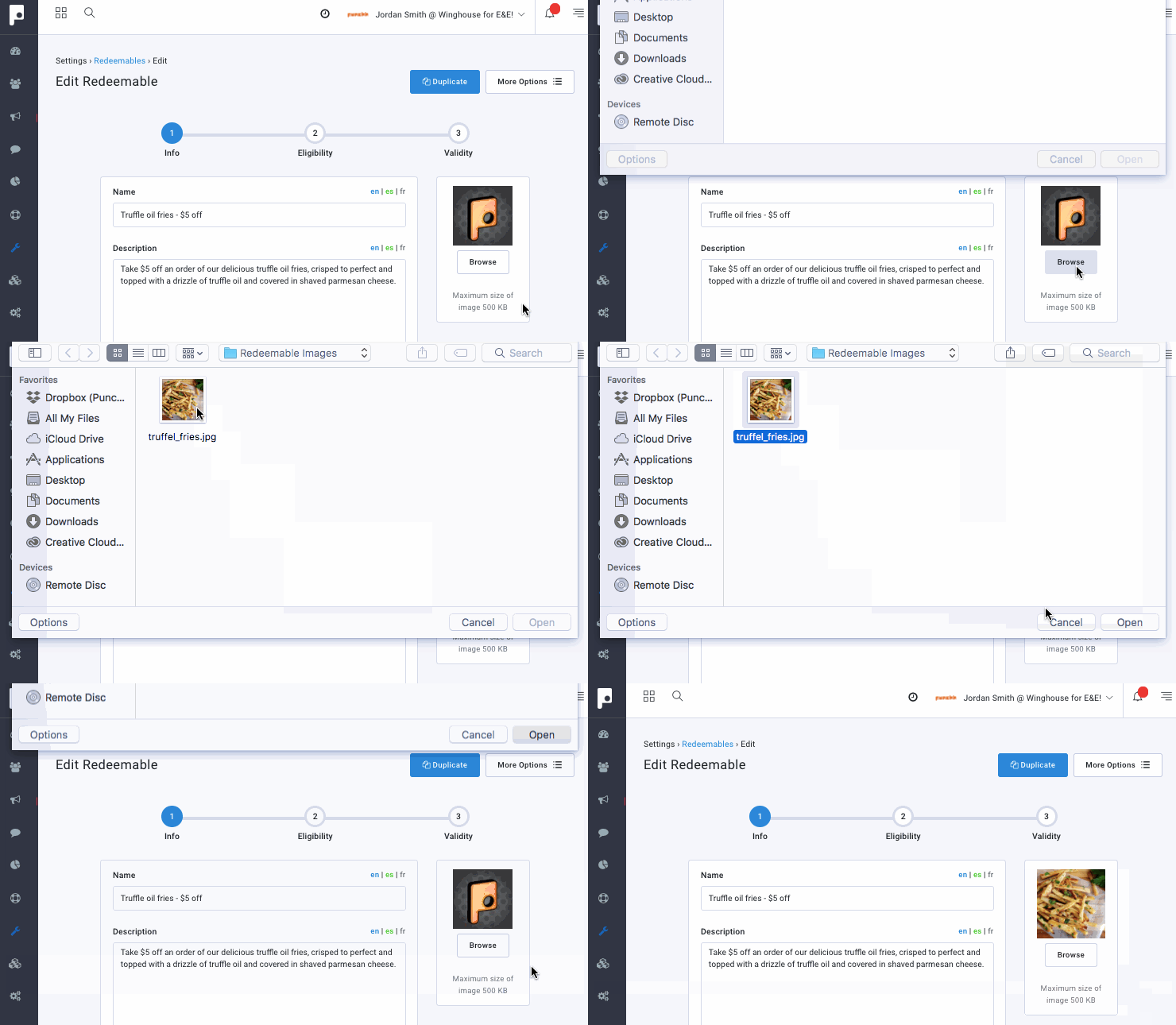
(Optional) To add an image to your redeemable, click the Browse button and select an image from your computer. The ideal image size is h:600px by w:800px with a max file size of 500kB.
- Toggle Available as a Template? if your brand has a franchisee model and you want franchisees to see your redeemable as an option for gifting through campaigns.
- Toggle Make available for support gifting? to allow admins with gifting permissions to gift this redeemable to guests as needed.
- (Optional) Add any additional descriptive internal information in the Internal Note field.
This is not guest-facing. Only you and others on your account with suitable permissions can see it. - When finished, click Next to move on to Step 2.
Step 2 - Eligibility
The Eligibility step is where you add qualification criteria (discount rules) for this redeemable. There are three paths you can take, if you want to use pre-existing, saved qualification criteria (Existing Qualifier), if you prefer to create a new discount rule qualifier unique to this redeemable during this step (New Qualifier), or if you want to gift a standard discount (Flat Discount) as detailed below:
- Toggle Distributable to make the redeemable a "Deal." Refer to Deals: How to Make a Redeemable into a Deal for more information.

- Toggle Enable for Auto Redemption to allow the redeemable to be redeemed automatically without guest interaction. This applies to redeemables that are gifted as opposed to being earned by point.

If more than one active redeemable has Enable Auto Redemption turned on AND they have the same Date of Expiry/Expiry Days, they will be processed by order of creation (whichever redeemable was created first and so on).
This only impacts brands whose processing order setup prioritizes auto-redemptions by the Date of Expiry. Contact your Punchh representative with any questions you have about your brand's redemption processing order.
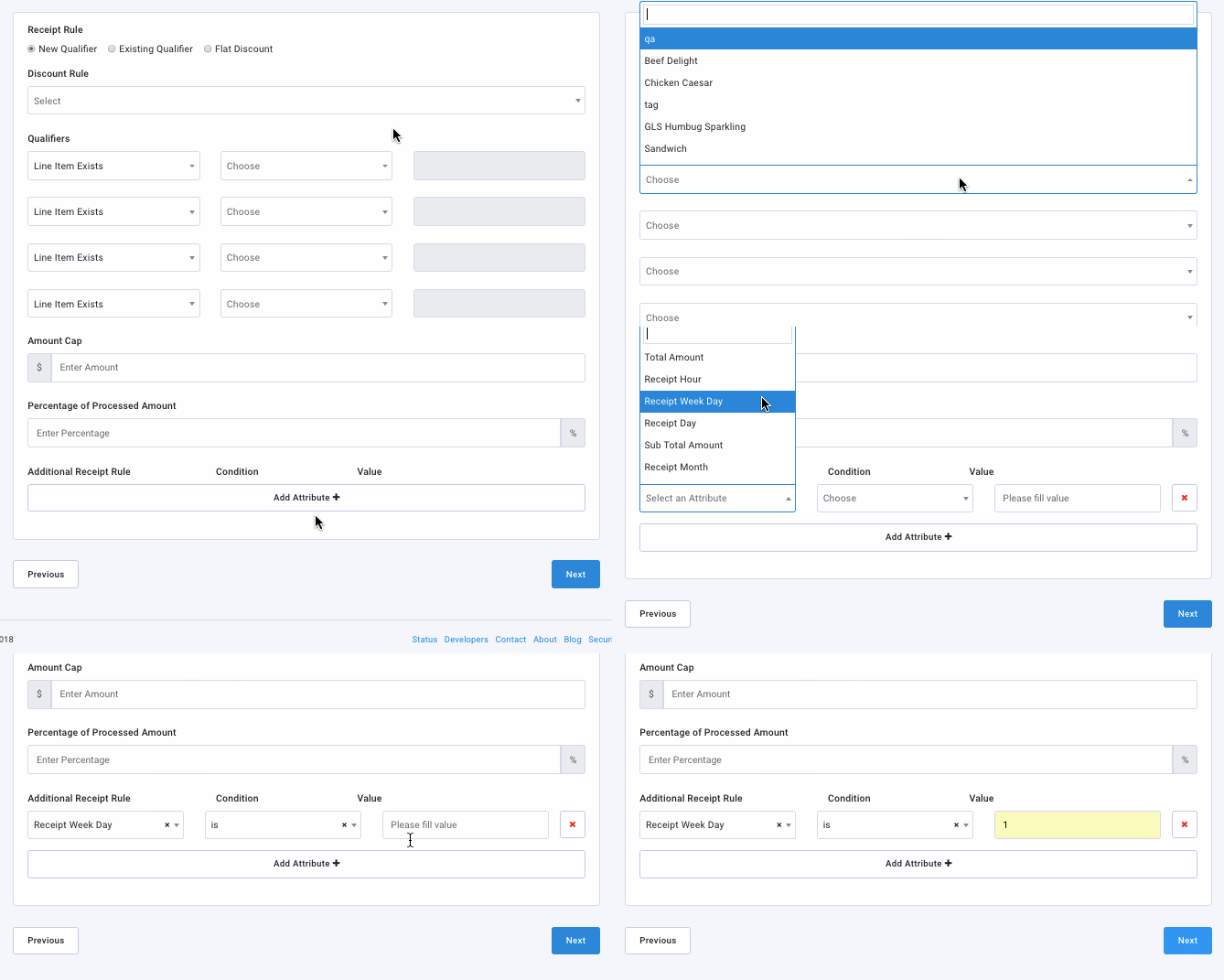
New Qualifier
Choose New Qualifier in the Eligibility step to choose the category/type of Discount Rule that best applies to your new redeemable. The categories available in the Discount Rules drop-down correspond to the sorted categories shown on the Redeemables landing page.

You can set additional receipt and purchase requirements for each type of Discount Rule listed below.
- Free Gift: Create a gift reward a guest can redeem to receive a specific menu item (or off-menu promotional gift) for free.
- $ or % Off: Create a reward a guest can redeem for a specific dollar value or % percent off the receipt.
- BOGO: (Buy One Get One) Create a reward that allows a guest to receive an item (either single or item group type) for free or for a specific discount (dollar value). These can be applied to the same item or different items/item groups.
- Buy X Get Y: Create a reward that allows a guest to receive a specific item "Y" for free if a guest purchases item "X" on the same receipt/transaction. Items X and Y can be the same item or different items/item groups.
- Menu Item Discount: Create a reward that allows a guest to receive a % percent or dollar value off a particular menu item or item group.
- Promotional Price: Create a reward that allows for an item or bundle of items to be purchased at a discounted promotional price.
- Special: A holdover from before the current classifications for Redeemables were implemented, these are a choose-your-own-adventure, custom category and occur when a redeemable was/is created in the previous Punchh Dashboard 1.0 iteration. Once the final migration to Dashboard 2.0 occurs, these unclassified redeemables will be re-sorted into their proper types.
- Base Redeemable: Redemption rules for the business (redemption code expiry, redemption message, and redeeming qualifier) will be picked from this redeemable. These will not apply to other redeemables created with their own set of rules.
Once you select a Discount Rule specific to the type of redeemable you want to create, you will only be shown qualifier settings relevant to that particular ruleset. Refer to Qualification Criteria and Processing Functions for details on how to set up the details for your chosen discount rule.
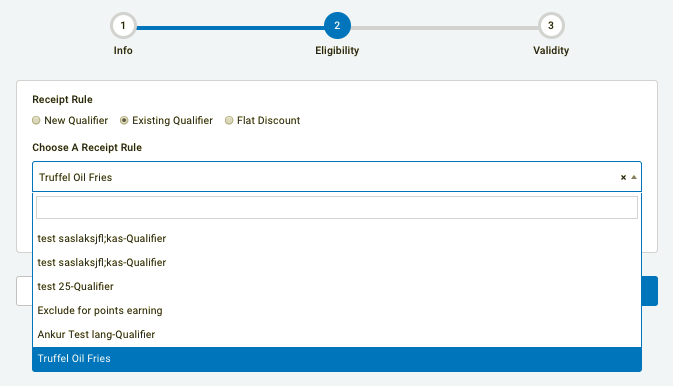
Existing Qualifier
If using an Existing Qualifier, click the Choose a Receipt Rule drop-down to choose from any of your previously saved qualification criteria.
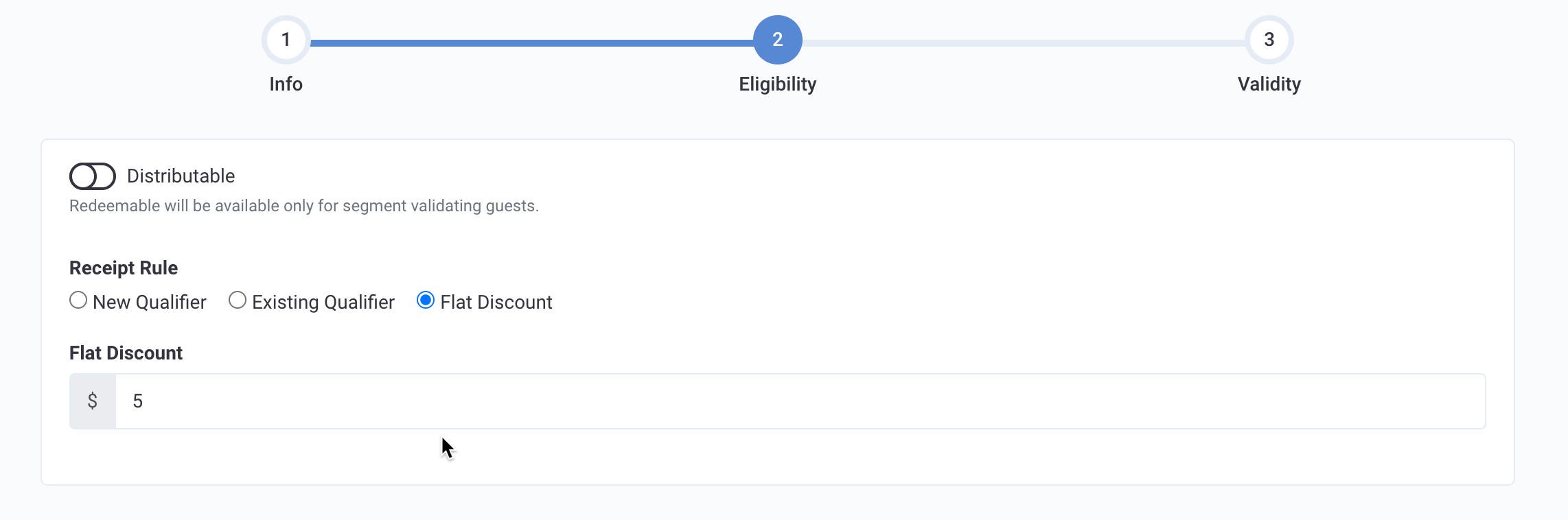
Flat Discount
If you select Flat Discount, enter the amount of this discount in the field. For example, $5 dollars off.
Once finished, click Next to move on to Step 3.
Step 3 - Validity
In the final step, Validity, you set the dates and locations where the redeemable will be valid, and set recurrence and guest notifications to alert them of the offer's approaching expiration.
- Enter an amount in the Expiry (In Days) field to end your redeemable after a set number of days after the reward is credited to a guest's account,
-OR-
To set a hard date for your redeemable to end, enter an End Time and date in the field and choose the Timezone that will be applied to that time.
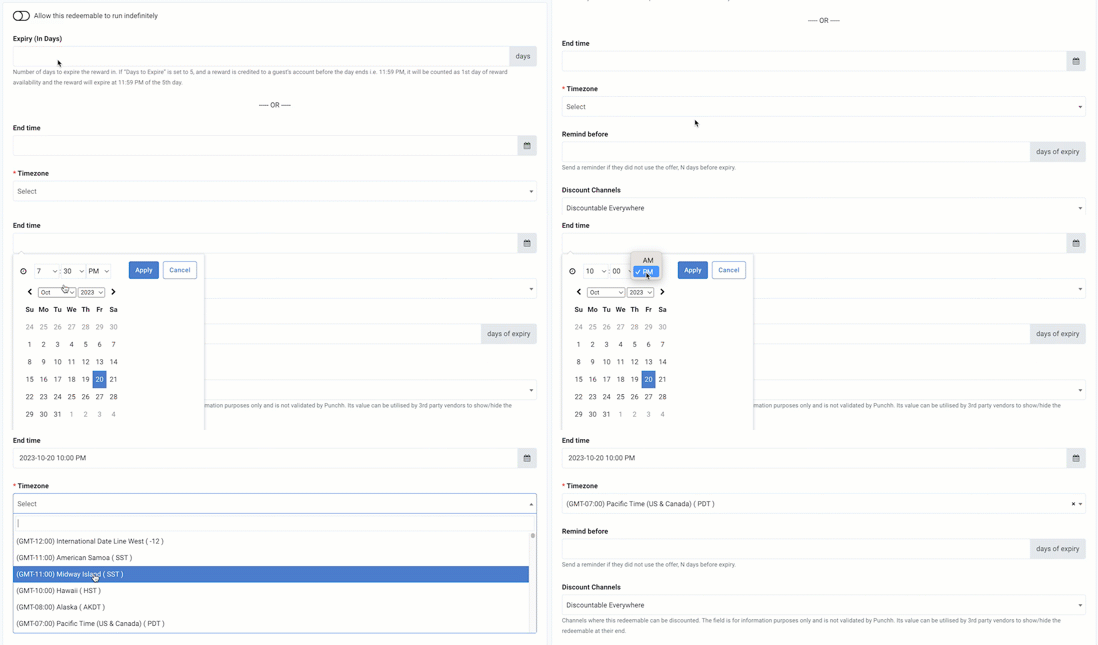
Alternatively, if you don't want your redeemable to have an expiration date, click the Allow this redeemable to run indefinitely toggle to enable it.

Tip: You have the option to schedule your non-recurring Mass Offer Campaigns within 24 hours of the redeemable's expiration time. (This does not apply to recurring campaigns.)
- While the campaign is in a "scheduled" status, you will still be able to view or edit the redeemable details.
- If the campaign is in a "processing" status, you will only be able to view the redeemable details.
- You can only view/edit redeemables that have an expiration date via the End Time field, if Expiry Days is filled in this will not apply.
- If the redeemable is attached to any other campaign type that is currently running or scheduled to run, you will not be able to view/edit the redeemable.
-
(Optional) In the Remind before field, enter a time (in days) to remind a guest in advance that the redeemable is expiring.
For example, if you enter "3", the guest will receive a notification 3 days before the redeemable's expiration. While optional, we strongly recommend setting this. -
Select from the drop-down menu which Discount Channels you want to limit your redeemable to: Discountable Everywhere, Online Orders Only, In Store Only.
-
For points-unlock rewards, enter the number of points required for this redeemable to be activated into the Points Needed to Redeem field.
If you plan to distribute this redeemable through a campaign, you can leave this field blank.
If this redeemable will be distributed as a reward through a campaign (such as a Mass Offer Campaign), the system ignores the Points Needed to Redeem value. This is expected: when a redeemable is delivered as a campaign reward, guests do not need to spend points to activate it. The Points Needed to Redeem field only applies when guests unlock the redeemable by spending points directly. -
(Optional) Toggle Additional Options to add more details:
- Countdown Expiry (In Mins): Just as you choose the number of days from launch to end, you can specify a set number of minutes before a redemption code attached to this type of redeemable expires.
- Allow Redemption Code expiry on Reward's end date? Toggle this option to allow the redemption code generated by a guest to be valid til the end date/time of the reward. If left toggled off the redemption code expiry will be set by the Countdown Expiry field above.
- Countdown Message: Set the message shown on the redemption screen on the mobile app when redeeming. You can use {{points_requested}} and {{redeemed_points}} variables to customize this message if it makes sense.
- Short / Standard Prompt: Enter the text to appear either at the gas pump (short) and/or cashier terminal (standard) to prompt the customer to redeem their reward.
- Lag duration: Set the redeemable to be gifted to the guest after a set amount of time. This can also be set up in campaigns as well.
- Recurrence: Set the number of times this redeemable may be rewarded to a guest. The recurrence days must be between 1 and 395. The total duration for recurrences cannot be greater than 13 months.
- For example, if the recurrence is set to 3 times every 90 days the recurrence will be at Day 1, Day 90, and Day 180.
- However, if the recurrence is set to 6 times every 90 days then recurrence would be at Day 1, Day 90, Day 180, Day 270, Day 360, and Day 450. This setup would result in an error message appearing in the platform as the total recurrence days are greater than 395 days.
Learn More! Refer to How do I setup a recurring redeemable? for more details.
- Redeeming Location(s): Choose whether the redeemable applies to all locations or a specific location or location group within the business. If limited to a specific location group, use the drop-down to select the appropriate one.
- Attributes applicable on this redeemable: Flags the redeemable for custom behavior in integrations. Enforcement is dependent on app/integration implementation.
Contact your Punchh representative if you wish to create a redeemable attribute.
- Meta Data: Enter information as needed for use in your mobile app.
-
Once you've entered your desired validity settings, click the Finish button.
Once you select Finish, this redeemable will be available for you to assign to a campaign, or send in a message to a guest.
Edit a Redeemable
Click a redeemable's name from the list on the Redeemables home page to open the three-step workflow, described above. Make any changes as needed and click Finish to save. (Your ability to edit a redeemable may be impacted if it is attached to a Mass Campaign. Refer to the details in the Validity step above.)
If you are editing the Receipt Rule from Existing Qualifier to Flat Discount (or vice versa), it is best practice to clear the existing Receipt Rule first, prior to making your new selection. To clear the Existing Qualifier, click the 'x' in the right corner of the field. To clear the Flat Discount, remove the text in the field.

Click the three dots in the upper right corner for more options.
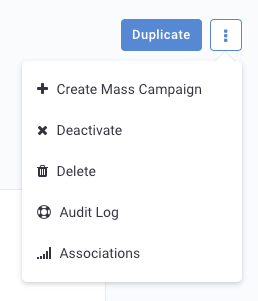
- Create Mass Campaign: Click to create a Mass Campaign with this redeemable. A new Mass Campaign workflow will open.
- Deactivate: Click to deactivate a redeemable. This stops any recurring redeemables from continuing to be redeemed.
- Delete: Click to delete a redeemable. This is only recommended if the redeemable is in a draft state. Use deactivate to retain historical data.
- Audit Log: Click to review the Audit Log for this redeemable. (You may not see this option depending on your permissions.)
- Associations: Click to review what campaigns and surprise sets are currently using a redeemable. See further details below.
Associations
You can quickly view what campaigns and surprise sets are currently using a redeemable (or have used it in the past) by checking its associations.
- Navigate to Offers > All Redeemables.
- Find and click the name of the redeemable you want to check.
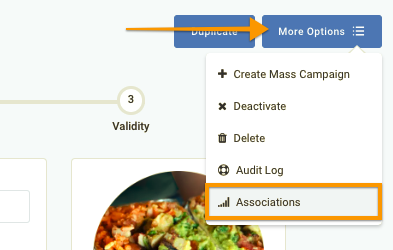
- Click the More Options menu and select Associations.
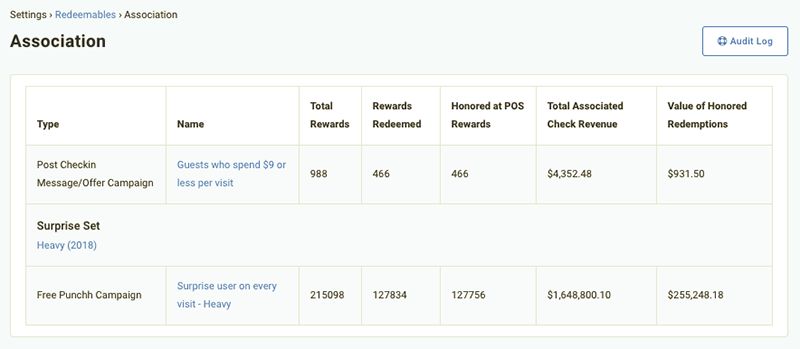
In the Association table, you will see the campaigns and/or surprise sets that make use of the redeemable and statistics about its usage.
-
Total Rewards
The total number of times this redeemable was awarded (made available to be redeemed) by a campaign. This represents the total rewards that could have been + still can be redeemed (if any). -
Rewards Redeemed
The total number of rewards that have been activated to be redeemed by the guest.
A discrepancy between this value and the Honored at POS Rewards value may be due to redemptions that were activated but not completed at the POS, either because they expired or the check did not meet requirements (such as minimum receipt total). -
Honored at POS Rewards
The total number of redemptions that have been successfully processed at the POS. -
Total Associated Check Revenue
The total amount of all transactions that included the redemption as part of the check. -
Value of Honored Redemptions
The monetary value of the total of successfully processed redemptions. (For example, a $2 off redeemable successfully processed 50 times is $100 honored redemption value).
Discrepancies in this value may be due to partial rewards such as $2 off a $1.50 check; the redeemable is worth $2, but the value of the honored redemption is only $1.50.
Learn More!
For more information, check out the Intro to Offers course in PAR Academy (accessible via Punchh or your ordering platform).
