Guest Profile: Account History
The Account History tab of a guest's profile displays a comprehensive list of a guest's points/punches earned, rewards, and items gifted/redeemed. This information is displayed here exactly as how the guest sees it in the Account History section of their mobile app.
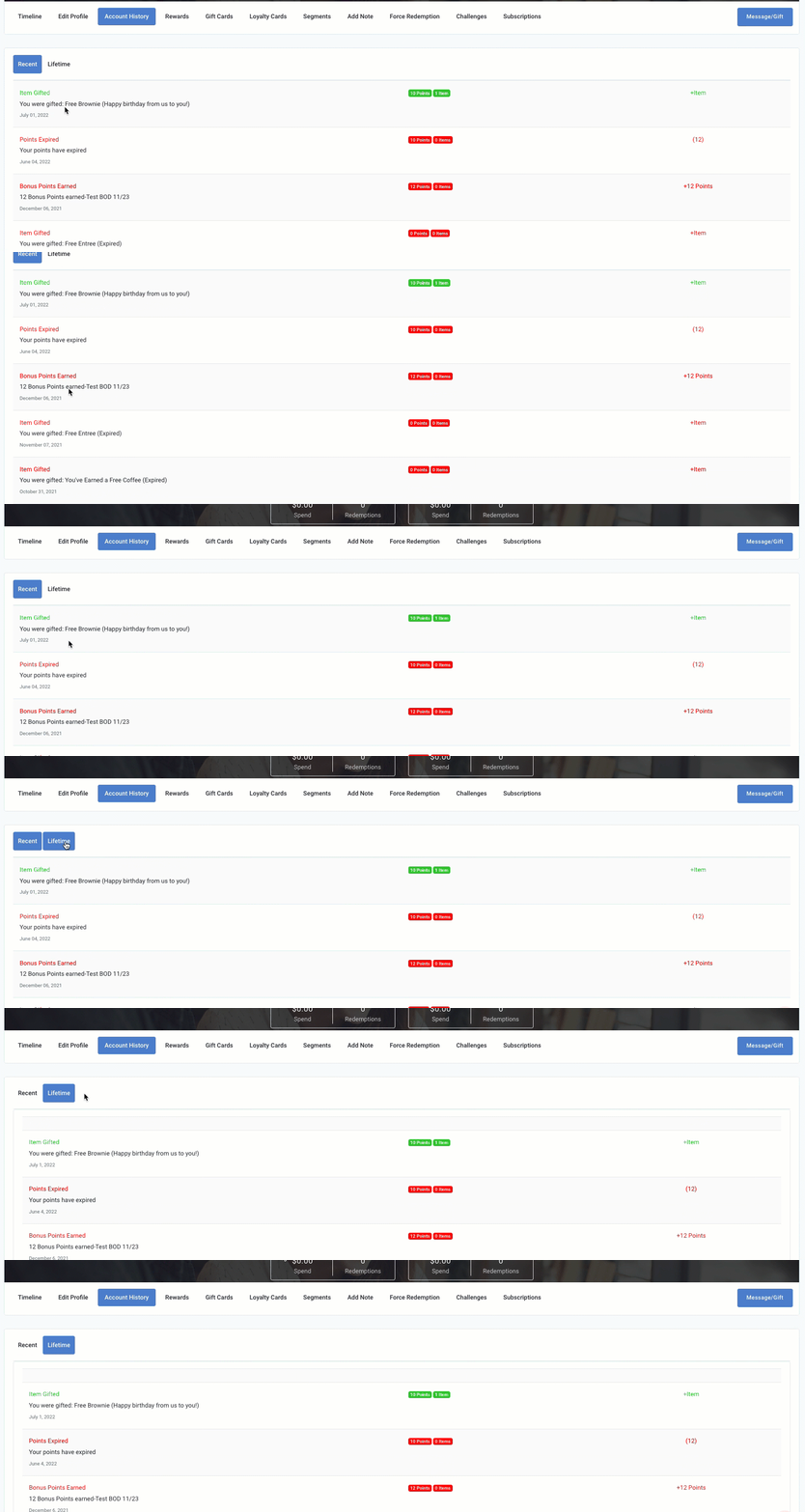
Events are listed chronologically, starting with the most recent events at the top. Depending on your configuration, you will see Recent and Lifetime buttons. Click to toggle between a guest's most recent activity and their overall, Lifetime activity since joining your loyalty program.
Note: The Account History tab only displays the guest's expired rewards for the last 30 days. If you need to access expired rewards beyond 30 days navigate to Data Sharing > Data Export and create a new export with the Archive Rewards Data record selected.
Each line in the guest's account history shows the details for a specific event, such as points being earned, or an offer expiring. The event is color-coded in either green or red:
- Green: Indicates something was added to the guest's account like points or a redeemable.
- Red: Indicates something was removed from the guest's account. For example, the guest redeemed a reward or an item expired (that the guest didn't redeem).
The specific details provided for each event depend on your brand's loyalty program type.
Points Unlock Redeemables/Points Convert to Rewards
Points Unlock Redeemables and Points Convert to Rewards show similar details.
Points Unlock Redeemables
Points Convert to Rewards
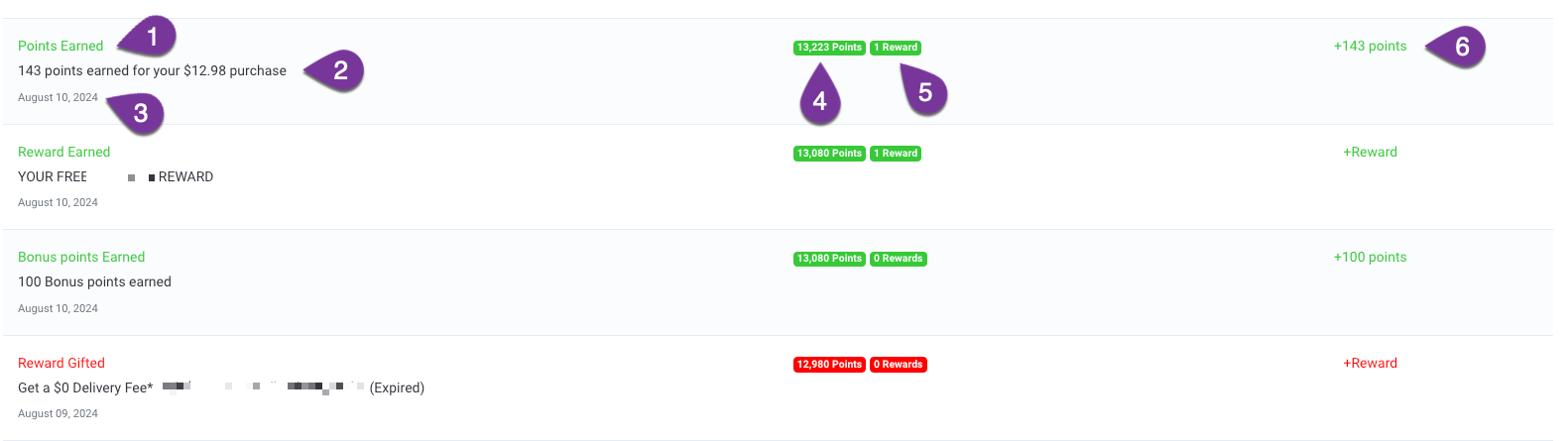
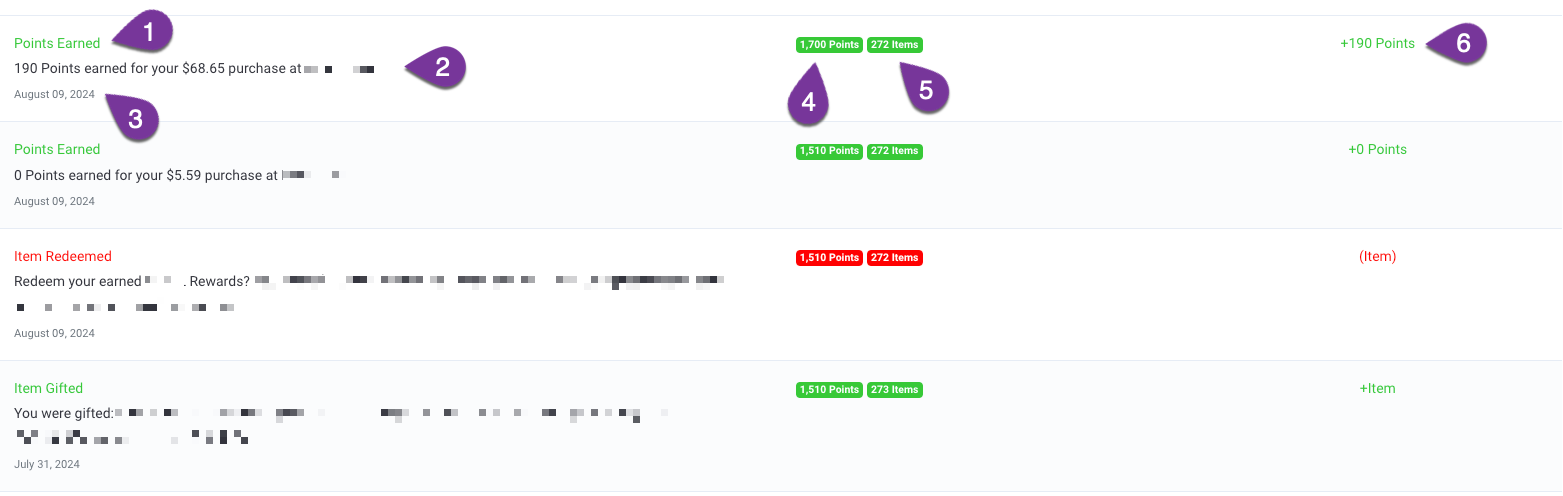
- The name of the event: Points Earned, Reward Gifted, Item Expired, etc.
- The description of the event that shows the name of the campaign, activity, or action that was taken
- The date of the event.
- The guest's total points balance (available for use).
- The guest's total reward/redeemable item balance (available for use).
- The event value; +100 points earned, +1 item gifted, (Item) redeemed or expired.
Note: You may see +Reward or +Item in this section but the line is showing in red. This indicates that the item was originally added to the guest's account but has now expired.
Points Convert to Currency
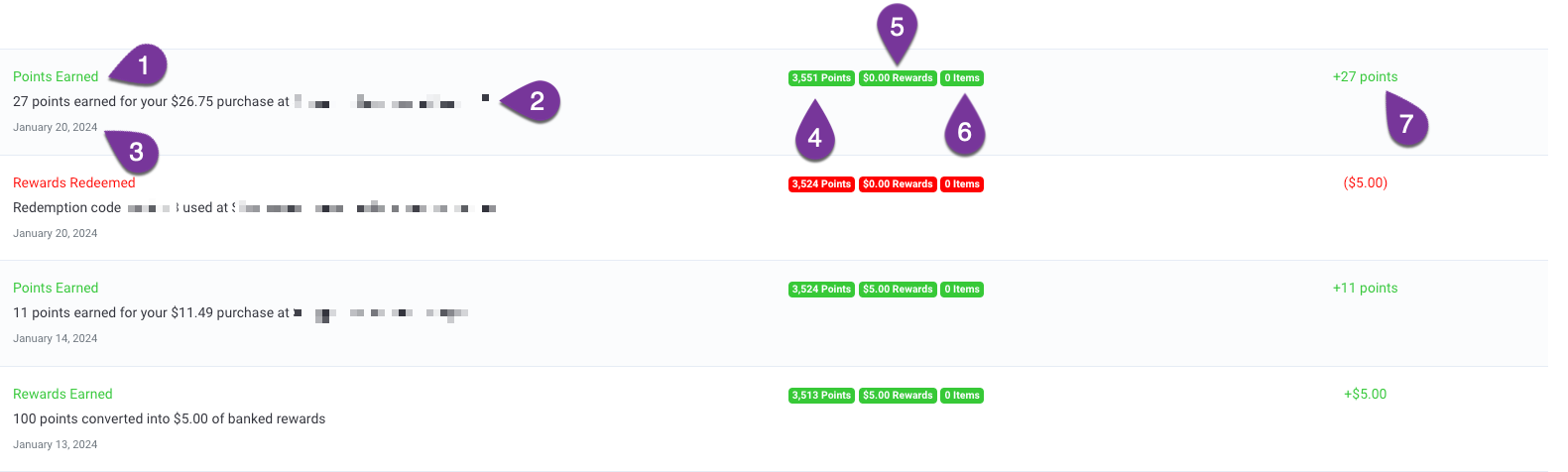
- The name of the event: Points Earned, Reward Gifted, Item Expired, etc.
- The description of the event that shows the name of the campaign, activity, or action that was taken
- The date of the event.
- The guest's total points balance (available for use).
- The guest's total currency amount (available to redeem).
- The guest's total reward/redeemable item balance (available for use).
- The event value; +100 points earned, +$5.00 earned, (Item) ($5.00) redeemed or expired.
Note: You may see +Reward or +Item in this section but the line is showing in red. This indicates that the item was originally added to the guest's account but has now expired.
Visit Based
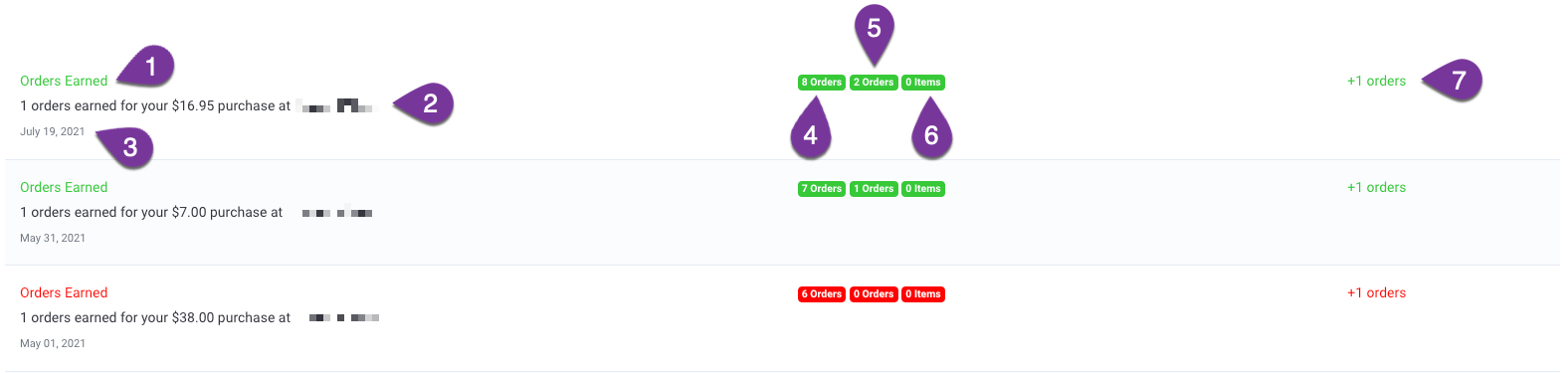
- The name of the event: Points Earned, Reward Gifted, Item Expired, etc.
- The description of the event that shows the name of the campaign, activity, or action that was taken
- The date of the event.
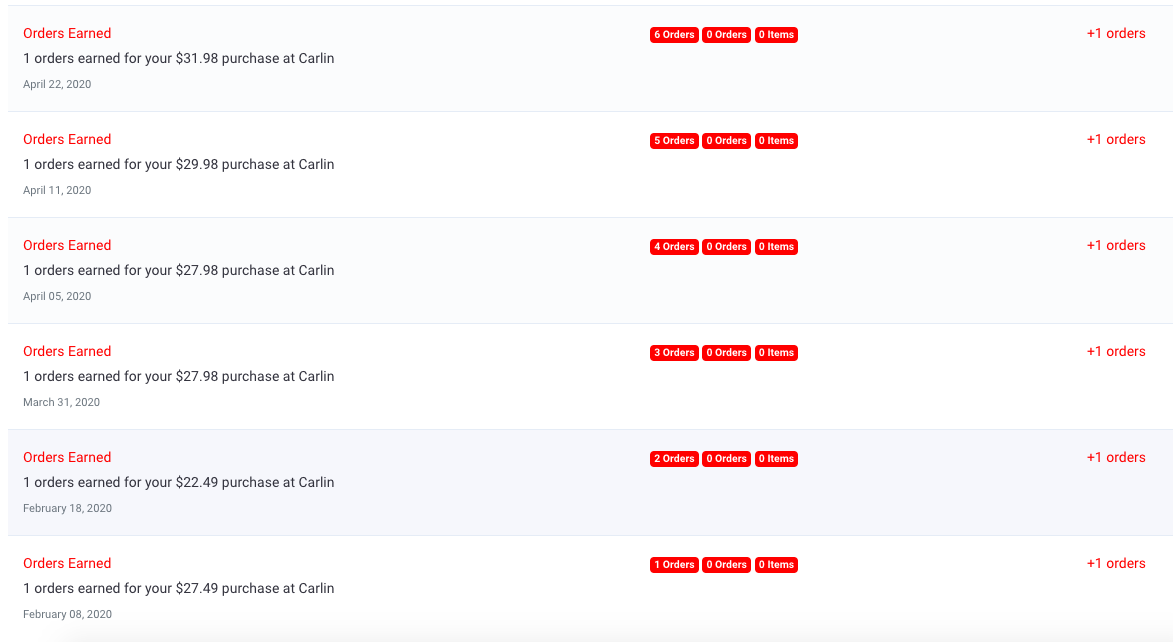
- The guest's total orders (loyalty visits) over their lifetime.
- The guest's total orders earned (available for use).
- The guest's total reward item balance (available for use).
- The event value; +100 points earned, +$5.00 earned, (Item) ($5.00) redeemed or expired.
Note: You may see +1 orders in this section but the line is showing in red. This indicates that the order was originally added to the guest's account but has now expired. There will be no other expired tag listed for Visit-based programs.
Further examples of Visit-based programs
As a reminder, Redeemable Cards/Loyalty Rewards act as a punch card and do not work like other offers. You will not see the name of the actual reward since this can be changed.
- SCENARIO: GUEST CLICKED REDEEM ON REWARD SCREEN AND THEN CLICKED "REDEEM" UNDER A LOYALTY REWARD TO START THE TIMER, BUT THE TIMER RUNS OUT
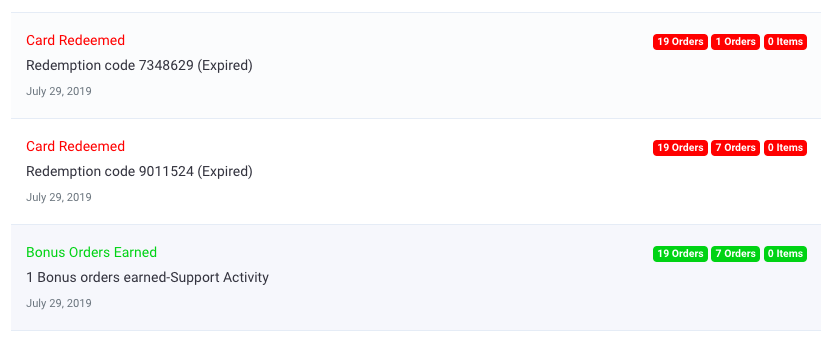
- If this is done at an INTEGRATED LOCATION and the code is not entered into the POS, you will see "Card Redeemed" and "(Expired)" (see screenshot below). You will also see that Total CURRENT Orders have not been reduced because the reward has returned to the guest account (2nd row)
- If this is done at a NON-INTEGRATED LOCATION, you will see the same information except this will be counted as used so you will notice that the count of Total CURRENT Orders IS reduced (1st row)
- In this example below, you will see that the 2nd row was a redemption and countdown expiration at an integrated location since the total current orders did not reduce. This was not an honored redemption. In the 1st row, you will see the countdown expiration was at a non-integrated location because the orders were reduced (the completed punch card is no longer available in the guest app)
- SCENARIO: GUEST CLICKED REDEEM ON REWARD SCREEN AND THEN CLICKED "REDEEM" UNDER A LOYALTY REWARD TO START THE TIMER AND THEN THE CODE IS PROCESSED AT A LOCATION
- This will be an honored redemption and will reduce the Total CURRENT Orders and be seen in the Account History as "Card Redeemed" with "(Processed)" next to it

- This will be an honored redemption and will reduce the Total CURRENT Orders and be seen in the Account History as "Card Redeemed" with "(Processed)" next to it
- SCENARIO: REWARD EXPIRES AFTER 30 DAYS
- As mentioned since this is treated like a completed punch card, the orders that make up the completed punch card are expired after 30 days. This is represented by the reduction of the Total CURRENT Orders and all historical Orders Earned turning red in the Account History.
-
Note: The expiration time can vary and is based on the Base Redeemable expiration settings found under Settings > Redeemables > Base Redeemables.