Guest Profile: Add Note
The Add Note tab in the guest profile allows you to leave an internal-facing comment regarding a guest for future reference. From this tab, you also have the ability to ban a guest suspected of fraudulent or abusive behavior from participating in your loyalty program.
To add a note/comment about a guest:
- On a guest's profile, click the Add Note tab.
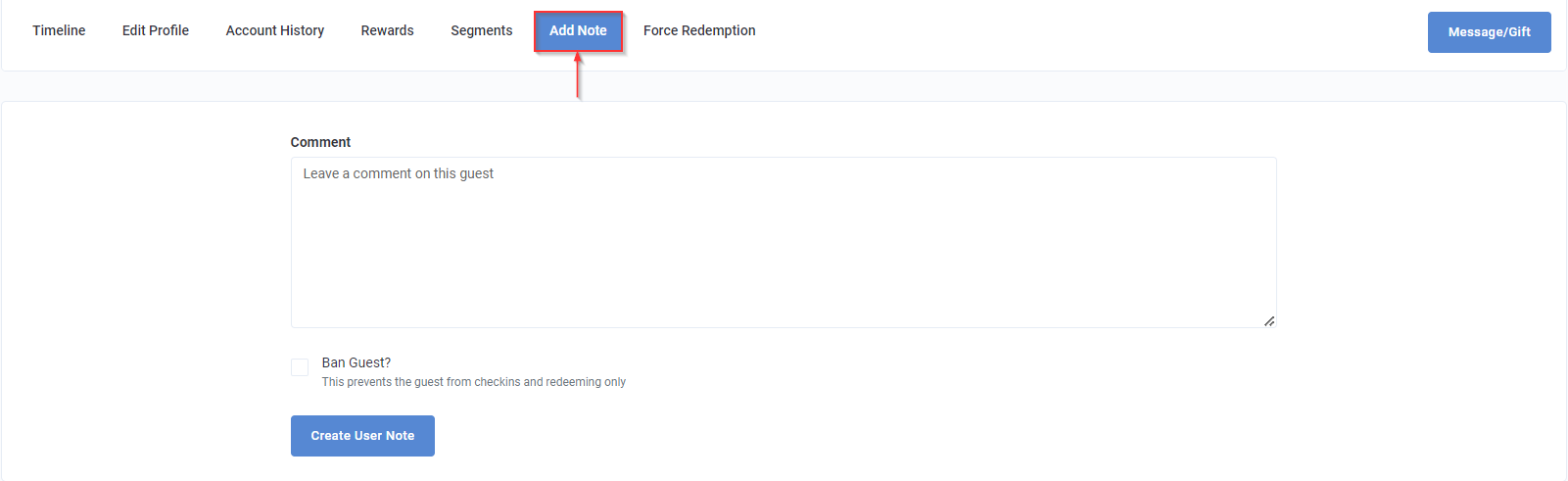
- Comment: Enter the details of your note in the text field.
- Assignee: Select an employee of your brand to assign to the note if further action is required.
- Status: Select Open if there is further action needed or Closed if nothing needs to be done.
- Due Date: Select a due date as needed.
- Tags: Include any relevant tags to your note, such as "fraud".
- Check Ban Guest? if needed to prevent the guest from check-ins or redeeming (see below).
- When finished, click Create User Note. Your note will now appear as an event in the Guest Timeline and in the Add Note tab. (You may add multiple notes.)
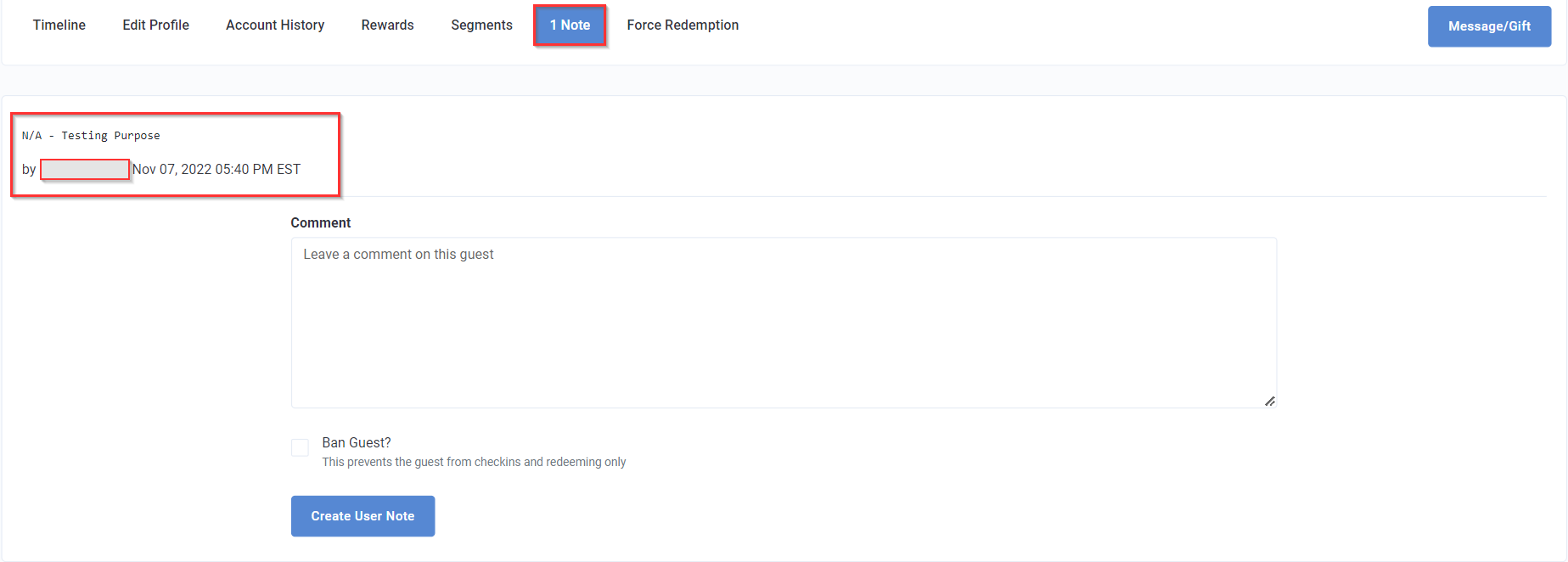
Banning a Guest
Banning a guest prevents them from participating in your loyalty program. Banned guests are unable to check in, earn points, or redeem any rewards. Typically, you might ban a guest who you suspect of fraudulent or abusive activities.
While banned, this user can still log in to your mobile app and use it to place online orders, but they cannot perform any loyalty actions. Bans are generally meant to be temporary corrective measures. You can un-ban a guest by navigating to Fraud > Banned Guests and toggling their status to Unban.
Tip: Make sure you add a note when banning a guest in order to create an (internal) record/explanation of your action. Additionally, because we want to extend to guests the opportunity to correct their behavior, we highly recommend first messaging a guest as a warning and, if the behavior continues, then you may proceed with ban.
