Guest Profile: Edit Profile
The Edit Profile tab allows you to view and edit a guest's account details. From here, you can update a guest's information such as their name, email, gender, phone, birthday, or wedding anniversary.
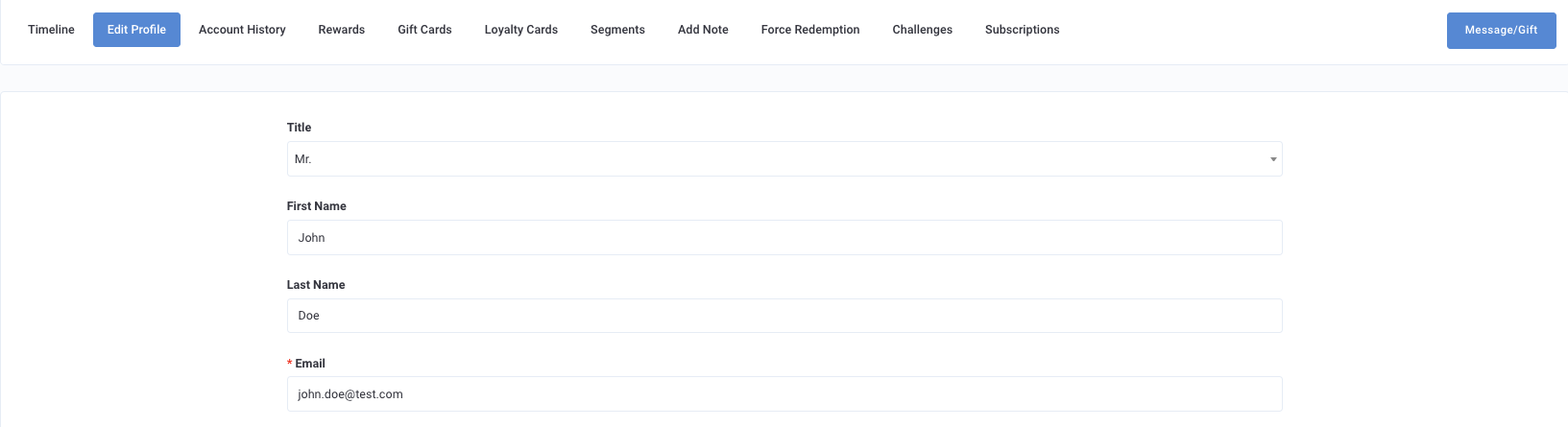
Edit a Guest's Profile
Click on the name of a guest to open their Timeline. From there, navigate to the Edit Profile tab to view their profile. This section is initially populated with information provided by the guest, but admin users (or the guest) can modify or supplement many of these fields at any time, as detailed below.
| Can Be Modified by Guest or Admin | Can Be Modified by Admin Only |
|---|---|
|
These may only be set one time by the guest. After, these fields may only be modified by an admin.
|
*If the guest is an eClub guest, their profile will show a connected location (or the location in which they signed up) instead of a favorite location. Once an eClub guest signs up to the loyalty platform, the connected location is copied over as favorite location. However, the guest can select a different location as favorite location during sign up (or after), overriding the connected location.
Admins in Punchh are users who have been granted special permissions associated with a particular User Role. Typically, Business Owner and Business Manager roles have the permission set enabled to edit guests profiles. You can empower other user roles by enabling the "Edit Profile" Permission (above) in the User Role settings. For more information see Admin Users and Roles and Permissions.
Test User
Select Test User to allow the guest to switch from a production to sandbox environment for testing purposes. This does not change their environment for them but allows them to make that designation as a test user.

Mailing Lists and SMS Subscriptions
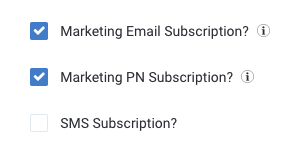
You may choose to manually unsubscribe a guest from receiving Marketing Emails and/or Push Notifications. However, even if a guest has been unsubscribed from marketing emails, they will still receive transactional emails such as checkin confirmations.
Guests can opt-in for SMS service during the sign up and SMS Subscription is checked on their profile. The guest can subscribe / unsubscribe using global keywords like START, STOP, UNSUBSCRIBE at any time. Admins cannot edit this this preference, changes can only be made by the guest.
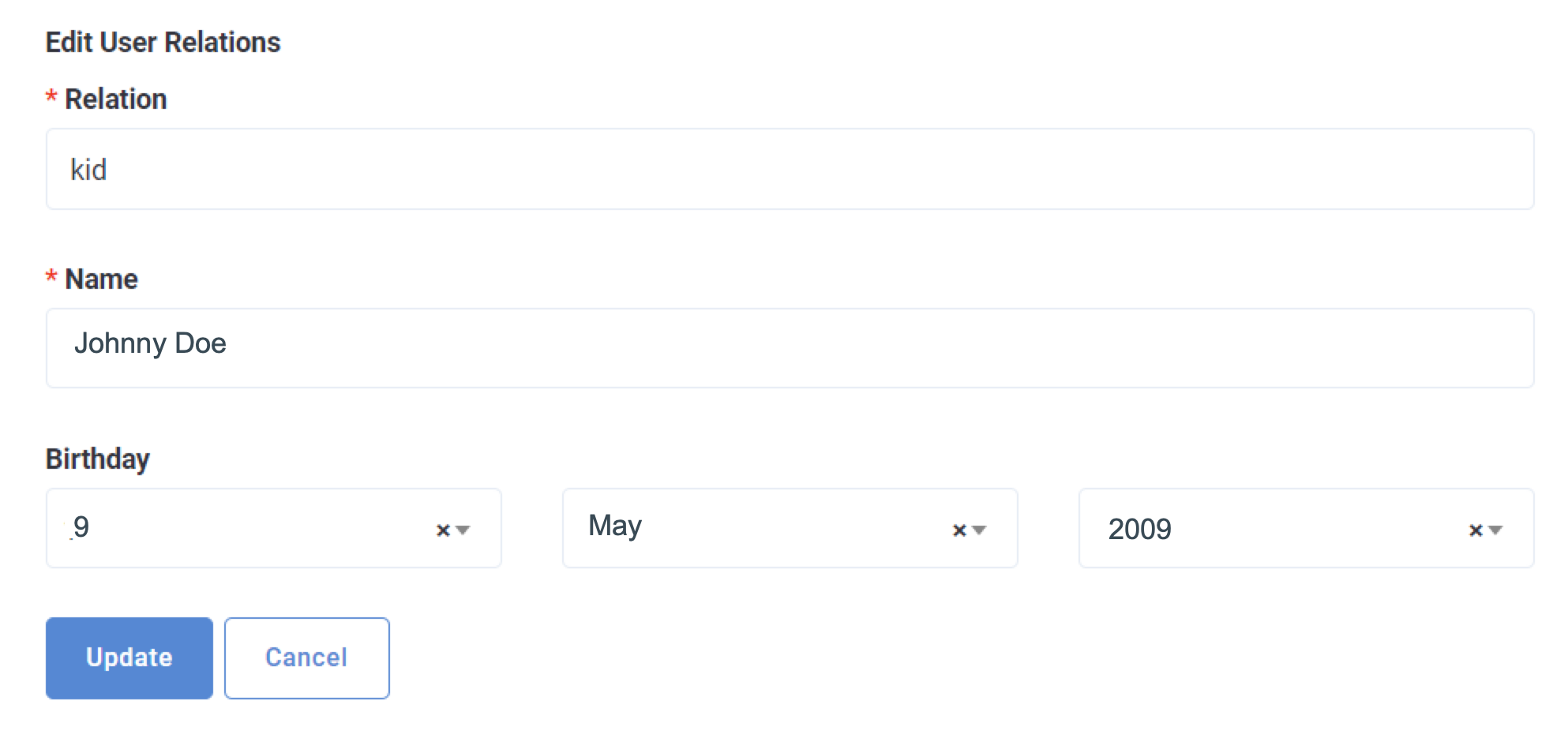
Edit User Relations
If your brand has set up guest relations questions within your app signup flow, you can edit the User Relations (relation type, name, and birthday) under the Edit Profile tab.
Guest Users
Guests whose names appear in your list as "Guest User" are guests who have signed up for your loyalty program via POS using only their phone number. These users have not yet signed up using the mobile app, therefore there isn't much available information to show about them. It is recommended to incentivize your POS signup guests to install and register on the mobile app as well.
Guest Functions
At the top of the page, there are additional actions that can be taken.
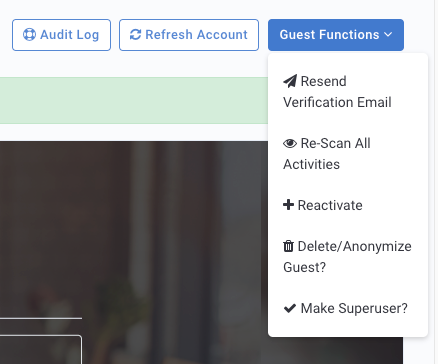
- Click Refresh Account to reload the guest's data.
- The Guest Functions menu has the following options:
- Resend Verification Email: Resend email to verify the guest’s loyalty account.
- Re-Scan All Activities: All suspicious activities of this guest will be rescanned according to fraud detection rules set up at the business level.
- Delete/Anonymize Guest: If you need to delete a guest’s data upon their request, you must deactivate them first and then you’ll have the option to delete them from their guest profile page.
- Depending on the configurations your brand has set, this will either completely delete the guest from your database, or it will anonymize their data, which means you’ll have the historical record, but will no longer be able to see who that record is associated with.
- It should be noted that deleting a guest is irreversible and cannot be forcedly halted.
Caution: Before proceeding with the removal of a guest from the platform, it's essential to verify thoroughly, as the Punchh Engineering and Support teams cannot halt or undo this action.
- Make Superuser? Click to make the guest a Superuser. Having Superuser access lets guest accounts bypass any earning, redeeming, or fraud-related settings that are configured for the business. This feature allows accounts to be used for extended testing but should be monitored appropriately.
