Security and Sign In
Overview
In order to prevent fraud and enhance security and user account management within Punchh, your business has the option to reset guests' passwords and unlink devices. After a security incident, attackers may attempt to use stolen credentials to gain control of guests' accounts. By resetting passwords, guests regain control and prevent attackers from taking over their accounts. Additionally, unlinking devices can prevent unauthorized access and potential fraud by allowing guests to control which devices can access their accounts. These actions also address issues where a single guest account might be used on multiple devices, potentially for malicious purposes.
Reset password and unlink device features are independent of each other. You do not need to reset passwords before unlinking devices and vice versa. However, it is recommended to perform a password reset and force logout after unlinking devices for maximum security coverage.
Only Business Admins can access the Security and Sign In page. Contact your Punchh representative to make sure your account is configured appropriately to allow for password resets AND force logouts.
Change Password and Force Logout
- Navigate to Administration > Security and Sign In.
- On the Change Password and Force Logout tab, click Import in the upper right corner.
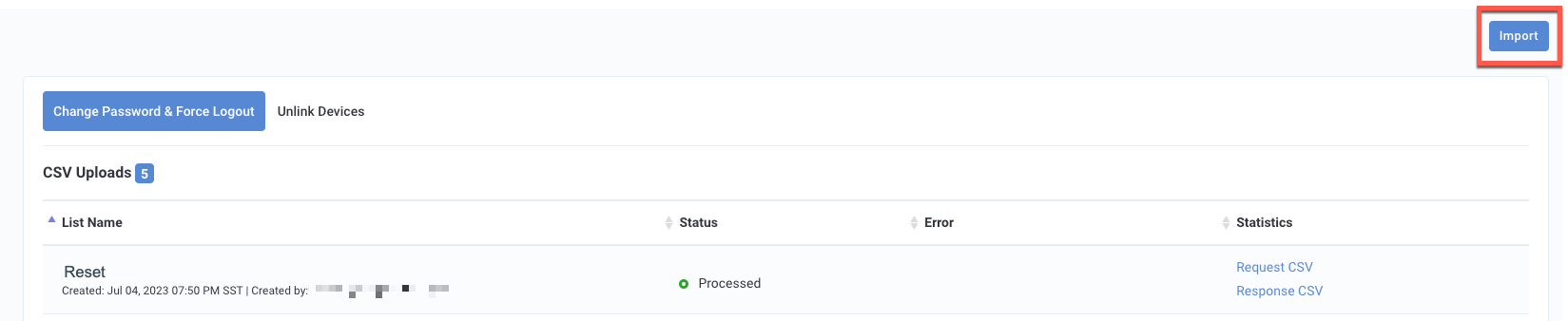
- The Import page opens.
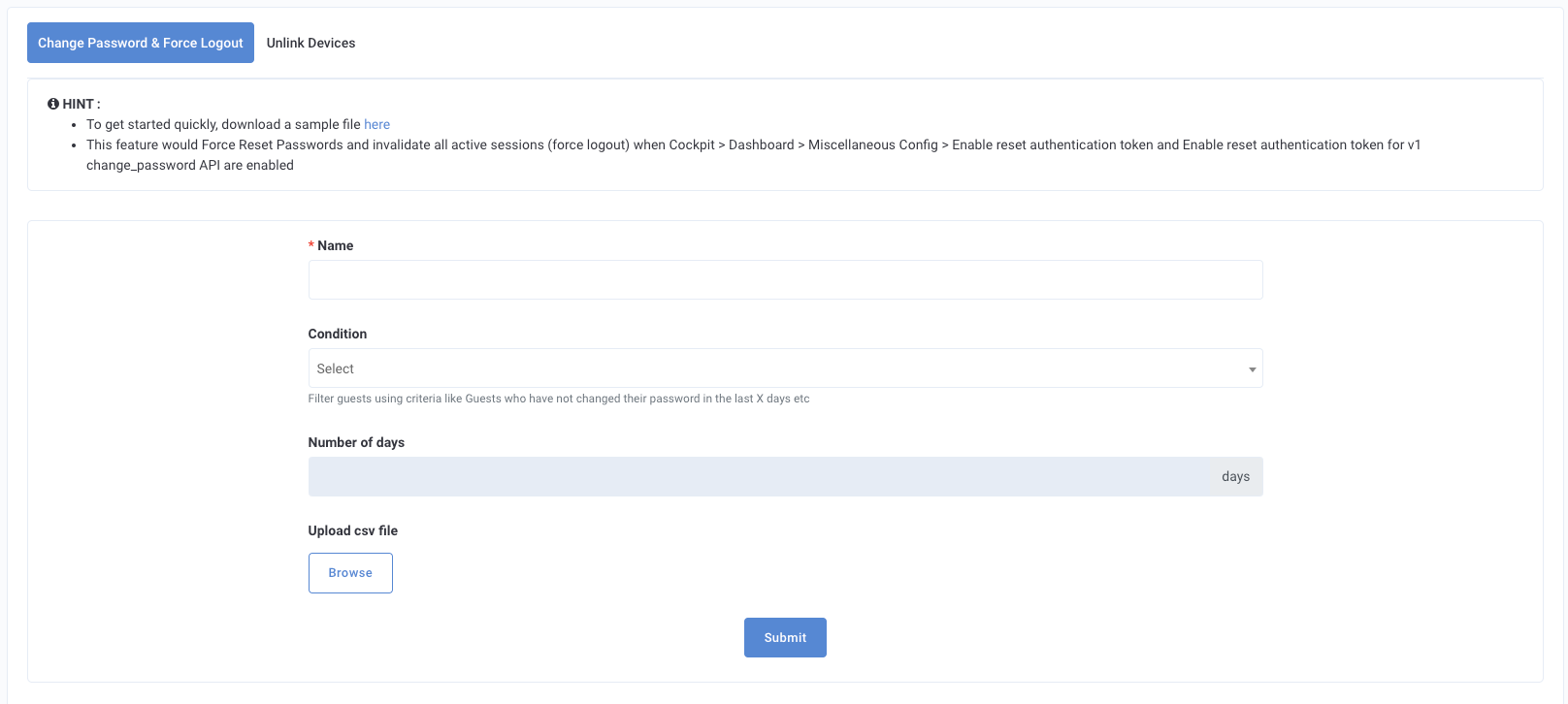
- Complete the following fields:
- Name: Create a name for the incident for easy tracking.
- Condition: Choose the appropriate reason for the reset. Note: The selected condition will be applied to the guests that are included in the CSV.
- Didn’t change password in the last X days: This option would trigger password reset and force logout for guests who have not changed their password in the last X days.
- Didn’t login in the last X days: This option would trigger password reset and force logout for guests who have not logged in in the last X days.
- Inactive in the last X days: This option would trigger password reset and force logout for guests who were found inactive in the last X days.
- Number of days: Once the condition is selected, enter the number of days that can be configured to filter all eligible guests.
- Upload CSV file: This CSV file accepts ‘user_id’ as input field. The user_id field would accept email or Punchh guest ID. (Tip: Remove duplicate IDs before uploading.) CSV file size is restricted to 15 MB and must use UTF-8 encoding. A sample CSV is available for download on the Import page.
- Click Submit.
- The Change Password and Force Logout tab displays all reset requests with status, error message details, and access to request and response files.
- Once the request is completed, you can download the response file from the dashboard to check for any errors.
- Random passwords would be generated using the strategy selected by your business.
Note: In the event multiple accounts are found using a single email, the script will change the password for all accounts linked to that email ID.
Guest Experience
There is no email or notification sent to the guest. Guests would be logged out and when trying their previous password, will get the error “Wrong password." They would then need to go through the "Forgot Password" flow to set up their new passwords.
Unlink Devices
When a user logs in or accesses their loyalty account from a mobile device, the system associates that device with the user's account. This association helps in recognizing and personalizing the user's experience on that device, such as showing their earned rewards or loyalty points. Admins can choose to unlink or disassociate ALL devices from their account. This action revokes the device's access to the account, requiring users to log in again from that device if they wish to access their loyalty account in the future. This is especially useful if a device is lost or stolen, or if users want to remove access from devices they no longer use or trust.
-
Navigate to Administration > Security and Sign In.
-
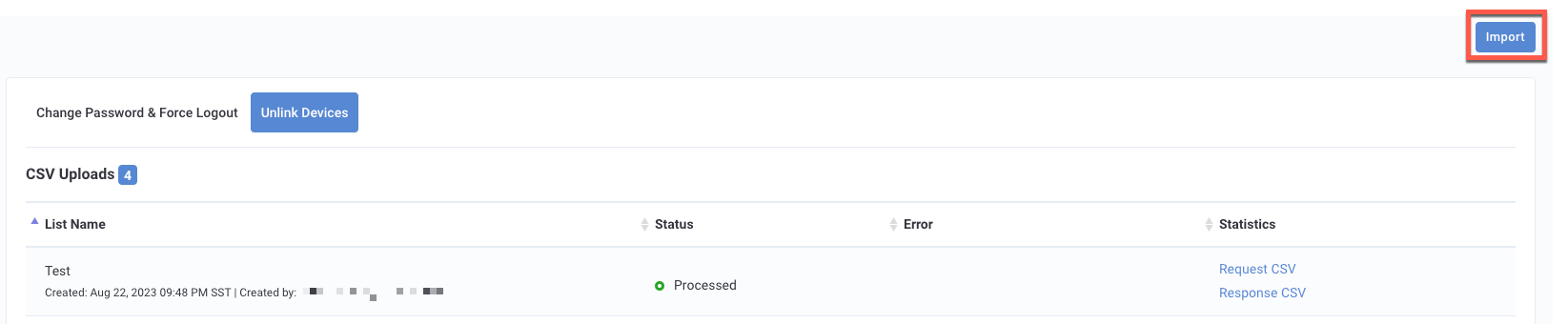
Click on the Unlink Devices tab.
-
Click Import in the upper right corner.
-
The Import page opens.
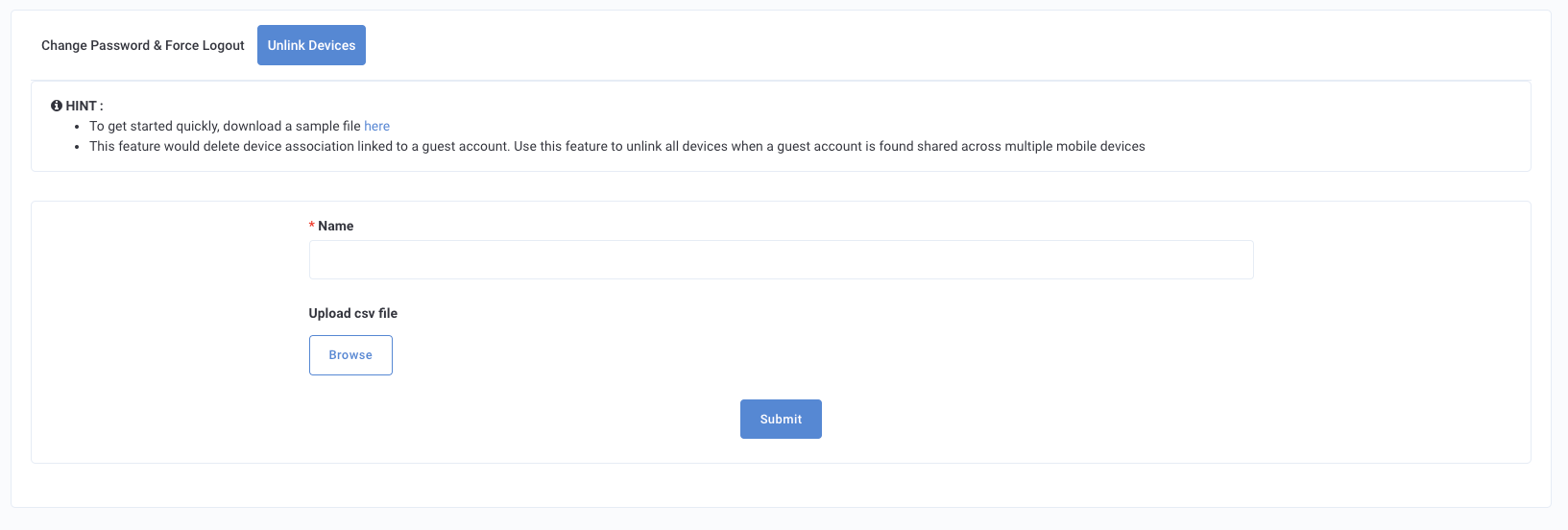
- Complete the following fields:
- Name: Create a name for the incident for easy tracking.
- Upload CSV file: This CSV file accepts ‘user_id’ as input field. The user_id field would accept email or Punchh guest ID. (Tip: Remove duplicate IDs before uploading.) CSV file size is restricted to 15 MB and must use UTF-8 encoding. A sample CSV is available for download on the Import page.
- Click Submit.
- The Unlink Devices tab displays all reset requests with status, error message details, and access to request and response files.
- Once the request is completed, you can download the response file from the dashboard to check for any errors.
- Random passwords would be generated using the strategy selected by your business.
Note: In the event multiple accounts are found using a single email, the script will unlink devices for all accounts linked to that email ID.
Ban & Deactivate
The Ban & Deactivate tab allows you to perform large-scale guest status changes, Ban, Deactivate, Reactivate, or Unban, by uploading a CSV file. This removes the need to action each guest account individually.
Note: You must have bulk update permissions to access this tab. If you do not see the Ban & Deactivate tab, contact your admin to verify your role permissions.
-
Navigate to Administration > Security and Sign In.
-
Click on the Ban & Deactivate tab.

-
Click Import in the upper right corner.
-
Complete the following fields:
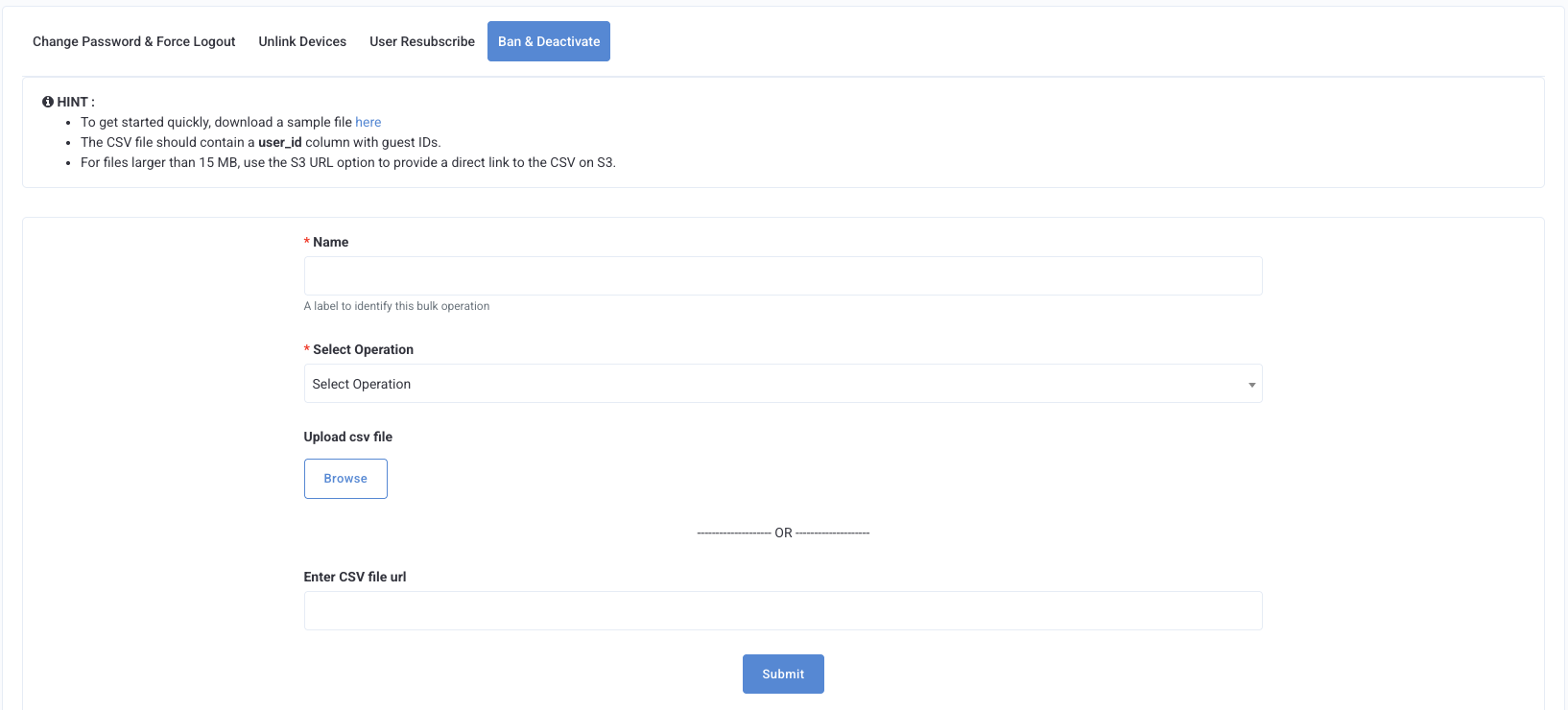
- Name: Create a name for the operation for easy tracking.
- Select Operation: Select the action to apply to all guests in the CSV.
- Ban: Prevents the guest from earning points and making redemptions. The guest retains login access.
- Deactivate: Prevents the guest from logging in to their account. Earning and redemption access is also blocked.
- Reactivate: Restores an account that was previously deactivated.
- Unban: Removes a ban and restores the guest's ability to earn points and make redemptions.
- Upload CSV file: This CSV file accepts user_id as the input field. The user_id field accepts an email or Punchh guest ID. (Tip: Remove duplicate IDs before uploading.) For files up to 15 MB, upload the CSV directly. For larger files, provide an S3 URL instead. The CSV must use UTF-8 encoding. A sample CSV is available for download on the Import page.
-
If you selected Ban or Deactivate, the following optional fields are available:
-
Force Redeem Points — Select this option to schedule all of the guest's available loyalty points for redemption after their account is banned or deactivated. Points are not redeemed immediately; they are processed after a wait period configured by the Punchh team. To enable this feature or adjust the wait period for your account, contact your Punchh representative.
Caution: Force redeeming points is irreversible and irrevocable. If a guest is unbanned or re-activated after the wait period has elapsed, their points are not restored. If a guest is unbanned or re-activated before the wait period elapses, the scheduled redemption is cancelled and points are retained.
-
Block Linked Device IDs (Ban only) — Select this option to block all device IDs associated with the guest's account. This prevents the banned guest from logging in from any of their known devices. Device blocking is opt-in and is not applied automatically.
Note: When a banned guest is unbanned (individually or in bulk), any device IDs that were blocked as part of that ban are automatically unblocked. Social login endpoints are not covered by device blocking.
-
-
Click Submit.
Processing runs asynchronously — the page does not block while the job is in progress. When processing is complete, a results CSV is sent to the email address of the admin who submitted the request. You can use this file to review outcomes and identify any errors.
Note: Guests with a pending scheduled deletion are skipped, and no action is applied to their account.
Guest Experience
Guests are not notified when their account status changes. Their experience depends on the action applied:
| Action | Guest Experience |
|---|---|
| Ban | Guest can still log in, but cannot earn points or redeem rewards. |
| Deactivate | Guest cannot log in to their account. |
| Reactivate | Guest can log in and access their loyalty account as normal. |
| Unban | Guest can earn points and redeem rewards again. |
If the Block Linked Device IDs option was selected during a ban, guests attempting to log in from a blocked device will see the message: "Device Banned."
