RFM Slabs
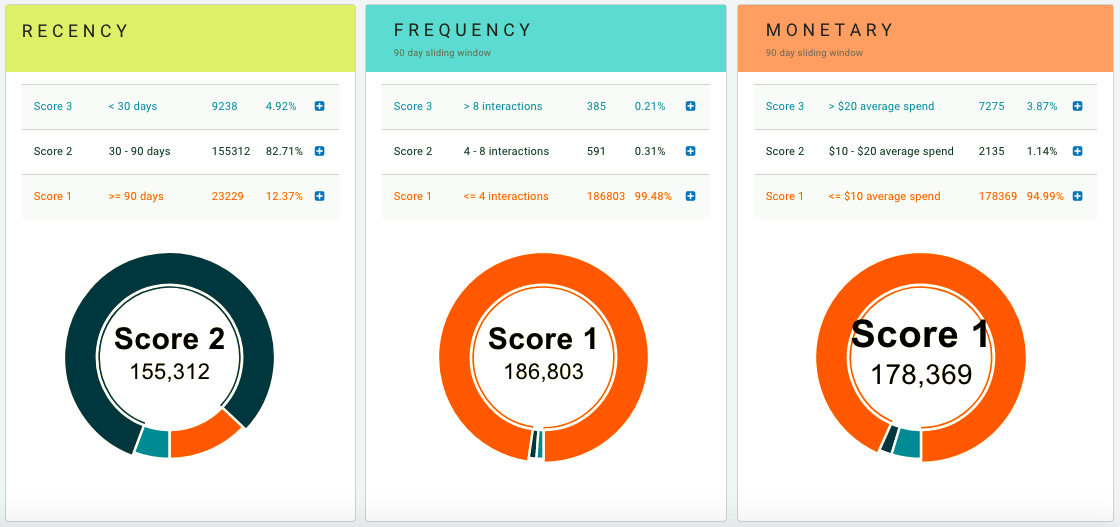
"RFM" refers to "Recency, Frequency, and Monetary", three of the most important KPIs for tracking your company's success at improving guest engagement and spending by using Punchh. The RFM Slabs dashboard displays the percentage of your guests who fall into three definable scoring categories. You can use this information to create segments based on specific RFM scores, allowing you to target a group of guests based on their activity.
Define Your RFM Values
Before viewing guest information in your RFM Slabs, you'll need to perform the initial setup of defining what your scores (1, 2, and 3) correlate to for each Recency, Frequency, and Monetary value. These values will depend on the nature of the average check totals for your company.
For example, if the average check total for your company is $20, you should set your values for Monetary a bit higher (perhaps <$15, $15-30, >$30). If your average check total is less, say $8, you may want to set your Monetary values a bit lower (perhaps <$6, $6-14, >$14). Ultimately these values are up to you to decide:
- Navigate to Guests > RFM Slabs in your left navigation toolbar. If you have yet to define values for your slabs, you'll see this screen:
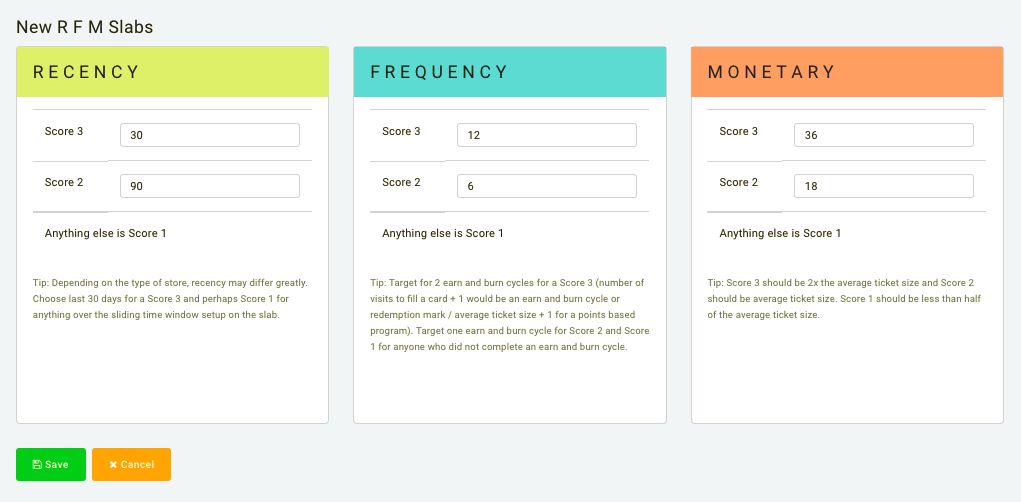
- For Recency, a higher score should indicate fewer amount of days since the last guest activity. Click into the Score 2 field and provide a value that acts as the upper limit (in days) in your middle range. The value you provide here will affect the time range of both the Frequency and Monetary slabs.
- Repeat the previous step for Score 3. This will indicate guests who have gone the least amount of days since their last checkin. The following values would define your Recency scores as Score 1: >90 days; Score 2: 90-30 days; and Score 3: < 30 days.
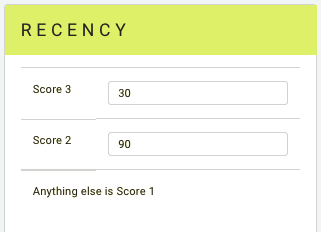
- Repeat the previous step for Score 3. This will indicate guests who have gone the least amount of days since their last checkin. The following values would define your Recency scores as Score 1: >90 days; Score 2: 90-30 days; and Score 3: < 30 days.
Recency data is fetched based on the last activity on the guest's account. These include:
- New transaction via POS or Online
- New user account created via POS or Online
- New guest signup
- New loyalty checkin
- New eClub guest
- Redeemed a reward
- Migrated from eClub to loyalty
- Updated password
- Activates a reward (but doesn’t redeem)
- For Frequency, a higher score should indicate a greater number of guest interactions over a duration based on Score 2 of your Recency values. For example, if you've set your Recency Score 2 to 90 days, then your overall Frequency time window will include all interactions that have occurred in the previous 90 days. Click into the Score 2 field and provide a value that acts as the lower limit (in guest interactions) for your middle range.
- Repeat the previous step for Score 3. This will indicate guests who have the greatest number of interactions during your defined duration of time. The following values would define your Frequency scores as Score 1: < 4 interactions; Score 2: 4-8 interactions; and Score 3: >8 interactions.
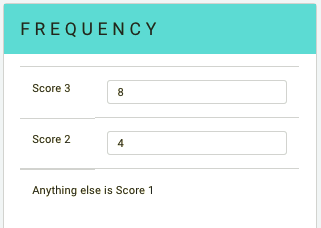
- Repeat the previous step for Score 3. This will indicate guests who have the greatest number of interactions during your defined duration of time. The following values would define your Frequency scores as Score 1: < 4 interactions; Score 2: 4-8 interactions; and Score 3: >8 interactions.
- For Monetary, a higher score should indicate a higher average check total (in dollars) during the window of time defined by the Recency Score 2 value. Click into the Score 2 field and provide a value that acts as the lower limit (in dollars) for your middle range of average check total.
- Repeat the previous step for Score 3. This will indicate guests who have the highest average check total during your defined duration of time. The following values would define your Monetary scores as Score 1: < $10 check average; Score 2: $10-20 check average; and Score 3: >$20 check average.
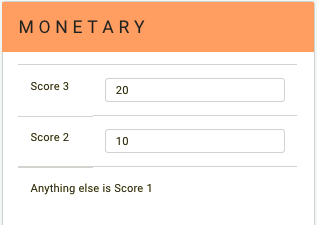
- Repeat the previous step for Score 3. This will indicate guests who have the highest average check total during your defined duration of time. The following values would define your Monetary scores as Score 1: < $10 check average; Score 2: $10-20 check average; and Score 3: >$20 check average.
- Click the Save button at the bottom once you've defined all your values.
Once you've set your RFM values, you'll be taken to the R F M Slabs dashboard. Based on how many guests you have in your loyalty program, it may take a few moments before the widgets update with information.
For the Frequency slab, what defines a guest "Interaction"? A guest interaction is counted any time a guest performs a loyalty checkin. These include store visits and purchases but do not include redemptions (unless the guest uses the redemption as only part of their purchase).
Edit RFM Slabs
If you aren't seeing a good spread of guests across your RFM values (maybe 99% of guests fall into Score 1, 1% in Score 2, and 0% in Score 3) you may want to redefine them. You can do this by editing your RFM Slabs, as described below. To edit your RFM Values:
- Navigate to Guests >R F M Slabs in your left-hand navigation toolbar.
- Click the Edit R F M Slabs button at the top-right.
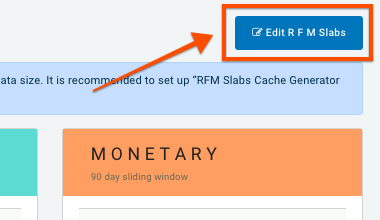
- From here, repeat the same process you did in the Define your RFM values section above.
RFM Slabs Cache Generator Schedule
By default, your slabs will wait to update until you open the R F M Slabs dashboard for the first time each day. This improves the overall speed and performance of the Punchh platform. Depending on the amount of data required to be parsed for your RFM Slabs (affected by your overall total of guests and the duration of time you've defined) it may take up to a few minutes before your slabs update at that time. If you find yourself waiting too long, you can schedule a set time for your slabs to update each day (ideally before or after your business hours). This will allow you to view your R F M Slabs information immediately instead of (potentially) waiting.
You can only have one R F M Slabs Cache Generator Schedule. To create a new schedule when one already exists, you will have to delete the existing schedule or change it to match the new schedule you want to use.
To set up the RFM Slabs Cache Generator Schedule:
- Navigate to Support >Schedules in your left-hand navigation toolbar.
- Under the Schedule Typedropdown to the right of the title, search for and select the Rfm Slabs Cache Generator Schedule.

- Click the blue + New Rfm Slabs Cache Generator Schedule button.
- Click the Start Date field to choose a date from the calendar for your new schedule to begin. By default, your scheduled start date will be set to today.
- Click the Start Time drop-down to choose a time each day that your slabs will update. If possible, you should set your slabs to update at a time outside of your company's business hours.
- Click the Timezone drop-down to select the most appropriate time zone for your schedule.
- Once finished, click Save Schedule.
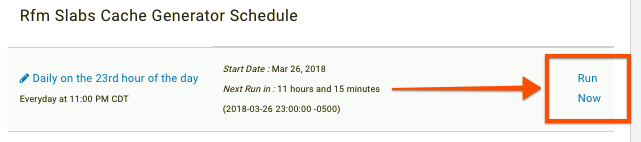
Your new schedule will now appear on the Support > Schedules settings page and will run daily at your chosen time. If you don't want to wait until the scheduled time, you can click Run Now at the far-right at any time to update your slabs with the most current information. You can also edit the schedule by clicking on the schedule's title.
Reading the RFM Segment Counts Table
You can utilize the RFM Segment Counts Table to see the total number of guests who fall into different categories. The different RFM scores determine the categories the guests fall into. The top left of the table shows the guests who score a 3 in all RFM slabs, whereas the bottom right shows the guests who score a 1 in all RFM slabs. Below is an example table with some sample explanations.
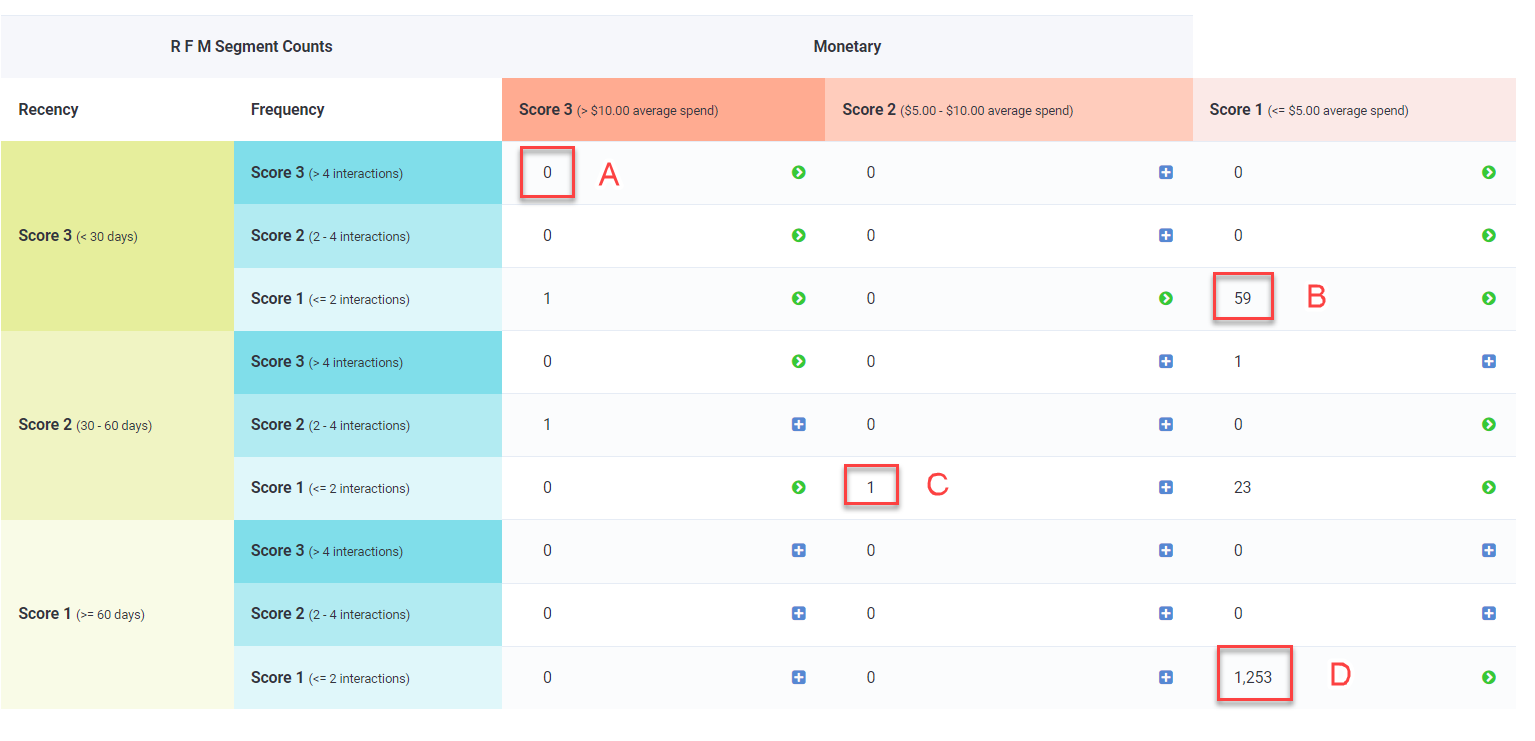
For this table, the frequency score is broken down into the following:
Score 3 (> 4): 5 or more interactions. This score will not include the number following the >.
Score 2 (2-4): 3 or 4 interactions. This score will include the second number but will not include the first.
Score 1 (<=2): 0, 1, or 2 checkins. this score will include the number following the =.
A. This is the number of guests who have had 5 or more interactions in the past 60 days and have visited at least once in the last 30 days. They spend an average check of more than $10. These will be your most loyal guests, so be sure to give them the VIP treatment.
B. This is the number of guests who have had 1 or 2 interactions in the last 60 days, with at least one in the last 30 days. Their average check is less than $5. These guests may need some encouragement to increase their spending.
C. This is the number of guests who have had 1 or 2 interactions in the last 60 days and have spent between $5 and $10. These guests may need to be incentivized to interact more often.
D. This is the number of guests who have had 2 or fewer interactions in over 60 days and have spent less than $5. These are the guests who are very inactive in your program.
Create a new segment from RFM counts
Use the guest information in your RFM Slabs to create segments to power campaigns that reward your best guests or offer incentives to low-spending or low-frequency guests, based on their RFM scores.
To create a new segment from your RFM Slabs and RFM Counts:
- In your R F M Segment Counts table...
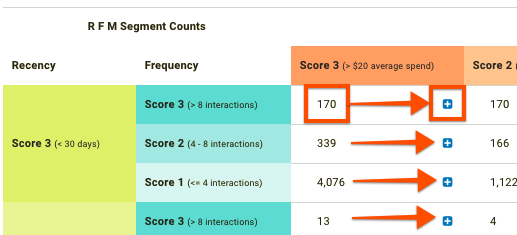
In each cell you'll see a number indicating the total guests who match that particular scoring subset (3,3,3 for example). Click the blue + button to the right of that number to open a new R F M Analytics segment creation wizard using those guests.
or
- In your RFM Slabs...
Each score in each slab contains a number indicating the total number of guests who match that particular score (for that slab only). Click the blue + button to the right of that number to open a new R F M Analytics segment creation wizard using those guests.
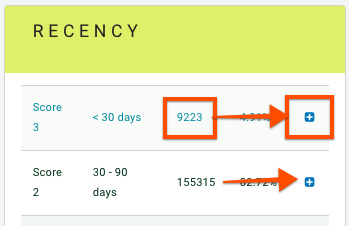
Once you create a segment from an RFM slab, you can edit that segment by clicking the green > button to the right of that number.