Digital Collectibles
Digital Collectibles are non-monetary, experience-driven rewards, such as badges and stickers, that you can award to guests as part of challenges and campaigns. Instead of discounts or free items, collectibles take the form of digital badges or stickers that guests earn, view, and share — building emotional loyalty and motivating repeat visits and engagement.
From the Punchh Platform, you can create and manage a full library of collectibles, link them to challenges and campaigns, and manually gift them to specific guests.
Creating and Managing Collectibles
Creating a Collectible
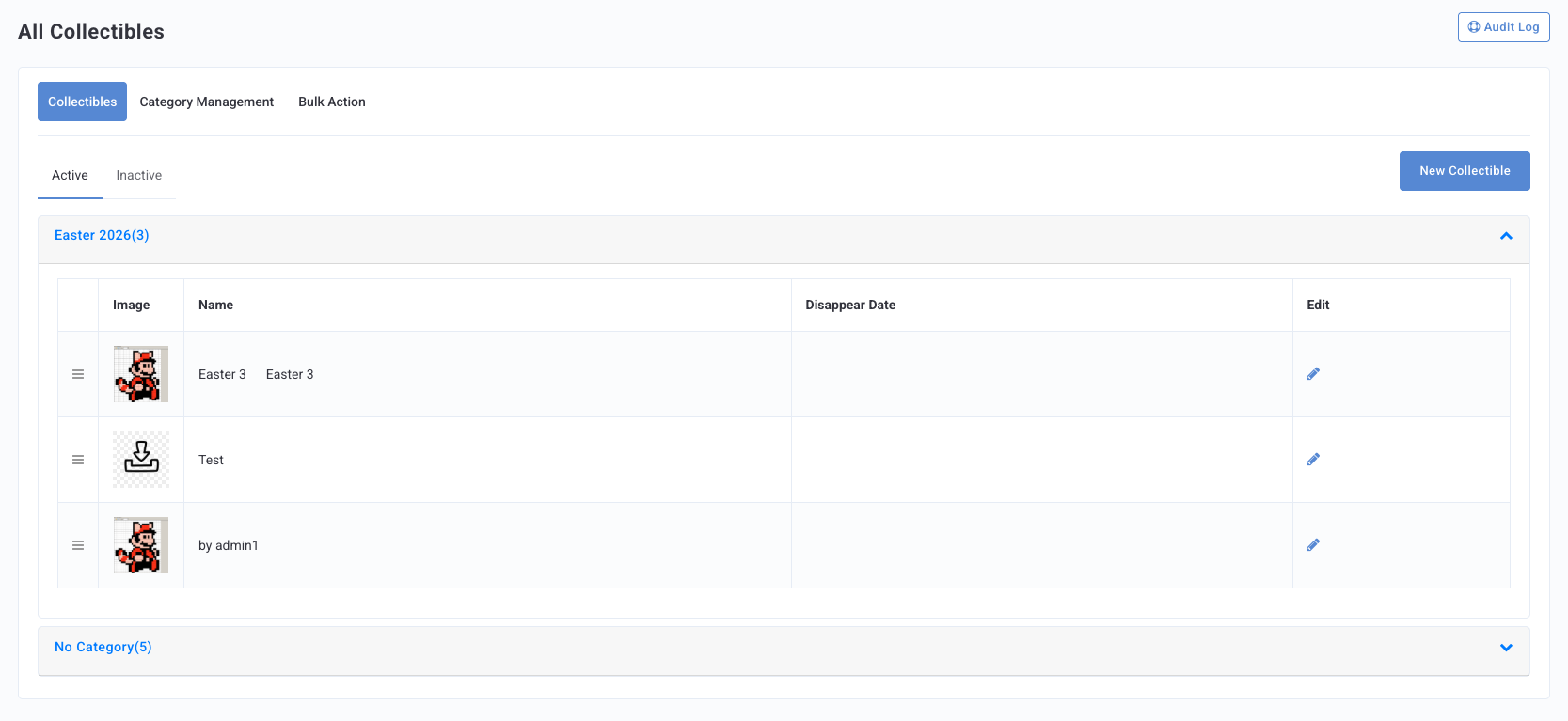
- In the Punchh Platform, navigate to All Collectibles.
- Click New Collectible.
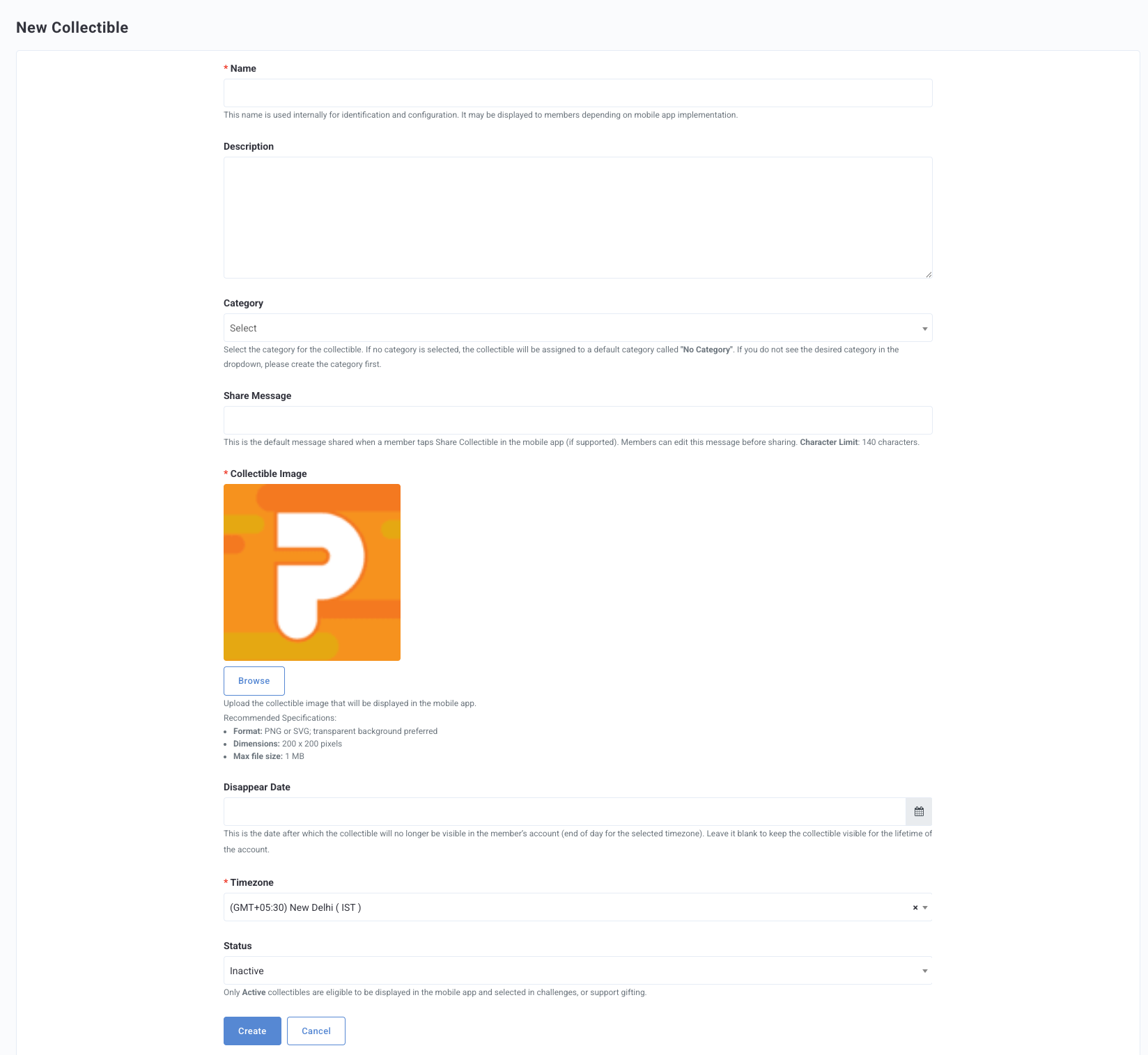
- Enter a Name for the collectible.
- Enter a Description of the collectible.
- Assign a Category. To add a new category or subcategory, see Managing Categories and Subcategories below.
- Enter a Share Message that appears if a guest wishes to share their collectible on social media.
- Upload an Image. Follow the size and format guidelines shown in the upload field.
- Enter the Disappear Date, the date at which the collectible will no longer be visible in the guest's account. Leave blank to be visible forever.
- Enter the Timezone for the Disappear Date. The collectible will disappear at the end of the day for the selected timezone.
- Set the Status: Active or Inactive.
- Click Create.
Editing and Managing Collectibles
From the All Collectibles list, you can:
- Filter and sort your collectible library.
- Edit an existing collectible's details.
- Create new collectibles to support versioned or seasonal drops.
Managing Categories and Subcategories
- In the Punchh Dashboard, navigate to All Collectibles > Category Management.
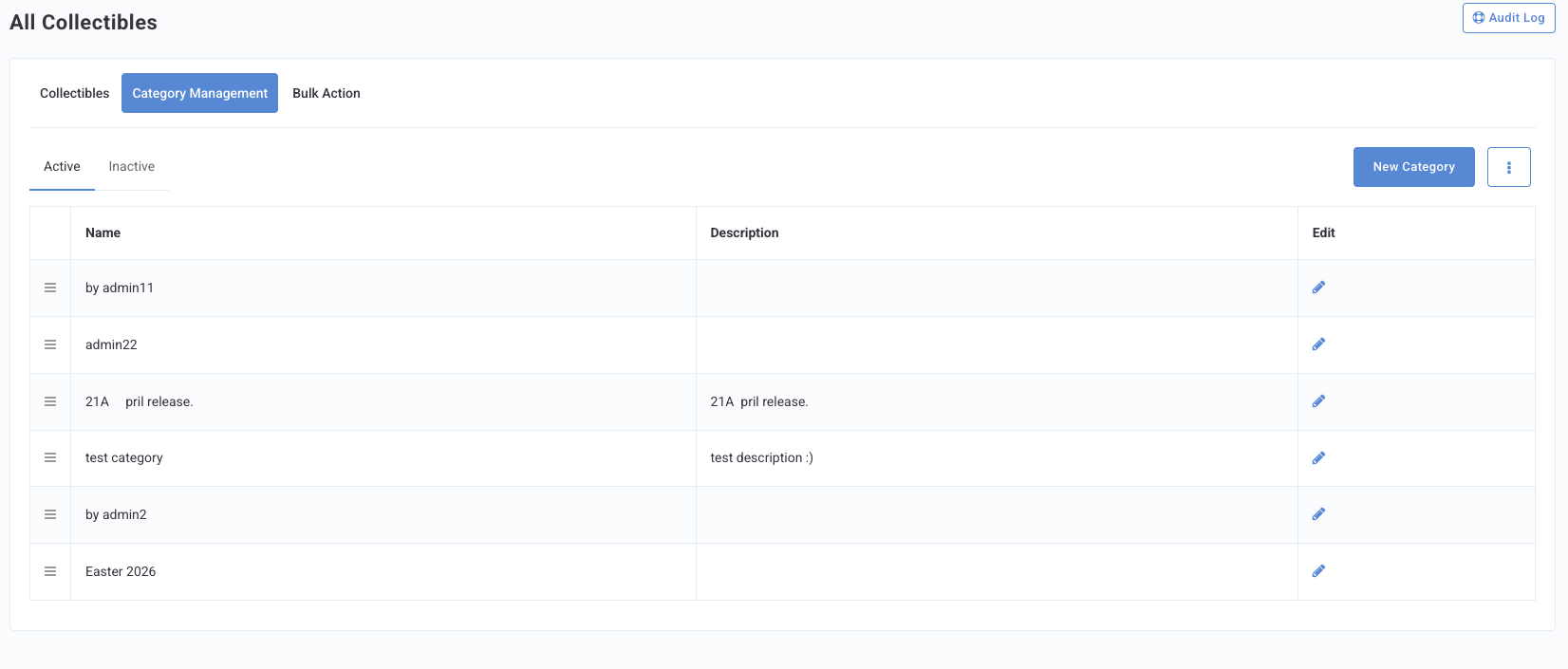
- Click New Category.
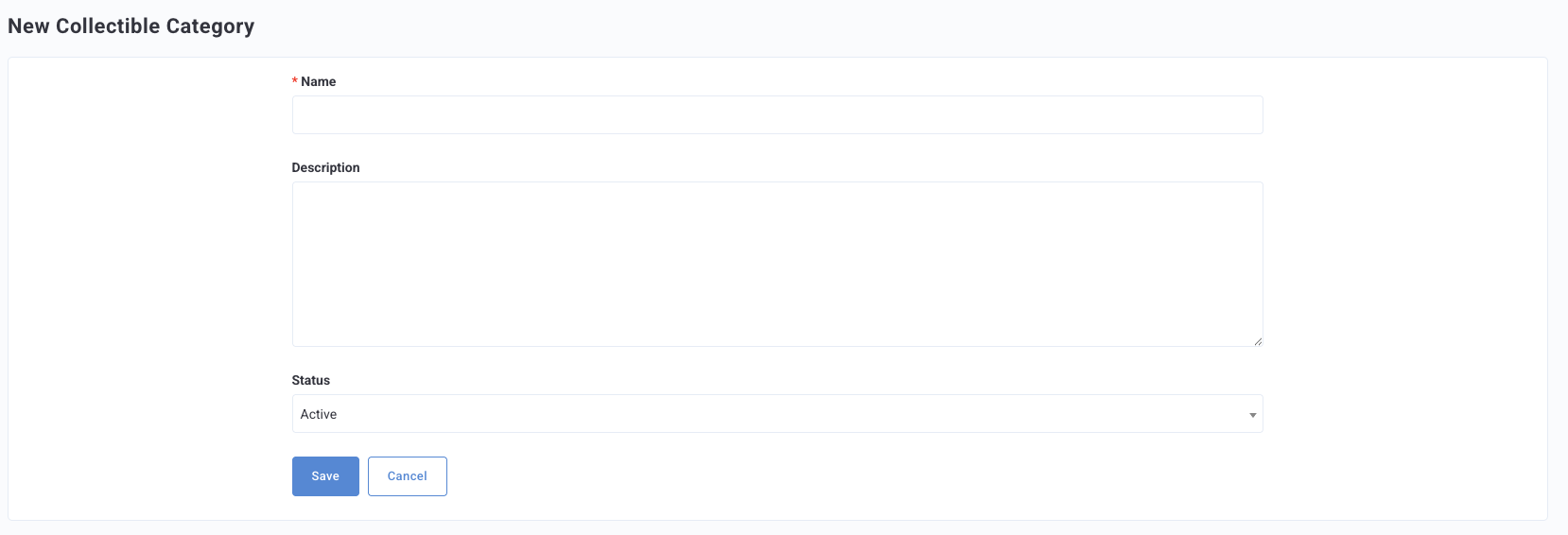
- Enter a Name.
- Enter a Description, as necessary.
- Set the Status to Active or Inactive. Inactive Categories will not appear as an option when creating a new collectible.
- Click Save.
- Map your collectibles to the appropriate category when creating or editing them.
Bulk Actions
You have the option to bulk upload a list of collectibles all at once.
- Navigate to All Collectibles > Bulk Action.
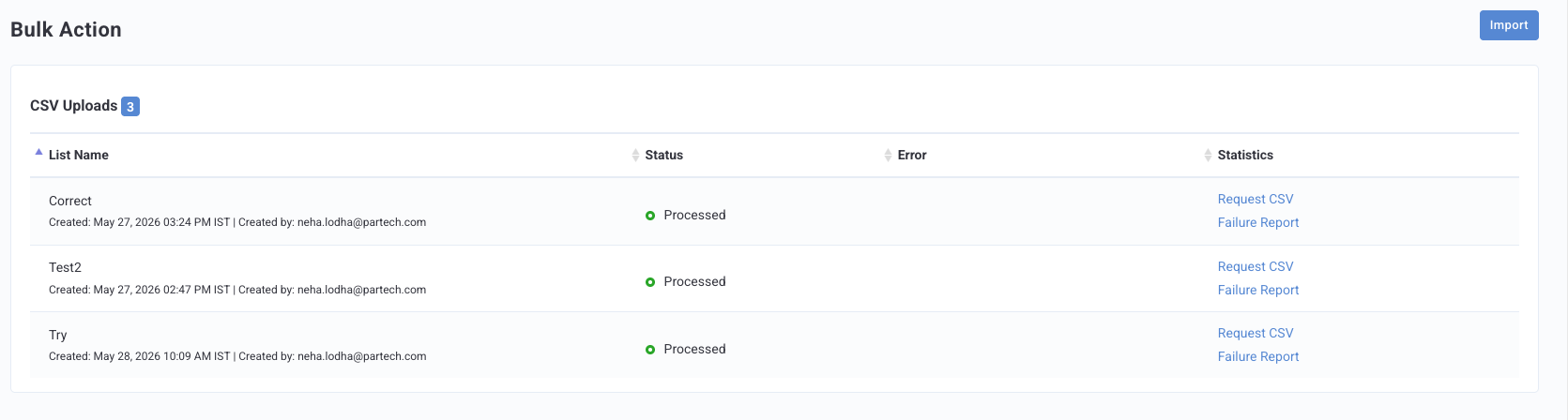
- This page will show you a list of previous uploads and their status.
- Click the Import button.
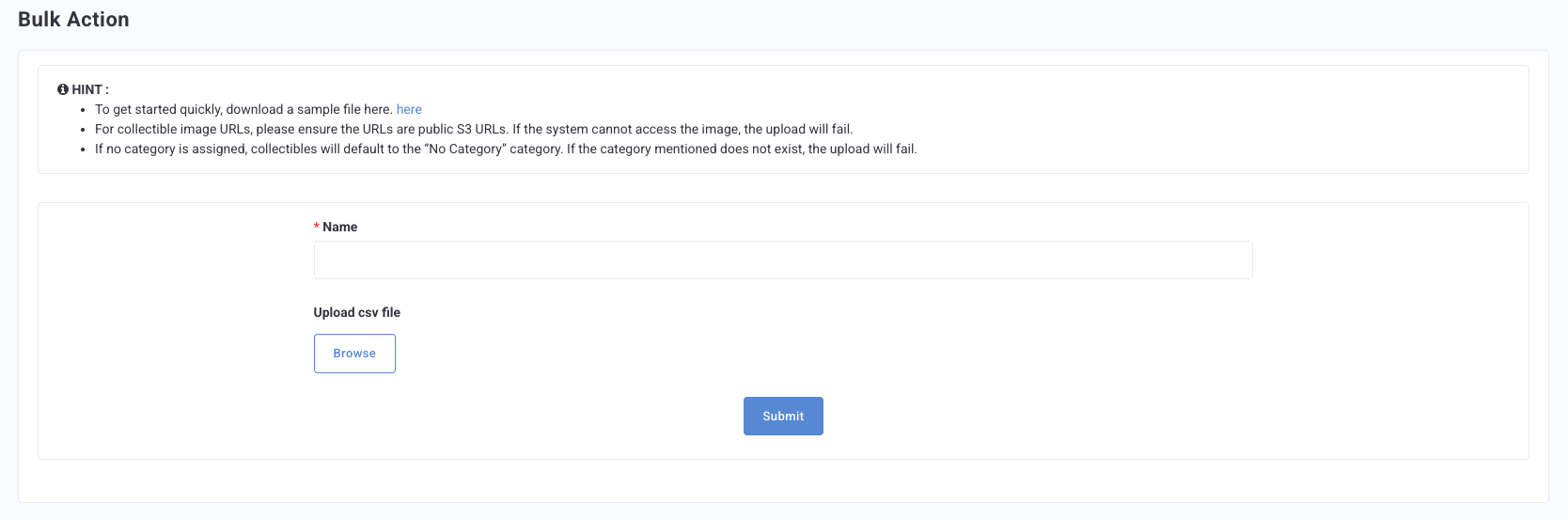
- Enter a name for the request.
- Upload CSV file: The file must not exceed 15 MB.
- Refer to the sample file for the proper formatting and details.
- Click Submit.
Any failures will be shown and reported on the Bulk Action tab.
Viewing a Guest's Collectibles (Guest Timeline)
Brand operators can view a guest's full collectible history from the Collectibles tab in the Guest Timeline. For each collectible, the tab displays:
- Collectible image
- Name and category
- Quantity earned
- Last earned date
- Current status: Active, Expired, or Removed
Gifting Collectibles
Collectibles can also be awarded as rewards in campaigns, giving you more flexibility to use collectibles across a broader range of loyalty interactions, including visit-based, spend-based, and behavioral campaigns.
Collectible Reward Types in Campaigns
| Reward Type | Description |
|---|---|
| Collectible | The guest receives a digital collectible only — no monetary reward is issued. |
| Collectible + Gift | The guest receives a collectible and a traditional reward (points, redeemable, dynamic reward, or currency) at the same time. |
Tip: Use Collectible + Gift to create "collect and win" loops. For example, award a seasonal sticker plus bonus points when a guest completes a multi-step challenge. This combination rewards both the emotional milestone and the transactional behavior.
Collectibles can currently be gifted in the following campaigns:
Manually Gifting a Collectible
Brand operators and support users can manually award a collectible to a specific guest directly from the Guest Timeline in the Punchh Dashboard. Common use cases include resolving customer support requests, rewarding social contest winners, or correcting an operational error.
- In the Punchh Platform, navigate to the Guest Timeline for the guest.
- Click Gift.
- Select Collectible as the gift type.
- Choose the collectible from the dropdown. The dropdown displays all active collectibles for your brand.
- Confirm the gift. The collectible is added to the guest's account instantly.
Guest Experience
Guests can view their earned collectibles in the mobile app or web app under a dedicated Collectibles section. For each collectible, guests see:
- The collectible image
- Name and description
- Unlock date
- Expiry countdown, if applicable
- Progress toward a set or collection
When a guest taps an unlocked collectible, a detail view displays the image, meaning or description, and any relevant progress or expiry information.
Note: Digital collectibles do not carry over between program years unless you configure a "No Expiry" rule. Collectible expiry is designed to preserve exclusivity and time-based engagement value.
Social Sharing
Brands can configure shareable content templates for each collectible in the CMM. Guests can use these templates to share their collectibles on social media. As the brand admin, you configure:
- A default caption
- Hashtags
- A background template image or overlay
- Text color and layout preferences
- An optional brand call-to-action (CTA)
Guests can edit the caption before posting.
