Signup Campaign
A Signup Campaign is a great way to reward a newly signed-up guest with a redeemable, points/punches, a digital collectible, or a friendly welcome message.
Who Can Be Targeted by a Signup Campaign?
Signup Campaigns can target guests who sign up via Facebook, Email, Apple, Google, or Apple VAS (Apple Loyalty Pass). Signup campaigns CANNOT target guests who sign up via SMS.
Why are some guests not being targeted?
Guests will not be targeted by Signup Campaigns when their account is created through specific channels/scenarios, like SMS or POS, where a placeholder Punchh email (for example, @temp.punchh.com, @cards.punchh.com, or @phone.punchh.com) is assigned. These internal Punchh email domains are explicitly excluded in the signup campaign logic, so guests with them are ignored by Signup Campaigns, even if the email is later changed to a valid external address. Review the following table for scenarios when a placeholder email domain is generated.
| Placeholder Email Domain | When It’s Generated |
|---|---|
@phone.punchh.com |
Phone provided, email missing |
@sa-phone.punchh.com |
Phone-based seamless auth, email missing |
@cards.punchh.com |
Card number provided, email missing |
@fb.punchh.com |
Facebook login/signup when FB email is missing |
@anonymise.punchh.com |
Explicit “anonymous” POS enroll |
@apple.punchh.com |
Supported by generator, but not the typical Apple path (an error occurred with Apple) |
@temp.punchh.com |
Treated as “guest” email (test email) |
@guest.par.com |
Phone provided, email missing, advance auth enabled |
@phone.punchh.com |
Phone provided via Text-to-Join SMS keyword |
@phone.punchh.com |
Phone provided via POS Console UI |
@phone.punchh.com |
Phone provided via bulk CSV phone import |
@phone.punchh.com |
Phone provided, email missing, on Mobile/Web phone channels |
@phone.punchh.com |
Phone provided, email missing, on email-seamless-auth channels |
@sa-phone.punchh.com |
Phone provided, email missing, on email-seamless-auth channels |
Create a New Signup Campaign
To create a new Signup campaign:
- Navigate to Marketing Automation > Campaign Management in your left-hand navigation toolbar.
- Click Create Campaign in the upper right corner.
- Click Automations.
- Select the Signup campaign type.
- Click Create.
Step 1 - What
-
Enter a name for your campaign in the Name field.
-
Click the Gift Type drop-down and choose what type of reward the guest will receive after they have successfully signed up for the mobile app.
For No Gift, Only Messaging
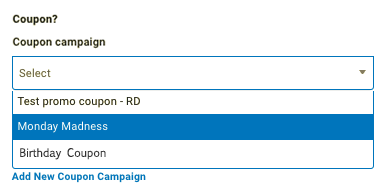
If choosing "No gift, Only Messaging", you can attach an optional coupon along with your message.
Click the Coupon campaign drop-down and choose from one of your saved coupons to include with your message.
Only campaigns using dynamically generated or Promo coupon codes are available to choose from.
For Gift Redeemable
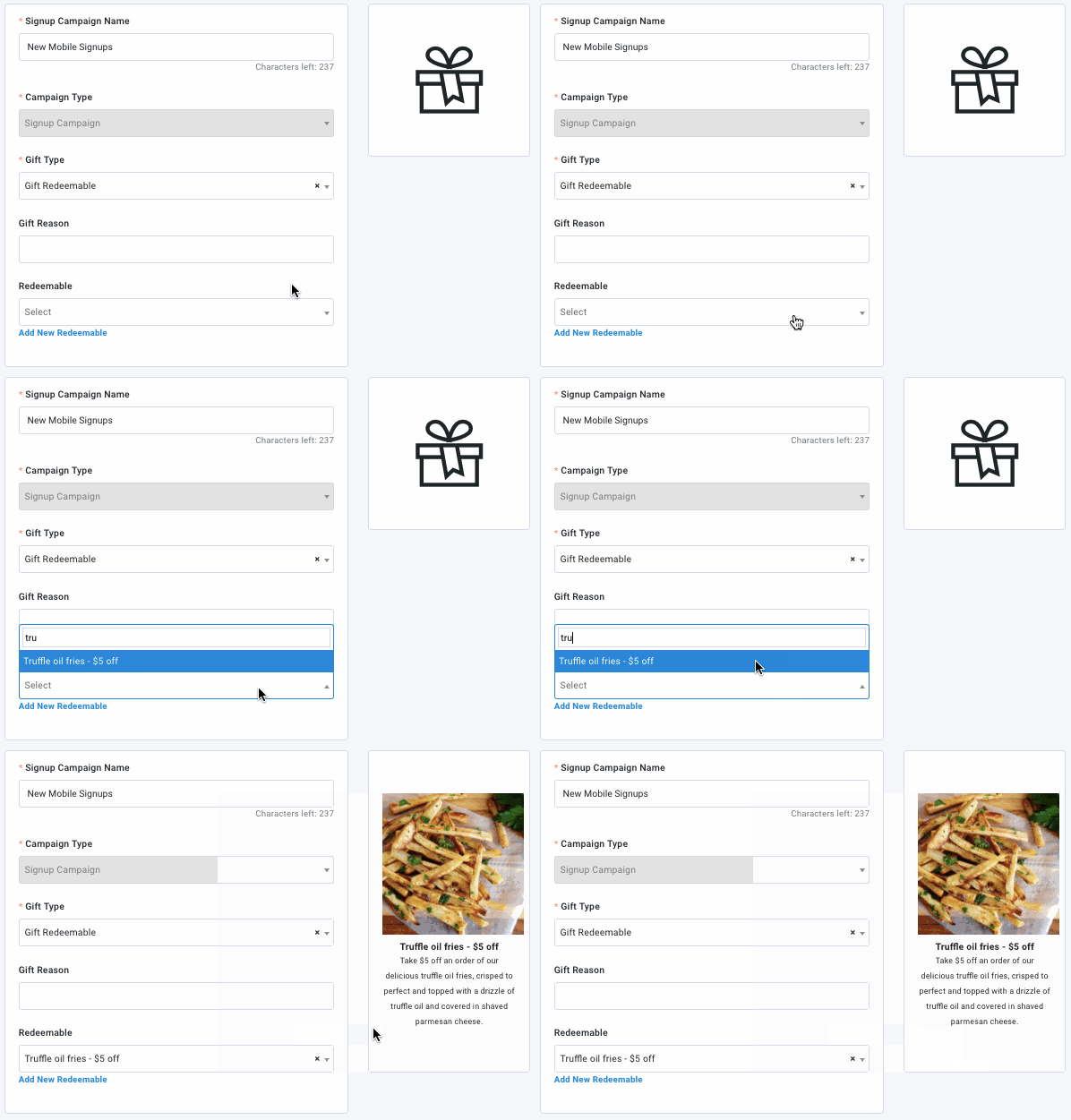
Click the Redeemable drop-down and select the redeemable you want to associate with this offer.
A preview thumbnail for your redeemable will appear along with its title and description.
For Gift Points
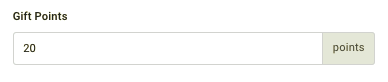
Enter the amount of points/punches to gift the guest in the Gift Points field.
For Gift Derived Rewards
Click the Gift Derived Rewards drop-down to select the Derived Rewards (formerly surprise set) you want to reward.

For Currency
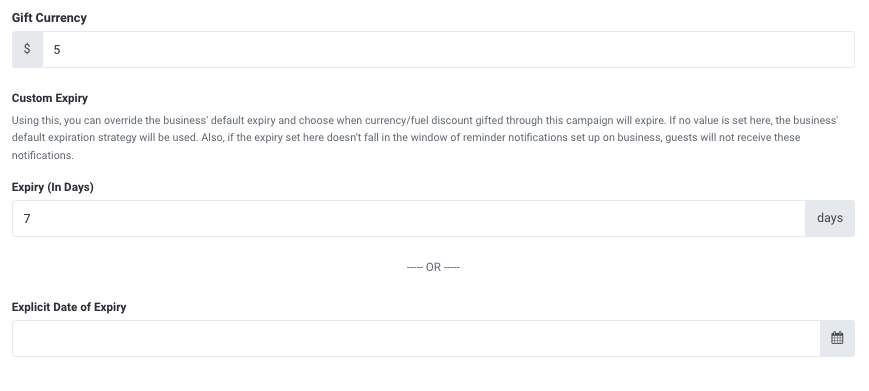
Enter the exact currency amount to gift guests in the Gift Currency field.
(Optional) Enter the Expiry (In Days) or the Explicit Date of Expiry to indicate when the gifted currency will expire. (This option overrides any default expiration settings your brand currently has set.)
If you want the currency to expire the same day, enter '1' for the Expiry (In Days) field, OR enter the same date into the Explicit Date of Expiry field. For example, if the campaign is set to deliver on 9/15/25 and you enter '1' into the Expiry (In Days) field, the currency would expire on 9/15/25 at 11:59 PM. The same is true if you had entered 9/15/25 in the Explicit Date field.
For Gift Collectible
You can also configure a combo gift — select both a redeemable and then a collectible to reward guests with both at the same time.
- Click the Collectible drop-down and select the digital collectible you want to award to guests.
- A preview of the selected collectible will appear.
- Digital collectibles are issued once per successful signup event.
-
In the Gift Reason field, add a short message describing the type/purpose of this gift-giving campaign.
This message will appear in the guest's account history. -
Click Next to move on to Step 2.
Step 2 - Whom
Configure campaign settings such as audience targeting, qualification criteria, gifting frequency, and other options as described in the section below. Depending on your subscription to Punchh added modules, you may not see all of these settings.
Campaign Settings
-
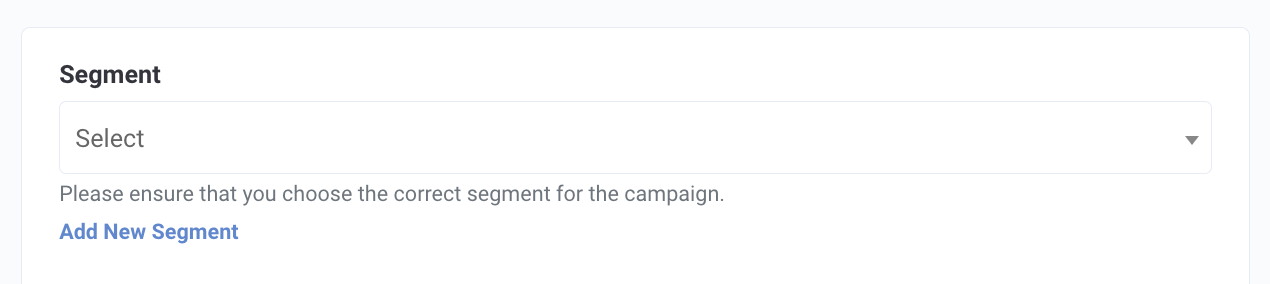
Segment: Click the drop-down to select from one of your guest segments this offer will be targeted to. If left blank, this campaign will apply to all guests.
- It's possible to create ongoing reward/messaging/offer campaigns using a Guest Profile Based segment configured to add guests according to their sign-up date. This method gives you a bit more flexibility on when to trigger your sign-up reward.
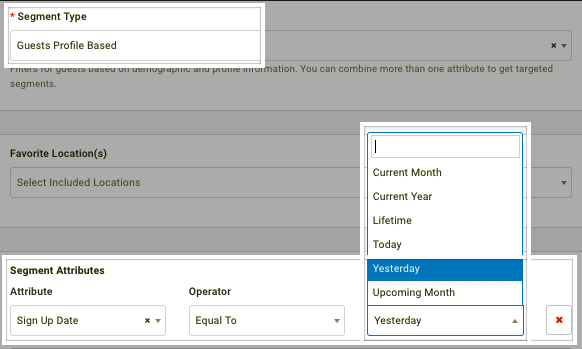
- It's possible to create ongoing reward/messaging/offer campaigns using a Guest Profile Based segment configured to add guests according to their sign-up date. This method gives you a bit more flexibility on when to trigger your sign-up reward.
-
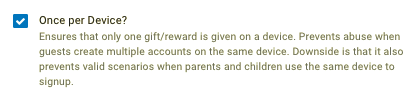
Once Per Device: Check this box to set a limit that rewards from this campaign will only be awarded once per each unique mobile device. This prevents abuse from those guests who may try to make multiple accounts on the same device.
Choosing this setting may result in some legitimate guests being excluded (such as parents who have signed up their child on the same device.)
-
Only for Mobile Signups: If users can sign up for your loyalty program (or eClub) online in addition to on mobile, you can enable this option to limit the campaign reward to only mobile users.

-
Scope: Choose whether to limit your Signup offer to only guests who've signed up through a specific channel:
-
Facebook
-
Email
-
Apple
-
Google
-
Apple VAS (Guests who signed up via the Apple Loyalty Pass flow)
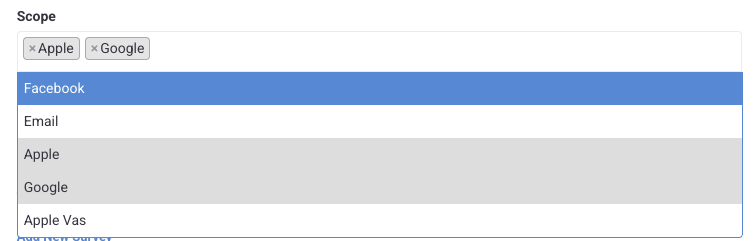
NOTE: Guest's who signup via SMS will NOT be targeted by this campaign type.
-
-
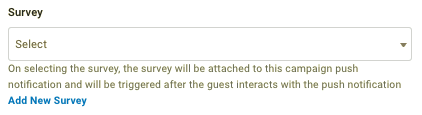
Survey: (Added Module) Use the drop-down to select one of your saved surveys. This survey will trigger for a guest once they open the push notification message sent out with this campaign. The guest must complete the survey in order to receive their reward.
Messaging
Add messaging for each of the notification types you want to send. Refer to Campaign Message Options for full details.
Click Next to move on to Step 3.
Step 3 - When
Schedule your campaign.
-
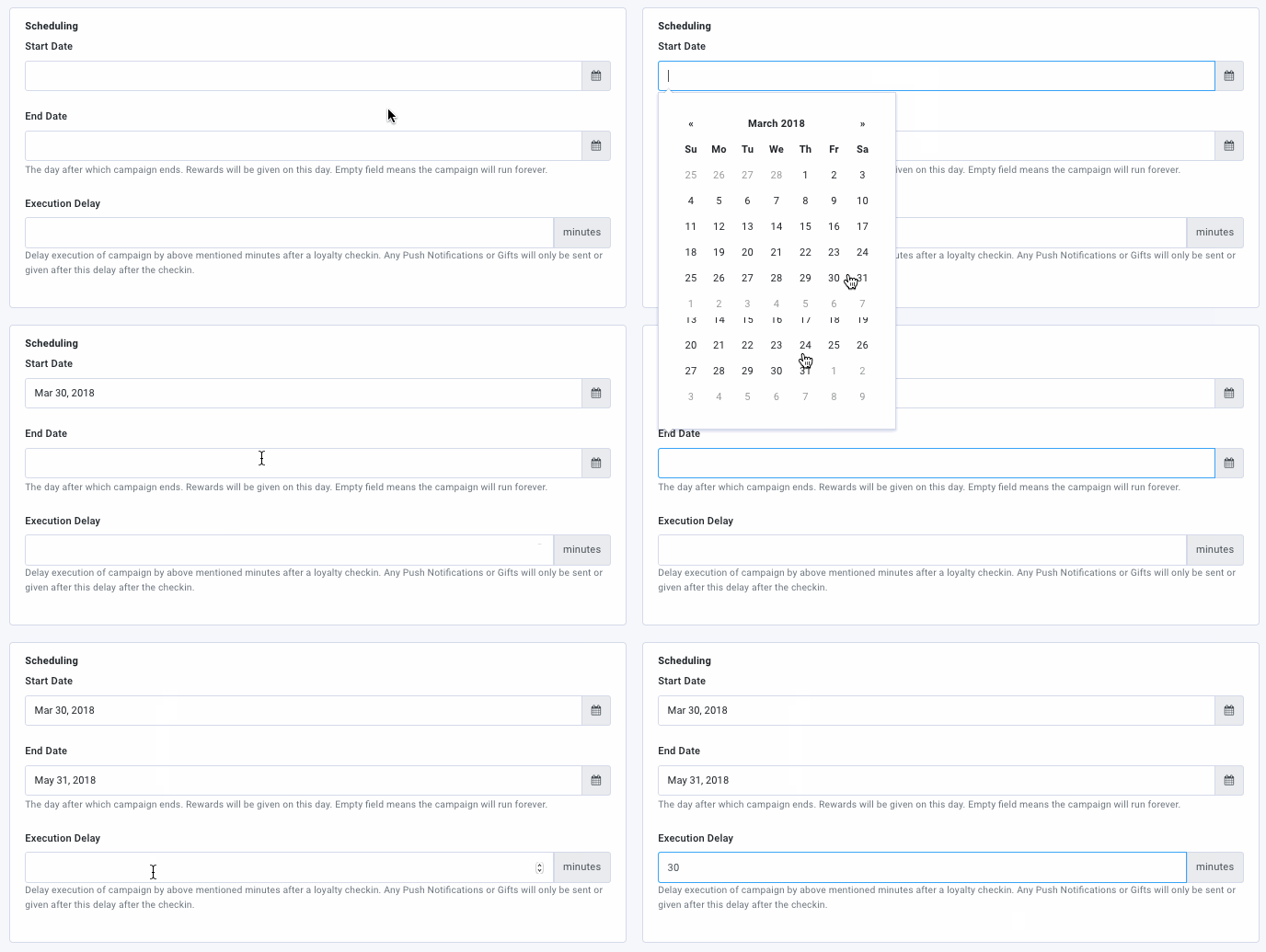
Select a Start Date and End Date for the signup campaign using the calendar.
Because Signup campaigns are ongoing, you can edit these dates whenever you need to, even after the campaign has been activated. -
In the Execution Delay field, enter the time (in minutes) that must pass after signup completion before the guest receives the offer.
It is recommended to set the execution delay to 0. Only use execution delays if your brand has a strategic need to delay the offer being sent to guests after signup.
-
Once satisfied with your campaign settings, click Finish to save and schedule your new Signup campaign.
Sign-up offer not being awarded on new account / Reset Device
If a guest's email is associated with an account that has been previously deactivated, they are welcome to sign up for a new account with the same email. However, any points/rewards associated with the old account will not transfer. Additionally, if the guest signs up on the same device they used for their previous account, they may not receive any sign-up offers. This is because we typically limit one sign-up offer per device to limit fraud. If you need to reset a guest's device, please reach out to your Punchh Customer Success Manager.
