Dynamic Rewards
This article was previously titled "Derived Rewards." Derived Rewards are now called Dynamic Rewards; however, you may see buttons or fields within the platform that still say "Derived Rewards" or even "Surprise Sets." These all refer to the same feature, Dynamic Rewards, described in this article. We thank you for your patience as we update our platform!
Dynamic Rewards are a great way to delight your customers and create excitement each time they visit one of your stores. Dynamic Rewards can be tied to offer campaigns and consist of a list of rewards (gift redeemables, points, or currency as applicable) along with a defined criteria or overall percentage probability for the reward to be given to the guest upon completion of a campaign qualification.
For example, you might create a Dynamic Reward with a 15% chance for a free brownie and an 85% chance for no reward and tie it to a Post Checkin Offer campaign set to run after every guest purchase. Most of the time nothing happens, but sometimes the guest gets a free brownie.
Or, you may use a Dynamic Reward tied to a Post Checkin Offer campaign and give guests who complete the campaign qualification and fall into a specific segment double the points or a free brownie, etc.
Create a New Dynamic Reward
Note: Dynamic Rewards are comprised of a list of redeemables and points, therefore make sure all your necessary redeemable have been created first.
- Navigate to Loyalty Program > Dynamic Rewards and click the New Dynamic Reward button.
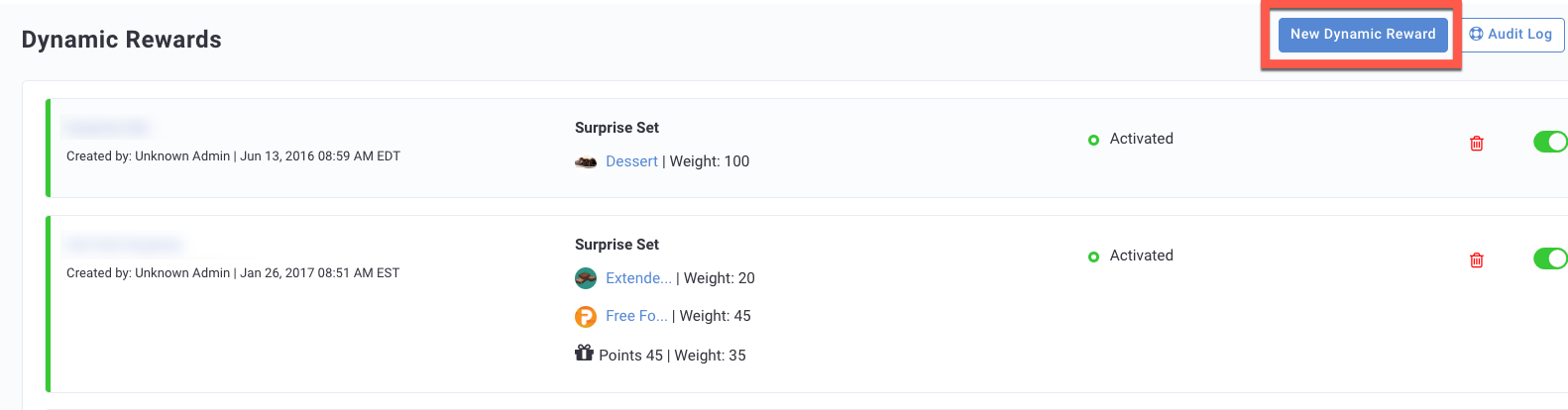
- Enter a Name for your new Dynamic Reward.
- Conditional Gifting: Toggle Conditional Gifting to use conditions like Segments or Qualification Criteria to define which guests receive your Dynamic Reward.
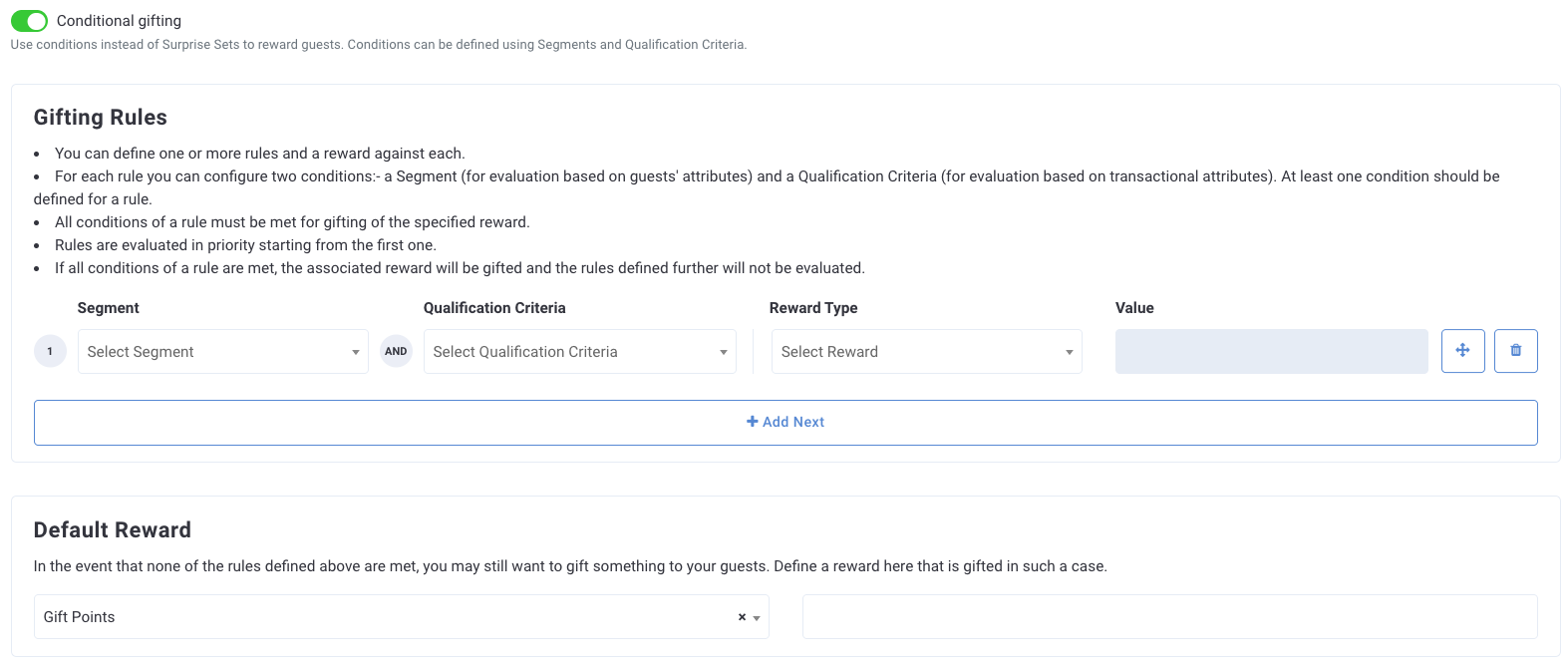
- Gifting Rules: For each line of Gifting Rules, select a Segment and/or Qualification Criteria to define the criteria a guest must meet to receive the Dynamic reward. For example, a guest must fall into the segment of visiting at lease once per month. To make be more specific, you can add a qualification criteria that guest that fall in this segment must also have purchased a drink during their visit. You must have at least one Segment or one qualification criteria defined in each row.
- Reward Type: Select from Gift Redeemables, Gift Points, Currency (as applicable), or No Reward to define your gift type.
- Value: Select the Gift Redeemables name from the drop-down list, enter the number of points, or enter the currency amount to be gifted. This field is not available when No Reward is selected.
- Click + Add Next to repeat this for process for each rule.
- Default Reward: Use this section to add a reward for guests who did not fall into the criteria defined above. If you do not want these guests to receive a gift, select No Reward.
- Surprise Sets: Use the fields under Surprise Sets to define which guests receive your Dynamic Reward by percentage value.

- Weight: enter a value 1-100 to express the percentage probability that this gift will be awarded to a guest.
- Reward Type: Select from Gift Redeemables, Gift Points, Currency (as applicable), or No Reward to define your gift type. For example, if you want only 15% of the guests to receive a free brownie, then remaining 85% would be set as No Reward.
- Value: Select the Gift Redeemables name from the drop-down list, enter the number of points, or enter the currency amount to be gifted. This field is not available when No Reward is selected.
- Click + Add Next to repeat this for process for each redeemable/gift points to be added, until the total percentage value adds up to 100.
Caution: The percentage value must add up to 100, otherwise, the Dynamic Reward will not be saved.
- Click Save once finished.
Use as a Gift in an Offer Campaign
The following is a complete list of the campaign types that can and cannot include an activated Dynamic reward.
| Can Use Dynamic Rewards | Cannot Use Dynamic Rewards |
|---|---|
|
|
To connect a Dynamic Reward to a campaign, during Step 1: What of the campaign creation process:
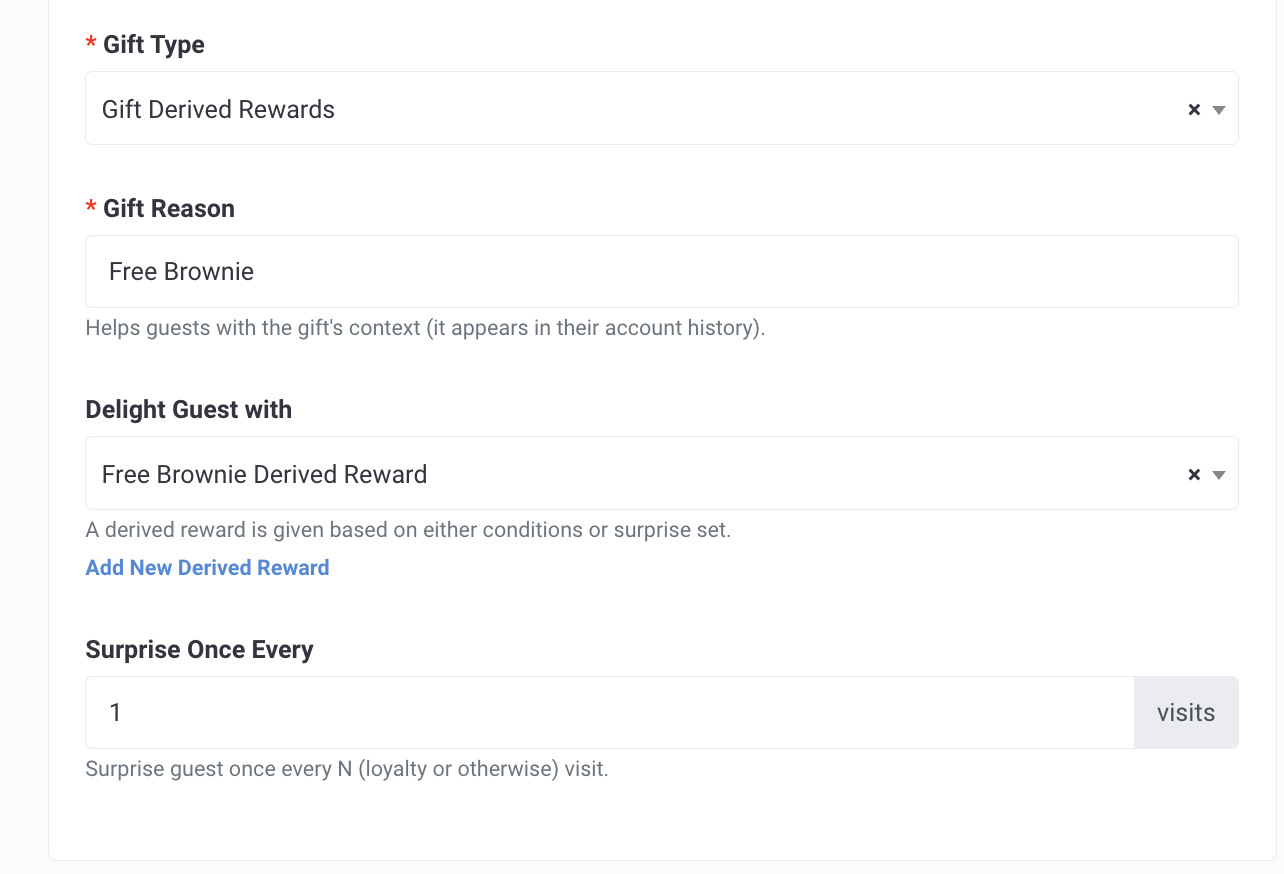
- Under Gift Type, select Gift Derived Reward.
- Enter a Gift Reason that will appear in the guest's account history.
- Under Delight Guest with drop-down select your Dynamic Reward that you created above.
- Enter a number value under Surprise Once Every to control gifting once every N (loyalty or otherwise) visit.
If a guest is targeted by a campaign that uses a Dynamic Reward but does not receive any reward or points due to the Dynamic Reward's gifting rule settings, then no Gift Check-in outbound webhook event will be sent. Additionally, no entry will appear on the guest’s timeline on the Punchh platform.
