Anniversary Campaign
Anniversary campaigns are a great way to make your customers feel special and valued on their birthday, wedding anniversary (if they provided it in their user profile), or on the anniversary of their initial signup for your loyalty program. An anniversary campaign can automatically send your guests a gift or a message on these milestone days.
Create a New Anniversary Campaign
Before setting up a new Anniversary campaign, you may first need to create a redeemable (if offering a gift redeemable). If gifting points, a redeemable isn't required. To create a new Anniversary campaign:
- Navigate to Marketing Automation > Campaign Management in your left-hand navigation toolbar.
- Click Create Campaign in the upper right corner.
- Click Automations then Next.
- Select Anniversary.
- Click Create.
Step 1 - What
Choose a name and action(s) for your campaign.
-
Enter a name for your campaign in the Name field.
-
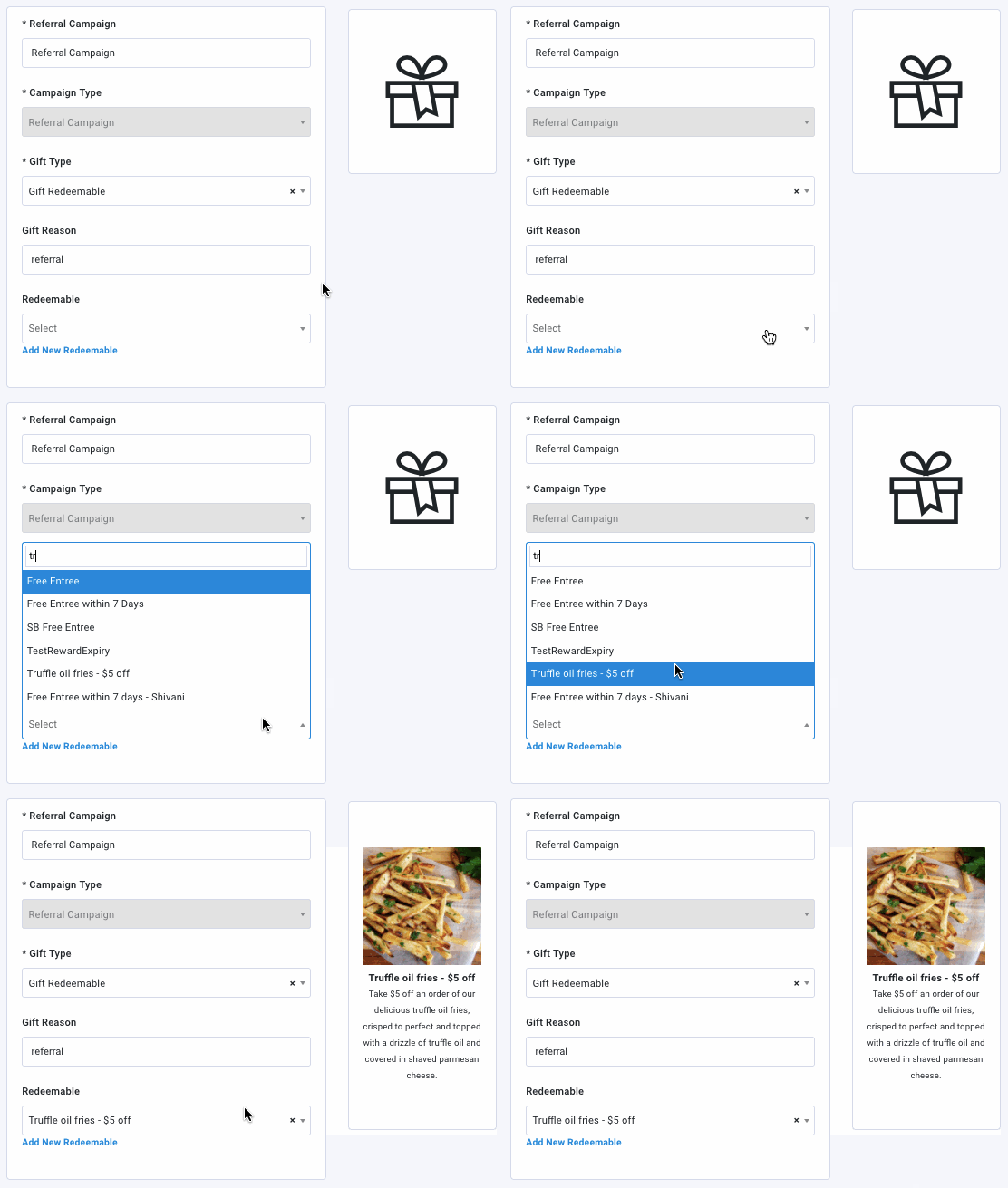
Click the Gift Type drop-down and choose what type of reward the guest will receive after a referral has been made. Depending on your choice, complete the following steps:
For Gift Redeemable
Choose a Redeemable Item to gift to someone who referred one of their friends (e.g., a free appetizer).
- Click the Redeemable Reward drop-down and select the redeemable you want to associate with this offer.
A preview thumbnail for your redeemable will appear along with its title and description.
- Click the Redeemable Reward drop-down and select the redeemable you want to associate with this offer.
For Gift Points
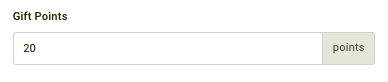
Enter the amount of (additional) points to gift the guest in the Gift Points field.
For Gift Derived Rewards
Click the Derived Rewards drop-down to select the Derived Rewards you want to reward.

For No Gift, Only Messaging
If choosing No Gift, Only Messaging, you can attach an optional coupon along with your message. To add a coupon:
- Click the Coupon Campaign drop-down and choose from one of your saved coupons to include with your message.

For Currency
-
Enter the dollar amount of currency to gift the guest in the Gift Currency field.
 Next, you will be able to set the expiry of the currency. You have three options:
- For Expiry (In Days), enter how many days after the guest receives the currency you want it to expire in the Expiry (In Days) field. For example, if you want the currency to expire one week after the guest earns it, you would enter the number 7.
If you want the currency to expire *the same day,*enter '1' for the Expiry (In Days) field, OR enter thesame date into the Explicit Date of Expiryfield. For example, if the campaign is set to deliver on 9/15/25 and you enter '1' into the Expiry (In Days) field, the currency would expire on 9/15/25 at 11:59 PM. The same is true if you had entered 9/15/25 in the Explicit Date field.

- For Explicit Date of Expiry, click the field and use the calendar to select which day the currency will expire for all guests, regardless of when they earned it.
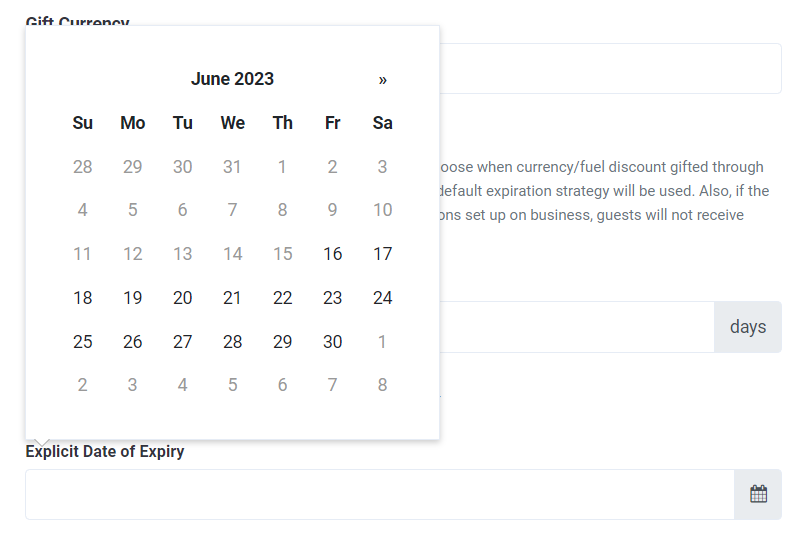
- For Default Expiry, leave both the Expiry (In Days) and the Explicit Date of Expiry fields blank. This will result in the campaign using the business's default expiration strategy.
For Gift Collectible
You can also configure a combo gift — select both a redeemable and then a collectible to reward guests with both at the same time.
- Click the Collectible drop-down and select the digital collectible you want to award to guests.
- A preview of the selected collectible will appear.
- In the Gift Reason field, add a short message describing the type/purpose of this gift-giving campaign.
This message will appear in the guest's account history. - Click Next to move on to Step 2.
Step 2 - Whom
Configure campaign settings such as audience targeting, membership level, anniversary type, and other options as described in the section below.
Campaign Settings
- Membership Level - If you've set up Membership levels for your guests, you can choose to target/limit a campaign to one of those levels.
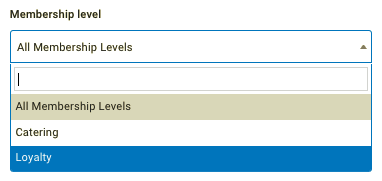
Note: If your business is using the “Reset Based On Points Earned” membership evaluation strategy, the Membership Level selection is referencing the Lifetime (Operational) level and not the Current (Effective) level. Refer to Membership Tier Reset Strategies for more details.
-
Anniversary Reward Delay - When offering birthday rewards, there is a possibility that a guest may try to scam by setting their birthday as the day they are signing up (or the next day). To ensure that this doesn't happen, leave the Should this reward be given in the month of signup box unchecked. To allow this behavior, check it. Leaving this box unchecked will not award a guest in their initial signup month.

-
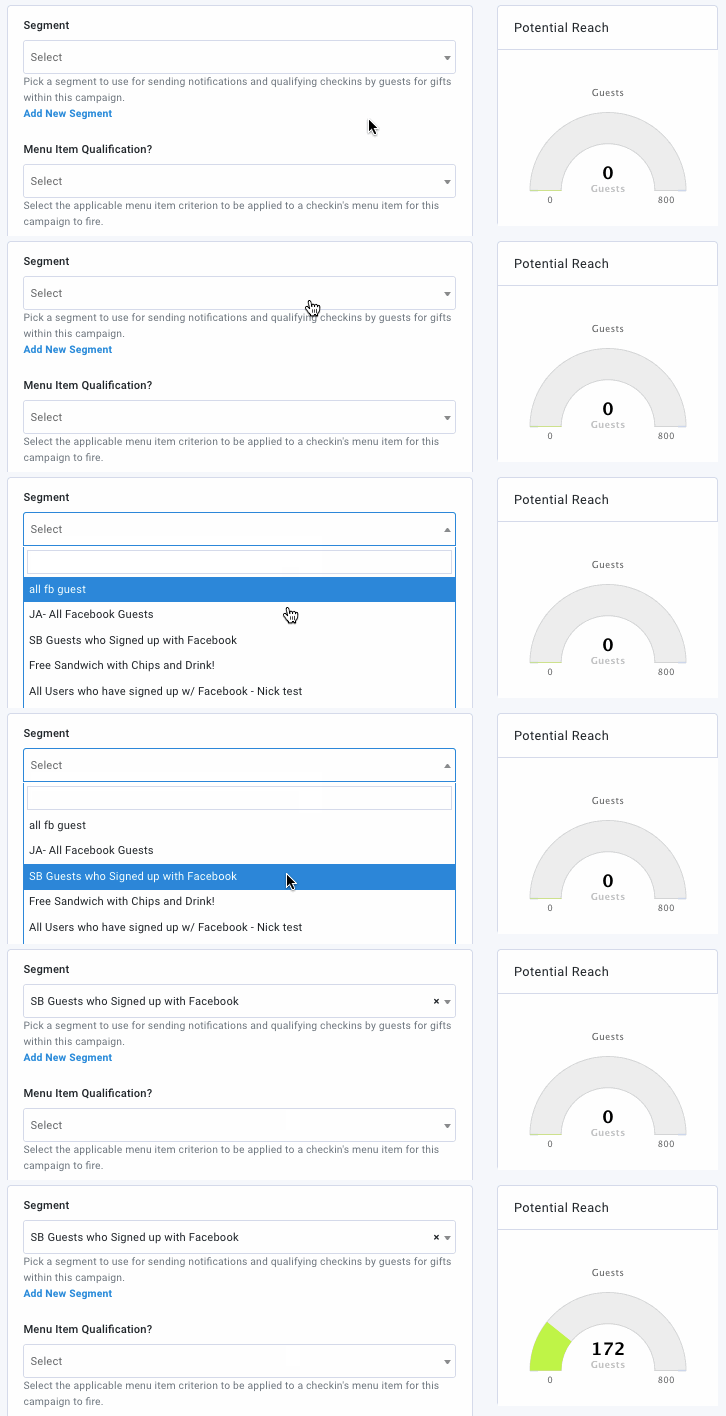
Segment - Click the drop-down to select from one of your guest segments this offer will be targeted to.
The Potential Reach gauge will show you how many guests are in that segment that could potentially take part in this offer campaign.
-
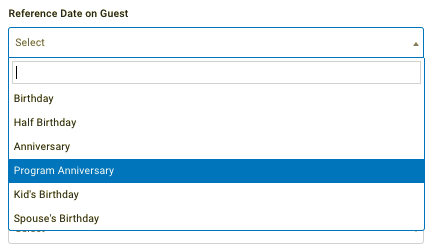
Reference Date on Guest - This is where you choose the type of guest anniversary/date the guest will be gifted on.
This data is based on the guest's inputted user profile details. If a guest does not have the selected date, such as "Birthday", in their profile, they will not be gifted through this campaign.Note: Anniversary Campaigns have a query limit of 130 years - meaning if a guest enters a date outside of that scope, they will not receive a reward.
- Birthday: The guest's date of birth. (Entered by the guest.)
Fraud Prevention: If a guest has already received a birthday reward and then changes their birthday to later in the year, they will not get the reward again in the same year from the same campaign.
- Half Birthday: The date that falls exactly six months after the guest's date of birth. (Calculated by Punchh, not usually a specific question in the guest profile.)
- Anniversary: The guest's wedding anniversary. (Entered by the guest.)
- Program Anniversary: The guest's signup date. This specifically refers to the date the guest joined eClub or your loyalty program. It does not include the date the guest migrated to your loyalty program from eClub (i.e., their registration date). (Calculated by Punchh.)
- Kid's Birthday: The guest's child's date of birth. (Entered by the guest.)
-
Spouse's Birthday: The guest's spouse's date of birth. (Entered by the guest.)
-
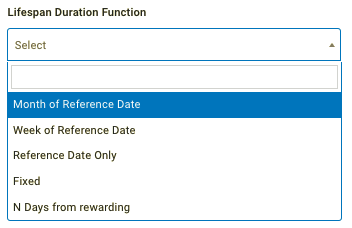
Lifespan Duration Function - This determines how long a guest has to redeem their anniversary reward, relative to the date they are gifted.
Note: If a redeemable is being gifted, the expiry set here will have priority over the expiry set on the redeemable itself.
- Month of Reference Date: The guest must redeem their gift in the same month of their anniversary date. As long as the anniversary is in place prior to the first of the month, guests will receive their reward on the first day of the month. However, there are times when a reward can be gifted after the first. Please see this article for an example. Gifts awarded with "Month of reference date" will be valid until 23:59 on the last day of the month.
- Week of Reference Date: The guest must redeem their gift in the same week of their anniversary date. 00:00 on Monday is the start of the week, and 23:59 on Sunday is the end. Applicable gifts will be awarded at the start of the week of reference, i.e., if this is for a Birthday campaign, and the guest's birthday is on a Wednesday, they'll be gifted on Monday and will have until Sunday to use their reward.
- Reference Date Only: The reward must be redeemed on the exact anniversary date
- Fixed: Enter a set number of days after the anniversary date when the guest may redeem their gift.
- N Days from rewarding: Choose a number of days before and after the anniversary date when the guest may redeem their gift.
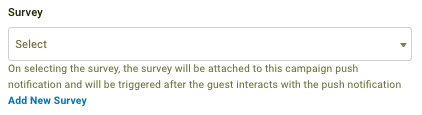
- Survey (added module) - Use the drop-down to select one of your saved Surveys. This survey will trigger for a guest once they open the push notification message sent out with this campaign. The guest must complete the survey in order to receive their reward.
Messaging
Add messaging for each of the notification types you want to send. Refer to Campaign Message Options for full details.
Click Next to move on to Step 3.
Step 3 - When
-
Choose a Start Date and End Date for the campaign.
Leaving these fields blank will activate the campaign immediately, and it will run indefinitely until you deactivate it.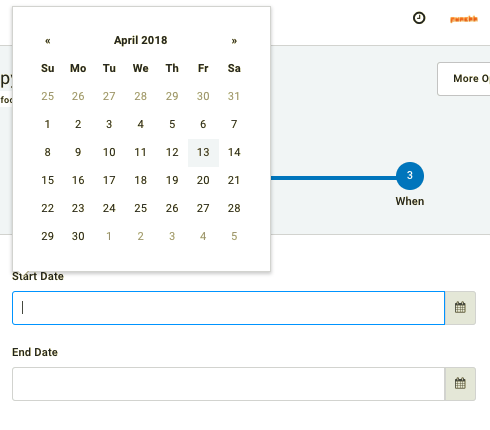
-
Once satisfied with your campaign settings, click Finish to save and activate* your new Anniversary campaign.
* Scheduling must first be completed to determine how your Anniversary campaigns are treated, time-wise in order for any campaigns can be activated.
