App Message Composer
The article was previously titled "Announcements."
The App Message Composer page is where you can create Rich Messages sent to every user in your loyalty program (signed up for the mobile app).
Unlike Rich Messages developed in Campaigns that may be triggered by an event, App Messages do not require and are independent of any such events. Additionally, since App Messages are meant to be sent to all users, they cannot be segmented like Rich Messages in Campaigns.
Navigate to Loyalty Program > App Message Composerto view the list of your brand's App Messages.
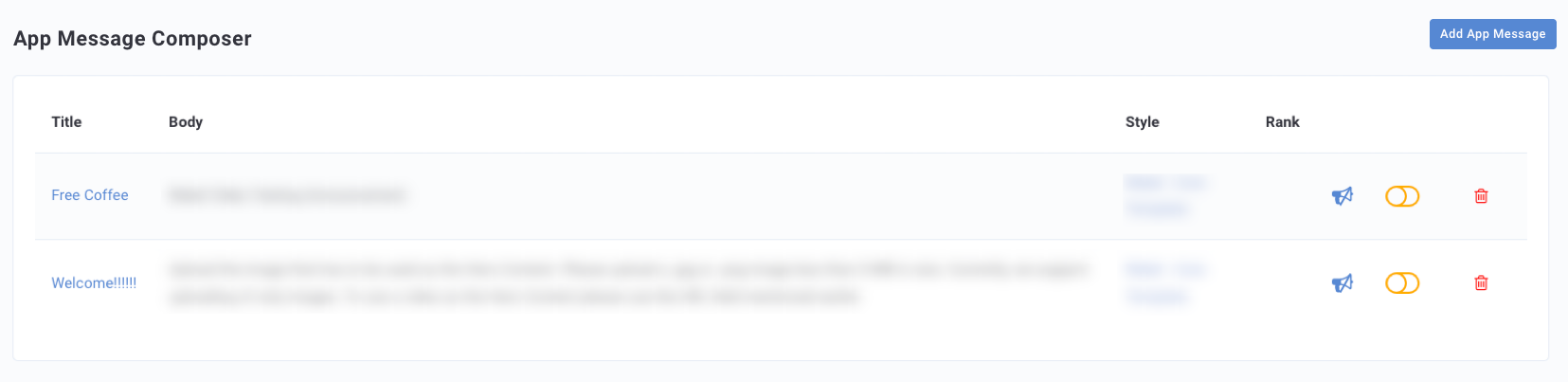
The list page shows:
- Title: Refers to the text content title of your message.
Note: If you do not have a title for your App Message the Name you entered will be listed here instead.
- Body: Refers to the text content body of your message.
- Style: Refers to the CSS style of your message.
- Rank: Refers to the priority of the message.
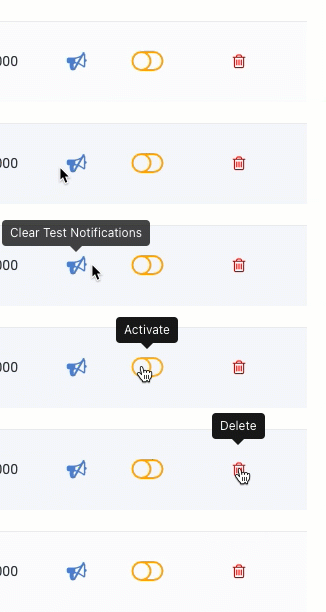
- If you tested your App Message prior to activation, click Clear Test Notification to clear any test App Messages sent to your app inbox.
- Toggle Activate to manually make the App Message live and push the rich message to all app inboxes. Toggle to Deactivate to manually remove the App Message from all app inboxes.
- Click Delete to delete the App Message.
Create a New App Message
- Navigate to Loyalty Program > App Messages Composer in your left toolbar and click Add App Message at the top right.

- Choose a Name and a CSS Style to apply to the message.

- Configure the Message Content of the App Message, as shown in the sections to follow.
Message Content
The following sections correspond to the content and design of the App Message. This is how it will appear in the News section of your mobile app. If you're familiar with Rich Messages, you'll recognize that this design/content process is identical.
Hero Content
This is where the main visual component(s) of your rich message will appear. You'll choose an image or video to serve as the focal point of your message.
-
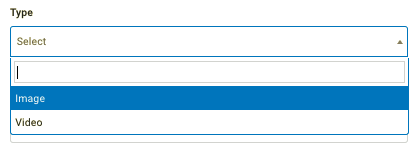
Type - Select Image or Video as your desired media type.
-
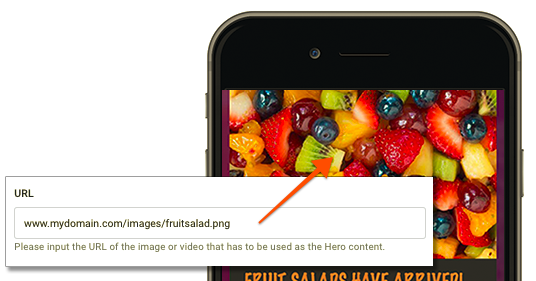
URL - The main visual content of the rich message. Provide a URL for an image or video file to be used as the Hero content. For video, you must provide a URL.
Image Specs will vary slightly according to the style selected. The most commonly used resolution is w:1280px by h:720px.
- or -
Browse (Upload) - Upload an image to be used as the Hero Content.
Your image file must be a .jpg, .gif, or .png and less than 5 MB in size. We currently only support uploading for image files; to use a video as the Hero Content please use a URL in the field above.
See more about Image Size Specifications below.
-
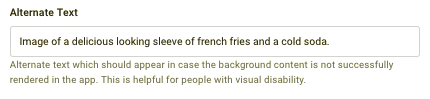
Alternate Text - In the event that the background image or video doesn't load, this alternate text will appear, alerting the user that there was supposed to be something there.
Alternate text is particularly useless for people with a visual disability.
Text Content
Add a title, subtitle, and body text to your message.
Dynamic text cannot be used in the text content sections of Rich Messages/App Messages.
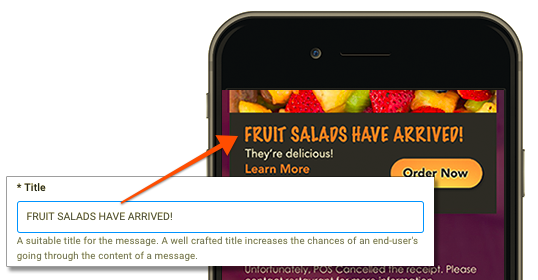
- Title - This is the title text that will appear as the message header.
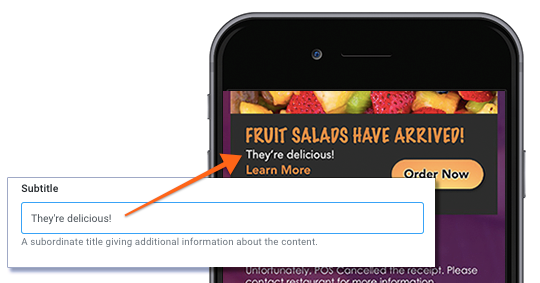
- Subtitle - Subordinate title that appears below the title message header.
- Body - Body text of the rich message, follows below the Title and Subtitle.
Background Content
Commonly skipped given that the app has a style added already, but you could add an image if desired. (Test it out first though).
Background Content settings
-
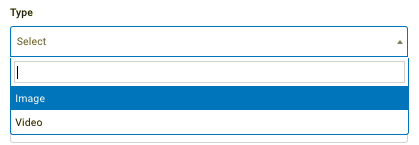
Type - Select Image or Video as your desired media type.
-
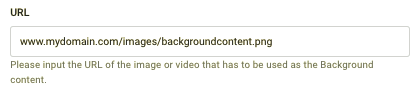
URL - Provide a URL for an image or video file to be used as the background content.
Image Specs will vary slightly according to the style selected. The most commonly used size is 1125px by 633px.
- or -
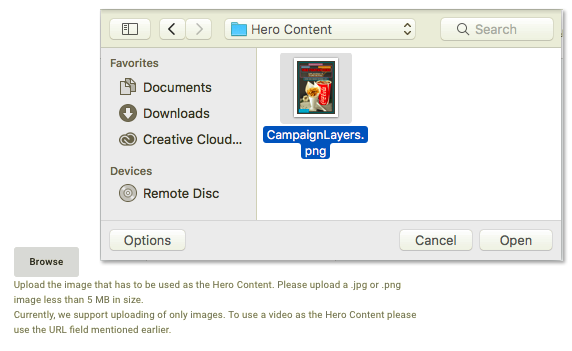
Browse (Upload) - Upload an image to be used as the background content.
Your image file must be a .jpg or .png and less than 5 MB in size. We currently only support uploading for image files; to use a video as the background content please use a URL in the field above.
-
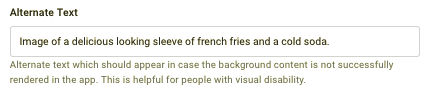
Alternate Text - In the event that the background image or video doesn't load, this alternate text will appear, alerting the user that there was supposed to be something there.
Call to Action
Call to Action rich text generates a tappable/clickable button and/or text in the message that links to an external/internal URL or to another screen within the mobile app.
- Type - You can have up to two links per message (primary and secondary). Choose from the following link options:
- External Web Link - Opens outside of the app
- Internal Web Link - Opens within the app. The URL must begin with "https://" (secure).
- Deep Link - Opens a different section within the app. You'll need to use Deep Link Helper message tags for these links.
- Drill Down - Used with additional body copy added and will render a new screen in the app, similar to the reward detail screen.
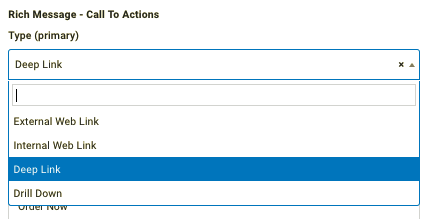
- Link - Enter the URL you want your call-to-action button to lead to.
The example below is using a Deep Link Helper tag to navigate the user to the online ordering section of the app.

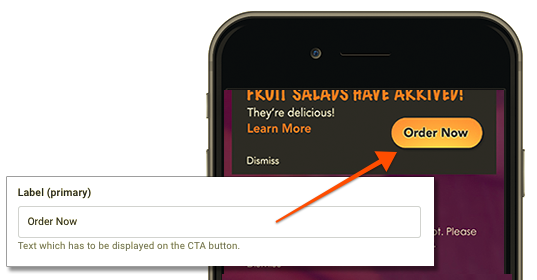
- Label - This is the text that will appear on your call-to-action button.
In the example below, our text is "Order Now". In order for this button to lead to online ordering, we'll have to use the Deep Link tag for online ordering as shown in the fields above.
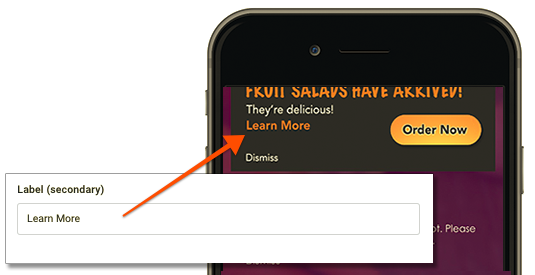
- Secondary - If inserting two call-to-action URLs, repeat the settings as you did for your primary link above. The secondary link will appear as text only, not as a button like the primary.
Typically, a secondary link is useful for linking to the terms and conditions for your promotion.
Meta
The Meta section of your rich message settings includes some nuts and bolts kind of configuration such as rank/priority in the user's inbox and metadata tags.
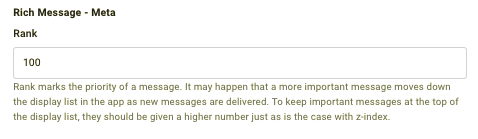
- Rank - Rank marks the priority of a message. The higher the number, the higher the message will appear in the order of messages. For example, a message with rank 10000 with always stay at the top of all messages so long as no other message is a higher rank number.
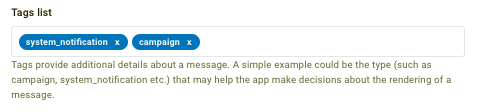
- Tags List - Tags can be used to add Metadata. This needs to be configured within the app framework first in order for the tag to know what it is looking for. Type out the name of a tag and press return on your keyboard to add it.
- Timezone: Select the timezone to be applied to the Launch Time and Take Down Time.
- Launch Time: Select the time the App Message will golive and push the rich message to all app inboxes.
- Take Down Time: Select the time the App Message will beremoved from all app inboxes.
- Dismissable - Toggle on/off a text link to dismiss the message from the user's News section. (Recommended for every message)

Image size specifications
Images may be no larger than 5 MB, although for practicality, the smaller the file size, the faster and smoother it will load in the app.
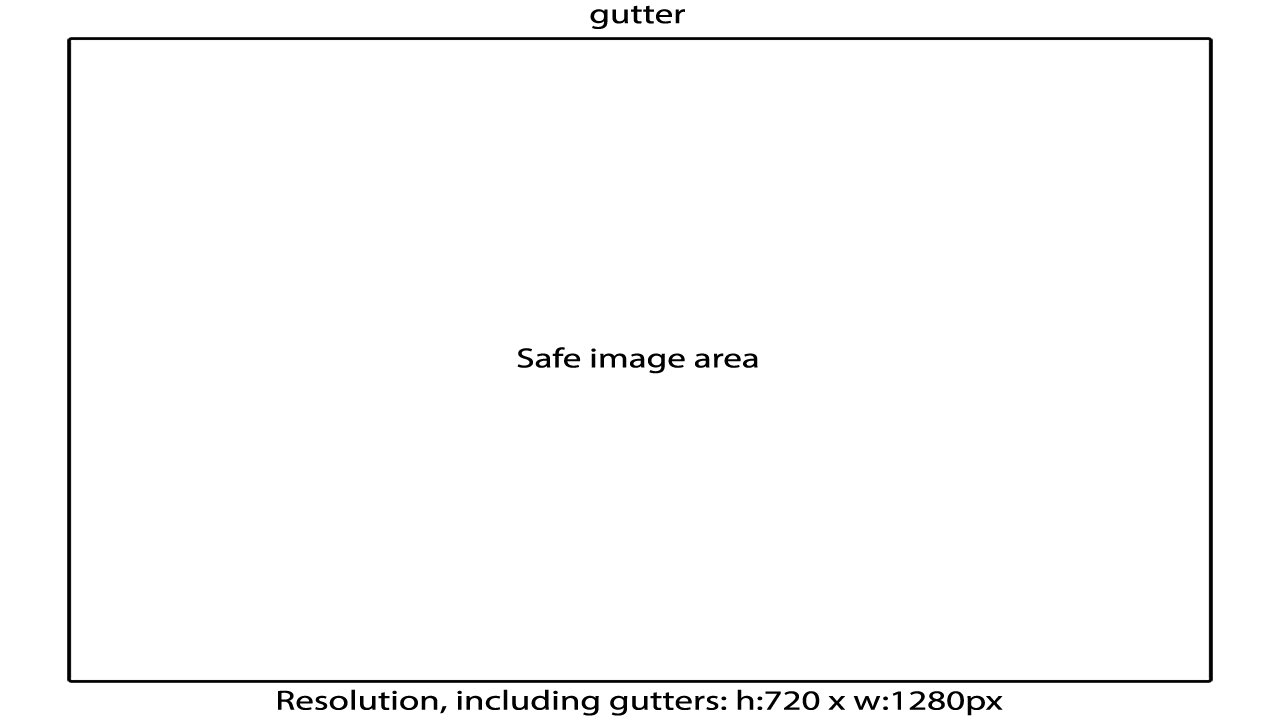
For image resolution, we recommend using an image size with the highest resolution that safely covers the screen resolution ratios for the maximum amount of devices. This works out to an image size of h:720px by w:1280px. On devices with a higher resolution, the image will be upscaled to fill the screen.
Additionally, some phones you encounter may crop portions of the image on the top/bottom and/or sides. You can account for this by including gutters around your image that don't contain text or any important graphics. The following image can serve as a template when creating Rich Messaging images. It includes a "Safe" area where your important information will go and a gutter, and buffer area around it to prevent any possible cropping.
CSS Stylesheet - While Punchh is first developing your mobile app, there is a standard format stylesheet we provide, available on the developer portal here. Otherwise, if your business is taking care of your app development, you'll likely want to use your own. New styles can be applied by the Punchh team via Whitelabel services.
