Social Cause Campaign
How can I enable Social Cause campaigns for my business? Social Cause must be enabled for you by your Punchh CSM and requires a consultation. This is because enabling Social Cause for the first time requires an app update. Once built in, Social Cause Campaigns can be enabled or disabled from the dashboard, shown under the Ongoing section in your Campaigns.
With Social Cause campaigns, your guests can donate their loyalty rewards to social causes supported by your business. You choose a charity, advertise it in your app, and then allow your guests to use their accumulated rewards to donate to it instead of taking the reward for themselves. On each of the guest's rewards in the app, a "Donate" button will be shown, allowing the user to gift their reward toward a good cause of your choosing.
It should be noted that when guests donate through a Social Cause campaign they are not directly donating to the charity, rather the amount must be backed up by what your business will donate after.
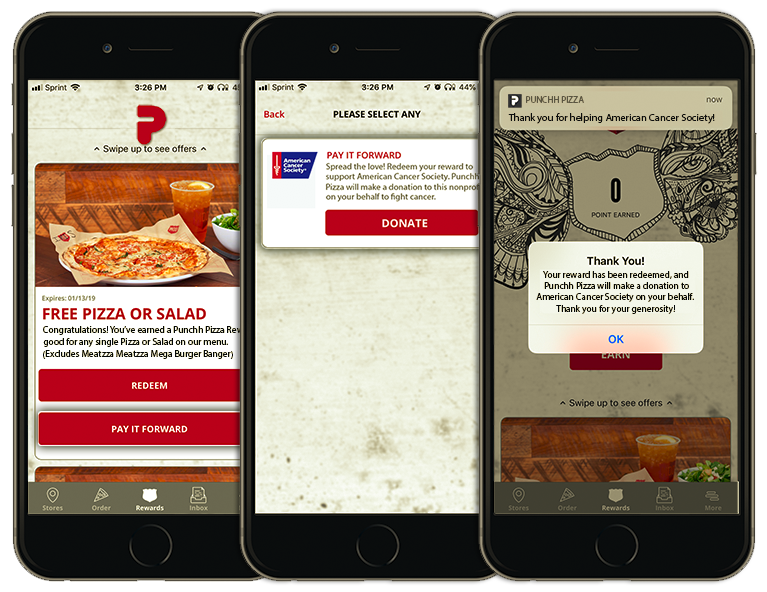
Enabling Social Cause campaigns for the first time requires an app update in order for the Social Cause donation option to appear on a guest's rewards and redeemables. After that initial update, adding or removing new campaigns may be done from the Dashboard without an app update.
What can guests donate?
- Banked Currency: For businesses that support points converting to currency, guests can donate their accumulated banked currency.
- Rewards: Guests can donate the monetary value of rewards they have received through campaigns.
- Completed Cards: For visit-based businesses, guests can donate the monetary value of their completed cards.
- Unlocked Loyalty Redeemables: For point-based businesses where points unlock redeemables, guests may donate the value of each redeemable. For the donate-able items mentioned above, guests may be given the option to redeem or donate from the app. This is controlled by a setting that must be enabled for you by your Punchh CSM.
Create a New Social Cause Campaign
In order for guests to donate to a charity, their loyalty balance must be a value based on banked currency, monetary rewards received through campaigns, completed cards with a dollar amount, or points-unlockable redeemables with a defined monetary value.
Learn more about creating redeemables.
- Navigate to Marketing Automation > Campaign Management in your left-hand navigation toolbar.
- Click Create Campaign in the upper right corner.
- Click Other.
- Select the Social Cause campaign type.
- Click Create.
Step 1 - What
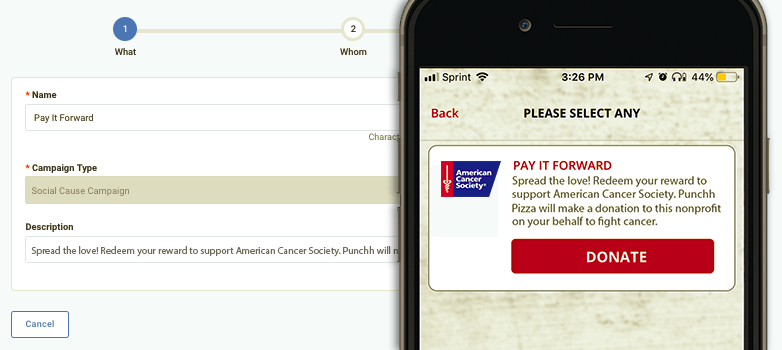
- Enter a name for your campaign in the Name field. This will appear in ALL CAPS in the mobile app.
- Enter a short statement about the cause or charity in the Description field.
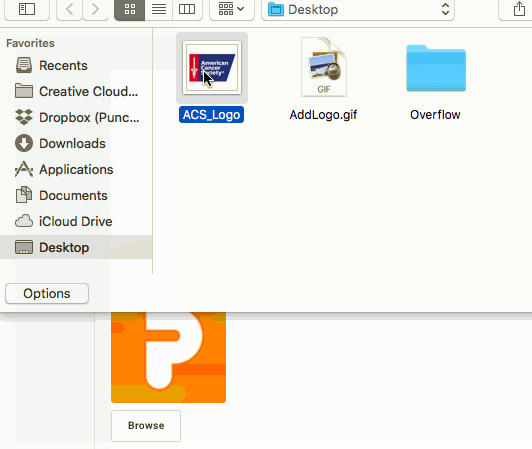
- Click the Browse button to select an image from your computer to upload for the campaign's logo.
This is the image that appears as the cause logo, as shown above.
- Under Additional Details, add the address and contact information for the cause or charity.
- Click Next to move on to Step 2.
Step 2 - Whom
Messaging
Add messaging for each of the notification types you want to send. Refer to Campaign Message Options for full details.
Click Next to move on to Step 3.
Step 3 - When
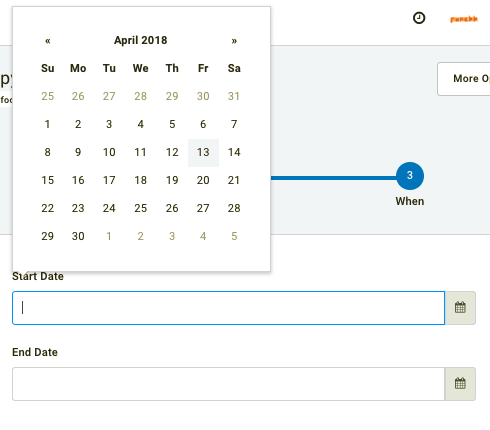
- Chose a Start Date and End Date for your campaign.
Leaving these fields blank will activate the campaign immediately, and it will run indefinitely until you deactivate it.
- Once satisfied with your campaign settings, click Finish to save and activate your new Social Cause campaign.
Social Cause Campaign Analytics
Donation trend and break-up graphs are available for each Social Cause Campaign you create. Recent donations are displayed on the same page. This data can be exported from the Dashboard as needed. To view these details, navigate to Marketing Automation >Campaign Management and search Social Cause. Click the name of the campaign you want to view.
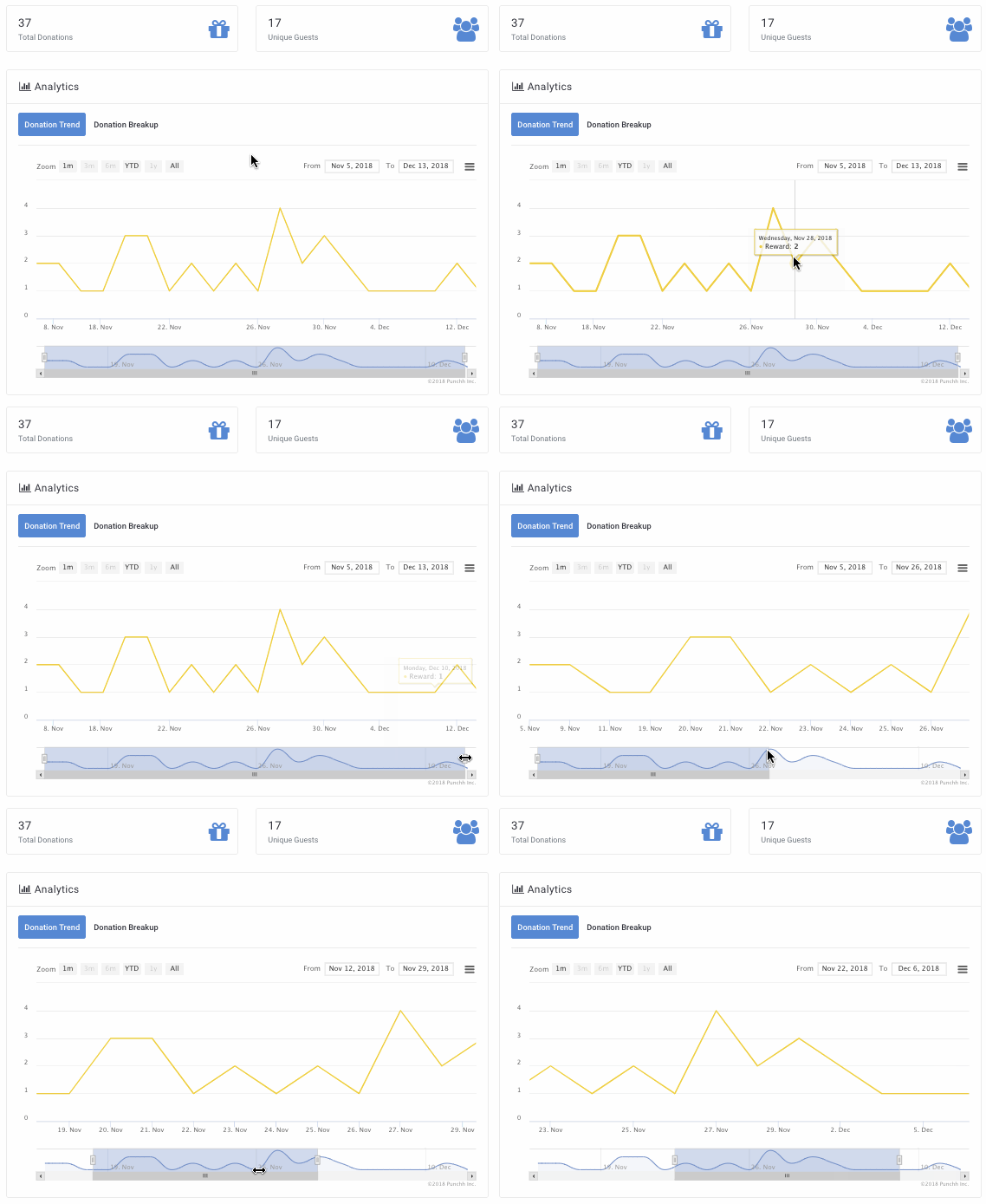
The following campaign analytics are shown:
- Total Donations
The number of donations made through the campaigns. - Unique Guests
The number of unique guests who have made at least one donation through the campaign. - Recent Donations
Displays a small list of the most recent guest donations. - Donation Trend
Displays the number of donations over a timeline in order to track how donation activity is trending. - Donation Breakup
A representation of what types of donations (Banked Currency, Rewards, Completed Cards, etc.) are being made as part of the campaign.
