PAR Games: How to Set Up a Game
PAR Games is available for an additional cost. To learn more about PAR Games, speak to your Punchh representative.
Overview
PAR Games are tied to a Punchh campaign. You will create a campaign in the Punchh platform as usual and then add the game link to the campaign for distribution. Games, and their distribution links, are created in the PAR Games dashboard.
All games have the same general structure: Trigger → Engage → Reward
- Trigger: An event, such as a checkin or redemption, triggers the game
- Engage: Guests play the game.
- Reward: If a guest wins, a reward is credited to the guest
Ways To Distribute a Game Campaign Through Punchh
| Campaign Type | Description | Use Case Examples |
|---|---|---|
| Mass Campaign (One-Time) | Game link sent to a wide guest audience | Holiday promotions, new product launches |
| Triggered Campaigns | Automatically sent after specific guest actions | Guest performs a checkin |
| Milestone Events | Triggered based on loyalty progress | Birthday, 10th visit, tier upgrade |
| Re-Engagement Campaigns | Target dormant users with play-to-win incentives | “We miss you” gamified offers |
| Referral Campaigns | Triggered after a friend signs up via referral | Unlock exclusive bonus games |
Ways Guests Can Access Games
PAR Games is a web-based application. Games can be launched via a link through multiple channels, depending on brand goals, user context, and desired reach.
- SMS
- Push Notification
- QR Code (In-store)
- Web Banner / Microsite
PAR Games is a web-based interface; therefore, an app update is NOT required.
Game URL Distribution
There are three (3) main methods to distribute a game to guests. The link type you choose and create in the PAR Games dashboard can be added to your Punchh campaign for distribution.
- Direct Game URL: Generic link that requires an email to verify a membership.
- Non-loyalty members can play the game
- Good for data collection and acquisition
- Dynamic JWT: Unique link with encrypted auto-validated guest_id.
- Enables instant play and rewards
- Faster, secure, and more reliable
- Best for member-only campaigns
- Requested URL: Unique link for each player is generated when called.
- Enables fast and secure play and reward distribution
- Best for distribution with third-party integrations outside of Punchh
How To Set Up a Game From Start to Finish
In this guide, we’ll walk through the steps required to set up a game between the Punchh platform and the PAR Games dashboard. We’ll go through the Dynamic JWT and Requested URL approaches for game distribution.
Prerequisites:
- Permission to create redeemables in the Punchh platform
- Permission to create a game in the PAR Games dashboard
- Have a Generic Gifting Webhook enabled for your brand. This will be done by Punchh. Contact your Punchh representative with questions.
Step 1: Create a Redeemable in Punchh
Create a redeemable(s) in Punchh. This will be the reward your guests receive for playing and/or winning the game.
Take note of the redeemable ID. The ID will need to be entered later in the PAR Games dashboard. To find the redeemable ID:
- Click the redeemable name in the All Redeemables list.
- Copy the redeemable ID found in the redeemables URL.

Step 2: Set Up the Game in the PAR Games Dashboard
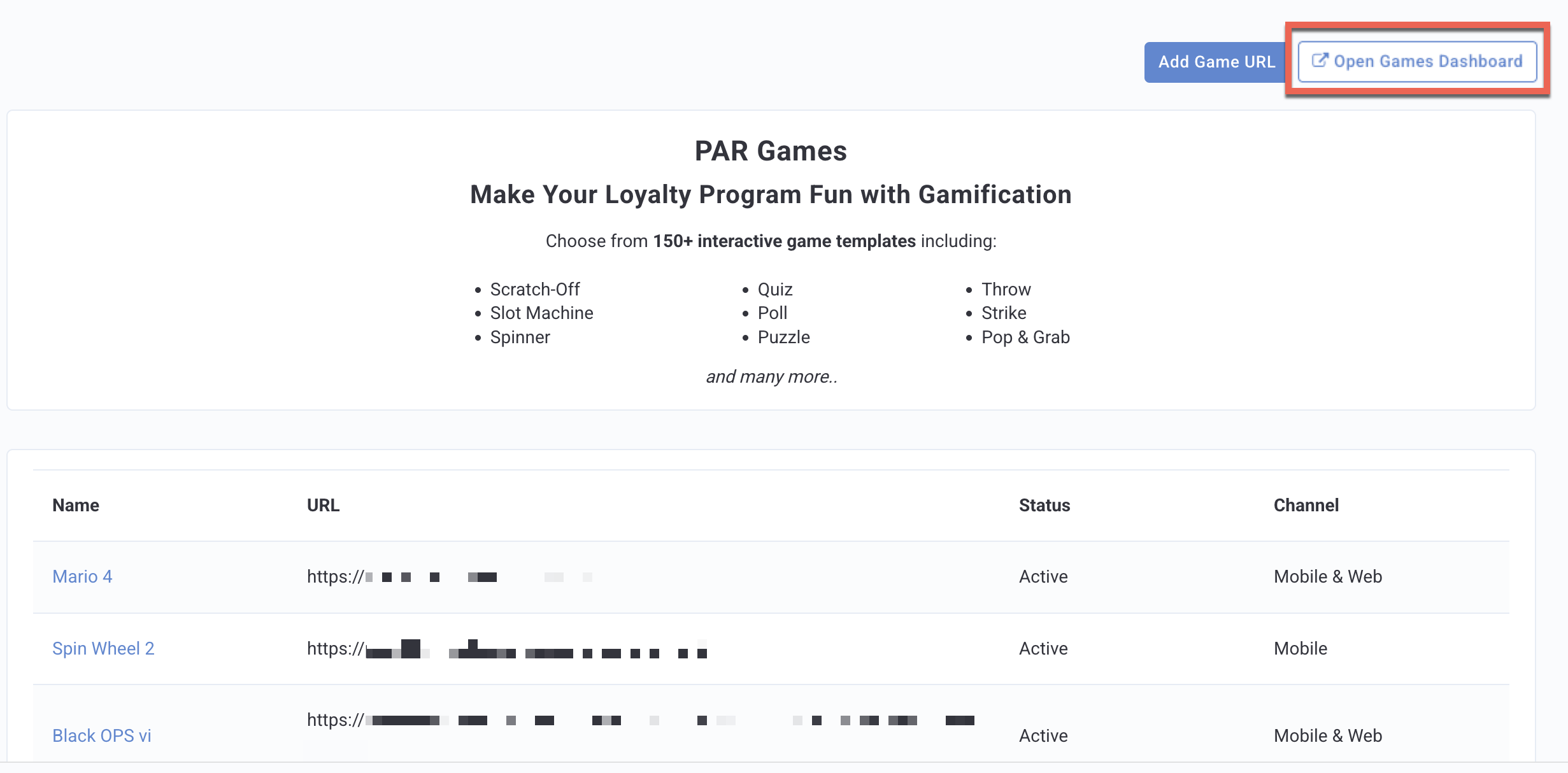
- In the Punchh platform, navigate to Custom > Games.
- Click Open Games Dashboard.
- Once in the PAR Games dashboard, click + New Campaign in the right corner.
- Enter a name for your game.
- Select the game category and type (ex: Spin Wheel, Random Win Level (0-10)).
Refer to PAR Games: Game Types *(link coming soon!)*for an explanation and example of all available game types.
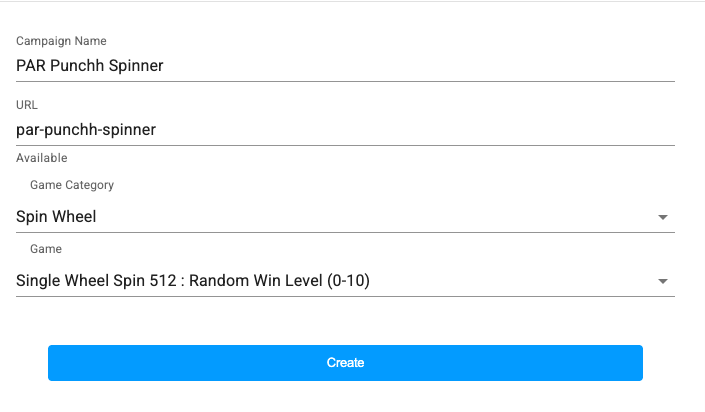
- Click Create.
Configure Prizes
- Navigate to Prize Options > Prize Control and Odds Setup. You can configure up to 10 prize levels.
- Prize Level 0 indicates a loss.
- If you wish to gift in the event of a loss, enter the redeemable_id we stored in Step 1 into the Description field.
- Leave blank to not reward the guest in the event of a loss.
- Prize Level 1 and up indicate the guest has won.
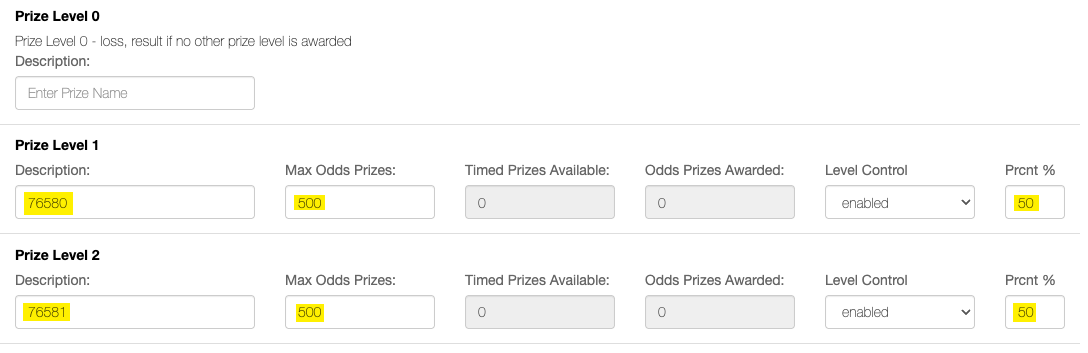
- In the Description field, enter the redeemable_id we stored in Step 1. The generic webhook will use this field to determine which reward to gift if the player wins.
- Max Odds Prizes: This is the total number of rewards you want to gift through the game.
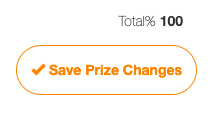
- Percent %: This is the weight of each reward. The sum of percent weight should be 100%. (If you are only gifting one redeemable, you will enter 100% here.)
- Click Save Prize Changes at the bottom of the page.
Configure Play Controls
- Select Play Control in the left navigation.
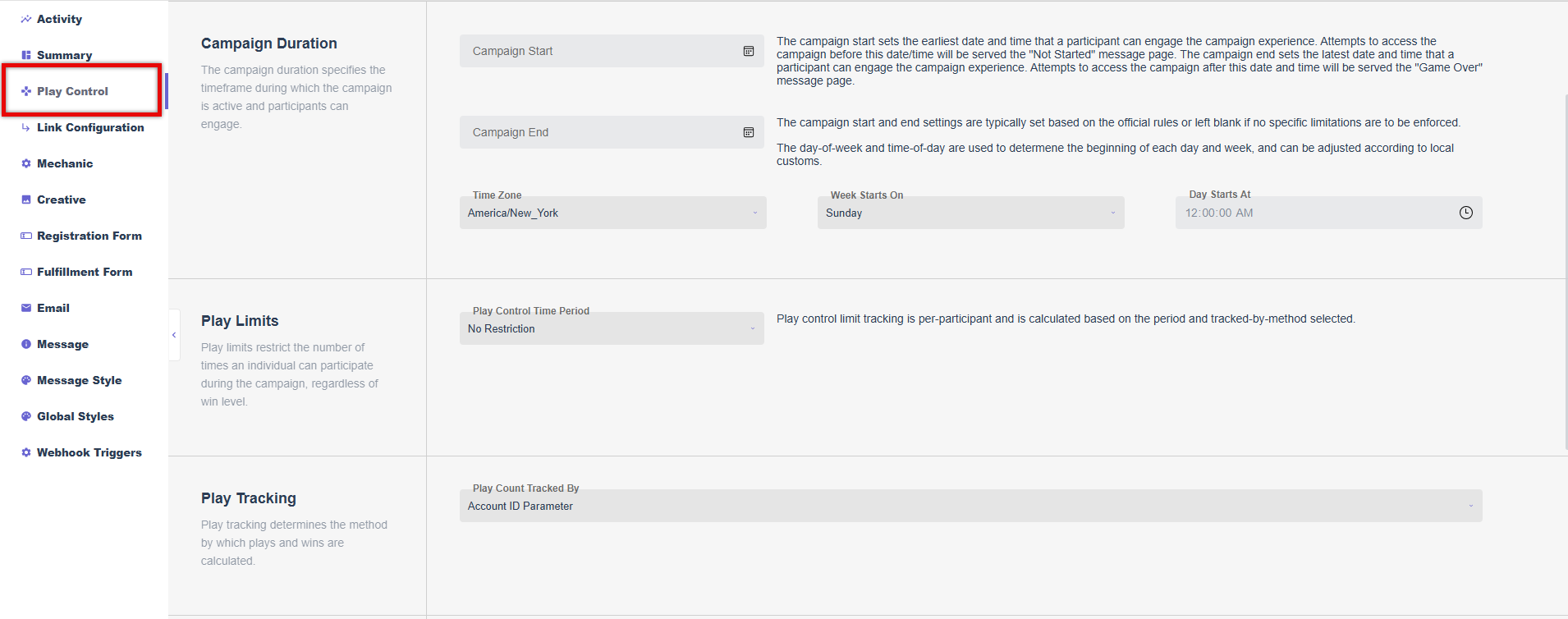
- Set your campaign duration and any limitations on the number of plays or wins.
- Campaign Duration: This controls the timeframe that guests can access and play the game.
- Play Limits: This controls the number of times a guest can play the game.
- Play Tracking: This determines how plays are tracked for limits. Set this to Account ID Parameter.
- Win Limits: This controls the number of times a guest can win the game.
- Win Limit Type: The timeframe the Win Limit applies to.
- Max Wins per Participant: The number of wins allowed within the Win Limit Type.
Add Creative
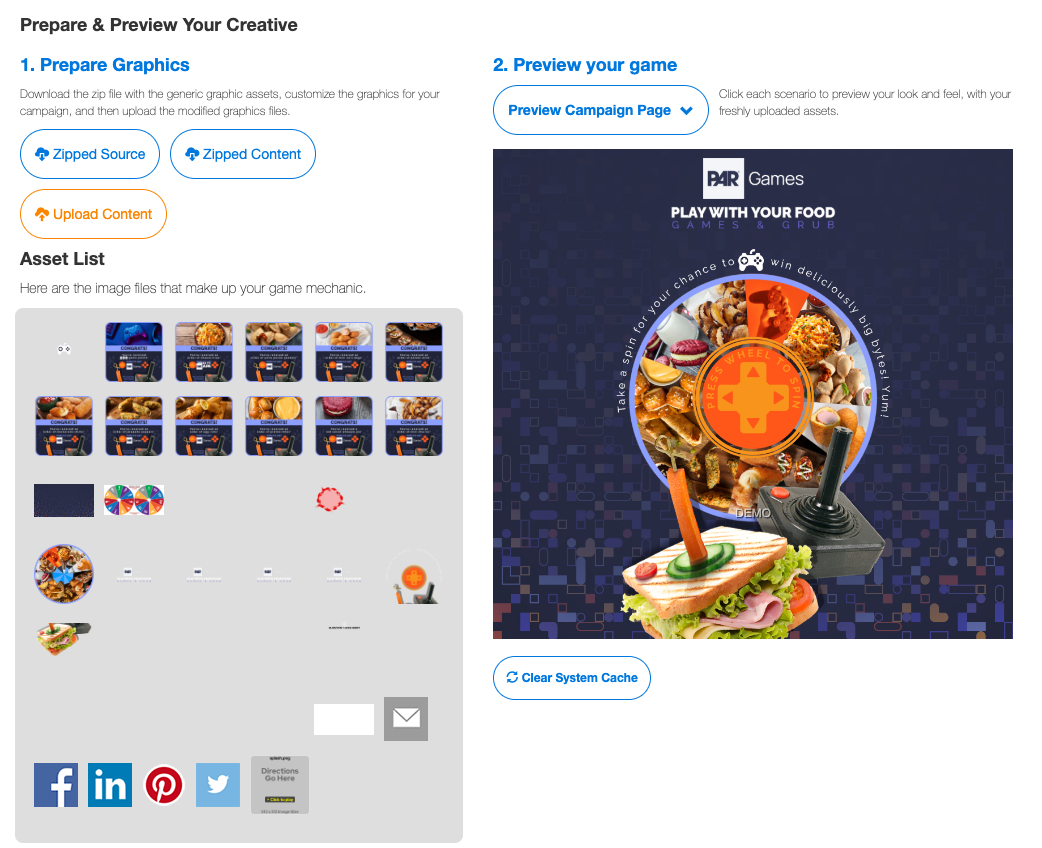
- To customize your game with your branding and images, select Creative in the left navigation.
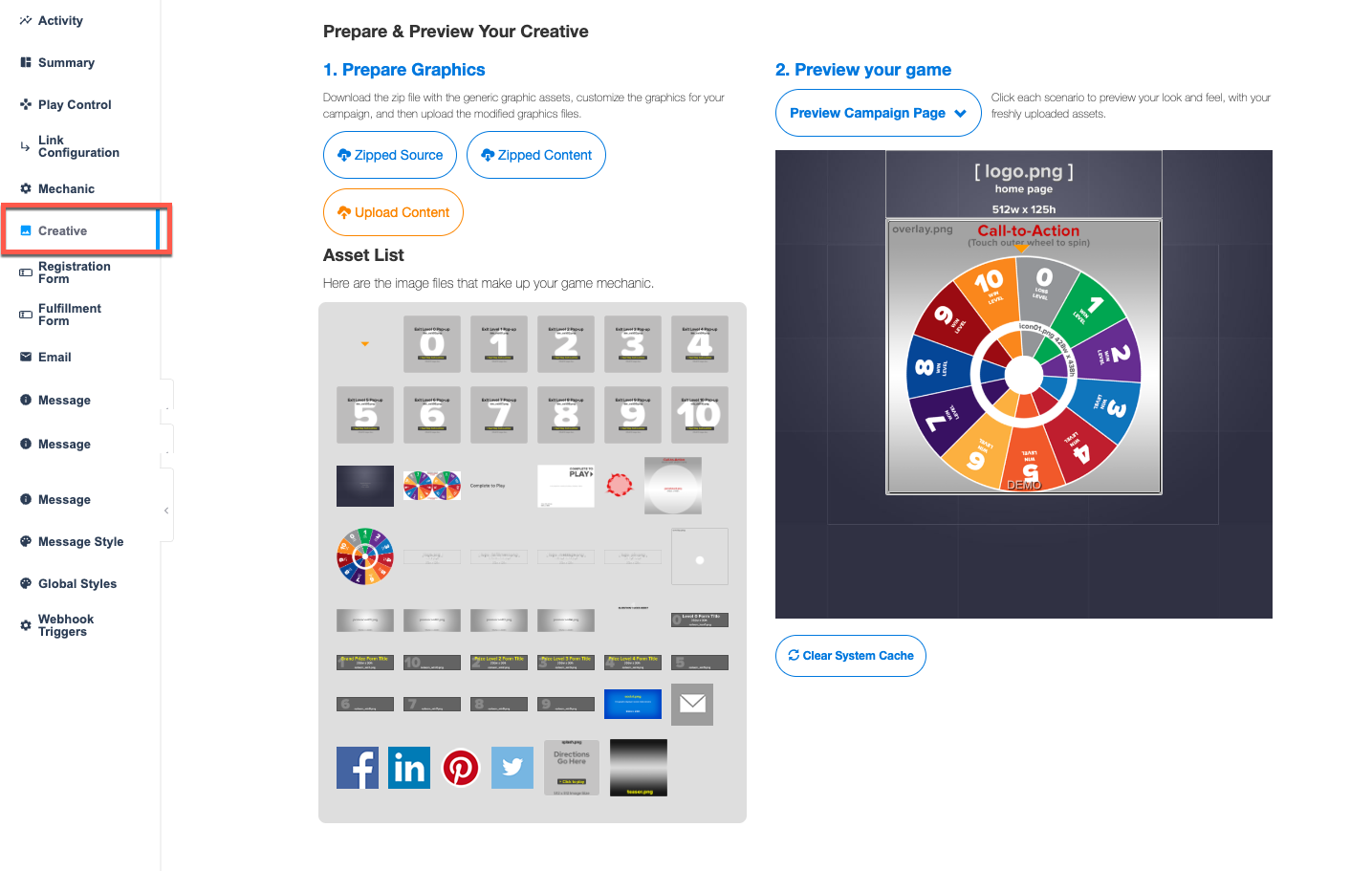
- Each graphic within the game has a designated file name. Download the Zipped Source file with the generic images.
- Create a folder with your designed images, using the file names from the Zipped Source file. This allows the images to be placed in the appropriate sections of the game.
- Click Upload Content to upload your images.

- Your branded game will appear in the preview window. You may have to refresh the page.
Expand Your Creative With Promo Icons
You'll notice in the image above that the branded images are expanded below what's shown in the preview window. If your creative is larger than the basic game window, you can add promo icons to show the full images.
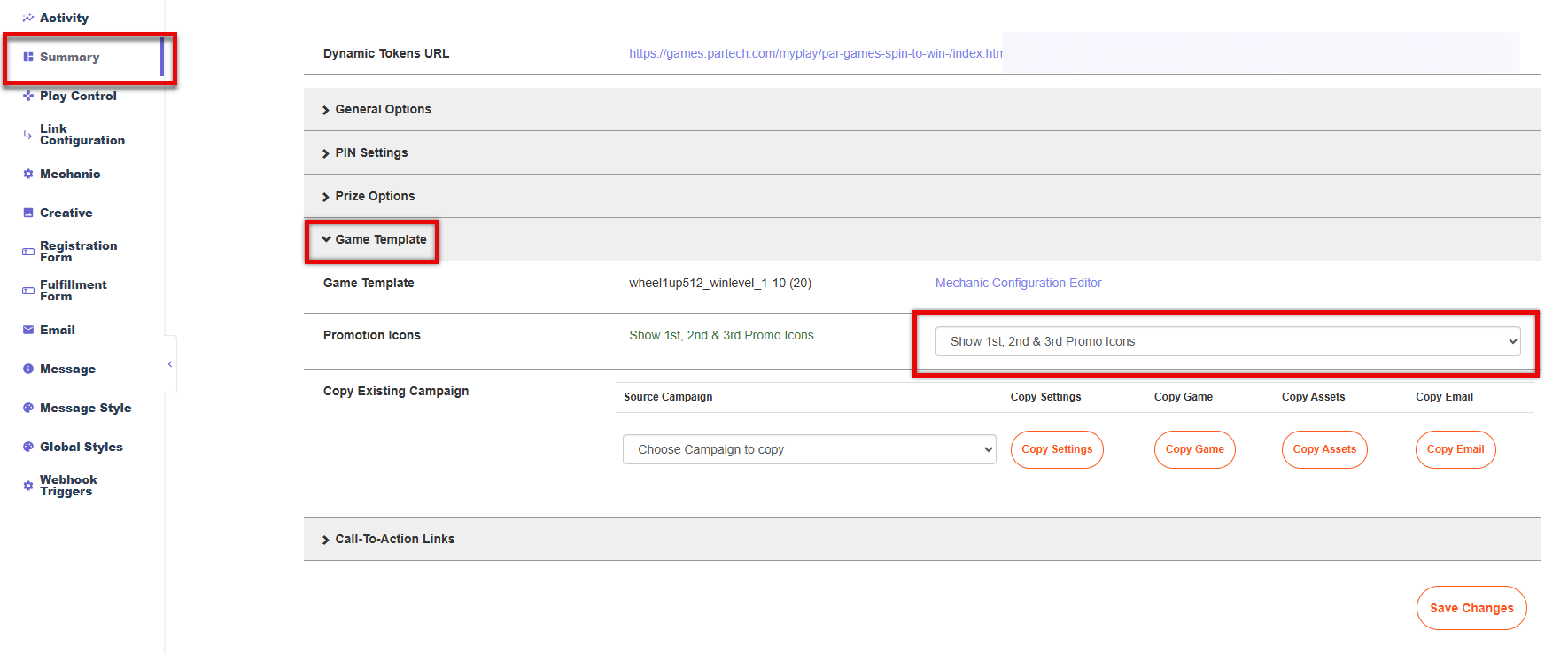
- Navigate to Summary > Game Template.
- In the Promotion Icons drop-down menu, select the number of icons you want to display. (4+ select Show All Promo Icons.)
- Navigate back to Creative in the left side menu.
- Upload your promo icon images using the following naming convention: promoicon01, promoicon02, promoicon03, etc.
- The expanded images will now appear in your game.
Step 3: Attach the Generic Webhook
- Navigate to Webhook Triggers in the left side panel.
- Click + Add Trigger.
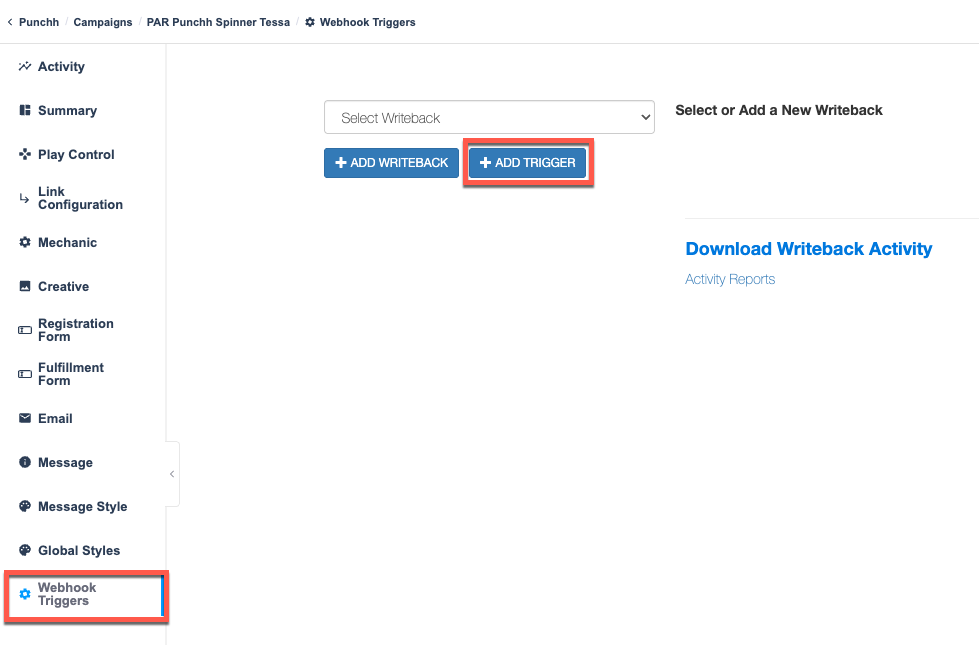
- Enter a name for the trigger in the Writeback Name field.
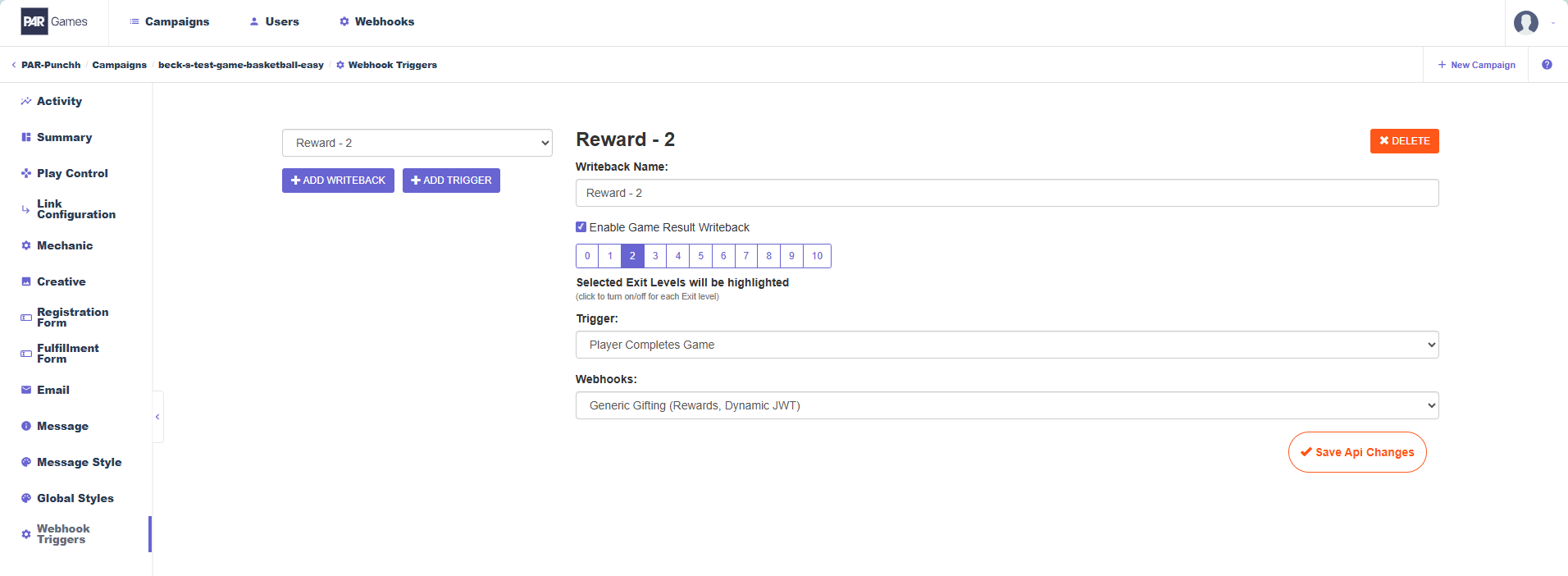
- Enable Game Result Writeback: Click the checkbox and enable this.
- Selected Exit Levels will be highlighted: All levels are selected by default; deselect any levels that do not result in the player winning a redeemable.
- Trigger: Set this to Player Completes Game.
- Webhooks: Select the generic webhook that was previously created. Contact your Punchh representative for the webhook name if you do not already have it.
- Make sure the generic webhook selected works for the deployment method you will be using. Contact your Punchh representative with any questions.
- Click Save API Changes.
This webhook will call the support gifting API to automatically credit the reward to the guest’s loyalty account whenever they win.
Step 4: Game Deployment and Testing
Which deployment method you use depends on how you plan to distribute your game to guests. For games being deployed using Punchh campaigns, it is recommended to use a Dynamic JWT URL (also called Dynamic Tokens URL). For games with registration forms or deployed through SMS or third-party messaging platforms, such as Braze, it is recommended to use a Requested URL.
Dynamic JWT Deployment
Configure the Dynamic Tokens Game URL
- Navigate to the Link Configuration on the left side panel.
- Click the Enable Dynamic Tokens checkbox.
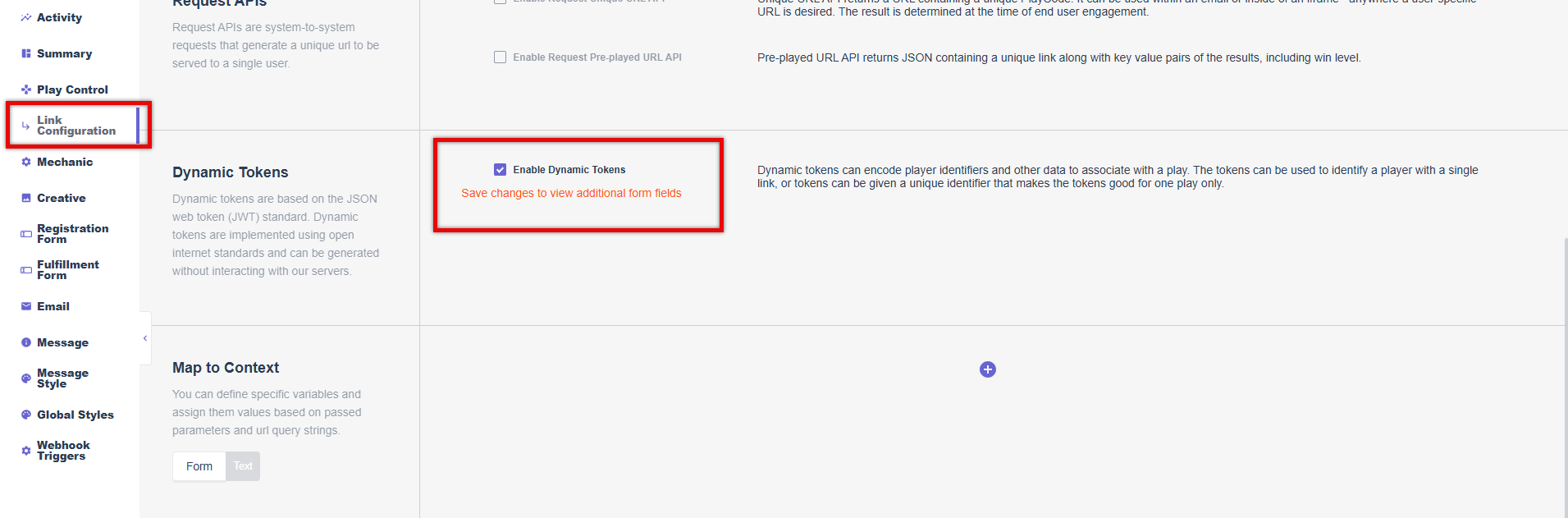
- Click Save Settings at the bottom of the page to view additional form fields.
- In the JWT Secret Key field, paste the secret key provided by your Punchh representative.
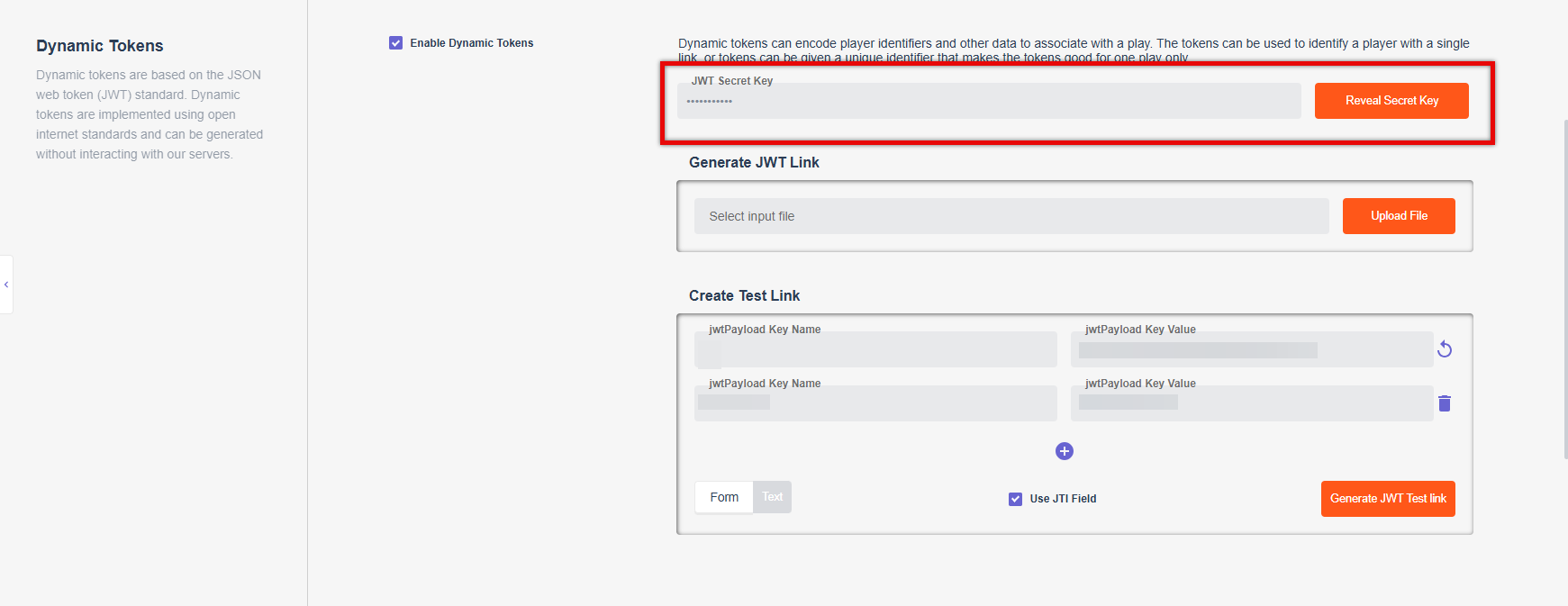
- Click Save Settings.
Map to Context Fields
- Under Link Configuration > Map to Context (below Dynamic Tokens), select the + icon twice.
- Enter the following details:

- Context Variable One:
- Context Variable Name: user_id
- Source: Passed Parameters
- Passed Parameter Value: user_id
- Context Variable Two:
- Context Variable Name: redeemable_id
- Source: Passed Parameters
- Passed Parameter Value: sys.prize.description
- Context Variable One:
- Click Save Settings.
Note: These mappings are standard and should always be configured this way for every game.
Create a Test Link
Before sending this game link through Punchh campaigns, let’s first create a test link.
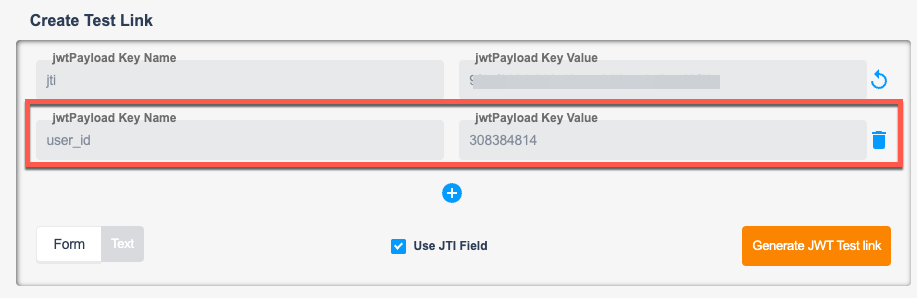
- Under Link Configuration > Dynamic Tokens, you’ll find a section called Create Test Link.
- Leave the first row key-value pair as is.
- In the second row, in the Key Name field, replace AccountID with user_id.
- In the Key Value field, enter the user_id of a test guest you want to generate the link for.
- Click the Generate JWT Test Link button.
- Copy the generated URL and paste it into your browser to test the flow.
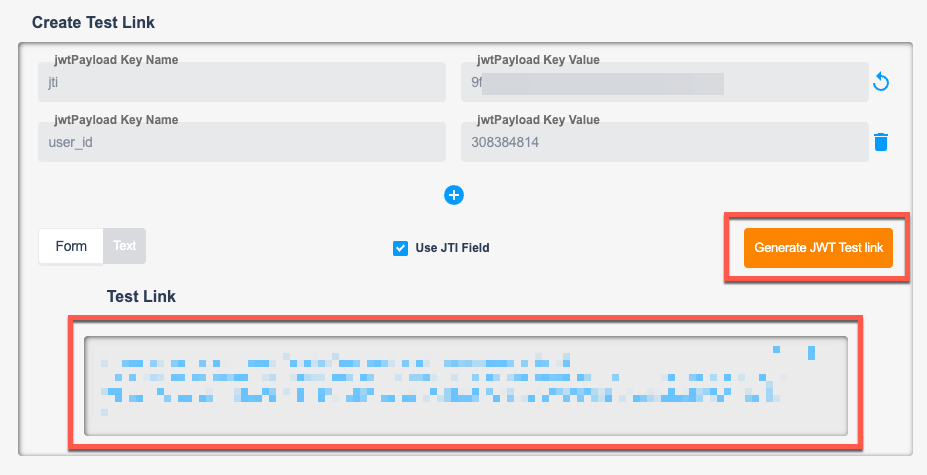
- The game is now launched in the browser.
- Play the game and check if the reward is successfully credited to the test account after a win.
- For additional support, navigate to Activity in the PAR Games dashboard and click Create Writeback CSV. This will create a report that details any errors or missing parameters within the call to Punchh.
Game Distribution via Punchh Campaigns
The game is working as expected, so let’s distribute it via a Punchh campaign.
- Navigate to the Summary tab on the left side panel.
-
Copy the Dynamic Token URL through
token=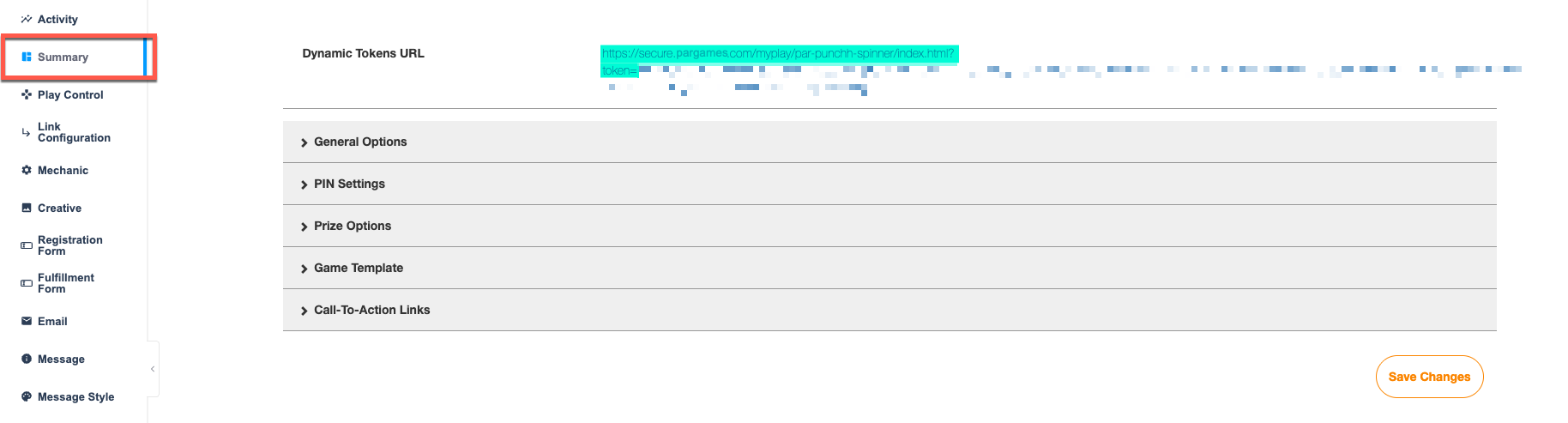
- Navigate back to the Punchh platform.
- Create a campaign of your choice.
- Include the Dynamic Token URL, along with {{{game_jwt_token}}} after the "
token=", into your campaign's messaging.

On the backend, the system automatically appends the user_id to the game URL and masks it by converting it to a token. This ensures that the game URL is generated at runtime and is unique for every player—meaning it cannot be shortened. - Configure your campaign and messaging as normal. The game link will be sent to all eligible members after the campaign processing is complete.
For more detailed instructions on distributing a game through Punchh campaigns, please refer to PAR Games: Campaign Distribution.
Requested URL Deployment
Configure the Requested URL
- Navigate to Link Configuration in the left navigation.
- In the Request APIs section, click the Enable Request Unique URL API checkbox.
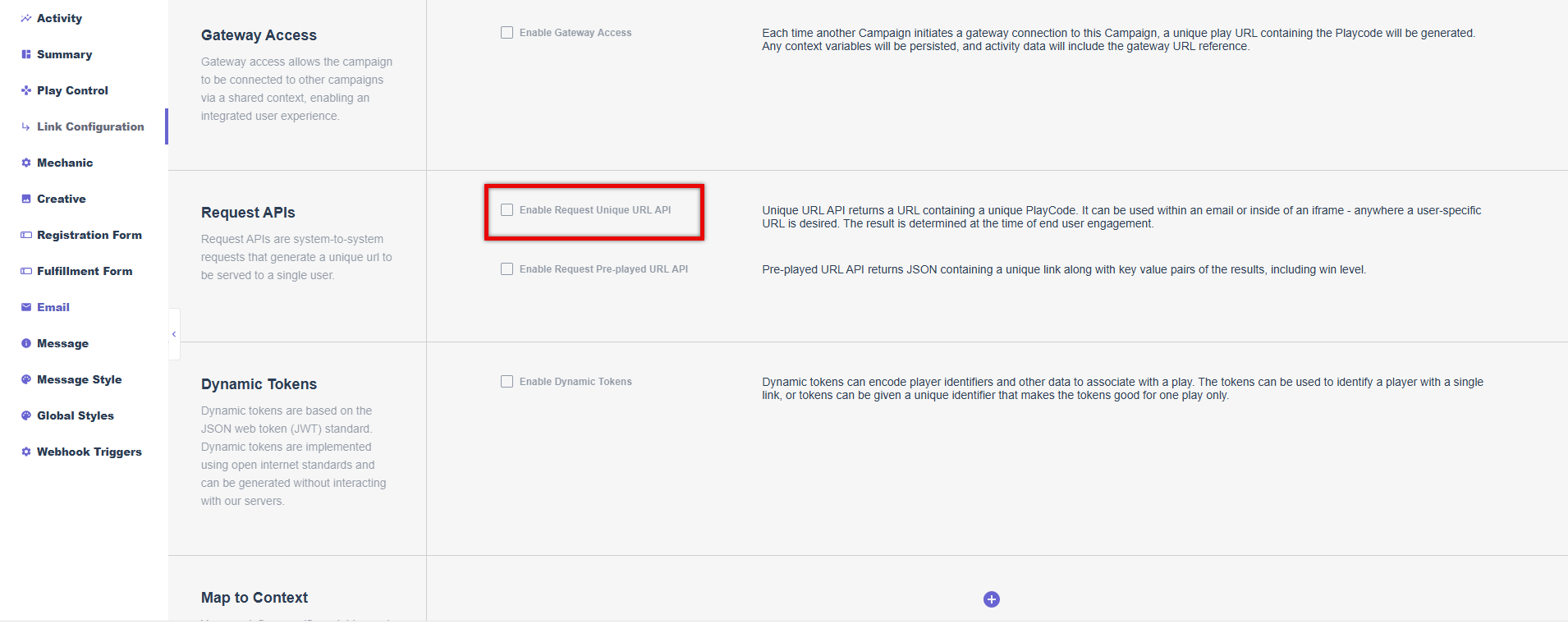
- Click Save Settings at the bottom of the page to generate the unique URL.

Create a Test Link
- Copy the unique URL generated above.
- Identify the test user you want to use for testing and copy their user_id.
- Paste the URL into a text editor and add the following to the end of the URL: &AccountID=user_id
- For example, if the user_id is "12345678", then the URL would look like the following:
https://games.partech.com/dplayurl/game_name?username=abcDEfgH&password=iJKlmnOP&AccountID=12345678
- For example, if the user_id is "12345678", then the URL would look like the following:
- Copy the appended URL and paste it into your browser. A new game link will be displayed.
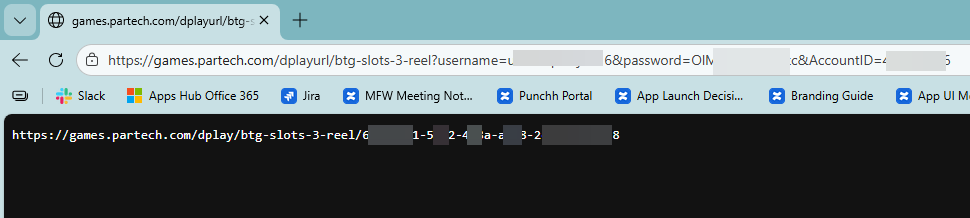
- Copy the new game link and paste it into a new tab.
- The game is now launched in the browser. Play the game and earn a prize.
- Check if the reward is successfully credited to the test account after a win.
- For additional support, navigate to Activity in the PAR Games dashboard and click Create Writeback CSV. This will create a report that details any errors or missing parameters within the call to Punchh.
Game Distribution via Third-Party
Adding the URL to your messaging will vary depending on the integration you are using. Contact your third-party representative for assistance with this step.
Managing Game URLs
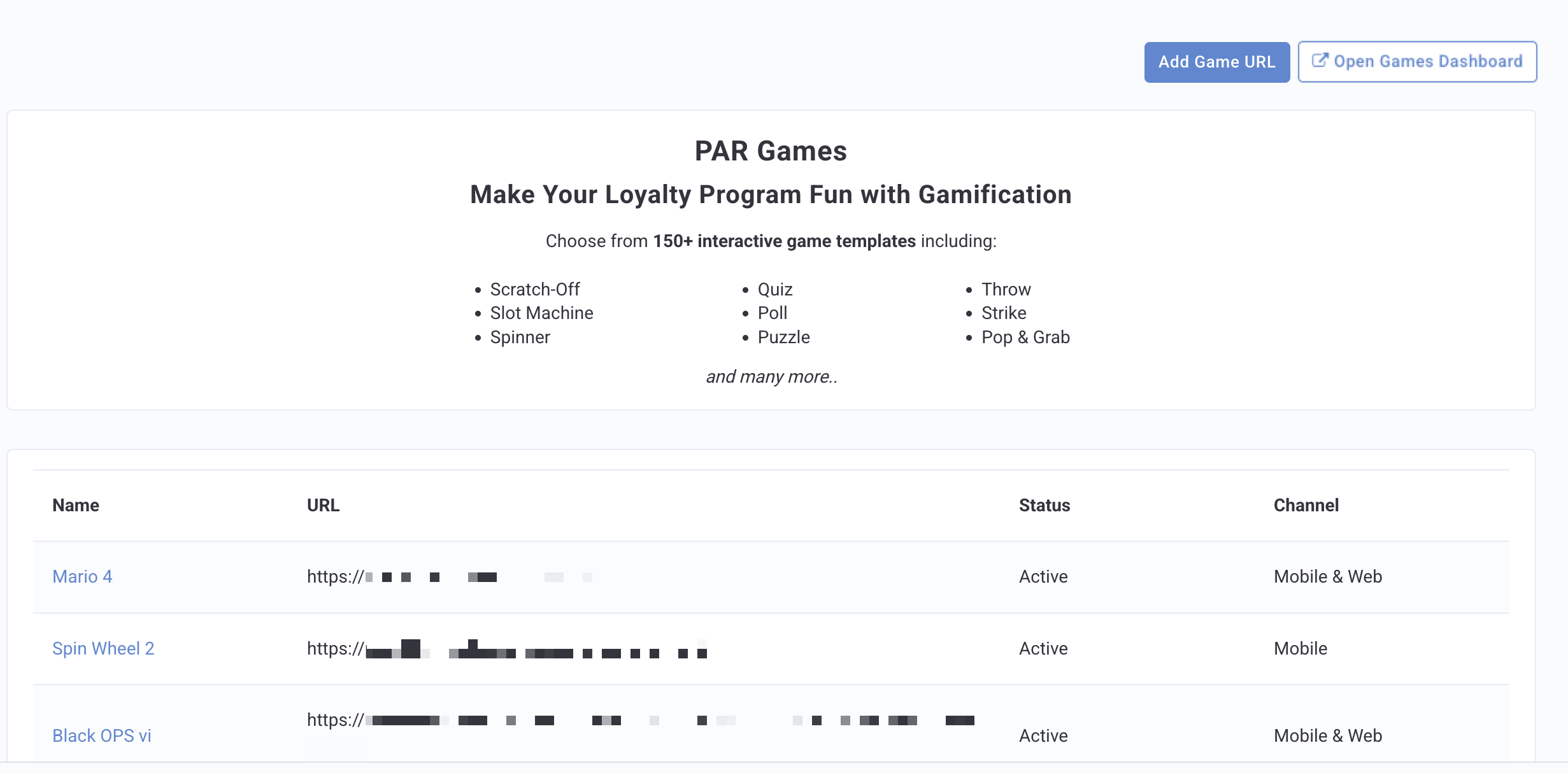
Game URLs can be stored and managed directly in the Punchh platform on the Games page. This allows you to easily find your game URLs to add to your Punchh campaign.
Add a Game URL
- Navigate to Custom > Games.
- Click Add Game URL in the top right corner.
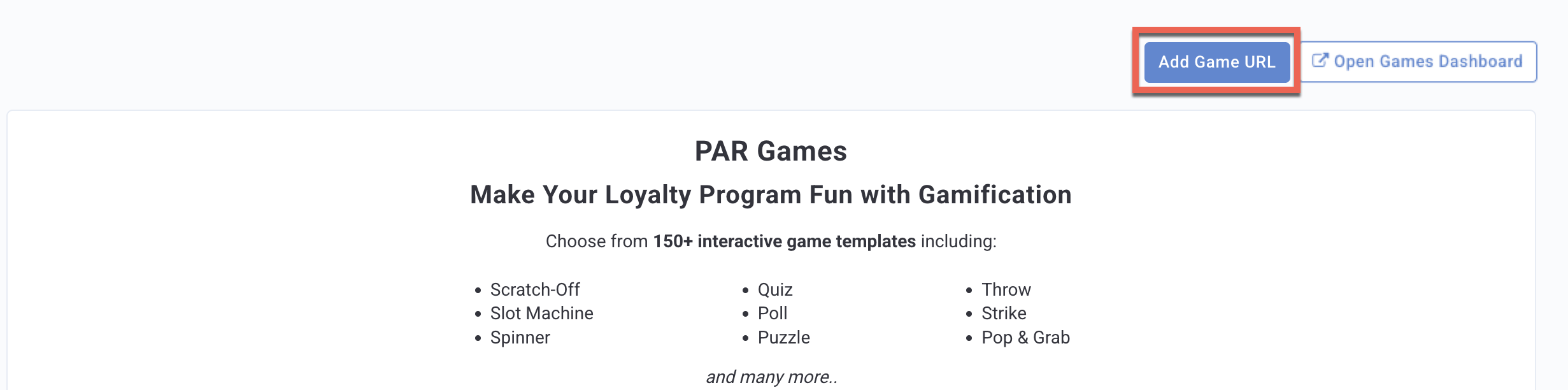
- Fill in the following fields:
- Name: Name of the game or campaign associated with the URL
- Description (optional): Short description of the game or any notes necessary.
- URL: The game link.
- Status: Select Active or Inactive.
- Channel: Select the channel the game is distributed through: Mobile / Web / Mobile and Web
- Game Cover Image (optional): Only visible if Channel is set to Mobile or Mobile and Web. Sets the cover image displayed with the game in the mobile app (Mobile Framework support coming end of Q2)
- Must be in PNG or JPG format and up to 5MB.
- Click Save.
- The Game URL list displays all added game links.