PAR Games: Dashboard Overview
The PAR Games dashboard is where the majority of the game creation process will take place. Knowing where the various configurations live within the dashboard can help make this process more efficient. This article will provide a high-level overview of the PAR Games dashboard and where important configurations live. This will not provide in-depth details about how to use these configurations or how to set up a game.
Landing Page and Navigation
Campaign Landing Page
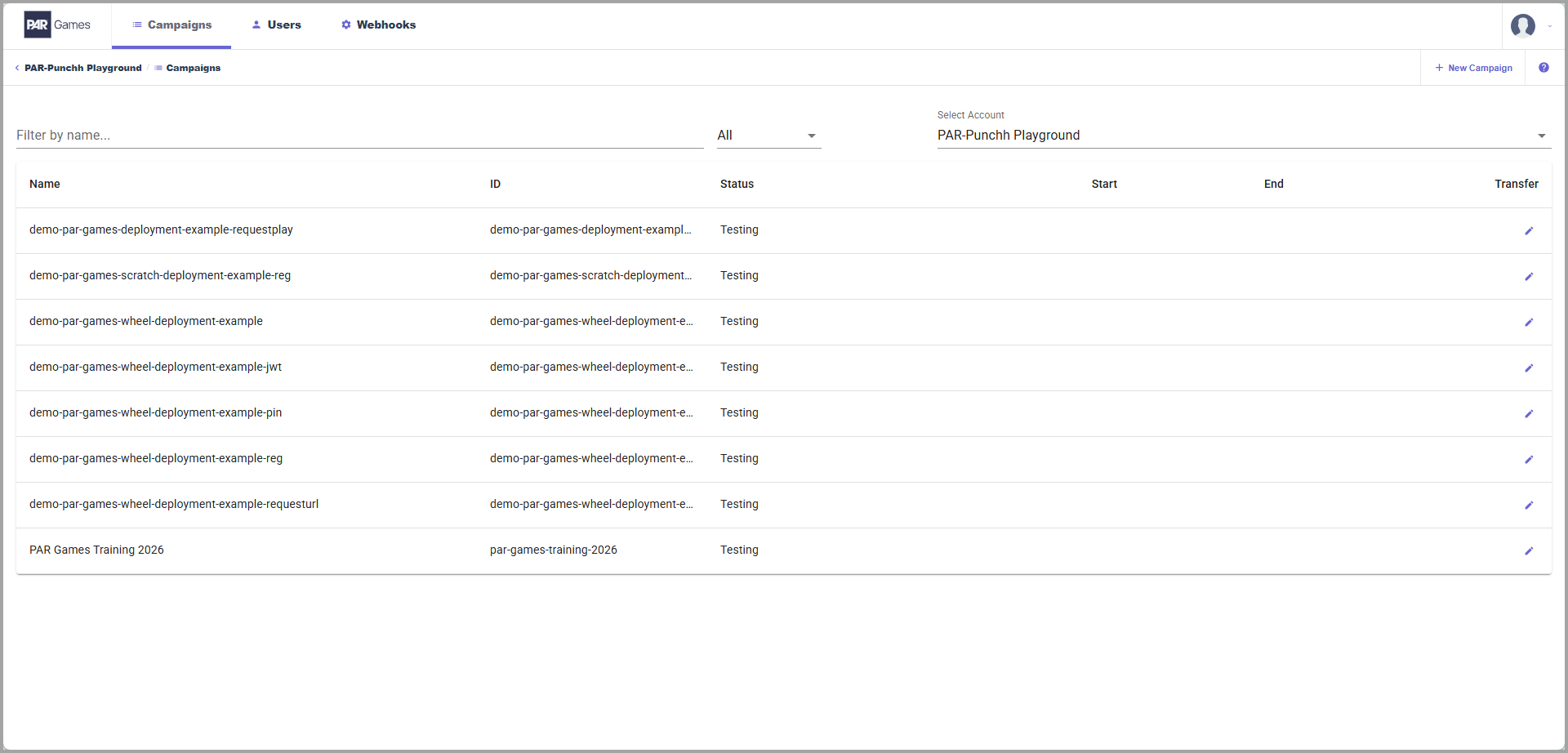
When you enter the PAR Games dashboard from the Punchh platform, you will land on the main campaigns page. This is where you can see all your game campaigns. From here, you can navigate into any existing game campaign, create a new game campaign, and switch accounts. If you have not set up any games yet, then this page will be empty.
Top Navigation
The top navigation is always available, regardless of where you are within the PAR Games dashboard. This is used to navigate back to the Campaigns landing page and to access the Users and Webhooks tabs. You can also create a new game campaign by clicking the + New Campaign button in the top navigation.

Game Campaigns
New Campaign
When you click the + New Campaign button, you will be taken to the New Campaign page. This is where you select the game you want to create, as well as the game name and URL.
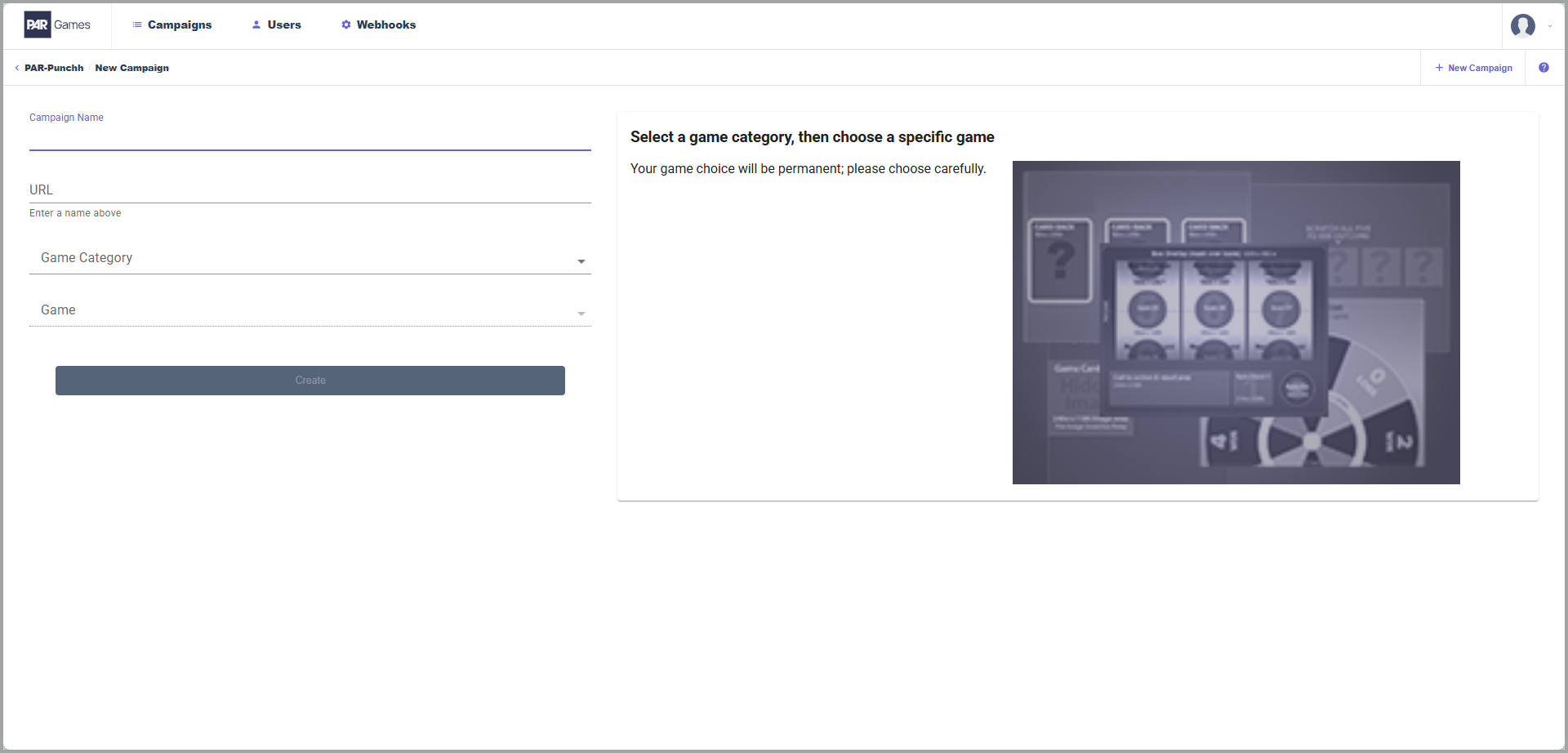
- Campaign Name: This field sets the name for the campaign, which will be used to generate the URL. The name can be changed after the game campaign has been created, but this is not recommended.
- URL: This field will automatically generate a URL based on the text provided in the Campaign Name field, but you can change this to give your game campaign any available URL. This cannot be changed after the game campaign has been created.
- Game Category: This dropdown is where you select the game category for the game. Once a category is selected, the Game dropdown will become available and will display all the games within the selected category.
- Game: This dropdown allows you to select the game you want to use for your game campaign. Once a game is selected, a brief summary and demo wireframe will be displayed in the box to the right of these fields.
Game Campaign Configurations
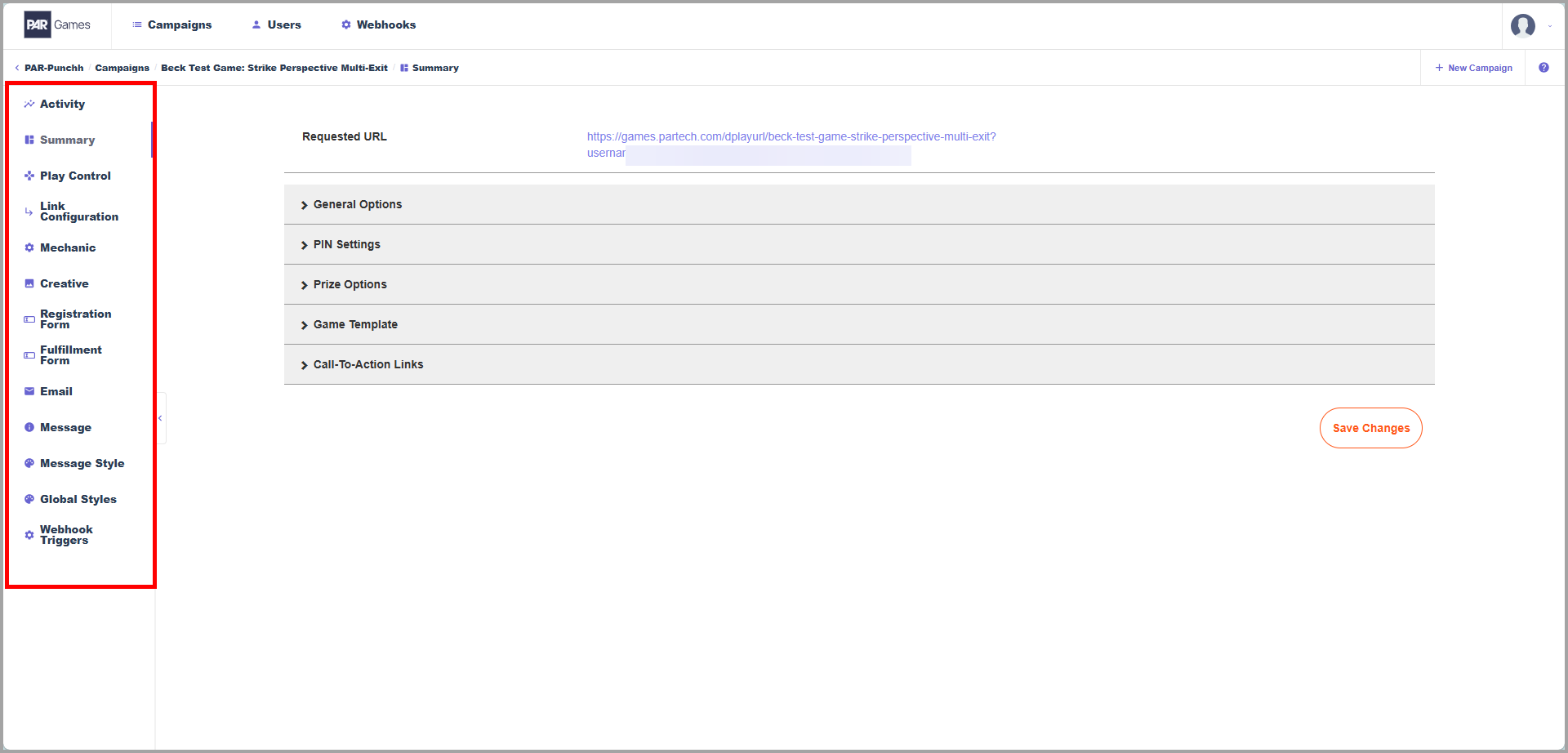
After creating a new game campaign or selecting an existing one, you will be taken to the Summary tab for the game campaign. From here, you can navigate to other tabs using the left navigation. Each of these tabs controls different elements of the game campaign.
Summary
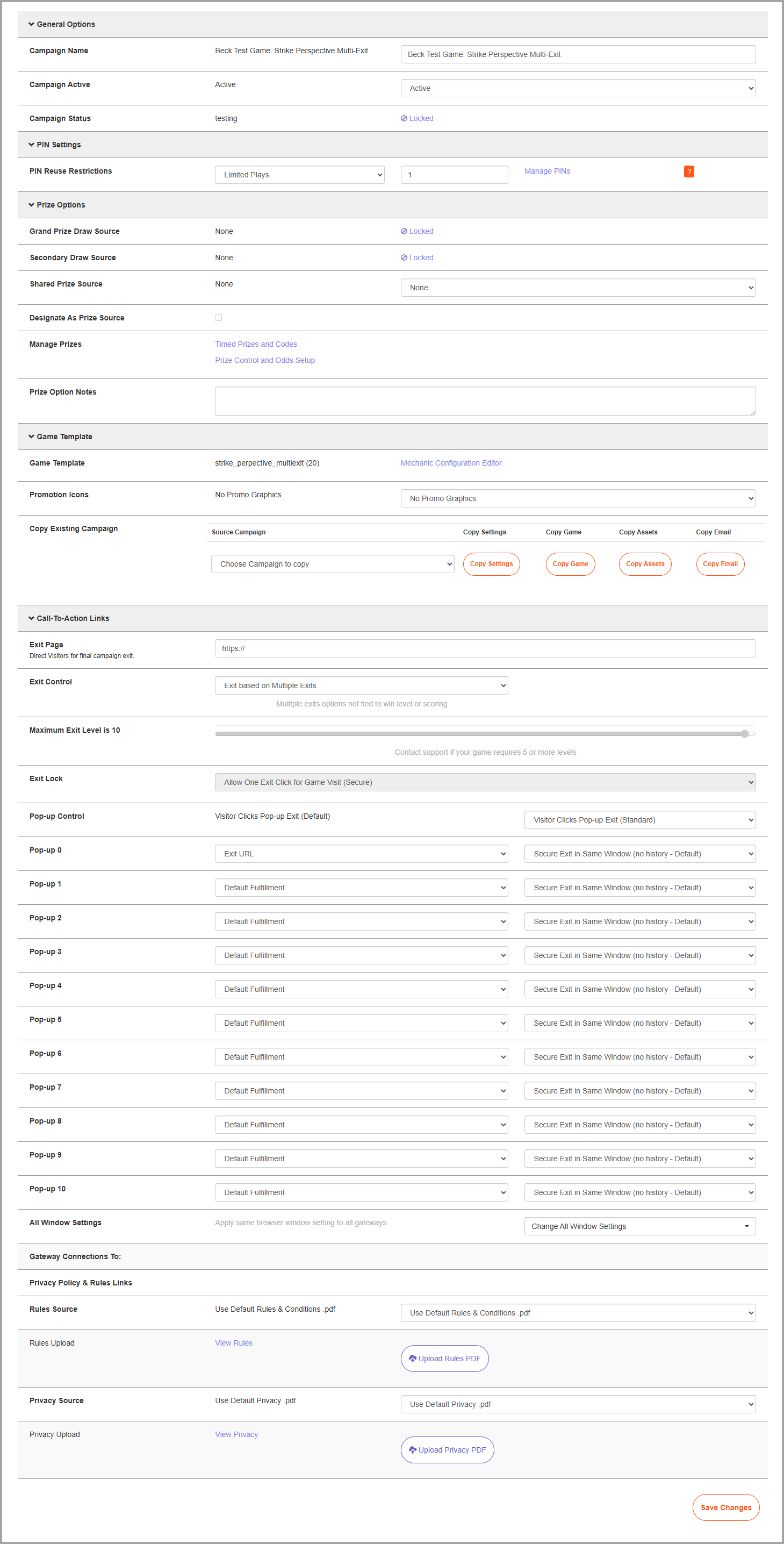
This is the first section you will see when entering the game campaign. It contains several sections that can be expanded to set various configurations for the game.
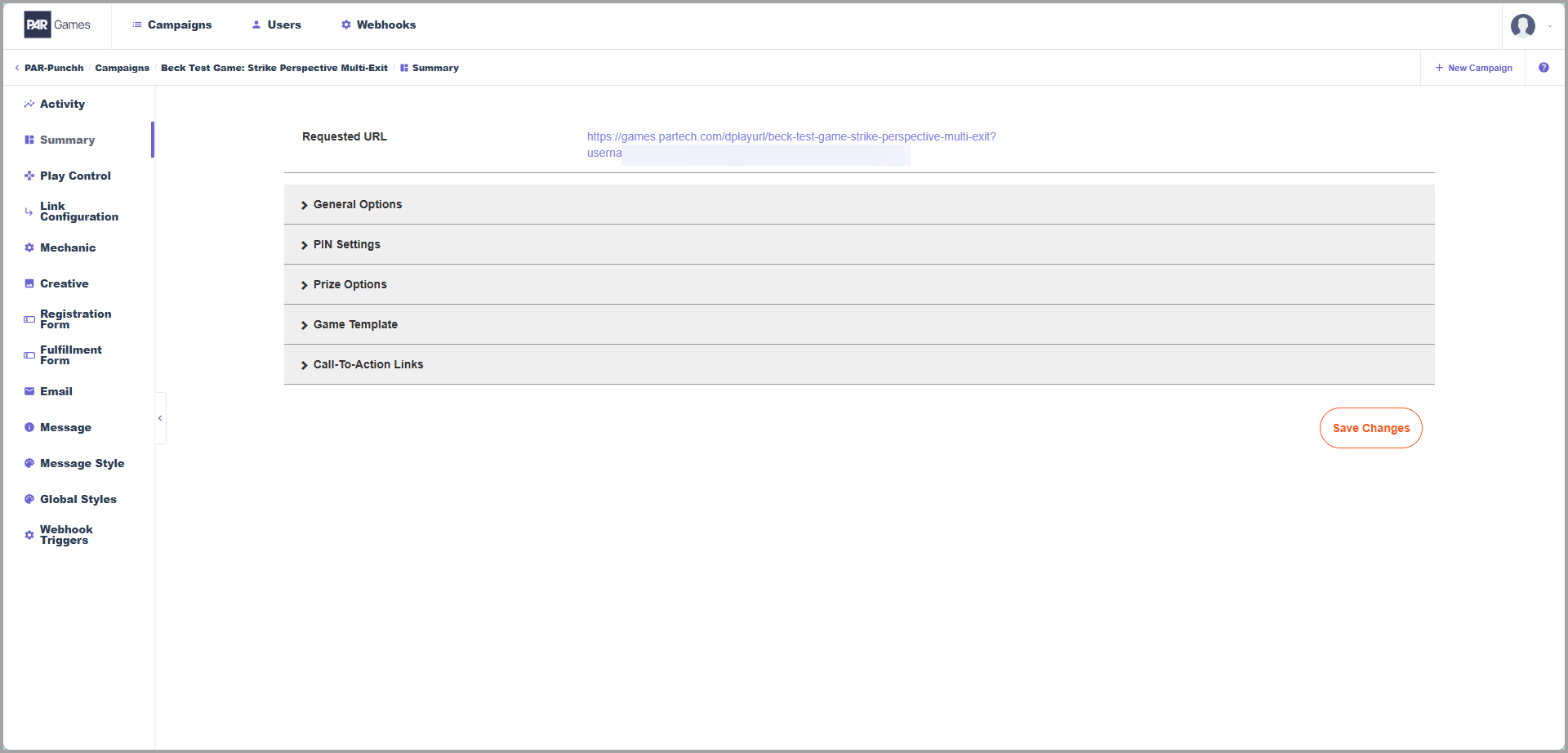
- URL: If a URL has already been configured in the Link Configuration tab, it will be displayed above everything else on this screen.
- General Options: This allows you to change the game name and whether it is active or inactive. It also displays the game's status (whether it is in testing or live).
- PIN Settings: This is where you can configure the PIN settings for the brand campaign. Note that the PIN will not appear unless also configured in the Registration Form tab.
- Prize Options: This section allows you to configure prize sources, allowing you to use prizes from another game or to designate that game as a prize source. This is also how you can access the Timed Prizes pop-up and the Prize Control and Odds tab.
- Game Template: This is where promo graphics can be set up. You can also copy settings, assets, and other configurations from other game campaigns.
- Call-To-Action Links: This section controls where the various pop-ups will direct players to after completing a play. In addition, this is where you can manage the rules and conditions and privacy policy PDFs for the game campaign. If the game campaign is configured to link to another game mechanic, that will be displayed here as well.
Summary Tab - Expanded
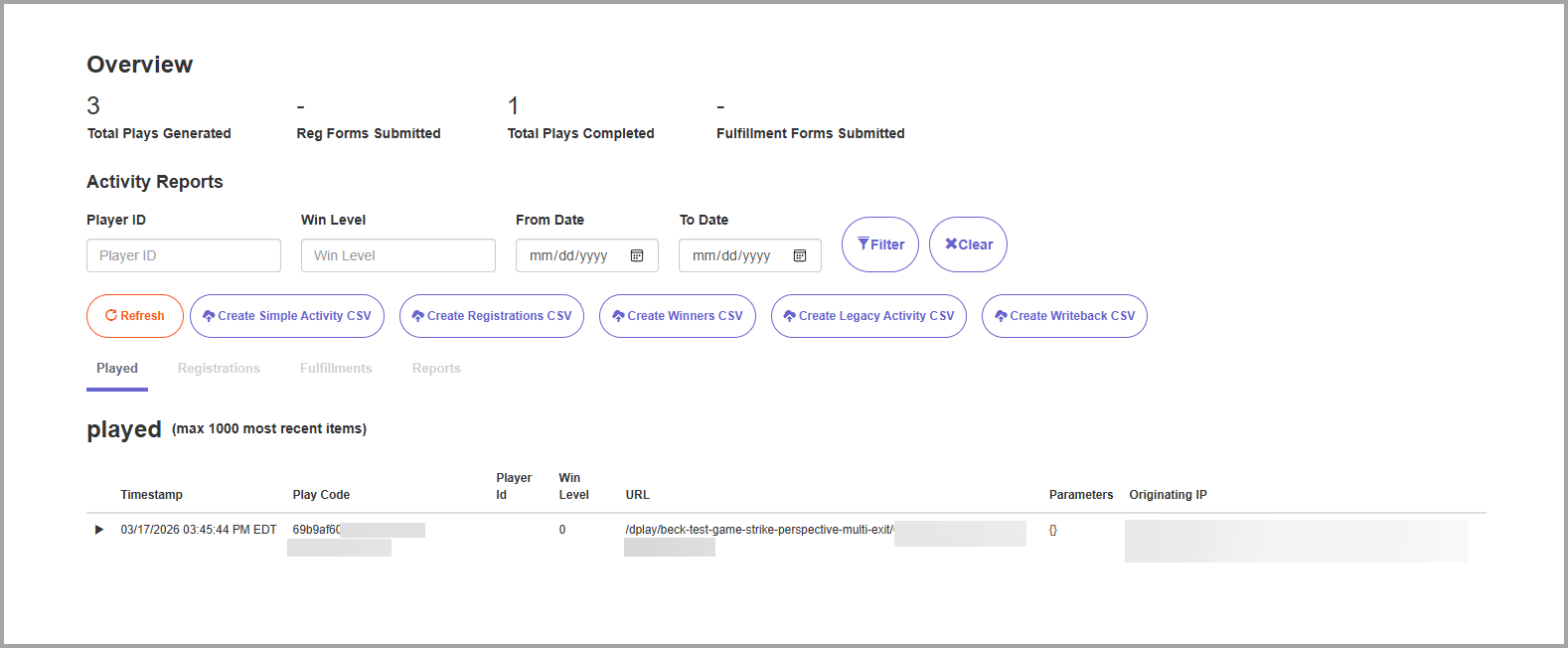
Activity
The Activity tab displays the play history for the game campaign. From here, you can view how many times the game was played, search for individual player IDs, generate reports, see submitted forms, and more.
Play Control
This tab is where any play restrictions are configured and how plays are tracked.
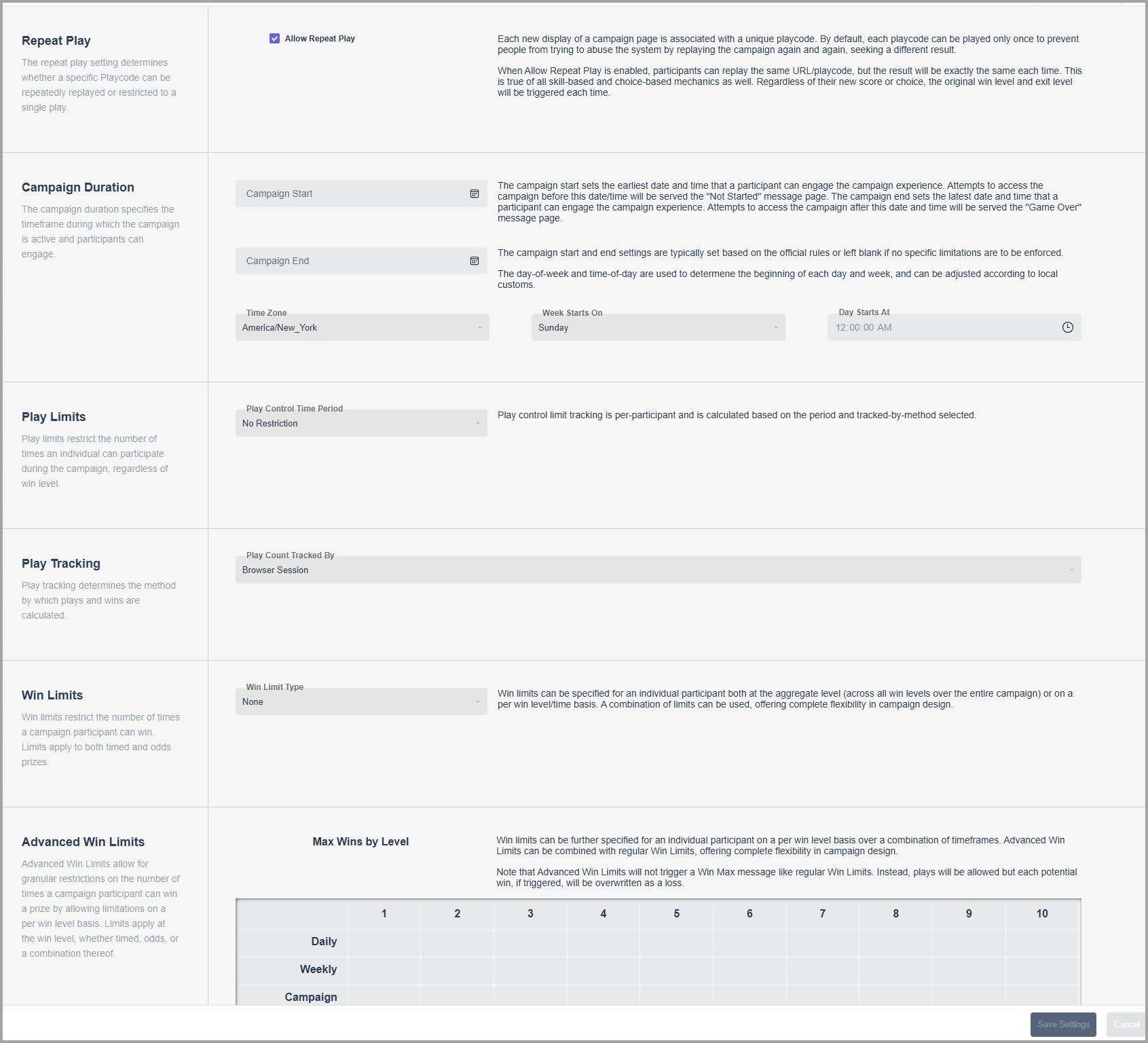
- Repeat Play: This controls whether or not a player can play the game multiple times.
- Campaign Duration: This determines the start and end dates for your game campaign. This can be left blank to allow the game to be active until it is manually disabled.
- Play Limits: This can be used to set restrictions on how often a player is able to play the game. This will have no impact if Repeat Play is not enabled.
- Play Tracking: This determines how plays (and players) will be tracked. For most game campaigns, this will be set to Account ID Parameter.
- Win Limits: This can be used to set restrictions on how often a player is able to winthe game and be awarded a prize. This will have no impact if Repeat Play is not enabled.
- Advanced Win Limits: This is used in conjunction with Win Limits to control how often a player is able to be awarded specific prize levels.
Link Configuration
The Link Configuration tab is where you set the deployment method for the game campaign.
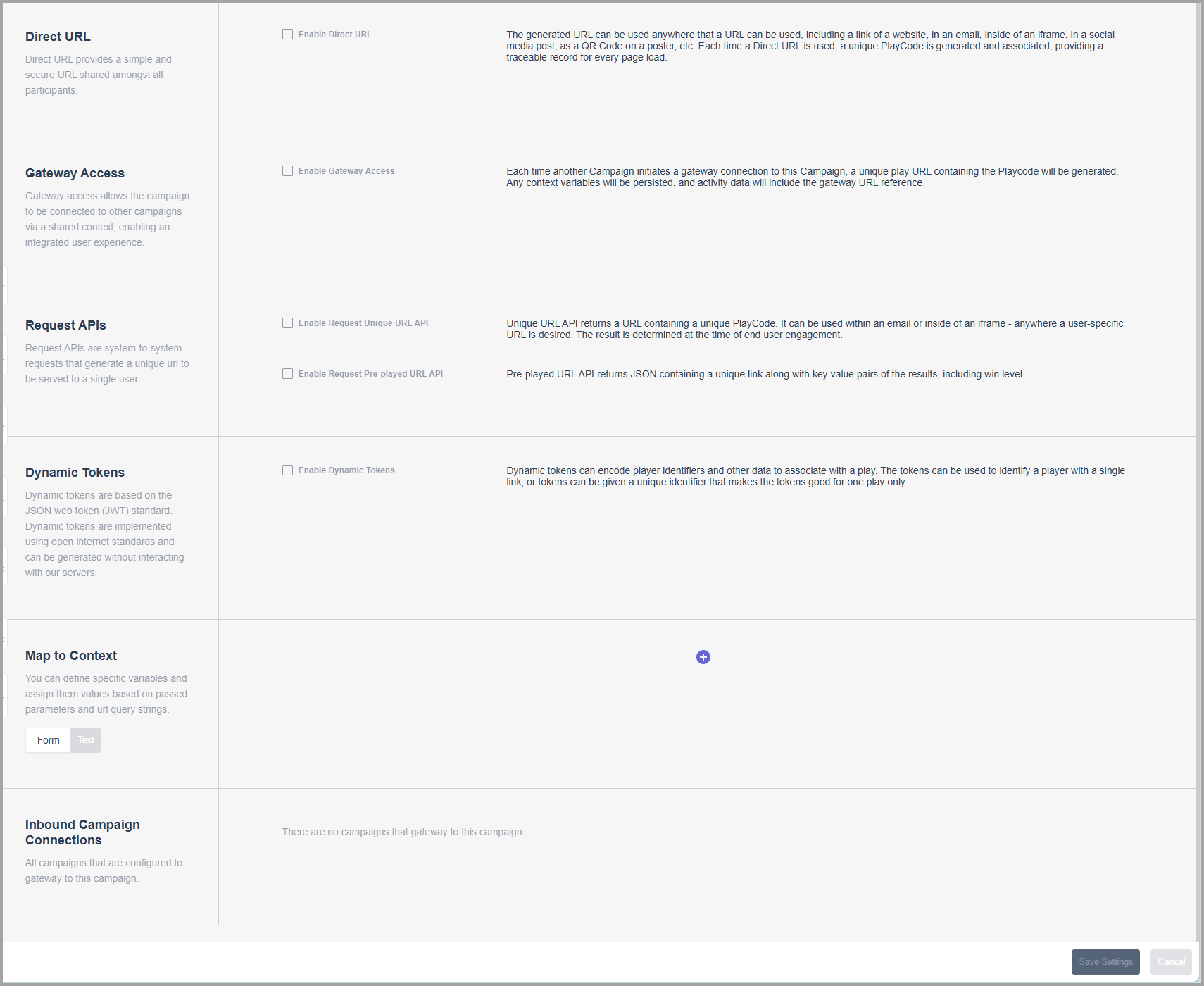
- Direct URL, Request APIs, and Dynamic Tokens: These are different URL/deployment methods that can be configured for your game campaign. Typically, only one of these is configured for any game campaign.
- Gateway Access: This controls whether this game campaign can be accessed through another game campaign. This is typically used for multi-mechanic games, such as Collect to Win games.
- Map to Context: This is where you can assign variables to specific values passed through the URL. This is typically only used for game campaigns using the Dynamic Tokens deployment method (also called Dynamic JWT).
- Inbound Campaign Connections: If Gateway Access is enabled, any game campaigns that link back to this game will be displayed here.
Mechanic
This tab is where specific game mechanics can be modified.
IMPORTANT: Use caution when editing anything in this tab.
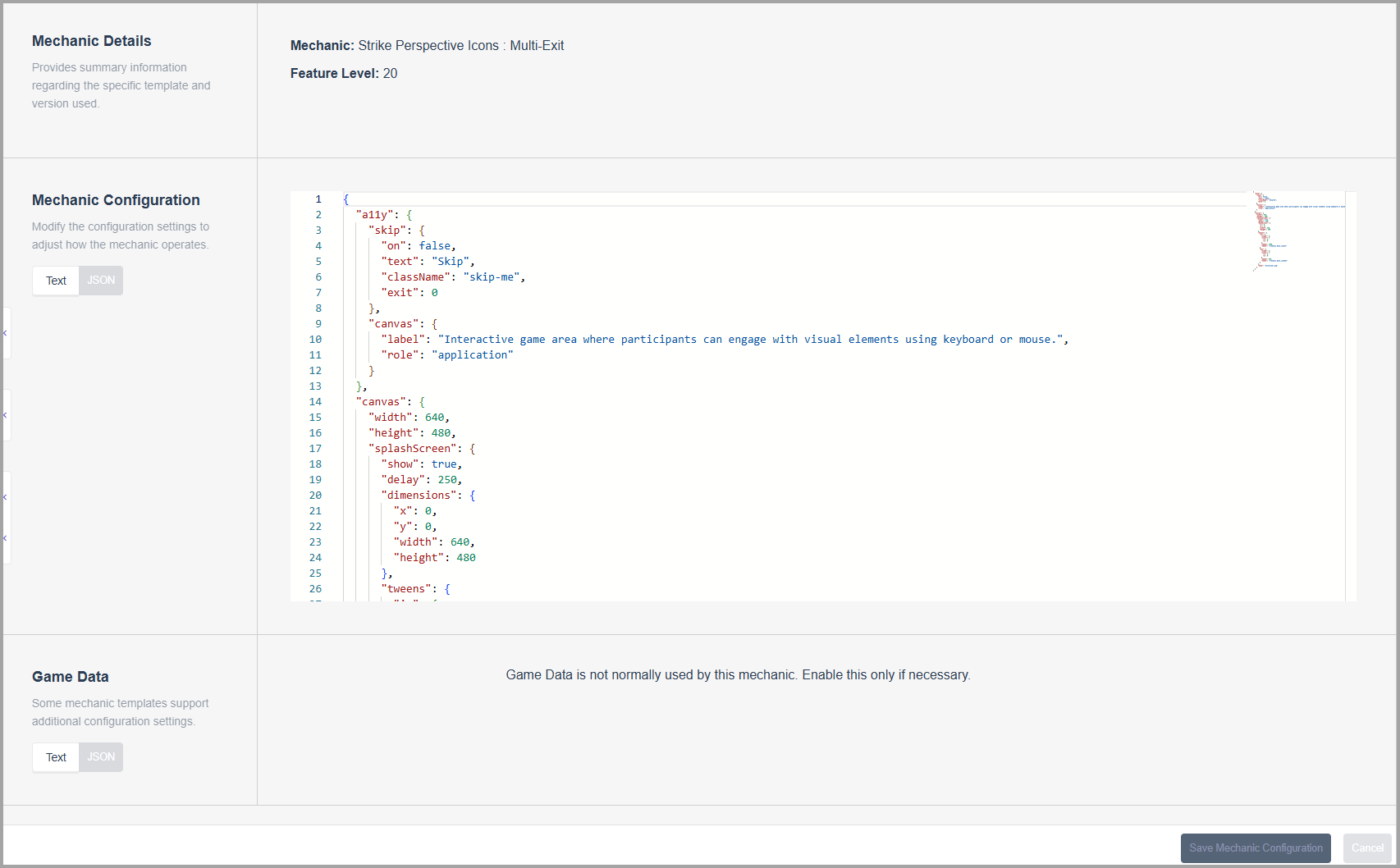
- Mechanic Details: This displays the game mechanic and feature level.
- Mechanic Configuration: This displays the basic game configuration in JSON format. Edits can be made, but it is recommended to leave it as-is unless otherwise discussed with the PAR Games team.
- Game Data: If supported by the mechanic, additional configurations will be displayed here. As with the Mechanic Configuration, it is recommended not to change this.
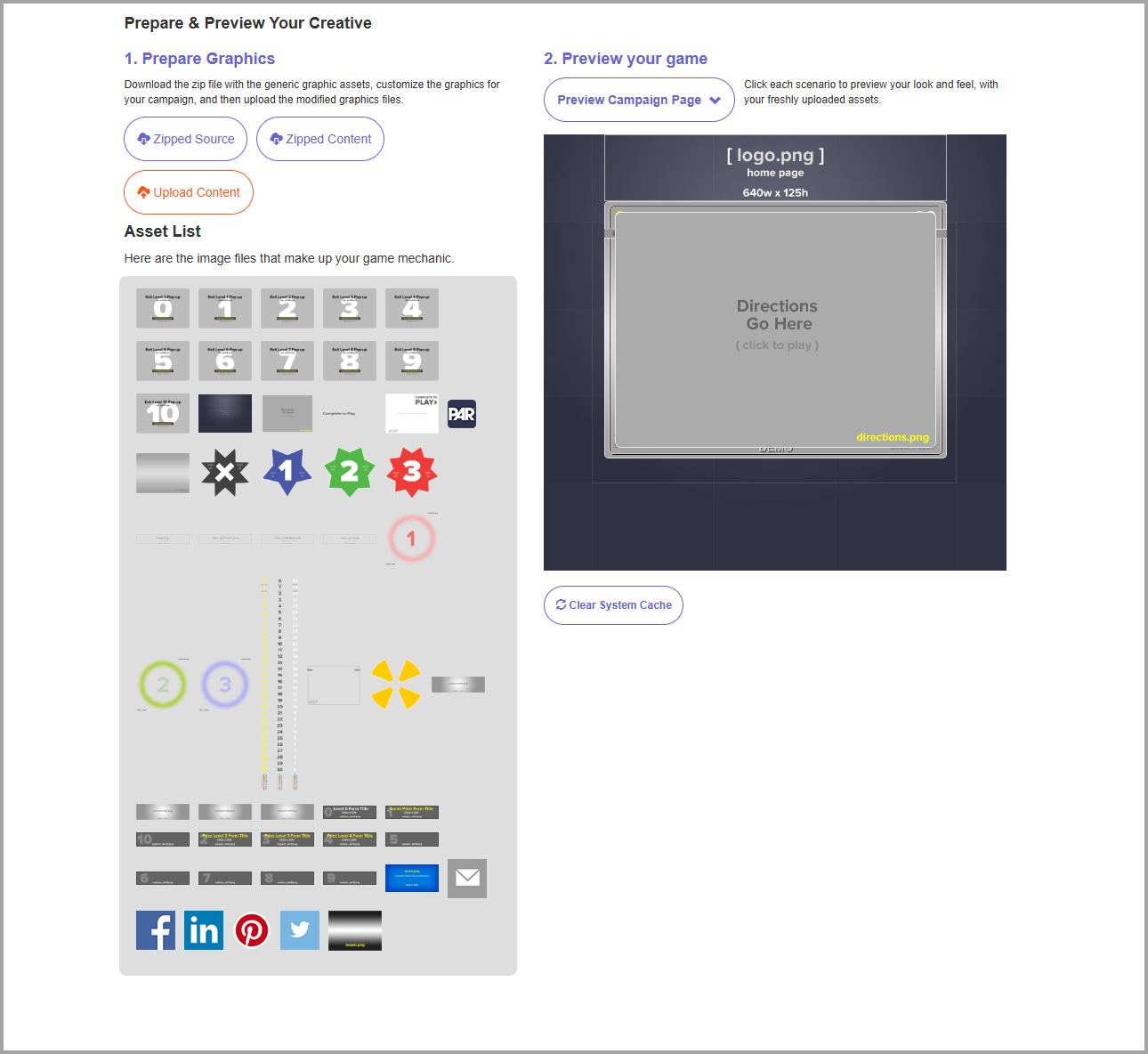
Creative
The Creative tab is where you can download the base creative assets for the game. In addition, this is where you upload your custom creative assets. A wireframe preview of the game is displayed with the provided assets, allowing you to see how your game will look without having to open the game directly. The Zipped Content button allows you to download example assets with the exact naming conventions that need to be used for your custom assets.
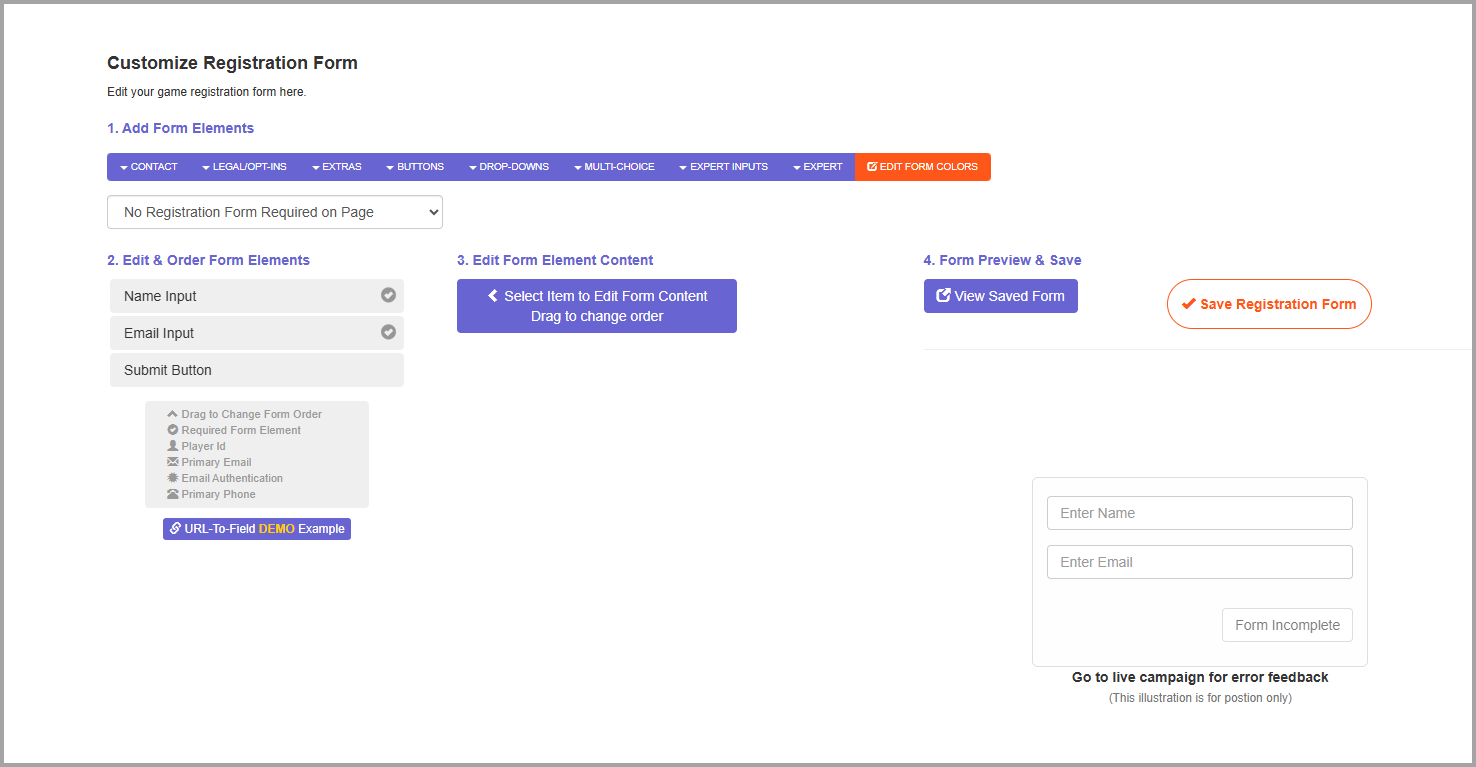
Registration Form
The Registration Form tab is where you can configure the design of the registration form as well as what information is collected. What information needs to be collected, if any, is determined by the deployment method and your brand's goals. Since some game campaigns may not need registration forms, no form is displayed unless configured.
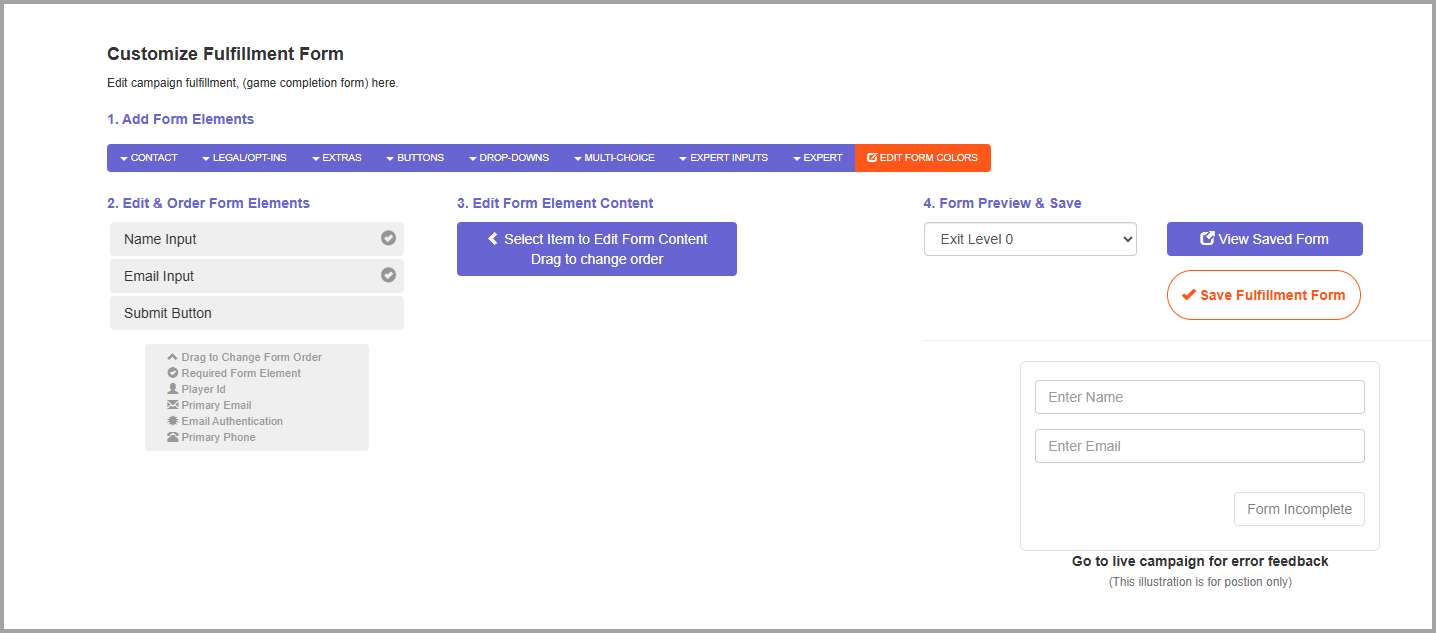
Fulfillment Form
Similar to the Registration Form tab, the Fulfillment Form tab is where the fulfillment form can be configured. This is used to collect player information after they play the game. What information needs to be collected, if any, is determined by the types of prizes being distributed and your brand's goals. Since some game campaigns may not need fulfillment forms, no form is displayed unless configured.
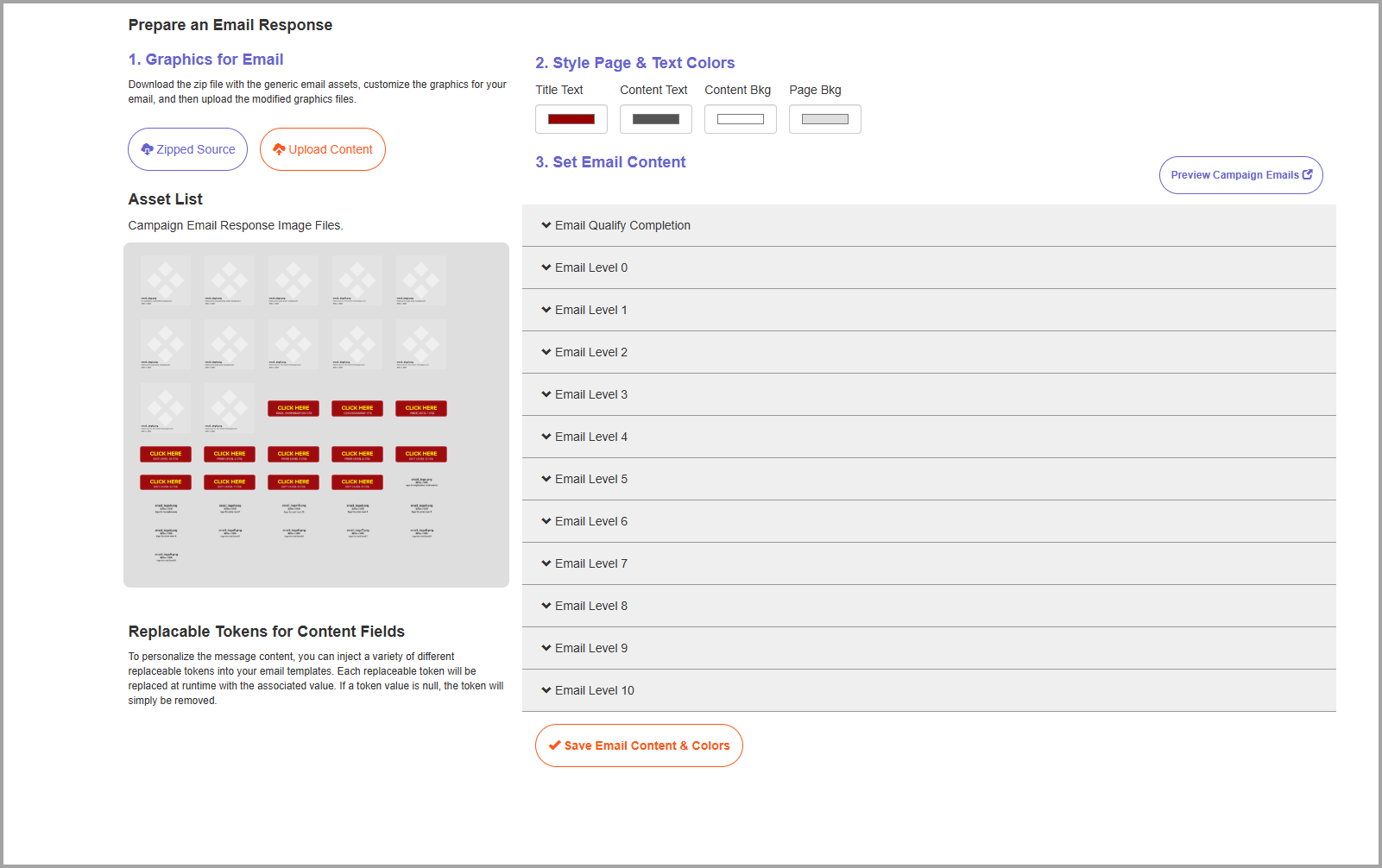
The Email tab is where you can design how email messages relating to the game campaign will look. You can also configure which exit levels will result in the player receiving an email and where the email's CTA (call to action) will direct the player. Similar to the Creative tab, custom assets can be upload in the Email tab to be used in the email designs. Email messages may not be necessary depending on your game campaign configurations and your brand's goals.
Message
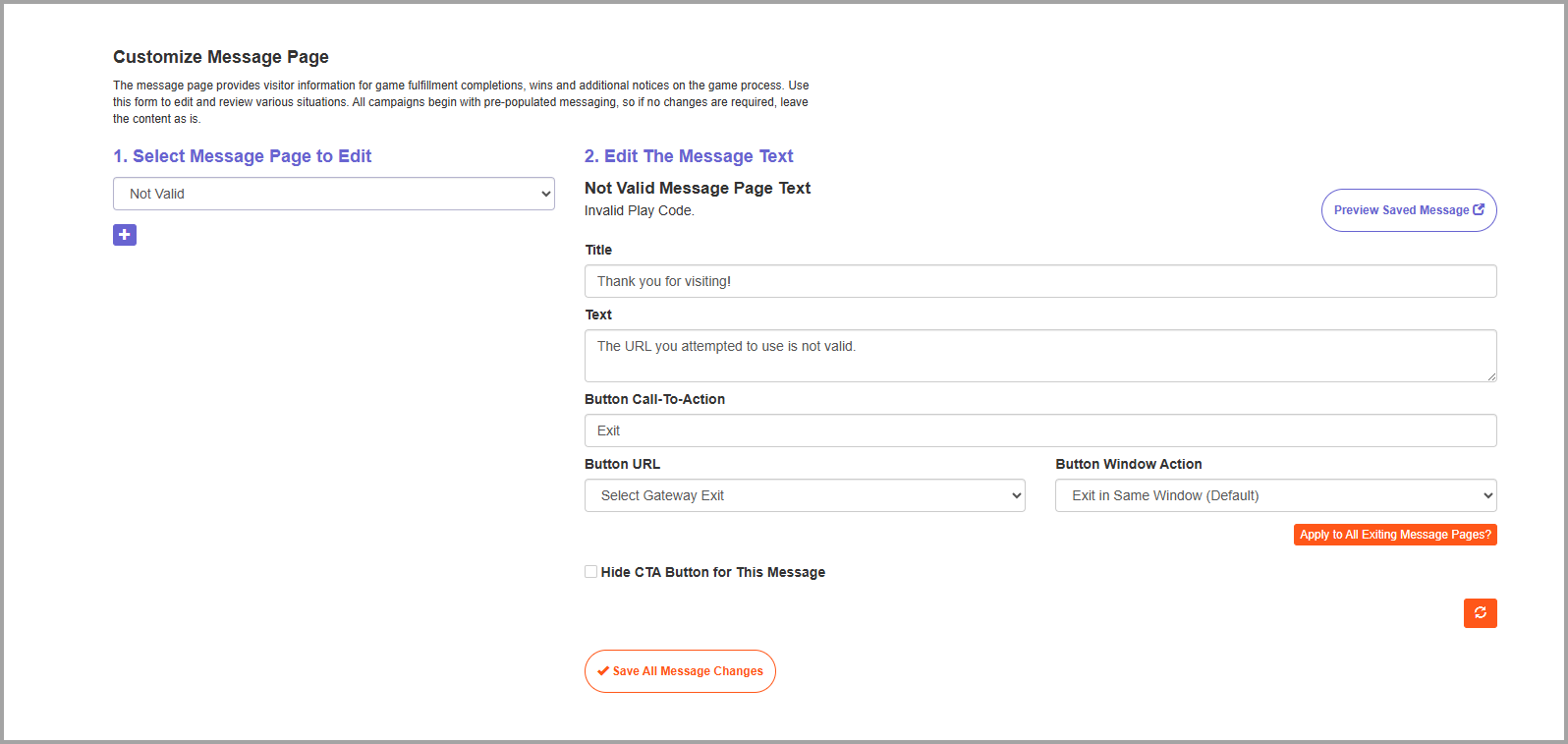
This tab allows you to customize the various messages players may get when playing the game. These messages are not directly related to gameplay, but instead are triggered by certain situations, such as if the game is inactive or a player has hit their daily play limit. You can also create new, custom messages from this tab.
Message Style
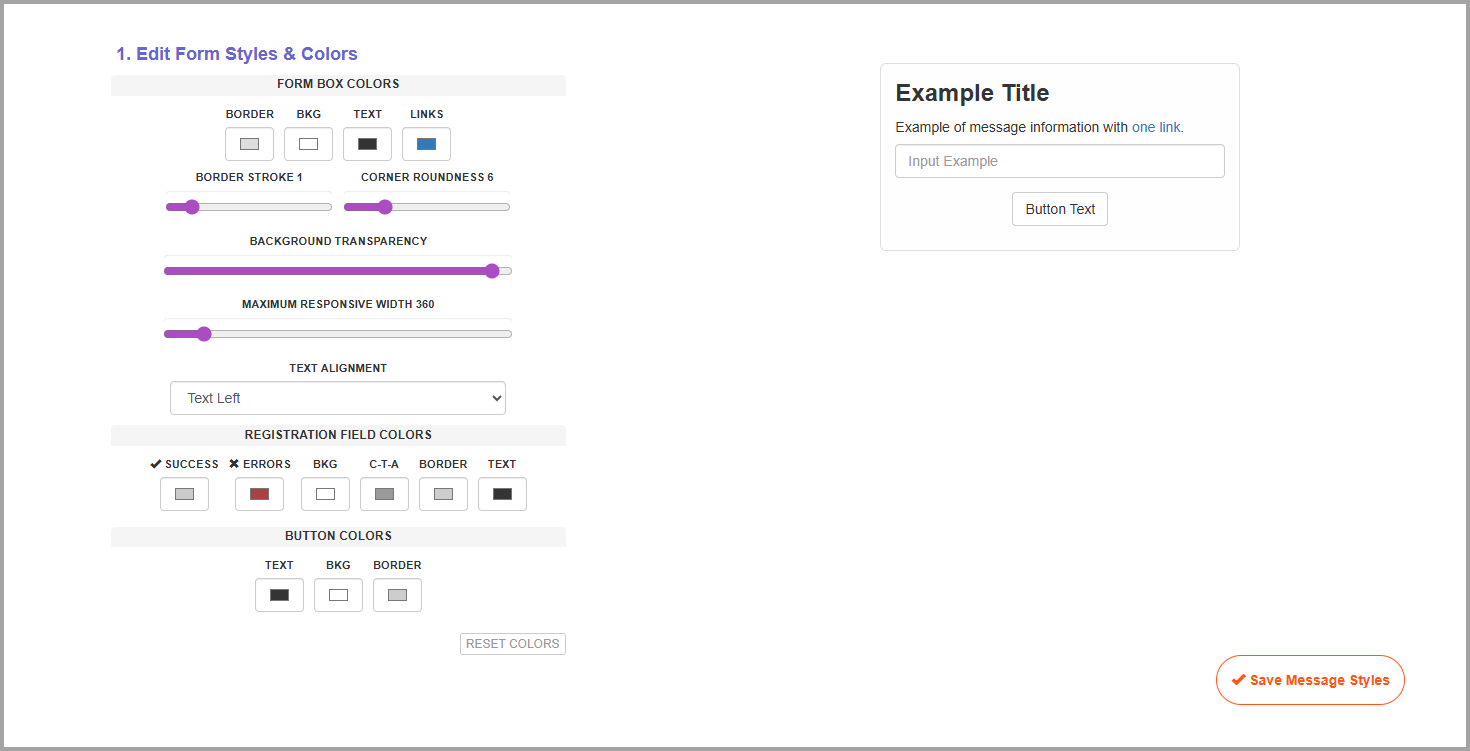
The Message Style tab is where the colors and styles of forms and messages can be customized. Typically, this will be configured to match the designs and assets used in the Creative tab.
Global Style
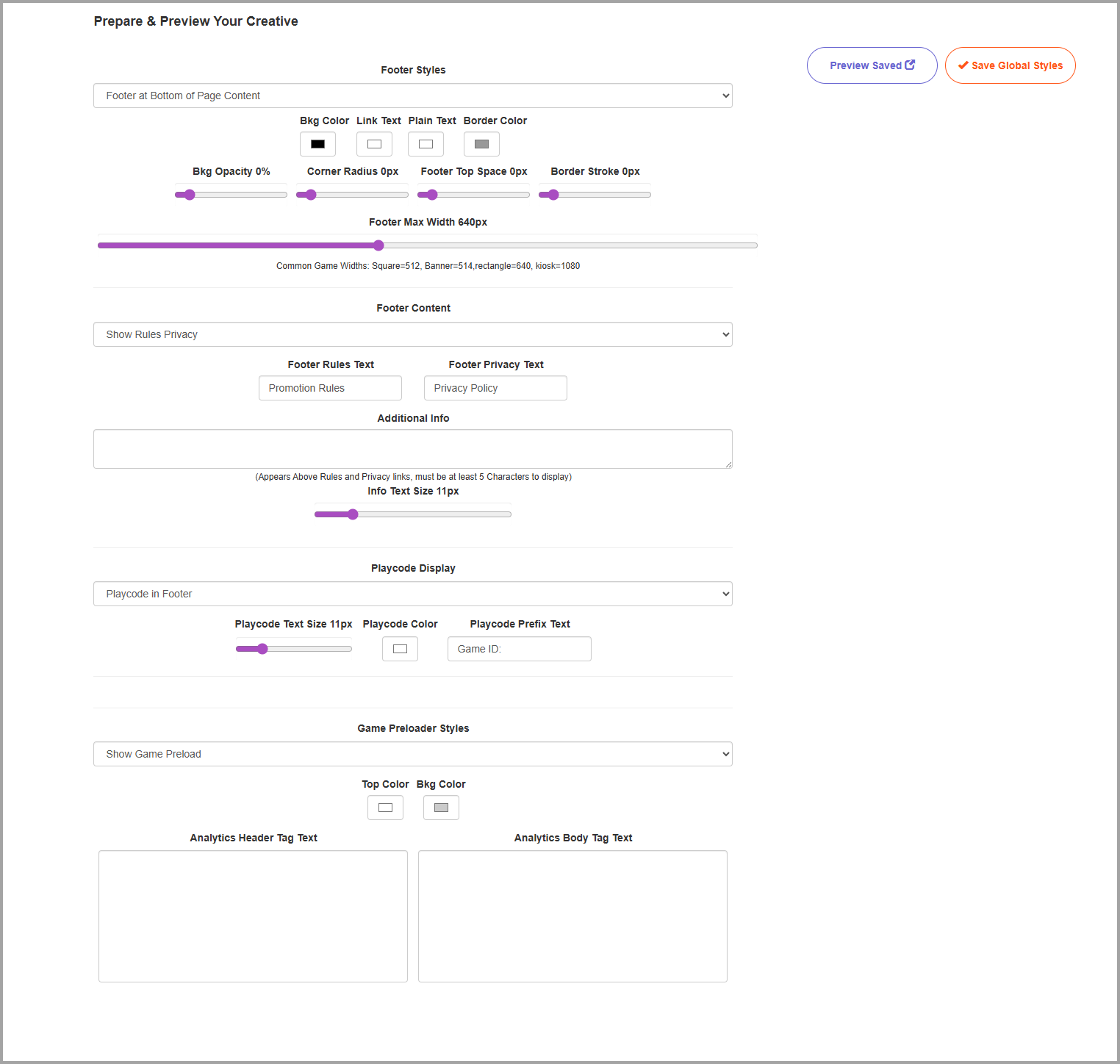
The Global Style tab is where the style of the game's footers, playcodes, and preloads can be configured. As with the Message Style tab, this will typically be configured to match the designs and assets used in the Creative tab.
Webhook Triggers
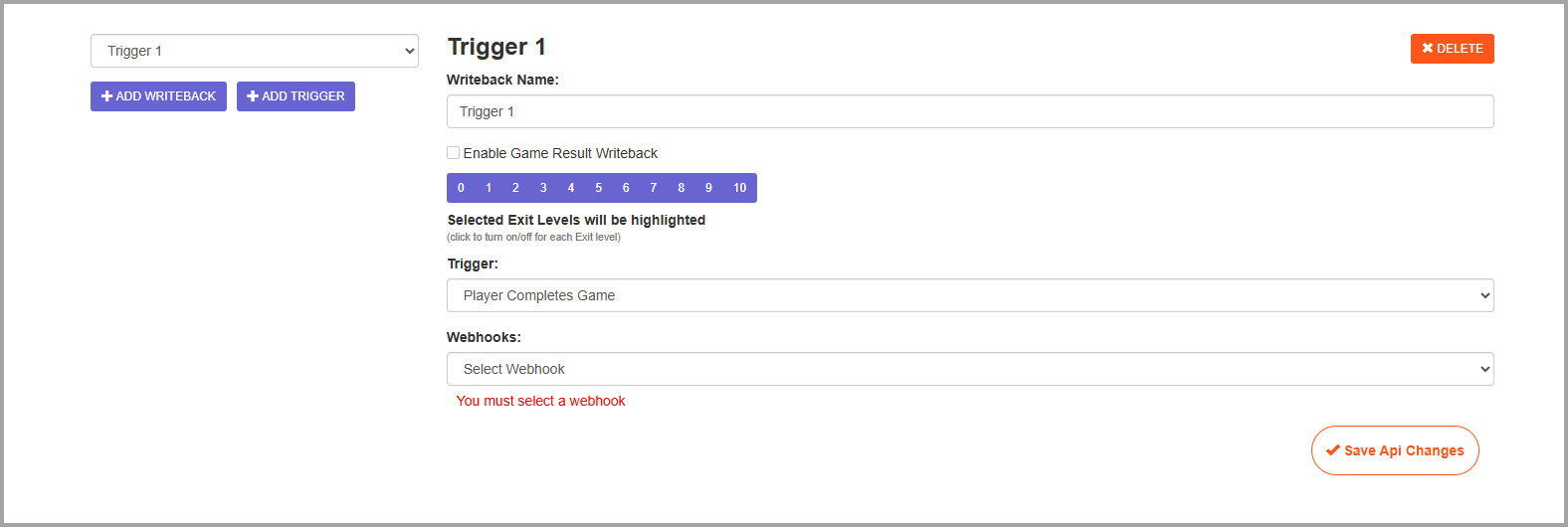
The Webhook Triggers tab is where you can connect the webhooks in the Webhooks page to the game campaign. At minimum, the gifting webhook will need to be connected to the game in order for it to work properly. Depending on the game mechanic, deployment method, and brand goals, additional webhooks may be needed.
Prize Control and Odds
The Prize Control and Odds tab, simply called Odds in the left navigation, is only accessible from the Summary tab and will not be visible in the left navigation unless you are already on the page. Odds-based prizes for each prize/exit level can be configured from this tab. How many levels are visible depends on the game mechanic being used. Not all levels need to have a prize attached to it, and you can set the same prize for multiple levels.
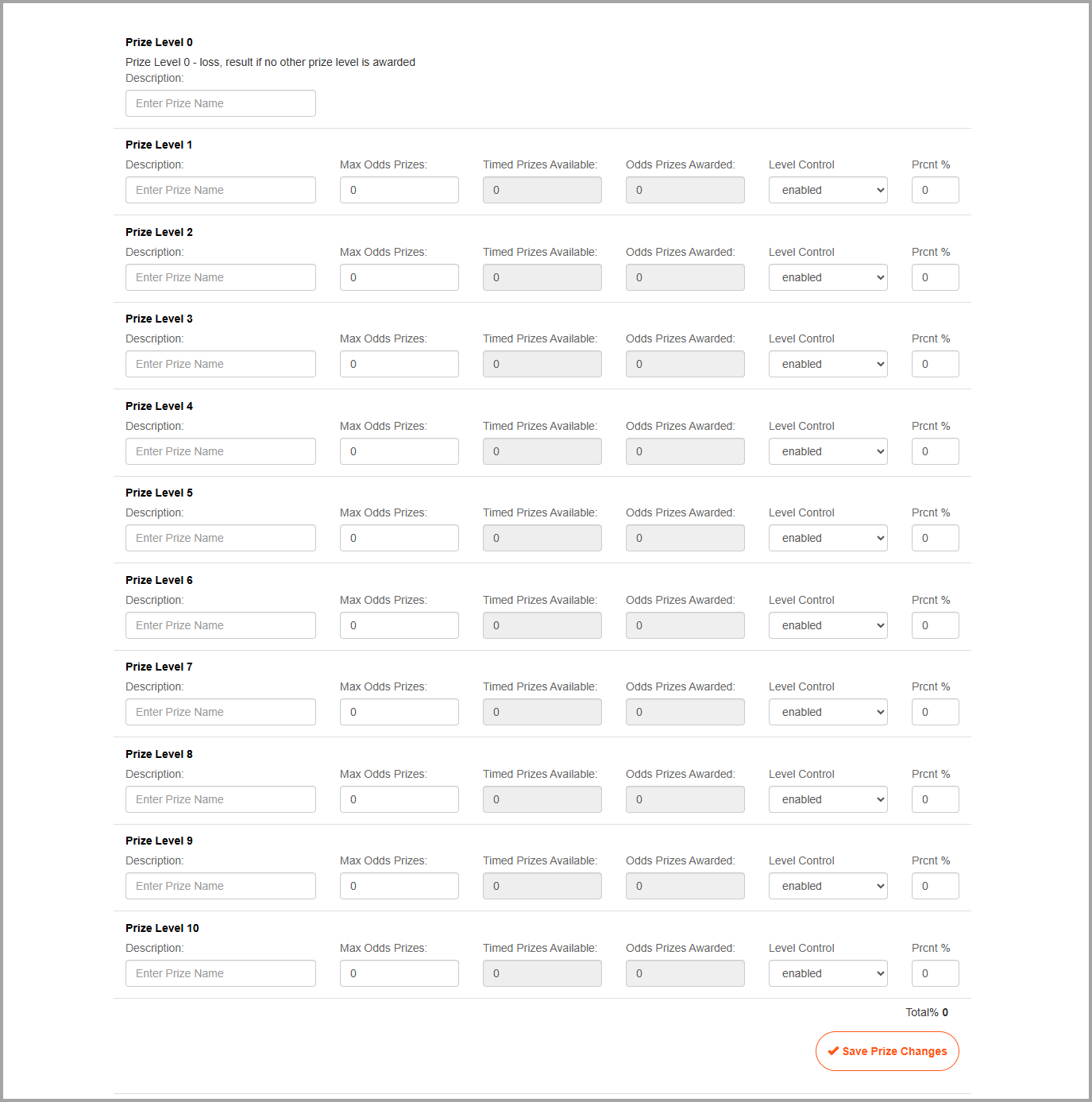
- Description: This is the prize identifier for the level. For gifting Punchh rewards, this is where the
redeemable_idwould be added. - Max Odds Prizes: This sets the maximum number of prizes that can be awarded for the level.
- Timed Prizes Available: This field displays how many timed prizes are available for the level (if any).
- Odds Prizes Awarded: This field displays how many odds prizes have been awarded for the level.
- Level Control: This determines whether or not the level is available for awarding prizes.
- Prcnt %: This determines what percentage odds will trigger the prize/win level. For example, if a level is set to 25%, then each play has a 25% chance of resulting in that prize/win level.
Timed Prizes and Codes
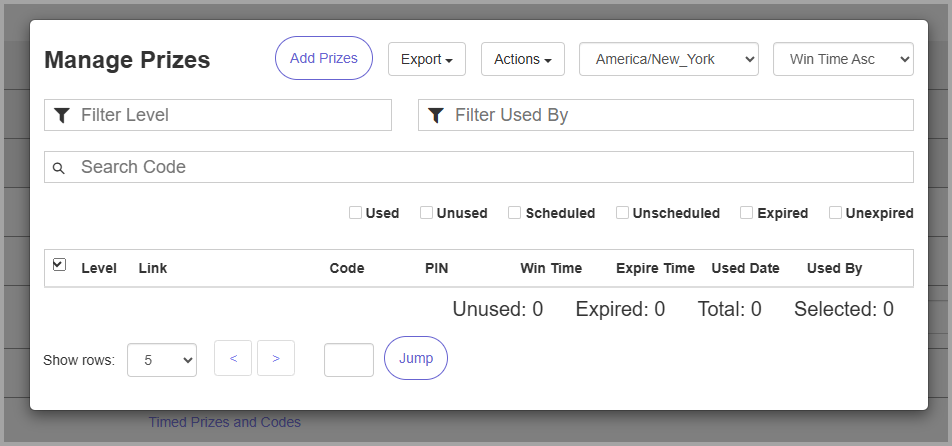
The Timed Prizes and Codes pop-up is accessed from the Summary tab and is where you can set up prizes to be distributed based on timing rather than odds. The specific configurations for these prizes will vary depending on your brand's strategy.
Users
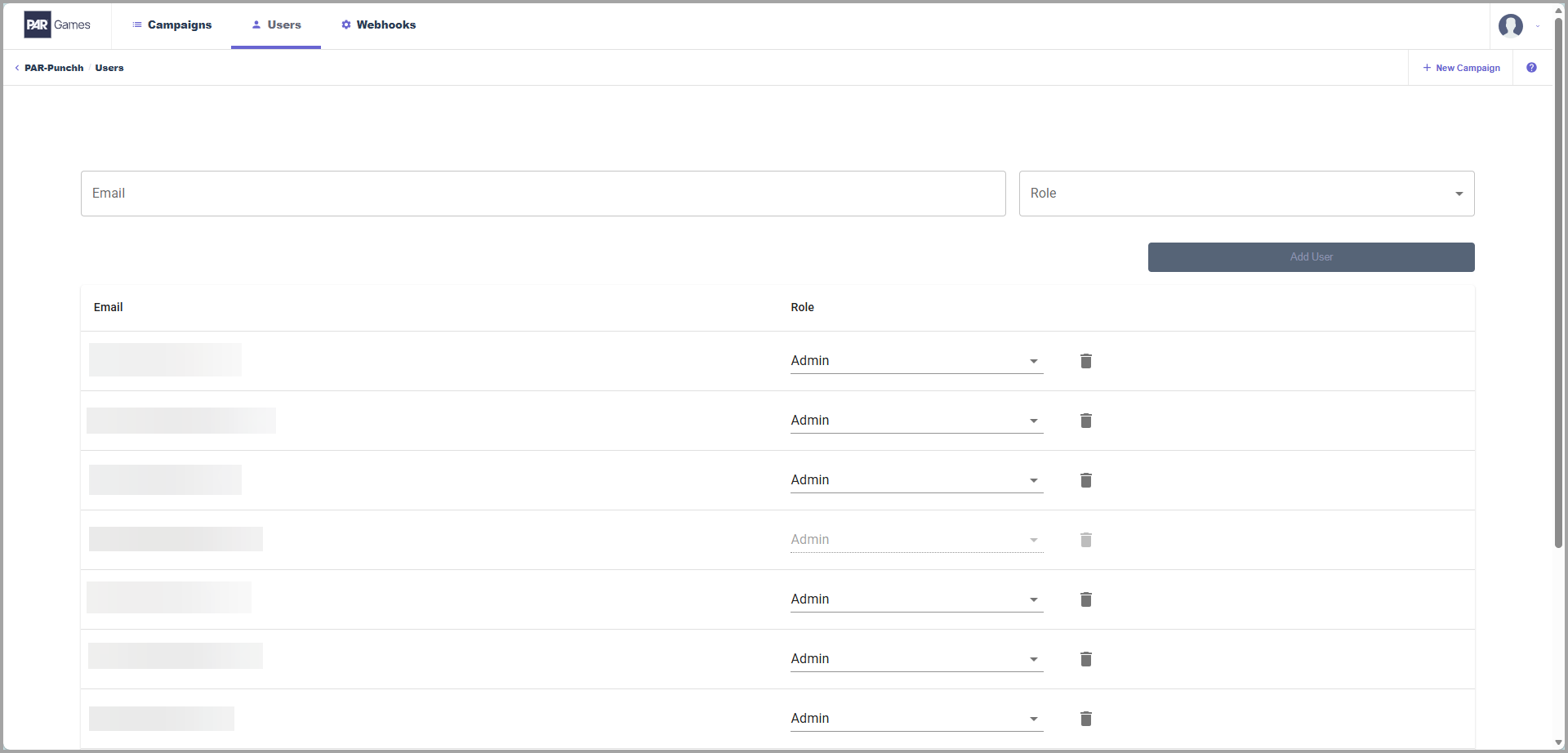
Within the Users tab, you can add and manage user access to the PAR Games dashboard.
Do not alter any Punchh users as this may prevent members of the PAR Games team from accessing your PAR Games dashboard.
Webhooks
The Webhooks tab is where you create and manage the webhooks used in your game campaigns. The initial webhooks required for your first game campaign will be created during the implementation process, but additional webhooks may be required depending on the game mechanic being used.
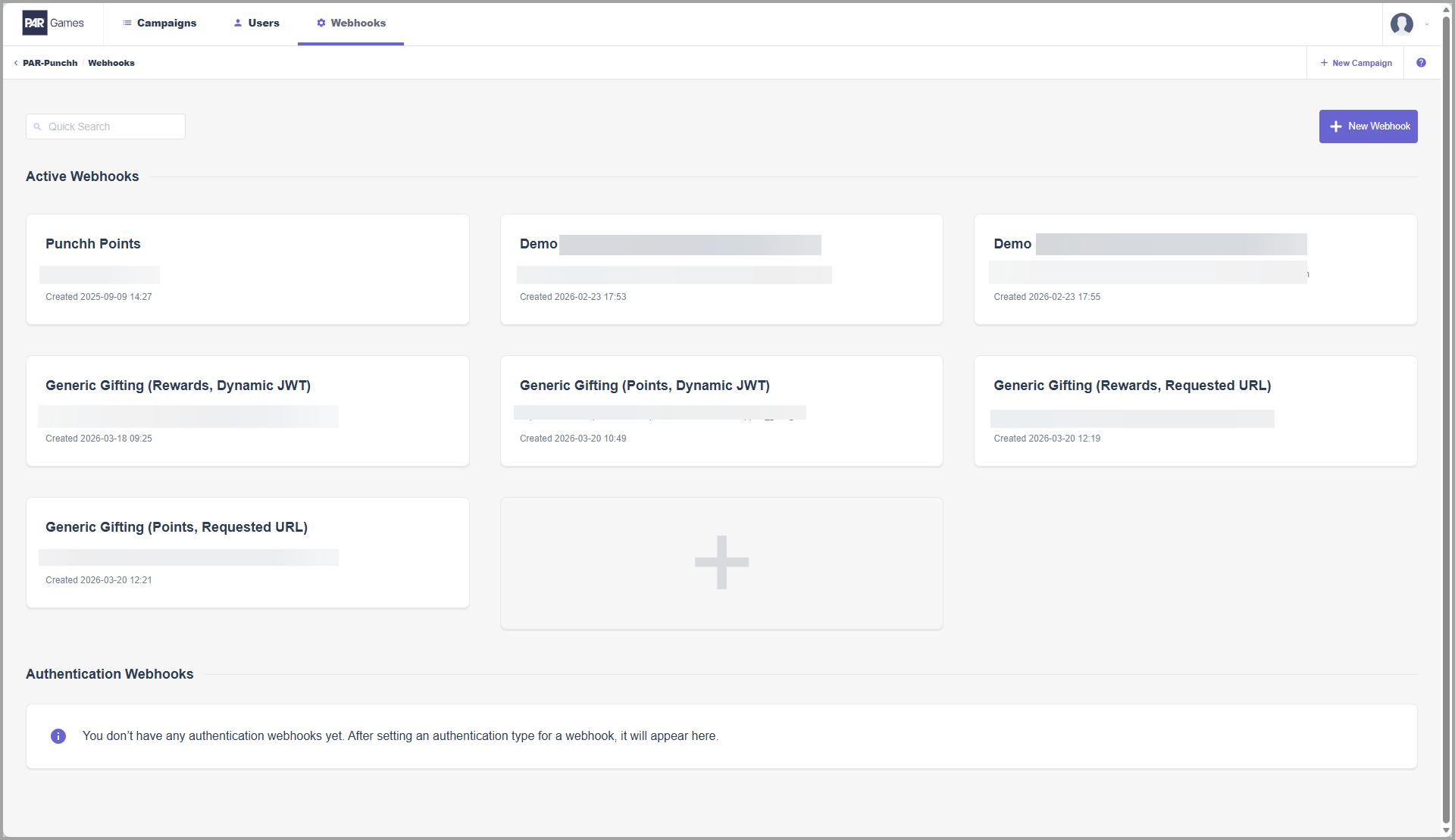
New webhooks can be created by clicking the + New Webhook button, which will trigger a pop-up for you to add the basic endpoint information for the webhook.
Webhook Configurations Page
After creating a new webhook or clicking on an existing webhook, you will be taken to a page to configure the webhook. This page is broken into five sections.
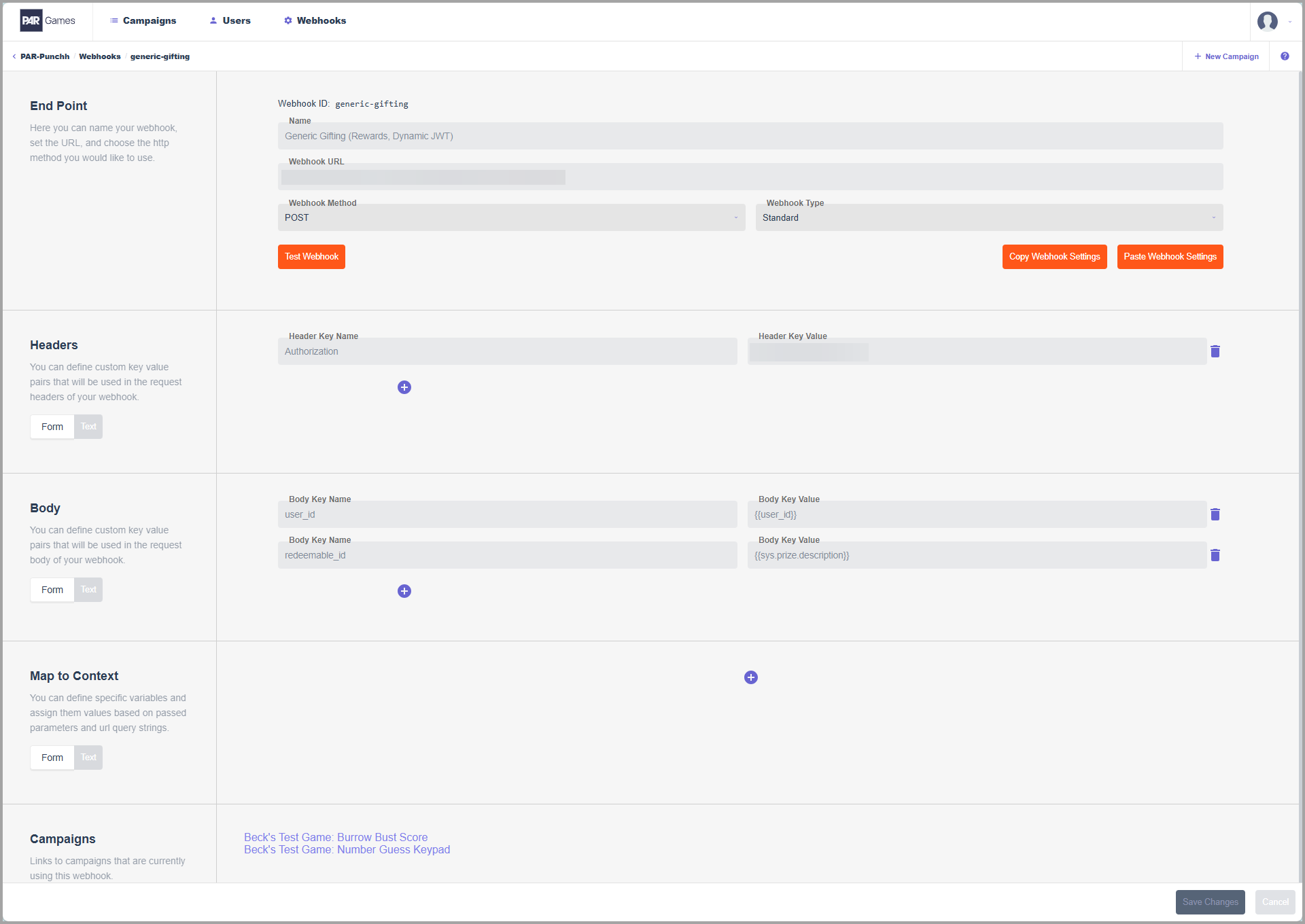
- End Point: This section is where the basic endpoint information is managed, including the name, URL, method, and type. There are buttons for copying and pasting webhook settings, as well as a button to test the webhook.
- Headers: This is where header keys can be added to the webhook. Most webhooks will require at least one header key for authorization purposes.
- Body: This is where body keys can be added to the webhook. How many body keys, as well as what kind of keys, the webhook needs will vary depending on the webhook you are trying to set up.
- Map to Context: This is where you can assign variables to specific values passed through the webhook. Only some webhooks require these additional configurations.
- Campaigns: This displays what game campaigns, if any, are using this webhook. If no game campaigns are using the webhook, then this section will be empty.
