Fraud Detection Rules
Fraud Detection Rules allow you to define conditions that flag guests and employees whose activity may indicate fraudulent behavior. You can configure thresholds to identify suspicious patterns and, where enabled, attach automated actions that respond to violations without requiring manual review.
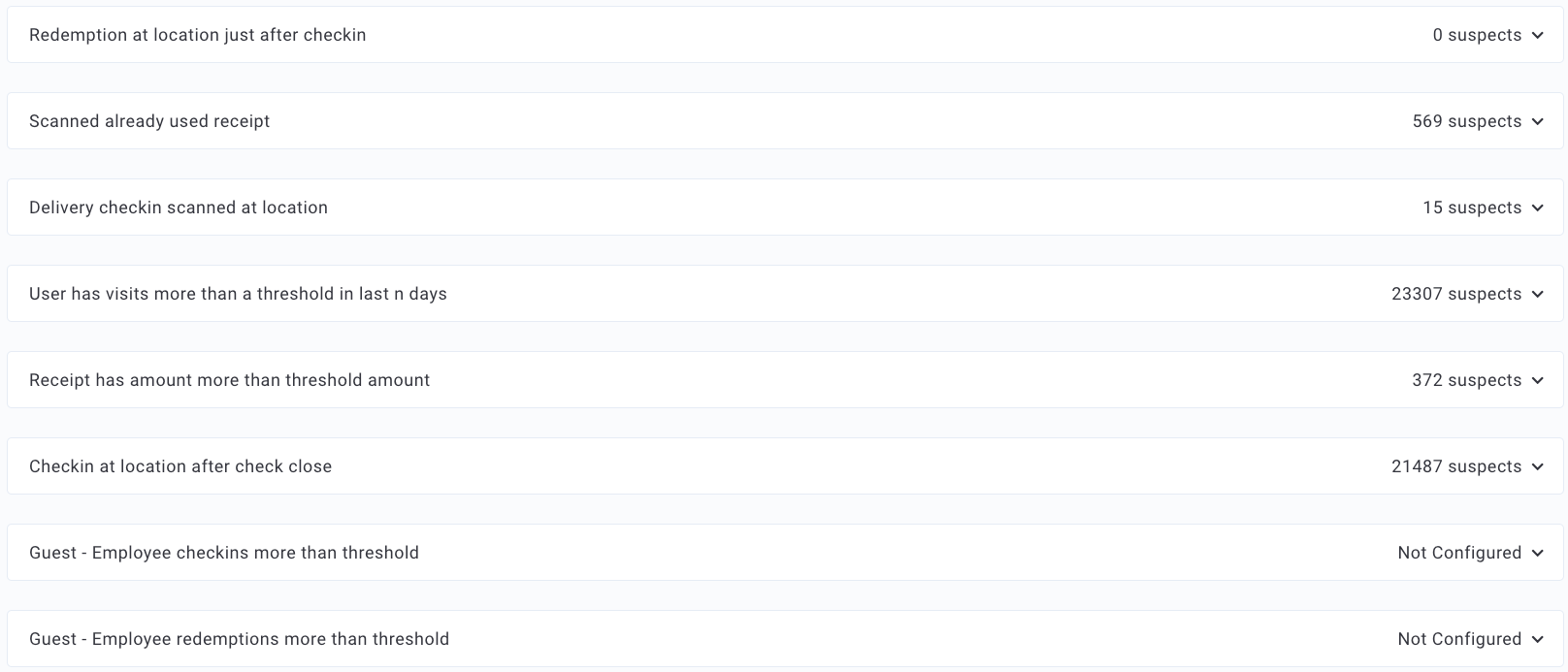
Configure Fraud Detection Rules
Note: After updating any configuration in Fraud Detection rules, the number of suspects identified will only change on a go-forward basis. This means only new guests who meet the updated criteria will be flagged from that point onward. The rules do not apply retroactively to previously identified suspects.
- Navigate to Fraud > Fraud Detection Rules.
- Click on a rule to expand and view its settings.
- Set the rule parameters according to the config options and according to what values you believe best indicate potential fraudulent activity. (See more details below.
- Click Save to update the rule.
- Repeat steps 2-4 for as many rules as you want to enable.
Once a user has been flagged for fraudulent activity, you can view further details on the Fraud > Fraud Suspects page.
Auto-Action Configuration
Automated actions are an optional feature that must be enabled by your Punchh representative before the configuration fields below are visible in the dashboard.
When automation is enabled, the following fields become available on all supported fraud rules:
| Field | Description |
|---|---|
| Violations | The number of times a guest must breach a rule before the automated action is applied. |
| Violations Lookback (days) | The rolling window (1–365 days) within which violations are counted. Required when an automated action is selected. |
| Automated Action | The action automatically applied once the violation threshold is reached (see options below). |
The following automated actions are available:
| Action | Behavior |
|---|---|
| Ban | The guest is blocked from earning and redeeming points. Login access is retained. |
| Deactivate | The guest cannot log in to their account. Earning and redemption access is also blocked. |
| Ban and Force Redeem | The guest is banned and all available points are force redeemed. Force Redeem actions are not immediate. Points are processed after a configured grace period (default: 2 days). If a guest is unbanned or reactivated within this period, the scheduled redemption is cancelled and their points are retained. If reactivation occurs after the grace period has elapsed, points remain at zero. |
| Deactivate and Force Redeem | The guest cannot log in and all available points are force redeemed. |
Caution: The Ban and Force Redeem and Deactivate and Force Redeem actions are irreversible and irrevocable. Points that have been force redeemed cannot be restored, even if the guest is later unbanned or reactivated. Use these actions carefully.
Any guests that are Banned or Deactivated by one of the auto-action rules will still show up on their respective lists (Banned Guests, Deactivated) and will be labeled as "auto" in the comments column.
Fraud Rule Descriptions and Settings
Select the desired Fraud Detection Rule to configure. It should be noted that Fraud Detection Rules are based on scan time, meaning the time when a guest scans/attempts to scan a receipt, not when the original transaction took place.
| Rule Name / Description | Example Settings | Automation Supported |
|---|---|---|
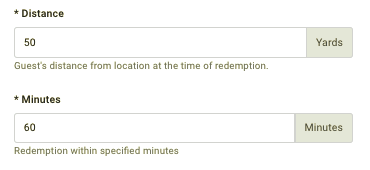
| Redemption at location just after checkin Alerts if a user redeems an offer within the preconfigured 'wait period' following a checkin. |
 |
-- |
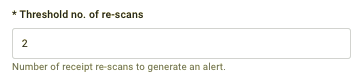
| Scanned already used receipt Flags users who attempt to scan a receipt that has already been scanned. This can weed out "Dumpster Divers"; users who collect and attempt to scan discarded receipts. |
 |
✓ |
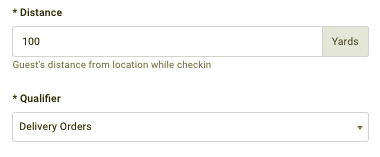
| Delivery Checkin scanned at location Flags users who scan delivery orders within a specific range of the restaurant. This is aimed at preventing employees from scanning receipts before delivering the food. To use this rule, you must first configure qualification criteria that tags delivery orders. You can do this by setting the "Revenue Code" to "Delivery" (or whatever name you use to denote this). |
  |
-- |
| User has visited more than a threshold in last n days Flags users who check in many times over a period of days. This is aimed at preventing employees, as well as guests who live or work next to one of your stores, from checking in based on proximity without actually making a purchase. |
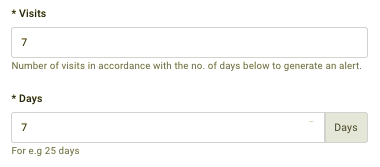 |
✓ |
| Receipt has amount more than threshold amount Flags users who scan a receipt with an unusually high total amount. Flagging large transactions for review is beneficial just as a best practice. Large transactions may indicate employee fraud (creating a large receipt, scanning it, and then voiding the transaction) or guests earning on large catering orders despite your company not typically allowing it. |
 |
✓ |
| Checkin at location after check close Flags users who check in at a restaurant location long after the check has closed. Guests may reasonably stay in a restaurant for up to an hour after their check has closed, but it's pretty strange to stay much longer than that. Checkins at the restaurant 2-6 hours later point to an employee scanning a discarded guest receipt. |
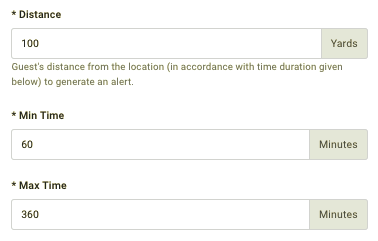 |
-- |
| Guest - Employee Checkins more than threshold Flags users who have surpassed a set number of checkins served by the same employee. Sometimes this is harmless (such as a guest gets a coffee every morning, and the same cashier rings them up) or it can also be used to indicate employee+guest scamming. Some employees, such as store managers, may be excluded from this rule. |
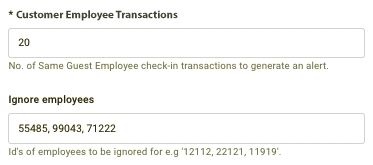 |
-- |
| Guest - Employee Redemption more than threshold Flags users who have surpassed a set number of redemptions redeemed by the same employee. This rule, more than Employee Checkins, may identify potential employee+guest scamming. Some employees, such as store managers, may be excluded from this rule. |
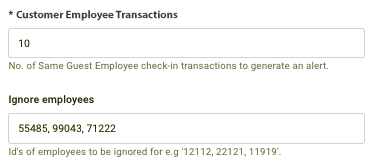 |
-- |
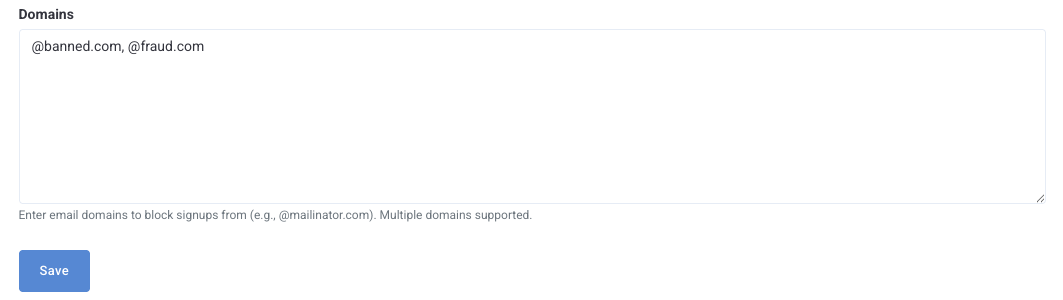
| Block signups for specific email domains Prevents account creation using email addresses from domains you specify. Any signup attempt — via API or the signup form — using a blocked domain is rejected before the account is created. You can add multiple domains to the block list. This rule also applies when a guest attempts to update their email address to a blocked domain. Error message displayed to guest: "Please use a valid email address." All blocked signup attempts are logged with the matched domain, source (API or form), and timestamp. This rule is useful for cases when fraudsters buy a specific email domain for a targeted attack. |
 |
-- |
| Block logins for specific email domains Prevents login attempts from accounts whose email address matches a domain you have blocked. Use this rule alongside the Block Signups rule to also address accounts that were registered before a domain was flagged. Error message displayed to guest: "Please use a valid email address." All blocked login attempts are logged with the matched domain, source, and timestamp. This rule is useful for cases when fraudsters buy a specific email domain for a targeted attack. |
|
-- |
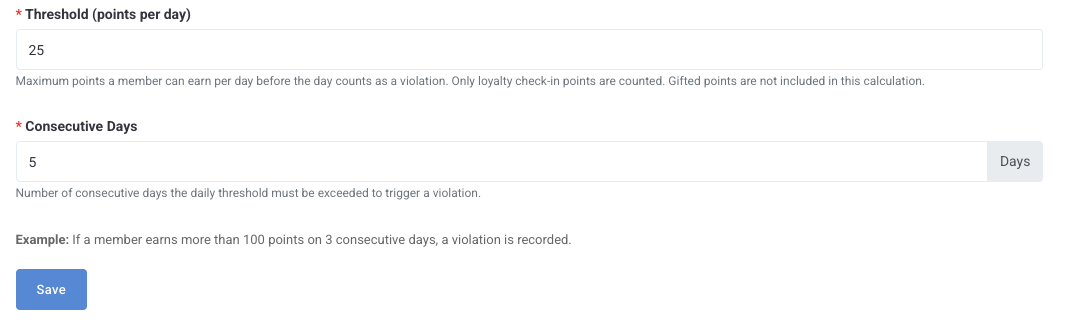
| Consecutive Daily Earning Threshold Flags guests who exceed a defined number of check-ins within a rolling time window, filtered by one or more activity channels. Configure:
The channel selector uses OR logic: the rule triggers if the threshold is met across any of the selected channels combined, not per channel individually. A read-only rule summary is auto-generated below the configuration fields for confirmation. |
 |
✓ |
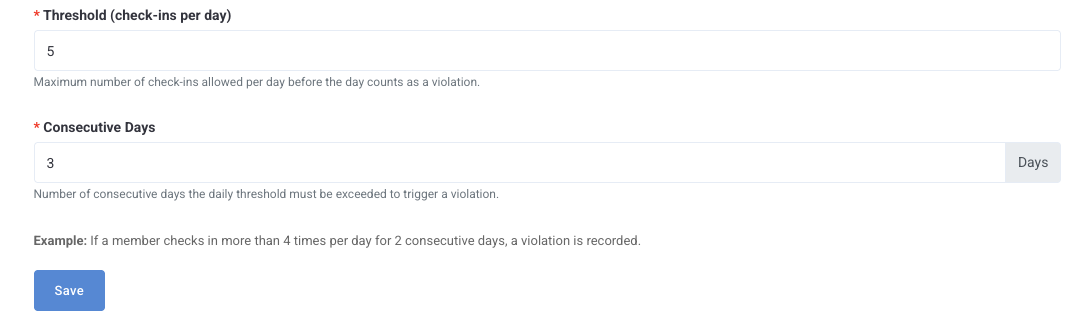
| Max Check-ins Per Day in Consecutive Days Flags guests who reach your programme's maximum daily check-in limit on every day within a configured consecutive-day window. This rule targets users who are systematically maximizing their daily allowance, which may indicate automated behavior. Configure:
The consecutive streak must be unbroken — if the guest does not reach the daily maximum on any day within the window, the streak resets. |
 |
✓ |
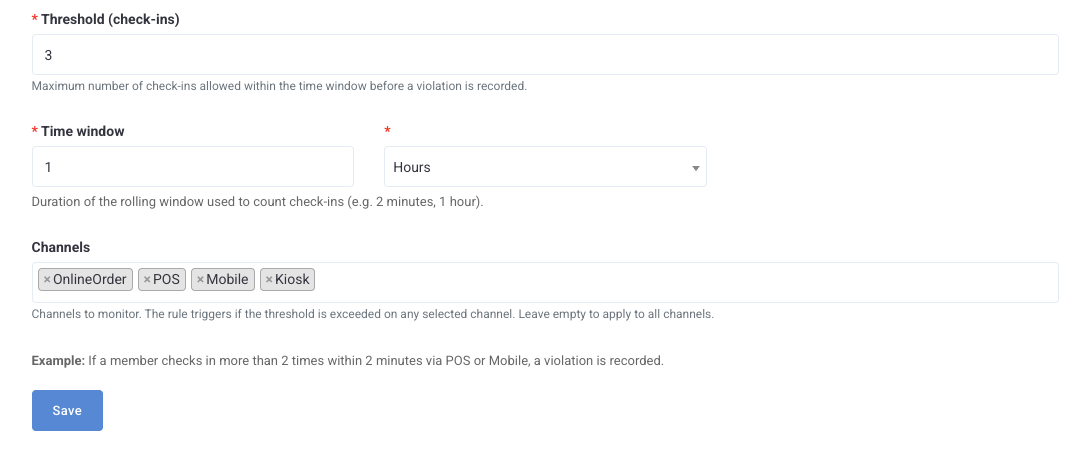
| Check-in Frequency Limit Flags guests who exceed a defined number of check-ins within a rolling time window, filtered by one or more activity channels. Configure:
The channel selector uses OR logic: the rule triggers if the threshold is met across any of the selected channels combined, not per channel individually. A read-only rule summary is auto-generated below the configuration fields for confirmation. |
 |
✓ |
