Staff: Jobs
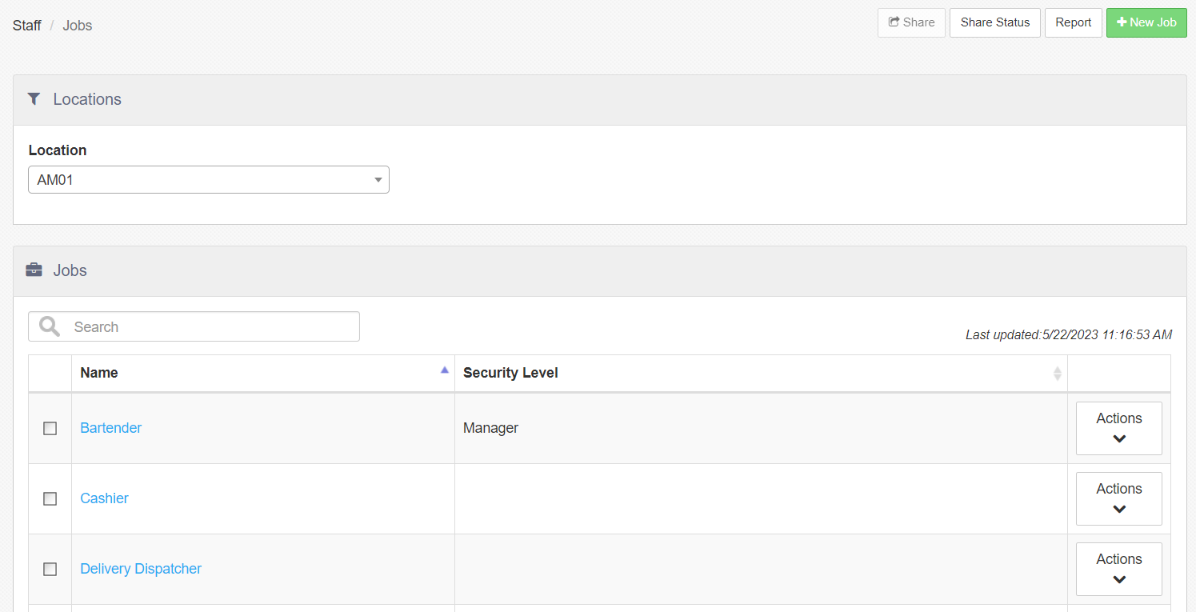
Jobs define the behavior of the register application for an employee. Actions available on the Jobs landing page include:
- Report: Links to the "Staff Sharing Audit" report.
- Edit Job: Select a job from the list to edit.
- + New Job: Allows the user to create a new job.
- Location: Location dropdown to access different jobs by location.
Job Screen
-
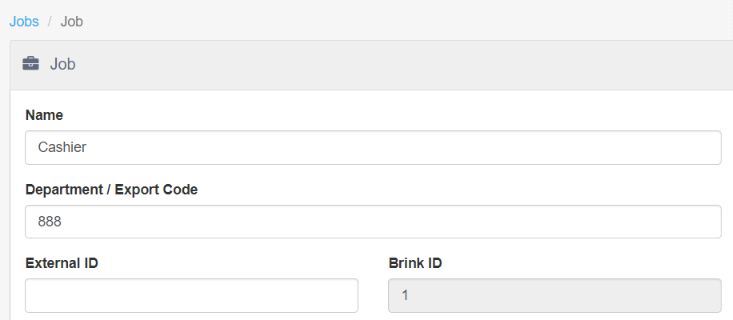
Name: The name of the job ("Cashier", "Bartender", etc.)
-
Department/Export Code: Included in labor data exports, commonly referred to by payroll providers as "Department".
-
External ID: External identifier to be used by third party integrators.
-
PAR POS ID: Employee ID in the PAR POS system
Options Tab
-
Order Entry Type: Controls access to functions that are Table Service-specific.
-
Security Level: The default Security Level for the job.
-
Default Lane for Orders: Default lane for orders created when an employee is clocked in under the job -- overrides the Registers lane.
-
Limit Destination for Orders: Limits the destination/s that can be assigned to an order when an employee is clocked in under the job.
-
Section: Section associated to an order created by an employee clocked in under the job.
-
Labor Scheduler Display Color: Color of shifts in Labor > Scheduler in Admin Portal.
-
Limit Break Type Options: Limits the break type options available for the job when the "Start Break" button behavior is executed.
"Login" Section
Determines how an employee clocked in under the job may access the register -- overridden by Employee > Profile > "Override Job Login Options" selections.
-
Can Login with Card: Clock-in, login, and permission authorization via magnetic card is allowed.
-
Can Login with Finger: Clock-in, login, and permission authorization via finger scan is allowed.
-
Can Login with Pin: Clock-in, login, and permission authorization via four-digit PIN is allowed.
-
Can Login with Username/Password: ONLY when Revenue Quebec is enabled in Settings Editor, this option will appear. This option is used to create the User Session Login.
-
Can Login into Multiple Registers at the Same Time: Employees with this job may log into multiple registers simultaneously -- only one till is allowed per employee.
- Remain Logged In on Multiple Registers even if Logged Out on Another: Ensures the employee remains logged in to other store registers after logging out of just one,
"Options" Section
-
This Job is for Training Purposes: Job is for training purposes only, orders do not appear on kitchen chits or kitchen videos, sales are not reported, and only cash tender is allowed.
-
Indicate Training Mode on Kitchen Chits: Automatically prints "Training Order" and "Do Not Make" on kitchen chits while training to prevent waste.
-
Suppress Barcodes on Receipts: Suppresses loyalty barcodes from printing on receipts while training to maintain loyalty program integrity and prevent fraudulent reward accumulation.
-
-
Exclude from Sales and Labor Report: Labor cost for the job is not reported in any reports in register or Admin Portal.
-
Exempt from Labor Schedule: Job is excluded from punctuality enforcement approval.
-
Can Assign a Cash Drawer: Allows the employee to execute the "Assign Cash Drawer" button behavior.
-
Can Apply Discounts/Promotions without Cash Drawer Assigned: Employee can apply discounts and promotions without having a cash drawer assigned to them.
-
Can Apply Payments on Behalf of Self Banking Employees: When applying a payment to an order on a party that is owned by a self-banking employee, the payment is recorded against the till of the party owner.
-
Can Approve without Being Clocked In: Employee can approve manager permissions on a register without having to clock in.
-
Cannot Close Orders: Employee with the job cannot close orders on the register.
-
Clock In Automatically: Automatically starts a shift when the employee signs into the register, skipping the clock-in screen.
- NOTE: The clock-in screen always displays for employees with more than one Job assigned to them, even if this check box is checked for all Jobs assigned to that employee.
-
Requires Approval to Clock In: Requires approval for clock in from an employee with Security Level > Approve Clock In enabled.
-
Requires Approval to Clock Out: Requires approval for clock out from an employee with Security Level > Approve Clock Out enabled.
"Delivery" Section
-
Delivery Driver: Displays the employee as the order recipient in the "Assign Delivery Order" screen.
-
Delivery Dispatcher: Allows the employee to execute "Assign Delivery Order" button behavior.
"Table Service" Section
-
Bartender: Allows the employee to execute the "Fast Cash" button behavior.
-
Can Access any Tab: Allows the employee to access tabs owned by other employees.
-
Can Access any Table: Allows the employee to access tables owned by other employees.
-
Group Items by Seat: Order items displayed on the Order List control are grouped by Seat Number. Pressing the "Next Person" button on the register advances to the next seat.
- NOTE: This setting also applies to Quick Service.
-
Hostess: Not implemented.
-
No Cash Transactions: Disallows payments where the tender type is "Cash".
-
Must Declare Tips: Prompts employee for declared tips amount at clock out.
- Require Reporting of Minimum System-Calculated Tips: Presents the employee with a minimum required tip declaration at the end of the shift.
-
Tip Pooling Enabled: Allows for the definition and management of employee tip pools.
-
Contribute to Tip Pool: Applies a percentage of the employee's net sales to the tip pool, calculated as Net Sales × Contribution Percentage = Tip Pool Contribution (percentage specified in the interface).
-
Receive Distributions from Tip Pool: Denotes that the employee will receive distributions from the overall tip pool.
-
-
Requires Approval to Check Out: Requires approval by an employee with Security Level > Approve Checkout enabled to execute the "Checkout" button behavior.
-
Self Banking: Employee cannot be assigned a cash drawer - instead a personal till is automatically created for the employee.
-
Tabs: Allows the employee to open tabs.
"Job Discount Options" Section
All options below may be overridden at the Employee level (Employee > Profile > "Override Job Discount Options").
-
Clocked In Discount: Discount to be applied to the current order when "Employee Discount" button behavior is executed and the selected employee is clocked in.
-
Clocked Out Discount: Discount to be applied to the current order when "Employee Discount" button behavior is executed and the selected employee is not clocked in.
-
Max Daily Count: Maximum number of times an employee can be associated with an employee discount in a single business day -- may override for the employee when Security Level > Options > Allow Excess Employee Card Usage is enabled.
-
Max Daily Amount: Maximum total employee discount amount for an employee for single business day -- may override for the employee when Security Level > Options > Allow Excess Employee Card Usage is enabled.
Screens Tab
-
Default Screen: Screen displayed when the employee logs in, closes a table, or closes a tab. Overrides the Registers > Screens > Default Screen setting.
-
Order Screen: Screen displayed for orders. When set to "None", the default screen is displayed.
-
Add New Scheduled Screen: Adds screens configured to display during certain times of the day (for example, a "Breakfast" screen starting at 6:00am or a "Dinner" screen starting at 4:00pm).
-
Start Time: Time to begin displaying the scheduled order screen.
-
Default Screen: Screen to be displayed according to the schedule -- configured on the Screens page.
-
Sunday-Saturday checkboxes: Days of the week to display the scheduled screen.
-
Menus Tab
-
Add New Scheduled Menu: Adds menus configured to display during certain times of the day (for example, a "Breakfast" menu starting at 6:00am or a "Dinner" menu starting at 4:00pm).
-
Start Time: Time to begin displaying the scheduled menu.
-
Menu: Menu to be displayed according to the schedule.
-
Sunday-Saturday checkboxes: Days of the week to display the scheduled menu.
-
