Staff: Employees
Employees Landing Page
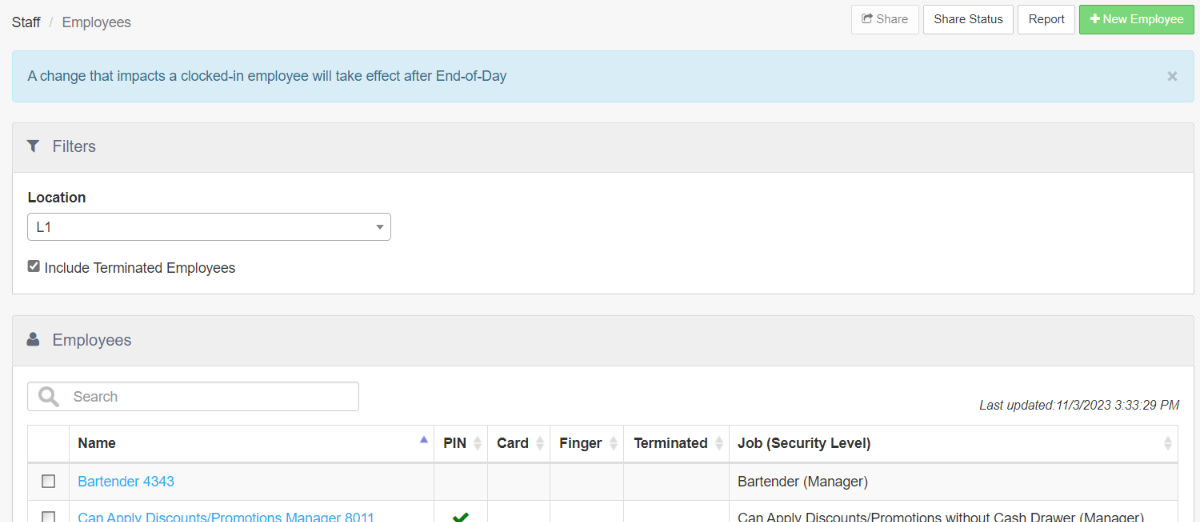
Employees have access to the Register application for order entry or simply for time and attendance tracking. Actions available on the Employees landing page include:
-
Share: Enables the user to share one or multiple Employees with another location (unavailable if no selections are currently made from the Employees list).
-
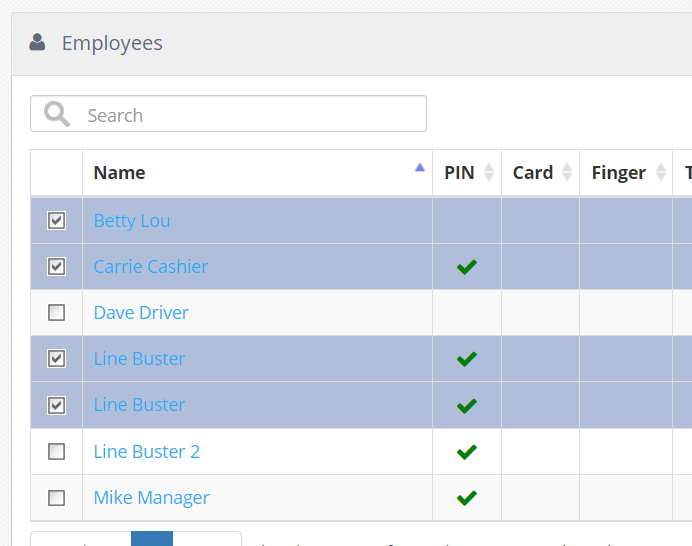
Select desired employees from the employee list and click the Share button at the top right-hand corner of the screen.

-
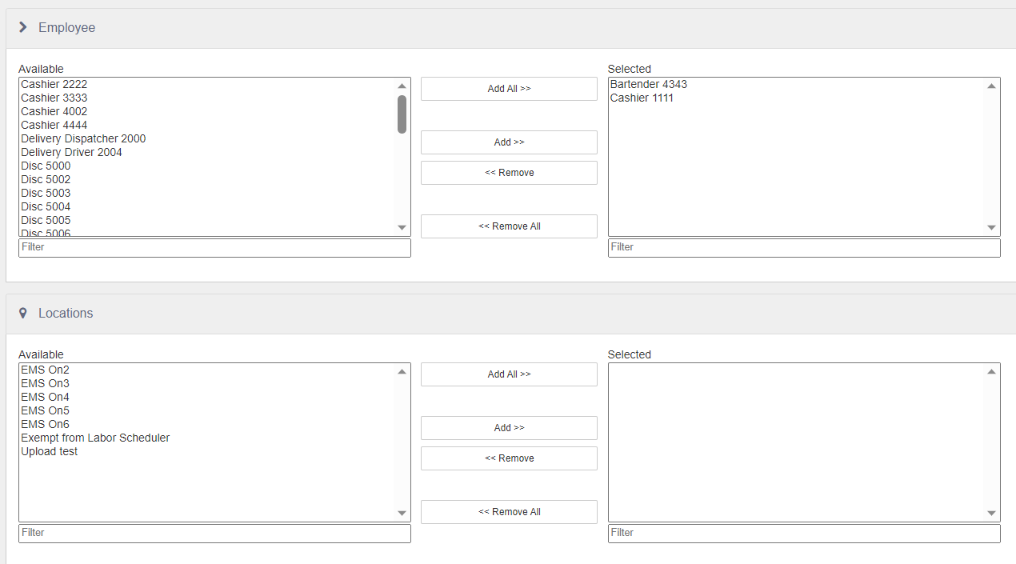
Employees in the "Selected" field on the right are shared with the locations in the "Selected" field in the ensuing dialog:
-
Click Save to save selections and share employees.
-
-
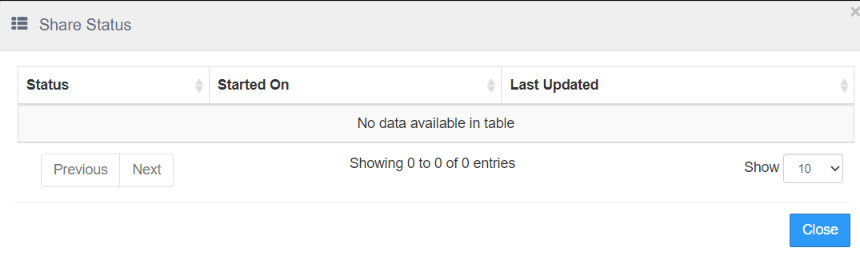
Share Status: Shows the current status of previous employee shares.
-
Report: Links to the "Staff Sharing Audit" report.
-
+ New Employee: Allows the user to create a new employee record.
-
Location: Location dropdown to access different employees by location.
-
Include Terminated Employees: Checkbox to hide or display terminated employees when displayed on the Staff > Employees page.
-
Edit Employee: Select an employee from the list to edit.
Employee Screen
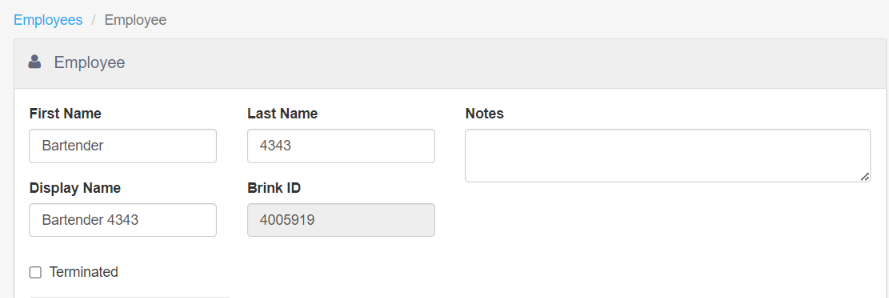
- First Name: Employee's first name.
- Last Name: Employee's last name.
- Display Name: Name that appears on the receipt, kitchen chit, register, and kitchen display - may be duplicated across multiple employee records.
- PAR POS ID: Employee ID in the PAR POS system.
- Notes: Optional special notes about the employee.
- Terminated: Check to terminate an employee -- terminated employees are not allowed to clock in or be scheduled for shifts.
Profile Tab
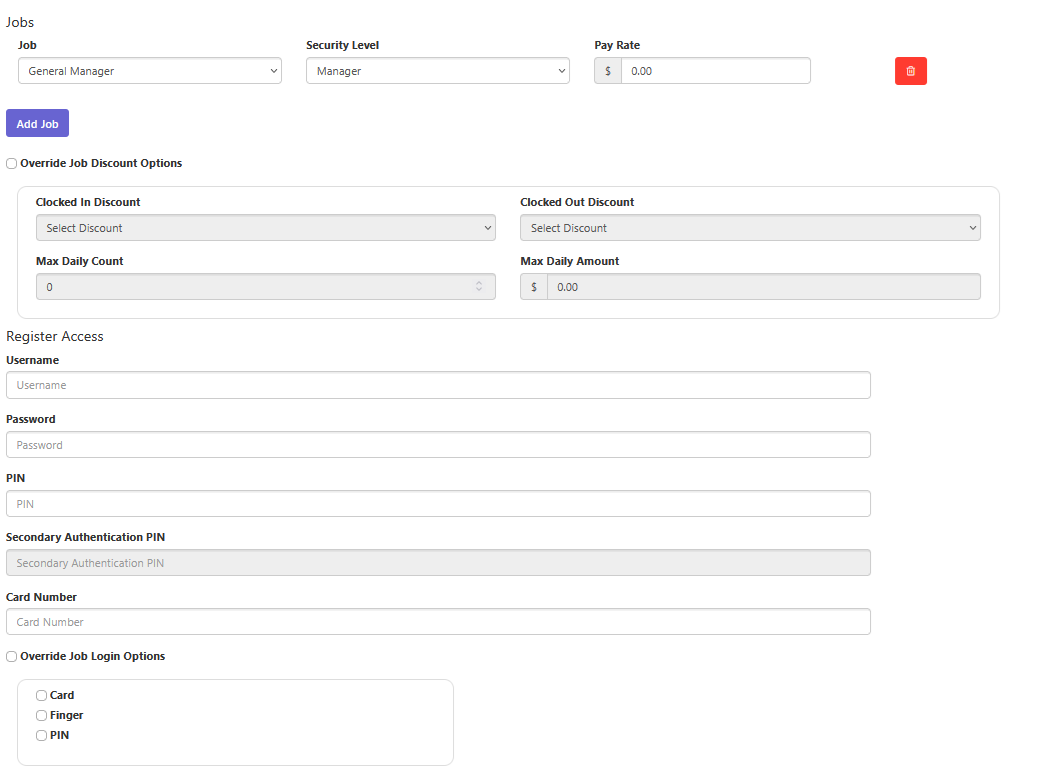
"Jobs" Section
- Job dropdown: Job assigned to the employee.
- Security Level dropdown: Employee security level when clocked into the job.
- Pay Rate: Hourly rate of pay paid to the employee while clocked in under the job.
- Schedule Pay Rate Change: Schedules an employee pay rate change to take effect in the future.
- Add Job: Adds a new job to the employee's profile
- Override Job Discount Options: This option indicates that employee discount options should be used rather than the discount options setup on the employee's job:
- Clocked In Discount: Discount to be applied to the current order when "Employee Discount" button behavior is executed and the selected employee is clocked in.
- Clocked Out Discount: Discount to be applied to the current order when "Employee Discount" button behavior is executed and the selected employee is not clocked in
- Max Daily Count: Maximum number of times an employee can be associated with an employee discount in a single business day -- may override for the employee when Security Level > Options > Allow Excess Employee Card Usage is enabled.
- Max Daily Amount: Maximum total employee discount amount for an employee for single business day -- may override for the employee when Security Level > Options > Allow Excess Employee Card Usage is enabled.
"Register Access" Section
- Username: This option ONLY shows when Revenue Quebec is enabled. Users can enter their Username to be used to start the User Session.
- Password: This option ONLY shows when Revenue Quebec is enabled. Users can enter their Password to be used to start the User Session.
- PIN: Four-digit number the employee uses to clock in and log into the register application.
- Secondary Authentication PIN: Additional layer of security for employee register access. Must be a three to 12-digit numeric PIN.
- Card Number: Account number encoded on the employee's magnetic card, used to clock in and log into the register application.
- Override Job Login Options: This option indicates that employee login options should be used rather than the login options set up on the job:
- Card: Clock-in, login, and permission authorization via magnetic card is allowed.
- Finger: Clock-in, login, and permission authorization via finger scan is allowed.
-
NOTE: When checked, the employee is prompted to provide consent prior to using the option.
-
NOTE: Using this feature either within an employee record or at the job level causes PAR POS to keep a hexadecimal string of data in conjunction with an employee record once the employee has enrolled their finger using a configured finger scanner peripheral. This hexadecimal string of data is kept until either
- The "Finger" option is unchecked for the employee within the employee record or the job description, or
- The "Terminate" box is checked for the employee within the employee record, or
- The individual employee is
- deleted by clicking on the red "X" associated with the employee in the "Employees" section of Admin Portal, and
- changes are published, and
- the End of Day process runs
-
NOTE: PAR POS does not store an employee's fingerprint or information based on the employee's fingerprint, only a hexadecimal string of data in conjunction with an employee record (if PAR POS is configured to allow an employee to Login with Finger).
-
- PIN: Clock-in, login, and permission authorization via four-digit PIN is allowed.
Locations Tab
Contains the locations in which the employee is assigned to:
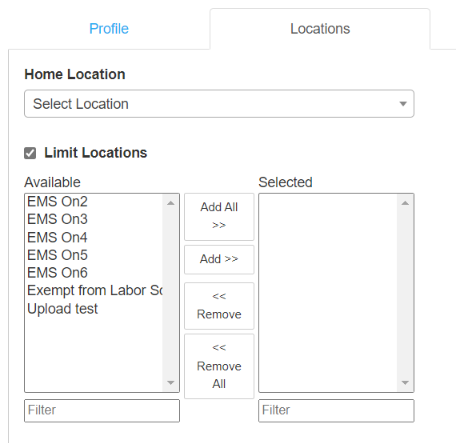
- Home Location dropdown: Primary location at which the employee may be scheduled for shifts.
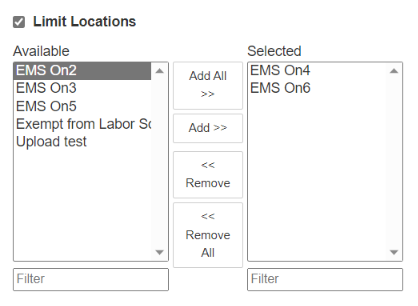
- Limit Locations: Limits locations at which the employee can be scheduled for shifts -- move Locations from the "Available" panel to the "Selected" panel with the Add>> button to define limited locations for the employee.
HR Tab
Contains the employee's contact and payroll information:
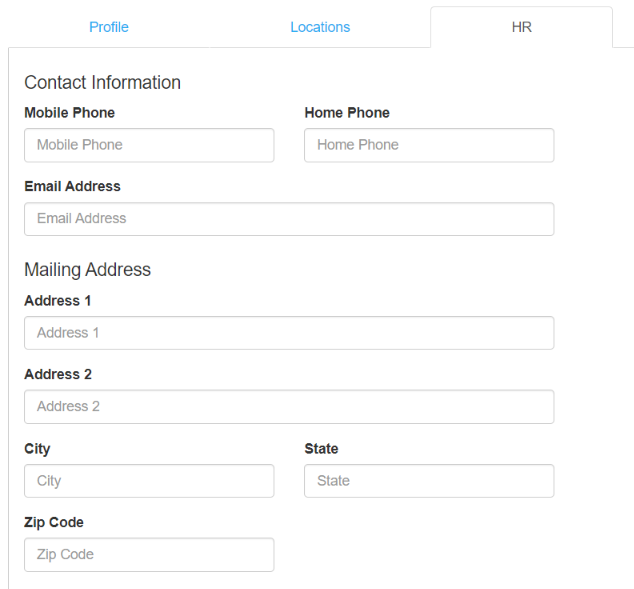
"Contact Information" Section
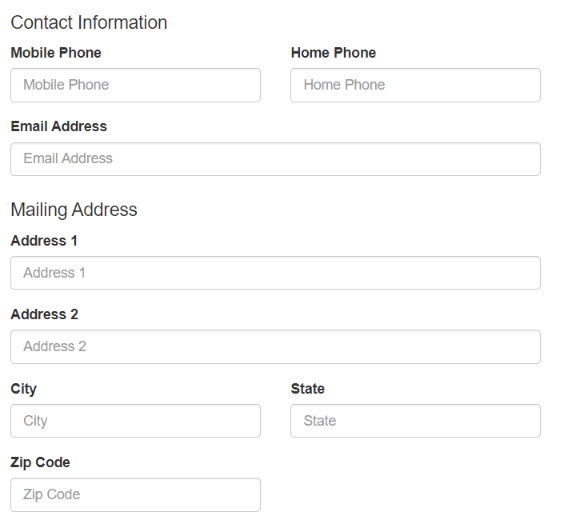
Address, phone numbers, and email address that appear on the Employee Directory report.
"Payroll Information" Section
- Birth Date: Displays on the Employee Directory report.
- Hire Date: Displays on the Employee Directory report.
- Termination Date: Displays on the Employee Directory report.
- Health Card Expiration Date: Date the employee's health card expires.
- Payroll ID: Employee identifier included on various labor reports.
- External ID: External identifier used by third party integrators.
- Marital Status: NO LONGER USED
- Tax Withholding Allowance: NO LONGER USED
- ID Verified: NO LONGER USED
- Export to Payroll: Check to include the employee's shifts in labor exports
Permissions Tab
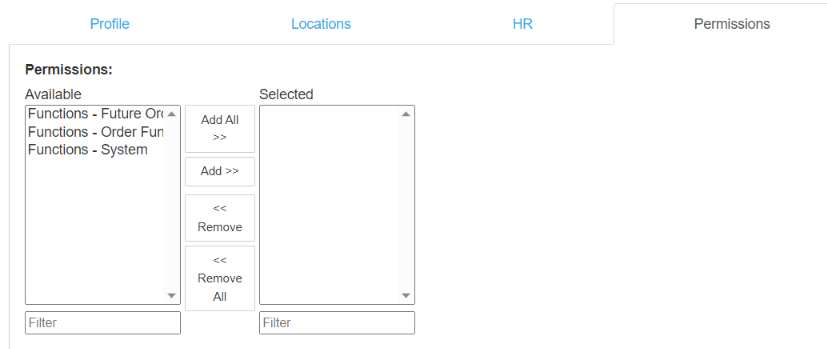
Contains available/assigned employee permissions. Permissions are defined in the "Permissions" section of Admin Portal, but may be assigned to the employee via the Employee > Permissions tab or the Permissions section.
NOTE: Editing employee permissions in one place automatically propagates the changes to the other.