Movable Ink CSV Data Exports Implementation
The Movable Ink integration harnesses the power of the Punchh Platform's CSV Data Exports. Punchh Data Exports can be used to extract as much custom user data as desired based on the dynamic content you want to present in marketing notifications. CSV exports can either be manually uploaded into Movable Ink’s CSV Data Sources or can be set up on an SFTP connection and the files will be automatically retrieved by Movable Ink at a specified time.
Requirements
Please reach out to your Punchh representative if you do not have access to the Data Exports.
To enable the creation of dynamic content from within the Movable Ink Platform, a Punchh Dashboard Administrator must generate Data Exports and upload the exports into the Movable Ink Platform. To enable the generation of the Data Exports, the admin account in the Punchh Platform must have the following access permissions enabled:
- Export Scope for the admin role must be set to "All"
- Allow Access to Reports Section (Needed to enable access to Data Exports)
- Manage Additional Schedules (Needed to enable access to schedule exports)
- Settings Advanced (Needed to enable access FTP Endpoints)
Setup & Configuration
Step 1.
- Log into the Punchh Platform and navigate to Data Sharing > Data Export.
- Name your new report and define the date range for your report.
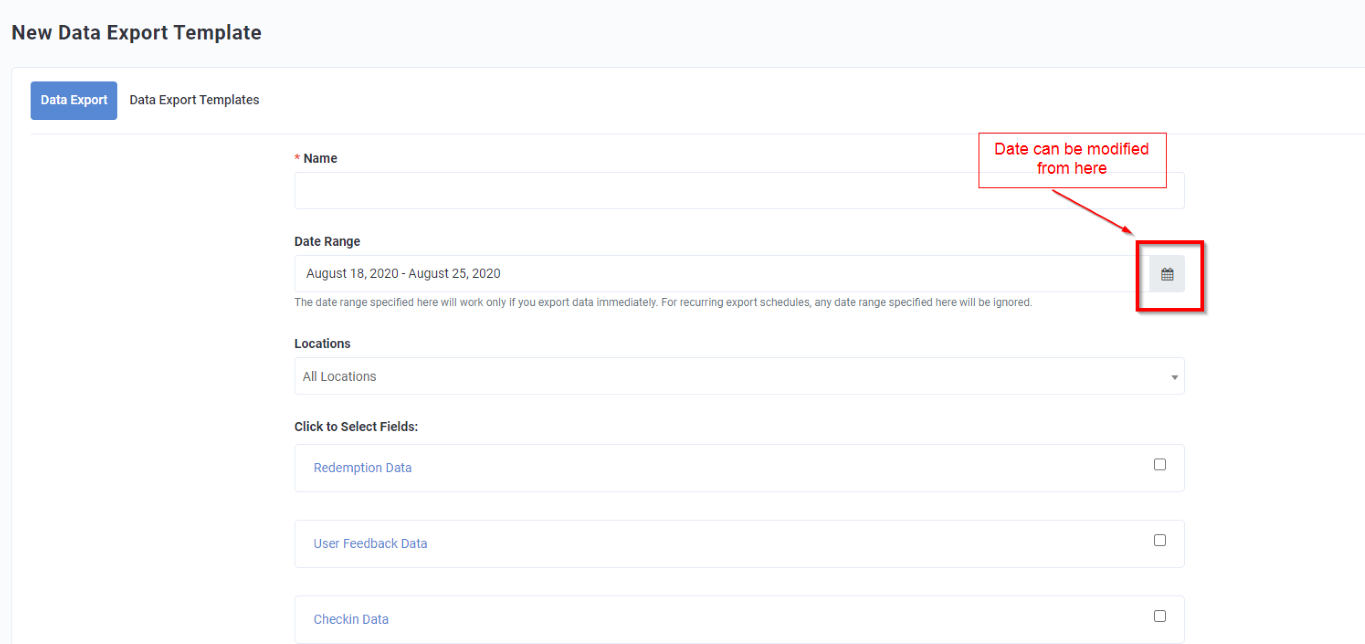
- Scroll down to select the data fields you wish to export into a CSV file. Once you click on the checkbox, the data field section will expand to display all individual data points available.
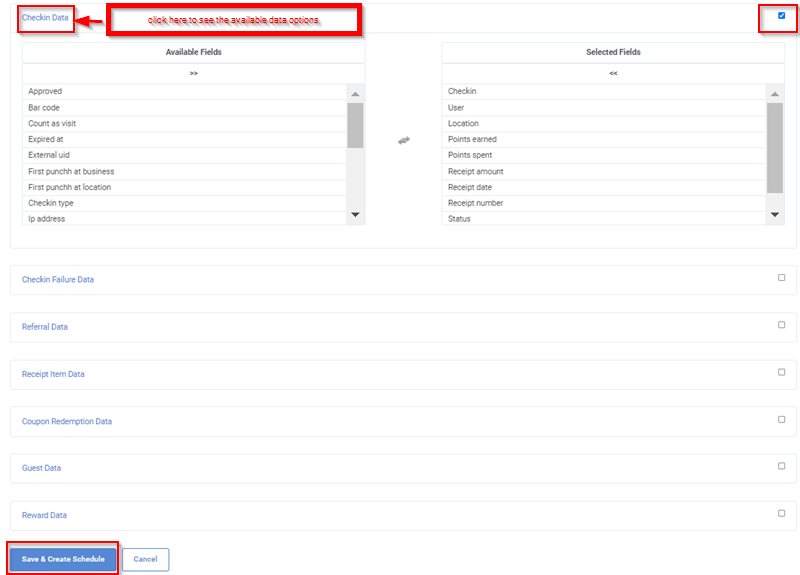
- Click on any of the data fields listed under Available Fields to move them over to the Selected Fields column. The data included in the Selected Fields column will be included in the CSV file generated.
- Once you have selected all the data fields necessary for your use case, select the Save & Create Schedule button to continue.
Step 2.
- Now define the scheduling settings for your CSV file. Select the Immediately option for the Frequency field to manually upload the CSV file into Movable Ink. Otherwise select ‘Daily’, ‘Weekly’, or ‘Monthly’ if you wish to set up an SFTP connection between Punchh and Movable Ink.
For more information on configuring an SFTP connection, review the Configure an SFTP Connection support article.
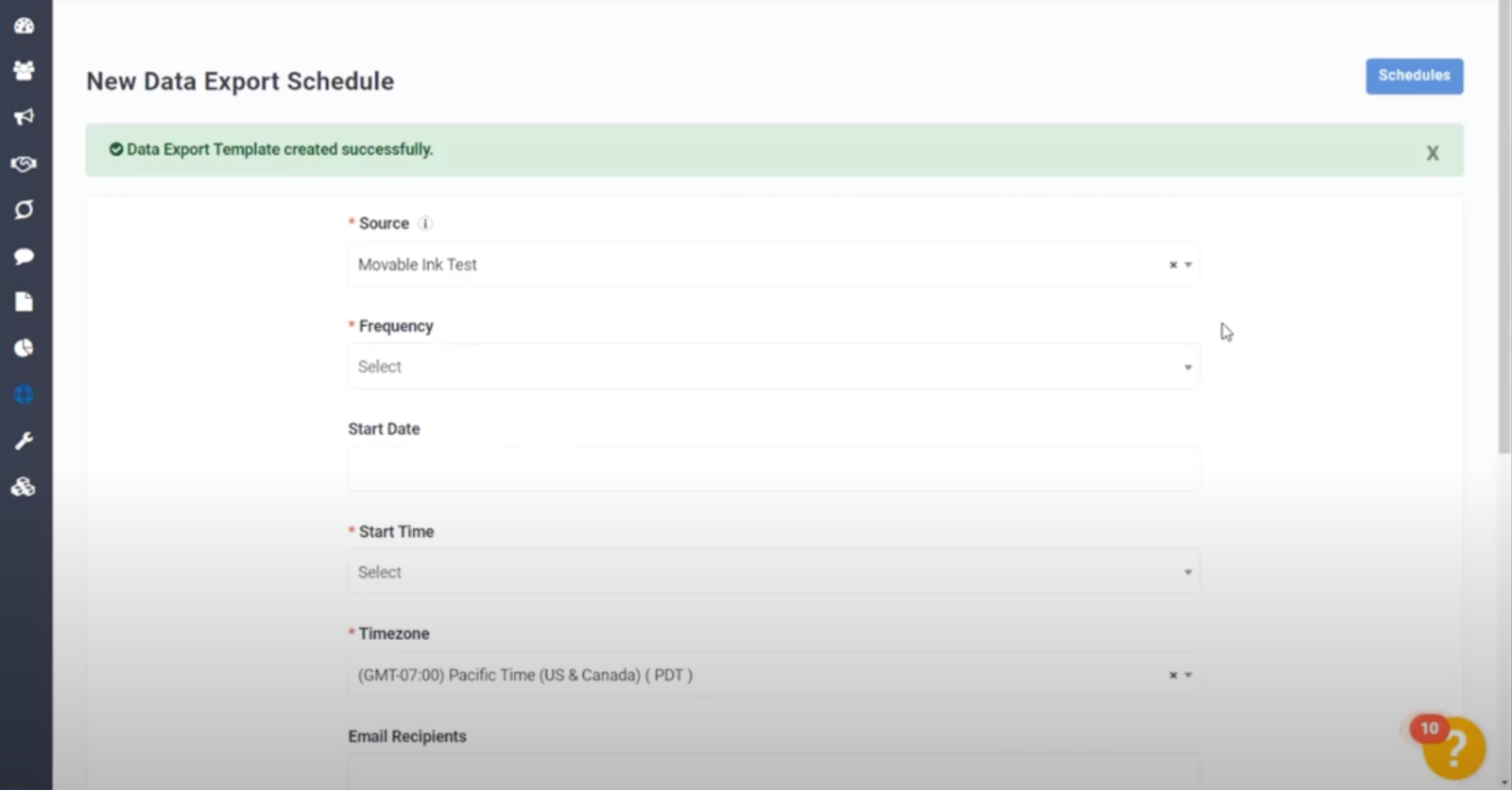
- Once you have selected Immediately from the Frequency field, input the email addresses to which you would like the CSV file to be sent.
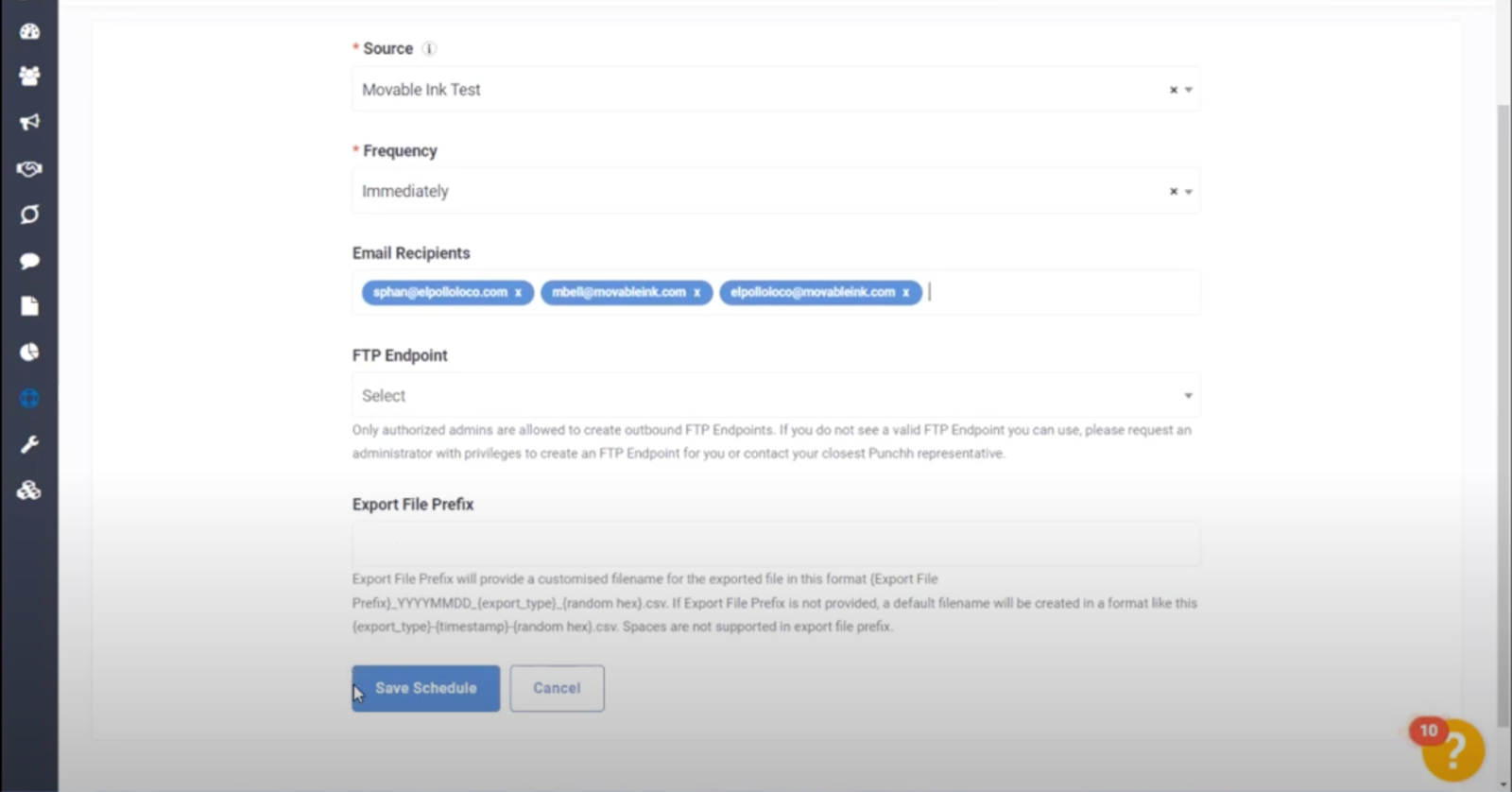
- Click Save Schedule to complete the setup.
Step 3.
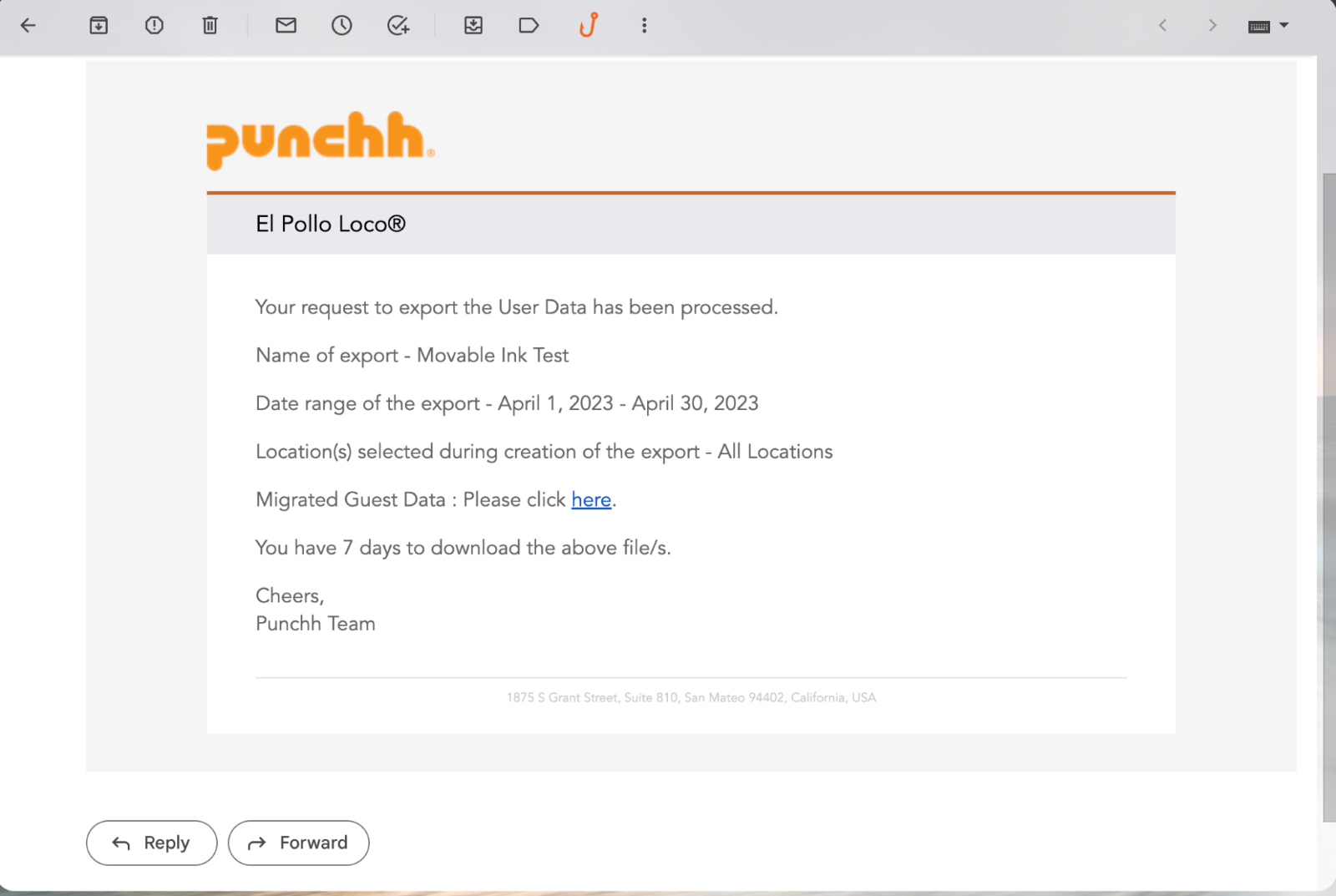
- You’ll then receive an email from Punchh with instructions on how to retrieve the CSV file. Click on the link to download it.
- Once downloaded, log into Movable Ink and navigate to Data Sources > New Data Source. Select the CSV Upload button and complete the steps to upload and define the data you’d like to use.
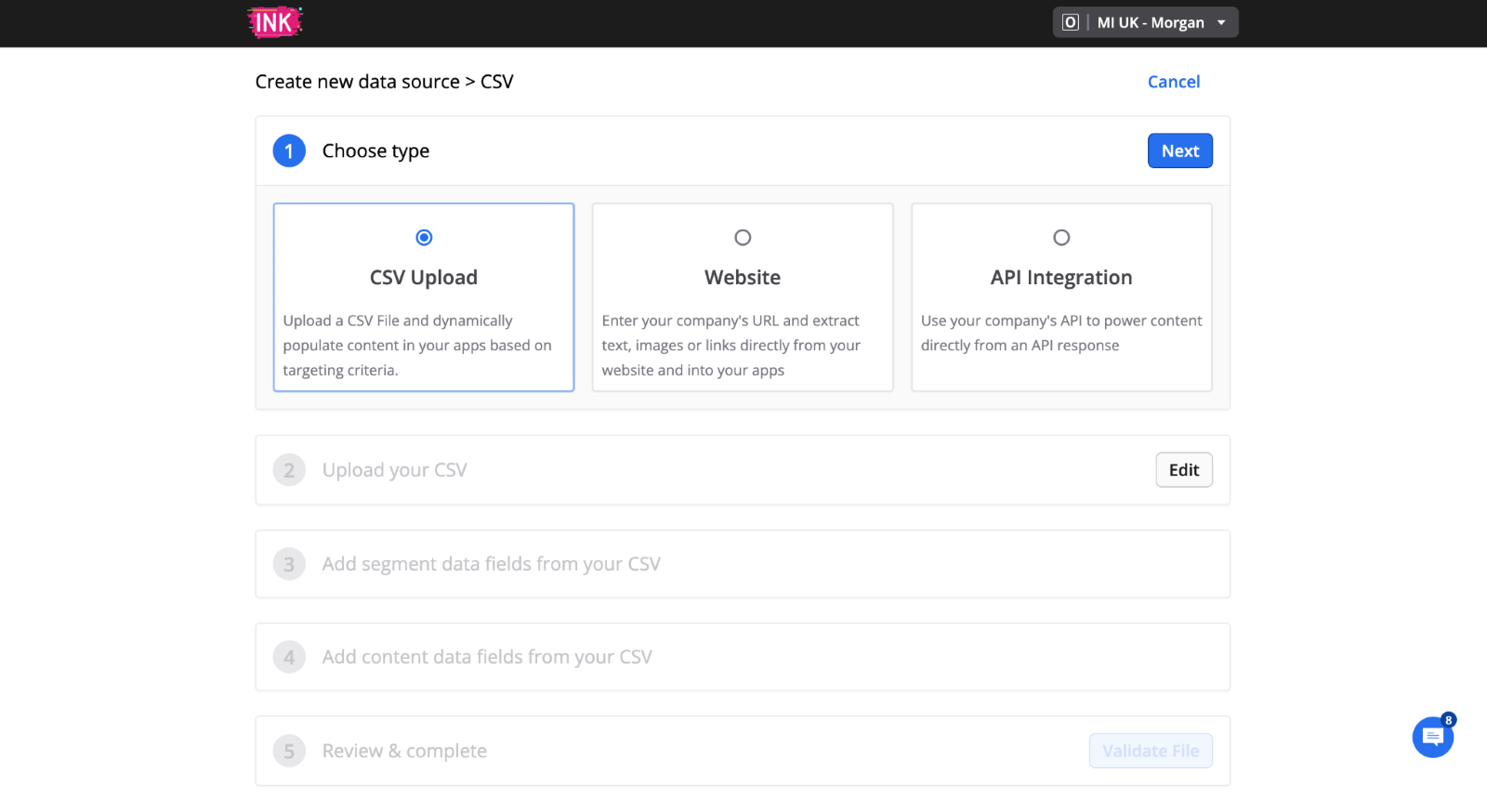
For more help with setting up a CSV Data Source, review the Connect a CSV data source support article in the Movable Ink Platform. For more help with setting up a CSV Exports in the Punchh Platform, review the Data Export (punchh.com) and FTP Endpoints (punchh.com) support articles in the Punchh Support Portal.
