Movable Ink Punchh Platform API Implementation
The Movable Ink integration harnesses the functionality of the Punchh Platform APIs, enabling the injection of dynamic content in marketing email notifications in near real-time as they are opened.
Requirements
Please reach out to your Punchh representative to enable the Setup & Configuration.
To enable the creation of dynamic content from within the Movable Ink Platform, a Punchh Dashboard Administrator must provide Movable Ink with a Business Admin Key to authenticate all Punchh Platform API requests. The Admin account on the Punchh Dashboard requires Business Manager or Business Owner level access. In addition, the following access permissions must be enabled:
- Settings Advanced (Needed for Admin Users access to generate the Business Admin Key)
- Dashboard API Access (Needed to enable API access and authentication for the Business Admin Key)
If the Punchh Dashboard Administrator’s account is disabled, it will invalidate the Business Admin Key. It is strongly recommended that the Business Admin Key is set up using a generic account specific to the integration e.g. movableink-admin@brand.com and not tied to a specific user. This generic email address will also be reflected in the Audit logs for any related activity. If the Business Admin Key is re-generated by the admin in Punchh, the current key will no longer pass validation, this will break the integration between the Movable Ink and Punchh.
Setup & Configuration
Step 1.
To enable the use of the Punchh Platform APIs, the Brand's admin will need to generate a Business Admin Key in the Punchh Platform. To set the Business Admin Key, please follow the steps below:
- Go to Administration > All Users, Roles and Permissions > Admins.
- Select the admin user's account with appropriate permissions from the list.
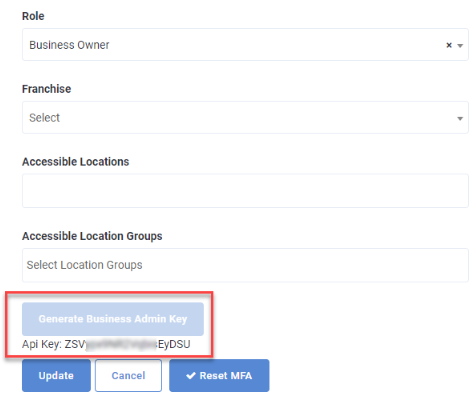
- Click the Generate Business Admin Key button at the bottom of the page.
- Copy this key for configuration in the Movable Ink Platform to enable the Punchh Integration.
Moveable Ink supports the following Punchh Platform APIs:
If the Generate Business Admin Key button is missing this is likely due to one or more of the following:
- The Role assigned to the admin does not have the ‘Dashboard API’ access permission enabled or Business Manager/Owner settings enabled.
- The Role assigned to the admin does not have the Business Manager/Owner settings enabled.
