FTP Endpoints
Punchh allows you to pull several different report types ranging from guest data to transactional data, employee reviews, POS stats/revenue, and more. The data may be downloaded instantly, scheduled to be emailed to a list of recipients, or scheduled to automatically upload to an SFTP location on your company's server.
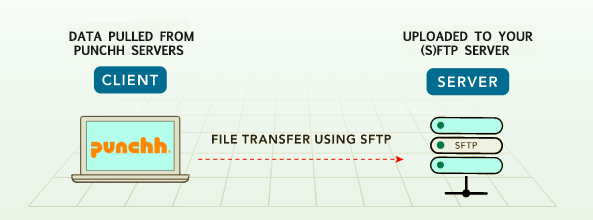
Of course, in order to send a report to your FTP server, you first need to add an (S)FTP endpoint so we know where to send it.
Add a New FTP Endpoint
You'll need to know the username, password, port number, host address, and file protocol, among other information. If you don't know these things, you'll want to contact your site administrator. To add a new FTP endpoint:
- Navigate to Data Sharing > FTP Endpoints and click the Add New FTP Endpoint button at the top right.

- Choose a Name for this endpoint.
- Click the Protocol drop-down and select the appropriate transfer type.
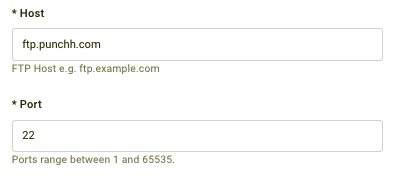
Choose from FTP-SSL (Explicit AUTH TLS), FTP, or SFTP (SSH File Transfer Protocol) - Enter the Host address (URL) and choose the Port that will be receiving the data.
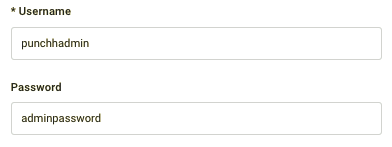
- Enter the Username and Password required for access to you FTP server.
Your password will be visible during this initial endpoint creation, but it will be obscured *** if you or another user makes edits later on.
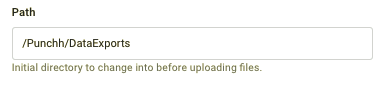
- Enter the file Path (relative to the home directory) where the data exports will be sent.
This directory file path is only necessary if you want to choose a specific folder for your export.
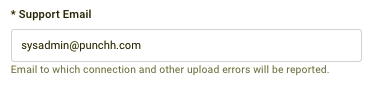
- In the Support Email field, enter the address of the person who will receive connection and upload errors, should they occur.
This should likely be your System or Site Admin.
- Click Save once finished.
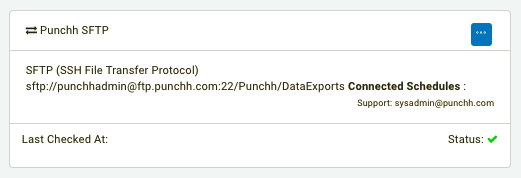
Your new endpoint will appear in your list as pictured below. The green checkmark next to Status only indicates that this endpoint is available to be chosen when making data exports. It does not mean that your FTP has been correctly set up and successfully connected. To check that, you'll need to first test it.
Test Your FTP Connection
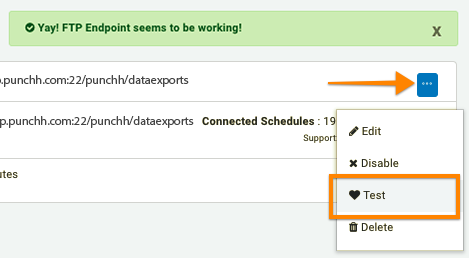
Upon initial setup, you'll want to make sure your FTP endpoint was successfully connected. In the future, you may need to check your connection again for troubleshooting should any connectivity issues arise. To see if your FTP is working, click the blue More Options button and select Test from the drop-down
Contact your system administrator if your FTP isn't connecting as it should.
Schedule Export to Your FTP Endpoint
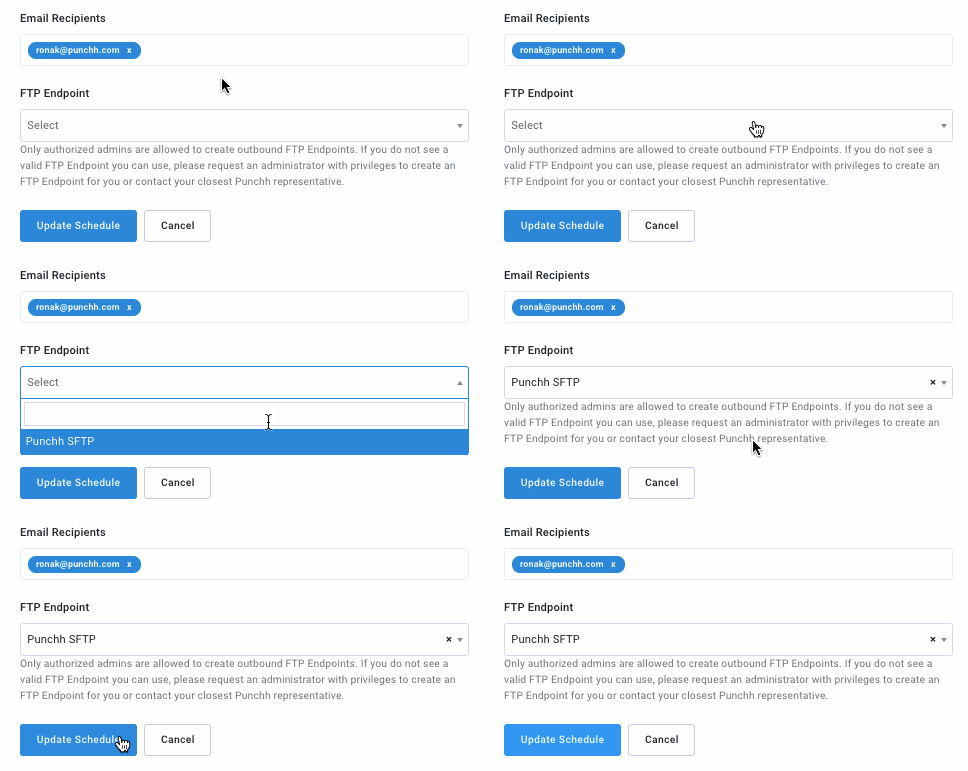
Once your FTP is all setup and good to go, you can connect it to receive the reports you export. When scheduling data exports or reports in Diagnostics > Schedules, click the FTP Endpoint drop-down and select the one you want.