Redemption Codes
When a guest in the mobile app clicks to redeem a reward, they are given a redemption code (or a QR code representing the aforementioned code) that must be entered into the POS at the time of purchase to receive the reward.
Once a redemption code has been requested, that unique number code can be used to identify the type, date, location, and guest associated with that redemption. The Redemption Codes page serves as a support tool in the event of a problem, giving you information about each redemption attempt (successful or otherwise).
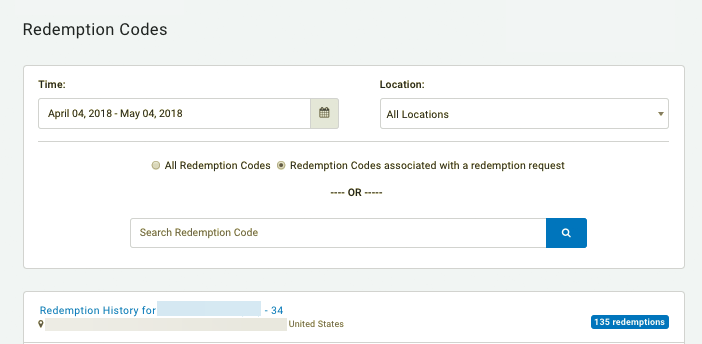
Using this tool, you may search for a specific redemption code by the following means:
- All Redemption Codes: Searches for instances of the code provided in the search regardless of redemption activity/status.
- Redemption Codes with a redemption request: Filters for redemption codes that have already had an attempt at being redeemed captured against them. This can include redemption requests from the POS, mobile app, online ordering and any other receipt channel.
Note: By default, redemption codes are configured to be 7-digits long, though some brands may have a strategy representing a different redemption code length. If a change is needed, whether to increase or decrease the redemption code length, please speak with your Customer Success Manager. Further, a redemption code is currently needed to use the search feature. If you are unsure of the redemption code, please use the Redemption Log search tool location under Diagnostic > Redemption Log.
Look Up Redemption Details by Code
If you know the redemption code, finding the redemption to view details is very simple.
- Navigate to Diagnostic >Redemption Codes.
- Enter the code in the search bar and click the search icon.
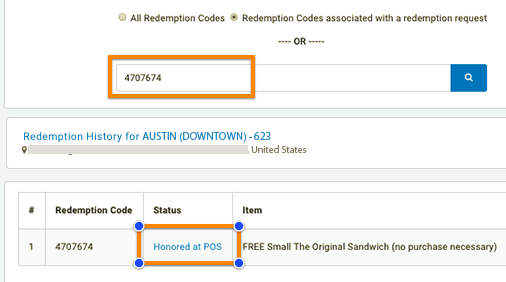
- Once you see your result, click Honored at POS under the Status column to view the redemption details.
Redemption Details
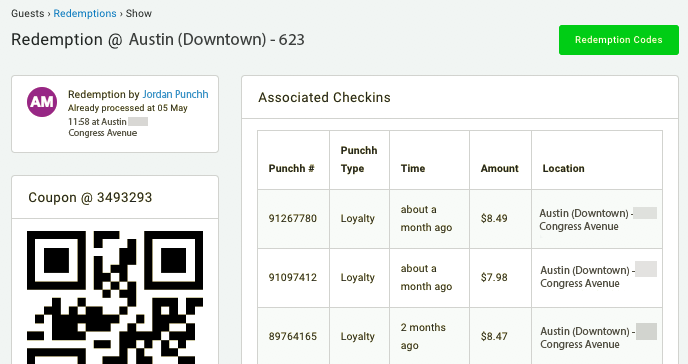
The details shown for each redemption include:
- Guest name
- Processing status, time, and location
- The QR code used for the redemption
- Associated Checkins:
- If the redemption item type is "Gift Card" you will see any other purchases made using that card, including Punch ID #, time, amount, and location.
Export Redemption Data
Exporting redemption code data is available under Redemption Data in Data Sharing > Data Export. Your Redemption Data exports can be scheduled to deliver daily, weekly, monthly, or immediately.
Non-POS-Integrated Businesses
Non-POS-integrated businesses are unable to automatically track which redemption codes have been used, when, or at what location because their POS does not send that information to Punchh. In order to help businesses track valid redemption codes and make sure they are only used once, a list of pre-generated redemption codes will need to be periodically emailed to each of your locations. (These emails can be automated by your Punchh account manager. Please reach out to your Punchh contact for more information.) These codes should be printed and kept at the POS such that employees can manually (with pen and paper) cross each code off as they are presented to them at the register. Additional batches of redemption codes can be set to automatically be sent to each location as they run low.
Note: A location's email address can be set up under Store Locations > All Store Locations. Admin Users can also check the New Batch of Redemption Codes flag in their profile under Administration > Admin Users, in order to receive the redemption codes for the locations they are assigned.
Trouble processing redemption codes? Make sure that your cashiers know to enter the redemption code at the end of the transaction. This is because the receipt associated with redemption must meet the qualification criteria settings you chose for it, and if the qualifying items haven't yet been added, the system will not recognize it as meeting the appropriate criteria.
