PAR Intelligence Overview
PAR Intelligence adds AI-powered tools to the PAR products you already use. Ask a question in plain language, hand off routine setup work, or explore your brand's data without building a report.
PAR Intelligence is available in PAR Punchh, PAR Ordering, PAR POS, and PAR OPS Back Office. Each product has its own set of tools, so you get help that fits the work you do there.
Note: PAR Intelligence is rolling out in stages. Some tools are live and others are in beta. Beta tools may not be available to all customers. To ask about availability for your brand, contact your PAR representative.
How It Works
PAR Intelligence includes two types of tools: Assist tools and Coaches. Each type draws on a different source of information.
Assist Tools
Assist tools help you complete work inside a PAR product. They are built on the application's own functionality, so they work with the features and settings you already use. Use Assist tools to:
- Ask product questions
- Find and open reports (PAR OPS Back Office)
- Build a segment (PAR Punchh)
- Update store hours across locations (PAR Ordering)
- Configure and complete tasks
Coaches
Coaches work from your brand's data. They surface what is happening in that data and what to do next. Use Coaches to:
- Ask questions of your data
- Find changes in performance
- See why performance changed
- Forecast sales, guest counts, and labor needs (PAR OPS Back Office)
Assist tools help you act. Coaches help you decide where to act.
Components
PAR Intelligence includes the following components. Each one lists its type, where it is available, and its current status.
Knowledge Q&A
Knowledge Q&A answers your questions about how a PAR product works, so you do not have to search through documentation.
Knowledge Q&A – Reporting Access
Knowledge Q&A – Reporting Access finds reports for you. Ask for the report you need in the chat, and PAR Intelligence locates it and links you to it, so you do not have to browse the report library. This capability is available only in PAR OPS Back Office.
Segment Assistant
Segment Assistant builds Punchh guest segments from a plain-English request. You describe the audience, Segment Assistant drafts the rules, and you review and save the segment in Segment Builder. For prompt tips and current limitations, see the Segment Assistant Beta: What to Expect section in this article.
Hours AI Assistant
Hours AI Assistant helps you update store hours across locations without editing each location record. You select the venues, describe the schedule, then review and apply the changes. For details, see the Hours AI Assistant section in this article.
Loyalty Coach
Loyalty Coach answers questions about loyalty performance and uncovers patterns in your brand data. It analyzes your brand's own data to explain business trends, spikes, and drops.
Ordering Coach
Ordering Coach shows how your ordering channel is performing and what is moving it. It analyzes your brand's own data to explain business trends, spikes, and drops.
Forecasting Coach
Forecasting Coach predicts sales, guest counts, entree counts, and check averages. It also helps you estimate the employee hours needed for upcoming labor scheduling.
POS Coach
POS Coach answers questions about business trends, spikes, and drops, based on analysis of your brand's own data.
Segment Assistant BETA
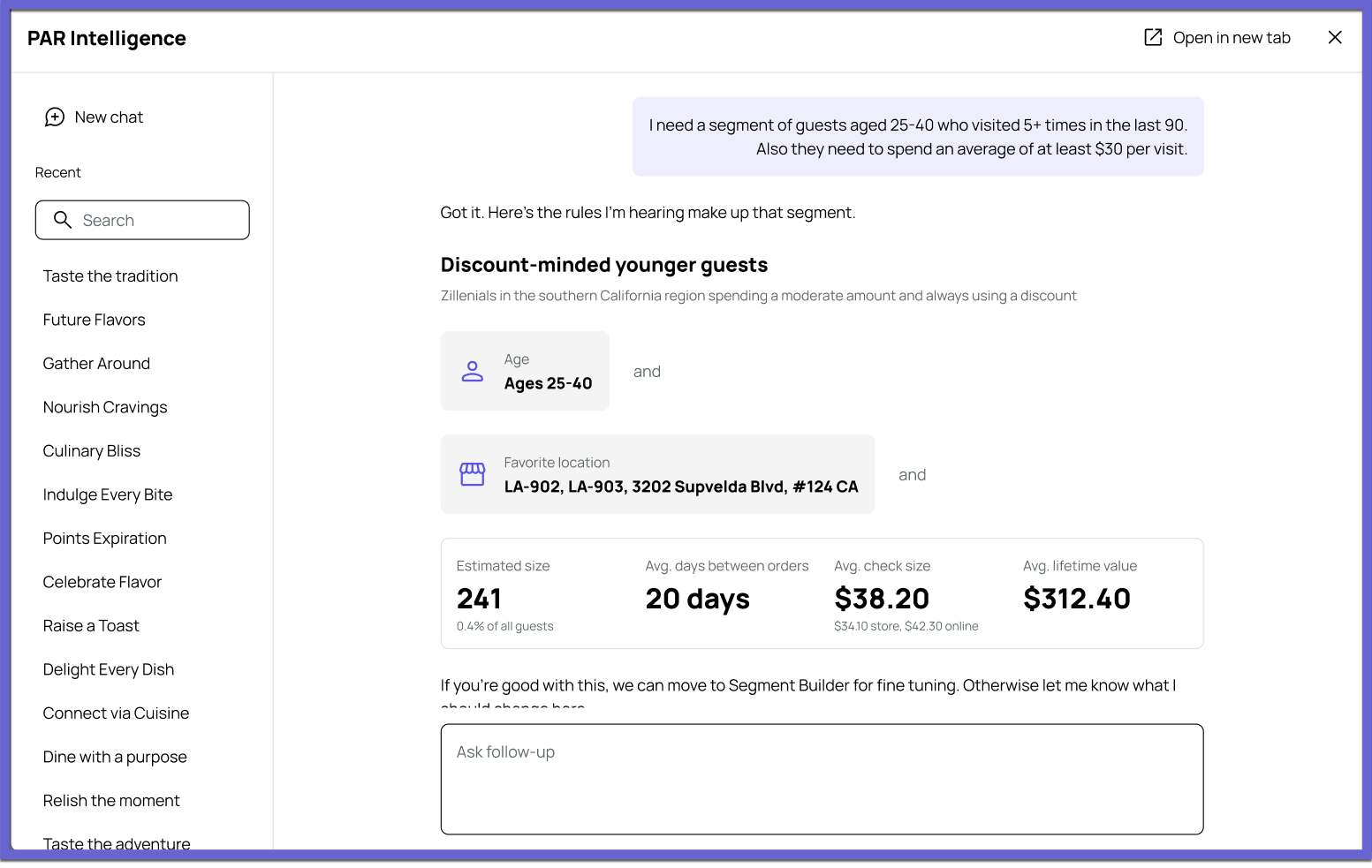
Segment Assistant builds Punchh guest segments from a plain-English request: you describe the audience, it drafts the rules, you review and save. This is a beta, so some features aren't in yet and results can vary based on how the agent is prompted. Your feedback shapes what we fix and build next.
What it does today
You stay in control: nothing is created until you review the draft and save it in Segment Builder.
- Ask. Open PAR Intelligence and describe the guests you want to reach, in your own words.
- Review. Segment Assistant shows the draft rules and a plain-language description of who's in the segment. It handles multi-condition logic (and, or, not), exclusions.
- Create. Click Launch in Segment Builder to open Segment Builder with the rules pre-filled. Adjust anything, then save.
What's not in the beta yet
If you ask for something on this list, Segment Assistant will decline or miss. That's expected, not a bug.
| Not in the beta | What to do instead | Status |
|---|---|---|
| Segment stats after a build (estimated size, average check, lifetime value) | Save the segment and check its size in Segment Builder | On the roadmap |
| Editing or deleting an existing segment | Edit it directly in Segment Builder | Not in this release |
| Custom list segments (uploaded guest lists) | Upload the list in Segment Builder | Not in this release |
| Segment tagging | Tag after saving in Segment Builder | Not in this release |
Two more things to know. The same request can produce a slightly different draft each time, so always review before you save. Some requests that target guests by personal characteristics are blocked by design.
Getting better results
The more specific the request, the closer the first draft. If a draft misses, reword it and try again before building it by hand: a different phrasing of the same segment often works on the second try.
- Name the numbers. Timeframes, visit counts, spend amounts, point balances.
- Name the behavior. Visited, redeemed, joined, spent, ordered online.
- Say who to leave out. "Excluding guests who redeemed in the last 30 days."
- One audience per request. Build two segments in two requests.
| Instead of | Try |
|---|---|
| Lapsed guests | Guests who haven't visited in 90 days and have at least 100 reward points |
| Big spenders | Guests who spent more than $200 in the last 6 months |
| New members | Guests who joined loyalty in the last 30 days and have visited only once |
| Lost regulars | Guests who visited 5+ times last quarter but not in the last 45 days |
| Locals | Guests whose favorite location is in Texas and who visited at least 3 times this year |
Not sure which segment to build? Start with the one your team rebuilds most often. See our Segment documentation for more details.
Hours AI Assistant BETA
Hours AI Assistant helps you update store hours across PAR Ordering locations without editing each location record. You use it directly in the PAR Ordering platform, where you work with your venues and their hours. This is a beta, so some features aren't in yet and results can vary based on how the assistant is prompted.
You stay in control: no hours change until you review the proposed updates and apply them.
- Select. Choose the venues you want to update.
- Describe. Describe the schedule in your own words, such as "Open 7 a.m. to 9 p.m. Monday through Friday."
- Review. Check the proposed hours for each venue.
- Apply. Apply the changes to the selected venues.
Getting better results
For step-by-step instructions on using Hours AI in PAR Ordering, see PAR Intelligence: Hours AI.
Loyalty and Ordering Coaches BETA
Loyalty Coach, Ordering Coach, and POS Coach answer questions in plain language, using your live business data. Loyalty Coach works with your PAR Punchh data. Ordering Coach works with your PAR Ordering data. POS Coach works with your PAR POS data. These Coaches are in beta. Forecasting Coach is live and is described in its own section.
Getting Better Results
The more specific your question, the more useful the answer. Include three details:
- Name the metric. Sales, orders, redemptions, or check size.
- Set the timeframe. The period and the comparison, such as the last 90 days.
- Add the breakdown. By store, channel, campaign, or guest type.
Loyalty Coach: Example Questions
Use these questions as starting points for your PAR Punchh data.
Guest and program performance
- What percentage of my sales comes from loyalty guests versus non-loyalty guests this month?
- What's my loyalty program participation rate, and how has it trended over the last 90 days?
- How does the average check size for loyalty guests compare with non-loyalty guests?
- How much incremental sales lift are loyalty participants driving compared with non-loyalty guests?
Acquisition and engagement
- How many new loyalty signups did I get last month, and which channel drove the most: app, web, or POS?
- Which channel is driving the most loyalty check-ins: POS, app, web, or online ordering?
- How many total app downloads have I received, broken out by iOS and Android?
Campaigns and rewards
- What's the redemption rate on my most recent campaign, and how does it compare with my last one?
- What's my total rewards redeemed this month, and what's the associated discount amount?
- Can you compare treatment versus control performance for my last campaign on sales and visits?
Ordering Coach: Example Questions
Use these questions as starting points for your PAR Ordering data.
Sales and order performance
- What were my total sales last month, and how does that compare with the month before?
- What's my average order value this month, and how has it trended over the past 90 days?
- How many orders did I get yesterday, and how does that compare with the same day last week?
- Can you show me a week-over-week trend of my order volume as a chart?
Channel and fulfillment mix
- What's my channel mix: delivery, pickup, and dine-in, for this month?
- What percentage of my orders come through aggregators like DoorDash, Grubhub, and Uber Eats?
- What percentage of my orders are scheduled ahead of time versus placed ASAP?
Store and menu performance
- What are my top 10 selling items this quarter?
- Which of my stores are above or below the brand average for sales this month?
- What's my average delivery time this month, and how does it vary by store?
Keep the Conversation Going
Each answer is a starting point. Ask a follow-up in the same conversation, such as:
- "Break that down by store."
- "Show me that as a chart."
- "Compare that to last month."
- "How does that compare across locations?"
- "What's driving the difference?"
Forecasting Coach LIVE
Forecasting Coach predicts sales, guest counts, entree counts, and check averages for your locations in PAR OPS Back Office. It also helps you estimate the employee hours needed for upcoming labor scheduling.
On the Forecasting page, you can:
- Choose a forecast type. Select the forecast most relevant to your business, such as Sales or Entree Count, instead of viewing every forecast at once.
- Switch between daily and weekly views. Both views are in one experience.
- Compare forecast to actual. The weekly chart shows forecasted and actual sales side by side. Day-of-week icons mark holidays and special events that can affect your numbers.
POS Coach BETA
POS Coach answers questions about business trends, spikes, and drops in plain language, using your brand's PAR POS data. This is a beta, so some features aren't available yet.
What PAR Intelligence Can and Cannot Do
Each PAR Intelligence tool has a defined scope. Use these guidelines to set expectations across the tools.
What You Can Do
- Ask how PAR products work and get an answer without searching through documentation (Knowledge Q&A).
- Find a report and get a link to it from the chat (Knowledge Q&A – Reporting Access, PAR OPS Back Office).
- Complete work inside a product, such as drafting guest segments in PAR Punchh or updating store hours across locations in PAR Ordering.
- Ask questions about performance in your brand data, such as loyalty performance in PAR Punchh, ordering channel performance in PAR Ordering, or business trends in PAR POS.
- Forecast sales, guest counts, entree counts, and check averages, and estimate labor needs, in PAR OPS Back Office (Forecasting Coach).
What to Keep in Mind
- Each tool works in the product listed in the Components section. A tool available in one product is not automatically available in another.
- Assist tools and Coaches have different purposes. Assist tools help you complete work in a product. Coaches report on your data and point to what to do next.
- Beta tools (Segment Assistant, Hours AI Assistant, Loyalty Coach, Ordering Coach, and POS Coach) are still being refined, so some features are not available yet. Review results before you act on them.
- Forecasting Coach predicts future values from past data, so actual results can differ from the forecast.
- Segment Assistant has a specific list of capabilities that are not yet available. See the Segment Assistant Beta: What to Expect section in this article.
Share Feedback
Beta tools improve with your input. When a response is not what you expected, share feedback with us instead of opening a support ticket.
- Assists and Coaches: Rate each response with thumbs up or thumbs down. Our product team reviews that feedback to find misread requests. Thumbs up matters too: it tells us what to keep.
- General questions or concerns: Contact your PAR Representative.
- Technical problems: If a tool does not load or returns an error, contact support as usual.