PAR Intelligence: Hours AI
Hours AI is an AI-powered tool in the Management Center that lets you set venue opening hours, menu serving times, and delivery hours using plain-English prompts. Instead of editing structured fields store by store, you describe the schedule you want, review a preview of the proposed changes, and apply them to one or many entities at once.
Prerequisites
Before you can use Hours AI, the following must be in place:
- PAR Intelligent Prompts must be enabled for your brand. To enable this feature, contact your PAR representative.
- Your role must have the Hours AI permission under the PAR Intelligence permission group.
- Brand Manager roles have this permission enabled by default.
- Area Manager, Store Manager, Catering Manager, and custom roles have the PAR Intelligence group visible but switched off by default. A Super Admin or Brand Manager must grant access before those roles can use Hours AI.
How Hours AI Works
Hours AI handles three types of schedules, each on its own tab:
| Tab | What it manages |
|---|---|
| Venue Opening Hours | Regular opening and closing times for your venues |
| Menu Serving Times | The hours during which each menu is active (for example, breakfast until 11 AM) |
| Delivery Hours | Operating hours for your delivery areas |
When you type a prompt and click Parse with HoursAI, the system sends your prompt to each selected entity in the background. As results come in, an entity card appears for each venue, menu, or delivery area, showing a diff of what will be kept, added, or removed. You review the diff, skip any entities you do not want to change, and then apply the updates in bulk.
Changes are applied atomically per entity. If an update fails for one venue, other venues in the batch are not affected.
If your prompt includes the name of a specific venue or menu (for example, "Set Downtown to 8 AM–10 PM"), Hours AI automatically targets only that entity, even if you have others selected.
Using Hours AI
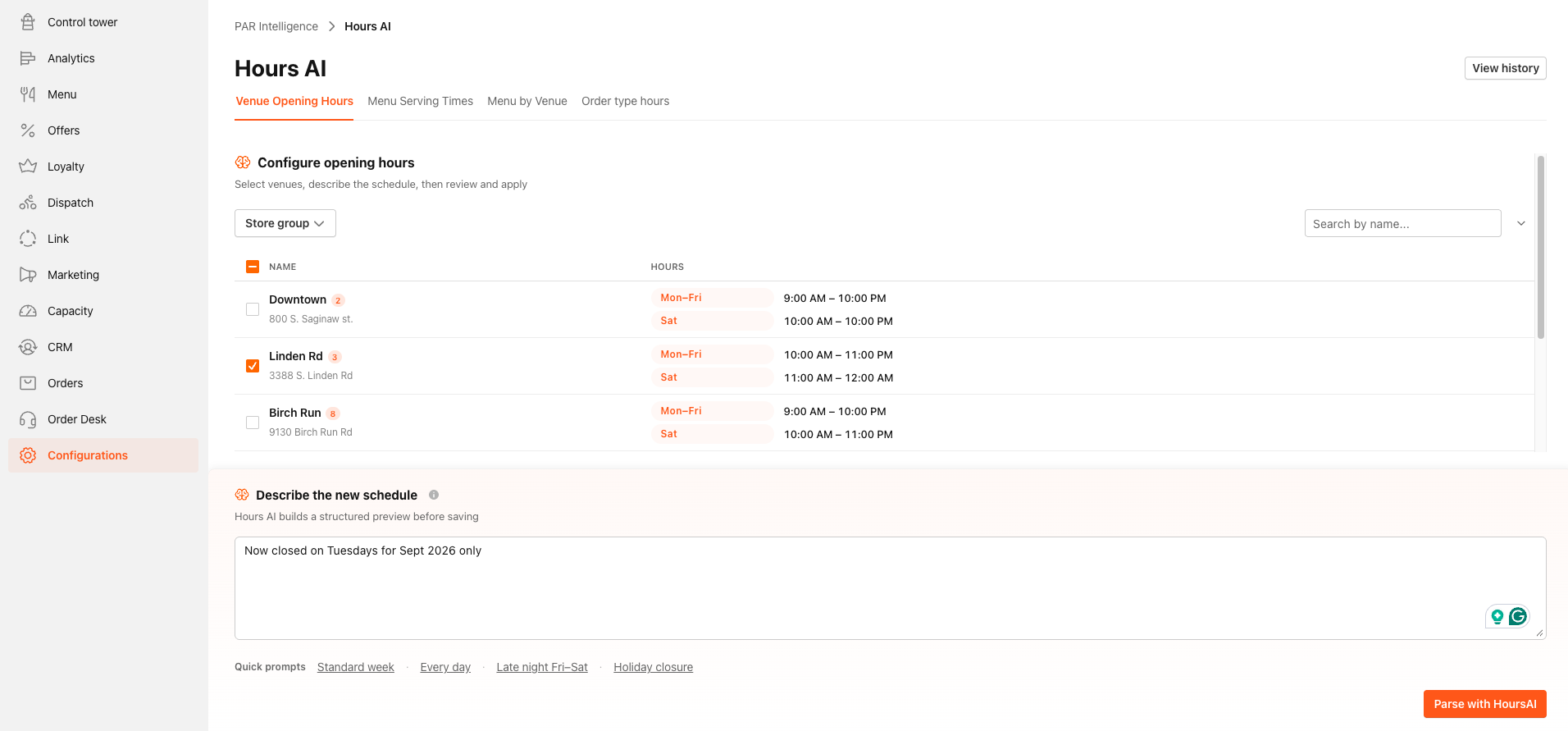
Step 1: Open Hours AI
- In the Management Center, select your brand.
- Navigate to Configurations > PAR Intelligence.
- Select Hours AI.
Step 2: Select a tab
Select the tab that corresponds to the schedule type you want to update:
- Venue Opening Hours
- Menu Serving Times
- Menu by Venue
- Order type by Hours
Step 3: Select entities
- Optionally, use the Store group filter to narrow the list of entities before selecting.
- Select the checkboxes next to the specific venues, menus, or delivery areas you want to update, or leave all entities selected to apply the prompt across your entire brand.
Step 4: Enter your prompt
Do one of the following:
- Type a plain-English description of the schedule you want. For example: Open Mon–Fri 9 AM–10 PM, closed weekends or Closed December 25.
- Select a prompt template from the available options. Templates cover common scenarios such as a standard weekly schedule, a holiday closure, and lunch and dinner windows.
Step 5: Parse and review
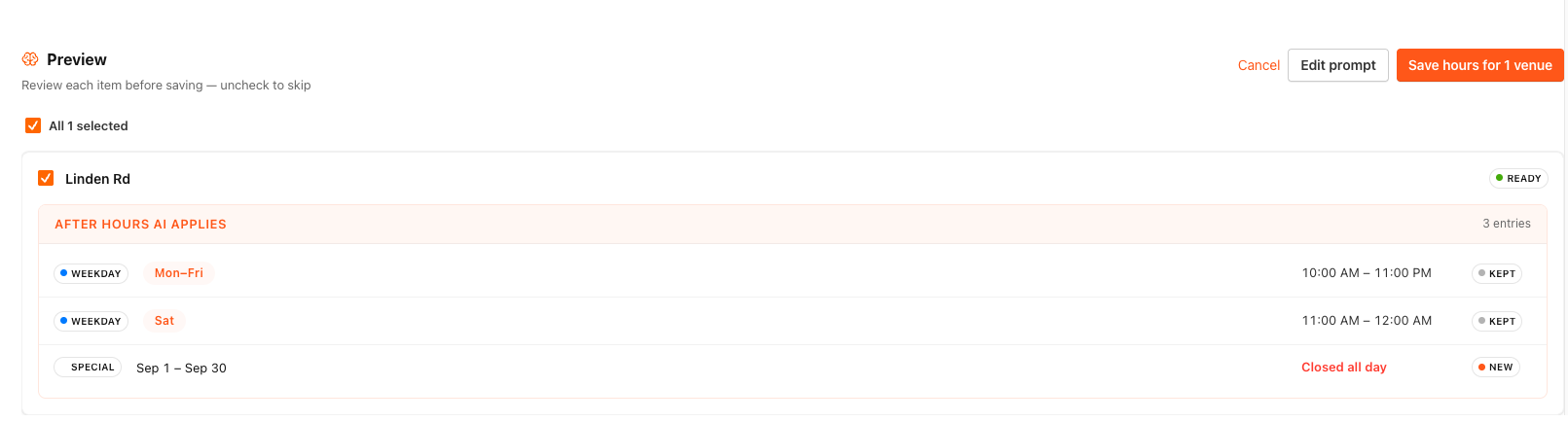
- Click Parse with HoursAI. The system sends your prompt to all selected entities and begins processing in the background.
- Entity cards appear immediately as placeholders and update as results arrive.
- Review each entity card. Each card shows:
- Kept: serving-time slots that will remain unchanged
- New: new slots that will be created
- Removed: existing slots that will be deleted
- If an entity card requires clarification, the card displays the AI message and lets you edit your prompt for that entity and re-parse.
- If a card shows an error, select the option to re-parse that entity.
- Click Edit prompt to change your request.
Step 6: Apply the changes
- When you are satisfied with the previews, click Save hours.
- A confirmation dialog shows how many entities will be updated. Review the count and confirm.
- The system applies the changes in the background. A success or failure notification appears for each entity after the update completes.
To cancel the entire operation without applying any changes, click Cancel. This clears all previews and resets the page.
If you reload the page during processing, Hours AI restores your session automatically and resumes polling for results.
Frequently Asked Questions
- Can I use Hours AI to set special dates or holiday closures? Yes. You can describe one-off date overrides in plain English, for example: Closed Thanksgiving Day or Open 10 AM–6 PM on December 26. Hours AI parses these as special-date overrides rather than changes to your regular weekly schedule.
- What happens if my prompt is ambiguous? Hours AI flags ambiguous input rather than guessing. The entity card prompts you to clarify the request before any changes are applied.
- Can I undo a change after I apply it? No. Hours AI does not include a rollback or undo feature. Review the diff on each entity card carefully before confirming.
- Do changes apply all at once or one entity at a time? Updates are applied atomically per entity. Each entity's serving times are fully replaced in a single transaction. If one entity fails, other entities in the same batch are not affected.
- Why do I not see PAR Intelligence in the Configurations menu? PAR Intelligence requires the PAR Intelligent Prompts product enablement to be active on your brand. Contact your PAR representative to have this enabled.
